 I run a bunch of web services on my home NAS – Grafana, VictoriaMetrics, my own WordPress blog, and half a dozen other small things.
The whole series of posts on FreeBSD and NAS starts here – FreeBSD: Home NAS, part 1 – setting up ZFS mirror, there are 15 parts as of now.
NGINX+PHP is covered separately, see FreeBSD: setting up FEMP – NGINX, PHP-FPM, MariaDB.
Generally, even though all of this is only reachable over VPN or from the home network, my inner paranoia still screams when it sees HTTP instead of HTTPS, so I want to have SSL/TLS and configure NGINX with it.
Buying a certificate for this use case doesn’t make sense, Let’s Encrypt won’t work either – NGINX isn’t exposed to the internet, and setting up a DNS challenge for my home zone .setevoy is a bit of a hassle, since the TXT record has to be in a publicly reachable zone.
So let’s just build our own Certificate Authority – the proper way, with blackjack and girls – and then use it to sign our own wildcard self-signed certificate for NGINX.
And along the way, let’s recap how CAs and private/public certificates actually work.
Contents
Domains for the Home NAS
I have a “home” top-level domain zone .setevoy where all my services live, and it contains two internal domains:
.aws.setevoy: resources in AWS – the EC2 for the RTFM blog itself, a separate EC2 for the NAT Gateway, and an RDS instance- made it a separate zone because these are strictly AWS-related resources
.net.setevoy: these are resources in my local networks – one apartment is the “office” where most hosts live (the NAS itself, MikroTik, work laptop, etc.), and the home network, which only has the home laptop
So the .net.setevoy domain will have addresses like:
work.net.setevoy: work laptopnas.net.setevoy: ThinkCentre with FreeBSD/NASgw.net.setevoy: MikroTik RB4011
And for the web services, addresses like grafana.net.setevoy for Grafana, victoria.net.setevoy for VictoriaMetrics, logs.net.setevoy for VictoriaLogs, and so on.
So what we need for all of this is a wildcard SSL certificate that NGINX will then use.
To keep browsers from complaining about it – we’ll create our own CA certificate, which I’ll then add to my work and home laptops, and with our own Certificate Authority we’ll sign a wildcard certificate for the web services.
Why not a wildcard on .setevoy itself
My first thought was “I’ll just make *.setevoy, and have a single certificate for everything” – but that won’t work, because a wildcard on a TLD is forbidden, and Chrome, for example, rejects such a certificate with ERR_CERT_COMMON_NAME_INVALID.
Formally, RFC 6125 – 6.4.3 only says that the wildcard must be in the leftmost label (*.example.com – OK, bar.*.example.net – no), and *.setevoy matches that.
Also, the RFC doesn’t explicitly say anything about the minimum number of labels (domain levels) – this is even a documented issue with this RFC.
But in practice TLS clients add their own rule – for instance, GnuTLS documents this explicitly, see gnutls_x509_crt_check_hostname2:
wildcards […] are only considered if the domain name consists of three components or more
So *.setevoy (2 components) is not valid, *.net.setevoy (3 components) is valid.
Chrome (via BoringSSL) and Firefox (via NSS), judging by the error I got, behave the same way – though I haven’t dug into exactly where this is documented on their side.
Separately, there are the CA/Browser Forum Baseline Requirements, which forbid public CAs from issuing such certificates at all. My CA isn’t public – but the browser rules still apply regardless.
So the web services will live in the .net.setevoy zone, and the wildcard will be for *.net.setevoy.
SSL vs TLS
These are often confused, and I myself write “SSL”, “TLS”, or just “SSL/TLS” interchangeably throughout the blog.
So, what’s the actual difference:
- SSL (Secure Sockets Layer):
- the original protocol from Netscape, back in the 90s, see The Origins of Web Security and the Birth of Security Socket Layer (SSL) Protocol
- SSL 2.0 and SSL 3.0 have been deprecated for a long time, see Deprecated SSL/TLS Versions
- TLS (Transport Layer Security):
- this is essentially SSL 4.0, just renamed when the standard was handed over to the IETF, see History of SSL/TLS
- TLS 1.2 and TLS 1.3 are the current versions
So when someone says “SSL certificate” or “set up SSL” – they mean TLS. It’s like saying “Xerox” instead of “photocopier” – everyone gets it, but technically it’s wrong. In the rest of the text I’ll say “SSL/TLS” or just “SSL” or “TLS” – it’s all the same thing.
What a Certificate Authority is
A Certificate Authority is an entity that’s allowed to sign certificates, and that clients (browsers, operating systems) trust.
When we create a certificate through Let’s Encrypt – it’s signed by Let’s Encrypt’s certificate.
When it’s through AWS Certificate Manager – it’s signed by Amazon.
In the case of Cloudflare, the issuer is Google Trust Services:
$ openssl s_client -connect rtfm.co.ua:443 </dev/null 2>/dev/null | openssl x509 -noout -issuer -subject
issuer=C=US, O=Google Trust Services, CN=WE1
subject=CN=rtfm.co.ua
So, the certificate is issued by issuer=Google Trust Services, signed by Google Trust Services CA, and issued for subject=rtfm.co.ua.
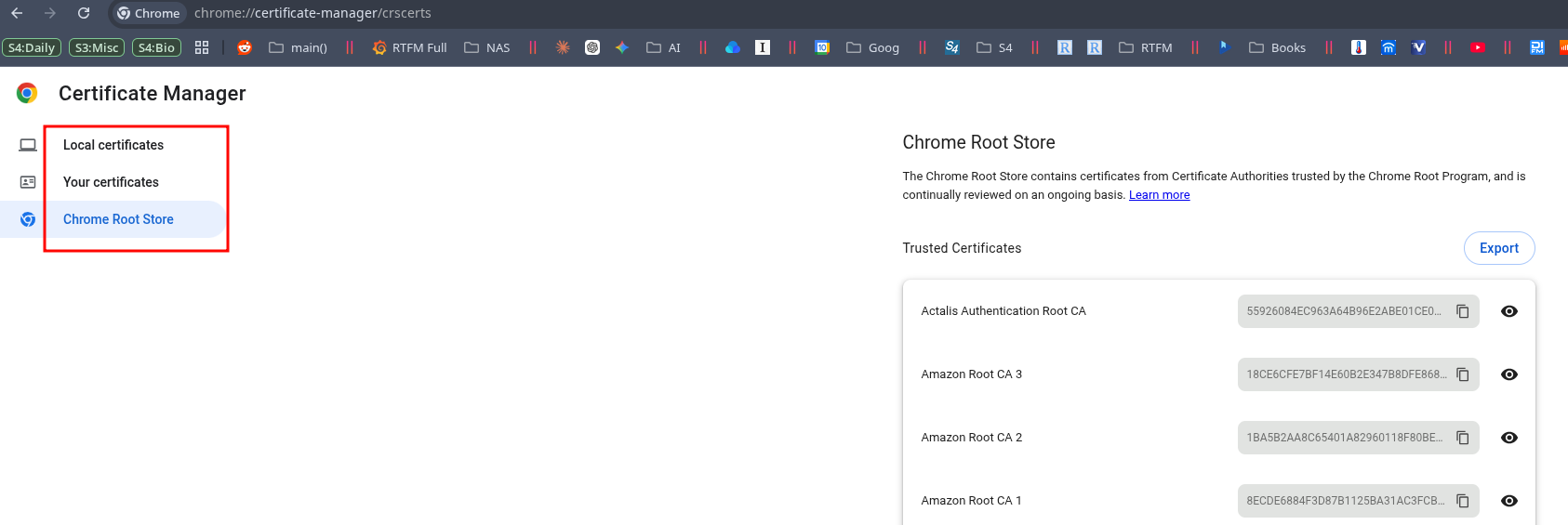
All public Certificate Authority certificates ship “bundled” with the browser or operating system.
For example, in Google Chrome the list is available at chrome://settings/certificates > Chrome Root Store:
Linux and ca-certificates
On Arch Linux, CA certificates are handled by a few packages – ca-certificates-utils and ca-certificates-mozilla.
Although there’s actually a pretty interesting chain here.
For instance, the curl package depends on a meta-package:
$ pacman -Qi curl
Name            : curl
...
Depends On      : ca-certificates
...
The ca-certificates package in turn depends on ca-certificates-mozilla:
$ pacman -Qi ca-certificates
Name            : ca-certificates
...
Depends On      : ca-certificates-mozilla
...
And ca-certificates-mozilla pulls in ca-certificates-utils:
$ pacman -Qi ca-certificates-mozilla
Name            : ca-certificates-mozilla
...
Depends On      : ca-certificates-utils>=20181109-3
...
The ca-certificates-utils package creates the directories (/etc/ca-certificates/, /etc/ssl/certs/), adds man pages, and installs the /usr/bin/update-ca-trust utility.
The ca-certificates-mozilla package adds the /usr/share/ca-certificates/trust-source/mozilla.trust.p11-kit file to the system, which contains all the public CA certificates.
For example, the already-mentioned “Organization=Google Trust Services” with “CommonName=GTS Root R1“:
$ cat /usr/share/ca-certificates/trust-source/mozilla.trust.p11-kit | grep -A 10 "Google Trust Services"
#        Issuer: C=US, O=Google Trust Services LLC, CN=GTS Root R1
#        Validity
#            Not Before: Jun 22 00:00:00 2016 GMT
#            Not After : Jun 22 00:00:00 2036 GMT
#        Subject: C=US, O=Google Trust Services LLC, CN=GTS Root R1
#        Subject Public Key Info:
#            Public Key Algorithm: rsaEncryption
#                Public-Key: (4096 bit)
#                Modulus:
#                    00:b6:11:02:8b:1e:e3:a1:77:9b:3b:dc:bf:94:3e:
#                    b7:95:a7:40:3c:a1:fd:82:f9:7d:32:06:82:71:f6:
#                    f6:8c:7f:fb:e8:db:bc:6a:2e:97:97:a3:8c:4b:f9:
#                    2b:f6:b1:f9:ce:84:1d:b1:f9:c5:97:de:ef:b9:f2:
#                    a3:e9:bc:12:89:5e:a7:aa:52:ab:f8:23:27:cb:a4:
#                    b1:9c:63:db:d7:99:7e:f0:0a:5e:eb:68:a6:f4:c6:
...
And update-ca-trust is a bash script that calls the /usr/bin/trust utility and extracts the certificates into the DEST=/etc/ca-certificates/extracted/cadir directory:
$ ll /etc/ca-certificates/extracted/cadir/ | grep GTS_Root_R1
-r--r--r-- 1 root root 1.9K Apr  3 14:57 GTS_Root_R1.pem
And then creates symlinks in /etc/ssl/certs/.
$ ll /etc/ssl/certs/ | grep GTS_Root_R1
lrwxrwxrwx 1 root root   53 Apr  3 14:57 GTS_Root_R1.pem -> ../../ca-certificates/extracted/cadir/GTS_Root_R1.pem
We can check the available certificates with trust list:
$ trust list | grep -B2 -A 2 "GTS Root R1"
pkcs11:id=%E4%AF%2B%26%71%1A%2B%48%27%85%2F%52%66%2C%EF%F0%89%13%71%3E;type=cert
    type: certificate
    label: GTS Root R1
    trust: anchor
    category: authority
So, what we’re going to do: we’ll create our own root key for our Certificate Authority, use it to sign a TLS certificate for NGINX, and then add our Certificate Authority’s certificate to the trusted store on our work machines.
CA, CSR, CRT, KEY files
I want to pause here separately, because I actually don’t do manual certificate work that often, and it’s easy to get lost in the number of related files.
So, we’ll have two key+certificate pairs.
Pair 1 – our Certificate Authority:
ca-private.key: the CA’s private key- used exclusively to sign other certificates, kept separate from the NGINX certificates
ca-public.crt: the CA’s public certificate- signed by
ca-private.key– that’s exactly why this scheme is “self-signed” – we sign our own public certificate ourselves, and then add it to the hosts’ trust store
- signed by
Pair 2 – for NGINX:
wildcard.net.setevoy.key: NGINX’s private key- lives on the server and isn’t shared with anyone
- during the TLS handshake, NGINX uses it to sign a challenge from the client, thereby proving it owns the key (the key itself doesn’t travel over the network)
wildcard.net.setevoy.crt: the final public web server certificate, signed by our CA- this is the CSR plus a signature from
ca-private.key - this is the file NGINX actually serves to the browser
- this is the CSR plus a signature from
Separately, we’ll create a Certificate Signing Request (CSR) file – wildcard.net.setevoy.csr – which will be used to produce the signature for the public certificate wildcard.net.setevoy.crt.
The certificate validation process
Now let’s walk through how the CA is actually used to verify NGINX’s certificate.
The examples here use files that are already prepared.
We’ll have a wildcard.net.setevoy.crt file that NGINX sends to the client during connection, signed by ca-private.key – the CA’s private key.
The client has our CA’s public certificate – ca-public.crt – in its trust store, and uses it to verify that wildcard.net.setevoy.crt was actually signed by ca-private.key.
The wildcard.net.setevoy.crt file contains a set of fields:
# openssl x509 -in wildcard.net.setevoy.crt -noout -text
Certificate:
    Data:
        ...
        Signature Algorithm: sha256WithRSAEncryption
        Issuer: C = UA, ST = Kyiv, O = Setevoy Home NAS, CN = Setevoy CA
        Validity
            Not Before: Apr 18 11:35:59 2026 GMT
            Not After : Jul 21 11:35:59 2028 GMT
        Subject: C = UA, ST = Kyiv, O = Setevoy Home NAS, CN = *.net.setevoy
        Subject Public Key Info:
            Public Key Algorithm: rsaEncryption
                Public-Key: (2048 bit)
                Modulus:
                    00:dd:c6:f7:e1:13:1c:dd:91:44:37:d5:75:09:ca:
                    fb:16:a5:80:22:23:42:6e:6b:7c:1f:08:dd:25:f3:
                    7f:bd:05:13:74:79:76:de:d7:2b:f8:4c:bd:4c:a5:
                    ...
    Signature Algorithm: sha256WithRSAEncryption
    Signature Value:
        3d:24:95:55:cd:fb:c6:af:35:59:bc:dd:f6:05:fb:da:c9:51:
        f1:37:38:79:f0:e8:62:4a:5c:bc:f3:da:4b:45:8c:39:75:f4:
        3c:e5:3f:73:89:e6:8a:93:79:52:d7:8e:08:b0:50:02:ce:e9:
        18:63:4d:cd:ef:be:fa:78:f2:ed:01:db:77:e8:30:d7:b6:27:
        ...
To sign this certificate, the CA takes a hash (SHA-256) of the entire Data section (subject, issuer, public key, validity, SAN, …), encrypts that hash with its private key ca-private.key, and attaches the result to the certificate as the “Signature Value” field.
When the client receives wildcard.net.setevoy.crt from NGINX, it checks the issuer value, sees “Setevoy CA” there, and looks up a CA certificate in its trust store with a matching subject – which will be our ca-public.crt.
Now the client has wildcard.net.setevoy.crt with its Signature Value, and ca-public.crt, and then:
- the client takes the
Datasection from the certificate and computes its own SHA-256 hash – let’s call this hash “H1“ - takes the
Signature Valueand decrypts it with the CA’s public key (which is insideca-public.crt) – this gives hash “H2“
If the hashes match – the signature was indeed made by the private key paired with the CA’s public key, ca-private.key.
“H1” and “H2” here are just made-up labels to make it easier to follow what we’re going to do below.
Demo: verifying a certificate signature
Looks nice in theory – but let’s look at how this mechanism actually works in practice.
Let’s create a data.txt file – this will be our stand-in for the Data block from the wildcard.net.setevoy.crt certificate:
$ echo "Hello, this is our Data block" > data.txt
Create a private key – this will be our stand-in for ca-private.key, the CA’s private key:
$ openssl genrsa -out demo.key 2048
We’ll use ca-private.key to sign the hash of data.txt.
Extract the public part from demo.key – this will be our stand-in for ca-public.crt, the CA’s public certificate:
$ openssl rsa -in demo.key -pubout -out demo.pub
With ca-public.crt we should be able to verify the signature made by ca-private.key and get the original data back.
Now the fun part.
Compute the hash of the data in data.txt – this will be our stand-in “H1“:
$ openssl dgst -sha256 data.txt
SHA2-256(data.txt)= 959af28af72380bb03c44bf734d886a4ee3302d83a6edb0283a428e9850b9b68
This is the same hash the client will compute on its own from the certificate’s Data block when it comes from NGINX.
Sign the data using the CA’s private key:
$ openssl dgst -sha256 -sign demo.key -out signature.bin data.txt
Now in the signature.bin file we have 256 bytes – this is actually the same “Signature Value” from NGINX’s certificate, just sitting in a separate file rather than as a field inside the certificate:
$ od -An -tx1 signature.bin | tr -d ' \n' | head -c 200
203f65033571f3c7...d51b
Next we need to decrypt this hash using the CA’s public certificate:
$ openssl pkeyutl -verifyrecover -pubin -inkey demo.pub -in signature.bin -out decrypted.bin
Check what’s inside:
$ openssl asn1parse -inform DER -in decrypted.bin
   ...
    4:d=2  hl=2 l=   9 prim: OBJECT            :sha256
   ...
   17:d=1  hl=2 l=  32 prim: OCTET STRING      [HEX DUMP]:959AF28AF72380BB03C44BF734D886A4EE3302D83A6EDB0283A428E9850B9B68
We see the same hash “959AF28AF…850B9B68” – this is our stand-in H2, and it’s exactly equal to H1, which we got a few steps back.
The signature is valid – which means it was made by someone who holds the private key paired with demo.pub.
The client does exactly the same thing every time it connects to NGINX – except instead of demo.pub it uses the public key from ca-public.crt in its trust store.
Alright – enough theory.
Let’s start creating keys and certificates.
Plan of action – Certificate Authority and NGINX
We’ll need to create the files for our CA, and then the files for NGINX:
- create a private key, use it to sign the CA certificate – this gives us a self-signed Public CA certificate
- create a private key for NGINX – it’ll be used during the TLS handshake to establish a secure connection
- create a CSR with the right CN and SAN – the domains the NGINX public certificate will be valid for
- using this CSR and our CA’s private key, produce the certificate for NGINX
- configure a virtualhost in NGINX with the private key and certificate
- add the CA’s public certificate to the trusted store on FreeBSD and Linux
Creating our own Certificate Authority
On FreeBSD (in my case, but the process is identical on any Linux), create a directory:
# mkdir -p /usr/local/etc/ssl/setevoy/NasCA/
# cd /usr/local/etc/ssl/setevoy/NasCA/
Generate a 4096-bit CA private key:
# openssl genrsa -out ca-private.key 4096
Using this key, generate our CA’s public self-signed certificate:
# openssl req -new -x509 -days 3650 -key ca-private.key -out ca-public.crt -subj "/C=UA/ST=Kyiv/O=Setevoy Home NAS/CN=Setevoy CA"
Here:
-new -x509: generate a new self-signed certificate (not a CSR)-days 3650: the certificate is valid for 10 years (fine for a root CA)-key ca-private.key: sign with the CA private key we just created-out ca-public.crt: where to save the public certificate-subj: the certificate’s metadata – the CN field is what we’ll later see in the browser
Check it:
# openssl x509 -in ca-public.crt -noout -issuer -subject
issuer=C = UA, ST = Kyiv, O = Setevoy Home NAS, CN = Setevoy CA
subject=C = UA, ST = Kyiv, O = Setevoy Home NAS, CN = Setevoy CA
So, issuer and subject are identical: that’s what makes it self-signed – it’s issued by “Setevoy CA” for “Setevoy CA“.
Certificate for *.net.setevoy
In NGINX we could use the ca-private.key directly – but that’s our “root” key, and if NGINX gets compromised, an attacker could sign anything with it, so for NGINX we’ll make a separate key.
Create a private key for NGINX – here 2048 bits is fine, rather than 4096 like for the root CA key:
# openssl genrsa -out wildcard.net.setevoy.key 2048
Now generate the CSR – Certificate Signing Request:
# openssl req -new -key wildcard.net.setevoy.key -out wildcard.net.setevoy.csr -subj "/C=UA/ST=Kyiv/O=Setevoy Home NAS/CN=*.net.setevoy"
Here:
req -new: generate a new CSR (without -x509, because this isn’t a certificate)-key wildcard.net.setevoy.key: use the private key we just created – its public part will go into the CSR-out wildcard.net.setevoy.csr: where to save the Certificate Signing Request itselfCN=*.net.setevoy: a wildcard covering all*.net.setevoysubdomains (though CN doesn’t really matter, see below)
Check what’s in the CSR:
# openssl req -in wildcard.net.setevoy.csr -noout -subject
subject=C = UA, ST = Kyiv, O = Setevoy Home NAS, CN = *.net.setevoy
Common Name and Subject Alternative Name
There’s a gotcha here that I ran into myself: modern browsers and clients ignore the Common Name (CN) and only look at the Subject Alternative Name (SAN) field, so putting the value in CN isn’t enough – you have to add a SAN with all the names the certificate covers.
The history of this is long. RFC 2818 deprecated CN in favor of SAN back in 2000, but left a fallback:
If a subjectAltName extension of type dNSName is present, that MUST be used as the identity. Otherwise, the (most specific) Common Name field in the Subject field of the certificate MUST be used. Although the use of the Common Name is existing practice, it is deprecated and Certification Authorities are encouraged to use the dNSName instead.
Google Chrome dropped CN-matching support completely in 2017, see Remove support for commonName matching in certificates, and Firefox and all modern TLS clients did the same.
And then RFC 9525 in 2023 officially removed CN-checking from the standard itself – see Identifying Application Services:
The Common Name RDN MUST NOT be used to identify a service because it is not strongly typed (it is essentially free-form text) and therefore suffers from ambiguities in interpretation.
So a certificate without a SAN today is a guaranteed validation error, regardless of what’s in CN.
Another thing: the wildcard *.net.setevoy covers exactly one level of subdomain, meaning test-ssl.net.setevoy – yes, but net.setevoy itself (without a prefix) – no. So we add both entries to the SAN.
Create a san.cnf file – a minimal one works:
[v3_req]
subjectAltName = DNS:*.net.setevoy, DNS:net.setevoy
Or, to do it more properly, following the OpenSSL template (see x509v3_config), the file looks like this:
[req]
req_extensions = v3_req
distinguished_name = req_distinguished_name

[req_distinguished_name]

[v3_req]
subjectAltName = @alt_names

[alt_names]
DNS.1 = *.net.setevoy
DNS.2 = net.setevoy
Here:
[req]: section for theopenssl reqcommand (CSR generation)req_extensions = v3_req: pull extensions from the[v3_req]sectiondistinguished_name = req_distinguished_name: take thesubjectfields (CN, O, C) from the[req_distinguished_name]section[req_distinguished_name]: empty, because we passsubjectvia-subjdirectly on the command line[v3_req]: section with the extensions that will go into the certificatesubjectAltName = @alt_names: take the SAN values from the[alt_names]section, where@means “reference to a section”[alt_names]: the actual list of DNS namesDNS.1,DNS.2: a workaround for an OpenSSL limitation – the DNS key can only appear once in a single section, so they append .1, .2
Now create the NGINX public certificate itself, signed by our CA private key:
# openssl x509 -req -days 825 -in wildcard.net.setevoy.csr -CA ca-public.crt -CAkey ca-private.key -CAcreateserial -out wildcard.net.setevoy.crt -extensions v3_req -extfile san.cnf
Certificate request self-signature ok
subject=C = UA, ST = Kyiv, O = Setevoy Home NAS, CN = *.net.setevoy
Options here:
x509 -req: sign the CSR and turn it into a certificate-CA ca-public.crt -CAkey ca-private.key: sign with our CA-CAcreateserial: generates a certificate serial number (creates aca.srlfile)-days 825: the maximum that Chrome/Safari accept without complaints (an Apple restriction from 2020, see Apple Cuts SSL Validity Period to 13 Months Effective September 1)-extfile san.cnf -extensions v3_req: add the SAN list from the config (without this the SAN won’t be written to the certificate, even if it was in the CSR)
The sequence for producing the certificate from the CSR looks like this:
- input: the CSR (
wildcard.net.setevoy.csr) – the request withsubject,public key, and SAN fields - OpenSSL takes the data from the CSR (
subject,public key), adds a few fields on its own (issuer = Setevoy CA,validity,serial number,extensionsfromsan.cnf), and assembles it all into a newDatastructure - hashes this
Datastructure, encrypts the hash with the CA’s private key – producing the Signature Value - output: packs
Data+Signature Valueinto a single file – this iswildcard.net.setevoy.crt
Check what’s in the new certificate:
# openssl x509 -in wildcard.net.setevoy.crt -noout -issuer -subject -dates
issuer=C = UA, ST = Kyiv, O = Setevoy Home NAS, CN = Setevoy CA
subject=C = UA, ST = Kyiv, O = Setevoy Home NAS, CN = *.net.setevoy
notBefore=Apr 18 11:35:59 2026 GMT
notAfter=Jul 21 11:35:59 2028 GMT
Now issuer is Setevoy CA, and subject is our wildcard. This means the certificate is signed by our CA, not by itself.
Check that SAN is in place:
# openssl x509 -in wildcard.net.setevoy.crt -noout -ext subjectAltName
X509v3 Subject Alternative Name:
    DNS:*.net.setevoy, DNS:net.setevoy
And we end up with three files:
wildcard.net.setevoy.key: private key for NGINXwildcard.net.setevoy.csr: the Certificate Signing Request we used to produce the certificatewildcard.net.setevoy.crt: the actual certificate that’ll be served to clients
Configuring SSL in NGINX
Create a directory for the certificates:
# mkdir -p /usr/local/etc/nginx/ssl
Copy the certificate and key:
# cp /usr/local/etc/ssl/setevoy/NasCA/wildcard.net.setevoy.crt /usr/local/etc/nginx/ssl
# cp /usr/local/etc/ssl/setevoy/NasCA/wildcard.net.setevoy.key /usr/local/etc/nginx/ssl
Restrict access to the private key to root only:
# chmod 600 /usr/local/etc/nginx/ssl/wildcard.net.setevoy.key
Move the common SSL parameters into a separate file /usr/local/etc/nginx/conf.d/ssl.conf, so we don’t duplicate them in every virtualhost:
ssl_certificate     /usr/local/etc/nginx/ssl/wildcard.net.setevoy.crt;
ssl_certificate_key /usr/local/etc/nginx/ssl/wildcard.net.setevoy.key;
ssl_protocols       TLSv1.2 TLSv1.3;
ssl_ciphers         HIGH:!aNULL:!MD5;
And the virtualhost itself, for example /usr/local/etc/nginx/conf.d/test-ssl.net.setevoy.conf:
server {
    listen 80;
    server_name test-ssl.net.setevoy;
    return 301 https://$host$request_uri;
}

server {
    listen 443 ssl;
    server_name test-ssl.net.setevoy;

    include /usr/local/etc/nginx/conf.d/ssl.conf;

    location / {
        root /usr/local/www/nginx;
        index index.html;
    }
}
Although include /usr/local/etc/nginx/conf.d/ssl.conf could actually be moved to nginx.conf into the http{} section.
Check the config and reload:
# nginx -t && service nginx reload
nginx: the configuration file /usr/local/etc/nginx/nginx.conf syntax is ok
nginx: configuration file /usr/local/etc/nginx/nginx.conf test is successful
Try curl:
# curl https://test-ssl.net.setevoy
curl: (60) SSL certificate OpenSSL verify result: unable to get local issuer certificate (20)
More details here: https://curl.se/docs/sslcerts.html

curl failed to verify the legitimacy of the server and therefore could not
establish a secure connection to it. To learn more about this situation and
how to fix it, please visit the webpage mentioned above.
This is expected: curl doesn’t know about our CA, because we haven’t added it anywhere yet.
Adding the CA to the local trusted stores
To make validation pass without errors, we need to add the CA’s public certificate to the trust store on every host.
FreeBSD and certctl
Copy the CA certificate into the system directory:
# cp /usr/local/etc/ssl/setevoy/NasCA/ca-public.crt /usr/local/share/certs/setevoy-nas-ca.crt
Refresh the trusted store (takes a couple of minutes):
# certctl rehash
Check it:
# certctl list | grep -i setevoy
certctl: Listing Trusted Certificates:
f6c33121.0      Setevoy CA
And now curl from the FreeBSD host works without errors:
# curl https://test-ssl.net.setevoy
<!DOCTYPE html>
<html>
<head>
<title>Welcome to nginx!</title>
...
Arch Linux and trust
Copy ca-public.crt from FreeBSD to the Arch Linux laptop:
[setevoy@setevoy-work ~] $ scp [email protected]:/usr/local/etc/ssl/setevoy/NasCA/ca-public.crt setevoy-nas-ca.crt
ca-public.crt
Put it into the system trust source:
[setevoy@setevoy-work ~] $ sudo cp setevoy-nas-ca.crt /etc/ca-certificates/trust-source/anchors/
Refresh it:
[setevoy@setevoy-work ~] $ sudo update-ca-trust
Now we have a symlink in /etc/ssl/certs/:
[setevoy@setevoy-work ~] $ ll /etc/ssl/certs/ | grep Sete
lrwxrwxrwx 1 root root   52 Apr 18 15:02 Setevoy_CA.pem -> ../../ca-certificates/extracted/cadir/Setevoy_CA.pem
And we can see the certificate in trust list:
[setevoy@setevoy-work ~] $ trust list | grep -i "setevoy"
    label: Setevoy CA
Check with curl:
[setevoy@setevoy-work /tmp]  $ curl https://test-ssl.net.setevoy
<!DOCTYPE html>
<html>
<head>
<title>Welcome to nginx!</title>
...
Bonus: quick certificate debugging
If the browser or curl is still complaining about the certificate – here are some handy commands to check things.
See what NGINX is actually serving:
$ openssl s_client -connect test-ssl.net.setevoy:443 </dev/null 2>/dev/null | openssl x509 -noout -issuer -subject -ext subjectAltName
issuer=C=UA, ST=Kyiv, O=Setevoy Home NAS, CN=Setevoy CA
subject=C=UA, ST=Kyiv, O=Setevoy Home NAS, CN=*.net.setevoy
X509v3 Subject Alternative Name:
    DNS:*.net.setevoy, DNS:net.setevoy
Here we check: correct issuer (our CA), correct subject, and most importantly – the Subject Alternative Name with the host we need.
Check a connection with a specific CA without adding it to the system:
[setevoy@setevoy-work /tmp]  $ curl --cacert ./setevoy-nas-ca.crt https://test-ssl.net.setevoy
<!DOCTYPE html>
<html>
<head>
<title>Welcome to nginx!</title>
...
If it works with --cacert but not without it, that means the CA didn’t make it into the system trust store – check update-ca-trust / certctl rehash.
Check the full chain:
$ openssl s_client -connect test-ssl.net.setevoy:443 -showcerts
Connecting to 192.168.0.2
CONNECTED(00000003)
depth=0 C=UA, ST=Kyiv, O=Setevoy Home NAS, CN=*.net.setevoy
verify error:num=20:unable to get local issuer certificate
verify return:1
depth=0 C=UA, ST=Kyiv, O=Setevoy Home NAS, CN=*.net.setevoy
verify error:num=21:unable to verify the first certificate
verify return:1
depth=0 C=UA, ST=Kyiv, O=Setevoy Home NAS, CN=*.net.setevoy
verify return:1
---
Certificate chain
 0 s:C=UA, ST=Kyiv, O=Setevoy Home NAS, CN=*.net.setevoy
   i:C=UA, ST=Kyiv, O=Setevoy Home NAS, CN=Setevoy CA
   a:PKEY: RSA, 2048 (bit); sigalg: sha256WithRSAEncryption
   v:NotBefore: Apr 18 11:35:59 2026 GMT; NotAfter: Jul 21 11:35:59 2028 GMT
...
Browsers and CA certificates
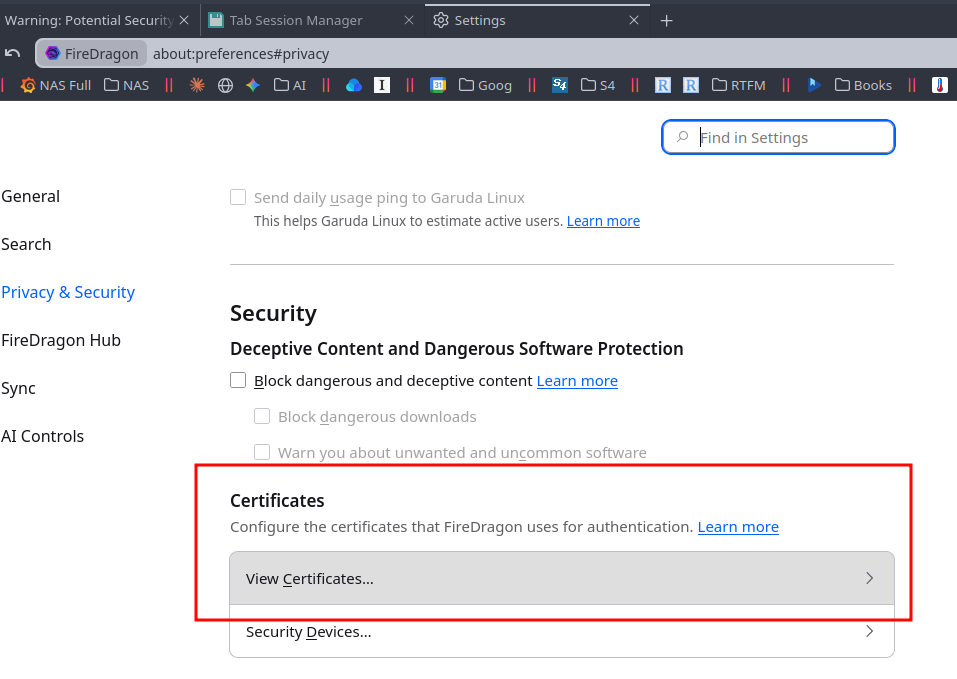
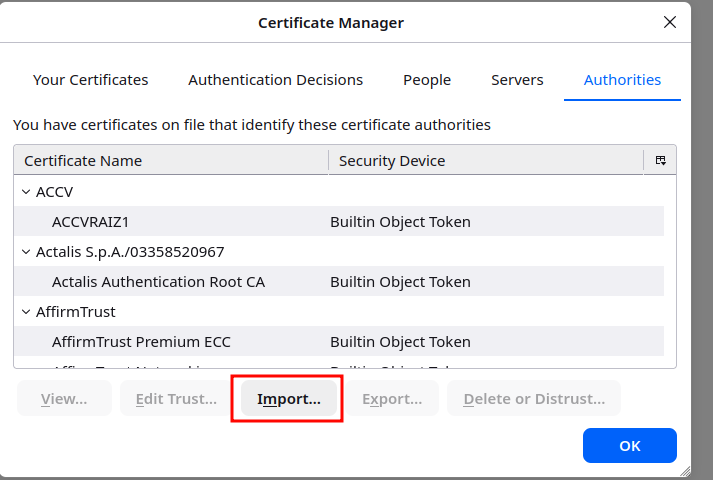
A separate note about browsers: Firefox has its own trust store and doesn’t look at the system one, so for Firefox our own CA certificate has to be added separately via about:preferences#privacy > “View Certificates”:
Then Import:
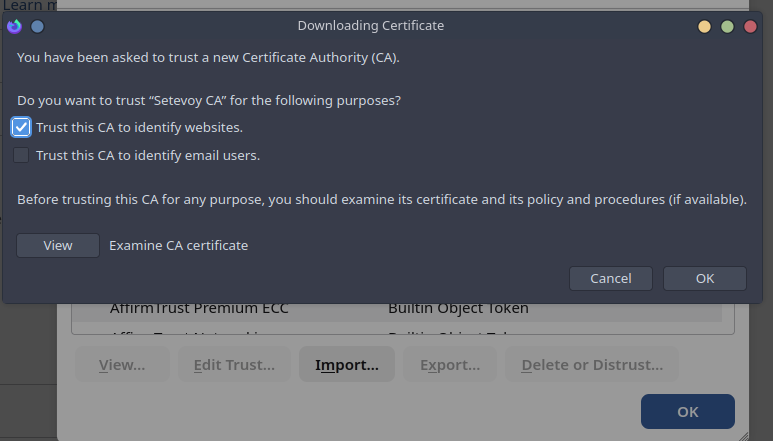
And now it works without errors:

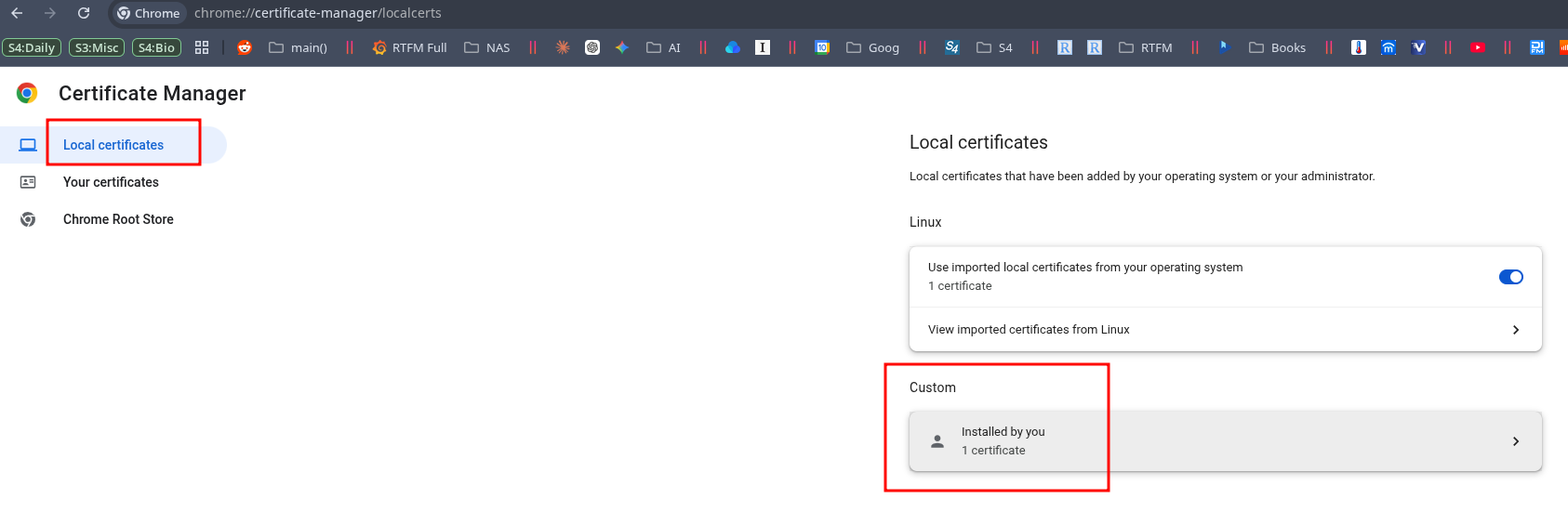
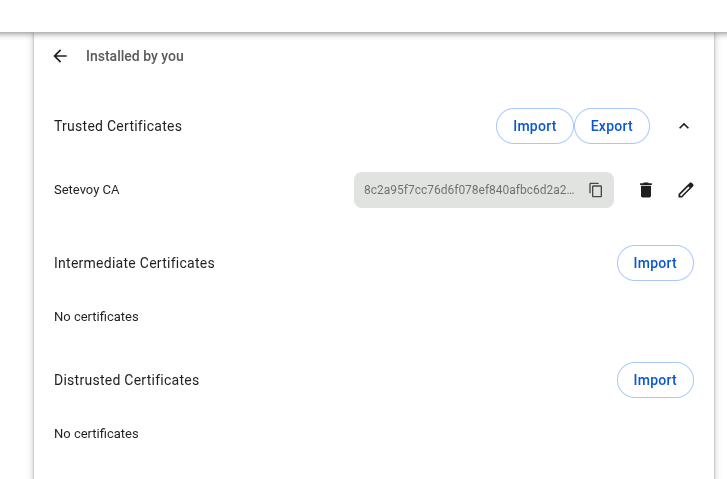
Google Chrome, Brave, Vivaldi and the rest on Linux usually use the system trust store, but you can also import manually on the chrome://certificate-manager/localcerts page:
 Done.
Done.
