 Continuing with Okta setup for our project. In previous parts we did SSO for Grafana (see Okta: setting up Grafana SSO with OIDC and Role mapping) and AWS (see AWS: setting up Okta SSO with AWS IAM Identity Center), and now the most interesting part: integrating Okta with Google Workspaces.
What we’ll need to do:
- set up Users Provisioning: we want to manage all users from Okta, meaning when an Okta User is created – automatically create a Google account, and when a user is deactivated in Okta – block their Google account too
- set up SSO/SAML: users should log into Google services only through Okta
In this part we’ll set up Provisioning, and in the next one – SSO.
In Okta we’ll use the Google Workspace App.
I wrote about this back in 2019 in the post Okta: G-Suite integration – provisioning and users import and export, and actually nothing has changed except for the Okta interface.
But that post is 7 (OMG!) years old, plus this time I’m doing two integrations, so let it be a fresh write-up, and this time it came out more detailed.
The examples here are on my own Google Workspace account, but it’s already done on the work project too – it’s been in production for about a month, all good so far.
Okta documentation – Google Workspace.
Hopefully I’ll find time to look at Authentik – an open-source self-hosted IdP, an alternative to Okta, but it’s not really relevant right now since we already have Okta licenses, and the Open Source version is missing a lot of ready-made integrations. Maybe I’ll use it for my Home NAS on FreeBSD and its services.
Contents
SCIM and Users Provisioning
A few words about SCIM – System for Cross-domain Identity Management.
Same as with Provisioning for AWS and its IAM Identity Center – managing users from Okta in Google Workspace happens via the SCIM protocol.
SCIM was created in 2011 to bring some order to various integrations, SCIM 2.0 was published in 2015 and is now used pretty much everywhere – see RFC 7642-7644.
In fact, it’s a REST API that describes how operations on users and groups should happen – create, read, update, delete, and the RFC above has examples of GET/POST/PATCH requests:
$ GET /Users/2819c223-7f76-453a-919d-413861904646
Host: example.com
...
HTTP/1.1 200 OK
Content-Type: application/scim+json
Location:
  https://example.com/v2/Users/2819c223-7f76-453a-919d-413861904646
...
   {
     "schemas":["urn:ietf:params:scim:schemas:core:2.0:User"],
     ...
     "meta":{
       "resourceType":"User",
     ...
     "name":{
       "formatted":"Ms. Barbara J Jensen III",
       "familyName":"Jensen",
       "givenName":"Barbara"
     },
     ...
     "emails":[
       {
         "value":"[email protected]",
         "type":"work"
       }
     ]
   }
...
The Okta Google Workspace App “knows” which API calls to make to Google to create a user – and Okta knows what to pass “as input” to Google Workspace.
Alternatives – LDAP (I used to write about OpenLDAP), JIT provisioning (Just-in-Time) – when you have SSO with a service, and a user logs in for the first time – a user is created in that service.
Okta: adding the Google Workspaces App
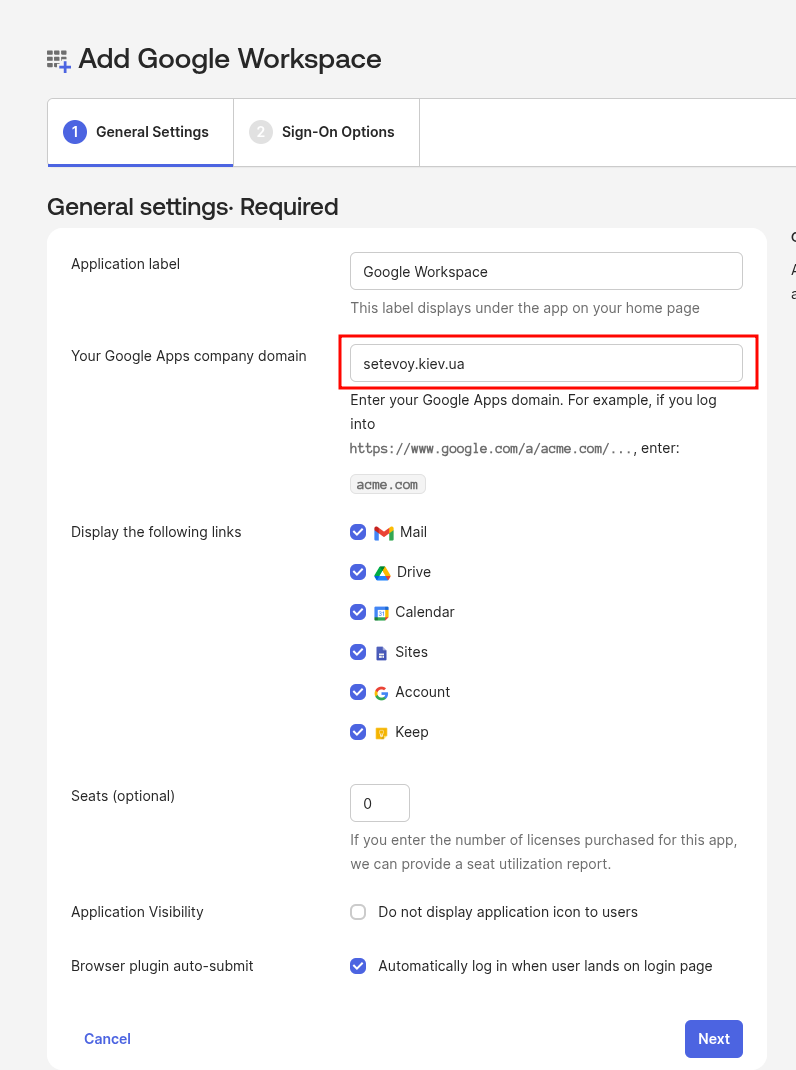
To configure the Google Workspaces App in Okta, we’ll need to specify the Company Domain.
Important: after the App is created, the “Your Google Apps company domain” field can no longer be changed via Edit – so set it correctly right away, it’ll be needed for SSO.
Go to the Google Workspaces admin console, then Account > Domains, find Primary domain:
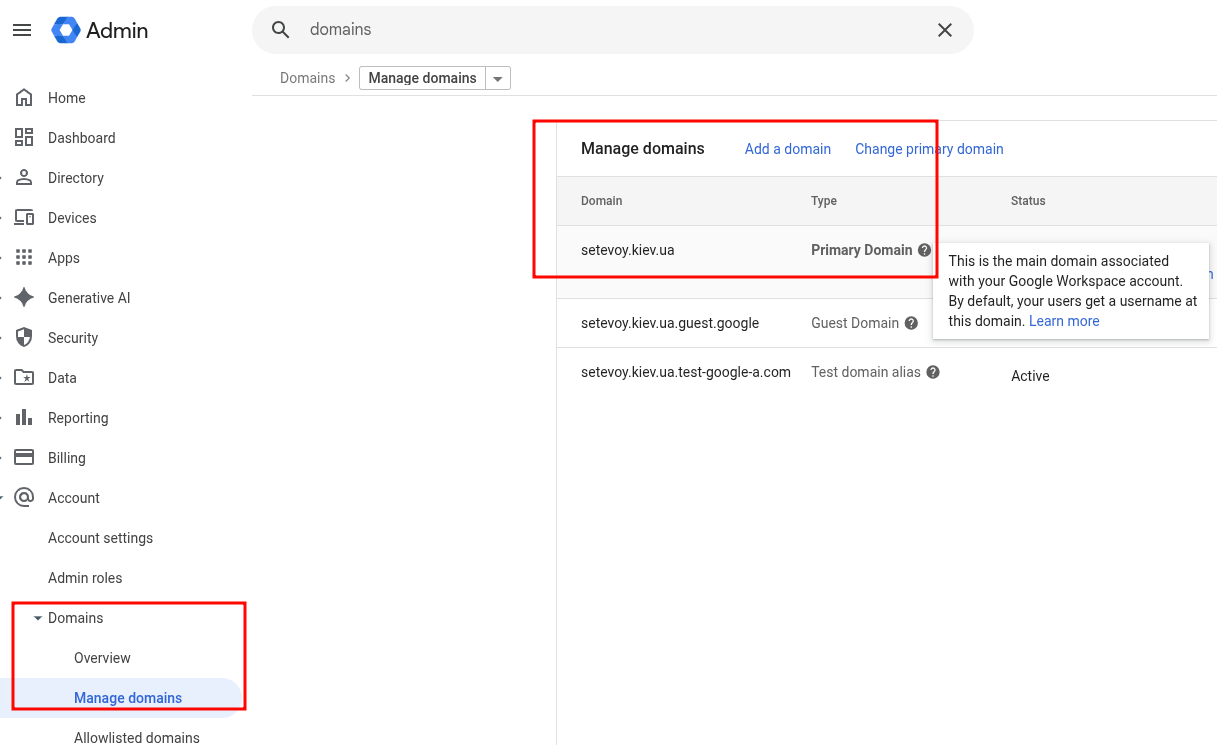
It’ll be used in SSO and when generating links to services.
So a Gmail link will look like https://mail.google.com/a/setevoy.kiev.ua.
Add a new Application in Okta, in General Settings set this Company Domain:
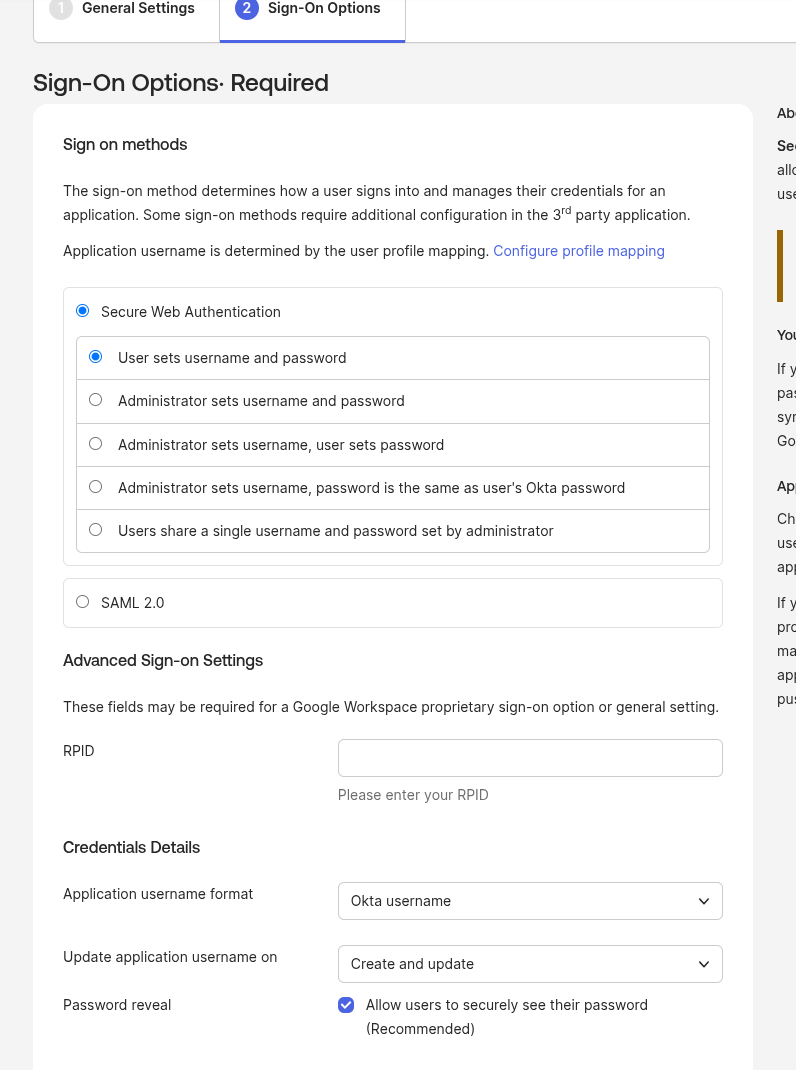
In Sign-On we don’t change anything for now – we’ll set up SAML in part two:
That’s it – we can do Provisioning.
Configuring Provisioning
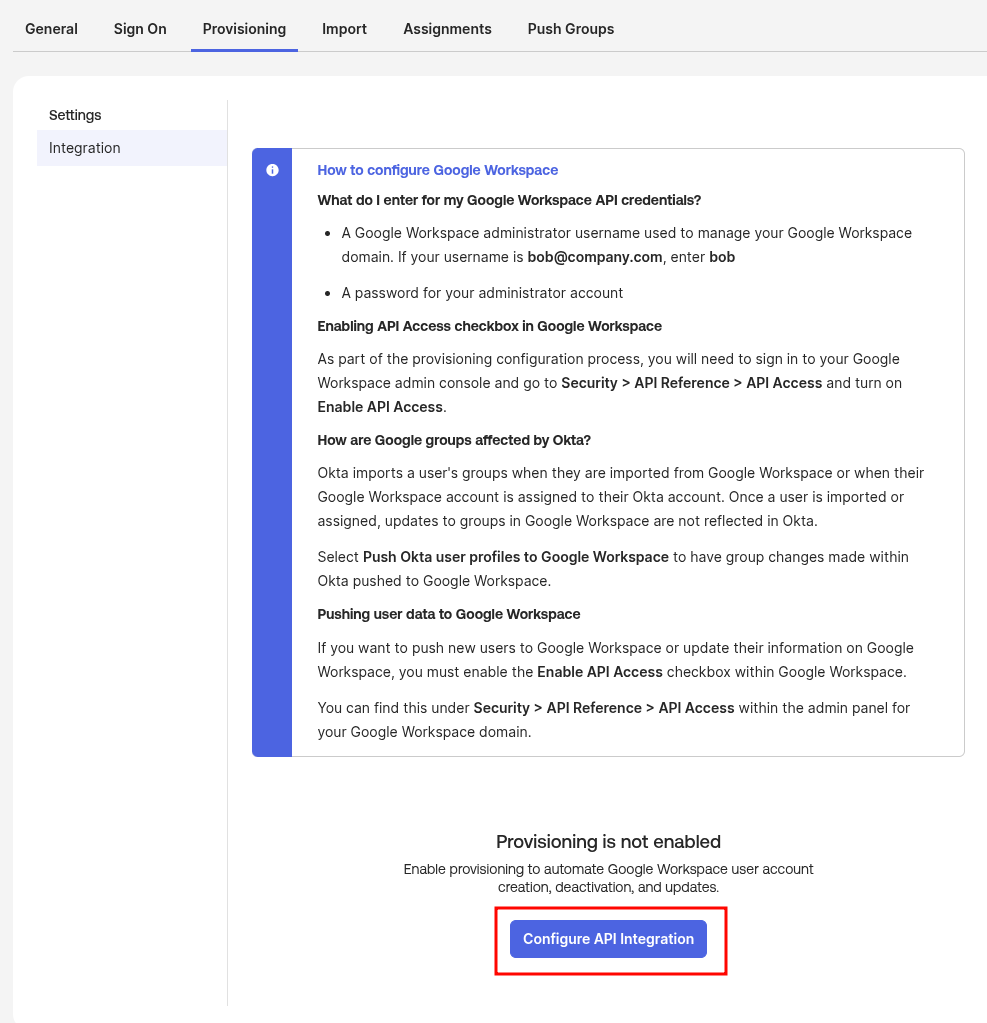
Go to the Provisioning tab, click Configure API Integration:
Log in with the admin account (with Super Admin role) of our Google Workspace:
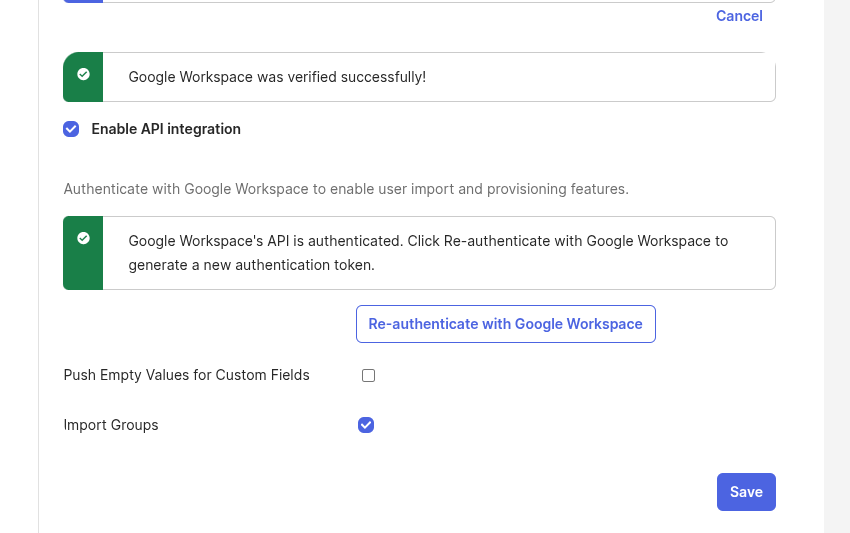
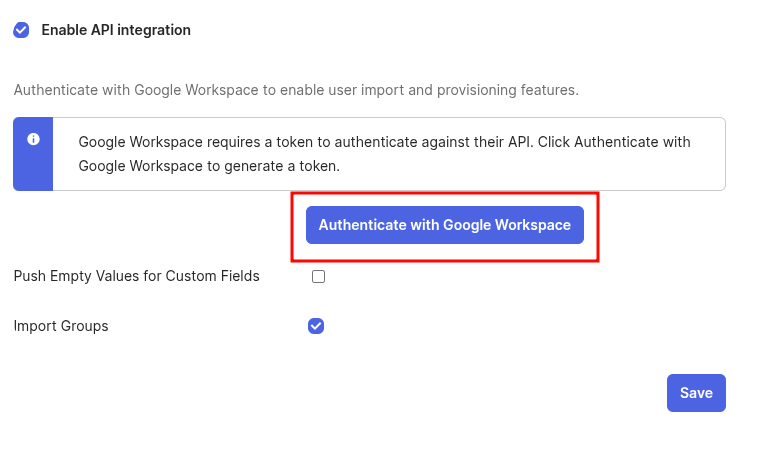 The Push Empty Values for Custom Fields option here – if the Okta User Profile has custom attributes but they have empty values – then Okta won’t push them to Google.
Attribute Mappings are in the Profile Editor:
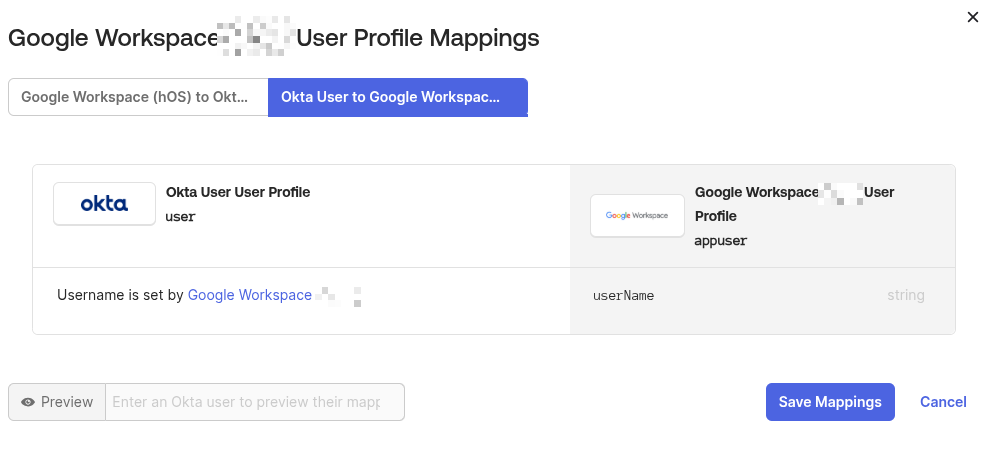
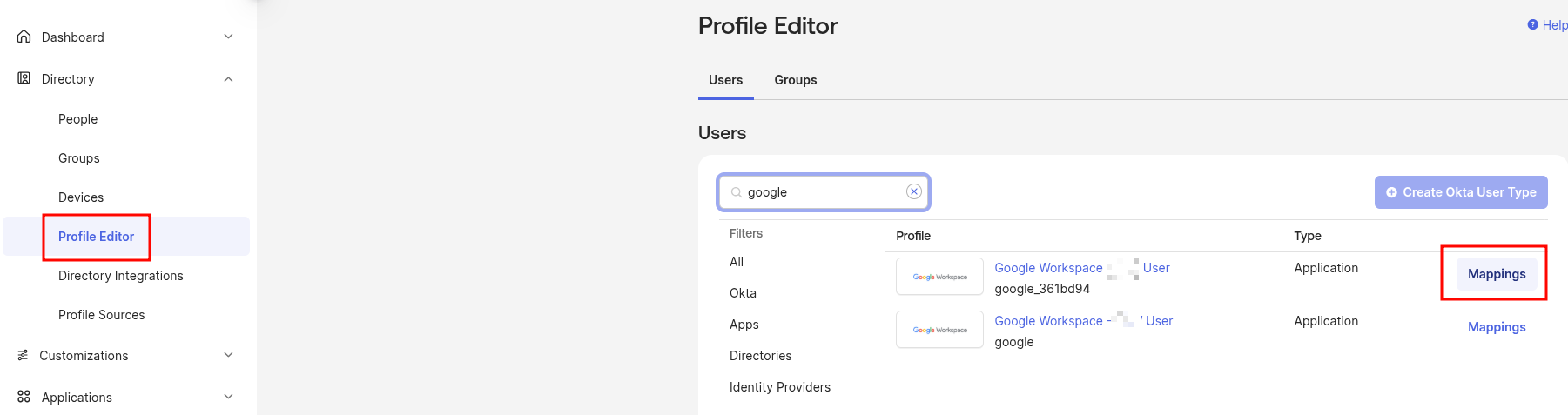 But there only userName is mapped from Okta to Google:
The Import Groups option – whether to import groups from https://admin.google.com/ac/groups into Okta as separate users. In my case, since the integration will only be for managing users – I don’t need groups.
Google Workspace Permissions for Okta
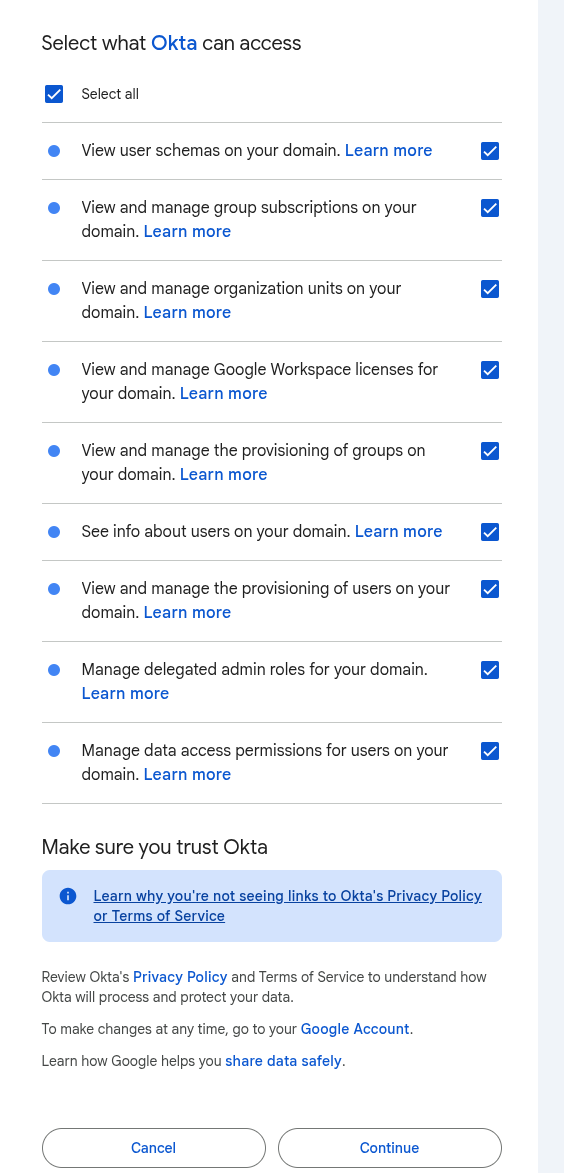
Click “Authenticate with Google Workspace”, choose what Okta is allowed to do in Google:
- View user schemas on your domain, See info about users on your domain, View and manage the provisioning of users on your domain: enable – this is the main reason we’re doing the integration, working with Google Users
- View and manage the provisioning of groups on your domain, View and manage group subscriptions on your domain: if we want to manage Google Groups from Okta – enable
- then we can do Group Push from Okta to Google: if we have an Okta Group like “my-Group“, it’ll be added to Google as “[email protected]“
- when we add an Okta user to an Okta Group – they’ll also be added to the Google Group
- View and manage organization units on your domain: if we have an attribute mapping in Okta to the Organization Unit (OU) field and enable this permission – then Okta can manage the user’s OU in Google
- Manage delegated admin roles: if we use Manage roles on create and update (more on that later) – if we don’t plan to manage Google roles from Okta – we can skip this
- View and manage Google Workspace licenses: whether to allow license management
- Manage data access permissions: session management – deactivating a user in Okta terminates all their active sessions in Google, enable
There’s a nice list of all Google OAuth scopes in the table at Google Workspace (G Suite) Integration.
After authentication Okta won’t start managing anything yet – all users in Google will stay unchanged, because Provisioning itself isn’t configured yet.
But in any case for Production it’s worth creating a separate breaking glass user, who isn’t integrated with either SSO or provisioning.
Enable all permissions:
Done:
Importing users from Google to Okta
Okta lets you sync users either from Okta to Google or the other way around:
- if you already have users in Okta and the Google account is new or already has the same users – this part can be skipped
- if you already have users in Google Workspaces and you’re setting up a new Okta account – you can import users from Google to Okta
Google to Okta: import settings
First, you can go to Provisioning > To Okta, and check the settings there.
Actually, we’ll leave all the defaults for now, but keep in mind what can be changed here.
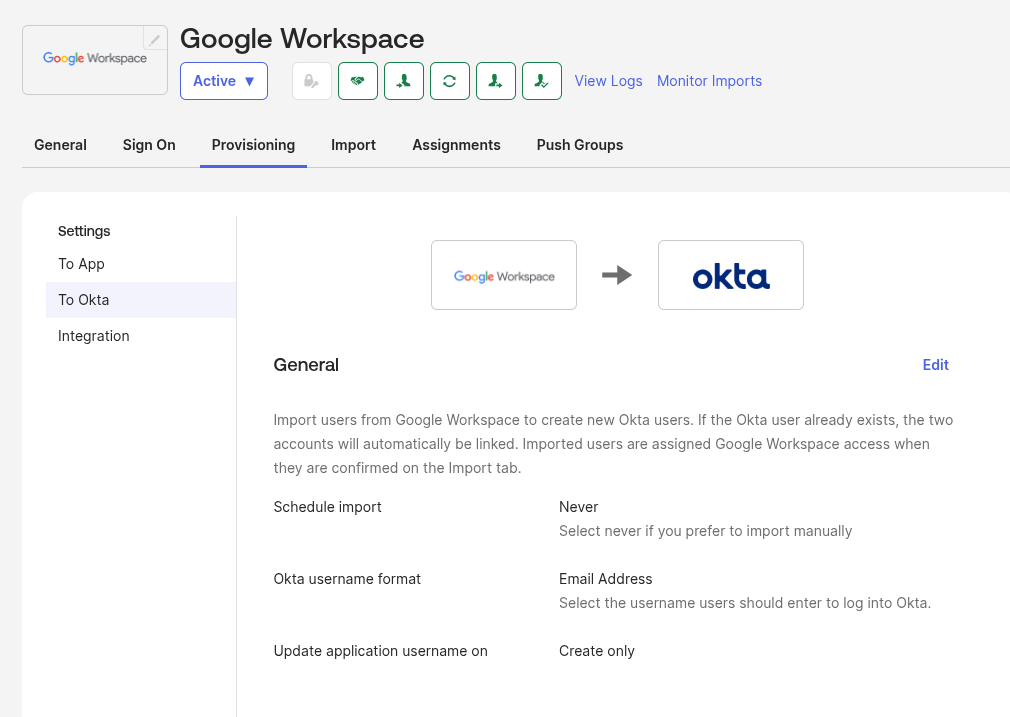
In General we can add a cron schedule and, if we use a custom one, change the Okta username format.
The interesting option here is Update application username on: we also leave the default value Create only, because even if we set it to Create and update, this will only affect this user’s SSO – which username gets sent in the SAML assertion (see my old post What is: SAML – an overview, its structure and requests tracing between a Jenkins and Okta SSO, 2019), but the account in Google itself won’t be automatically renamed:
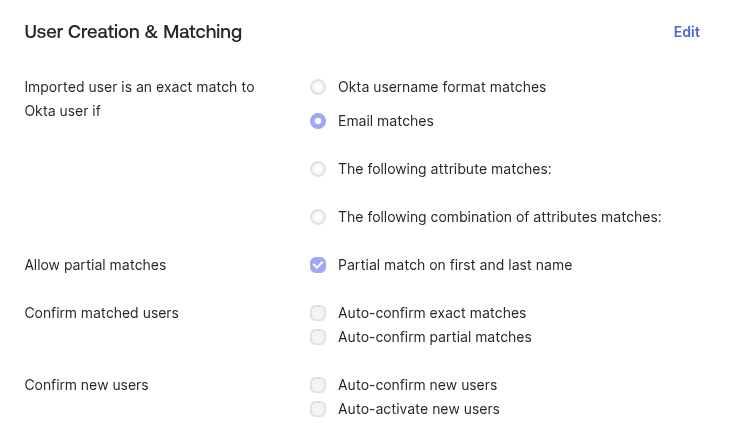
Next, the options in “User Creation & Matching”:
- Imported user is an exact match if: how Okta compares Google users with its own database – leave it as email
- Allow partial matches: if a user’s email in Google != in Okta, then Okta will try to look them up by First Name / Last Name. Better to disable this in Production – we might have two users with similar names/last names, and Okta could mix them up (although we’re going to do manual review anyway)
- Confirm matched users and Confirm new users: you can enable automatic approve for imported users, the default is off, and that’s the right call for production
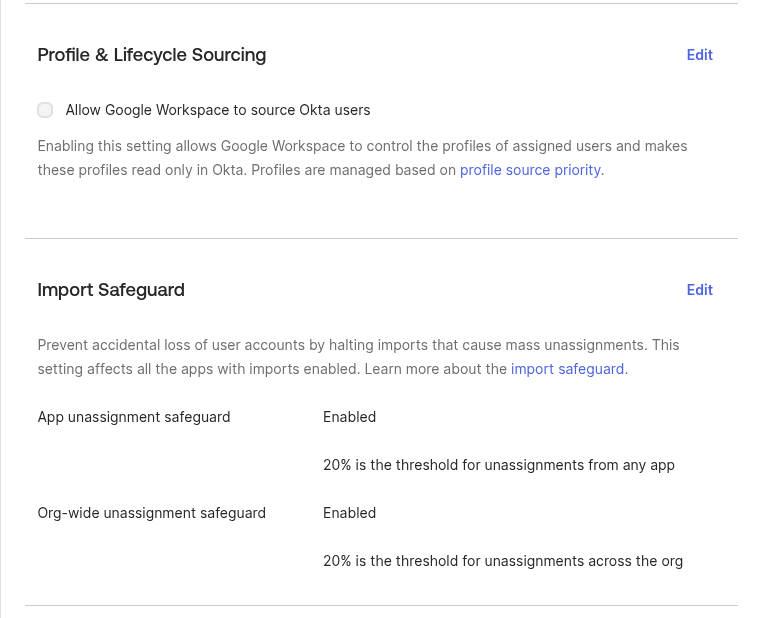
And the last two sections here – “Profile & Lifecycle Sourcing” and “Import Safeguard”.
Allow Google Workspace to source Okta users determines who manages profiles: if enabled, profiles are edited in Google and become read-only for Okta – we don’t want that.
Import Safeguard – very useful thing: if we have 50 Okta users with Google Workspaces assigned, and then during import from Google (for example, if we enable scheduled import) Okta receives not 50 accounts from Google but only 5 – it won’t go and unassign all the users from the Google Workspace App, but will pause the import and require manual confirmation:
Google to Okta: running the import
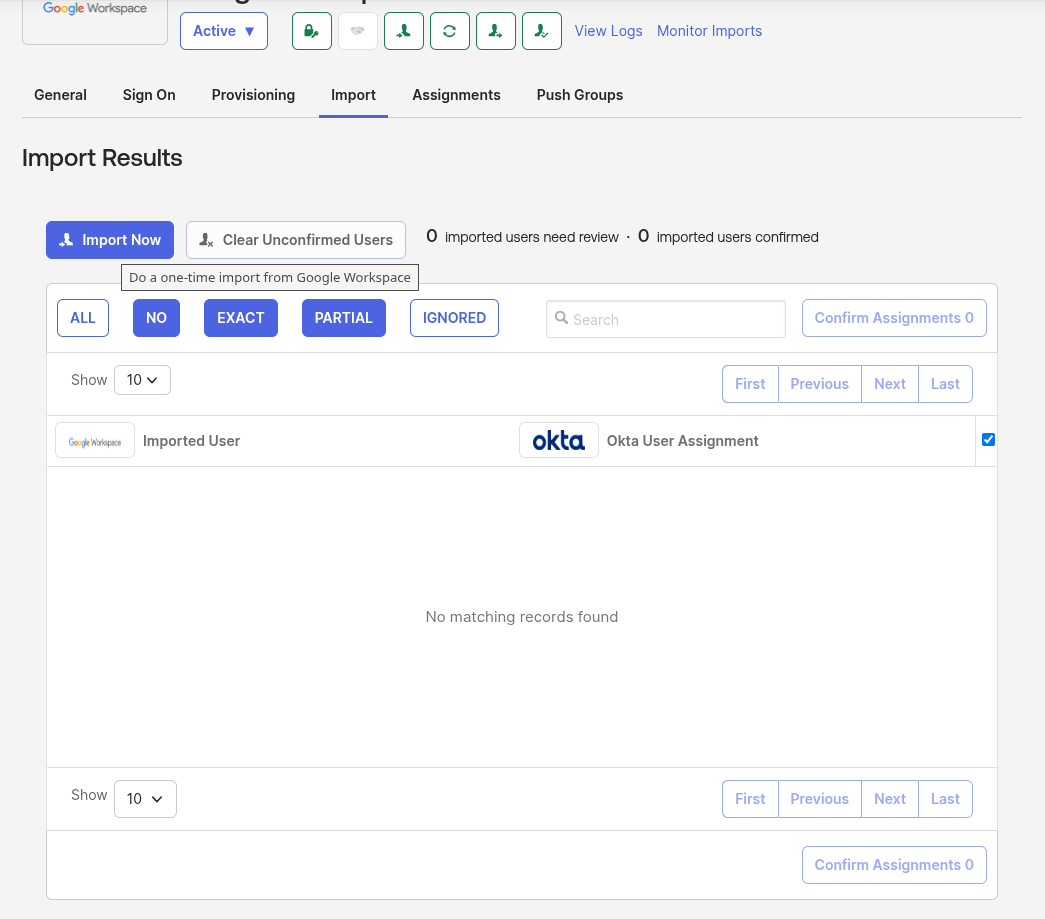
To import from Google to Okta we go to Import, click Import now.
The Confirm matched users and Confirm new users options we saw above are disabled right now, so clicking Import now won’t actually start the import – it’ll just fetch the list of users from Google:
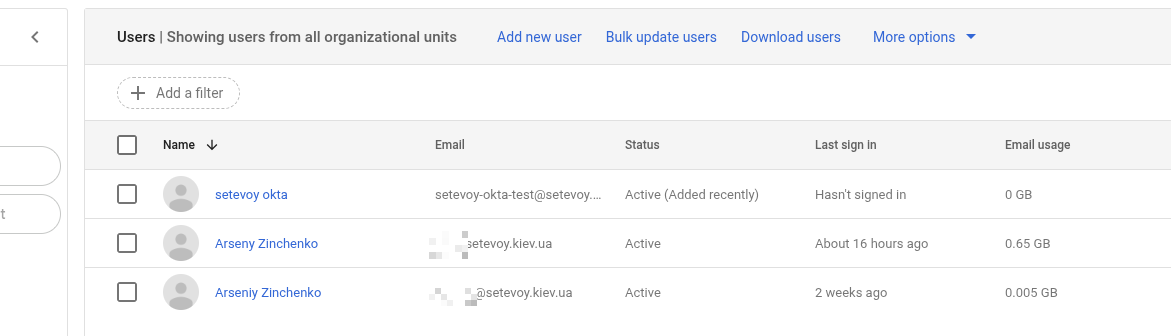
In my account there are only three users:
 And Okta saw three accounts too:
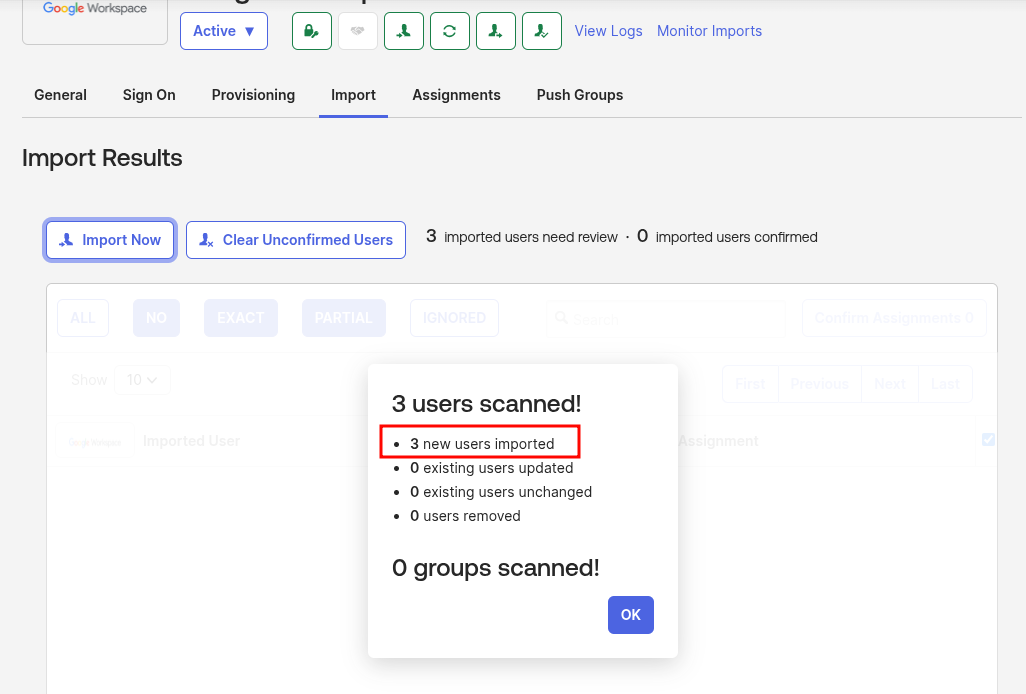
Click OK, and now we have the option to choose exactly who we’ll import from Google to Okta.
Merge and Create Okta Users
I’ll only add one test user to Okta, [email protected] – check it on the right and click Confirm Assignments at the bottom:
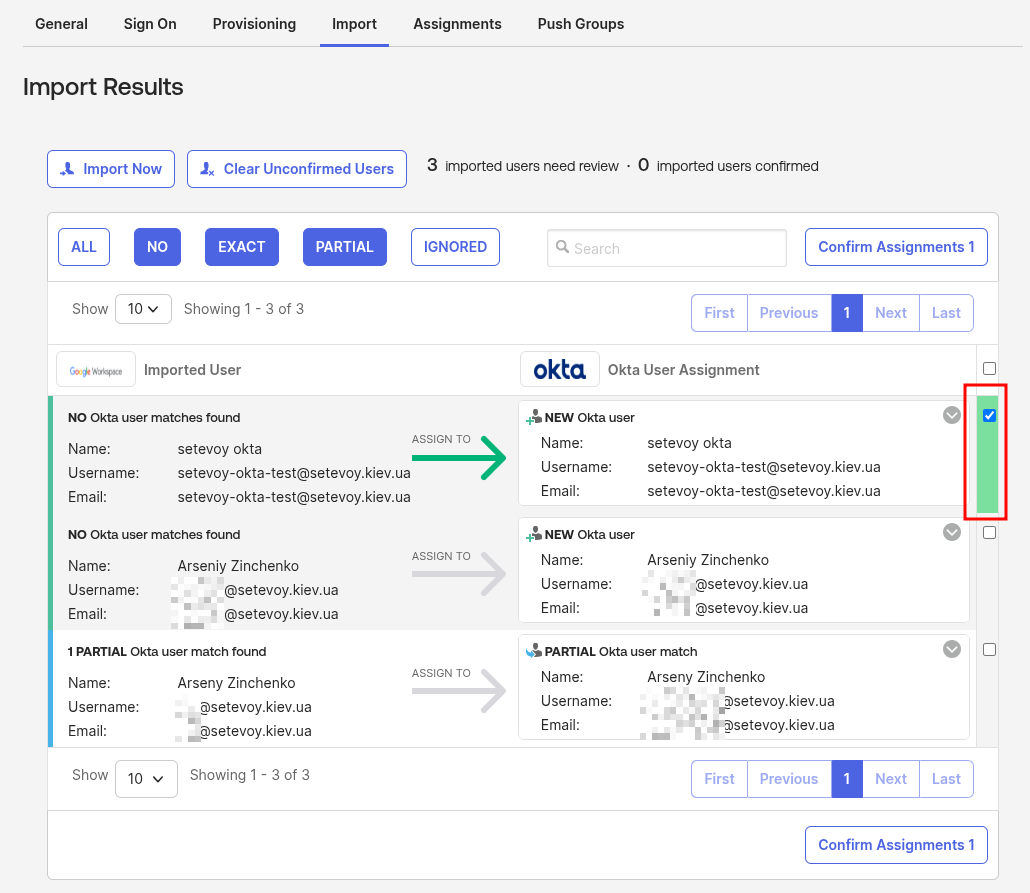
For users with the Partial user march status there are several options – merge the user, create a new one, match to a different existing user, or just ignore them altogether – click on such a partial match, and pick an action from the drop-down:
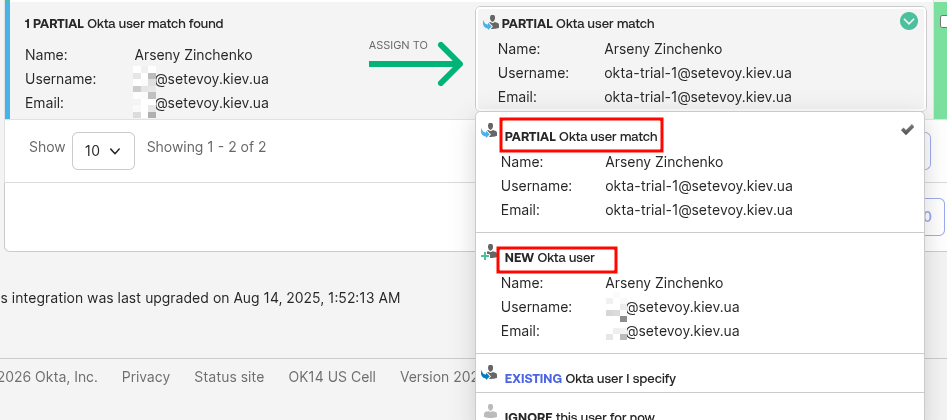 If we leave Partial user match – then Okta User [email protected] will be linked to Google User [email protected], and accordingly, if we do an Okta Deactivate on [email protected] – then the Google user [email protected] will become Suspended.
Another nuance: if a user is already Suspended in Google – they won’t show up in the Import list. But if such a user already exists in Okta, even if they’re Deactivated – Okta will add them to the list.
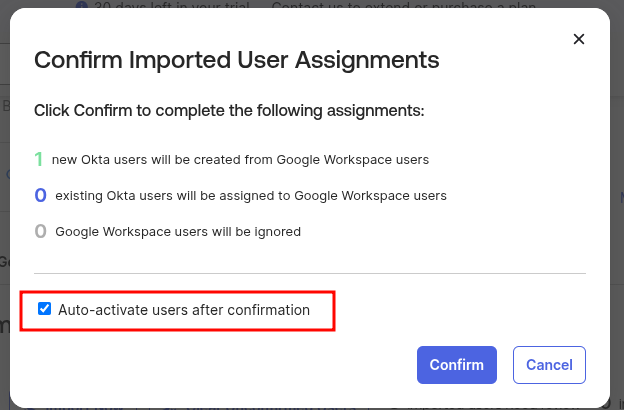
We can activate them right away, click Confirm:
And let’s check.
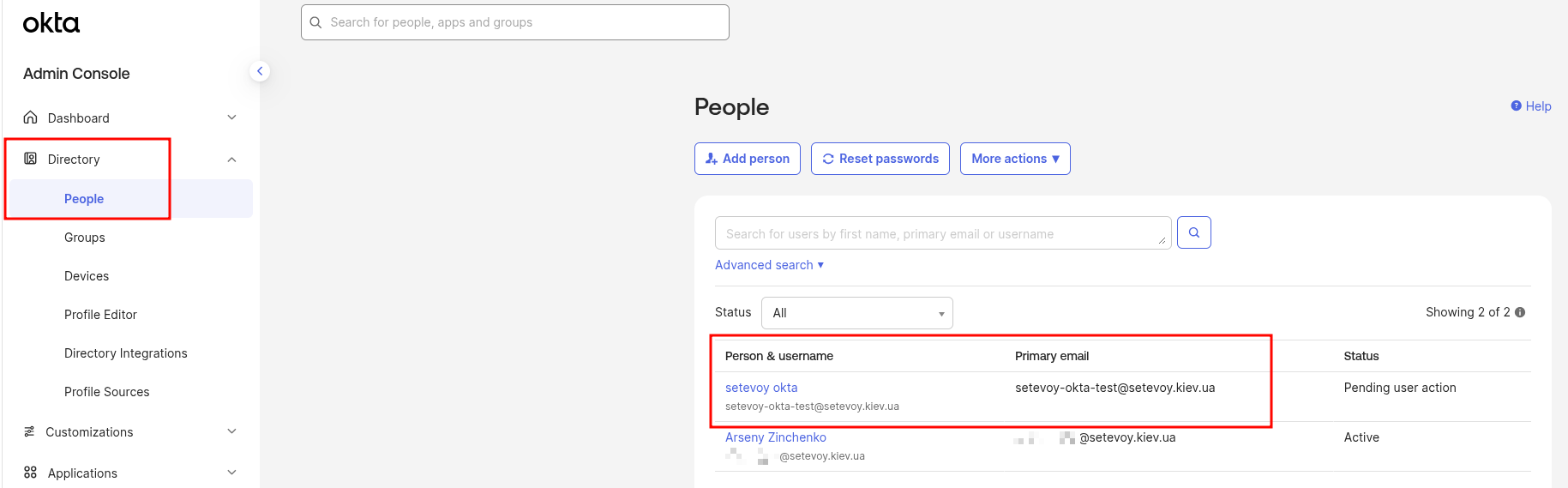
Go to Directory > People, and there’s our new Okta User:
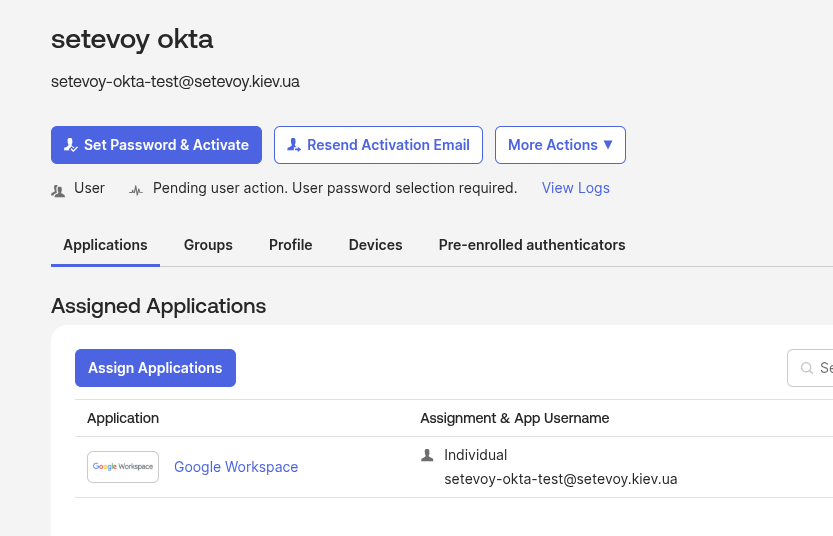
With Google Workspace App already assigned:
Now let’s do the opposite – sync users from Okta to Google.
Provisioning from Okta to Google
The main task: when a new Okta User is created (more precisely – when assigning a user to the Google Workspace App) we need to automatically create new accounts in Google Workspace.
The same goes for deactivating a user in Okta – we need to block their Google account.
So all Google account management will be done through Okta, and Okta will be our “source of truth” for users and their state (active, deactivated/suspended).
Okta to Google: Provisioning settings
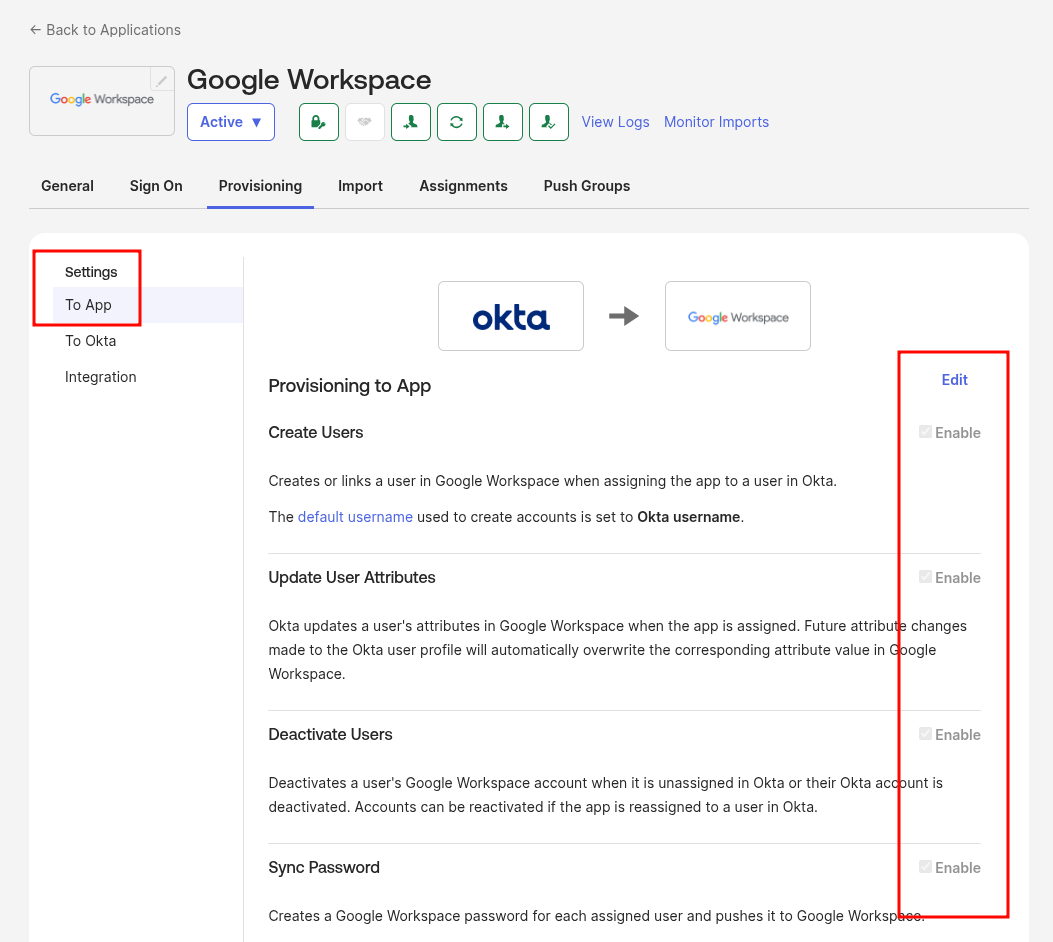
Go to Provisioning > To App, click Edit, enable all the options (or just Create Users, if you want to test things calmly on a “production” Google account).
The interesting one here is Sync Password – which password gets set on the new Google account? You can generate a random one or set the same one as the Okta User has.
The Update User Attributes option determines whether Okta will update attributes: if enabled, and the user’s First Name has changed in the Okta Profile – this field will be updated in Google too. If disabled – then attributes are only pushed during create user in Google:
Use of Sync Password
There’s a separate question about Sync Password:
- if we already have a user in Google with their own password, who we already imported and assigned to the Google Workspace App, then once we save the Okta to Google provisioning – will their password change or not?
- I tested it on this test account – and the password doesn’t change, meaning existing Google Users keep logging in just like before the integration was set up
- but on the work project account I still didn’t risk enabling it
And I didn’t find a clear answer either:
- Google’s documentation Okta user provisioning and single sign-on says not to enable this option (although they cover SSO further on, maybe that’s why)
- Okta’s documentation Configure Password Push Updates says to enable it
- and even tech support initially phrased their answer as “If you don’t use SSO, just the Provisioning features, then yes, the Sync Password feature would override the users password“
But eventually I got a clear answer:
The passwords will be overridden, but it’s not going to be immediately as you enable the feature.
The password sync is based on certain triggers which typically are unavoidable (as discussed in this article).
Adding the specifics here as well for convenience:
” In order to trigger the password sync for a user, one of these events must occur:
- Resetting an Okta-sourced password.
- Signing in to Okta with a password.
- Delegated authentication sign-in to Okta. “
In addition to those, app assignment or re-assignment after you enable the sync password feature also triggers the override.
Therefore, it’s possible that some users will still use the original password if none of the above events happened.
So sooner or later – the password for the Google account will get changed.
You can just leave this option disabled altogether – but then you’ve got a chicken and egg problem: how do you give the new user their password?
For example, on our project Slack login goes through Google. So you can’t just reset some temporary password in Slack either.
Ideal – enable the Sync Okta Password option:
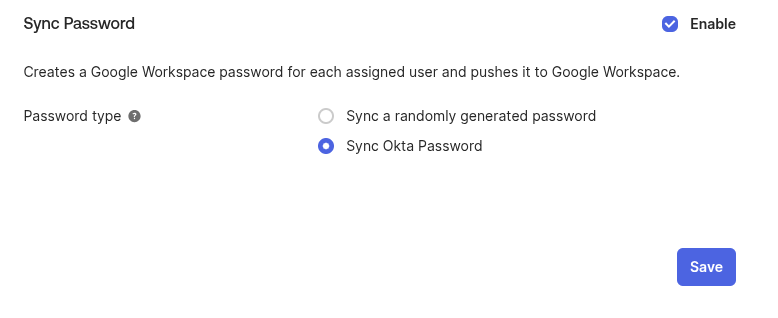 But this is ideal if you’ll have SSO into Google through Okta.
We don’t have SSO yet, and right now I’m a bit nervous about doing this for dozens of users who are already in Google and who I already imported into Okta.
So I didn’t enable this option at all – we’ll be passing passwords on a piece of paper :trollface:
Okta to Google: verifying account creation
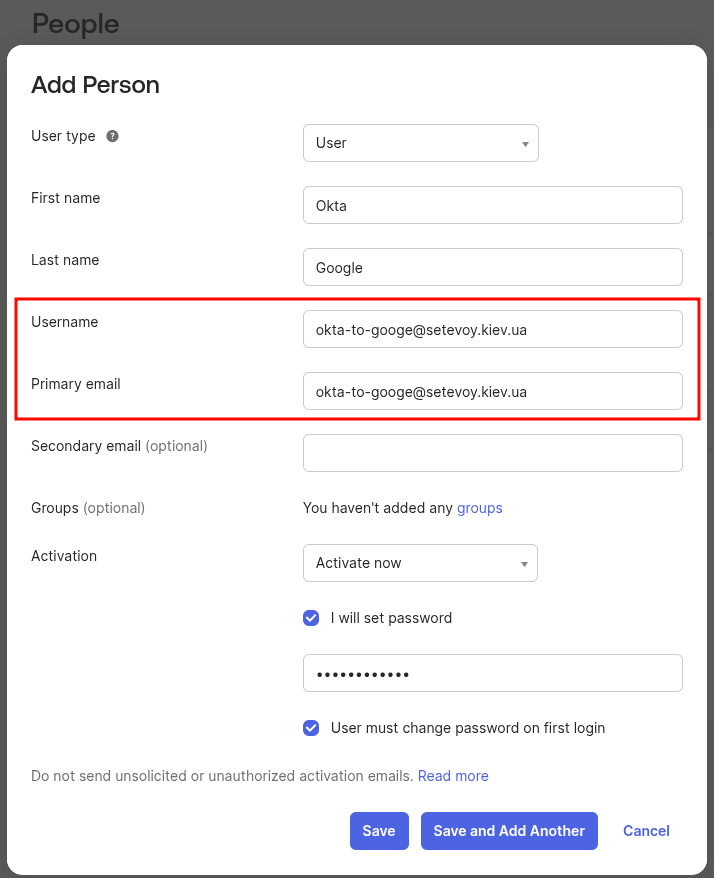
Save the settings, and to verify, add a new user in Okta – but just creating a new Okta User, without actually assigning them to the Google Workspace App in Okta, won’t create a Google Account yet:
To add a new account to Google – go to the Google Workspace Application > Assignments:
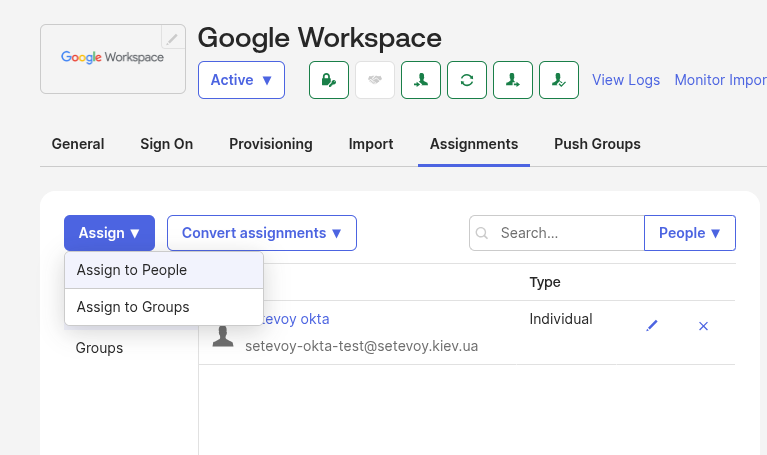
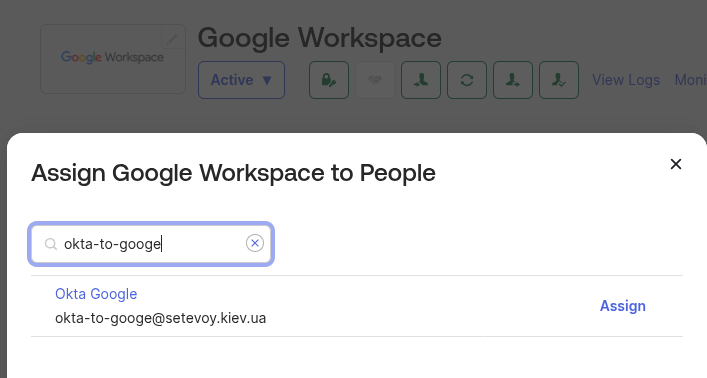
Assign this test user:
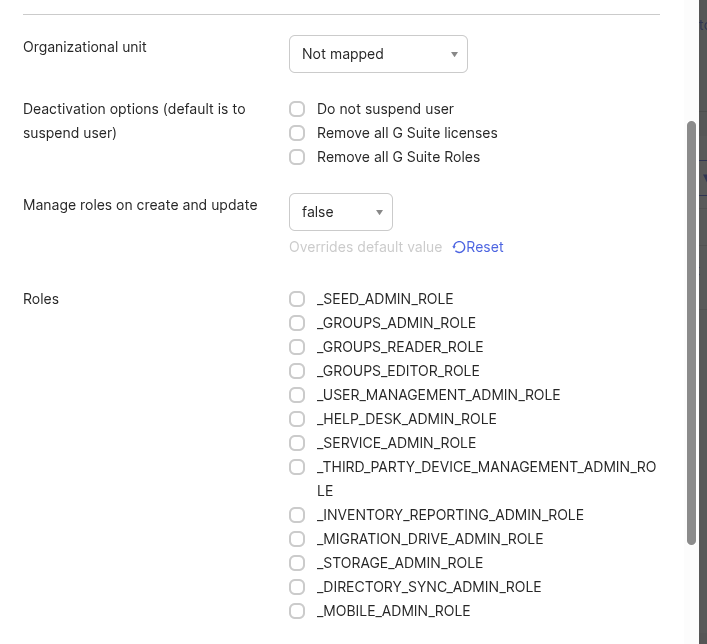
In the options you can leave everything as default, or set Google Workspace roles right away.
Leave the Manage roles on create and update option disabled – it’s better to manage roles in Google manually:
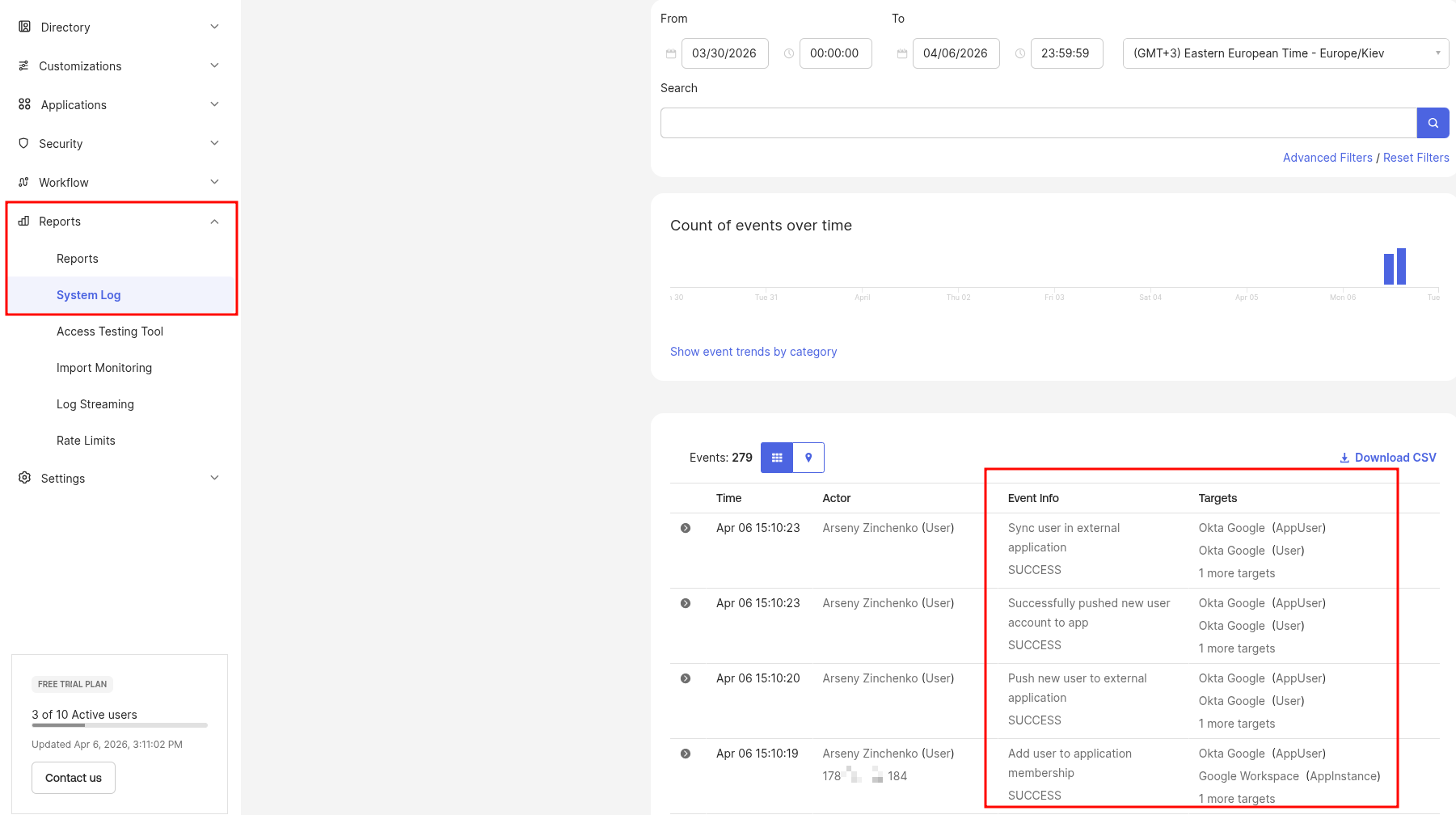
Save and check the logs in Reports > System log (a generally useful thing, will need to set up monitoring later) – we can see push to Google completed without errors:
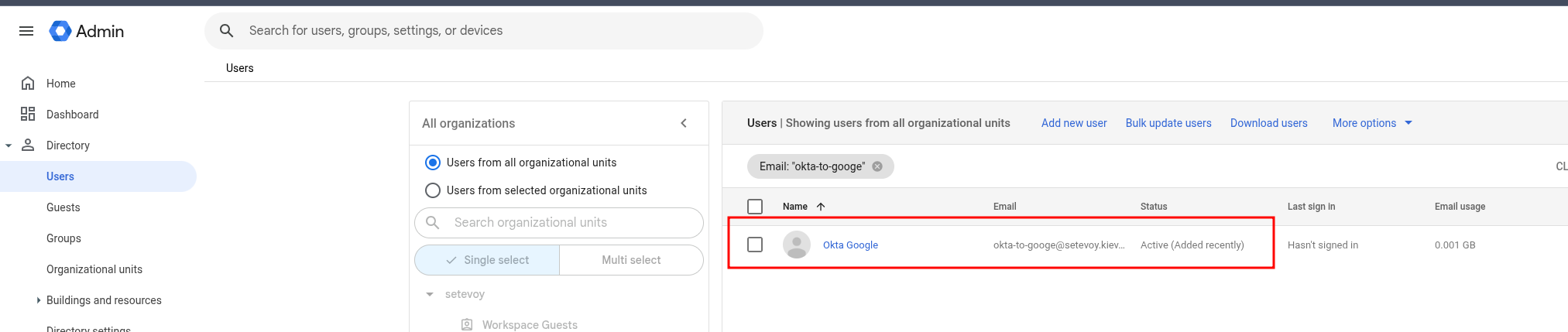
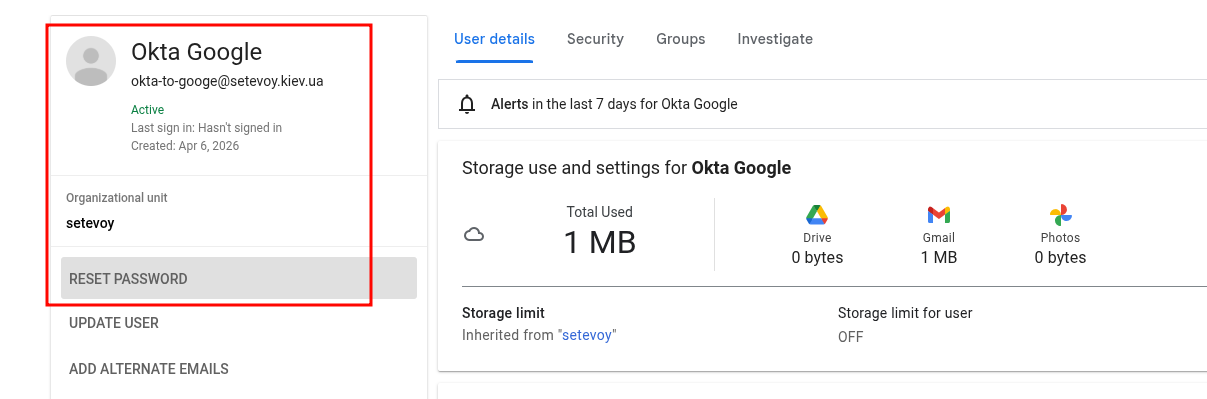
Check users in Google itself:
I left the default option “Sync a randomly generated password” in Okta, so to verify we reset the password:
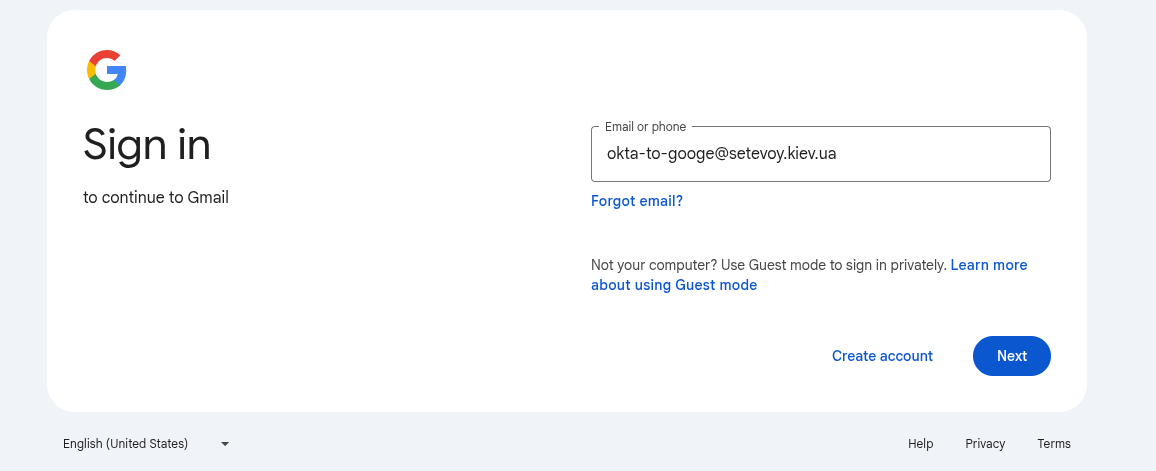
 And log in:
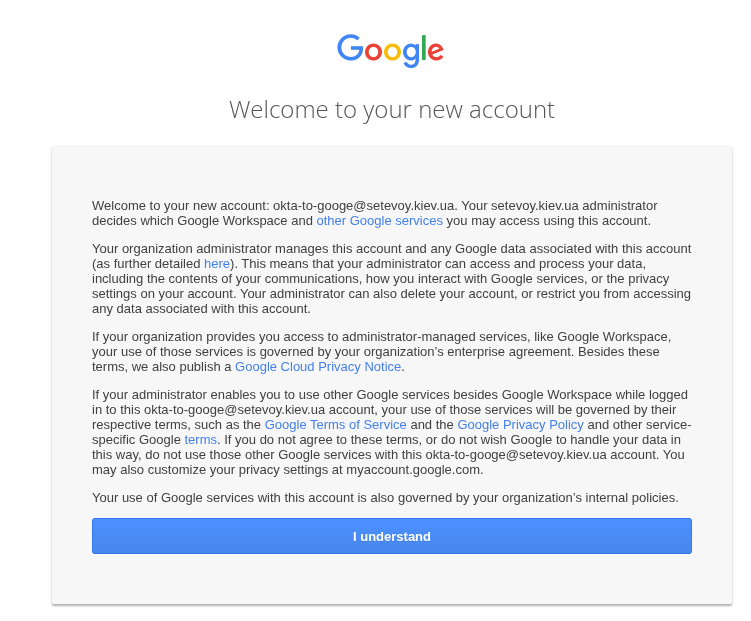
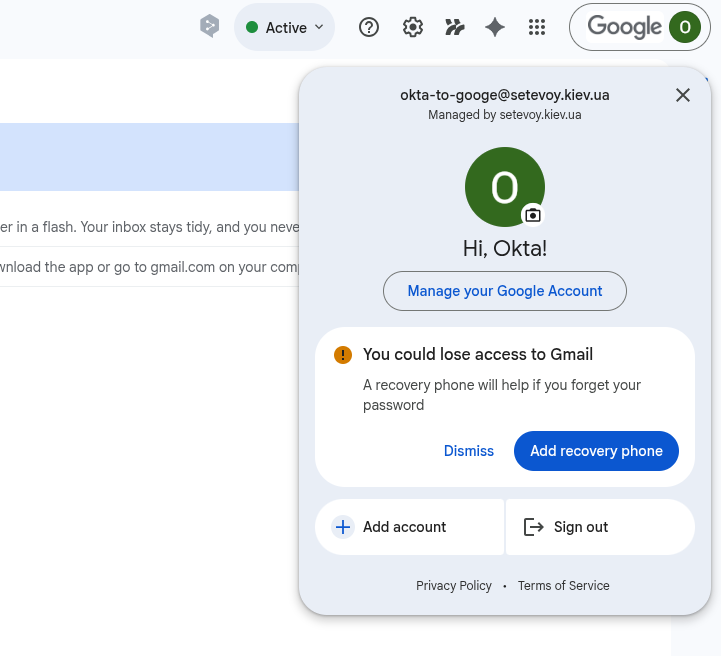
All works:
Okta User Deactivation and Google Account Suspend
And let’s check how user state sync works:
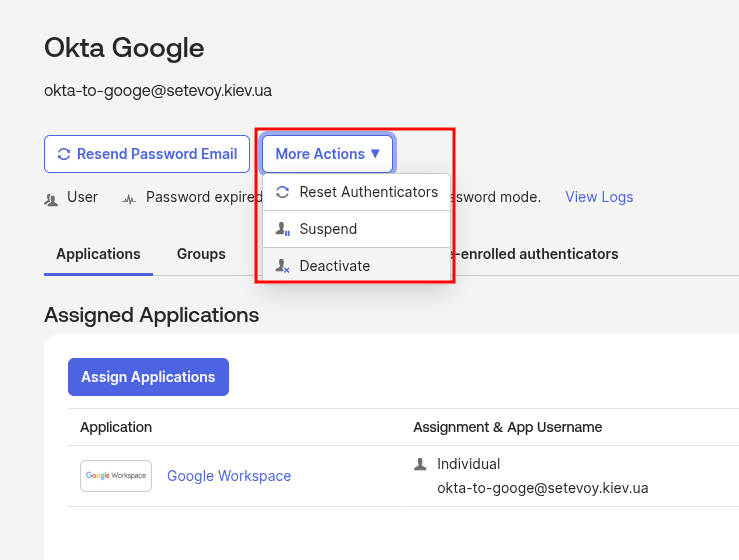
- when we Unassign a user in Okta from the Google Workspaces App, or if we do an Okta User Deactivate – their account in Google goes into Suspended state
- when a user is deleted from Okta – their Google account stays, but also in Suspended state, but only if Provisioning > To App has the Deactivate Users option enabled (it’s enabled by default)
Let’s try – deactivate the user in Okta:
Check in Google:
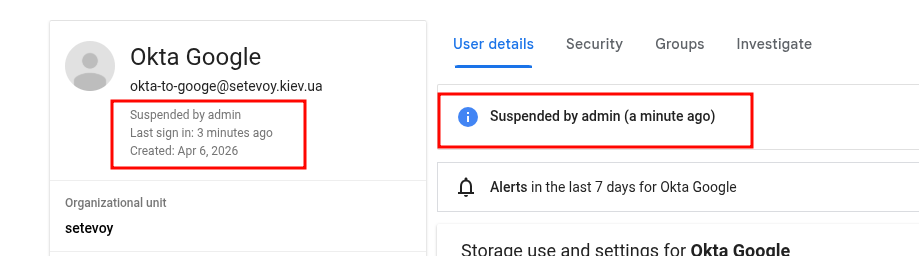
Done.
