 In the first part – LiteLLM: AI Gateway for LLMs – features overview we got familiar with what LiteLLM can do in general – now we can run it in Kubernetes and connect clients.
At the same time we’ll check the integration with our existing monitoring stack – for now just metrics to VictoriaMetrics. Logs to VictoriaLogs will be there by default, and VictoriaTraces we’ll hook up in the next part – though that’s really easy to do.
So, what are we doing today?
- deploy to Kubernetes – with our own Helm chart to create resources for the External Secrets Operator (ESO) (see AWS: Kubernetes and the External Secrets Operator for AWS Secrets Manager)
- we’ll run it with two Kubernetes Pods and a PodDisruptionBudget – since the service is important
- connect AWS PostgreSQL RDS and Redis
- pass API keys and passwords from AWS Secrets Manager via the External Secrets Operator
- set up Ingress on AWS ALB
- create a couple of users and check metrics collection to VictoriaMetrics
Worth a look before we start:
- BerriAI/litellm/example_config_yaml: config examples for various use cases
- config_settings: all config file parameters
One note before we start – even though LiteLLM in our project is already in production, we’re a small pre-market startup, so “production” is fairly relative – and LiteLLM is still more of a test setup or PoC for us, and I didn’t focus much on security at this stage.
All posts in this series:
- LiteLLM: AI Gateway for LLMs – Features Overview
- (current) LiteLLM: AI Gateway on Kubernetes and Metrics in VictoriaMetrics
- LiteLLM: Metrics, Traces, and VictoriaMetrics Stack Integration
And more are coming soon, so stay tuned for updates and follow my Telegram channel @rtfmcoua_en or LinkedIn group RTFM! DevOps[at]UA.
Contents
Planning the deployment
See the docs Deployment Options and High Availability Setup (Resolve DB Deadlocks).
What we have – AWS Elastic Kubernetes Service, an existing AWS RDS server with PostgreSQL, an existing AWS Application Load Balancer.
Besides PostgreSQL, LiteLLM recommends having Redis – for Caching and syncing TPM and RPM limits, I’ll add it too – let’s see how it works and what it gives us.
There are Terraform providers, quite a few actually, for example scalepad/litellm, but I’ll do it without Terraform – a bit of clickops in AWS and pure Helm for the deploy.
Ideally – manage all the keys with Terraform via ephemeral resources – but again, in my specific case I’ll skip that for now (see Terraform: using Ephemeral resources and Write-only attributes).
LiteLLM Helm chart
There’s an official Helm chart, though it’s “[BETA] Helm Chart is BETA” – but pretty convenient, looks readable enough, so let’s give it a try.
I also found somewhere (or someone dropped it in the RTFM Telegram chat) a HelmRelease for Flux CD – you can look there for various interesting parameters as an example.
The first thing we’ll do is look at what’s in the chart’s values, to understand what we can configure out of the box – and what we’ll have to define ourselves.
You can just do it in the console with helm show values:
$ helm show values oci://ghcr.io/berriai/litellm-helm
But it’s more convenient to download it and look in an IDE.
We look for the latest version, at the time of writing it was 1.87.1 (updates come out very often, so it’s worth setting up Renovate right away – see Renovate: GitHub and Helm Charts versions management):
$ helm show chart oci://ghcr.io/berriai/litellm-helm
Pulled: ghcr.io/berriai/litellm-helm:1.87.1
...
version: 1.87.1
Pull the chart, unpack it:
$ helm pull oci://ghcr.io/berriai/litellm-helm --version 1.87.1 --untar
$ cd litellm-helm/
Let’s look at what’s in the chart and what we should change for ourselves.
Useful Helm values
What we’ll need to change:
replicaCount: for Production it’s worth setting 2 or 3image.tag: set a specific version instead of usinglatestserviceAccount.name: if you use AWS RDS with IAM Database Authentication (see AWS: RDS with IAM database authentication, EKS Pod Identities and Terraform) or need to grant access to AWS Secrets Manager, you can pass your own ServiceAccount – but in my case RDS is without IAM, and AWS Secrets Manager is accessed by the External Secrets Operator, which has its own permissions configuredenvironmentSecrets: we can create our own Kubernetes Secret and pass it here – that’s how it’ll be with the secrets from ESOenvironmentConfigMaps: we can create a separate ConfigMap with environment variables – handy, we can pass parameters likemax_requests_before_restart, see CLI Argumentsingress: we’ll set up Ingress with AWS ALBmasterkeySecretNameandmasterkeySecretKey: pass the parameters to retrieve$LITELLM_MASTER_KEYproxy_config: you can define LiteLLM’s parameters right in values – but I did it via a separate ConfigMap and passed it in values throughproxyConfigMapautoscalingandkeda: nice that it’s there – but not relevant for us yettolerations,affinity: we need it, since critical services run on a dedicated WorkerNodes groupdb: we’ll describe the connection to PostgreSQL- since our server is external – we’ll disable
deployStandalone - we’ll pass login/password via a Secret that ESO will create
- since our server is external – we’ll disable
redis: we’ll enable the deploy of the default one from the sub-chart, though you could connect an external one
So, besides the chart, in our own templates/ we’ll only need to define two resources – a ConfigMap with LiteLLM parameters and an ExternalSecret for the External Secrets Operator.
Preparing for the deployment
We need the values of all the keys and passwords before deploying the Helm chart – so we start with those.
Creating the LLM Providers API Keys
For testing we’ll have Anthropic and OpenAI – create keys for them:
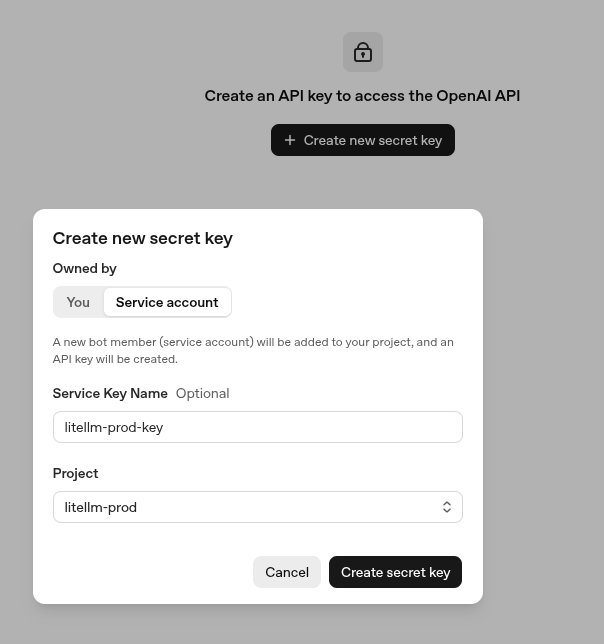
Generate $LITELLM_MASTER_KEY:
$ echo "sk-$(openssl rand -hex 16)"
sk-b75***630
Save them, later we’ll add them to AWS Secrets Manager together with the PostgreSQL data.
Creating the PostgreSQL User && Database
Generate the user password:
$ pwgen 12 1
bai***vah
Create the user and the database:
ops_grafana_db=> CREATE USER ops_litellm_user WITH PASSWORD 'bai***vah';
CREATE ROLE
ops_grafana_db=> CREATE DATABASE ops_litellm_db OWNER ops_litellm_user;
CREATE DATABASE
ops_grafana_db=> GRANT ALL PRIVILEGES ON DATABASE ops_litellm_db TO ops_litellm_user;
GRANT
Check the connection:
$ export PGPASSWORD='bai***vah'; psql -h db.monitoring.ops.example.co -U ops_litellm_user -d ops_litellm_db
psql (18.4, server 16.8)
SSL connection (protocol: TLSv1.3, cipher: TLS_AES_256_GCM_SHA384, compression: off, ALPN: none)
Type "help" for help.

ops_litellm_db=> \l ops_litellm_db
                                                                    List of databases
      Name      |      Owner       | Encoding | Locale Provider |   Collate   |    Ctype    | Locale | ICU Rules |           Access privileges
----------------+------------------+----------+-----------------+-------------+-------------+--------+-----------+---------------------------------------
 ops_litellm_db | ops_litellm_user | UTF8     | libc            | en_US.UTF-8 | en_US.UTF-8 |        |           | =Tc/ops_litellm_user                 +
                |                  |          |                 |             |             |        |           | ops_litellm_user=CTc/ops_litellm_user
Now we have 4 secrets – two API keys for OpenAI and Anthropic, LiteLLM’s own master key, and the PostgreSQL password.
Creating a secret in AWS Secrets Manager
Create a new secret with the type “Other type of secret”, set the values in JSON:
{
  "LITELLM_MASTER_KEY": "sk-***",
  "OPENAI_API_KEY": "sk-***",
  "ANTHROPIC_API_KEY": "sk-***",
  "DATABASE_USERNAME": "ops_litellm_user",
  "DATABASE_PASSWORD": "***"
}
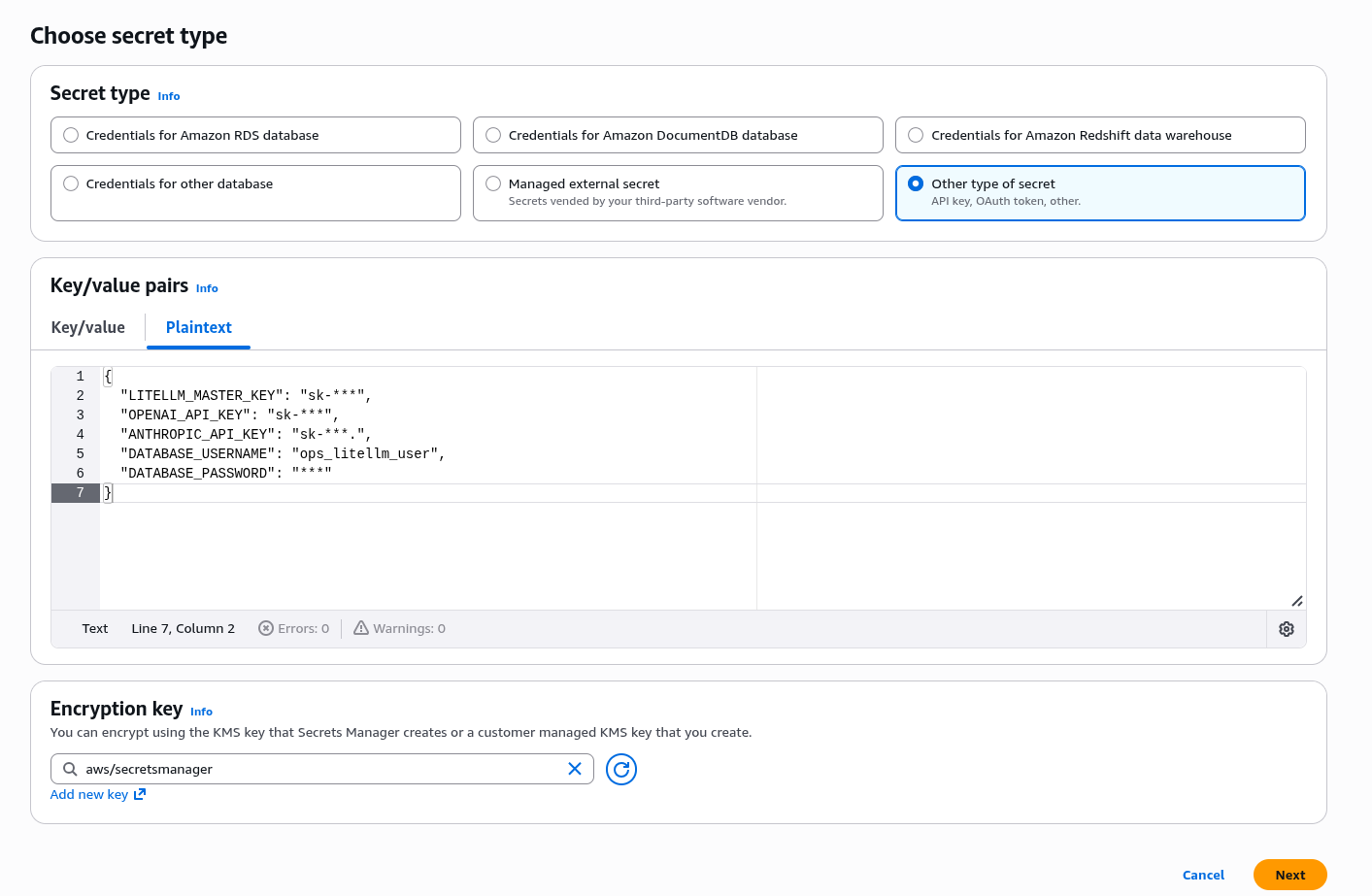
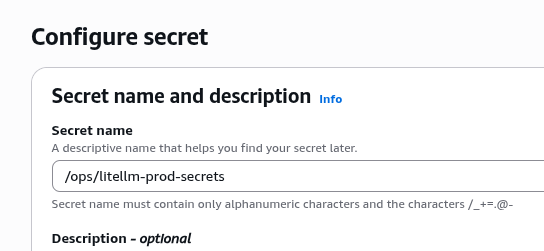
Save it as /ops/litellm-prod-secrets – we’ll use this name later in the External Secrets Operator:
Our own Helm chart for LiteLLM
Create our own chart, in it we connect the BerriAI chart via dependencies – write Chart.yaml:
apiVersion: v2
name: litellm
description: Helm chart for LiteLLM proxy
type: application
version: 0.1.0
appVersion: "1.0.0"
dependencies:
  - name: litellm-helm
    version: "1.87.1"
    repository: "oci://ghcr.io/berriai"
On to the secrets.
External Secrets Operator for AWS Secrets Manager
We describe the file templates/secretstore.yml with the SecretStore itself and an ExternalSecret for it.
In the ExternalSecret we specify dataFrom.extract and the AWS Secret /ops/litellm-prod-secrets created above with its variables:
apiVersion: external-secrets.io/v1beta1
kind: SecretStore
metadata:
  name: litellm-secret-store
spec:
  provider:
    aws:
      service: SecretsManager
      region: {{ .Values.aws.region }}
---
apiVersion: external-secrets.io/v1beta1
kind: ExternalSecret
metadata:
  name: litellm-external-secret
spec:
  refreshInterval: 1h
  secretStoreRef:
    name: litellm-secret-store
    kind: SecretStore
  target:
    name: litellm-secrets
    creationPolicy: Owner
    deletionPolicy: Delete
  dataFrom:
    - extract:
        key: /ops/litellm-prod-secrets
With dataFrom.extract ESO will pull the JSON from AWS Secrets Manager and write it into the Kubernetes Secret litellm-secrets under data as $KEY:VALUE, and the Pods will mount this secret via envFrom.secretRef and pass those $KEY:VALUE as environment variables in the LiteLLM containers.
ConfigMap for the LiteLLM Proxy Config
We make it a separate resource – easier to read the values, easier to manage and update.
Minimal for now – we just need to get the service running, we’ll tune it later.
Create the file templates/proxy-config.yaml with two models – I already have a few monitoring parameters here, more on that in the next post:
apiVersion: v1
kind: ConfigMap
metadata:
  name: litellm-proxy-config
data:
  config.yaml: |

    general_settings:
      master_key: os.environ/LITELLM_MASTER_KEY
      store_prompts_in_spend_logs: true

    litellm_settings:

      # Monitoring settings
      require_auth_for_metrics_endpoint: false
      prometheus_initialize_budget_metrics: true
      # Enable the 'stream' label to split requests by streaming vs. non-streaming
      prometheus_emit_stream_label: true
      # Enable the 'end_user' label for cost tracking
      enable_end_user_cost_tracking_prometheus_only: true
      callbacks:
      - prometheus
      - otel
      - arize
      service_callback:
      - prometheus_system

      # Redis: Cache settings
      cache: true
      cache_params:
        type: redis

    model_list:

      - model_name: gpt-5-5
        litellm_params:
          model: openai/gpt-5-5
          api_key: os.environ/OPENAI_API_KEY

      - model_name: claude-sonnet-4-6
        litellm_params:
          model: anthropic/claude-sonnet-4-6
          api_key: os.environ/ANTHROPIC_API_KEY
Kubernetes WorkerNode Taints
In my setup, for the Kubernetes Pods with LiteLLM we need to specify tolerations, since there’s a separate WorkerNode Group for critical services, see Kubernetes: Pods and WorkerNodes – controlling pod placement on nodes.
I already forgot which taints I set – check with kubectl describe node:
$ kk describe node ip-10-0-59-76.ec2.internal | grep -A5 Taints
Taints:             CriticalAddonsOnly=true:NoExecute
                    CriticalAddonsOnly=true:NoSchedule
Docker image tag for LiteLLM
Versions are listed in Recent Releases, but for some reason the latest there is 1.87.0 – even though 1.87.1 is already out (the latest at the time of writing this post).
You can check the appVersion in the chart itself for version 1.87.1:
$ helm show chart oci://ghcr.io/berriai/litellm-helm --version 1.87.1 | grep appVersion
...
appVersion: 1.87.1
Creating our own Values
The full file values/ops/litellm-ops-1-33-values.yaml came out like this for now:
# AWS region for External Secrets Operator (SecretStore pulls from Secrets Manager).
aws:
  region: us-east-1

# Values for the upstream litellm-helm subchart (wrapper chart nests everything here).
litellm-helm:
  # Number of LiteLLM proxy replicas.
  replicaCount: 2

  deploymentAnnotations:
    # Restart pods automatically when mounted ConfigMaps or Secrets change.
    reloader.stakater.com/auto: "true"

  image:
    # LiteLLM proxy image tag; should match the vendored chart version.
    tag: "1.87.1"

  serviceAccount:
    # Use the namespace default ServiceAccount (no dedicated SA created by the chart).
    create: false
    name: ""

  # K8s Secrets mounted as env vars (synced from AWS Secrets Manager via ExternalSecret).
  environmentSecrets:
    - litellm-secrets

  # Master key for LiteLLM admin API and proxy authentication.
  masterkeySecretName: litellm-secrets
  masterkeySecretKey: LITELLM_MASTER_KEY

  proxyConfigMap:
    # Proxy config is provided by the wrapper chart (helm/templates/proxy-config.yaml).
    create: false
    name: litellm-proxy-config

  db:
    # Use existing Postgres instead of deploying a chart-managed database.
    useExisting: true
    deployStandalone: false
    endpoint: db.monitoring.ops.example.co
    database: ops_litellm_db
    secret:
      name: litellm-secrets
      usernameKey: DATABASE_USERNAME
      passwordKey: DATABASE_PASSWORD

  redis:
    enabled: true
    architecture: standalone
    image:
      registry: docker.io
      repository: bitnami/redis
      tag: "latest"

  ingress:
    enabled: true
    className: alb
    annotations:
      # Share an internal ALB with other ops-1-33 services.
      alb.ingress.kubernetes.io/group.name: ops-1-33-internal-alb
      # Route traffic directly to pod IPs (required for ALB on EKS).
      alb.ingress.kubernetes.io/target-type: ip
      # TLS certificate for aigw.ops.example.co (ACM, us-east-1).
      alb.ingress.kubernetes.io/certificate-arn: arn:aws:acm:us-east-1:492***148:certificate/5fe4cb67-5af5-49d6-99e0-eb2145b66390
    hosts:
      - host: aigw.ops.example.co
        paths:
          - path: /*
            pathType: ImplementationSpecific

  # Schedule on CriticalAddonsOnly nodes (system/add-on node group).
  tolerations:
    - key: CriticalAddonsOnly
      value: "true"
      operator: Equal
      effect: NoSchedule
    - key: CriticalAddonsOnly
      value: "true"
      operator: Equal
      effect: NoExecute

  pdb:
  # Keep at least one pod available during voluntary disruptions (2 replicas total).
    enabled: true
    minAvailable: 1
Here, as planned above:
- we create two Kubernetes Pods
- in
deploymentAnnotationswith Reloader we set automatic restart on changes in the ConfigMap (whereproxy_configwill be), see Kubernetes: ConfigMap and Secrets – auto-reload of data in pods - via
environmentSecretswe pass the name of the Kubernetes Secret that the External Secrets Operator will create - in
masterkeySecretNameandmasterkeySecretKeywe pass the value of$LITELLM_MASTER_KEY - in
proxyConfigMapwe pass our own Kubernetes ConfigMap with LiteLLM parameters - in
dbwe describe the connection to the existing AWS RDS and its credentials from the same Kubernetes Secret created by ESO - in
rediswe add running Redis from the Bitnami sub-chart (yeah, yeah) - in
ingress– my project uses a shared ALB, we pass it viaalb.ingress.kubernetes.io/group.name, see Kubernetes: a single AWS Load Balancer for different Kubernetes Ingresses - we describe
tolerations - and a PodDisruptionBudget, definitely – see Kubernetes: ensuring High Availability for Pods
Redis and the Docker image tag
I have no idea what the cool, hip way to run Redis in Kubernetes is these days, because the last time I did it was about 5 years ago, and back before Bitnami sold out made its changes.
But with the default minimal “redis.enabled=true” everything started up fine, the only catch was with the Docker tag, since by default it pulled docker.io/bitnami/redis:7.2.4-debian-12-r9, which either doesn’t exist at all or is “behind a paywall” – I haven’t used Bitnami in a long time, so I’m not really up to date on what exactly changed there.
So for now I just grabbed @latest – while the system is more of a PoC, that’s fine. And once we go to a full production – I’ll dig into Redis separately, or just take AWS ElastiCache.
Creating a Makefile
Make our local life easier (you can also add CI/CD targets here) – add a Makefile so we don’t have to type the commands every time:
helm-pull-local:
  helm pull oci://ghcr.io/berriai/litellm-helm --version 1.87.1 -d charts/

helm-dependency-update:
  helm dependency update

helm-template-ops-1-33:
  helm -n ops-litellm-ns template litellm \
  . -f values/ops/litellm-ops-1-33-values.yaml

helm-diff-ops-1-33:
  helm -n ops-litellm-ns diff upgrade --install litellm \
  . -f values/ops/litellm-ops-1-33-values.yaml \
  --dry-run=server

helm-install-ops-1-33:
  helm -n ops-litellm-ns upgrade --install litellm \
  . -f values/ops/litellm-ops-1-33-values.yaml \
  --debug
And all together it now looks like this:
$ tree .
.
├── CLAUDE.md
├── helm
│   ├── Chart.lock
│   ├── charts
│   │   └── litellm-helm-1.87.1.tgz
│   ├── Chart.yaml
│   ├── Makefile
│   ├── templates
│   │   ├── proxy-config.yaml
│   │   └── secretstore.yml
│   └── values
│       └── ops
│           └── litellm-ops-1-33-values.yaml
└── README.md
Deploying to Kubernetes
Create the Kubernetes Namespace – manually for now, normally we do this with Terraform when creating the cluster:
$ kk create ns ops-litellm-ns
Check that the chart renders fine:
$ make helm-template-ops-1-33
helm -n ops-litellm-ns template litellm \
. -f values/ops/litellm-ops-1-33-values.yaml
...
---
# Source: litellm/templates/proxy-config.yaml
apiVersion: v1
kind: ConfigMap
metadata:
  name: litellm-proxy-config
data:
  config.yaml: |
    general_settings:
      master_key: os.environ/LITELLM_MASTER_KEY
    model_list:
      - model_name: gpt-5-5
        litellm_params:
          model: openai/gpt-5-5
          api_key: os.environ/OPENAI_API_KEY
...
Install:
$ make helm-install-ops-1-33
Check the pods:
$ kk get pod
NAME                       READY   STATUS              RESTARTS   AGE
litellm-6d9bdbd689-6fl7q   0/1     ContainerCreating   0          22s
litellm-6d9bdbd689-gh4dw   0/1     ContainerCreating   0          22s
And the Ingress:
$ kk get ingress
NAME      CLASS   HOSTS                ADDRESS                                                PORTS   AGE
litellm   alb     aigw.ops.example.co   internal-k8s-***.us-east-1.elb.amazonaws.com  80 33s
Wait a couple of minutes, check that the DNS has updated:
$ dig aigw.ops.example.co +short
10.0.41.213
10.0.53.252
And open the LiteLLM dashboard:
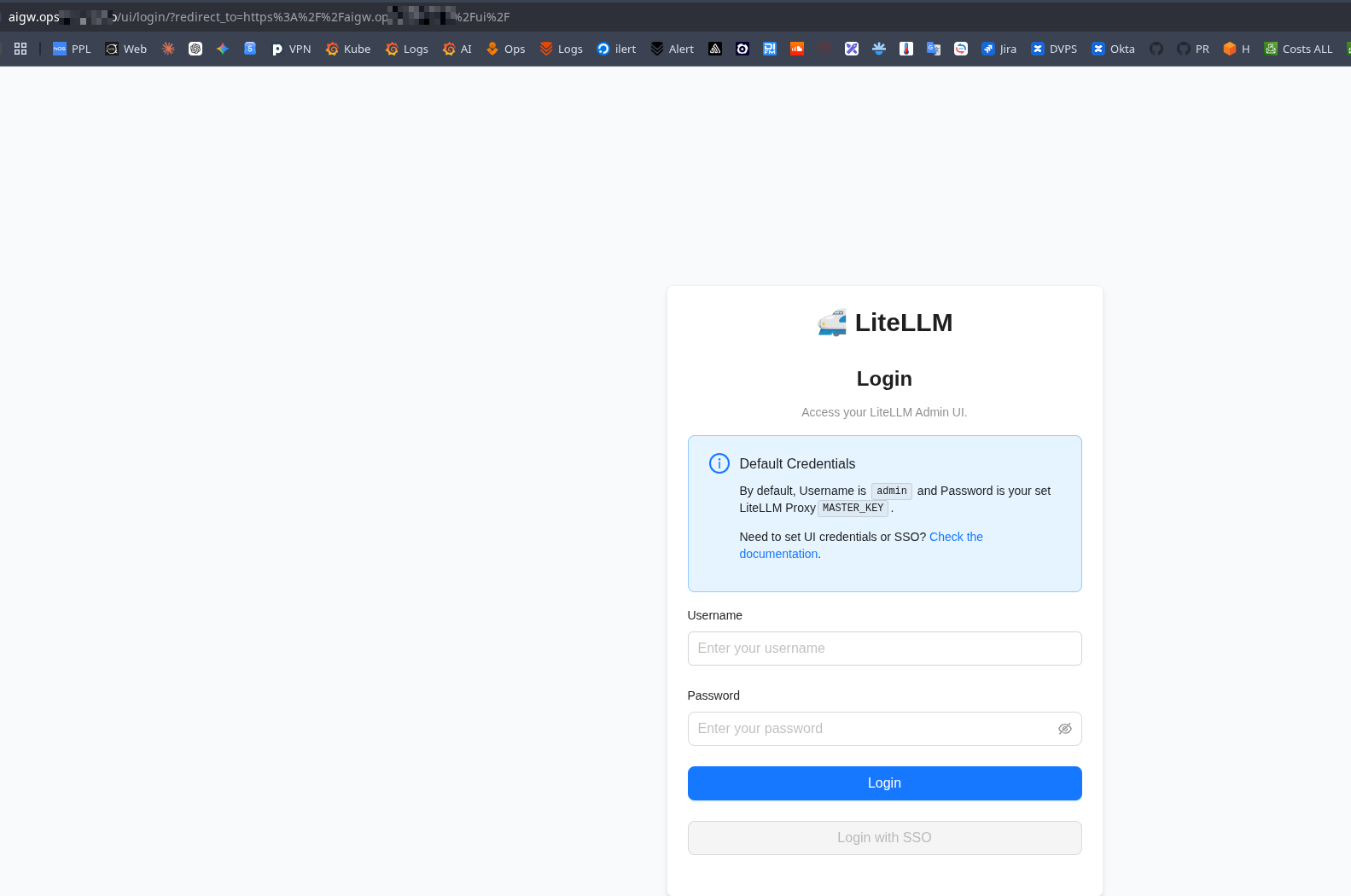
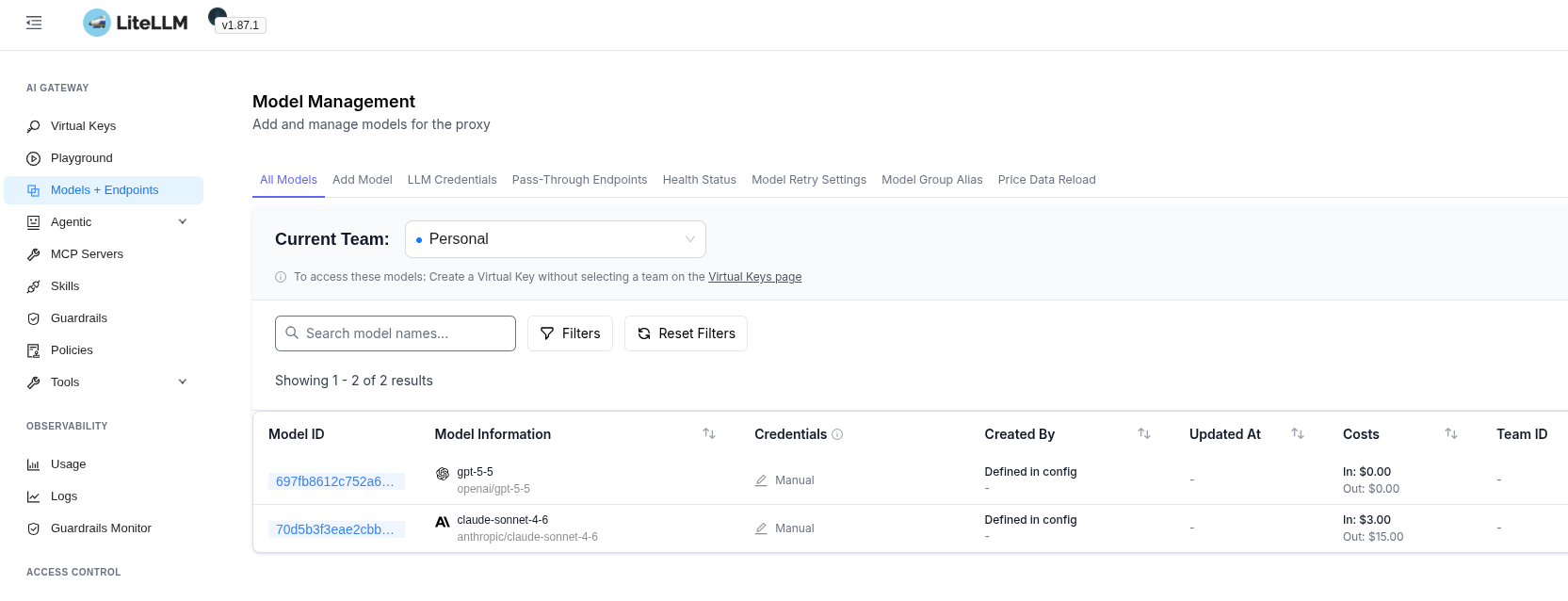
Log in with admin and $LITELLM_MASTER_KEY, check the available models – both defined in proxy-config.yaml are there:
Checking LiteLLM with Claude Code
It was interesting to see how to proxy access to Anthropic through LiteLLM in Claude Code.
Maybe somewhere down the line I’ll describe how I configured our Backend API and other services, though it’s all pretty simple there – you just need to add a base_url and swap the API keys.
Creating a LiteLLM User and Virtual API Key via the LiteLLM API
Create a new user and their API Key:
$ curl -X POST https://aigw.ops.example.co/user/new \
  -H "Authorization: Bearer $LITELLM_MASTER_KEY" \
  -H "Content-Type: application/json" \
  -d '{
    "user_email": "[email protected]",
    "user_role": "internal_user"
  }'
Save the key – “key":"sk-CUn***wVg“.
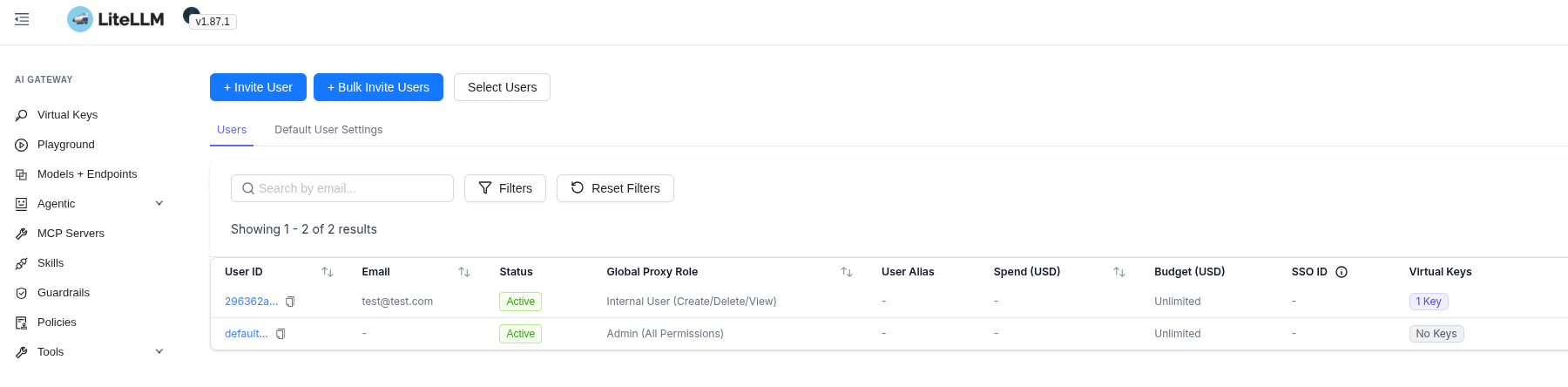
Check the users in LiteLLM:
Running Claude Code through LiteLLM
Here you just need to set a couple of variables – the key and the endpoint:
$ export ANTHROPIC_API_KEY=sk-CUn***wVg
$ export ANTHROPIC_BASE_URL=https://aigw.ops.example.co
And run claude.
Pick a model that’s available in LiteLLM:
❯ /model
  ⎿  Set model to Sonnet 4.6 and saved as your default for new sessions
Make a request like “How are you?” – et voilà! We’ve got a trace in LiteLLM:
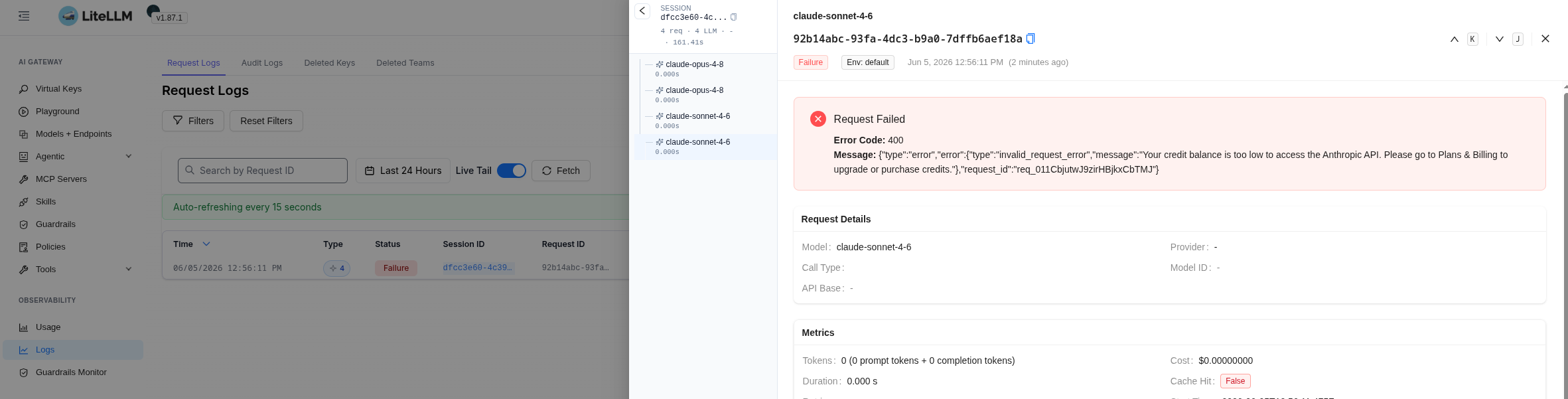
Granted, the project’s Anthropic account had zero USD 🙂
But then we topped up the balance – everything works.
Monitoring and metrics to VictoriaMetrics
Very briefly here, just to confirm the data is there. We’ll dig into it in more detail in the next post – I was going to cover it in this one, but it came out long enough as it is.
Docs – Prometheus metrics and OpenTelemetry – Tracing LLMs with any observability tool, plus I wrote a bit in the previous post in the Monitoring, OpenTelemetry and Traces section.
Enable the /metrics endpoint for VictoriaMetrics:
litellm_settings:
  callbacks:
  - prometheus
LiteLLM /metrics authentication
The docs say that “By default /metrics endpoint is unauthenticated” – but when deployed from this chart, accessing the metrics gives “Unauthorized access to metrics endpoint” – even though I didn’t see any such parameter anywhere in the values.
You can disable it explicitly with require_auth_for_metrics_endpoint=false – since it’s an Internal ALB anyway, but we can take the opportunity to create some more users.
Create a new read-only admin user – the proxy_admin_viewer role (see User Roles), since a regular user wasn’t given access to the metrics anyway:
curl -X POST https://aigw.ops.example.co/user/new \
  -H "Authorization: Bearer $LITELLM_MASTER_KEY" \
  -H "Content-Type: application/json" \
  -d '{
    "user_email": "[email protected]",
    "user_role": "proxy_admin_viewer"
  }'
Save the obtained key to $LITELLM_RO_ADMIN_KEY in the AWS Secret Store, update the deploy, check the metrics with the header “Authorization: Bearer $LITELLM_RO_ADMIN_KEY“:
$ curl -s -H "Authorization: Bearer $LITELLM_RO_ADMIN_KEY" https://aigw.ops.example.co/metrics/ | tail
# HELP litellm_check_batch_cost_jobs_processed_total Total number of batches successfully cost-tracked by CheckBatchCost
# TYPE litellm_check_batch_cost_jobs_processed_total counter
# HELP litellm_check_batch_cost_errors_total Total number of errors in CheckBatchCost by error type
# TYPE litellm_check_batch_cost_errors_total counter
# HELP litellm_check_batch_cost_last_run_timestamp Unix timestamp of the last CheckBatchCost job run
# TYPE litellm_check_batch_cost_last_run_timestamp gauge
litellm_check_batch_cost_last_run_timestamp 0.0
# HELP litellm_in_flight_requests Number of HTTP requests currently in-flight on this uvicorn worker
# TYPE litellm_in_flight_requests gauge
litellm_in_flight_requests 1.0
Now we can collect them to VictoriaMetrics.
vmagent and VMPodScrape
There are a few options:
- enable
serviceMonitorin the LiteLLM chart values – it’ll create a Prometheus ServiceMonitor, and the VictoriaMetrics Operator, ifoperator.disable_prometheus_converter=falseis set, will create a VMServiceScrape (I wrote about it in VMServiceScrape with ServiceMonitor and VictoriaMetrics Prometheus Converter) - we can just set
inlineScrapeConfigforvmagentand specifystatic_configsorkubernetes_sd_configs - or we can just create a
VMPodScrape
With inlineScrapeConfig, static_configs isn’t a great fit for us – since LiteLLM has several pods, and we need to collect metrics from all of them, but just for a check we can do it this way for now.
Add a new job_name, specify the bearer_token explicitly for now, then we’ll do it via secrets I enabled require_auth_for_metrics_endpoint=false in the LiteLLM parameters:
...

        - job_name: litellm
          metrics_path: /metrics/
          bearer_token: sk-0H0***Dyg
          static_configs:
            - targets: ["litellm.ops-litellm-ns.svc.cluster.local:4000"]
Deploy and check the metrics in VictoriaMetrics:
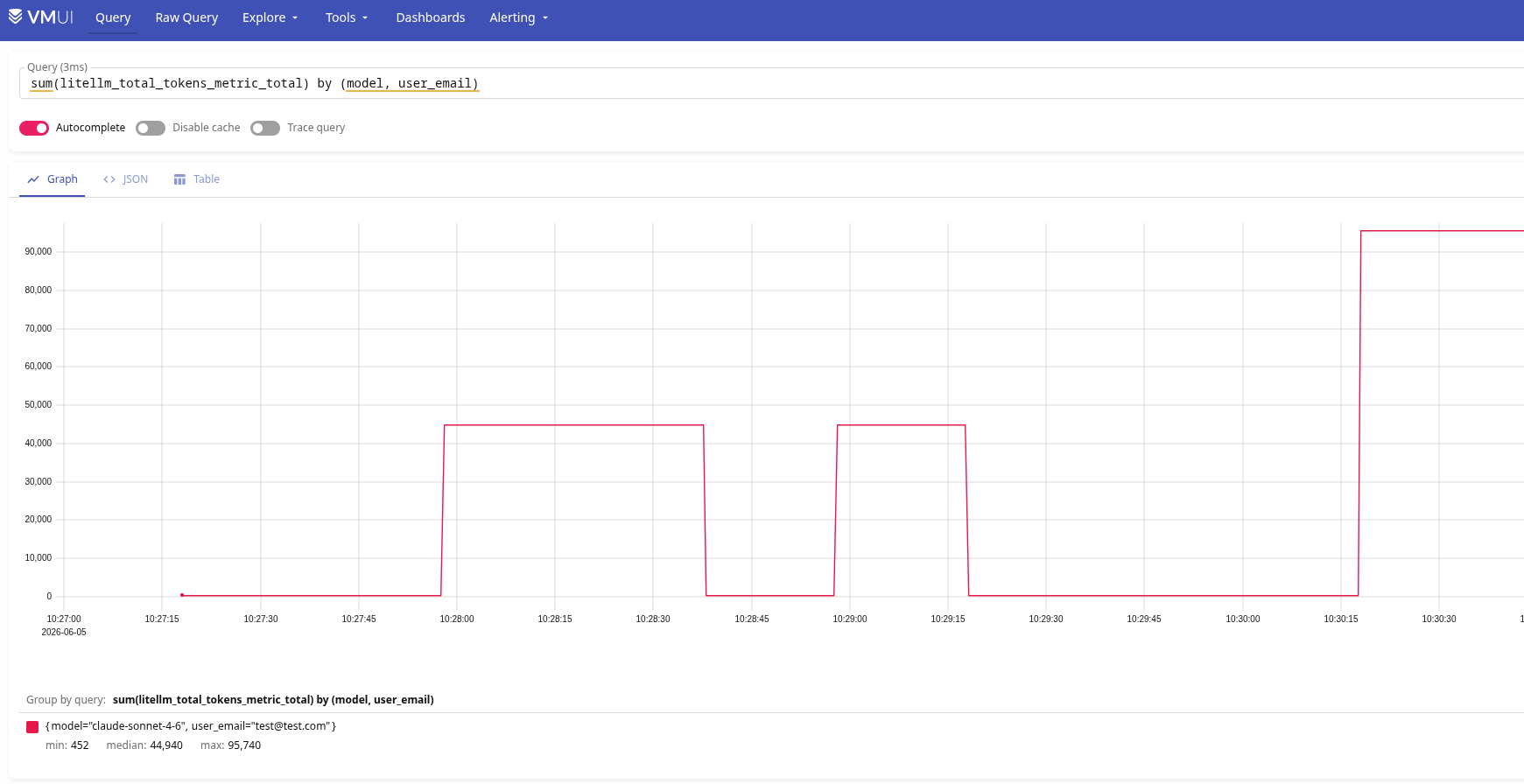
The famous 40,000-token system prompt in Claude Code 🙂
If you make your own VMPodScrape – it looks like this:
apiVersion: operator.victoriametrics.com/v1beta1
kind: VMPodScrape
metadata:
  name: litellm
  namespace: ops-litellm-ns
spec:
  selector:
    matchLabels:
      app.kubernetes.io/name: litellm
  podMetricsEndpoints:
    - port: http
      path: /metrics/
And that’s it – the service is ready for configuration.
It’s been running for about a week now, we’re gradually switching over our production services – so far so good.
Next we’ll need to add more models, set up metrics and traces, look at what interesting alerts and Grafana dashboards we can create – the next post is already in drafts.
Useful links
