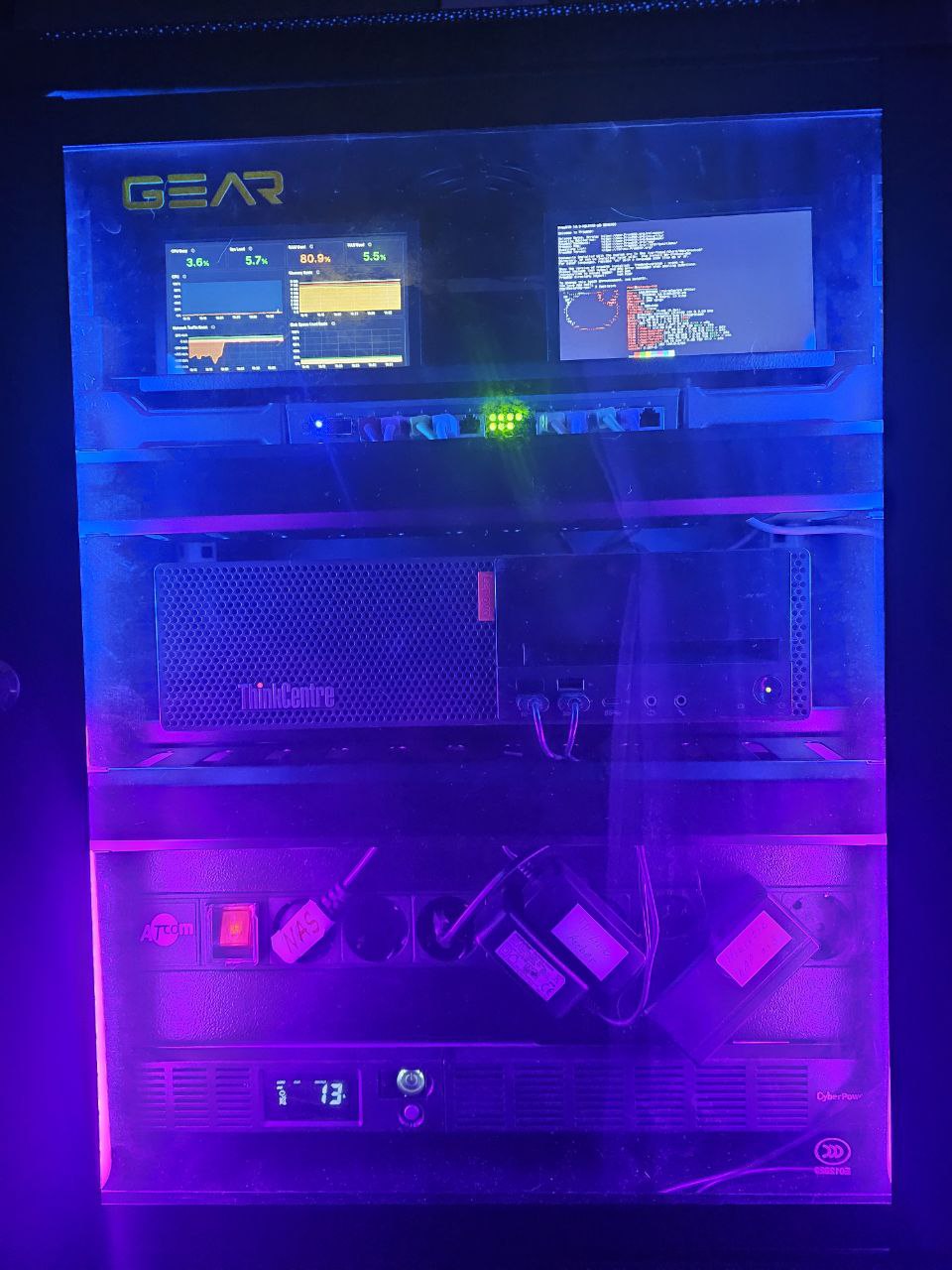
 When I was just starting to build my NAS and thinking about backups, everything seemed pretty simple: there’s a work laptop with data, there’s a FreeBSD server for the NAS – just take and copy the data.
So the initial idea was to have backup script(s) on Linux hosts that would push data to the NAS with rsync, and then from the NAS another script would push data to Rclone remotes.
But…
 But when I actually started doing it, a question came up:
rsyncfrom hostsetevoy-workpushes data to the NAS- at the same time
rsyncfrom hostsetevoy-homepushes its own data
So when should rclone run to Google Drive? How do you know that all data from all hosts is already ready for copying?
And that was just the tip of the iceberg of this organizational problem.
All parts of the series on setting up a home NAS on FreeBSD:
- FreeBSD: Home NAS, part 1 – configuring ZFS mirror (RAID1)
- FreeBSD: Home NAS, part 2 – introduction to Packet Filter (PF) firewall
- FreeBSD: Home NAS, part 3 – WireGuard VPN, Linux peer, and routing
- FreeBSD: Home NAS, part 4 – Local DNS with Unbound
- FreeBSD: Home NAS, part 5 – ZFS pool, datasets, snapshots, and ZFS monitoring
- FreeBSD: Home NAS, part 6 – Samba server and client connections
- FreeBSD: Home NAS, part 7 – NFSv4 and use with Linux clients
- FreeBSD: Home NAS, part 8 – NFS and Samba data backup with restic
- FreeBSD: Home NAS, part 9 – data backup to AWS S3 and Google Drive with rclone
- FreeBSD: Home NAS, part 10 – monitoring with VictoriaMetrics and Grafana
- FreeBSD: Home NAS, part 11 – extended monitoring with additional exporters
- FreeBSD: Home NAS, part 12: synchronizing data with Syncthing
- (current) FreeBSD: Home NAS, Part 13: Planning Data Storage and Backups
- FreeBSD: Home NAS, part 14 – logs with VictoriaLogs and alerts with VMAlert
- FreeBSD: Home NAS, Part 15: Automating Backups – scripts, rsync, rclone
- (to be continued)
Contents
“Requirements”: the complexity of organizing data and backups
So it turned out there are a ton of nuances here:
- there’s more than one, two, or even three hosts to back up from:
- there’s a work laptop with Arch Linux
- there’s a home laptop with Arch Linux
- there’s a gaming PC that runs Windows for gaming and Arch Linux for work – because before the “blackout season” this was my main work machine
- there’s the FreeBSD NAS server itself
- a Raspberry Pi recently joined the party (see Raspberry Pi: first experience and installing Raspberry Pi OS Lite)
- and there’s also a phone with its own data like photos
- each host has different types of data:
- relatively static and identical data across laptops/PC – photos, videos, documents
- frequently changing but generally the same across laptops/PC, though may differ slightly – work project data, personal scripts
- sensitive data that’s the same on all hosts – SSH keys, KeePass/1Password backups, Recovery Codes, etc.
- a home video collection 😉
- system backups – various configs from
/etc,/usr/local/etc,~/.ssh/config, various dotfiles for Openbox or KDE Plasma settings
- all this data needs to be synced to several external resources (hereafter just “clouds”):
- ZFS datasets on the NAS itself
- keep copies in clouds – Google and/or Proton Drive, AWS S3 or Backblaze
- and on top of all that – have backups of backups in case of accidental deletion, for which there are:
- ZFS snapshots – backups on the NAS itself
- Syncthing Trash – Syncthing backups
rclone --backup-dir– when copying changes from the NAS to clouds, a separate directory is used to store deleted or modified data
- and the whole thing also needs to be automated, so that copying from NAS to Google Drive doesn’t run at the same time as copying from hosts to NAS
- that is, just running
rsyncfrom the work laptop is fine – but how do you know when to runrclonefrom NAS to Google Drive?
- that is, just running
Feel the mess starting to form in your head? 😉
Throughout this post I’ll write all remotes simply as “Google Drive” or “clouds” – but this also includes Proton Drive, AWS S3, and possibly others I’ll start using later – because Rclone offers an enormous number of options (UPD: instead of AWS S3 I went with Backblaze, see Backblaze: A First Look at B2 Cloud Storage).
For now Google Drive is the primary one, although I may end up breaking away from Google altogether, since their “AI” that they’re cramming into every corner is starting to get really annoying.
My hosts and networks diagram
For an overall picture, all hosts and networks can be represented like this:
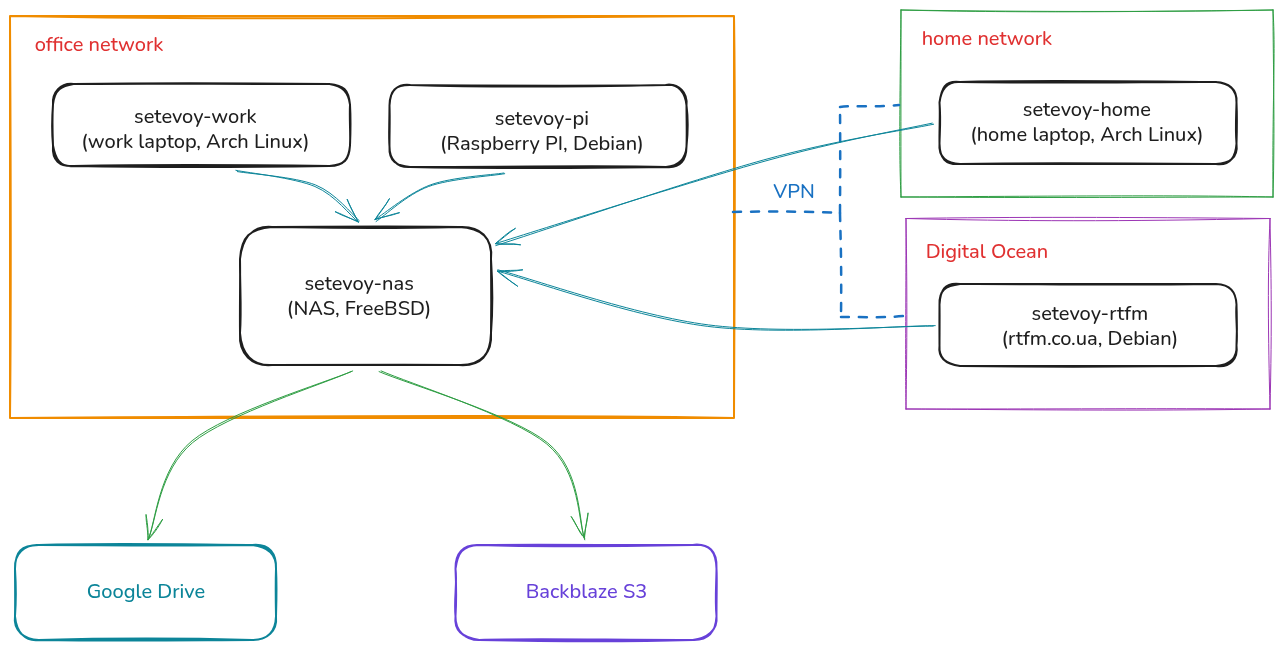
The office has a MikroTik RB4011 acting as a kind of “VPN hub” – it has WireGuard configured, which connects the office and home networks and also connects the Digital Ocean server where rtfm.co.ua currently runs.
I wrote about MikroTik in the post MikroTik: First Look and Getting Started, and about WireGuard on it – MikroTik: WireGuard VPN Setup and Linux Peer Configuration, which also has a more detailed network diagram.
So the networking question is solved – now I need to collect data from all these hosts and figure out how to organize its storage on the NAS and the backup process from hosts to NAS – and from NAS to clouds.
Data types and classes for storage and backups
When I started planning how to organize data storage on the NAS, I settled on this approach:
- split all data into classes
- for each class have a separate ZFS dataset – giving the ability to configure custom quotas, separate snapshot policies, and their retention
- each dataset has its own Rclone remote backend – giving the ability to configure custom encryption parameters
The main “source of truth” for data is the work laptop: it has a 1 TB drive, so all data is stored there and then backed up to the NAS with rsync, while part of the data is synced with the home laptop and NAS via Syncthing.
I divided all my data into these classes:
- User Data: data from
/home/setevoyon laptops and PC:- Shared Static Unencrypted Data:
- this data is identical on all hosts
- includes things like
~/Books,~/Music,~/Photos - stored in Google as plaintext so it can be viewed or downloaded via the web without Rclone
- synced between NAS,
setevoy-work, andsetevoy-homewith Syncthing (see FreeBSD: Home NAS, part 12: data sync with Syncthing)
- Shared Dynamic Unencrypted Data:
- data on all hosts – identical or with minor differences
- updated frequently and/or may have a lot of “junk” like
.gitdirectories - stored in Google Drive as plaintext
- includes things like
~/Work,~/Projects(personal scripts),~/Opt(MikroTik WinBox, various local Prometheus Exporters, etc.) - for this data the source of truth is the work laptop, and on the NAS it’s a mirror of the work machine’s data synced with
rsyncduring backups - on the home laptop, if needed, just sync manually from the NAS
- Shared Static Crypted Data:
- data that’s identical on all hosts
- but sensitive, so it will be encrypted in Google Drive
- includes
~/Vault(Recovery Codes, KeePass/1Pass, etc.) - synced/backed up to NAS with
rsyncfrom the work laptop
- Non-Shared Static Crypted Data:
- a collection of private videos – stored only on the work ( 🙂 ) laptop and on the NAS itself
- in Google Drive both directory names, file names, and their content will be encrypted
- includes
~/Films/Private/ - synced/backed up to NAS with
rsyncfrom the work laptop
- Shared Static Unencrypted Data:
- System Data: various dotfiles, configs from
/etc, service and blog backups:- System Backups:
/boot,/etc,/usr/local/etc,~/.ssh/config,/root, etc. – from all hosts to NAS- various configs and scripts from FreeBSD itself
- Services Backups:
- mainly local data from the NAS itself, which runs WordPress with my private journal, VictoriaMetrics with metrics from all hosts and my Self-Monitoring (see InfluxDB: running on Debian with NGINX and connecting Grafana, but I migrated data from Influx to VictoriaMetrics)
/usr/local/www– blog filesmysqldump– database backupsvmbackup– VictoriaMetrics data- backups of the rtfm.co.ua blog – but it has its own (very old) backup system that I’m not changing yet – it pushes data to AWS S3, and from there the archives are stored on the NAS by the new system
- System Backups:
Data Layers: storage and data transfer diagrams
For a better understanding of how data is stored and transferred – I formed a concept I call “Data Layers”:
- Storage Layer: ZFS pool, datasets – here we define what is stored and how
- Snapshot Policy Layer: an optional additional layer – here we define local ZFS snapshotting policies
- Transport Layer: Rclone, Rsync – here we define what is copied, by what tool, how, and where
- Cloud Policy Layer: here we define what Rclone Remotes we have and the encryption policy for directories and data within them
Transport Layer diagram: data transfer and synchronization
Now we can think through and visualize the entire data flow.
I’ll write about the backup automation itself separately, otherwise this post will be kilometers long – there are several shell scripts that run on the NAS.
But for now the entire data storage and transfer process can be schematically represented with this diagram:
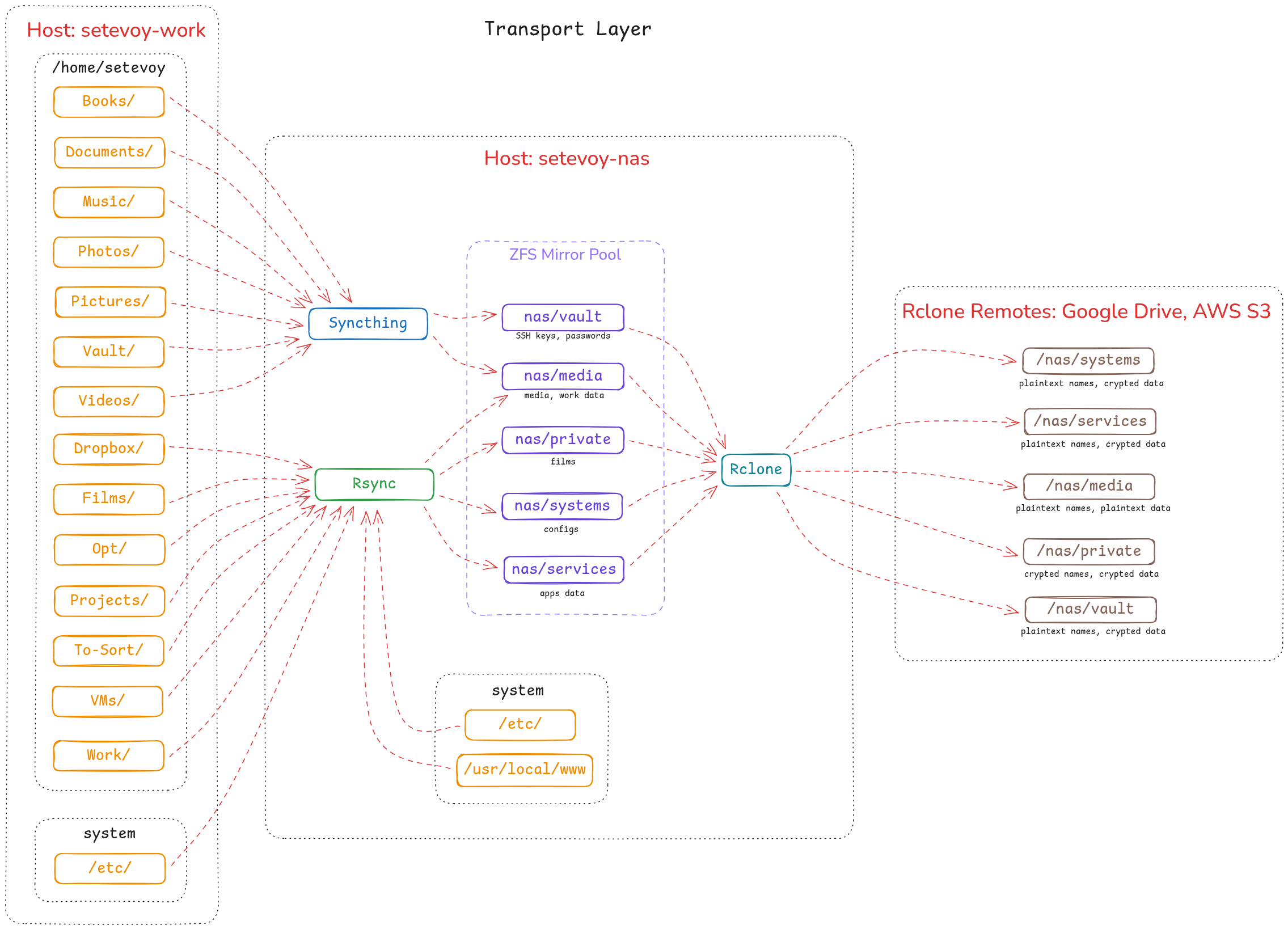
- Syncthing: handles data that doesn’t change too often, has little “junk”, and is shared across all hosts – a continuously running process on laptops and the phone
- Rsync: for the rest of the data, has defined rules in include and exclude files – runs from the NAS, connects to hosts, and collects data from them
- Rclone: handles copying data to remotes and performs encryption – runs from the NAS after
rsynchas collected all data and the backup script has created local (on the NAS) backups of WordPress and VictoriaMetrics
Cloud Policy Layer diagram: data encryption in Google Drive and Backblaze
Here – for better clarity for myself – I put together a “mapping” of data from ZFS datasets on the NAS to Rclone Remotes:
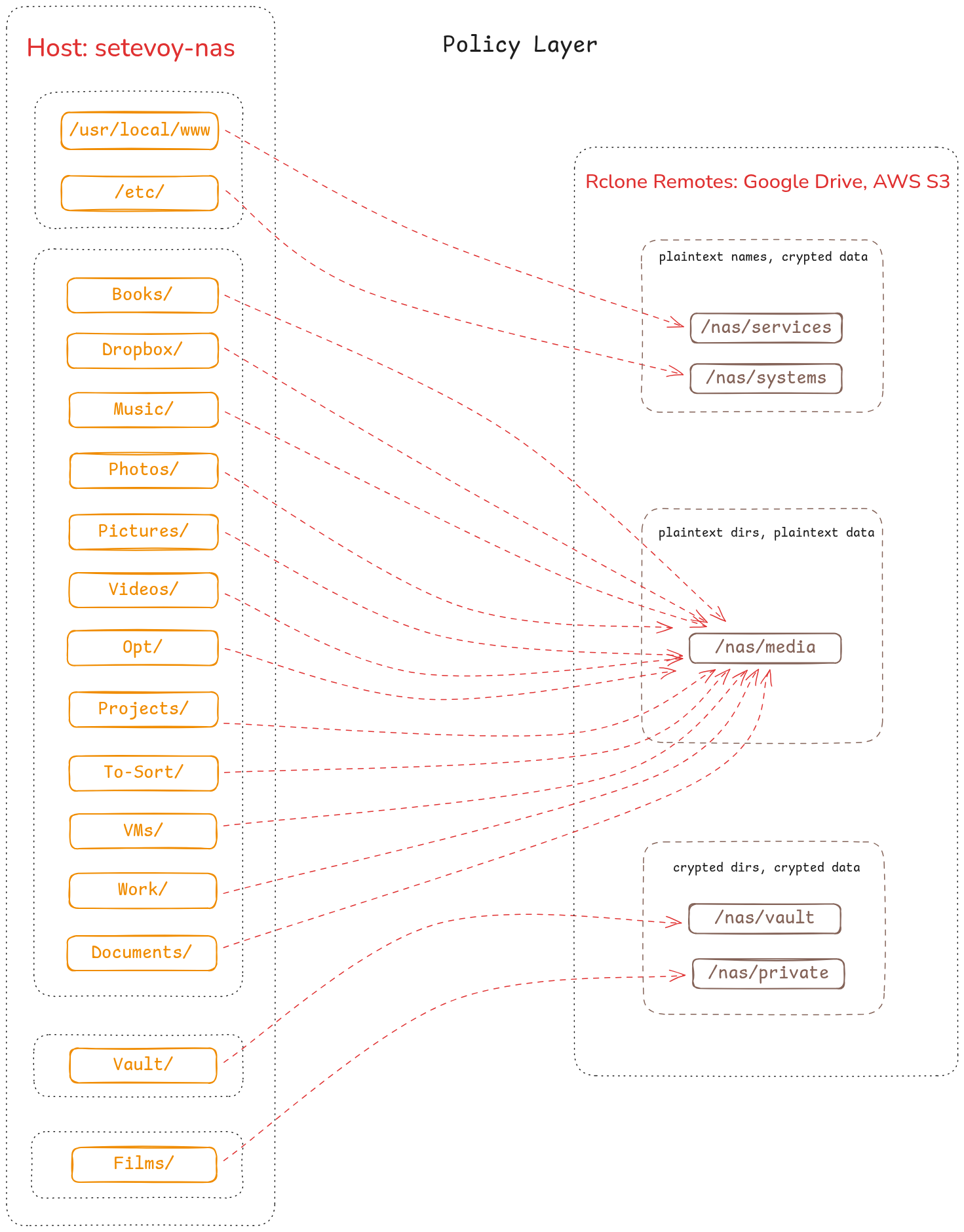
In Google Drive there’s a separate Backups/Rclone directory, within which separate directories are created for each storage type, and for each of them on the NAS separate Rclone remotes are configured:
/nas/servicesand/nas/systems: encrypt the data itself, but directory and file names are plaintext, for easier searching/nas/media: here everything is just plaintext, since there’s nothing sensitive/nas/vaultand/nas/private: maximum confidentiality – both directory/file names and their content are encrypted
And for Backblaze – just separate buckets. More on Rclone remotes a bit later.
NAS ZFS datasets: organizing data storage
For each data class I then defined datasets:
- Shared Static Unencrypted Data (
~/Pictures,~/Photos):- ZFS dataset:
nas/media
- ZFS dataset:
- Shared Dynamic Unencrypted Data (
~/Work,~/Projects,~/Opt):- ZFS dataset:
nas/media
- ZFS dataset:
- Non-Shared Static Crypted Data (
~/Films/Private/):- ZFS dataset:
nas/private
- ZFS dataset:
- Shared Static Crypted Data (
~/Vault):- ZFS dataset:
nas/vault
- ZFS dataset:
- System Backups (
/boot,/etc,/usr/local/etc):- ZFS dataset:
nas/systems
- ZFS dataset:
- Services Backups (WordPress databases and files, VictoriaMetrics):
- ZFS dataset:
nas/services
- ZFS dataset:
All ZFS datasets on the NAS currently look like this:
root@setevoy-nas:~ # zfs list
NAME                 USED  AVAIL  REFER  MOUNTPOINT
nas                 2.24T  1.27T   128K  /nas
nas/backups-manual   593G  1.27T   593G  /nas/backups-manual
nas/jellyfin        9.20G  1.27T  9.20G  /nas/jellyfin
nas/media            369G  1.27T   341G  /nas/media
nas/mobile          52.3G  1.27T  52.3G  /nas/mobile
nas/private          208G  1.27T   208G  /nas/private
nas/services         133G  1.27T   133G  /nas/services
nas/systems         4.82G  1.27T  3.78G  /nas/systems
nas/to-sort          560G  1.27T   560G  /nas/to-sort
nas/vault           56.2G  1.27T  56.2G  /nas/vault
There are a few additional datasets not related to backups:
/nas/backups-manual: just separate manual backups from hosts or from the NAS itself when I’m doing potentially risky operations with data/nas/jellyfin: movies for Jellyfin (there’s a draft post about it, maybe I’ll finish it someday) – these are purely films and TV shows, so not included in backups and stored separately/nas/mobile: dataset for phone data, which is copied here via Syncthing on the phone/nas/to-sort: copies of data from old computers that need to be sorted through and included in general backups
An example of how system backup data is organized – everything in separate directories:
root@setevoy-nas:~ # tree -d -L 3 /nas/systems/
/nas/systems/
├── setevoy-nas
│   └── thinkcentre-10SUSCF000
│       ├── boot
│       ├── etc
│       ├── home
│       ├── opt
│       ├── root
│       ├── usr
│       └── var
├── setevoy-pi
│   └── raspberry-pi-cm4-rev11
│       ├── etc
│       └── opt
└── setevoy-work
    └── thinkpad-t14-g5-21ML003URA
        ├── etc
        ├── home
        ├── root
        ├── usr
        └── var
And services data:
root@setevoy-nas:~ # tree -d -L 3 /nas/services/
/nas/services/
├── victoriametrics
│   ├── 20260222
│   │   ├── data
│   │   ├── indexdb
│   │   └── metadata
│   └── latest
│       ├── data
│       ├── indexdb
│       └── metadata
└── web
    └── setevoy
        ├── databases
        └── files
The VictoriaMetrics database is backed up with vmbackup, and the web data with a script that creates a tar.gz of files and runs mysqldump for database backups.
The data on disk looks like this:
root@setevoy-nas:~ # tree -L 4 /nas/services/
/nas/services/
├── victoriametrics
│   ├── 20260222
│   │   ├── backup_complete.ignore
│   │   ├── backup_metadata.ignore
│   │   ├── data
│   │   │   ├── indexdb
│   │   │   └── small
│   │   ├── indexdb
│   │   │   └── 1882B20388AAC712
│   │   └── metadata
│   │       └── minTimestampForCompositeIndex
│   └── latest
│       ├── backup_complete.ignore
│       ├── backup_metadata.ignore
│       ├── data
│       │   ├── indexdb
│       │   └── small
│       ├── indexdb
│       │   └── 1882B20388AAC712
│       └── metadata
│           └── minTimestampForCompositeIndex
└── web
    └── setevoy
        ├── databases
        │   ├── 2026-02-19-18-05-blog-setevoy.sql
        │   ├── 2026-02-21-18-47-blog-setevoy.sql
        │   ├── 2026-02-22-00-00-blog-setevoy.sql
        ...
        └── files
            ├── 2026-02-19-18-05-blog-setevoy.tar.gz
            ├── 2026-02-21-18-47-blog-setevoy.tar.gz
            ├── 2026-02-22-00-00-blog-setevoy.tar.gz
        ...
...
And data in /nas/media – just all in one directory:
root@setevoy-nas:~ # tree -L 3 /nas/media/
/nas/media/
└── home
    └── setevoy
        ├── Backups
        ├── Books
        ├── Documents
        ├── Downloads
        ├── Dropbox
        ├── Music
        ├── Opt
        ├── Photos
        ├── Pictures
        ├── Projects
        ├── VMs
        ├── Videos
        └── Work
Rclone remotes and associated ZFS datasets
Rclone remotes are created for each dataset that needs to be backed up to clouds:
root@setevoy-nas:~ # rclone listremotes
nas-aws-s3-setevoy-backups-root:
nas-google-drive-total-root:
nas-google-drive-root:
nas-google-drive-media:
nas-google-drive-mobile:
nas-google-drive-crypted-systems:
nas-google-drive-crypted-services:
nas-google-drive-crypted-vault:
nas-google-drive-crypted-private:
nas-backblaze-root-media:
nas-backblaze-crypted-media:
nas-backblaze-root-mobile:
nas-backblaze-crypted-mobile:
nas-backblaze-root-systems:
nas-backblaze-crypted-systems:
nas-backblaze-root-services:
nas-backblaze-crypted-services:
nas-backblaze-root-vault:
nas-backblaze-crypted-vault:
nas-backblaze-root-private:
nas-backblaze-crypted-private:
Each remote maps to a ZFS dataset:
nas-google-drive-mediaandnas-backblaze-crypted-media: data from/nas/mediagoes herenas-google-drive-crypted-systemsandnas-backblaze-crypted-systems: data from/nas/systemsgoes here
And so on.
Each Rclone Remote has its own directory in Google Drive or a Backblaze bucket.
In Google Drive it looks like this:
root@setevoy-nas:~ # rclone tree -d --max-depth 2  nas-google-drive-total-root:Backups/Rclone
/
└── nas
    ├── media
    ├── mobile
    ├── private
    ├── services
    ├── systems
    └── vault
And an example of one of the Backblaze buckets:
root@setevoy-nas:~ # rclone tree -d --max-depth 4 nas-backblaze-crypted-media:
/
├── _archive
│   ├── 2026-02-22-14-53
│   ├── 2026-02-24-03-06
│   │   └── home
│   │       └── setevoy
│   ├── 2026-02-25-03-07
│   │   └── home
│   │       └── setevoy
│   └── 2026-02-27-12-18
│       └── home
│           └── setevoy
└── data
    └── home
        └── setevoy
            ├── Backups
            ├── Books
            ├── Documents
            ├── Downloads
            ├── Dropbox
            ├── Music
            ├── Opt
            ├── Photos
            ├── Pictures
            ├── Projects
            ├── VMs
            ├── Videos
            └── Work
Well, I think I’ve covered everything.
The next part is about the shell script itself, which runs rsync, creates WordPress and VictoriaMetrics backups, then creates ZFS snapshots, and then syncs all data to Rclone remotes.
And then the final part of the entire Home NAS series – with a full description of how everything was built, which services are running, how it’s all monitored, and what it looks like: