 For those who don’t follow updates in the Telegram channel rtfmcoua or are visiting my blog for the first time, a reminder that for the last couple of months I’ve been building a “self-hosted home stack”, which already includes a couple of MikroTik devices and a ThinkCentre running FreeBSD.
On the ThinkCentre / FreeBSD I have a NAS with a ZFS mirror pool (see FreeBSD: Home NAS, part 1 – configuring ZFS mirror) and “central monitoring” with VictoriaMetrics + Grafana (see FreeBSD: Home NAS, part 10 – monitoring with VictoriaMetrics).
On top of all that happiness, I decided to add a separate machine for mini-monitoring, and also host things like Glance there (see Glance: setting up a self-hosted browser home page), since I turn off the ThinkCentre during long blackouts (although its power consumption is only about 20 Wh).
And… I once tried Arduino – cool stuff, but things never went beyond “Hello, World” (at least so far), and you can’t really host things like Uptime Kuma on an Arduino.
I’ve long wanted to play with Raspberry Pi, but previously couldn’t figure out “why the hell would I?” – and now, finally, an answer to that great question has appeared.
Contents
Choosing a Raspberry Pi
Honestly, I didn’t honestly choose much 🙂
Or rather, I did choose, because “wow, so cute!” – I accidentally came across the Raspberry Pi Compute Module 4 PoE Mini-Computer somewhere, imagined how nicely it would fit into my server rack, and decided to get it.
It looks like this:
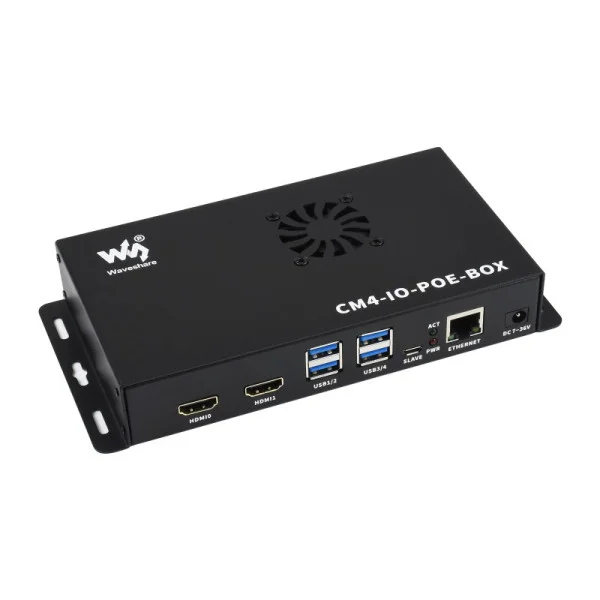
There are newer Compute Module version 5 boards – but for my purposes, and especially for a first experience, version 4 is more than enough.
So, we have:
- Raspberry Pi Compute Module 4 Mini-Computer: a case with two HDMI ports, 4 USB, Gigabit Ethernet, a MicroSD slot, and most importantly – a CM4 SOCKET
- Raspberry Pi Compute Module 4 (CM4): the actual Raspberry Pi board with 1 GB RAM and 32 GB eMMC
I bought it at https://minicomp.com.ua – not an ad, but the store seems solid, shipped quickly, support via phone/Telegram works, zero complaints.
The only thing I had to buy separately was mounting hardware.
Installing the operating system
A little bit of fun 🙂
Because it’s the first time, and this is not “insert a USB stick with a ready-made image”.
At first I wanted to install Debian, and it actually worked, but…
I couldn’t log in to the system :facepalm:
So I just installed Raspberry Pi OS Lite, and everything went (or rather – got in 🙂 ) without any issues.
However, since it’s a first experience – I’ll keep the process for Debian here as well.
Installing Raspberry Pi Debian
Download from raspi.debian.net:
[setevoy@setevoy-work ~] $ ls ~/Downloads/Rasp/
debian-13-raspi-arm64-daily.tar.xz
Extract it (although, as it turned out, you can skip this – see the simpler option in Installing Raspberry Pi OS Lite below):
[setevoy@setevoy-work ~] $ cd ~/Downloads/Rasp/
[setevoy@setevoy-work ~] $ tar xfp debian-13-raspi-arm64-daily.tar.xz
The archive contains disk.raw – a full disk image with a ready-made GPT/MBR and boot partition:
[setevoy@setevoy-work ~] $ fdisk -l ~/Downloads/Rasp/disk.raw
Disk /home/setevoy/Downloads/Rasp/disk.raw: 3 GiB, 3221225472 bytes, 6291456 sectors
...
Disklabel type: gpt
Disk identifier: 580A523C-E6C1-4021-8A56-D664D3C75FA2

Device                                    Start     End Sectors  Size Type
/home/setevoy/Downloads/Rasp/disk.raw1  1048576 6289407 5240832  2.5G Linux root (ARM-64)
/home/setevoy/Downloads/Rasp/disk.raw15    2048 1048575 1046528  511M EFI System

Partition table entries are not in disk order.
Connecting USB to the laptop
This also took a bit of time, because the USB boot switching scheme is very unfamiliar and not at all obvious.
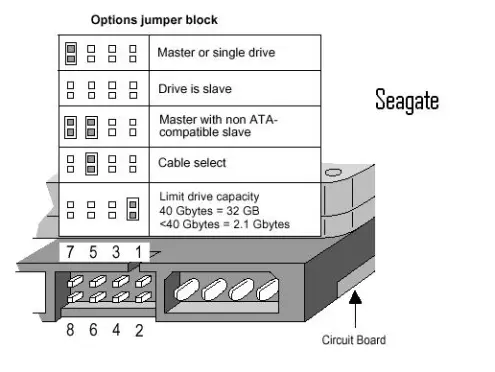
Even felt some nostalgia for the times when you’d flip Primary/Slave jumpers on an HDD.
A picture for those who haven’t seen this in person:
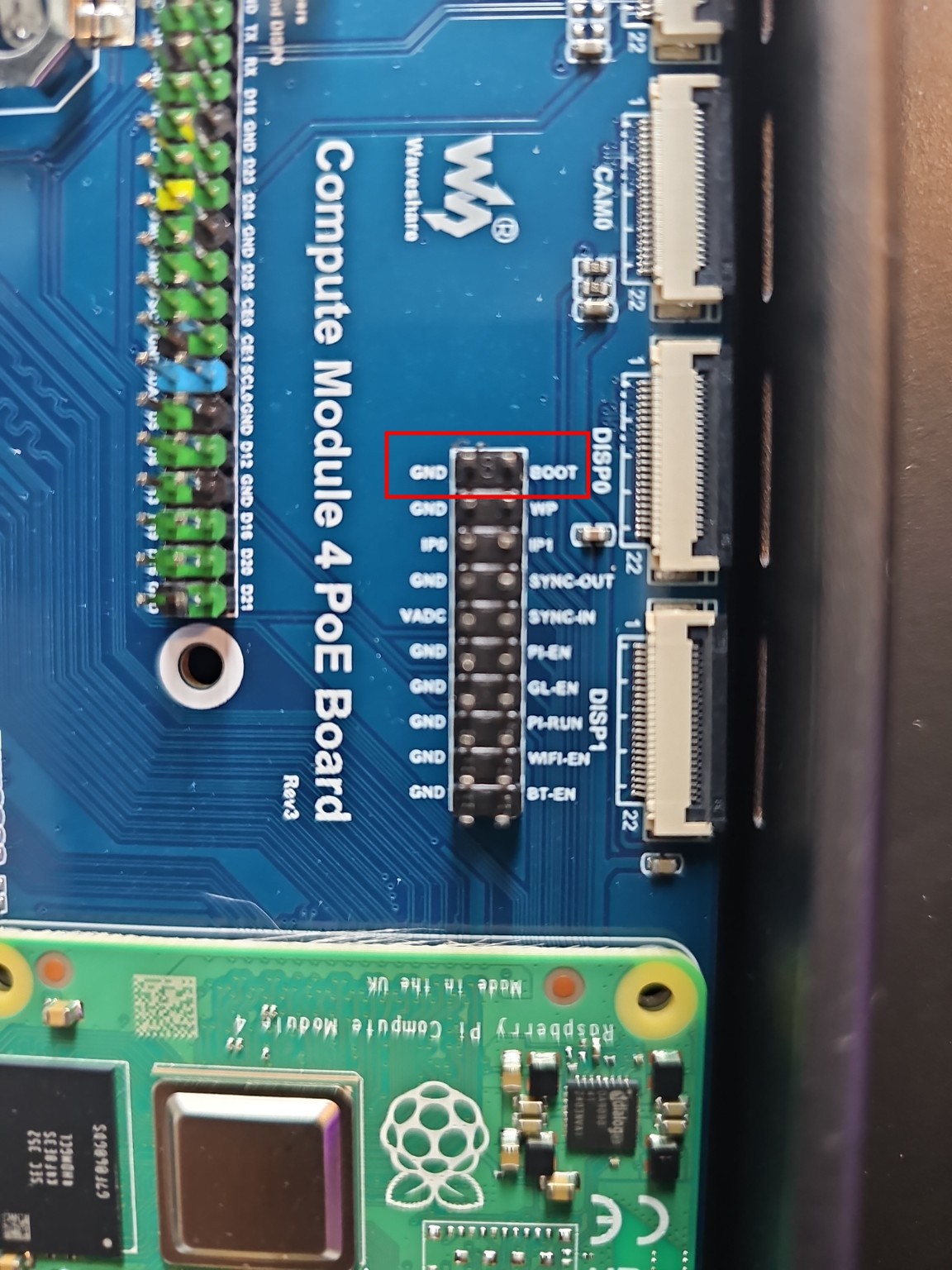
On my CM4 the pins for enabling USB boot were found here:
There was no spare jumper, but you can take one from FAN/VDD:
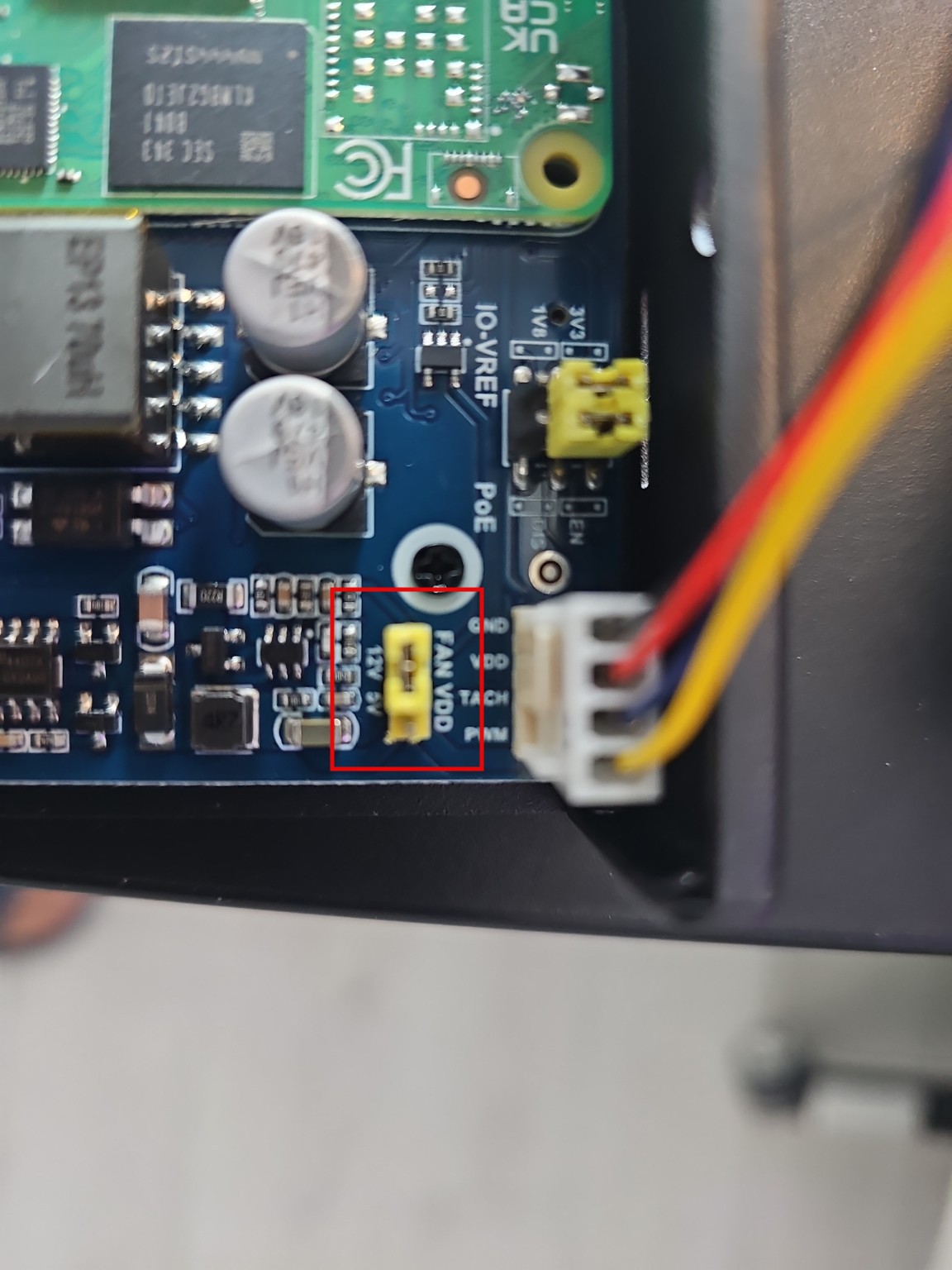
Move the jumper, connect with a regular USB cable to the laptop, check devices – Broadcom should appear:
[setevoy@setevoy-work ~] $ lsusb | grep Broa
Bus 003 Device 024: ID 0a5c:2711 Broadcom Corp. BCM2711 Boot
Install rpiusbboot – the utility will connect to the Raspberry Pi Compute Module and mount its eMMC (embedded MultiMediaCard) disk to the laptop as a regular flash drive:
[setevoy@setevoy-work ~] $ yay -S rpiusbboot
Run it:
[setevoy@setevoy-work ~] $ sudo rpiusbboot
RPIBOOT: build-date Feb 12 2026 version 20221215~105525 b41ab04a
Waiting for BCM2835/6/7/2711...
Loading embedded: bootcode4.bin
Sending bootcode.bin
Successful read 4 bytes
Waiting for BCM2835/6/7/2711...
Loading embedded: bootcode4.bin
Second stage boot server
Cannot open file config.txt
Cannot open file pieeprom.sig
Loading embedded: start4.elf
File read: start4.elf
Cannot open file fixup4.dat
Second stage boot server done
Now we have a new disk in the system:
[setevoy@setevoy-work ~] $ lsblk
NAME          MAJ:MIN RM   SIZE RO TYPE  MOUNTPOINTS
sda             8:0    1  29.1G  0 disk
Copy the image downloaded above:
[setevoy@setevoy-work ~] $ sudo dd if=~/Downloads/Rasp/disk.raw of=/dev/sda bs=4M status=progress conv=fsync
When done – disconnect the Pi’s power, move the jumper back to FAN/VDD, and boot in normal mode.
But… As I wrote above – I couldn’t log in.
There’s this gist with default logins:passwords – none of them worked.
The Debian documentation says that root has no password – but it wouldn’t let me in.
So I gave up on “clean” Debian and just took Raspberry Pi OS Lite, which is Debian-based anyway.
And honestly – it’s probably even better for the Pi.
Plus – got to see for the first time how to reinstall a system on eMMC.
Installing Raspberry Pi OS Lite
Switch the jumper again, connect USB to the laptop, run rpiusbboot once more.
Wipe everything from the Raspberry disk (CAREFULLY double-check the device!):
[setevoy@setevoy-work ~] $ sudo wipefs -a /dev/sda
/dev/sda: 8 bytes were erased at offset 0x00000200 (gpt): 45 46 49 20 50 41 52 54
/dev/sda: 2 bytes were erased at offset 0x000001fe (PMBR): 55 aa
/dev/sda: calling ioctl to re-read partition table: Success
Download the image from the Raspberry website, get the archive 2025-12-04-raspios-trixie-arm64-lite.img.xz.
Now do the same dd, but this time just pipe the image through xzcat:
[setevoy@setevoy-work ~] $ xzcat ~/Downloads/ISO/2025-12-04-raspios-trixie-arm64-lite.img.xz | sudo dd of=/dev/sda bs=4M status=progress conv=fsync
Move the jumper back, boot up, and – success!
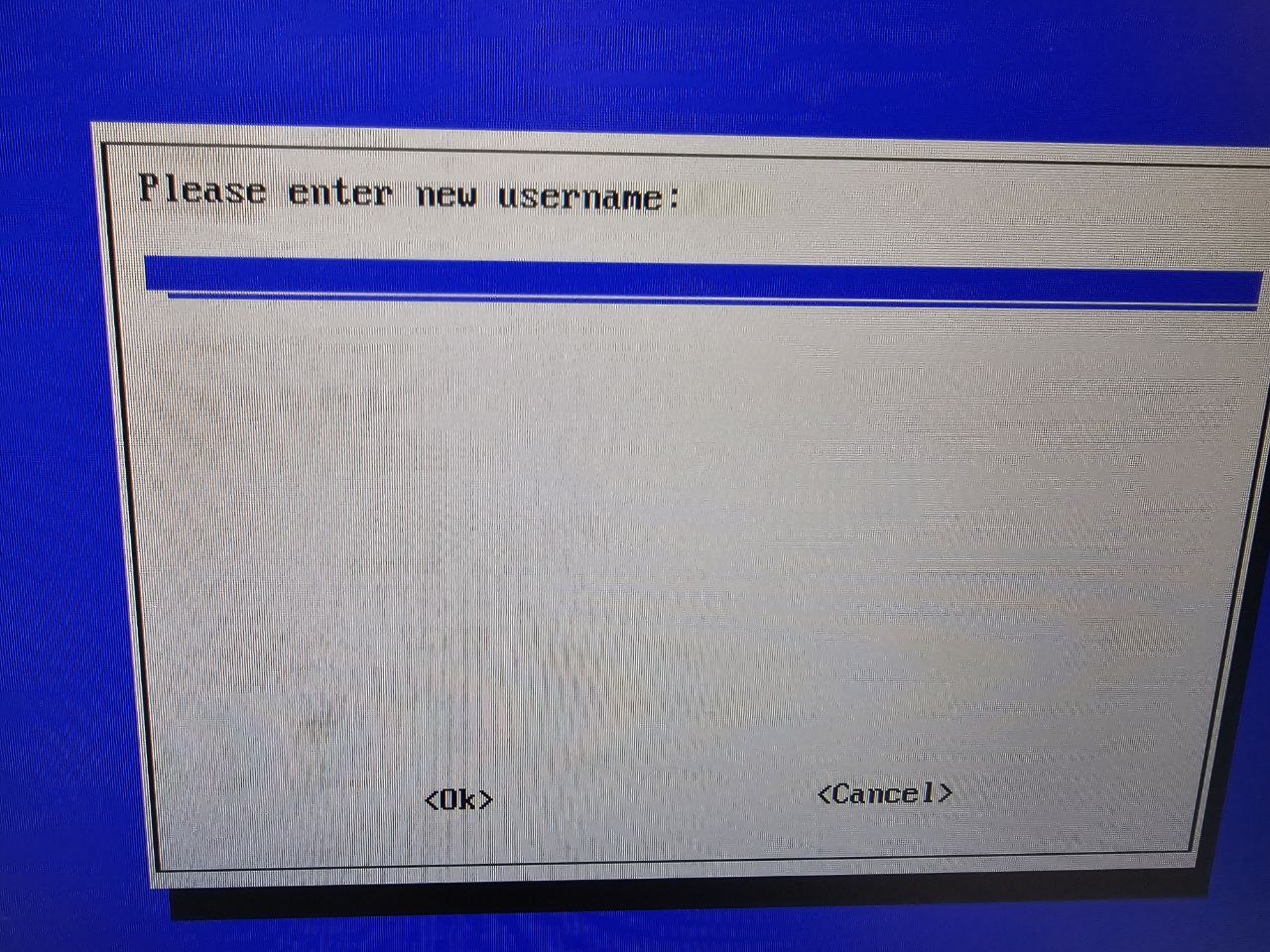
Create a user, log in – everything works.
Enabling SSH
Surprise – but systemctl start sshd is not an option here 🙂
Although systemd is present in the system.
Run raspi-config:
setevoy@raspberrypi:~ $ sudo raspi-config
Go to Interface Options:
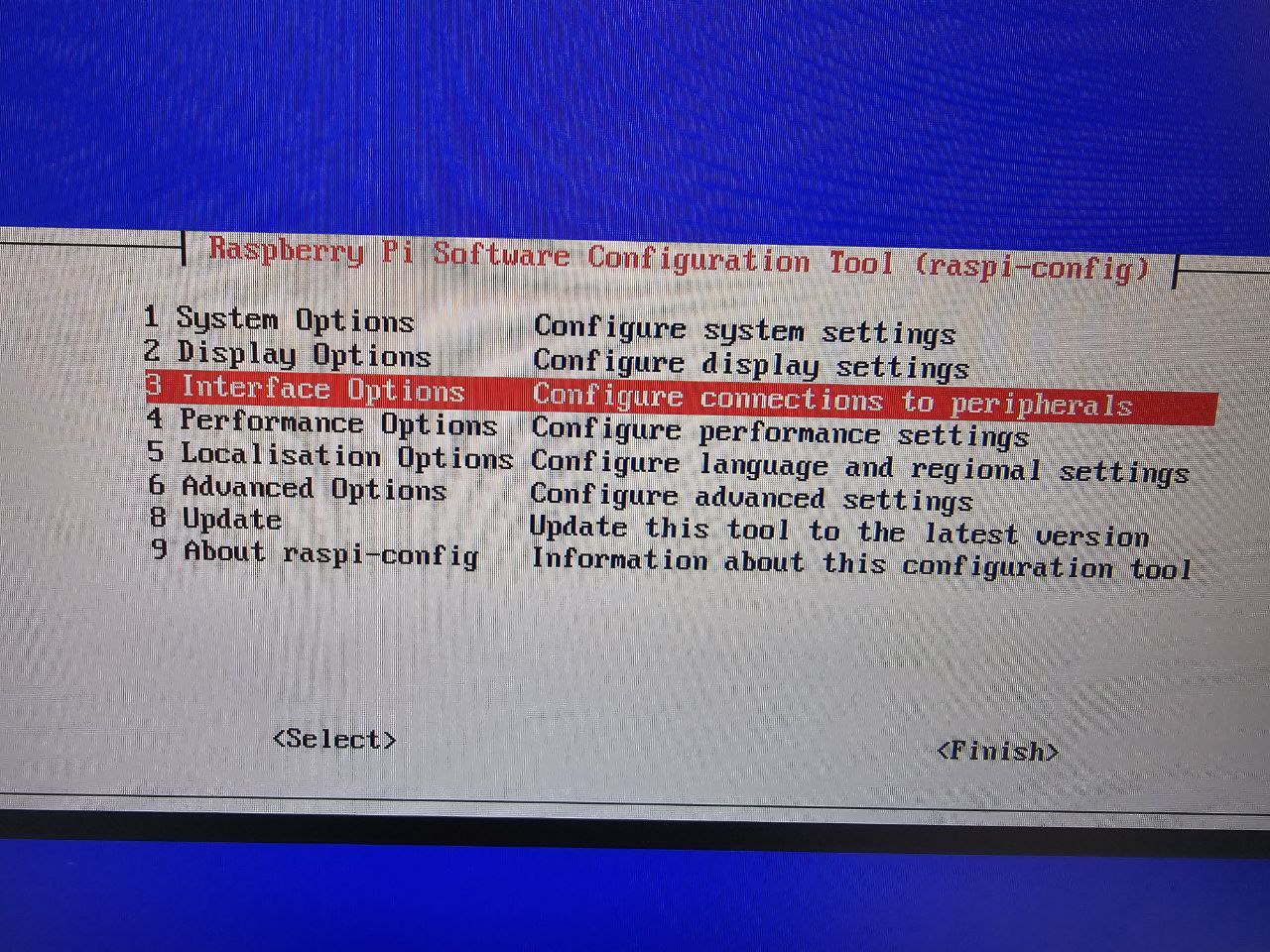
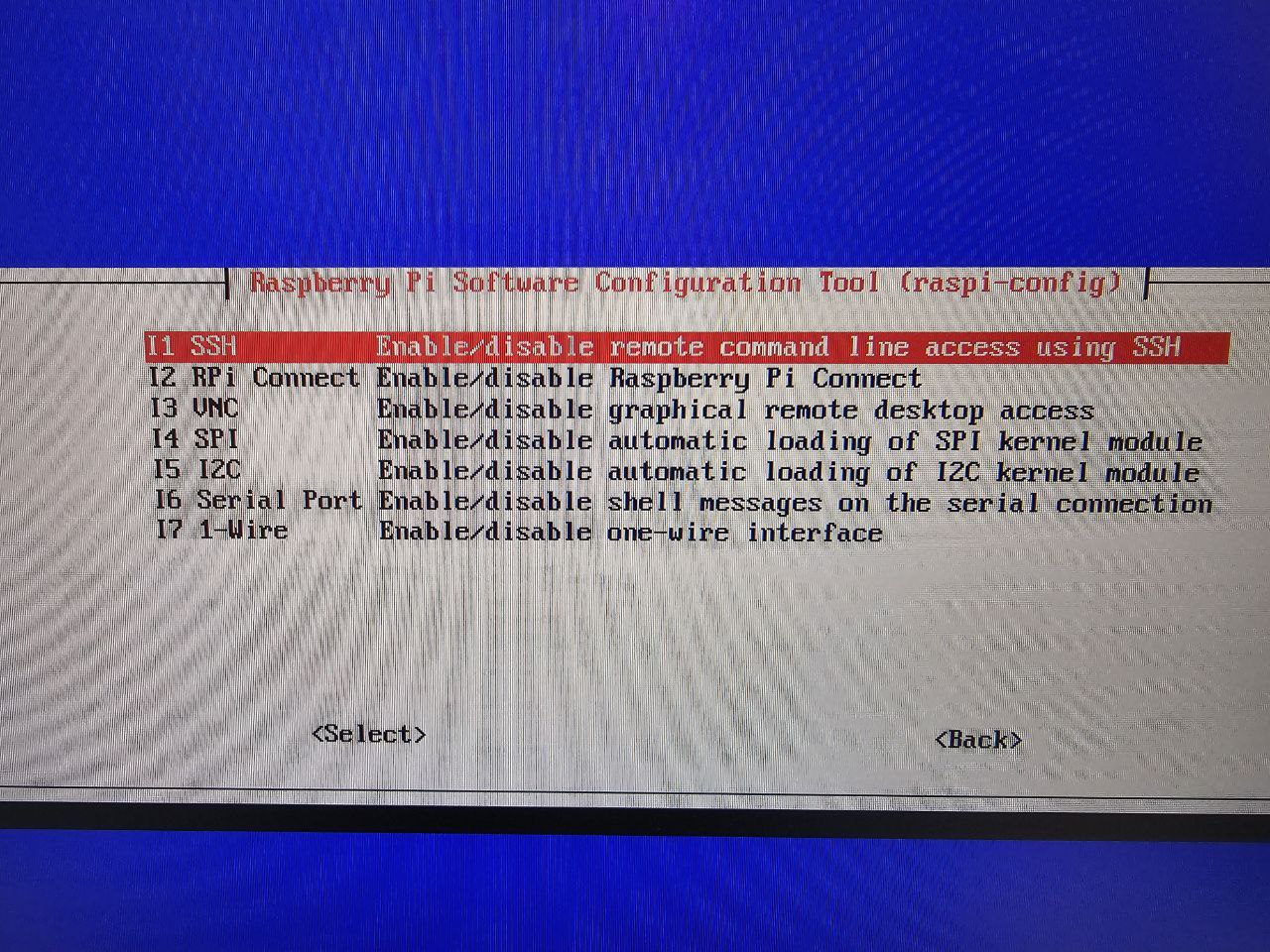
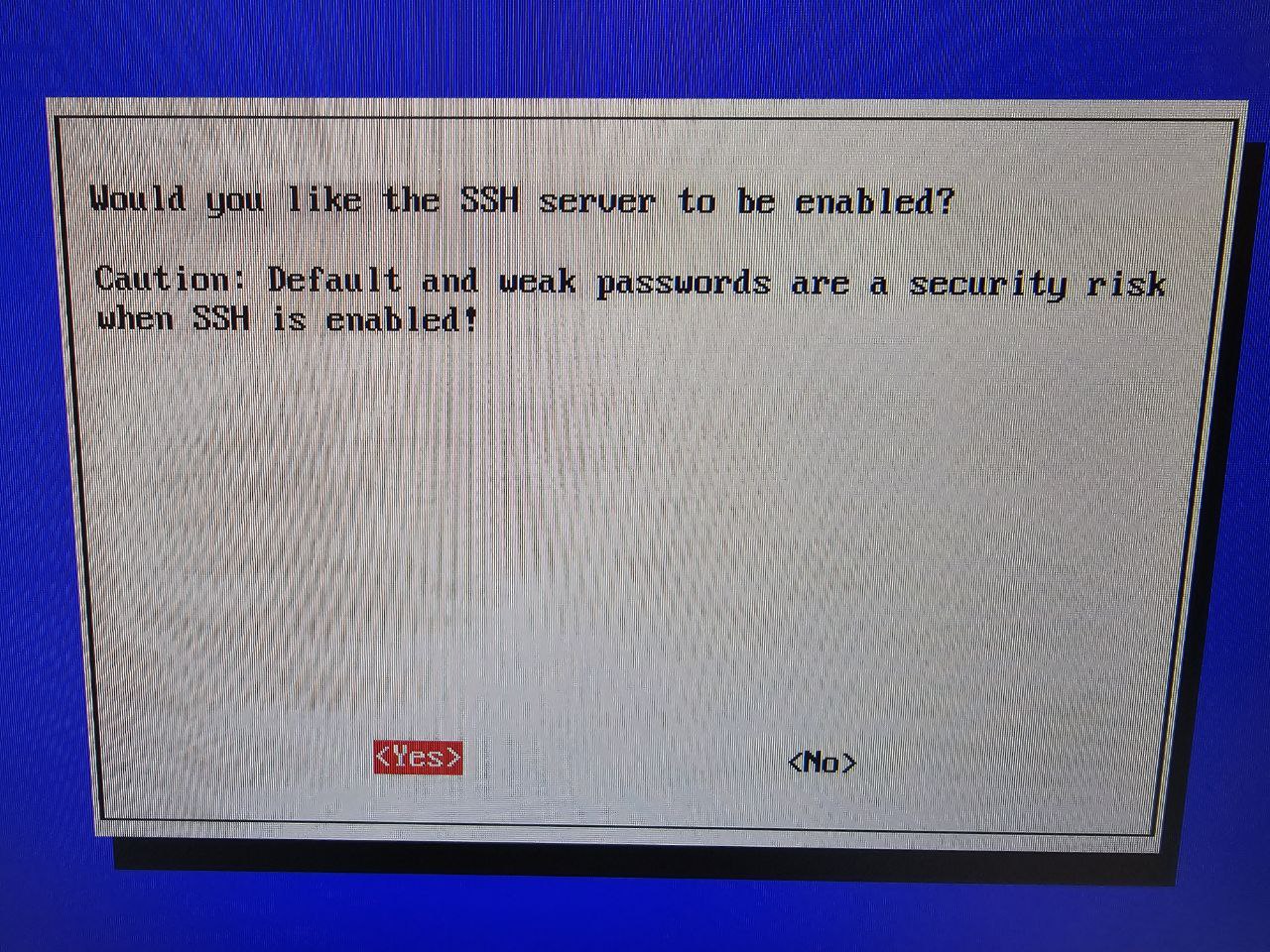
Select and enable SSH:
Connect:
[setevoy@setevoy-work ~] $ ssh 192.168.0.61
...
Debian GNU/Linux comes with ABSOLUTELY NO WARRANTY, to the extent
permitted by applicable law.
setevoy@raspberrypi:~ $
Run a system upgrade:
setevoy@raspberrypi:~ $ sudo apt update && sudo apt full-upgrade -y
And then configure hostname, timezone, and the rest of the needed system parameters.
Static IP on MikroTik
A bit about networking, though everything is fairly standard here – NetworkManager and nmcli.
I have a MikroTik, and currently the Raspberry Pi has a dynamic IP from the DHCP server pool:
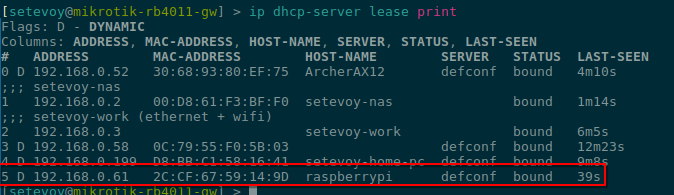
Add a static lease for the Pi’s MAC address:
/ip dhcp-server lease add address=192.168.0.5 mac-address=2C:CF:67:59:14:9D comment=setevoy-pi
Remove the old one:
/ip dhcp-server lease remove 5
Check the connection on Raspberry:
setevoy@raspberrypi:~ $ nmcli device status
DEVICE  TYPE      STATE                   CONNECTION
eth0    ethernet  connected               Wired connection 1
lo      loopback  connected (externally)  lo
Then run either sudo nmcli device reapply eth0, or sudo nmcli device disconnect eth0 && sudo nmcli device connect eth0, or just reboot – and now we can connect via the new address:
[setevoy@setevoy-work ~] $ ssh 192.168.0.5
...
Debian GNU/Linux comes with ABSOLUTELY NO WARRANTY, to the extent
permitted by applicable law.
Last login: Thu Feb 12 11:54:41 2026 from 192.168.0.3
setevoy@raspberrypi:~ $
You can also add a new DNS record on MikroTik right away:
/ip dns static add name=pi.setevoy address=192.168.0.5 ttl=1d
Check it:
/ip dns static print where name=pi.setevoy

And verify from the work laptop:
[setevoy@setevoy-work ~]  $ dig pi.setevoy +short
192.168.0.5
That’s basically it.
Install Docker, Docker Compose, run Glance and Uptime Kuma.
From there, Uptime Kuma can be configured to send alerts to, for example, ntfy.sh – and have monitoring for your monitoring.
And here’s where my Pi lives:
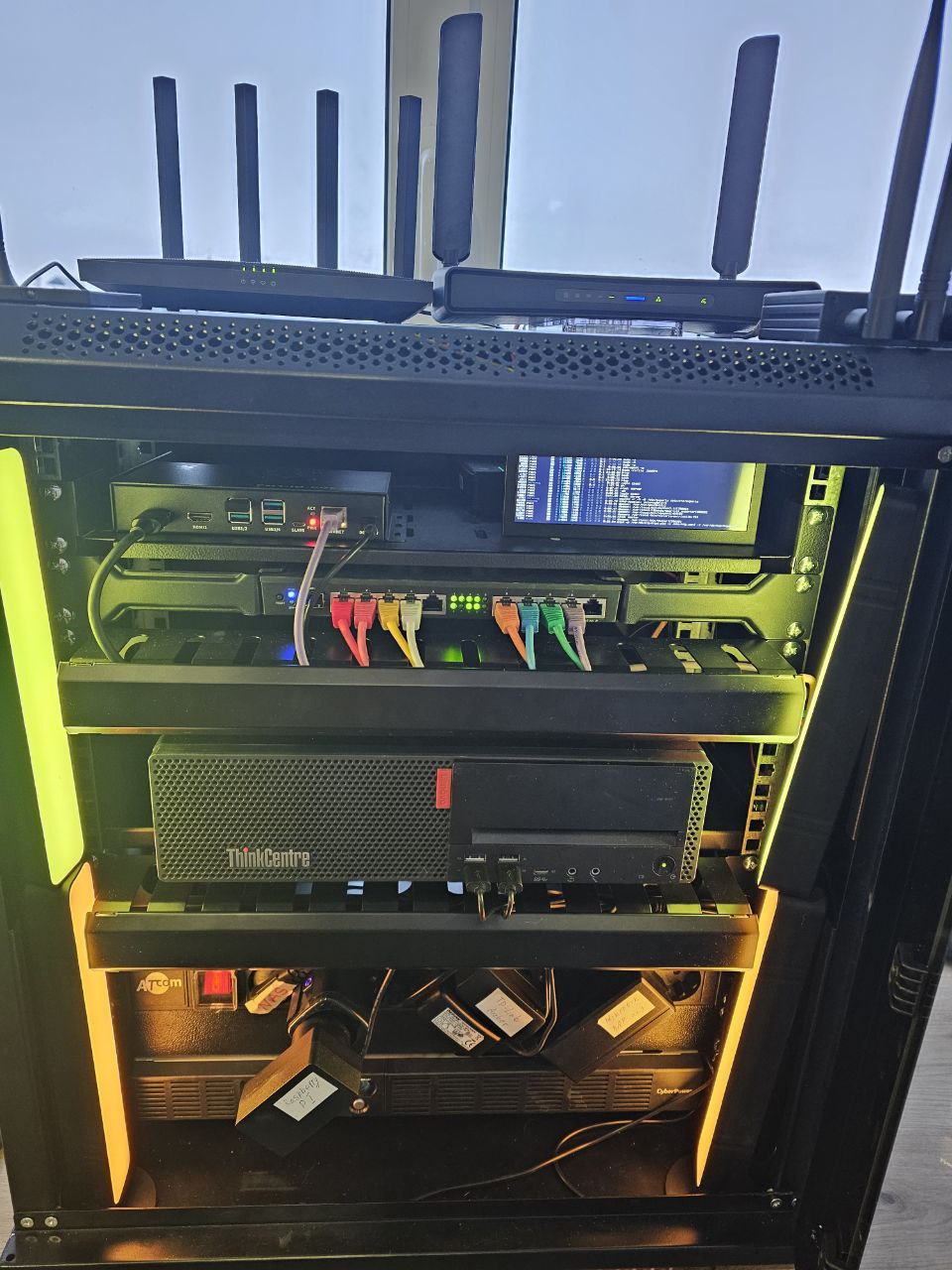
I’ll write about the rack build separately in the final part of the Home NAS setup series.
