 There’s this cool thing called self-hosted home pages.
I saw them somewhere on Reddit a while back, saved them to bookmarks, and now that I have all this self-hosted stuff with NAS (see FreeBSD: Home NAS, part 1), Grafana, and other useful things for work and daily life – I thought it would be nice to set up such a dashboard for myself.
From the ones I have saved, and which seem to be the most popular – there’s gethomepage/homepage and glanceapp/glance.
But Homepage feels a bit heavier, with a bunch of components – frontend, backend, some renderers – while Glance is simpler, and in general has everything I wanted to see – although in some places it’s done through workarounds 🙂
So – setting up Glance.
For now I’ll do it locally on my laptop with Docker Compose; later I’ll move the config to FreeBSD/NAS or to a Raspberry PI with Debian.
Contents
Configuring Glance
See the Pages & Columns documentation.
The main components are Pages, Columns, and Widgets:
- pages: essentially pages – you can have multiple tabs
- columns: each page is split into several columns
- widgets: and each column has a set of widgets
Widgets can also be grouped and tabbed – we’ll see an example with Reddit below.
To play around – it runs easily with Docker, see Installation.
There are no separate themes – everything is configured through styles, for example:
...
theme:
  background-color: 225 14 15
  primary-color: 157 47 65
  contrast-multiplier: 1.1
...
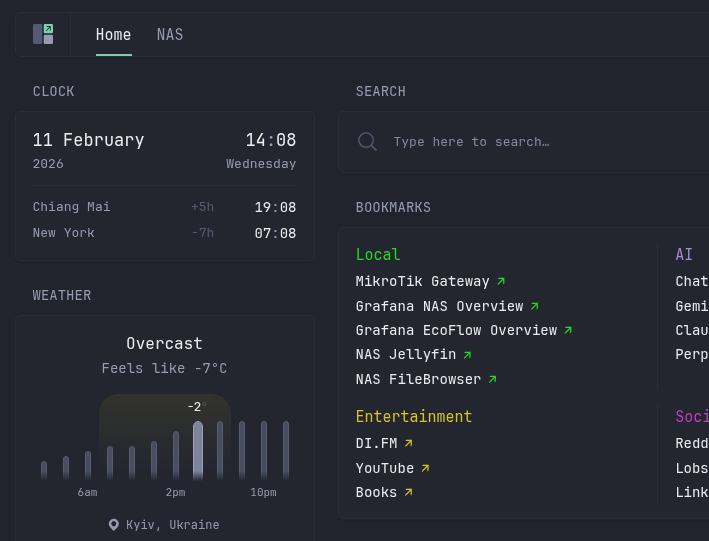
But there are ready-made styles – see Themes.
Besides the default widgets, there are community widgets, for example, I grabbed NextDNS Stats from there.
My Pages and Widgets
Briefly, an example of how all this can be configured.
Since I’m hosting all of this locally and won’t be storing the config anywhere like GitHub, I wrote various tokens directly into the config, but in general you can use environment variables for them – see Other ways of providing tokens/passwords/secrets.
The first page – Home with three columns:
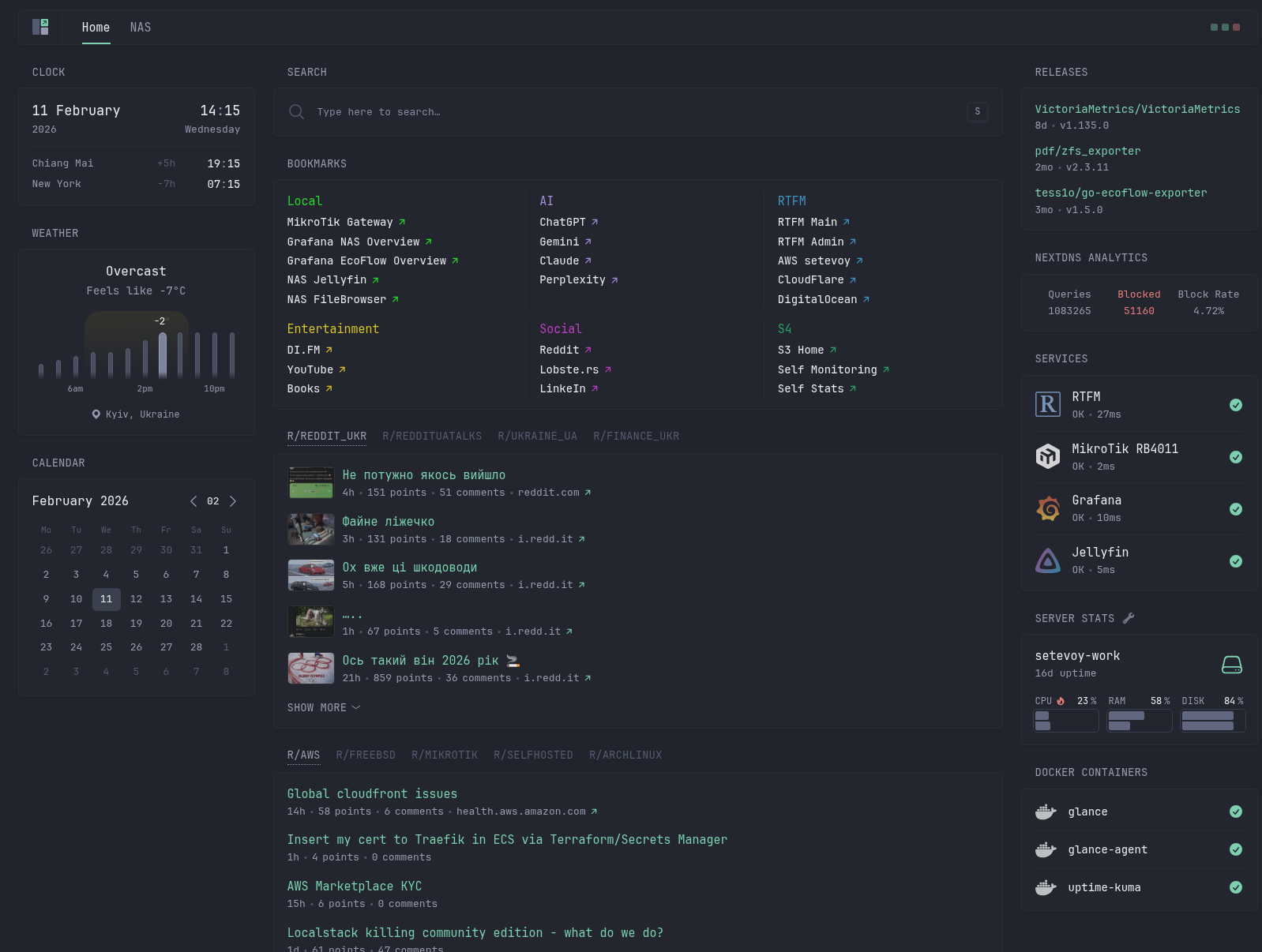
Clock, Weather, Calendar
Time, weather and calendar:
...
pages:
  - name: Home
    columns:
      # ---------- LEFT ----------
      - size: small
        widgets:
          - type: clock
            hour-format: 24h
            timezones:
              - timezone: Asia/Bangkok
                label: Chiang Mai
              - timezone: America/New_York
                label: New York

          - type: weather
            location: Kyiv
            units: metric

          - type: calendar
...
In the clock widget I added two more zones – because we have some developers in the US, and in Chiang Mai there’s one developer I talk to frequently and always have to think about what time it is there.
The center column – with type full, and each page needs to have at least one column with full.
Search
Here the search widget:
...
      # ---------- CENTER ----------
      - size: full
        widgets:
          - type: search
            search-engine: duckduckgo
            new-tab: true
            autofocus: true
            bangs:
              - title: YouTube
                shortcut: "!yt"
                url: https://www.youtube.com/results?search_query={QUERY}
...

Bookmarks
Bookmarks – the main ones for quick access, organized by category:
...
          - type: bookmarks
            groups:
              - title: Local
                color: 120 70 50
                target: _self
                links:
                  - title: MikroTik Gateway
                    url: http://192.168.0.1/webfig/#IP:DHCP_Server.Leases
...
              - title: AI
                color: 260 50 70
                target: _self
                links:
                  - title: ChatGPT
                    url: https://chat.openai.com/chat
...
              - title: RTFM
                color: 200 50 50
                target: _self
                links:
                  - title: RTFM Main
                    url: https://rtfm.co.ua/
...
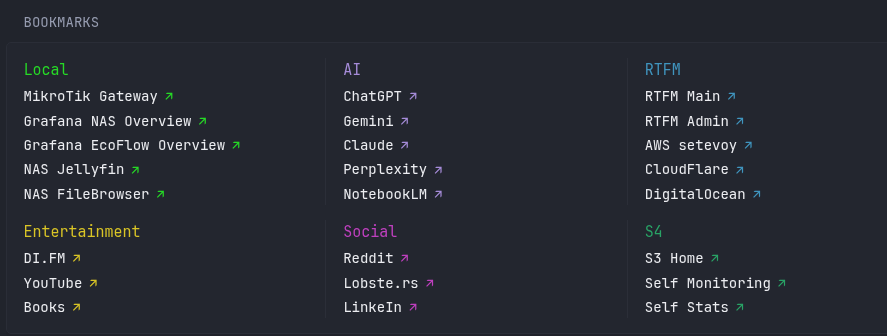
For choosing color you can use colorpicker.dev: the first number is the color itself, the second is saturation, the third is lightness.
Group for Reddit
Next is an example of grouping with Group – I made separate tabs for different subreddits, but in two separate groups – a rough “Reddit Ukraine” and “Reddit IT”:
...
          - type: group
            widgets:
              - type: reddit
                subreddit: finance_ukr
                show-thumbnails: true
              - type: reddit
                subreddit: durka_ukr
                show-thumbnails: true

          - type: group
            widgets:
              - type: reddit
                subreddit: aws
                show-thumbnails: false
              - type: reddit
                subreddit: archlinux
                show-thumbnails: false
...
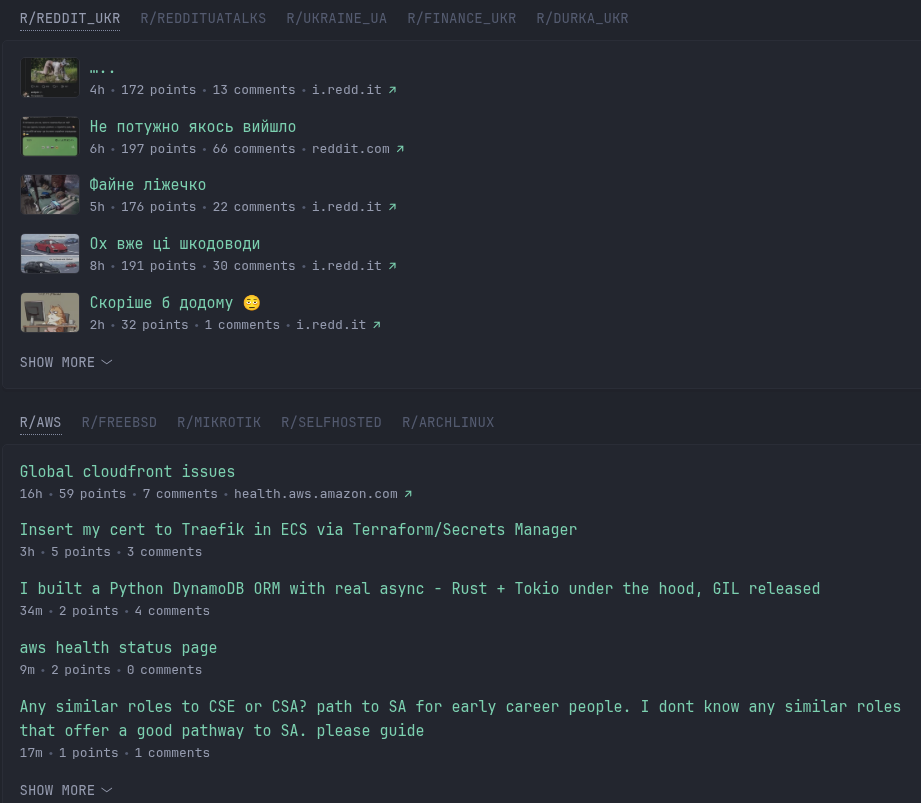
Split Column for news
The next widget – Split Column, with news and some interesting materials in a more compact layout:
...
          - type: split-column
            max-columns: 2
            widgets:
              - type: lobsters
                sort-by: hot
                limit: 15
                collapse-after: 5
              - type: rss
                title: News
                style: vertical-list
                feeds:
                  - url: https://aws.amazon.com/blogs/aws/feed/
                    title: AWS Blogs
                  - url: https://skeletor.org.ua/?feed=rss2
                    title: Skeletor
...
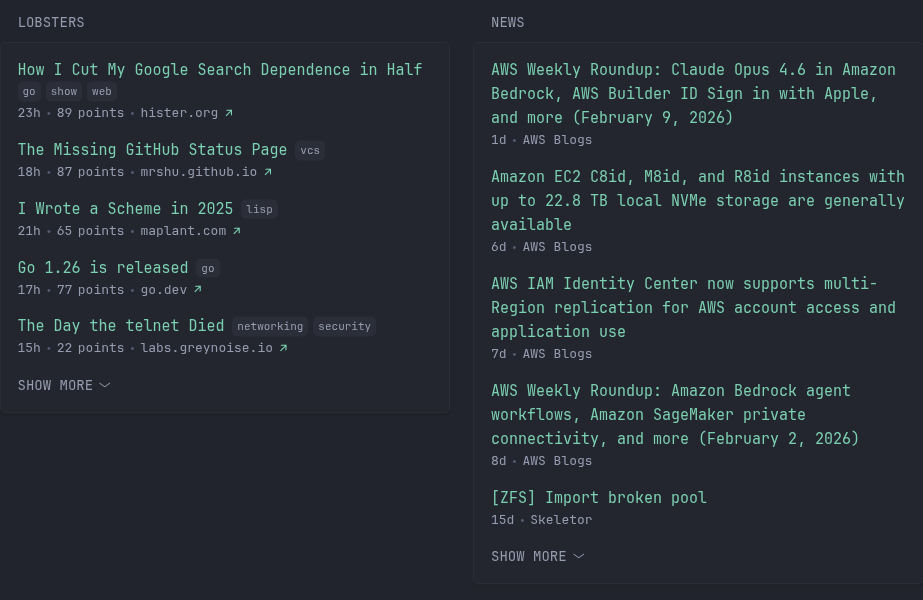
And the more interesting part – on the right, service status information.
GitHub Releases
The releases widget – latest GitHub releases:
...
      - size: small
        widgets:
          - type: releases
            token: github_pat_11A***1jF
            repositories:
              - VictoriaMetrics/VictoriaMetrics
              - pdf/zfs_exporter
              - tess1o/go-ecoflow-exporter
...
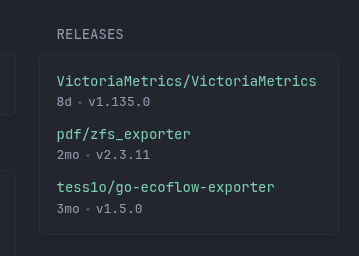
It makes sense for me to track zfs_exporter and go-ecoflow-exporter, since they’re deployed manually on my end – see FreeBSD: Home NAS, part 11 – extended monitoring with additional exporters.
Although, of course, nobody cancels the option of just subscribing to updates in GitHub itself 🙂
Custom API for NextDNS
An example of a custom custom-api widget – information about my NextDNS:
...
          - type: custom-api
            title: NextDNS Analytics
            title-url: https://api.nextdns.io/profiles/***/analytics/status
            cache: 1h
            url: https://api.nextdns.io/profiles/***/analytics/status
            headers:
              X-Api-Key: 3f8***457
            template: |
              {{ if eq .Response.StatusCode 200 }}
                <div style="display: flex; justify-content: space-between;">
                  {{ $total := 0.0 }}
                  {{ $blocked := 0.0 }}
                  {{ range .JSON.Array "data" }}
                    {{ $total = add $total (.Int "queries" | toFloat) }}
                    {{ if eq (.String "status") "blocked" }}
                      {{ $blocked = add $blocked (.Int "queries" | toFloat) }}
              ...
                <div style="text-align: center; color: var(--color-negative);">
                  Error: {{ .Response.StatusCode }} - {{ .Response.Status }}
                </div>
              {{ end }}
...
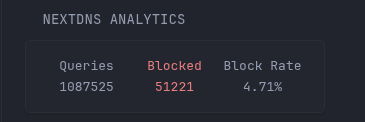
And there will be another example with a custom mini-API service below.
Monitor – HTTP service statuses
The monitor widget – a cool thing for displaying service status, it makes a simple GET request to the specified URL, and (at least for now) only works with HTTP/S:
...
          - type: monitor
            cache: 1m
            title: Services
            sites:
              - title: RTFM
                url: https://rtfm.co.ua
                icon: /assets/rtfm-icon-2.png
              - title: MikroTik RB4011
                url: http://192.168.0.1
                icon: sh:mikrotik-light
              - title: Grafana
                url: http://nas.setevoy:3000
                icon: sh:grafana
              - title: Jellyfin
                url: http://nas.setevoy:8096
                icon: sh:jellyfin
...
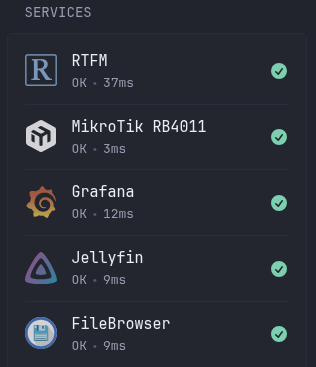
The MikroTik RB4011 (see MikroTik: First Look and Getting Started), for example, has a web interface accessible from the local network, so its status can be checked through it.
To connect icons – look for the default ones at, for example, selfh.st or dashboardicons.com.
Or you can set custom icons – add files to the /assets directory and include it in the Glance config:
...
server:
  host: 0.0.0.0
  port: 8080
  assets-path: /app/assets
...
Server Stats – CPU, RAM, Disk
An interesting thing – server-stats, although it’s still in beta:
...
          - type: server-stats
            servers:
              - type: local
                name: setevoy-work
...
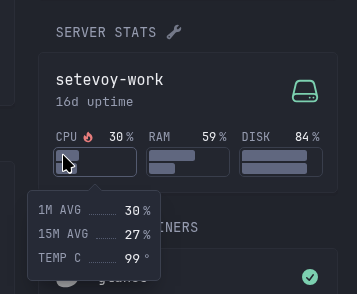
Requires an additional service – glanceapp/agent, for now I just added it to docker-compose.yaml:
services:
  glance:
    container_name: glance
    image: glanceapp/glance
    restart: unless-stopped
    volumes:
      - ./config:/app/config
      - ./assets:/app/assets
      - /etc/localtime:/etc/localtime:ro
      - /var/run/docker.sock:/var/run/docker.sock:ro
    ports:
      - 8080:8080
    env_file: .env

  glance-agent:
    container_name: glance-agent
    image: glanceapp/agent
    ports:
      - 27973:27973
Docker containers
And the last one here – running Docker containers, because I sometimes forget that something is running:
...
          - type: docker-containers
            hide-by-default: false
            running-only: true
...
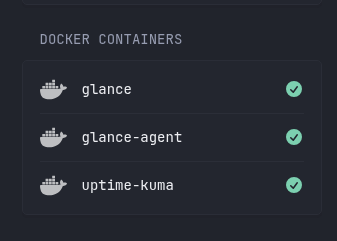
(I’ll write about Uptime Kuma too)
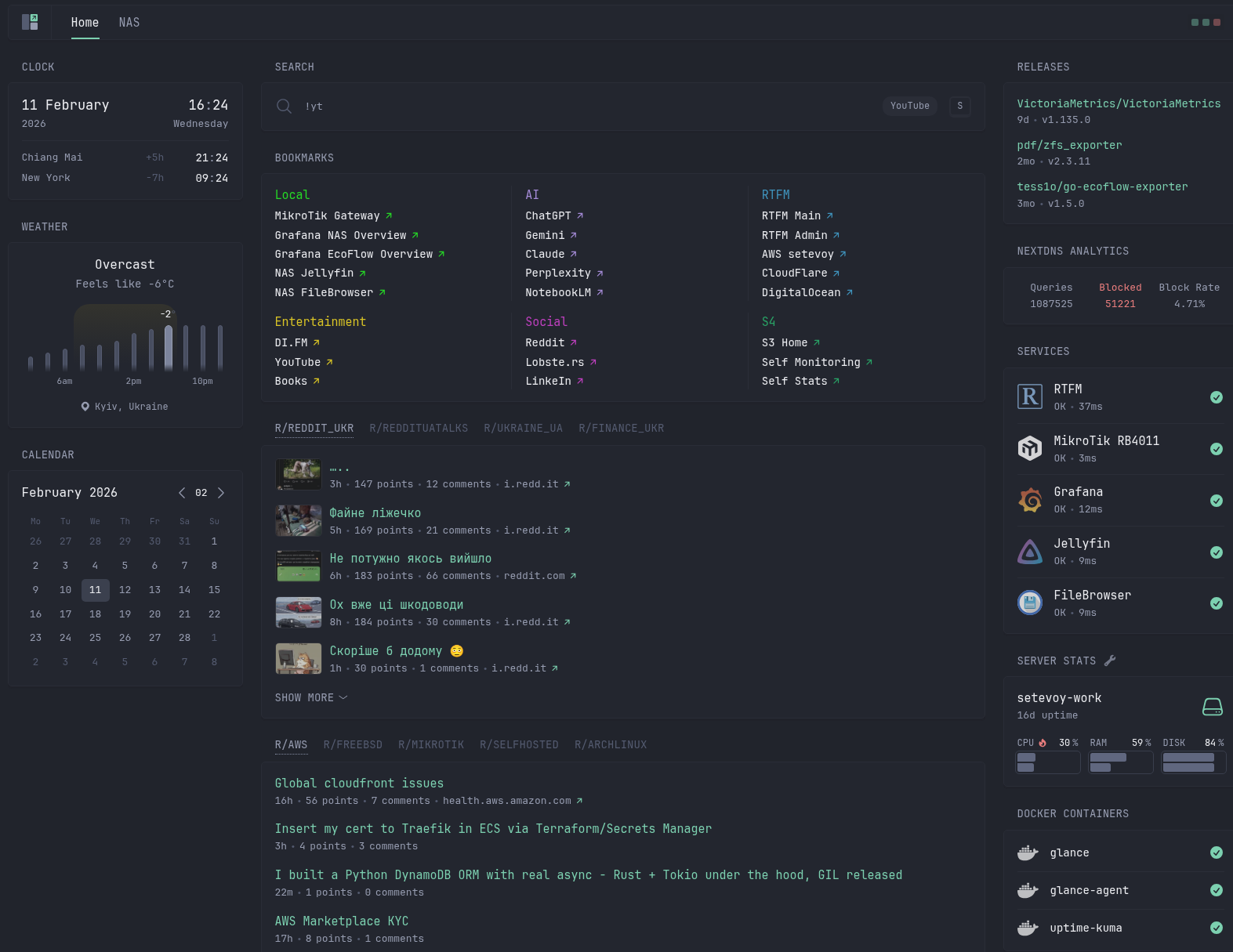
The whole Home page looks like this so far:
Custom API for FreeBSD/NAS
And here’s an interesting solution: I want to display some useful information from FreeBSD.
Active SSH connections
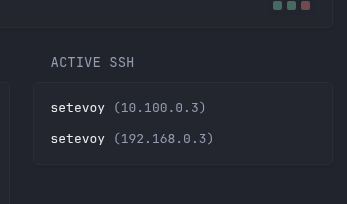
First, an example of “active SSH users” – checking who is connected and from where, showing only unique addresses:
root@setevoy-nas:~ # who | awk '$6 ~ /^\(/ {print $1, $6}' | sort -u
setevoy (10.100.0.3)
setevoy (192.168.0.3)
10.100.0.3 is me connected from my home laptop via VPN, and 192.168.0.3 is a laptop on the local network in the office.
Now let’s make a simple Python script that will serve as our API endpoint.
Write the file /usr/local/bin/glance_api.py:
#!/usr/bin/env python3.11
# minimal API server for Glance NAS page
# exposes active SSH sessions as JSON

from http.server import BaseHTTPRequestHandler, HTTPServer
import subprocess
import json

HOST = "192.168.0.2"
PORT = 9001


class Handler(BaseHTTPRequestHandler):

    def do_GET(self):

        if self.path == "/ssh":

            # run who and extract unique SSH sessions
            output = subprocess.check_output(
                "who | awk '$6 ~ /^\\(/ {print $1, $6}' | sort -u",
                shell=True
            ).decode().strip().splitlines()

            sessions = []

            for line in output:
                if line:
                    parts = line.split()
                    sessions.append({
                        "user": parts[0],
                        "ip": parts[1].strip("()")
                    })

            response = {
                "count": len(sessions),
                "sessions": sessions
            }

            self.send_response(200)
            self.send_header("Content-Type", "application/json")
            self.end_headers()
            self.wfile.write(json.dumps(response).encode())

        else:
            self.send_response(404)
            self.end_headers()


if __name__ == "__main__":
    server = HTTPServer((HOST, PORT), Handler)
    server.serve_forever()
Run it:
root@setevoy-nas:~ # chmod +x /usr/local/bin/glance_api.py

root@setevoy-nas:~ # /usr/local/bin/glance_api.py
Test locally:
root@setevoy-nas:~ # curl 192.168.0.2:9001/ssh
{"count": 2, "sessions": [{"user": "setevoy", "ip": "10.100.0.3"}, {"user": "setevoy", "ip": "192.168.0.3"}]}
Now add a new widget with type custom-api to Glance:
...
      # ---------- RIGHT ----------
      - size: small
        widgets:
          - type: custom-api
            title: Active SSH
            url: http://nas.setevoy:9001/ssh
            template: |
              {{ $count := .JSON.Int "count" }}

              {{ if eq $count 0 }}
                No active SSH sessions
              {{ else }}
                <ul class="list list-gap-10">
                {{ range .JSON.Array "sessions" }}
                  <li>
                    <span class="color-highlight">{{ .String "user" }}</span>
                    <span class="color-muted">({{ .String "ip" }})</span>
                  </li>
                {{ end }}
                </ul>
              {{ end }}
...
And the result:
Uptime, CPU, ZFS pool status
You can also display additional information – uptime, CPU load, etc.
Let’s add another /status endpoint to the script, here’s the full script now:
#!/usr/bin/env python3.11
# minimal API server for Glance NAS page
# exposes active SSH sessions as JSON

from http.server import BaseHTTPRequestHandler, HTTPServer
import subprocess
import json

HOST = "192.168.0.2"
PORT = 9001


class Handler(BaseHTTPRequestHandler):

    def do_GET(self):

        if self.path == "/ssh":

            # run who and extract unique SSH sessions
            output = subprocess.check_output(
                "who | awk '$6 ~ /^\\(/ {print $1, $6}' | sort -u",
                shell=True
            ).decode().strip().splitlines()

            sessions = []

            for line in output:
                if line:
                    parts = line.split()
                    sessions.append({
                        "user": parts[0],
                        "ip": parts[1].strip("()")
                    })

            response = {
                "count": len(sessions),
                "sessions": sessions
            }

            self.send_response(200)
            self.send_header("Content-Type", "application/json")
            self.end_headers()
            self.wfile.write(json.dumps(response).encode())

        elif self.path == "/status":

            # get uptime and load averages
            uptime_raw = subprocess.check_output(
                "uptime",
                shell=True
            ).decode().strip()

            # extract load averages
            load_part = uptime_raw.split("load averages:")[1].strip()
            load_values = [x.strip() for x in load_part.split(",")]

            # extract uptime text
            uptime_text = uptime_raw.split(" up ", 1)[1].split(", load averages:", 1)[0].rsplit(",", 1)[0].strip()

            # get zpool info
            zpool_raw = subprocess.check_output(
                "zpool list -H -o name,health,size,alloc,free,capacity",
                shell=True
            ).decode().strip().split()

            zpool = {
                "name": zpool_raw[0],
                "health": zpool_raw[1],
                "size": zpool_raw[2],
                "alloc": zpool_raw[3],
                "free": zpool_raw[4],
                "capacity": zpool_raw[5],
            }

            # get child datasets only
            datasets_raw = subprocess.check_output(
                "zfs list -H -o name,used,avail -r nas | tail -n +2",
                shell=True
            ).decode().strip().splitlines()

            datasets = []

            for line in datasets_raw:
                parts = line.split()
                datasets.append({
                    "name": parts[0],
                    "used": parts[1],
                    "avail": parts[2],
                })

            response = {
                "load": {
                    "1m": load_values[0],
                    "5m": load_values[1],
                    "15m": load_values[2],
                },
                "uptime": uptime_text,
                "zpool": zpool,
                "datasets": datasets
            }

            self.send_response(200)
            self.send_header("Content-Type", "application/json")
            self.end_headers()
            self.wfile.write(json.dumps(response).encode())

        else:
            self.send_response(404)
            self.end_headers()


if __name__ == "__main__":
    server = HTTPServer((HOST, PORT), Handler)
    server.serve_forever()
And the rc.d script right away – /usr/local/etc/rc.d/glance_api:
#!/bin/sh

# PROVIDE: glance_api
# REQUIRE: NETWORKING
# KEYWORD: shutdown

. /etc/rc.subr

name="glance_api"
rcvar="glance_api_enable"

command="/usr/local/bin/python3.11"
command_args="/usr/local/bin/glance_api.py"
pidfile="/var/run/${name}.pid"

start_cmd="${name}_start"
stop_cmd="${name}_stop"

glance_api_start()
{
    echo "Starting glance_api..."
    daemon -p ${pidfile} ${command} ${command_args}
}

glance_api_stop()
{
    echo "Stopping glance_api..."
    if [ -f ${pidfile} ]; then
        kill `cat ${pidfile}`
        rm -f ${pidfile}
    fi
}

load_rc_config $name
: ${glance_api_enable:=no}

run_rc_command "$1"
Start it:
root@setevoy-nas:~ # chmod +x /usr/local/etc/rc.d/glance_api
root@setevoy-nas:~ # sysrc glance_api_enable=YES
glance_api_enable:  -> YES

root@setevoy-nas:~ # service glance_api start
Starting glance_api...
Add another block to Glance:
...
          - type: custom-api
            title: NAS Status
            url: http://nas.setevoy:9001/status
            template: |
              <div>
                <div><b>Uptime:</b> {{ .JSON.String "uptime" }}</div>

                <div style="margin-top:10px;">
                  <b>Load:</b>
                  {{ .JSON.String "load.1m" }} /
                  {{ .JSON.String "load.5m" }} /
                  {{ .JSON.String "load.15m" }}
                </div>

                <div style="margin-top:10px;">
                  <b>ZFS:</b>
                  <span class="color-positive">
                    {{ .JSON.String "zpool.health" }}
                  </span>
                  ({{ .JSON.String "zpool.capacity" }} used)
                </div>

                <div style="margin-top:10px;">
                  <b>Datasets:</b>
                  <ul class="list list-gap-5">
                  {{ range .JSON.Array "datasets" }}
                    <li>
                      {{ .String "name" }} -
                      {{ .String "used" }} used
                    </li>
                  {{ end }}
                  </ul>
                </div>
              </div>
...
And now the NAS Page looks like this:
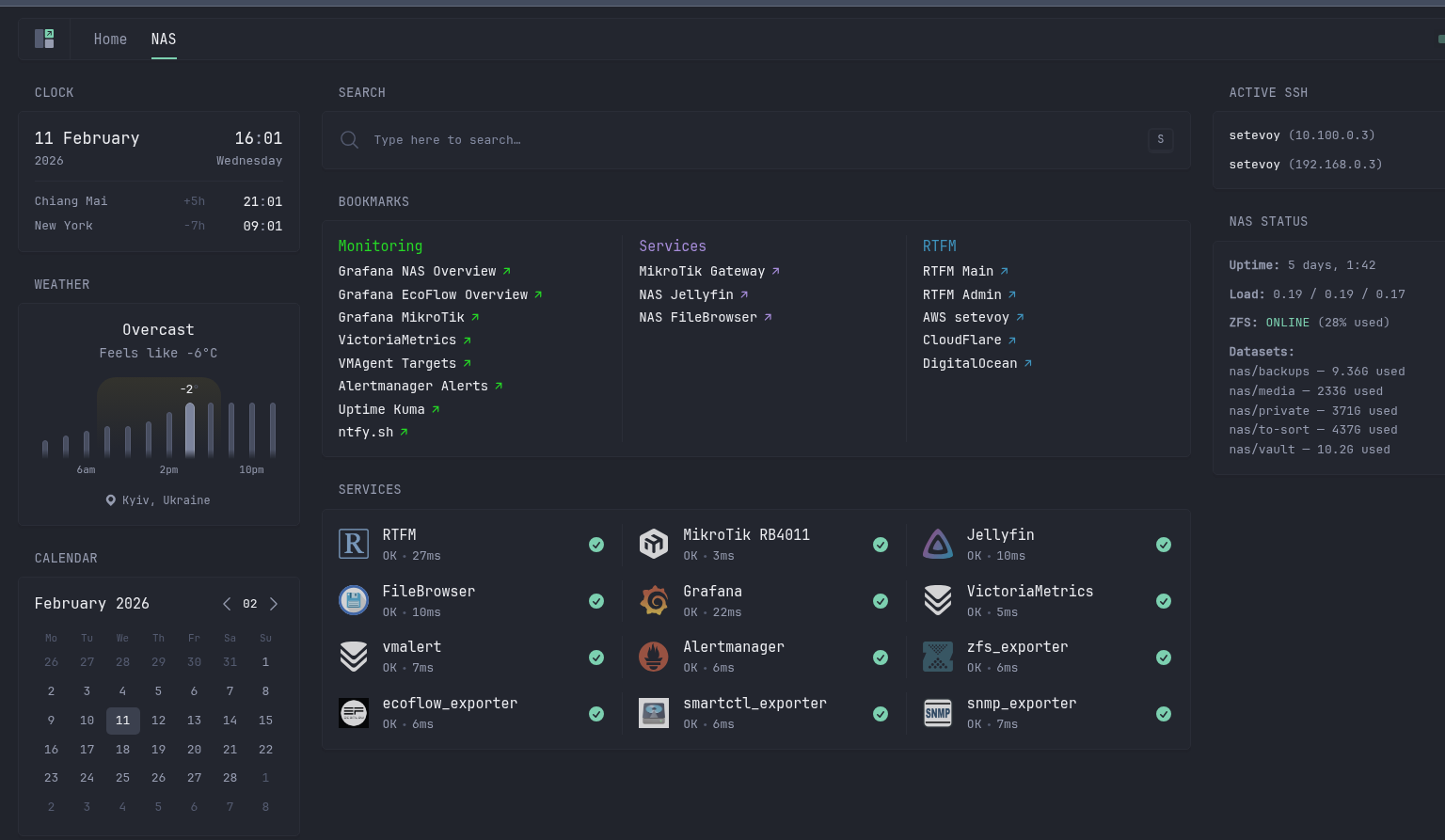
You could add POST action execution to glance_api.py as well – but I didn’t bother, and executing commands from a dashboard feels like a bit much anyway.
One final touch – the Chrome/Firefox extension Custom New Tab URL:
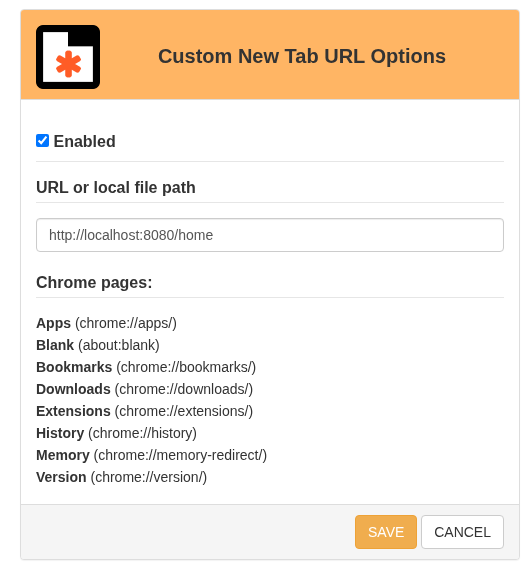
And once Glance moves to a separate host – just update the URL.
The only downside to Glance is that it doesn’t support auto-refresh 🙁 But that can also be done through browser extensions.
