 Time to finally write up MikroTik and Users Management – this one’s been sitting in drafts for ages, and while I’m at it, I’ll also set up SSH key authentication.
Let’s walk through the main concepts and settings of Authentication, Authorization, Accounting in MikroTik – groups, policies, and users.
What we have and what needs to be done:
- a MikroTik RB4011 router
- need to create a new root user instead of the default admin
- add a read-only user
- set up SSH authentication
All user permissions are defined by the user’s group and their properties – see User Groups:
- Groups: contains a list of Policies and describes what users in this group are allowed to do in the system
- Policy: defines the specific scope of permissions – connecting over SSH, editing the configuration, and so on
- User: and finally, the user’s own properties define how they authenticate – login and password, where access is allowed from, etc
Besides the local user group database, you can set up integration with external systems – FreeRADIUS, JumpCloud, see RADIUS.
But for a home router that’s definitely overkill.
Previous parts on configuring MikroTik – MikroTik: First Look and Getting Started and MikroTik: configuring WireGuard and connecting Linux peers.
Contents
User Groups and Policies
The access management system in RouterOS isn’t all that flexible – far from Kubernetes RBAC, but of course you can create groups and users with different access rights.
Out of the box we have 3 default groups:
- full: full access – the default admin user is exactly in this group
- write: can change most settings – but without access to user management
- read: read-only config access – can’t change anything
- although the reboot permission is here
All permissions for each user in every group are defined by the set of policies of that group.
The policies are the defaults, they already exist in the system – we can’t edit them or create new ones.
To view the list of groups and the policies of each group:
/user group print

Policies
Policies fall into two main groups – Login and Config.
The ones that are interesting right now:
- login policies:
- ssh, web, winbox: how we can connect
- password: changing the password (only for yourself)
- config policies:
- read and write: reading or editing the router configuration
- policy: managing groups and users
- test: using utilities like
ping,traceroute, etc - sensitive: whether keys and certificates will be displayed
Creating a Group
You can’t attach policies directly to a user – so we do it through a separate group, which we’ll then add the user to.
Keep in mind that one user can only have one group (yeah, nothing like Kubernetes RBAC…).
Create the group, granting permission for SSH and reading the configuration:
/user group add name=setevoy-ro policy=read,ssh
Check the list:
/user group print where name=setevoy-ro

To delete a group – with /user group remove <ID>.
Editing Policies for a Group
To add or remove permissions – /user group set.
An important nuance: with set you have to specify the entire new list. That is, if you just pass “policy=web” – the group will be left without SSH, so we pass all of them:
/user group set [find name=setevoy-ro] policy=ssh,read,web
Or if you need to disable a policy – specify it with !policy-name, or just run set without that policy:
/user group set [find name=setevoy-ro] policy=ssh,read,!web

Creating Users
Get the list of all users:
/user print detail

Each user has their own parameters, the main ones:
- address: where connections are allowed from
- group: the user’s group
- name: the name
- password: the password
group=full and a new Admin User
MikroTik recommends deleting the default admin user – since everyone knows the name, see Securing your router.
So we make a new admin with the default full group and restrict the networks it can be accessed from.
Since a password is passed here – the command isn’t saved in history and disappears from the console right after Enter:
/user add name=gw-setevoy-root password="change-me-now" group=full address=192.168.0.0/24,192.168.100.0/24,10.100.0.0/24 comment="New root user for RB4011"
Disable the default admin:
/user disable admin
Later you can remove it entirely with /user remove admin.
Separately, it’s worth disabling the services we don’t use, and of course setting up the firewall – that’ll be somewhere in the next parts, also been sitting in drafts for a while.
Custom Group and a new user
We add a new read-only user with the setevoy-ro group we created above, allowing access only from the local network:
/user add name=gw-setevoy-ro password="change-me-now" group=setevoy-ro address=192.168.0.0/24 comment="Read only user for RB4011"
Now let’s check the users:
/user print detail where name=gw-setevoy-ro

And let’s try to connect:
[setevoy@setevoy-work ~] $ ssh [email protected]
...
[gw-setevoy-ro@mikrotik-rb4011-gw] >
We don’t have write permissions, so if we try to change something – we’ll get a “not enough permissions” error:
/interface wireguard add name=wg-test
not enough permissions (9)
And in address we specified only one, the local network – so connecting from the VPN won’t work:
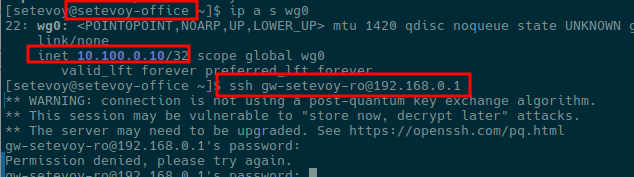
To add another network we allow access from – run /user set again, and just like with group set, here too we specify the full list of networks – both the old and the new one:
/user set gw-setevoy-ro address=192.168.0.0/24,10.100.0.0/24
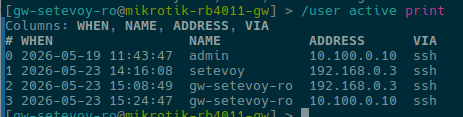
Now we can connect – let’s check the active sessions with /user active print:
The “sensitive” Policy
An example of how sensitive works – since it’s not a very obvious thing and isn’t covered all that well in the documentation.
As an example – let’s create a new WireGuard interface under the admin:
/interface wireguard add name=wg-test
The setevoy user has the full group, and the full group has the sensitive policy – so setevoy can see the WireGuard private key with show-sensitive:
/interface wireguard print detail show-sensitive

But for the gw-setevoy-ro user, whose group doesn’t have the sensitive policy – the value will be hidden behind “***”:

SSH and keys
And now for the fun part: since we have SSH – we also have the option to use keys for authentication.
Important and keep in mind: with the default settings, after adding a key, password authentication is no longer available for the user the key was added to:
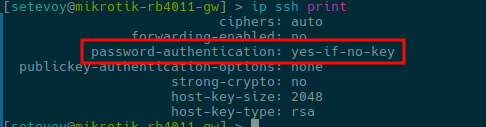
But you can set password-authentication=yes, see SSH Server.
On the laptop, create a key:
[setevoy@setevoy-work ~] $ ssh-keygen -t ed25519 -C "gw-setevoy-ro@rb4011" -f ~/.ssh/gw-setevoy-ro
Get its pub key:
[setevoy@setevoy-work ~]  $ cat ~/.ssh/gw-setevoy-ro.pub
ssh-ed25519 AAA***a2lM gw-setevoy-ro@rb4011
On MikroTik there are two ways to add a key for a user – copy the gw-setevoy-ro.pub file itself over there, or pass the contents when calling /user ssh-keys import.
An example with copying – we transfer it from the laptop to the router, specifying the address with a colon at the end – “192.168.0.1:” – to copy it to the root of the system.
From the laptop we run scp:
[setevoy@setevoy-work ~] $ scp .ssh/gw-setevoy-ro.pub 192.168.0.1:
On MikroTik we check the file:
/file print where name=gw-setevoy-ro.pub

Add it to the user with /user ssh-keys import and public-key-file:
/user ssh-keys import user=gw-setevoy-ro public-key-file=gw-setevoy-ro.pub
Check the user’s keys:
/user ssh-keys print where user=gw-setevoy-ro

Now we can connect from the laptop without a password:
[setevoy@setevoy-work ~] $ ssh -i .ssh/gw-setevoy-ro [email protected]
The second option – pass the key through the key argument:
/user ssh-keys add user=setevoy key="ssh-ed25519 AAA***SWoE gw-setevoy-root@rb4011"
On the laptop, add the key usage to ~/.ssh/config (my keys live in 1Password, so it’s their agent):
Host gw.net.setevoy 192.168.0.1
  IdentityAgent ~/.1password/agent.sock
  IdentityFile ~/.ssh/gw-setevoy-root.pub
  IdentitiesOnly yes
Done.
