
The RTFM migration from DigitalOcean to AWS went smoothly, and I’m gradually settling in.
New infrastructure, everything new – so for the first while I want to keep a close eye on the server and blog state, which means setting up basic monitoring for WordPress: NGINX, PHP-FPM, the database, and the infrastructure running it all.
The monitoring stack itself is already deployed on the home NAS running FreeBSD – there’s VictoriaMetrics, VictoriaLogs, Grafana, vmalert, and Alertmanager with alerts going to Telegram and ntfy.sh.
I wrote about this stack in the FreeBSD home NAS series:
- FreeBSD: Home NAS, part 10 – monitoring with VictoriaMetrics
- FreeBSD: Home NAS, part 11 – extended monitoring with additional exporters
- FreeBSD: Home NAS, part 14 – logs with VictoriaLogs and alerts with VMAlert
Contents
AWS infrastructure
The infrastructure setup is described in AWS: basic infrastructure setup for WordPress and AWS: own EC2 as a NAT Gateway instead of AWS Managed NAT Gateway.
As a reminder, in AWS we have:
- VPC with 4 Subnets – 2 public, 2 private
- Application Load Balancer with a Target Group containing one EC2
- two EC2 instances running Amazon Linux 2023:
- one with NGINX and PHP-FPM for WordPress itself
- and a separate EC2 acting as a NAT Gateway
- AWS RDS with MariaDB – the database server for WordPress
Both EC2 instances have WireGuard set up for connecting to the home network, where a MikroTik RB4011 acts as the VPN Hub and routes requests to VictoriaMetrics and VictoriaLogs – see MikroTik: configuring WireGuard and connecting Linux peers.
Monitoring plan
Services to monitor:
- AWS RDS: database server health
- AWS ALB: a picture of what’s happening at the Load Balancer
- AWS EC2: various instance health metrics
- NGINX: web server metrics
- PHP-FPM: FPM worker metrics
We also need to collect OS system logs and NGINX/PHP logs.
RDS logs can be useful too – but that’s for when real problems arise, and then you can just look in CloudWatch Logs.
For metrics collection on EC2:
- node_exporter: basic EC2 metrics – CPU, RAM, disk, network
- nginx_exporter: simple, not many metrics, but good to have (we’ll add metrics from NGINX logs separately)
- php_fpm_exporter: PHP-FPM metrics – processes, worker utilization, slow requests
- yace_exporter: pulls default ALB and RDS health metrics from CloudWatch
For logs I went with Fluent Bit writing to VictoriaLogs. I’ll try vlagent for log collection later – for now I did it “quickly” using what’s already running on FreeBSD/NAS.
vlagent looks very interesting, see this great post on the VictoriaMetrics blog – Benchmarking Kubernetes Log Collectors: vlagent, Vector, Fluent Bit, OpenTelemetry Collector, and more. But it was only released about three months ago (as of March 2026), so it might be missing some useful features.
Later, I’ll add cloudflare-prometheus-exporter and process_exporter, or will add own metrics using Textfile for node_exporter.
Installing exporters
We’ll run everything the standard way – with Docker and Docker Compose.
Install Docker:
[root@ip-10-0-3-146 ~]# dnf install -y docker

[root@ip-10-0-3-146 ~]# systemctl enable --now docker
Docker Compose:
[root@ip-10-0-3-146 ~]# mkdir -p /usr/local/lib/docker/cli-plugins

[root@ip-10-0-3-146 ~]# curl -SL https://github.com/docker/compose/releases/latest/download/docker-compose-linux-x86_64 -o /usr/local/lib/docker/cli-plugins/docker-compose

[root@ip-10-0-3-146 ~]# chmod +x /usr/local/lib/docker/cli-plugins/docker-compose
Verify:
[root@ip-10-0-3-146 ~]# docker compose version
Docker Compose version v5.1.0
Running node_exporter
Create a directory /opt/monitoring and inside it the file /opt/monitoring/docker-compose.yml:
services:
  node_exporter:
    image: prom/node-exporter:latest
    container_name: node_exporter
    restart: unless-stopped
    pid: host
    network_mode: host
    volumes:
      - /proc:/host/proc:ro
      - /sys:/host/sys:ro
      - /:/rootfs:ro
    command:
      - '--path.procfs=/host/proc'
      - '--path.sysfs=/host/sys'
      - '--path.rootfs=/rootfs'
      - '--collector.filesystem.mount-points-exclude=^/(sys|proc|dev|host|etc)($$|/)'
For node_exporter to see all network interfaces – set network_mode: host, and to see all PIDs – set pid: host.
From a security perspective this isn’t ideal, since a container with network_mode: host gets full access to the host network, and pid: host gives it visibility of all processes. But for monitoring a personal blog – it’s fine.
Run it:
[root@ip-10-0-3-146 ~]# cd /opt/monitoring && docker compose up -d
Check metrics:
[root@ip-10-0-3-146 ~]# curl -s http://localhost:9100/metrics | grep node_exporter_build
# HELP node_exporter_build_info A metric with a constant '1' value labeled by version, revision, branch, goversion from which node_exporter was built, and the goos and goarch for the build.
# TYPE node_exporter_build_info gauge
node_exporter_build_info{branch="HEAD",goarch="amd64",goos="linux",goversion="go1.25.3",revision="654f19dee6a0c41de78a8d6d870e8c742cdb43b9",tags="unknown",version="1.10.2"} 1
Configuring vmagent on FreeBSD
Add metrics collection to VictoriaMetrics. On FreeBSD, vmagent uses the config at /usr/local/etc/prometheus/prometheus.yml – add a new target there.
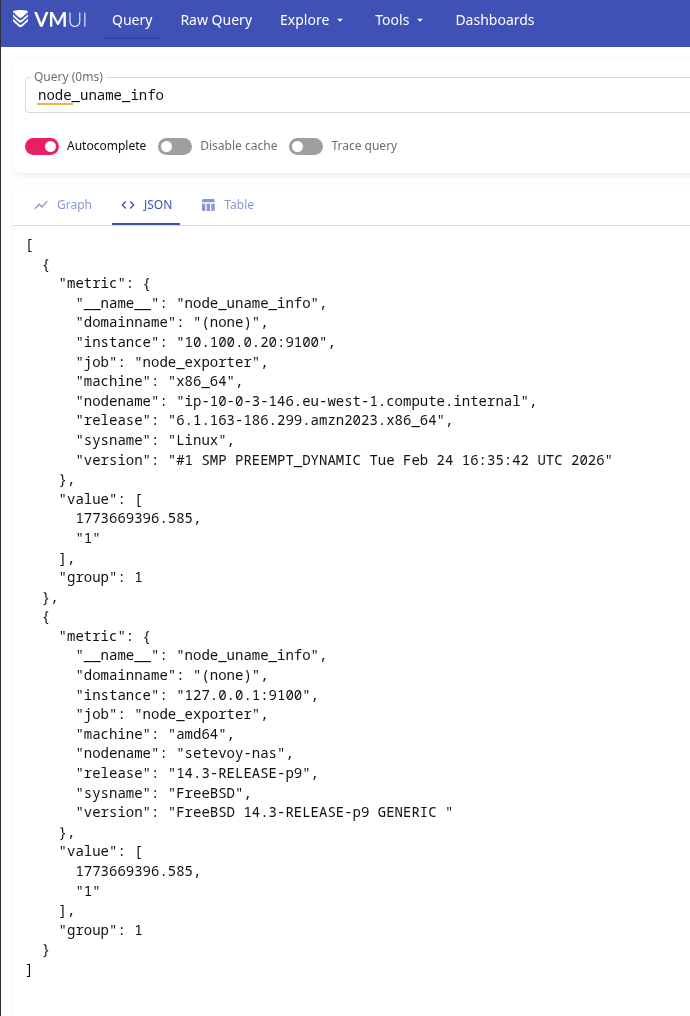
I already have a job_name: "node_exporter" with one target – 127.0.0.1:9100 for FreeBSD’s own metrics – adding 10.100.0.20:9100 there, where 10.100.0.20 is the EC2 address on the WireGuard network (though I’ll create a Static DNS record on MikroTik later):
global:
  scrape_interval: 15s

scrape_configs:

  - job_name: victoriametrics
    scrape_interval: 60s
    scrape_timeout: 30s
    metrics_path: "/metrics"
    static_configs:
    - targets:
      - 127.0.0.1:8428
      labels:
        project: victoriametrics

  - job_name: vmagent
    scrape_interval: 60s
    scrape_timeout: 30s
    metrics_path: "/metrics"
    static_configs:
    - targets:
      - 127.0.0.1:8429
      labels:
        project: vmagent

  - job_name: "node_exporter"
    static_configs:
      - targets:
          - "127.0.0.1:9100"
          - "10.100.0.20:9100"
...
Verify in VictoriaMetrics using the node_uname_info metric – we should see both hosts:
Running nginx_exporter
To get metrics, nginx_exporter uses the stub_status module. Add a separate file /etc/nginx/conf.d/nginx-status.conf:
server {
    listen 127.0.0.1:8080;

    location = /nginx_status {
        stub_status on;
        access_log off;
    }
}
Check the config and reload NGINX:
[root@ip-10-0-3-146 ~]# nginx -t && systemctl reload nginx
Check the endpoint and NGINX data:
[root@ip-10-0-3-146 ~]# curl http://127.0.0.1:8080/nginx_status
Active connections: 6
server accepts handled requests
 33310 33310 162229
Reading: 0 Writing: 1 Waiting: 5
Add nginx_exporter to the Docker Compose file:
  nginx_exporter:
    image: nginx/nginx-prometheus-exporter:latest
    container_name: nginx_exporter
    restart: unless-stopped
    network_mode: host
    command:
      - '--nginx.scrape-uri=http://127.0.0.1:8080/nginx_status'
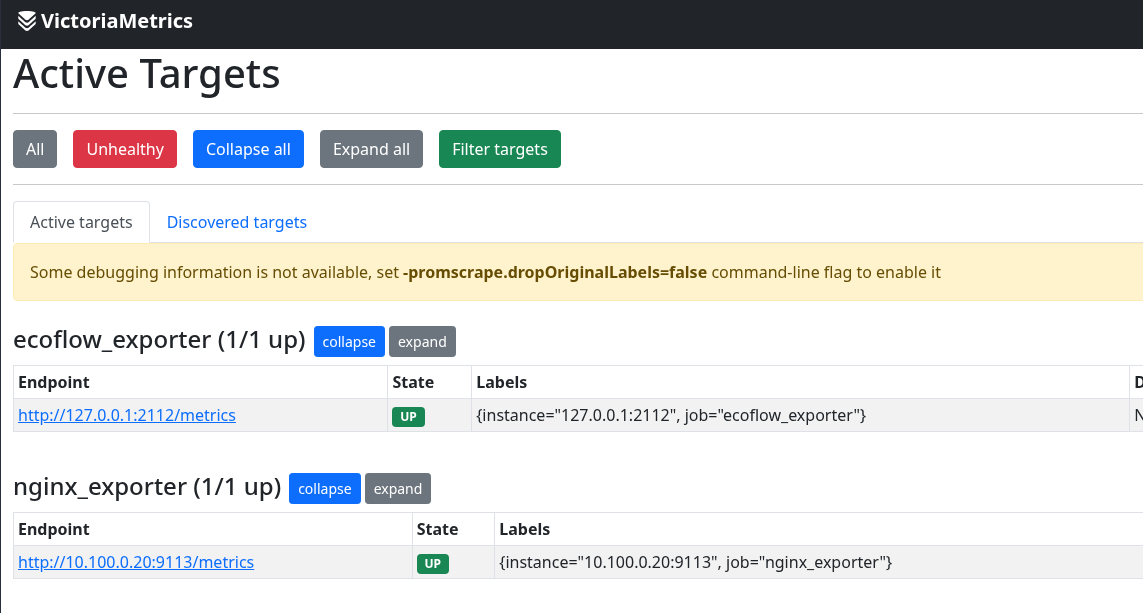
Restart the stack and add the target to vmagent:
  - job_name: "nginx_exporter"
    static_configs:
      - targets:
          - "10.100.0.20:9113"
Restart vmagent and verify in VictoriaMetrics:
Or via curl directly:
root@setevoy-nas:~ # curl -s 'http://localhost:8428/api/v1/query?query=nginx_connections_active' | jq
{
  "status": "success",
  "data": {
    "resultType": "vector",
    "result": [
      {
        "metric": {
          "__name__": "nginx_connections_active",
          "instance": "10.100.0.20:9113",
          "job": "nginx_exporter"
        },
        "value": [
          1773670644,
          "8"
        ]
      }
    ]
  },
  "stats": {
    "seriesFetched": "1",
    "executionTimeMsec": 0
  }
}
Running php-fpm exporter
There are two popular exporters for PHP-FPM, both haven’t been updated in a while – but they work:
- hipages/php-fpm_exporter – the oldest and most popular
- bakins/php-fpm-exporter – more process memory metrics
For basic WordPress blog monitoring the difference is negligible – going with hipages/php-fpm_exporter, it’s proven and stable.
Check that the pm.status_path option is enabled in the PHP-FPM config – my FPM config file is /etc/php-fpm.d/rtfm.co.ua.conf:
...
; endpoint for fpm status page (use in nginx location)
pm.status_path = /status
...
If it’s not enabled – add it and restart PHP-FPM:
[root@ip-10-0-3-146 ~]# systemctl restart php-fpm.service
Add a separate virtual host in NGINX, file /etc/nginx/conf.d/fpm-status.conf, allowing access only from localhost in allow:
server {
    listen 127.0.0.1:8081;
    server_name localhost;

    # fpm status page - local only
    location = /fpm-status {
        allow 127.0.0.1;
        deny all;

        include fastcgi_params;
        fastcgi_pass unix:/var/run/rtfm.co.ua-php-fpm.sock;
        fastcgi_param SCRIPT_FILENAME $document_root$fastcgi_script_name;
    }
}
Reload NGINX with nginx -t && systemctl reload nginx and verify the endpoint:
[root@ip-10-0-3-146 ~]# curl http://localhost:8081/fpm-status
pool:                 rtfm.co.ua
process manager:      dynamic
start time:           16/Mar/2026:16:22:30 +0200
start since:          653
accepted conn:        218
listen queue:         0
max listen queue:     0
listen queue len:     0
idle processes:       2
active processes:     1
total processes:      3
max active processes: 3
max children reached: 0
slow requests:        0
memory peak:          40792064
PHP-FPM uses a Unix socket – so we mount it into the container and pass a URI with unix://:
  php_fpm_exporter_rtfm:
    image: hipages/php-fpm_exporter:latest
    container_name: php_fpm_exporter
    restart: unless-stopped
    network_mode: host
    volumes:
      - /var/run/rtfm.co.ua-php-fpm.sock:/var/run/rtfm.co.ua-php-fpm.sock
    environment:
      - PHP_FPM_SCRAPE_URI=unix:///var/run/rtfm.co.ua-php-fpm.sock;/fpm-status
      - PHP_FPM_FIX_PROCESS_COUNT=true
Restart the stack and verify metrics from the exporter:
[root@ip-10-0-3-146 ~]# curl -s http://localhost:9253/metrics | grep phpfpm_up
# HELP phpfpm_up Could PHP-FPM be reached?
# TYPE phpfpm_up gauge
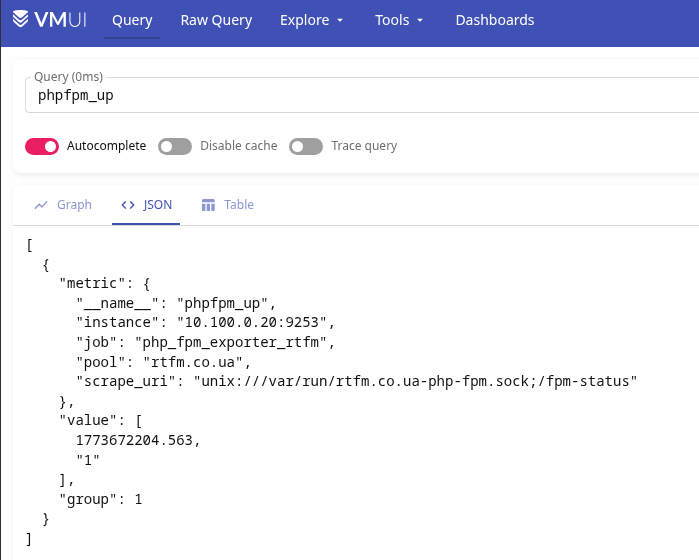
phpfpm_up{pool="rtfm.co.ua",scrape_uri="unix:///var/run/rtfm.co.ua-php-fpm.sock;/fpm-status"} 1
Add a new scrape job to vmagent:
  - job_name: "php_fpm_exporter_rtfm"
    static_configs:
      - targets:
          - "10.100.0.20:9253"
Restart vmagent and verify metrics in VictoriaMetrics:
AWS monitoring with YACE Exporter
For AWS metrics we’ll use yet-another-cloudwatch-exporter (YACE) – it pulls metrics from CloudWatch and exposes them in Prometheus format. I wrote about it in more detail in Prometheus: yet-another-cloudwatch-exporter – collecting AWS CloudWatch metrics, and still use it on work projects.
Metrics documentation:
Creating an IAM Policy for YACE
The EC2 already has an IAM Role – I created an Instance Profile when setting up AWS: ALB and Cloudflare – configuring mTLS and AWS Security Rules.
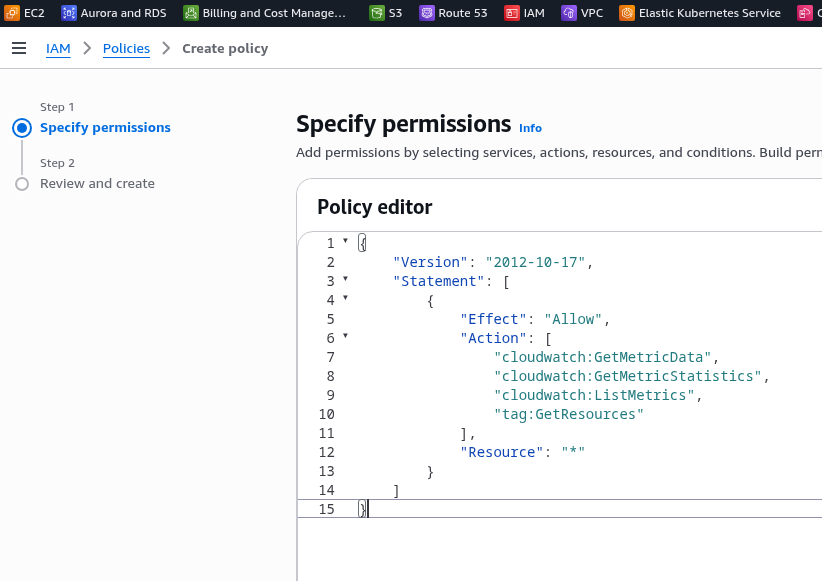
We need to add an IAM Policy for YACE to this role, granting access to CloudWatch and iam:ListAccountAliases – to display the account name instead of the numeric ID in metrics:
{
    "Version": "2012-10-17",
    "Statement": [
        {
            "Effect": "Allow",
            "Action": [
                "cloudwatch:GetMetricData",
                "cloudwatch:GetMetricStatistics",
                "cloudwatch:ListMetrics",
                "tag:GetResources",
                "iam:ListAccountAliases"
            ],
            "Resource": "*"
        }
    ]
}
Save the Policy:
Attach it to the EC2 instance’s IAM Role:
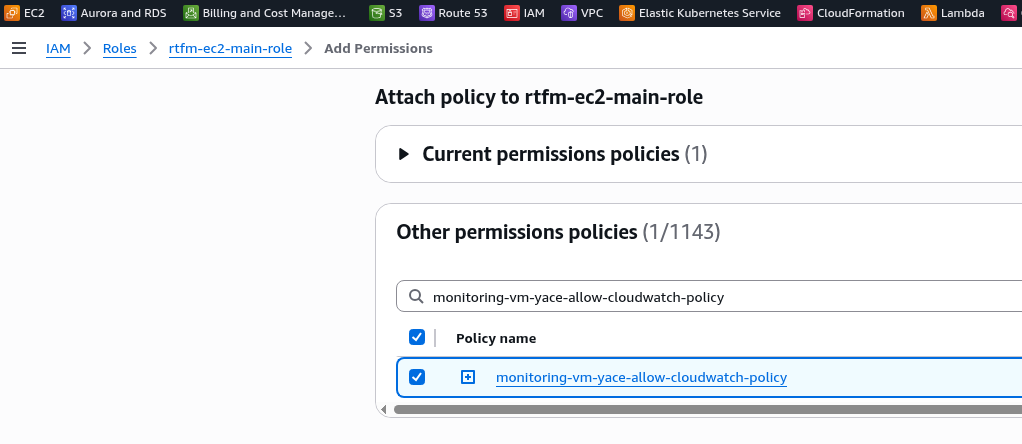
Verify that the EC2 has CloudWatch access – SSH in and run an AWS CLI query to CloudWatch:
[root@ip-10-0-3-146 ~]# aws cloudwatch list-metrics --namespace AWS/ApplicationELB --region eu-west-1
{
    "Metrics": [
        {
            "Namespace": "AWS/ApplicationELB",
            "MetricName": "HTTPCode_Target_3XX_Count",
            "Dimensions": [
                {
                    "Name": "TargetGroup",
                    "Value": "targetgroup/rtfm-tg/66df64e645b2b01d"
                },
                {
                    "Name": "LoadBalancer",
                    "Value": "app/rtfm-alb/cd76dd0d557838f8"
                }
            ]
        },
...
YACE configuration
Create the config /opt/monitoring/yace-config.yml. In exportedTagsOnMetrics specify which AWS tags to add to metrics – this lets you display a name instead of an ARN in Grafana and alerts.
CloudWatch metric collection costs money, so here we only take what’s genuinely useful:
apiVersion: v1alpha1
discovery:

  exportedTagsOnMetrics:
    AWS/ApplicationELB:
      - Name
    AWS/RDS:
      - Name

  jobs:

    - type: AWS/ApplicationELB
      regions:
        - eu-west-1
      period: 300
      length: 300
      metrics:
        - name: HTTPCode_ELB_5XX_Count
          statistics:
            - Sum
          nilToZero: true
        - name: ActiveConnectionCount
          statistics:
            - Sum
          nilToZero: true

    - type: AWS/RDS
      regions:
        - eu-west-1
      period: 300
      length: 300
      metrics:
        - name: CPUUtilization
          statistics:
            - Average
          nilToZero: true
Add YACE to the Docker Compose file:
  yace_exporter:
    image: quay.io/prometheuscommunity/yet-another-cloudwatch-exporter:latest
    container_name: yace
    restart: unless-stopped
    network_mode: host
    volumes:
      - /opt/monitoring/yace-config.yml:/tmp/config.yml:ro
    command:
      - '--config.file=/tmp/config.yml'
Restart the stack and verify metrics:
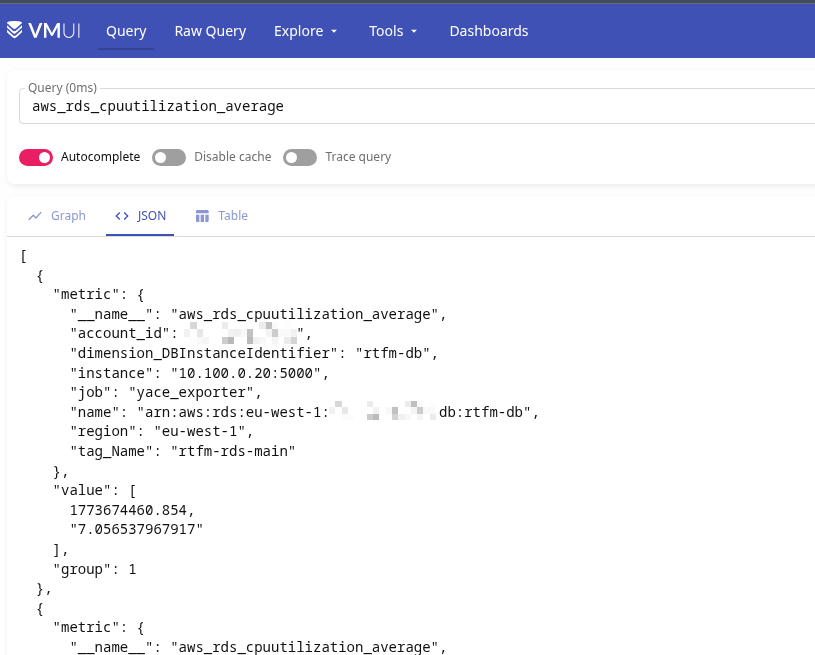
[root@ip-10-0-3-146 ~]# curl -s http://127.0.0.1:5000/metrics | grep aws_
# HELP aws_applicationelb_active_connection_count_sum Help is not implemented yet.
# TYPE aws_applicationelb_active_connection_count_sum gauge
aws_applicationelb_active_connection_count_sum{account_id="264***286",dimension_AvailabilityZone="",dimension_LoadBalancer="app/rtfm-alb/cd76dd0d557838f8",name="arn:aws:elasticloadbalancing:eu-west-1:264***286:loadbalancer/app/rtfm-alb/cd76dd0d557838f8",region="eu-west-1",tag_Name="rtfm-alb-main"} 336
...
Add the target to vmagent:
  - job_name: "yace_exporter"
    static_configs:
      - targets:
          - "10.100.0.20:5000"
Verify metrics in VictoriaMetrics:
Auto-starting exporters from Docker Compose via systemd
To bring the whole stack up automatically after EC2 reboots – add a systemd service.
Create the file /etc/systemd/system/monitoring.service:
[Unit]
Description=Monitoring exporters stack
Requires=docker.service
After=docker.service

[Service]
Type=oneshot
RemainAfterExit=yes
WorkingDirectory=/opt/monitoring
ExecStart=/usr/bin/docker compose up -d
ExecStop=/usr/bin/docker compose down
TimeoutStartSec=60

[Install]
WantedBy=multi-user.target
Enable autostart and run:
[root@ip-10-0-3-146 ~]# systemctl daemon-reload
[root@ip-10-0-3-146 ~]# systemctl enable --now monitoring
VictoriaLogs and logs with Fluent Bit
Now for logs. The main logs are NGINX and PHP errors. These will be sent to VictoriaLogs on the FreeBSD host via http output – see the VictoriaLogs documentation for Fluentbit Setup.
Real IP in NGINX
Traffic to EC2 goes through Cloudflare and ALB, so without any configuration NGINX logs will show the ALB address instead of the real client IP. Cloudflare passes the real IP in the CF-Connecting-IP header, and NGINX has the ngx_http_realip_module module that can be told which header to read the client IP from.
Add to nginx.conf (not the virtual host config, but NGINX’s own config), in the http {} section:
http {

    # trust ALB (all traffic comes from within VPC)
    set_real_ip_from 10.0.0.0/16;
    # get real client IP from Cloudflare header
    real_ip_header CF-Connecting-IP;

    log_format  main  '$remote_addr - $remote_user [$time_local] "$request" '
                      '$status $body_bytes_sent "$http_referer" '
                      '"$http_user_agent" "$http_x_forwarded_for"';

    access_log  /var/log/nginx/access.log  main;
...
Reload NGINX and verify that real IPs appear in the logs:
[root@ip-10-0-3-146 ~]# tail /var/log/nginx/rtfm.co.ua-access.log
94.139.42.59 - - [16/Mar/2026:17:29:14 +0200] "GET /ru/2021/11/29/ HTTP/1.1" 200 109096 "-" "kagi-fetcher/1.0"
2a01:4f8:242:3ce9::2 - - [16/Mar/2026:17:29:14 +0200] "GET /api/v1/instance/peers HTTP/1.1" 200 1976 "-" "Go-http-client/2.0"
Logrotate – log rotation
On Amazon Linux, NGINX already comes with a default logrotate config in /etc/logrotate.d/nginx:
/var/log/nginx/*.log {
    create 0640 nginx root
    daily
    rotate 10
    missingok
    notifempty
    compress
    delaycompress
    sharedscripts
    postrotate
        /bin/kill -USR1 `cat /run/nginx.pid 2>/dev/null` 2>/dev/null || true
    endscript
}
The default config rotates all *.log files in /var/log/nginx/, but for RTFM’s logs and PHP logs you can write a custom config with separate settings:
/var/log/nginx/rtfm.co.ua-*.log /var/log/php/rtfm.co.ua/*.log {
    daily
    rotate 14
    compress
    delaycompress
    missingok
    notifempty
    sharedscripts
    postrotate
        nginx -s reopen
    endscript
}
Installing Fluent Bit
Fluent Bit will read NGINX and PHP logs and send them to VictoriaLogs on the home NAS.
Add the repository – create the file /etc/yum.repos.d/fluent-bit.repo:
[fluent-bit]
name=Fluent Bit
baseurl=https://packages.fluentbit.io/amazonlinux/2023/
gpgcheck=1
gpgkey=https://packages.fluentbit.io/fluentbit.key
enabled=1
Install fluent-bit:
[root@ip-10-0-3-146 ~]# dnf install -y fluent-bit
Create a directory for storing file positions (so that after a Fluent Bit restart it doesn’t re-read logs from the beginning):
[root@ip-10-0-3-146 ~]# mkdir -p /var/lib/fluent-bit
Fluent Bit configuration – parsers for NGINX and PHP
My main config /etc/fluent-bit/fluent-bit.conf looks like this:
[SERVICE]
    Flush        5
    Daemon       Off
    Log_Level    info
    Parsers_File /etc/fluent-bit/parsers-custom.conf

[INPUT]
    Name        tail
    Path        /var/log/nginx/rtfm.co.ua-access.log
    Tag         nginx.access
    DB          /var/lib/fluent-bit/nginx-access.db
    Parser      nginx_access

[INPUT]
    Name        tail
    Path        /var/log/nginx/rtfm.co.ua-error.log
    Tag         nginx.error
    DB          /var/lib/fluent-bit/nginx-error.db

[INPUT]
    Name        tail
    Path        /var/log/php/rtfm.co.ua/rtfm.co.ua-error.log
    Tag         php.error
    DB          /var/lib/fluent-bit/php-error.db

[FILTER]
    Name    record_modifier
    Match   nginx.access
    Record  host aws-rtfm-main
    Record  job nginx
    Record  log_type access
    Record  site rtfm.co.ua

[FILTER]
    Name    record_modifier
    Match   nginx.error
    Record  host aws-rtfm-main
    Record  job nginx
    Record  log_type error
    Record  site rtfm.co.ua

[FILTER]
    Name    record_modifier
    Match   php.error
    Record  host aws-rtfm-main
    Record  job php-fpm
    Record  log_type error
    Record  site rtfm.co.ua

[FILTER]
    Name    lua
    Match   nginx.access
    script  /etc/fluent-bit/make_msg.lua
    call    make_msg

[Output]
    Name         http
    Match        *
    host         nas.setevoy
    port         9428
    uri          /insert/jsonline?_stream_fields=stream,job,host,log_type,site&_msg_field=log&_time_field=date
    format       json_lines
    json_date_format iso8601
    compress     gzip
Here:
[SERVICE]: global Fluent Bit parameters[INPUT]: read three files, each with its own tag for separate filters downstream[FILTER]: usingrecord_modifier, we filter by tag from[INPUT]to determine which log to modify and add new fields that can then be used in VictoriaLogs and alerts; the FreeBSD Fluent Bit instance has the same setup for its own NGINX and FPM, just with different field values- the last
[FILTER]calls a Lua script to create thelogfield, see below
The default Fluent Bit config didn’t have a parser for nginx_access – so I created a custom one and included it in [SERVICE] via /etc/fluent-bit/parsers-custom.conf:
[PARSER]
    Name        nginx_access
    Format      regex
    Regex       ^(?<remote_addr>[^ ]*) - (?<remote_user>[^ ]*) \[(?<time>[^\]]*)\] "(?<method>[^ ]*) (?<path>[^ ]*) (?<protocol>[^ ]*)" (?<status>[^ ]*) (?<bytes>[^ ]*) "(?<referer>[^"]*)" "(?<agent>[^"]*)"
    Time_Key    time
    Time_Format %d/%b/%Y:%H:%M:%S %z
But this strips the _msg field that VictoriaLogs expects and without which browsing in VMUI is inconvenient.
I tried doing it with record_modifier, but ended up just vibe-coding a Lua script that creates a log field which is then passed to VictoriaLogs via &_msg_field=log:
function make_msg(tag, timestamp, record)
    record["log"] = record["remote_addr"] .. ' "' .. record["method"] .. ' ' .. record["path"] .. '" ' .. record["status"] .. ' "' .. (record["agent"] or "-") .. '"'
    return 1, timestamp, record
end
Start Fluent Bit:
[root@ip-10-0-3-146 ~]# systemctl enable --now fluent-bit
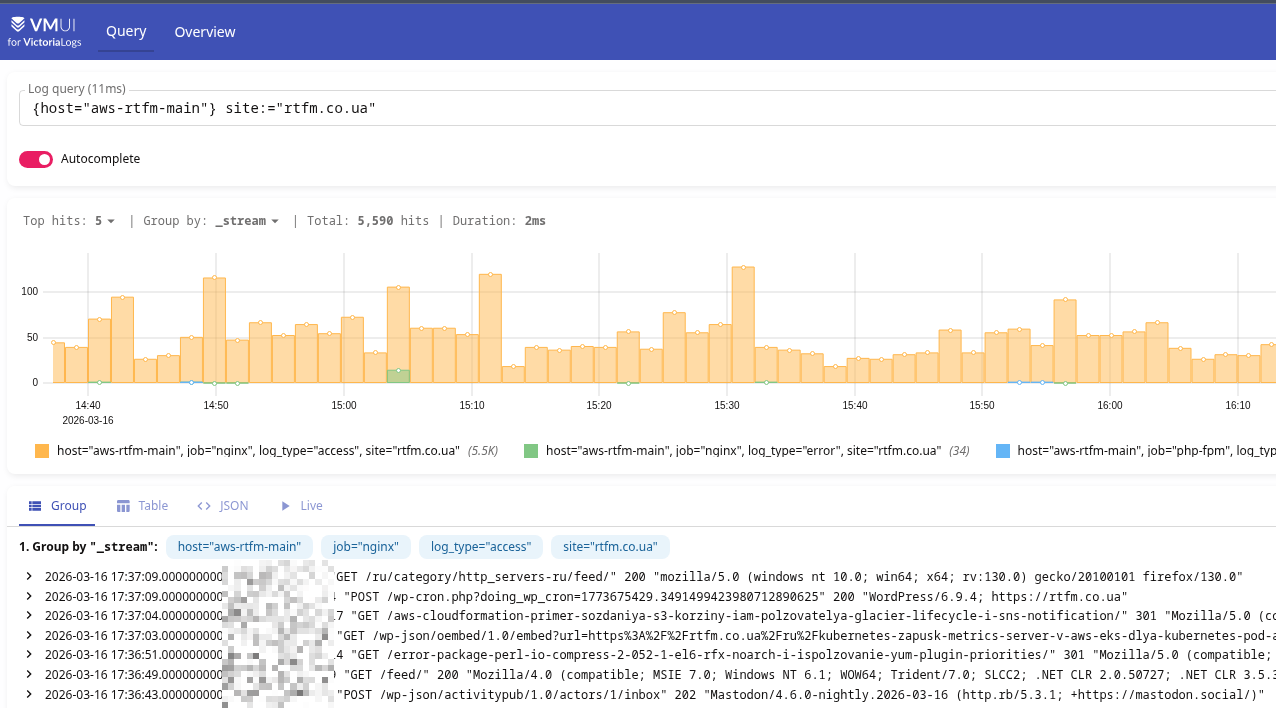
Verify logs in VictoriaLogs:
vmalert and alerts from VictoriaLogs logs
One of the benefits of VictoriaLogs is the ability to write alerts directly from logs. I wrote about this in more detail in VictoriaLogs: creating Recording Rules with VMAlert, and it’s also covered in FreeBSD: Home NAS, part 14 – logs with VictoriaLogs and alerts with VMAlert.
An example of what I wrote for myself – recording rules first with exclusions for home/work IPs and the EC2’s own address, then the actual alerts:
groups:

  - name: aws-rtfm-nginx-access-metrics
    type: vlogs
    interval: 1m

    rules:

      - record: aws:rtfm:nginx:requests_total:rate
        expr: |
          {job="nginx", log_type="access"}
          | not (remote_addr:~"108.***.***.54|178.***.***.184")
          | stats rate() as requests_rate

      - record: aws:rtfm:nginx:requests_by_status:count
        expr: |
          {job="nginx", log_type="access"}
          | not (remote_addr:~"108.***.***.54|178.***.***.184")
          | stats by (status) count() as requests_count

      - record: aws:rtfm:nginx:requests_by_status:rate
        expr: |
          {job="nginx", log_type="access"}
          | not (remote_addr:~"108.***.***.54|178.***.***.184")
          | stats by (status) rate() as requests_rate

  - name: aws-rtfm-nginx-access-alerts

    rules:

      - alert: "NGINX: Too Many 5xx"
        expr: aws:rtfm:nginx:requests_by_status:count{status=~"5.."} > 1
        for: 1m
        labels:
          severity: warning
        annotations:
          summary: Server-side errors on rtfm.co.ua, users may be affected
          description: |-
            Domain: rtfm.co.ua
            HTTP status: {{ $labels.status }}
            Count: {{ $value }} req/min
            Grafana: https://grafana.setevoy/d/MsjffzSZz/nginx-exporter

      - alert: "NGINX: High Request Rate"
        expr: aws:rtfm:nginx:requests_total:rate > 10
        for: 2m
        labels:
          severity: warning
        annotations:
          summary: Unusual traffic spike on rtfm.co.ua
          description: |-
            Domain: rtfm.co.ua
            Rate: {{ $value }} req/sec
            Grafana: https://grafana.setevoy/d/MsjffzSZz/nginx-exporter

  - name: aws-rtfm-php-error-metrics
    type: vlogs
    interval: 1m

    rules:

      - record: aws:rtfm:php:errors_total:count
        expr: |
          {job="php-fpm", log_type="error"}
          | stats count() as errors_count

  - name: aws-rtfm-php-error-alerts

    rules:

      - alert: "PHP-FPM: Too Many Errors"
        expr: aws:rtfm:php:errors_total:count > 5
        for: 2m
        labels:
          severity: warning
        annotations:
          summary: Application errors on rtfm.co.ua
          description: |-
            Domain: rtfm.co.ua
            Count: {{ $value }} errors/min
            Grafana: https://grafana.setevoy/d/MsjffzSZz/nginx-exporter

  - name: aws-rtfm-php-fpm-alerts

    rules:

      - alert: "PHP-FPM: Slow Requests Detected"
        expr: increase(phpfpm_slow_requests{pool="rtfm.co.ua"}[5m]) > 0
        for: 5m
        labels:
          severity: warning
        annotations:
          summary: PHP-FPM slow requests on rtfm.co.ua
          description: |-
            PHP-FPM slow requests detected during last {{ $for }}
            Domain: rtfm.co.ua
            Slow requests (last 5m): {{ $value }}
            Grafana: https://grafana.setevoy/d/MsjffzSZz/nginx-exporter

      - alert: "PHP-FPM: Pool Usage High"
        expr: phpfpm_active_processes{pool="rtfm.co.ua"} / phpfpm_total_processes{pool="rtfm.co.ua"} * 100 > 80
        for: 5m
        labels:
          severity: warning
        annotations:
          summary: FPM Pool usage high on rtfm.co.ua
          description: |-
            FPM Pool usage over 95% during last {{ $for }}
            Domain: rtfm.co.ua
            Pool used: {{ printf "%.2f" $value }}%
            Grafana: https://grafana.setevoy/d/MsjffzSZz/nginx-exporter
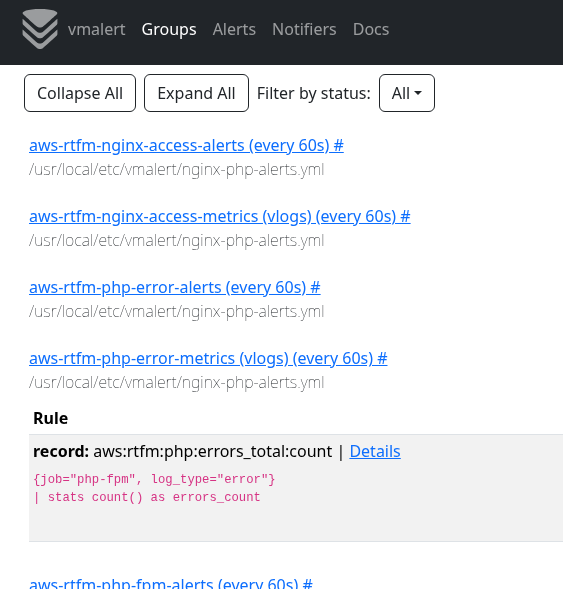
Restart vmalert, verify in the UI:
Alertmanager and alerts in Telegram and ntfy.sh
I wrote about creating a Telegram bot and configuring a group for alerts in the post EcoFlow: monitoring with Prometheus and Grafana, so here I’ll only describe the Alertmanager config – on FreeBSD that’s the file /usr/local/etc/alertmanager/alertmanager.yml.
I have three routes and three receivers – critical alerts are duplicated via ntfy.sh, FreeBSD and NGINX/PHP alerts go to Telegram, plus a separate Telegram channel for EcoFlow alerts:
global:
  resolve_timeout: 5m

route:
  receiver: "ntfy"
  group_by: ["alertname, status"]
  group_wait: 10s
  group_interval: 5m
  repeat_interval: 4h

  routes:

    - matchers:
        - severity="critical"
      receiver: "ntfy"
      continue: true

    - matchers:
        - job="ecoflow_exporter"
      receiver: "telegram_ecoflow"

    - matchers:
        - alertname =~ ".*"
      receiver: "telegram_system"

receivers:

  - name: "ntfy"
    webhook_configs:
      - url: "https://ntfy.sh/setevoy-nas-alertmanager-alerts"
        http_config:
          authorization:
            type: Bearer
            credentials: "***"
        send_resolved: true

  - name: telegram_system
    telegram_configs:
    - bot_token: "***"
      chat_id: -100***962
      api_url: https://api.telegram.org
      parse_mode: HTML
      message: |
        {{ if eq .Status "firing" }}🔥{{ else }}✅{{ end }} <b>{{ .CommonLabels.alertname }}</b>
        {{ range .Alerts }}
        <b>Status:</b> {{ .Status | toUpper }}
        {{ if .Labels.severity }}<b>Severity:</b> {{ .Labels.severity }}{{ end }}
        {{ if .Annotations.summary }}<b>Summary:</b> {{ .Annotations.summary }}{{ end }}
        {{ if .Annotations.description }}<b>Description:</b> {{ .Annotations.description }}{{ end }}
        {{ end }}

  - name: telegram_ecoflow
    telegram_configs:
    - bot_token: "***"
      chat_id: -100***981
      api_url: https://api.telegram.org
      parse_mode: HTML
      message: |
        {{ if eq .Status "firing" }}🔥{{ else }}✅{{ end }} <b>{{ .CommonLabels.alertname }}</b>
        {{ range .Alerts }}
        <b>Status:</b> {{ .Status | toUpper }}
        {{ if .Labels.severity }}<b>Severity:</b> {{ .Labels.severity }}{{ end }}
        {{ if .Annotations.summary }}<b>Summary:</b> {{ .Annotations.summary }}{{ end }}
        {{ if .Annotations.description }}<b>Description:</b> {{ .Annotations.description }}{{ end }}
        {{ end }}
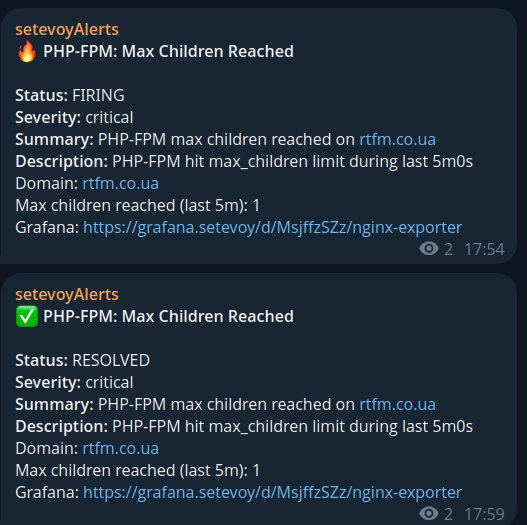
And now we have alerts in Telegram:
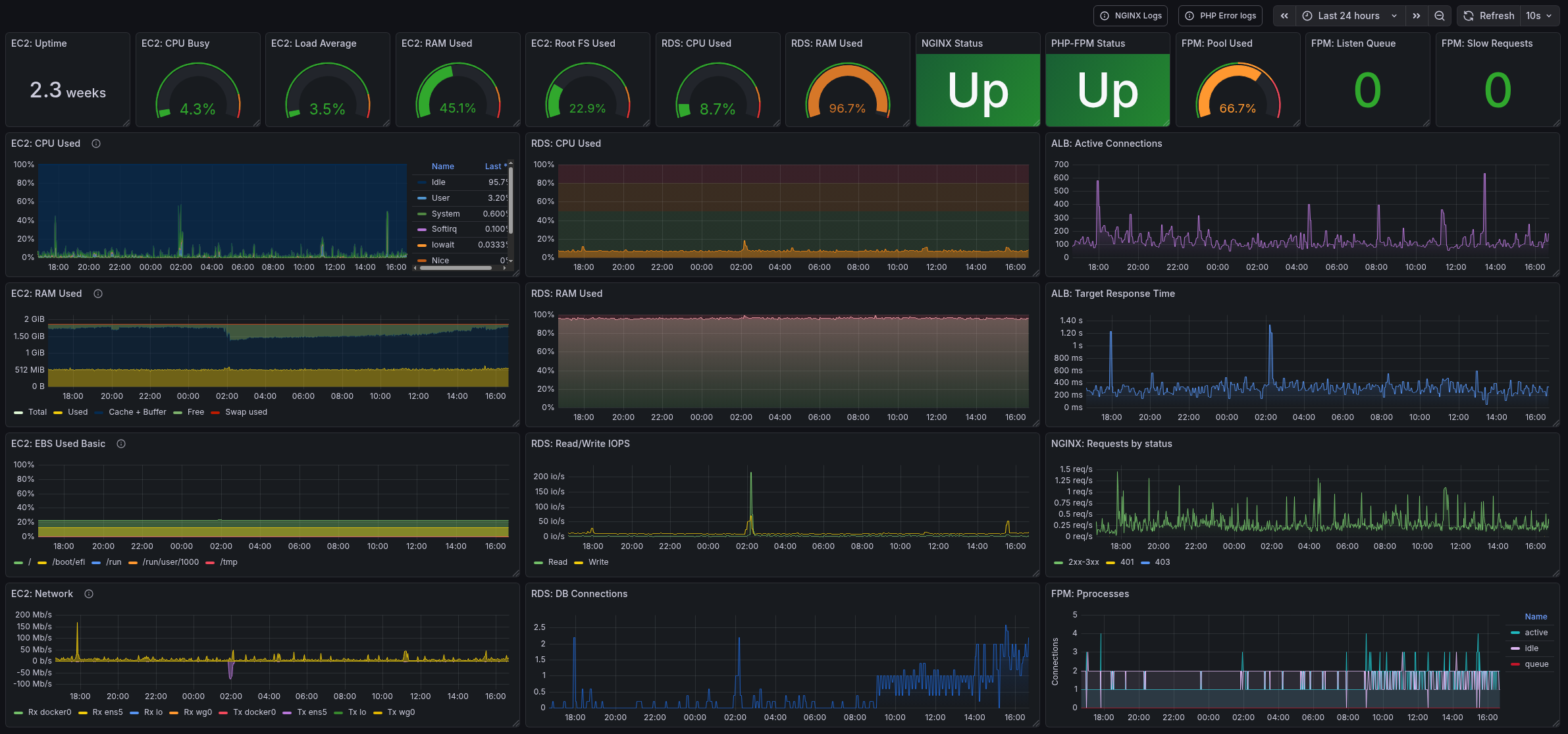
Grafana dashboard
I won’t describe the whole creation process, I’ll publish the dashboard somewhere on GitHub later, but here’s what mine looks like:
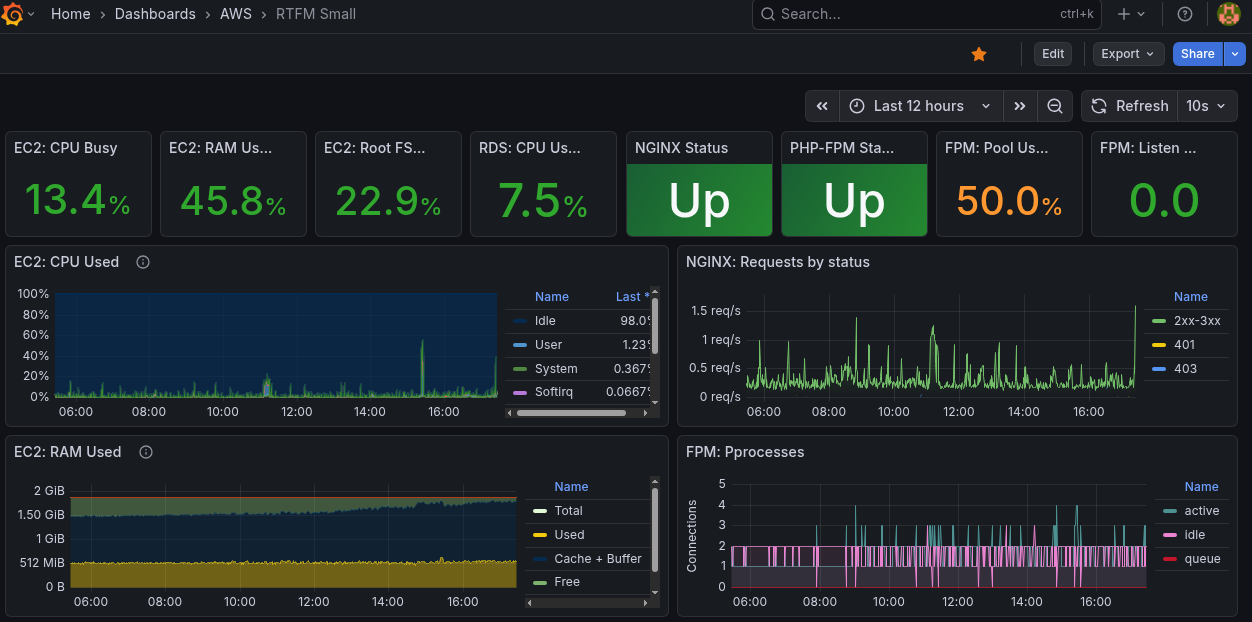
I also have a compact version of the dashboard, optimized for a 14-inch ThinkPad screen:
And that’s basically it.
Turned out great and useful – already caught a few issues and banned a bunch of bots 🙂
