 It’s time for a major server upgrade for RTFM, which I usually do by migrating to a new server – because I also do various other upgrades along the way, like upgrading the PHP version or even migrating to a different cloud.
This time I’m planning to move from DigitalOcean, where RTFM has been hosted since 2020. No complaints whatsoever about DigitalOcean itself – all these years the systems ran without a single outage – but I suddenly discovered I had accumulated a bunch of AWS Credits, which I get every year as an AWS Hero. Meanwhile, I’m paying real money for hosting and backups on DigitalOcean – roughly $40 a month.
And RTFM was hosted on AWS before – from 2015, I think, until 2020.
So, what needs to be hosted – a small WordPress blog, so the setup will be without fault tolerance or high availability.
We’ll do it the “clickops” way – no Terraform, just by hand.
Why no Terraform – first, I’m curious to see what’s new in the AWS Console, since I don’t actually browse it that often or do things manually there. Second – there’s just no point in building any automation, because I’ll probably end up reworking and changing things, and would spend more time on code changes than on the setup itself. And the infrastructure is relatively small anyway.
And since this is purely a personal project for hosting one site with no Dev/Staging/Prod environments – there’s not much reason to bring Terraform into this.
And honestly, while doing everything described below I had very pleasant flashbacks to 2015-2016, when I was just getting acquainted with AWS and barely used Terraform.
There’s even something special about building everything by hand yourself, rather than just describing it in Terraform resources.
That said, this new post will be more for those who are just getting started with AWS and want to see how to build basic infrastructure for hosting a website – or for those who want a bit of nostalgia for the times when we didn’t run everything in Kubernetes 🙂
I tried to keep it as concise as possible – but there ended up being a lot of material.
See also the following posts:
- AWS: Self-Managed EC2 NAT Gateway vs AWS Managed NAT
- AWS: ALB and Cloudflare – Configuring mTLS and AWS Security Rules
- AWS: Amazon Linux – Sending Email with Postfix via Gmail
- VictoriaMetrics: Basic Monitoring for AWS, Linux, NGINX, and PHP
Contents
Architecture planning
A purely basic setup for almost any web service – basic network, one EC2, one RDS, everything in one Availability Zone.
EC2 will run Amazon Linux with NGINX and PHP-FPM, the blog database will be on AWS RDS MariaDB.
I initially planned to use Debian, since it’s a “set it and forget it” system, but using it on AWS requires a bit of extra hassle – while Amazon Linux just works out of the box.
Found a decent comparison along the way: Amazon Linux vs Debian: What are the differences?
The EC2 will be in a private network, without direct internet access, and initially I was planning to use AWS SSM for instance access – which I’ve honestly never used properly, since at work everything is in those Kubenretes of yours – but it’s overkill, requires quite a few extra settings – IAM Role and VPC Endpoints which cost additional money – so I decided to go with AWS EC2 Instance Connect instead.
To access WordPress on EC2 from the outside, we’ll add an AWS Load Balancer to the system, which we can later also connect AWS WAF to.
And there won’t be EC2 AutoScaling – because that’s also a bit overkill for a small blog. True, RDS with its minimum 20 GB disk when the RTFM database is 1.2 GB is also a bit much, but let’s have it – we’ll look at the “traditional” setup of such infrastructure.
So, the plan is:
- AWS Availability Zones:
- all resources (EC2 and RDS) will be in one AZ, but the network needs to be in at least two
- Network – VPC and Subnets:
- we’ll create one AWS VPC with four Subnets in two Availability Zones:
- Public Subnets: for services that need a Public IP – Load Balancer, NAT Gateway
- Private Subnets: for EC2 with WordPress and RDS with MariaDB
- we’ll configure an AWS Load Balancer for access to WordPress
- we’ll create one AWS VPC with four Subnets in two Availability Zones:
- EC2:
- one server with Amazon Linux, NGINX and PHP-FPM
- RDS:
- a minimal RDS instance with MariaDB – will live in a private subnet with its own Security Group and automatic backups
- Route 53:
- for database access we’ll create a separate local DNS zone that will only be accessible within the VPC
- Security:
- first line of defense – the network: all working resources will be in private subnets
- on top of that we’ll add Security Groups – for EC2 itself, for AWS RDS, and for the Load Balancer
- later we can look at AWS VPC NACLs and play with AWS WAF – it’s been a long time since I worked with it
- SSH and VPN and EC2 access:
- EC2 Instance Connect for SSH
- later I’ll install WireGuard and connect it to my home MikroTik, and will be able to SSH directly
A few words about AWS itself.
First – choosing a region: here the main consideration is location and your users – if your primary users are in the USA, then logically you choose regions there.
The second thing to pay attention to is price, since each region has slightly different prices, though not by a huge margin.
So for RTFM I’ll take Ireland (eu-west-1) – it’s quiet there (no Shahed drones flying around like in the UAE in 2026), and among European AWS Regions it’s the cheapest.
Let’s go.
AWS Costs
Cost awareness is always relevant when working with AWS.
The setup described below came out to $5 USD/day, meaning $150 per month – and that’s without counting traffic and additional services like backups, SSM, and WAF.
A detailed cost breakdown will be at the end.
And although the post is called “basic infrastructure setup” – in all honesty, for a personal blog it’s very overengineered: you can easily get by without private subnets, without an AWS Application Load Balancer, and even without AWS RDS. And if I were doing this for RTFM without free credits – I would have done it much simpler.
That said, if you’re building something more “production grade”, the infrastructure described below is exactly what counts as basic, or rather “traditional” – with separation of network access, with the database on a separate instance, with a Load Balancer.
Creating the VPC
We start with the foundation of everything – the VPC.
The VPC will give us isolation, will allow access to resources in private subnets, and will allow us to save on traffic – because we’ll be able to reach AWS S3 resources through internal endpoints rather than over the internet.
What we need to create:
- Private Subnets: for EC2 and RDS
- you could also put databases in their own separate subnets – but that’s definitely beyond “basic infrastructure setup for WordPress”, so we won’t
- Public Subnets: for the Load Balancer and NAT Gateway
AWS ALB requires a minimum of 2 subnets, so we’ll be working in two Availability Zones, even though all resources will only live in one.
Basic settings
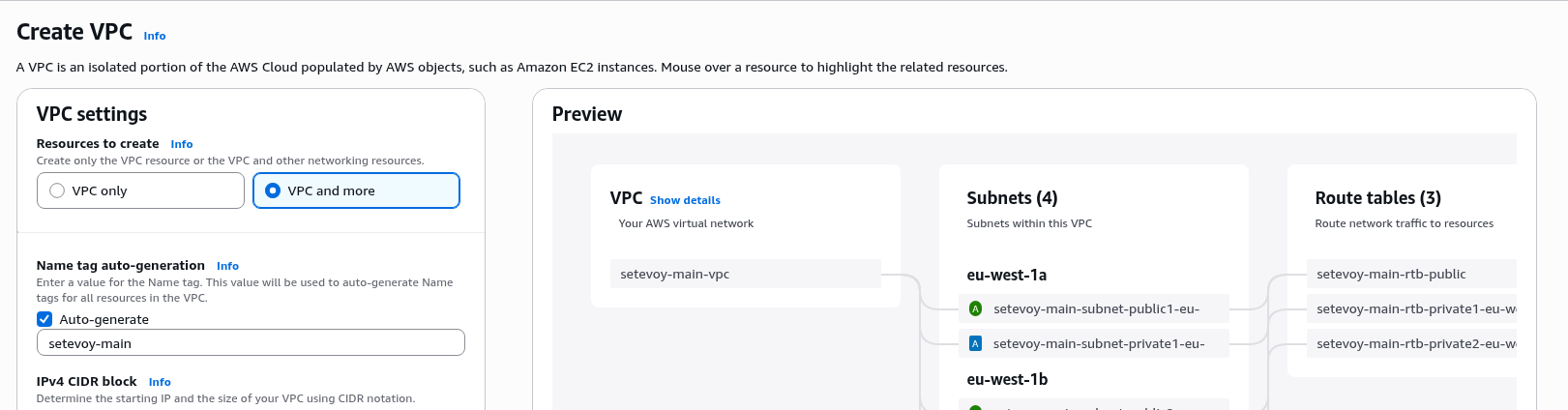
The VPC creation panel has changed a lot since I last did anything manually here – they’ve added the ability to create everything at once through “VPC and more” – let’s try it and see how it works.
The only downside I see with this “create everything at once” option is that you don’t fully understand what’s being created and why, and some resource creation completely flies under the radar: for example, I only remembered a few days later that when creating an AWS VPC, an Internet Gateway is also created for the Public Subnets.
So if you’re getting acquainted with AWS and VPC for the first time, there’s still value in the old “do everything by hand” approach.
If you want to do it “the old way” – I described this process back in 2016, and there have been no fundamental changes in how you build a network (older posts were written before translations were added, so these are russian only):
- AWS: RTFM migration, part 1: manual infrastructure creation – VPC, subnets, IGW, NAT GW, routes and EC2
- AWS: VPC – introduction, examples
- AWS: VPC – EC2 in public and private subnets, NAT and Internet Gateway
Auto-generated resource names are also a nice touch, and they generate quite reasonable names in exactly the style I always used – with the subnet type and Availability Zone:
CIDR selection is important, especially if you’re planning to have multiple VPCs and build “bridges” between them via VPC Peering – you need to calculate it so that addresses don’t overlap.
On top of that, in my specific case, I need to account for a future VPN which has its own client network – 10.100.0.0/24.
AWS suggests 10.0.0.0/16 by default – you can leave it as is, though of course for a project like this that’s way more addresses than needed.
But the key thing is that this network doesn’t overlap with 10.100.0.0/24, since 10.0.0.0/16 covers addresses from 10.0.0.0 to 10.0.255.255.
I started writing about address calculation here, but it turned into such a wall of text that I decided to move it into a separate article.
So, let’s keep the default block 10.0.0.0/16: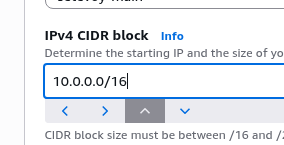
We don’t need IPv6, skip it.
Tenancy – something for the very wealthy: the ability to run all your EC2 instances on hardware dedicated to your AWS Account, definitely not needed right now, see Amazon EC2 Dedicated Instances.
VPC encryption control – something new, allows enabling control over the use of plaintext traffic within the network, we don’t need it, skip.
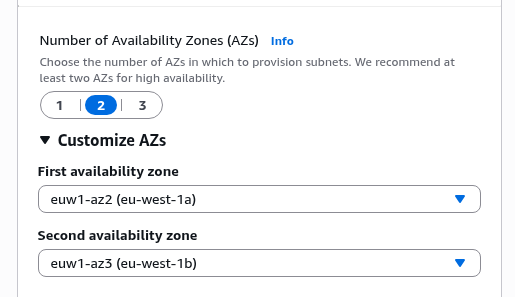
Set the Number of Availability Zones to 2, which is the minimum for ALB:
Creating VPC Subnets
Next we need to configure two types of subnets and create one subnet of each type in each Availability Zone.
I’m leaving the first /24 block as “reserved”, and it also just looks cleaner:
- two public:
- 10.0.1.0/24
- 10.0.2.0/24
- two private:
- 10.0.3.0/24
- 10.0.4.0/24

Creating a NAT Gateway
Here I’ll describe creating a regular AWS Managed NAT Gateway, though later I replaced it with a “poor man’s NAT Gateway” – just a separate EC2, see AWS: own EC2 as a NAT Gateway instead of AWS Managed NAT Gateway.
Regional NAT Gateways – a new AWS feature that appeared not too long ago – allows fully automating NAT Gateway creation in new Availability Zones, doesn’t require Public Subnets, and automatically updates Route Tables.
But it costs more, and it’s not needed for this setup anyway.
Let’s create a classic Zonal NAT Gateway in just one Availability Zone:

Finishing VPC configuration
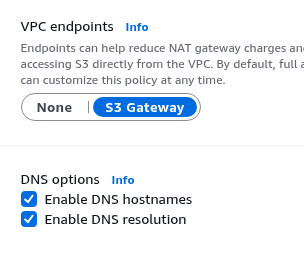
VPC Endpoints – leave the default S3, since my blog backups are written to S3. Later we’ll add another one for EC2 Instance Connect.
I wrote a bit more about VPC Endpoints in the post Terraform: creating EKS, part 1 – VPC, Subnets and Endpoints.
Leave DNS Options enabled – useful and costs nothing:
- DNS hostnames: whether to create “local” names, for example
ip-10-0-3-226.eu-west-1.compute.internal– needed for RDS, EFS, and other network resources to work correctly - DNS resolution: whether services inside the VPC can use its internal DNS – also useful and convenient, although it has its limitations (see for example Kubernetes: load testing and high-load tuning – problems and solutions)
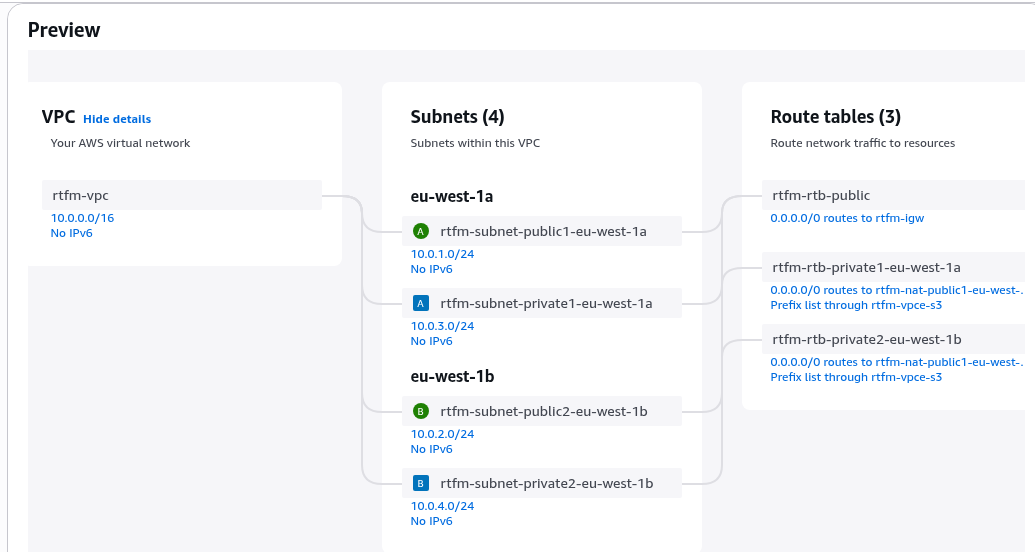
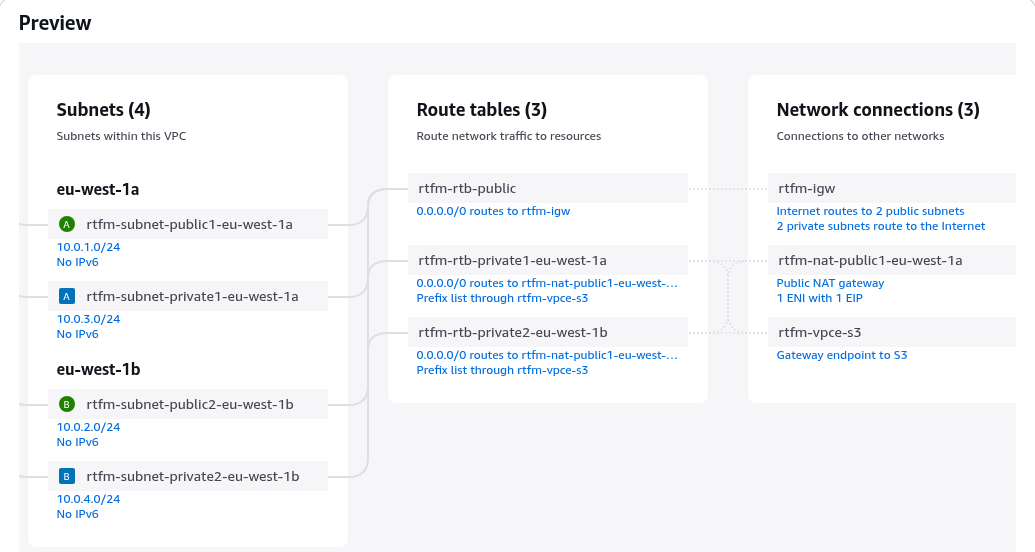
And we get this picture as a result (this wasn’t there before either, very convenient, and I think even route tables and routes used to have to be created manually):
All set – let’s go ahead and create it, it’ll take a few minutes – enough time to make some tea.
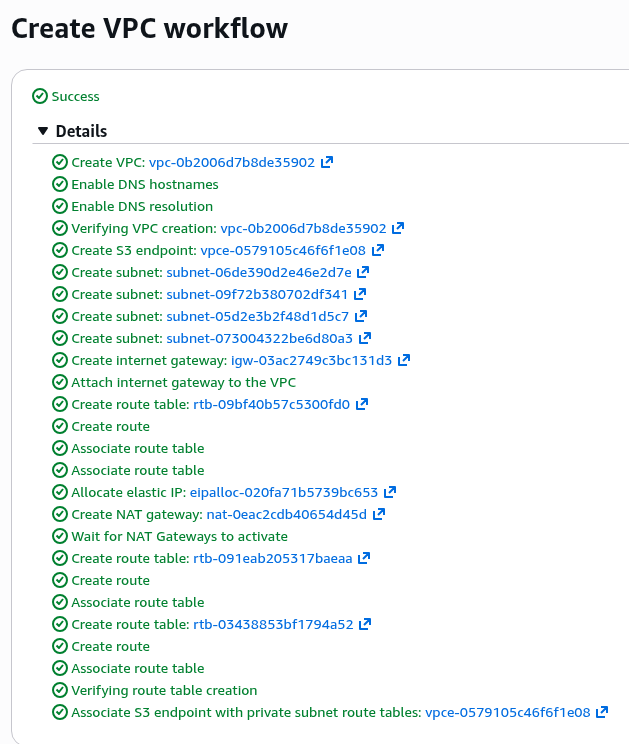
A few minutes later – everything is ready:
Creating Security Groups
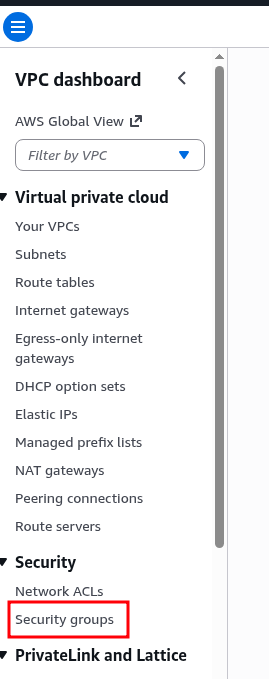
We’ll create three separate Security Groups – for EC2, for RDS, and for the Load Balancer:
In the EC2 Security Group we allow SSH within the VPC, and allow HTTP from the Public Subnets – that’s where the Load Balancer instances will live (which are essentially regular AWS EC2 instances under the hood – just like AWS RDS):
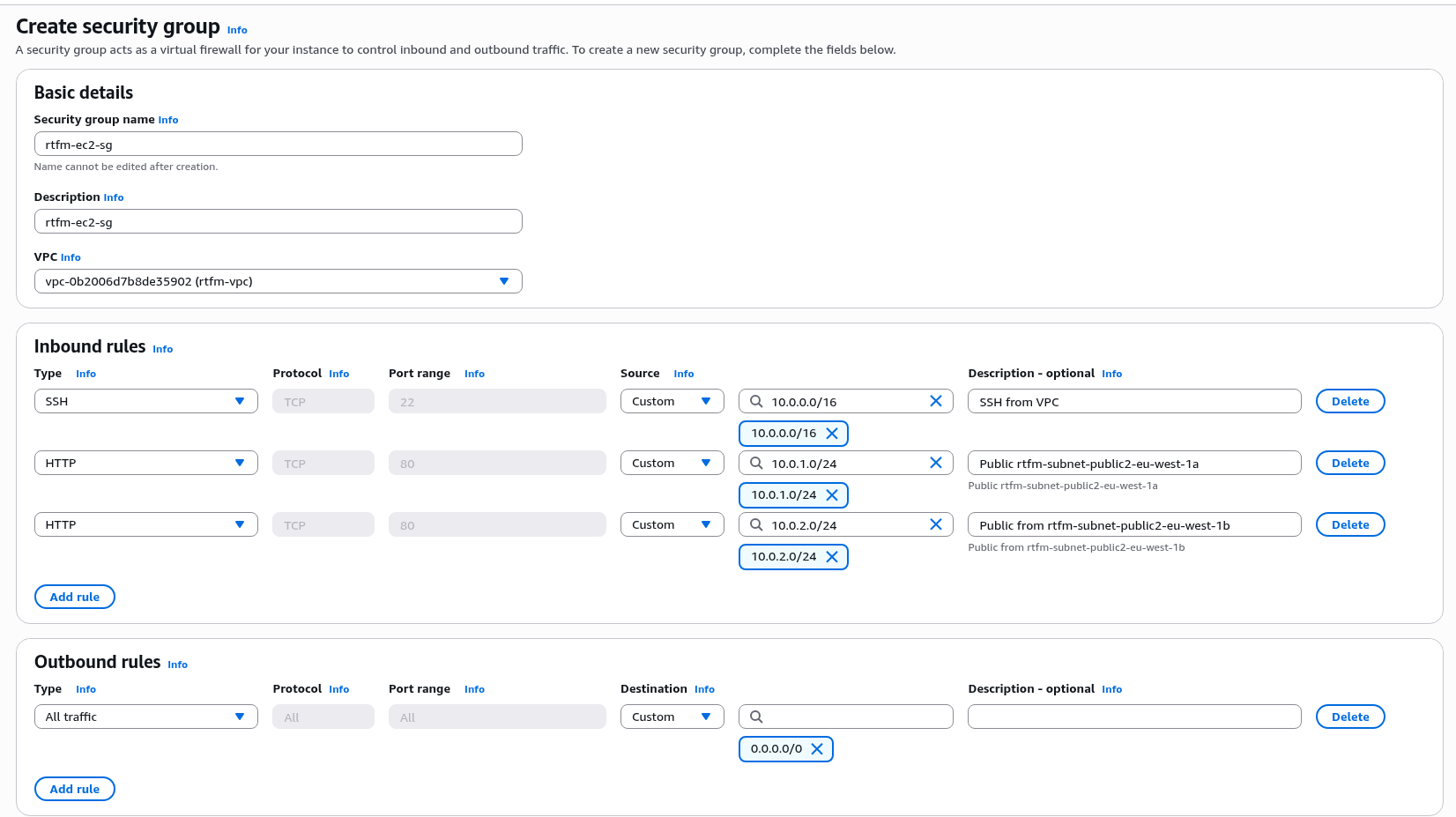
For SSH you could add stricter rules – allow only from the VPN CIDR and the VPC Private Subnet in eu-west-1a where the EC2 Instance Connect Endpoint will be created later – but this can be fine-tuned once everything is working.
Similarly, create the Security Group for the Load Balancer – here we allow all inbound traffic on ports 80 and 443:
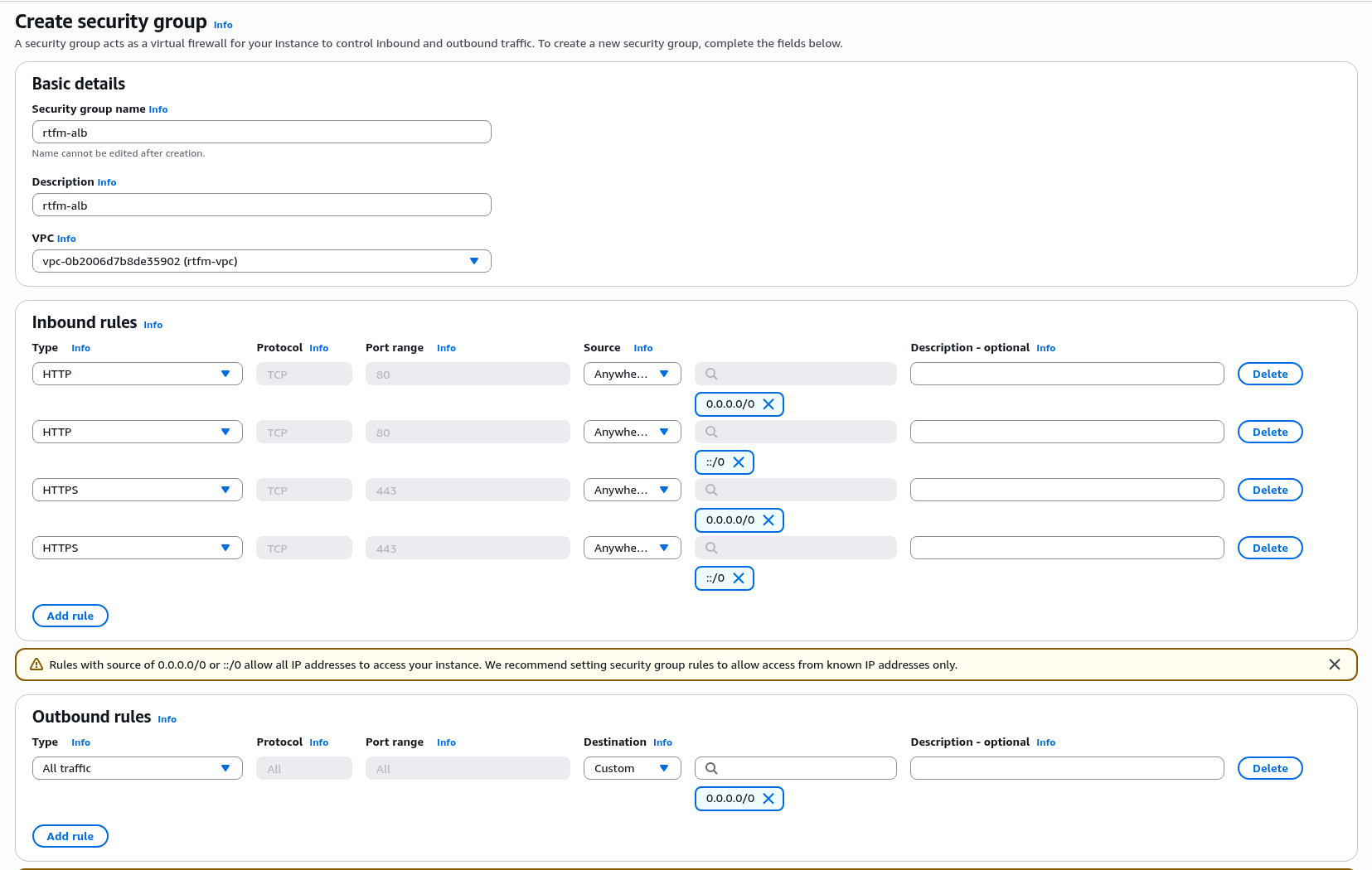
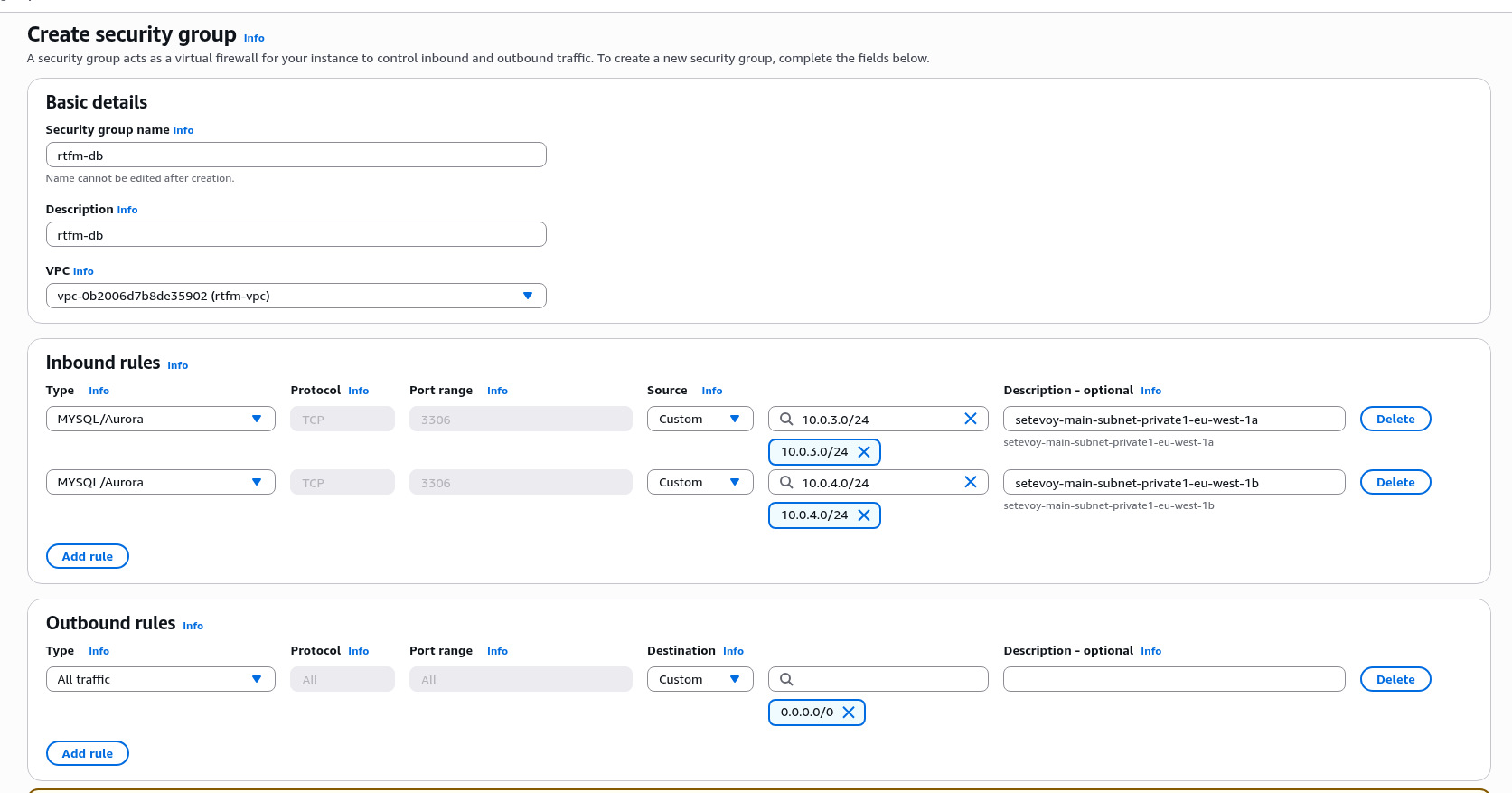
And for RDS – open port 3306 from the Private Subnets, since nobody other than EC2 should be connecting here:
Creating an EC2 Instance Connect Endpoint
When planning to use a Debian server, I was thinking of using AWS SSM for access – but SSM requires as many as three VPC Endpoints, and each one costs money.
So I went with a simpler option – EC2 Instance Connect Endpoint.
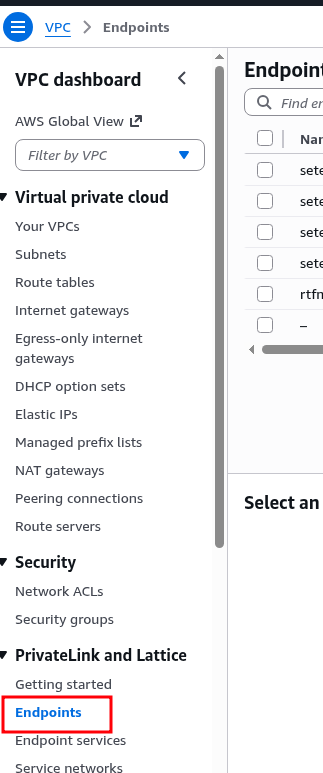
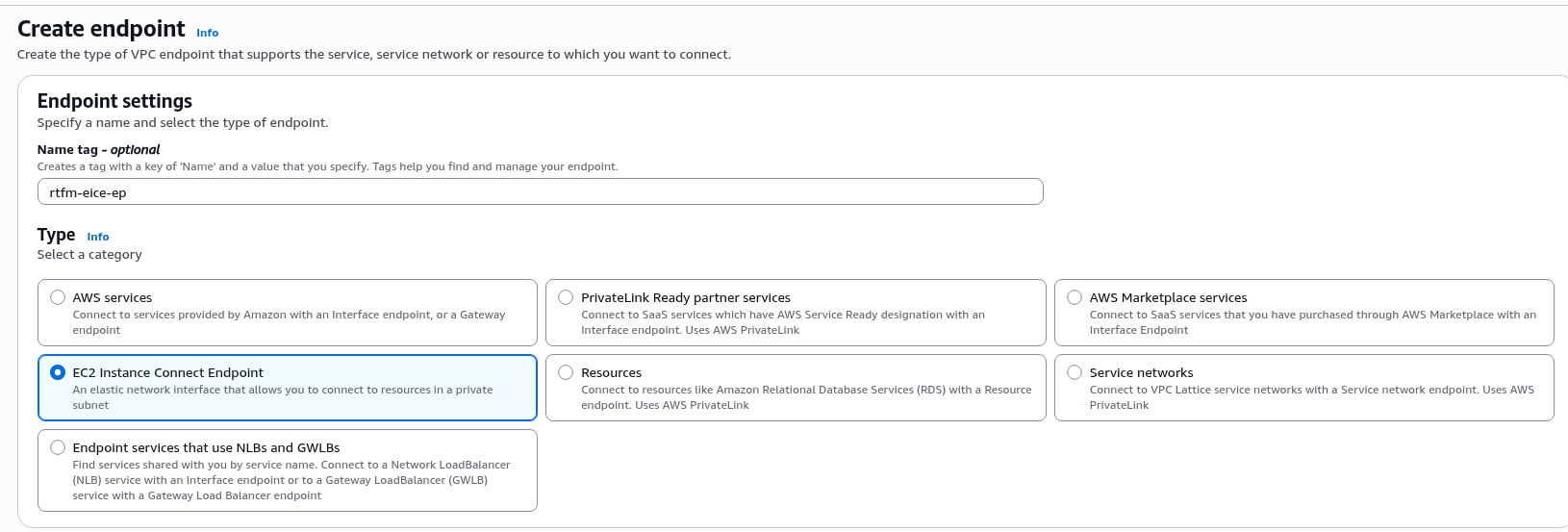
Go to Endpoints, create a new one:
Set the name and type:
Select the VPC created above. The “Preserve Client IP” option is a nice one – it passes the client IP instead of the Endpoint’s own address – could try that later, for now leave it at the default “off”:
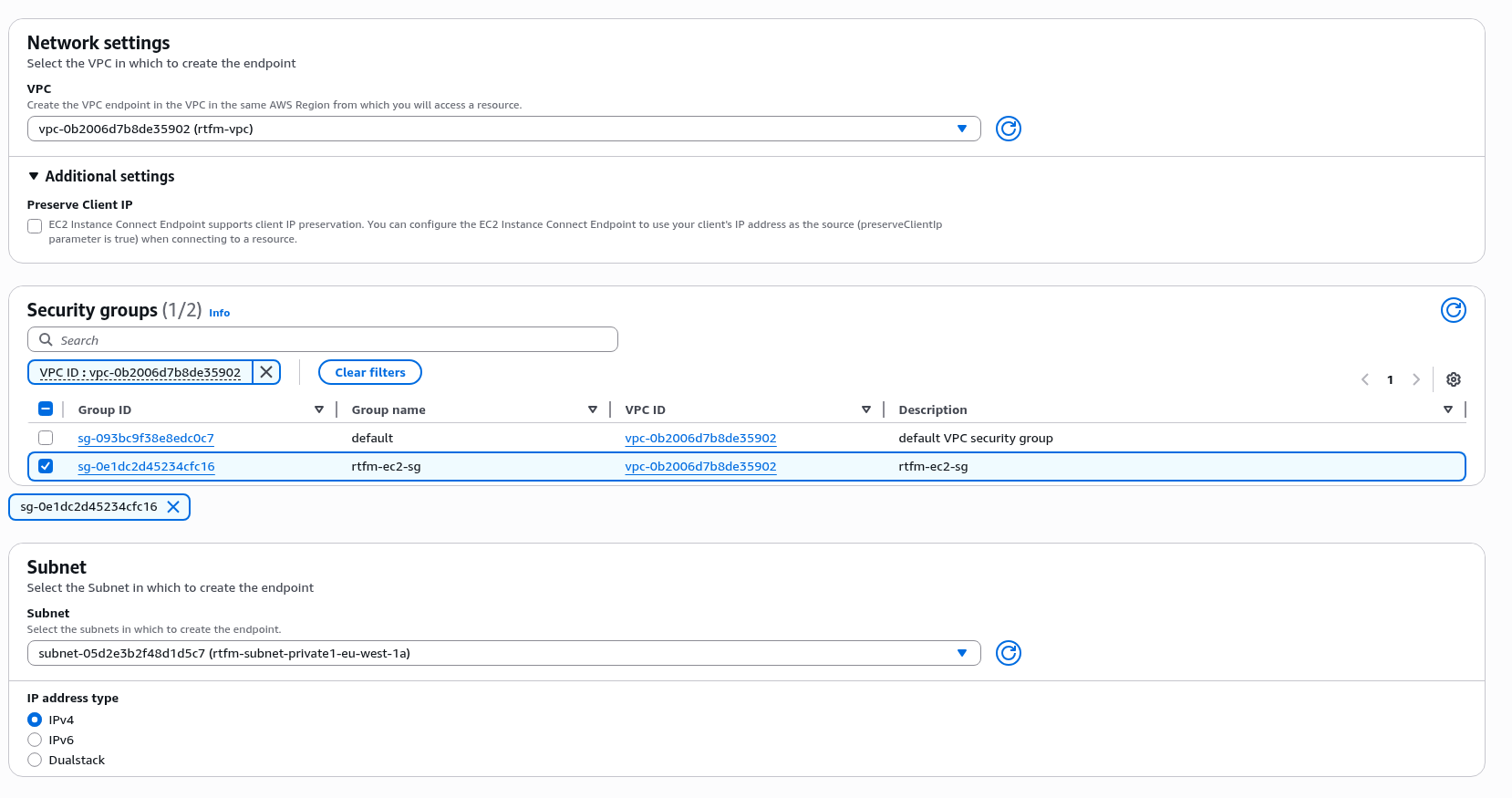
Creation takes a while, about 5 minutes – just enough time to make another cup of tea and launch the EC2.
Creating the EC2
Select Amazon Linux, set the instance name:
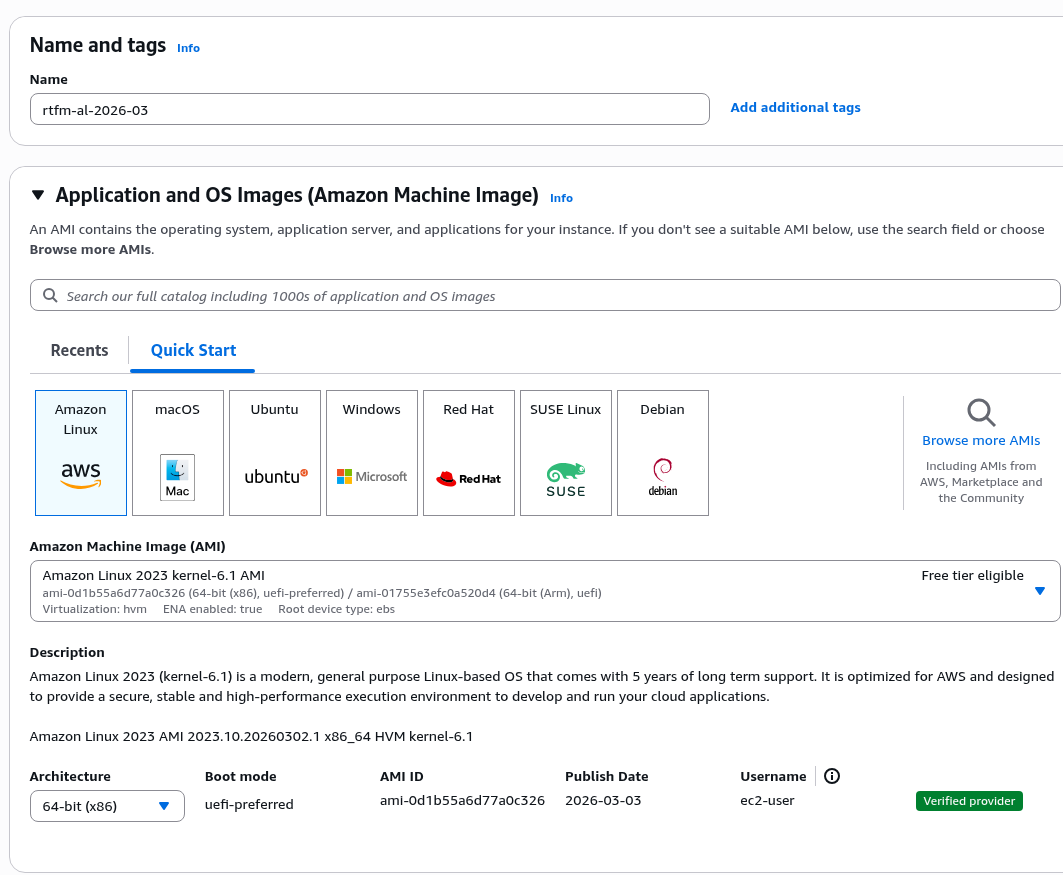
Choosing the instance type and estimating required memory
A very brief overview of types, since the material is already getting long – for more details see Amazon EC2 instance types.
All AWS EC2 instances are divided into several main types:
- general purpose: balanced CPU/RAM and cost types
- this includes burstable types like t3/t4 – CPU access is more limited, but for a short time can, well, burst – delivering 100% CPU time, see CPU Credits, see Key concepts for burstable performance instances
- general purpose examples:
t3.medium– 2 vCPU, 4 GiB RAM, ~$30/montht3.large: 2 vCPU, 8 GiB RAM, ~$60/monthm5.large: 2 vCPU, 8 GiB RAM, ~$69/month
- compute optimized: optimized for CPU – more CPU, less RAM:
- example:
c5.large– 2 vCPU, 4 GiB RAM, ~$61/month
- example:
- memory optimized: and the opposite – more RAM and less CPU
- example:
r5.large– 2 vCPU, 16 GiB RAM, ~$90/month
- example:
- storage optimized: have NVMe disks with high IOPS
- example:
i3.large– 2 vCPU, 15.25 GiB RAM, ~$112/month
- example:
The numbers 3/4/5/6 etc. are instance generations – the higher the number, the newer the hardware under the hood, plus additional AWS features (for example, older t2 instances don’t support connecting via serial console).
Plus each type has “subtypes”:
g: Graviton processors – AWS’s own processors on ARM architecture – may not be compatible with everything, but usage is ~20-30% cheaper than regular types with higher task execution speedi: Intel processors – Intel Xeon, Intel Ice Lakea: AMD processors – AMD EPYCn: a separate modifier, “network” – higher network bandwidth, for example R6in instances – Intel Network
For selection, use services like https://instances.vantage.sh or https://calculator.holori.com/aws.
The current RTFM server on DigitalOcean has 2 vCPU and 4 GB RAM:
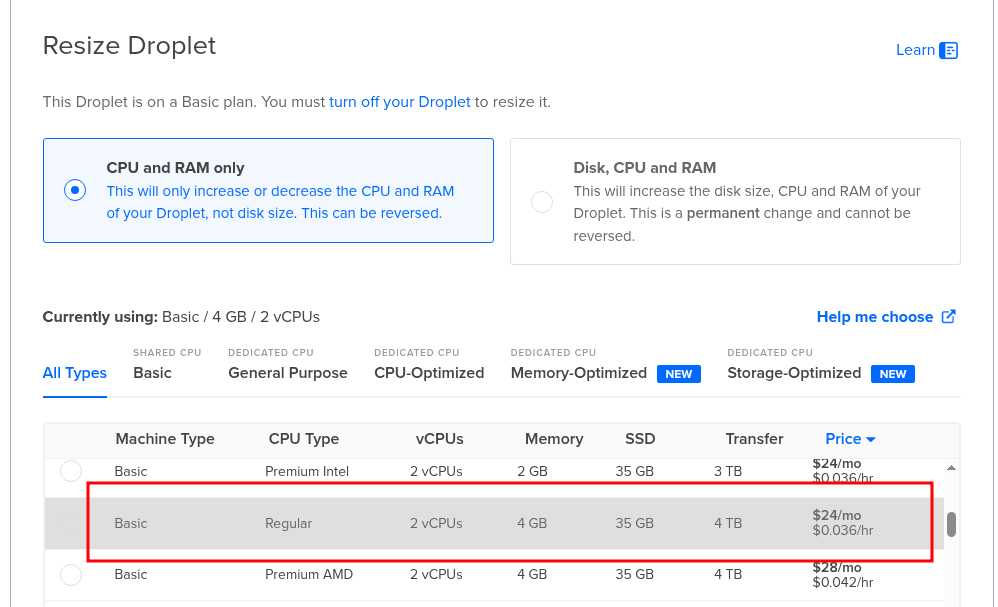
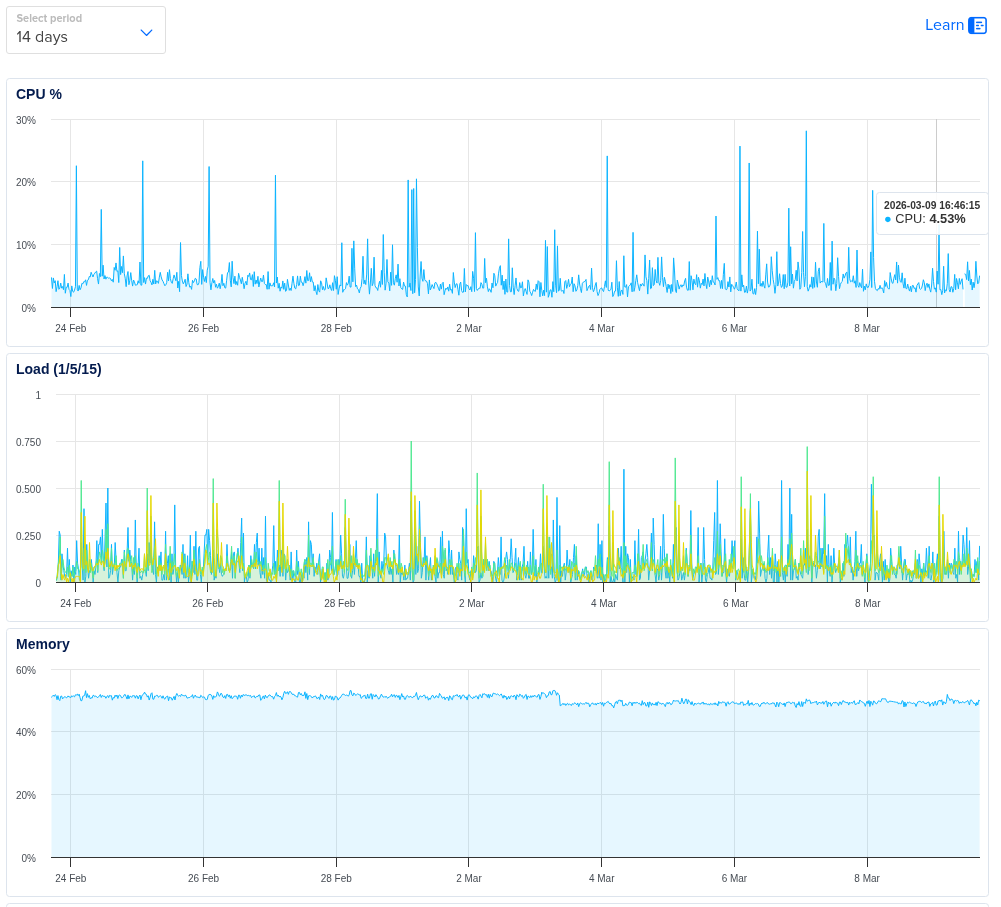
CPU load averages around 5%, while memory is 60% used:
 But right now the MariaDB server also lives on that same machine:
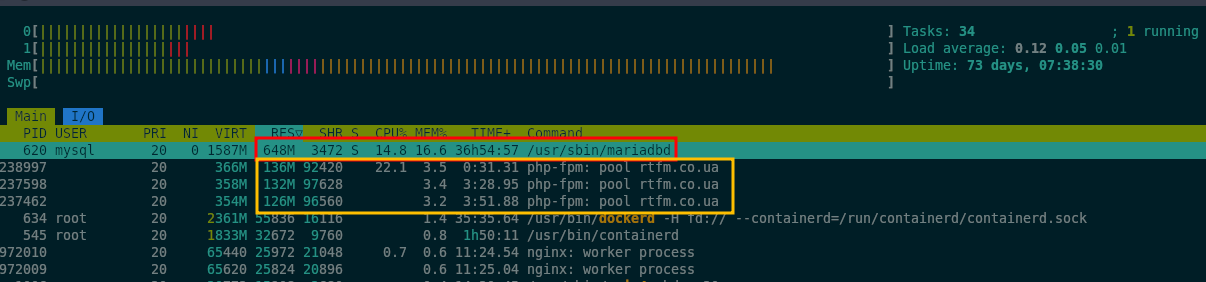
So if we move the database to AWS RDS, then on the new instance the main memory consumer will be PHP-FPM.
Let’s check how much memory the php-fpm processes are using right now:
root@setevoy-do-2023-09-02:~# ps aux --sort=rss | grep php-fpm | awk '{print $6}' | awk '{sum+=$1} END {print sum/1024 " MB total"}'
410.477 MB total
And the number of processes:
root@setevoy-do-2023-09-02:~# ps aux --sort=rss | grep php-fpm | grep 'master\|rtfm.co.ua' | grep -v grep
root     1157320  0.0  0.3 264156 13092 ?        Ss   Mar03   0:55 php-fpm: master process (/etc/php/8.2/fpm/php-fpm.conf)
rtfm     1238997  1.3  3.1 362608 126980 ?       S    15:23   0:07 php-fpm: pool rtfm.co.ua
rtfm     1237462  1.7  3.2 360912 129788 ?       S    12:16   3:26 php-fpm: pool rtfm.co.ua
rtfm     1237598  1.7  3.3 364440 132484 ?       S    12:34   3:04 php-fpm: pool rtfm.co.ua
Let’s estimate how much it needs.
Current PHP-FPM pool parameters for RTFM:
...
pm = dynamic
pm.max_children = 5
pm.start_servers = 2
pm.min_spare_servers = 1
pm.max_spare_servers = 3
...
See PHP-FPM: Process Manager – dynamic vs ondemand vs static (2018) and NGINX: server and PHP-FPM configuration (2014).
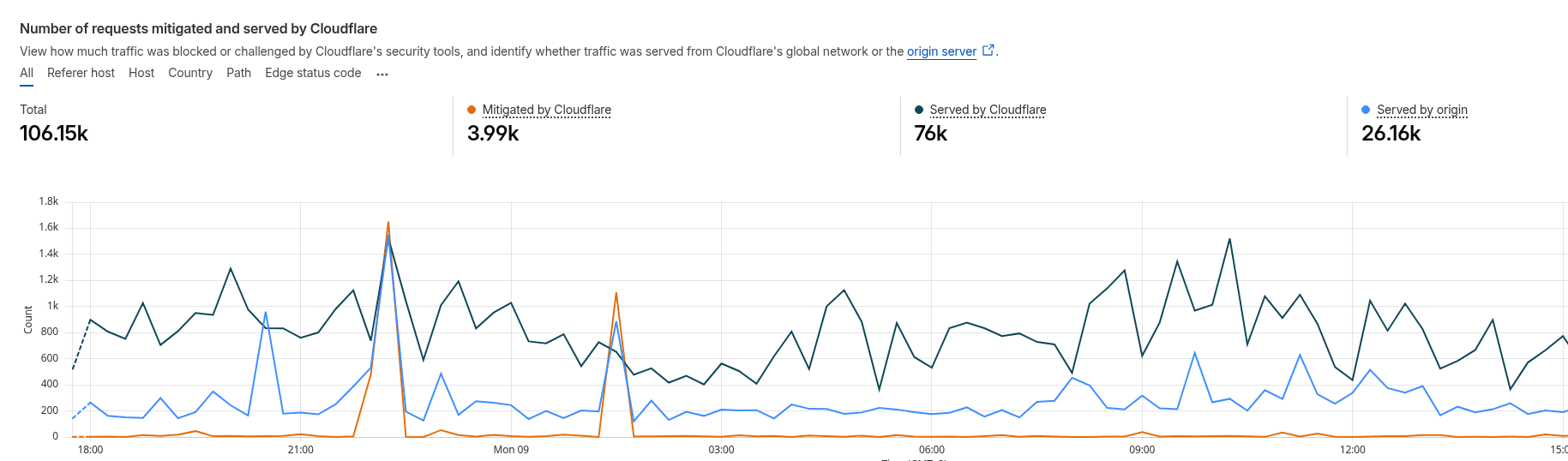
So the maximum is 5 FPM workers – and with that many workers the blog comfortably survived TCP/IP: SYN flood attack on the RTFM server and Hacker News hug of death, since most requests are handled by CloudFlare:
To estimate memory consumption per process we can look at RSS (Resident Set Size), the actual physical memory of a process – but this includes memory for shared libraries, meaning if multiple PHP-FPM workers use the same libc, each worker’s RSS includes it fully and the total RSS will be inflated.
But that’s fine – let it be inflated, since we’re estimating the “worst case” scenario.
Let’s see how much memory each worker currently uses:
root@setevoy-do-2023-09-02:~# ps aux | grep php-fpm | grep 'pool rtfm.co.ua' | awk '{print $6/1024 " MB - " $13}'
126.773 MB - rtfm.co.ua
133.355 MB - rtfm.co.ua
126.168 MB - rtfm.co.ua
And if we have pm.max_children = 5 – then max memory will be ~150 MB * 5 = 750 MB.
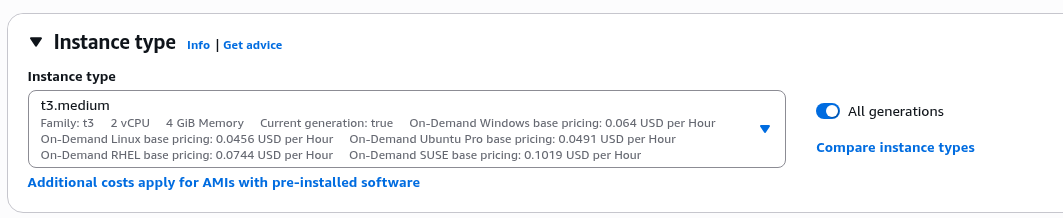
We can start with t3.medium – though that’s a very comfortable margin:
Remaining settings
Create a key for SSH access:
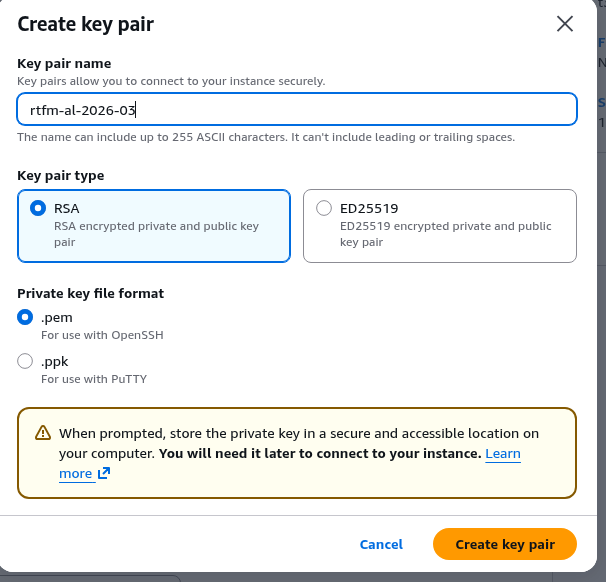
Save it to the work machine, set permissions immediately:
$ chmod 600 ~/.ssh/rtfm-al-2026-03.pem
Select the VPC, the eu-west-1a subnet, and the Security Group we created above:
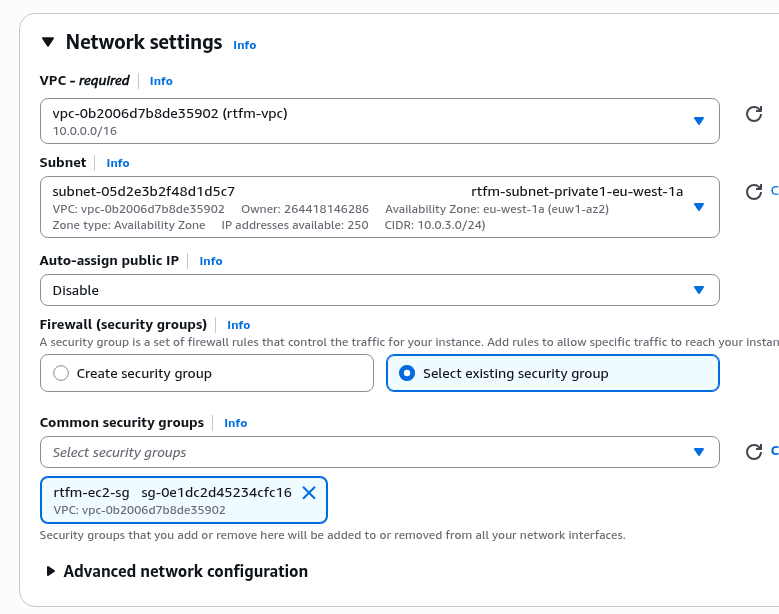
Storage – a 50 GB disk will be more than enough:
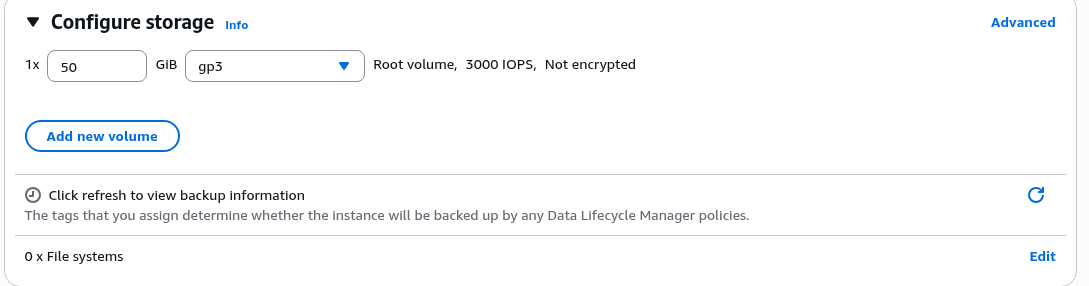
In Advanced details, enable Termination protection – a very useful option for production resources.
And optionally, you can also enable Detailed CloudWatch monitoring for now – but it costs extra money, so it’s better to disable it later:
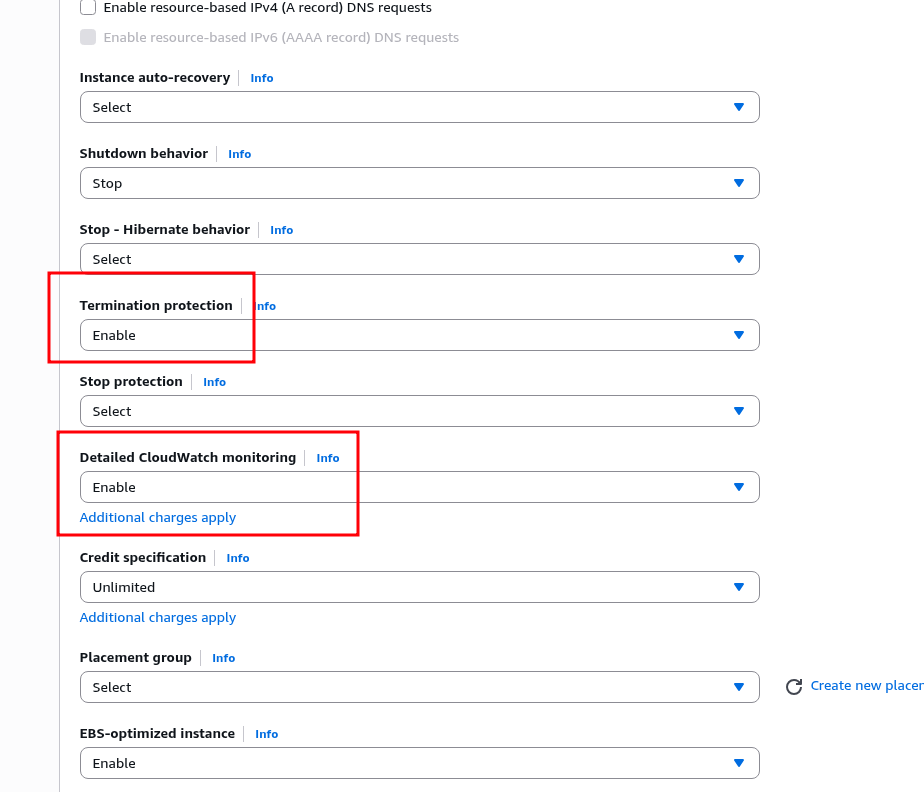
Launch the instance.
While we were doing that – the EC2 Instance Connect Endpoint is already ready:
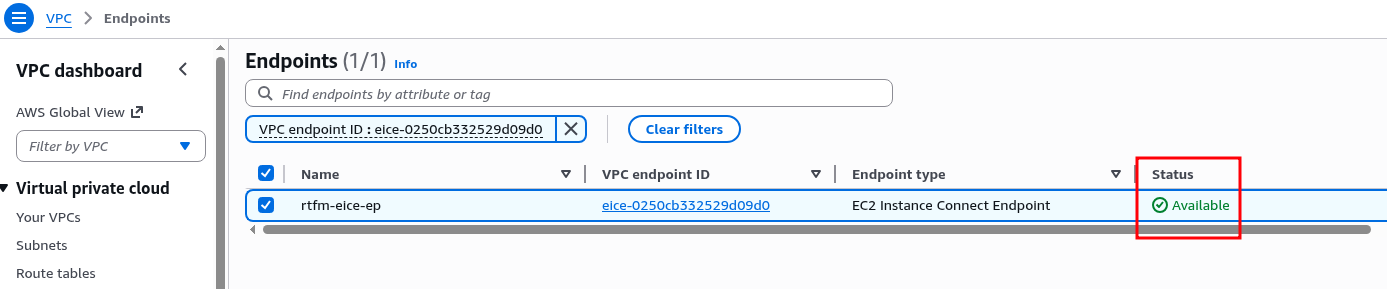
The EC2 instance itself starts very quickly – let’s verify the connection:
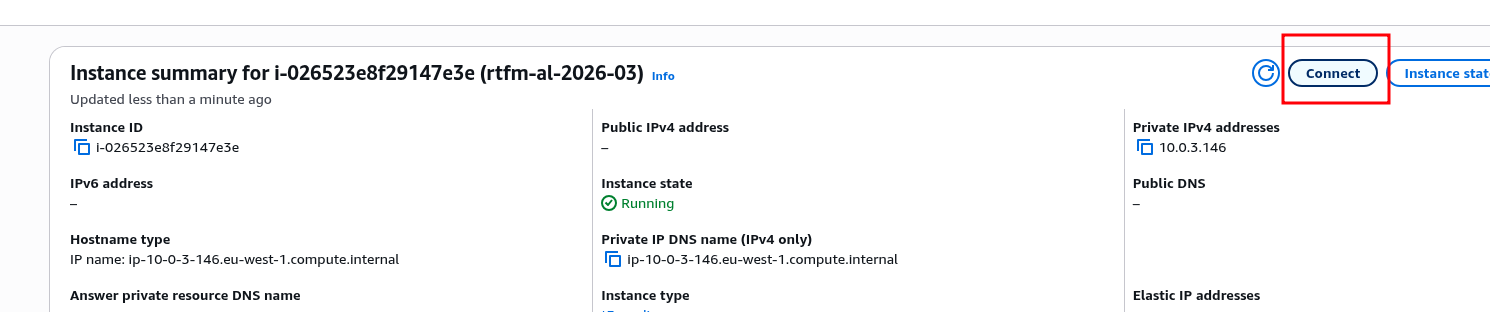
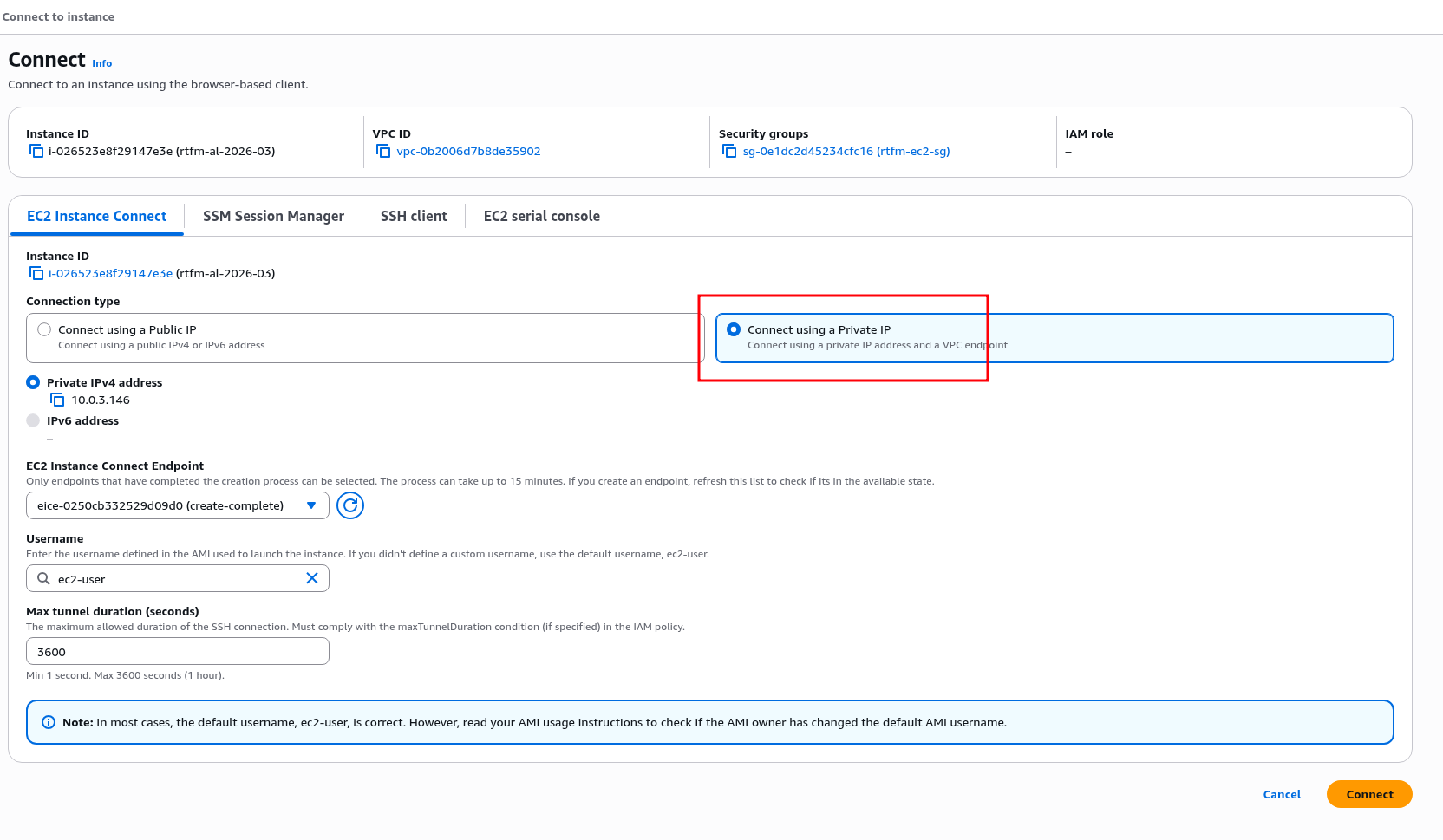
Select EC2 Instance Connect, choose “Connect using Private IP”:
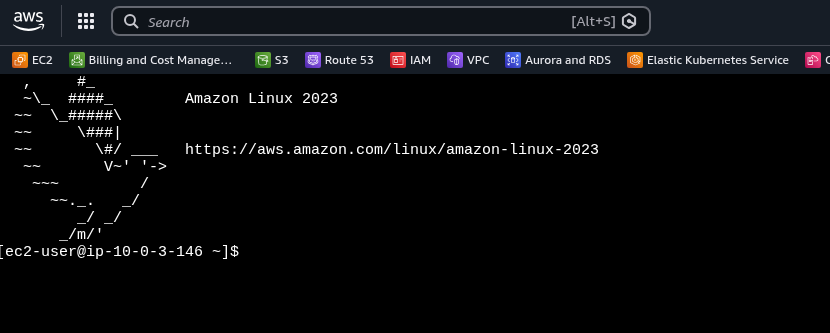
And we’re in:
To connect from the laptop – use the AWS CLI:
$ aws --region eu-west-1 --profile setevoy ec2-instance-connect ssh --instance-id i-026523e8f29147e3e --connection-type eice

And later there will be a direct connection via VPN.
For now let’s run an upgrade and install NGINX for testing:
# dnf update -y
# dnf install -y nginx
# systemctl enable nginx
# systemctl start nginx
Verify:
# curl localhost:80
<!DOCTYPE html>
<html>
<head>
<title>Welcome to nginx!</title>
...
Everything is ready here – we can move on to SSL/TLS and the Load Balancer, then install PHP and test WordPress.
Getting an SSL/TLS certificate from AWS Certificate Manager
Very convenient – because you get it once, attach it to the Load Balancer, and forget about it – AWS handles all renewals from there.
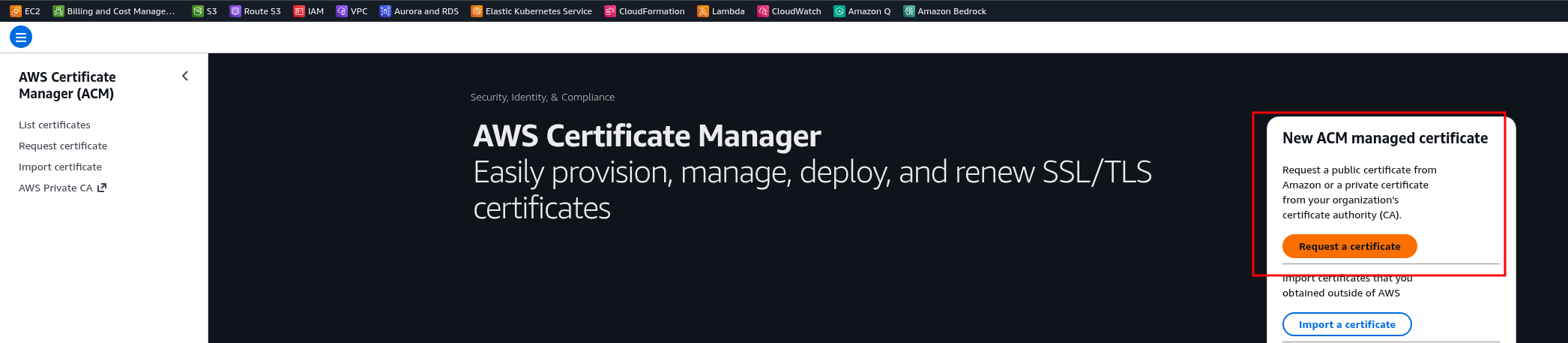
Go to ACM, click Request a certificate:
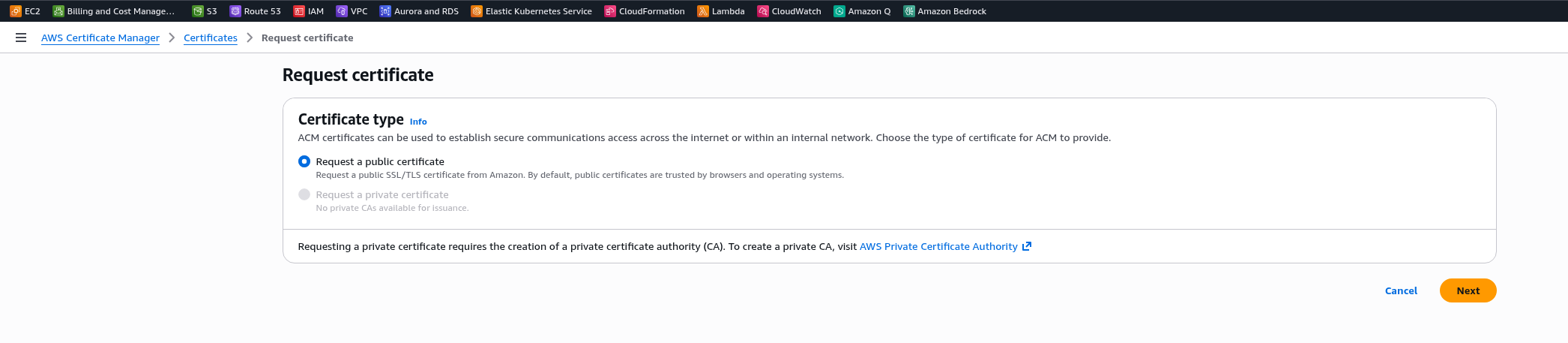
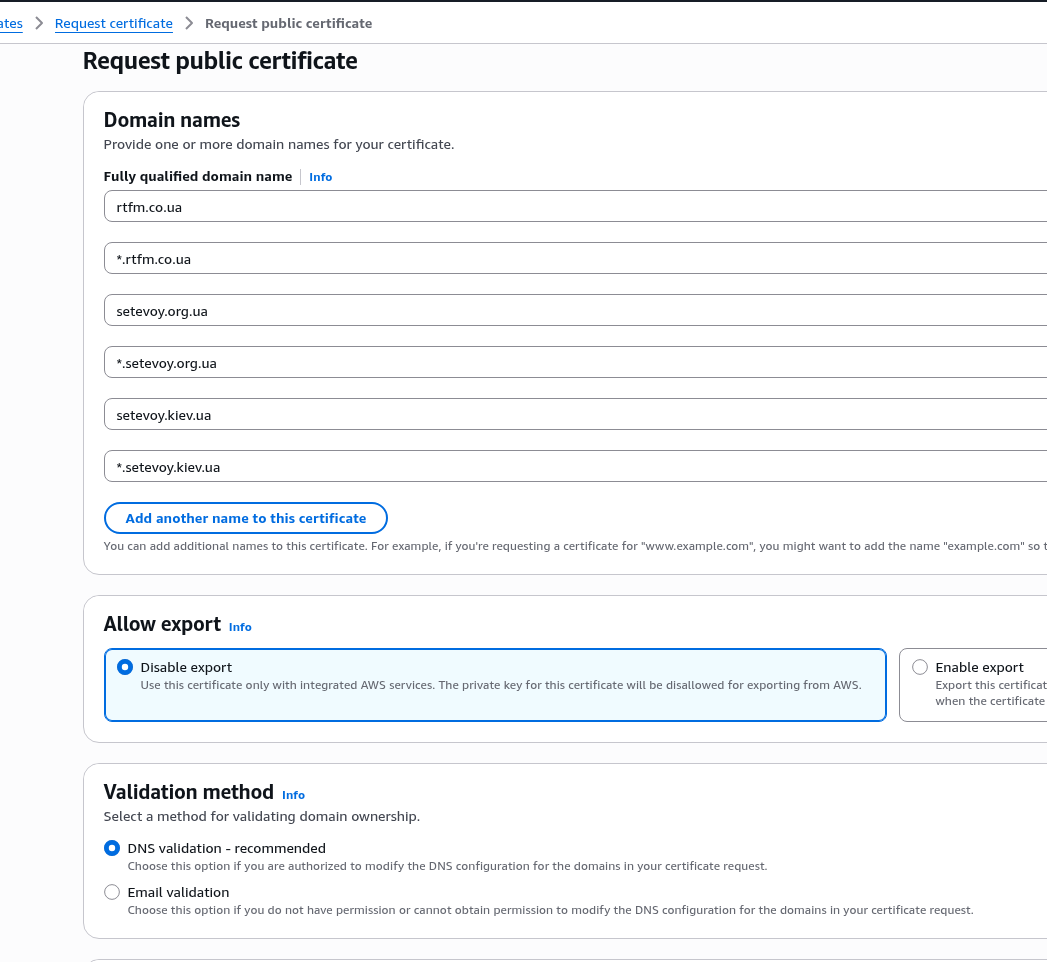
Set the names – they can’t be changed later, only by creating a new certificate, so list all domains upfront and add a wildcard for each.
Leave the default DNS validation option:
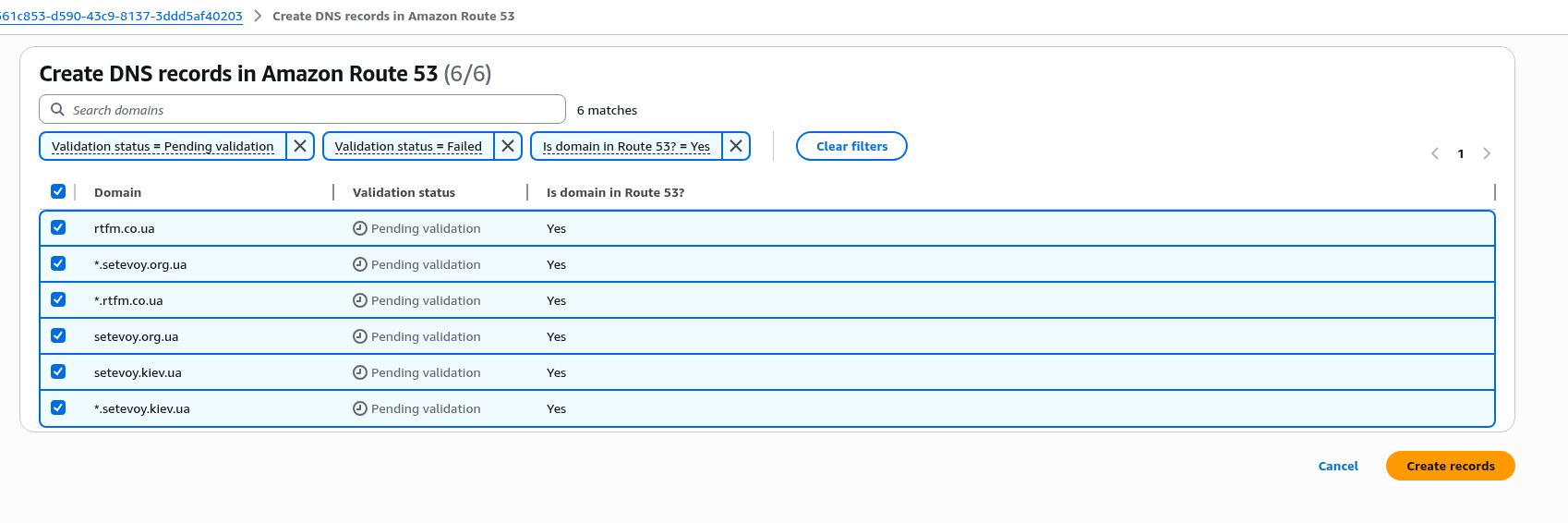
Click Create records in Route 53 – this is obviously only for domains managed on Route 53, see below for an example with Cloudflare Name Servers:
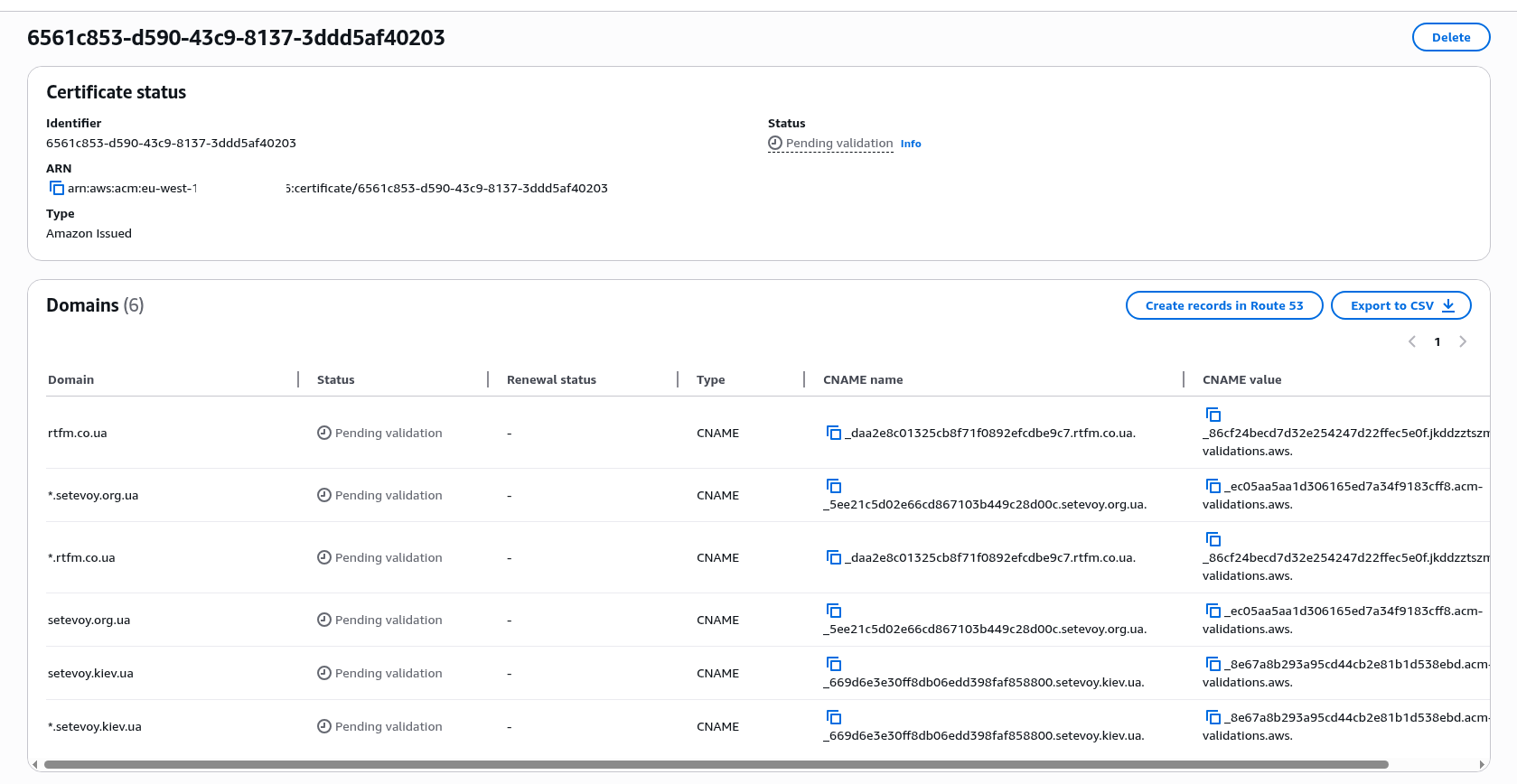
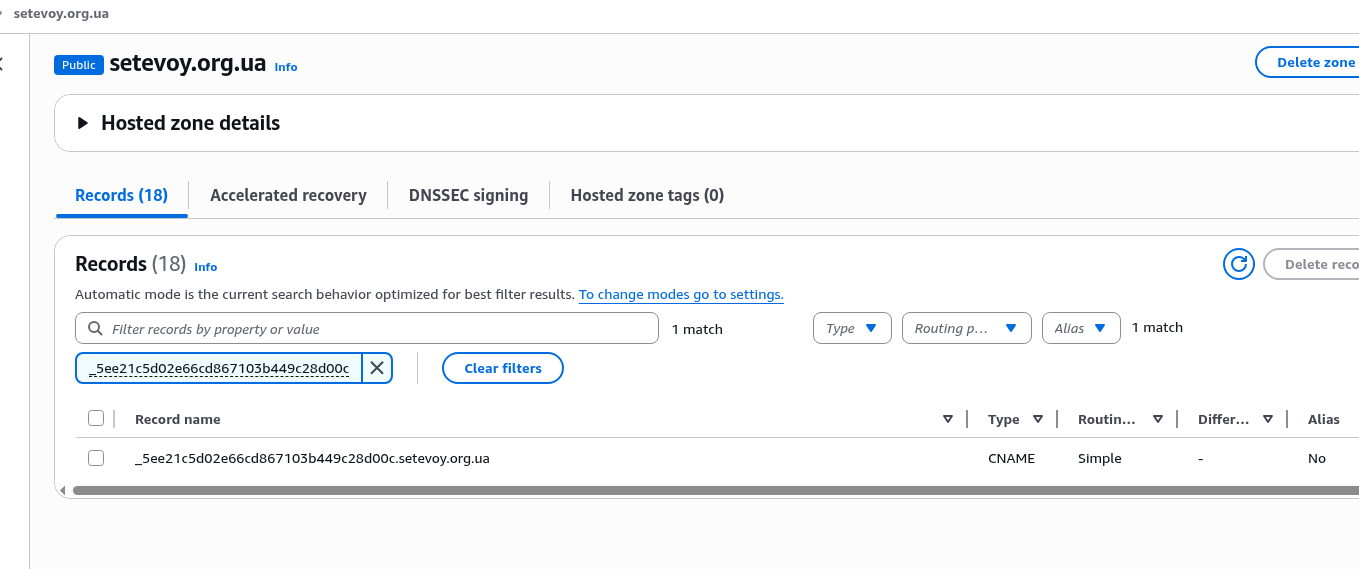
Verify that the new record was added for the domain in Route 53:
AWS ACM Certificate and DNS validation for a domain on Cloudflare Nameservers
The domain rtfm.co.ua is served by Cloudflare nameservers:
$ whois rtfm.co.ua | grep "Name Server"
Name Server:ETHAN.NS.CLOUDFLARE.COM
Name Server:NOVALEE.NS.CLOUDFLARE.COM
So in the Cloudflare DNS management panel we add a new record with type CNAME:

But…
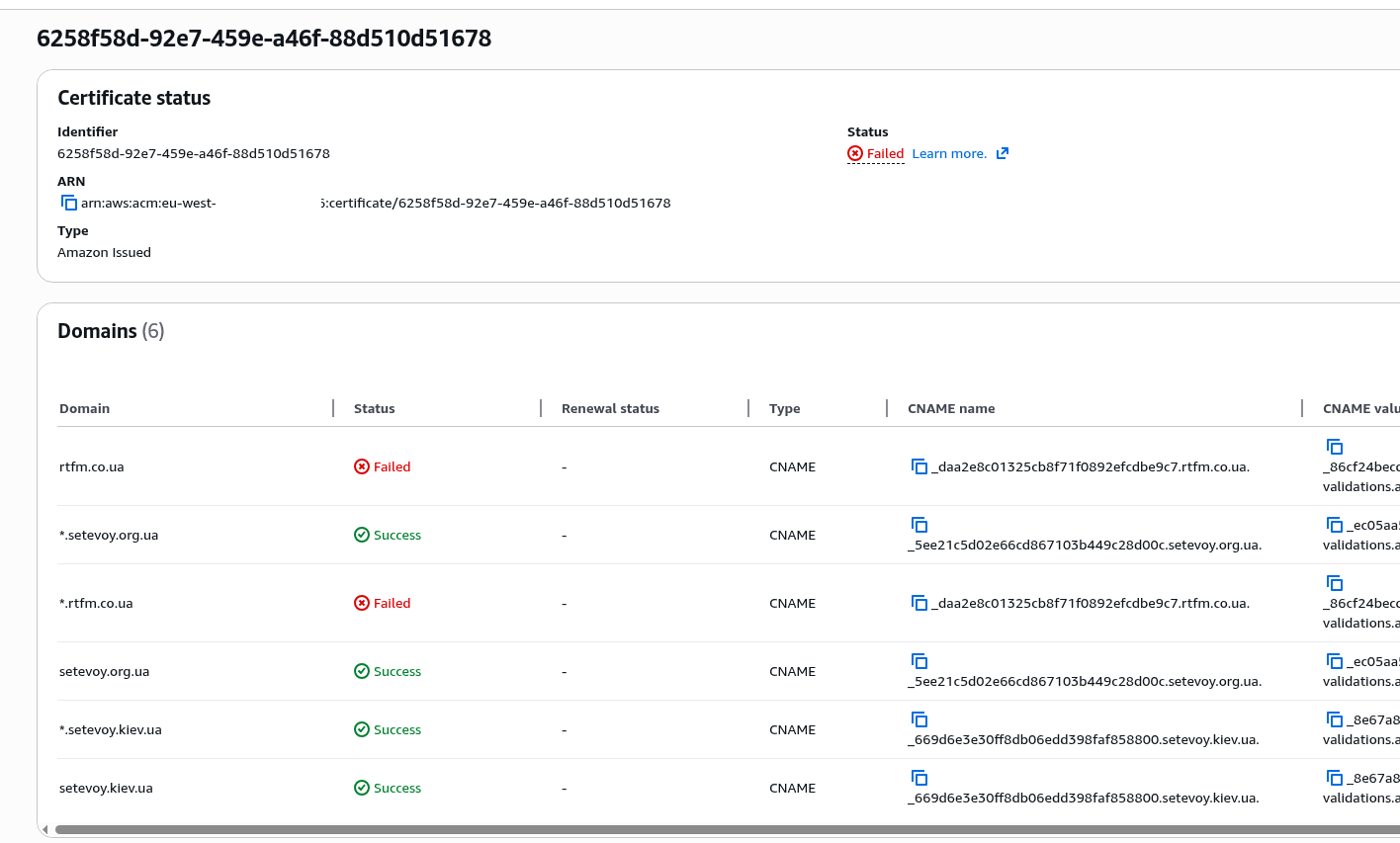
Fixing the AWS ACM Certificate DNS validation failed error
The validation failed:
Read the documentation Certification Authority Authorization (CAA) problems, check the CAA records (Certification Authority Authorization) for the domain – who is allowed to issue certificates for it:
$ dig rtfm.co.ua CAA +short
0 issuewild "digicert.com; cansignhttpexchanges=yes"
0 issuewild "letsencrypt.org"
0 issuewild "pki.goog; cansignhttpexchanges=yes"
0 issuewild "ssl.com"
0 issue "comodoca.com"
0 issue "digicert.com; cansignhttpexchanges=yes"
0 issue "letsencrypt.org"
0 issue "pki.goog; cansignhttpexchanges=yes"
0 issue "ssl.com"
0 issuewild "comodoca.com"
And indeed, AWS is not there.
Add two CAA records – one for certificates for the root domain:
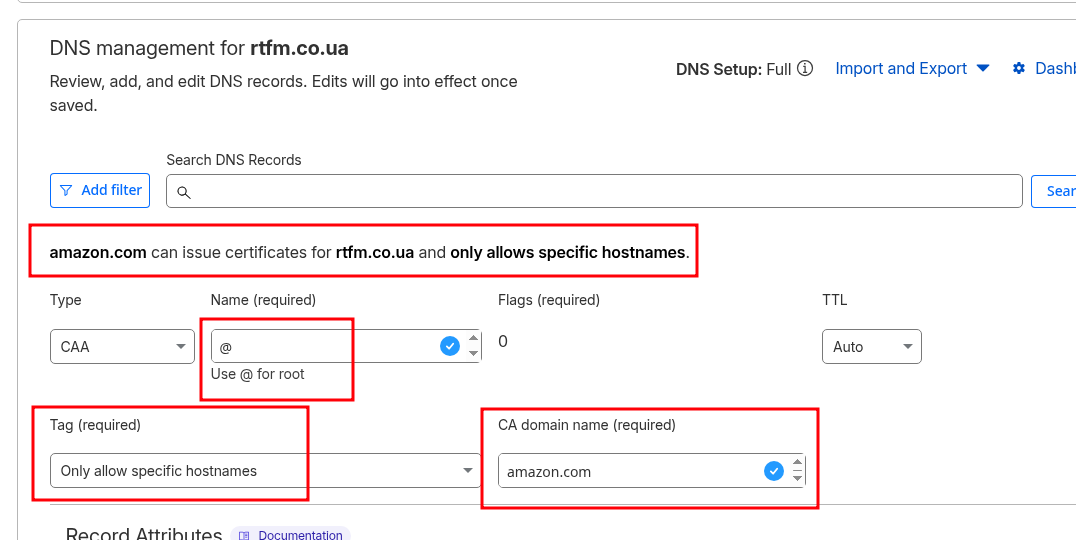
And one for wildcard certificates:
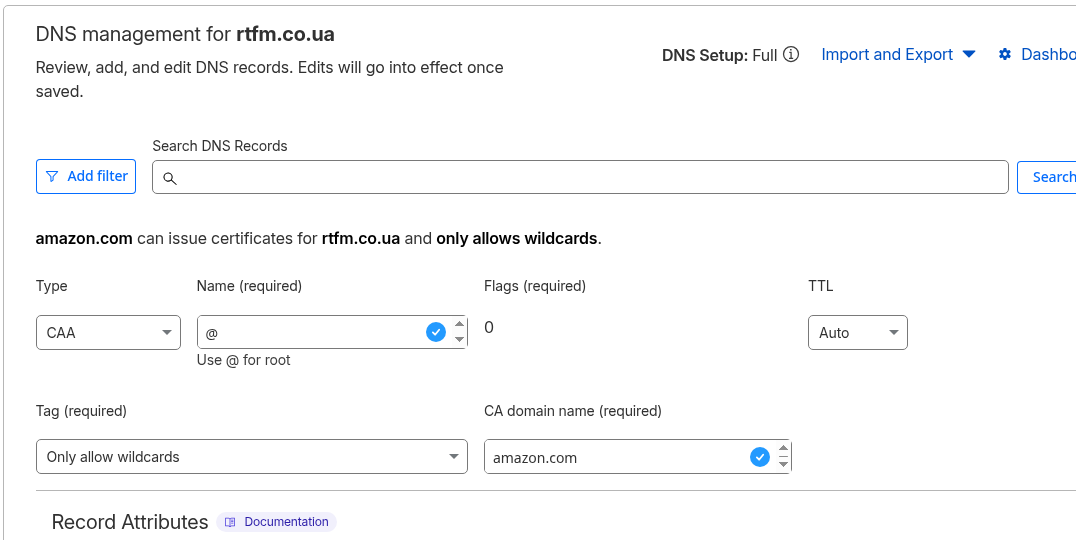
Verify again:
$ dig @ethan.ns.cloudflare.com rtfm.co.ua CAA +short
0 issue "amazon.com"
...
0 issuewild "amazon.com"
...
Delete the first certificate, repeat the creation and validation process – and now everything is ready:
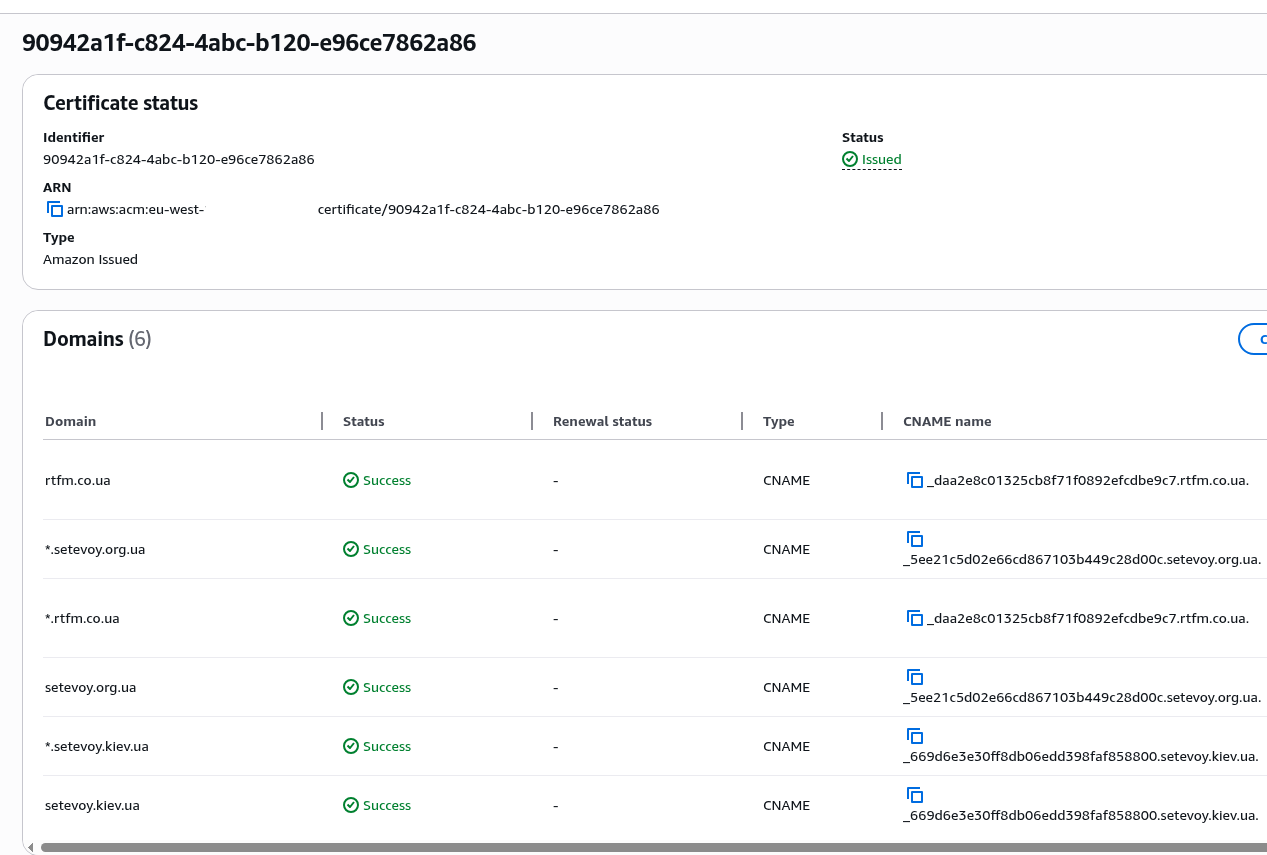
Creating an AWS Load Balancer
Using a Load Balancer will allow us to, well, balance load – if you’re planning to have multiple instances, it’s convenient to have one static URL that can be used as a CNAME for the domain, you’ll be able to add or replace instances without making DNS changes, and it enables using AWS Web Application Firewall.
Plus, an ALB simplifies SSL/TLS management – you create a certificate once, attach it to the ALB, and SSL termination happens at the Load Balancer: clients connect to the Load Balancer over HTTPS, and the Load Balancer connects to EC2 over HTTP – simpler NGINX config, no need to set up Let’s Encrypt.
Although honestly, if you’re planning a really small personal site – ALB is overkill too. That said, if you have spare credits, using it genuinely does simplify things.
Creating a Target Group
The Load Balancer works through Target Groups (TG), where each TG includes one or more EC2 instances that the ALB will send traffic to.
Create a new Target Group:
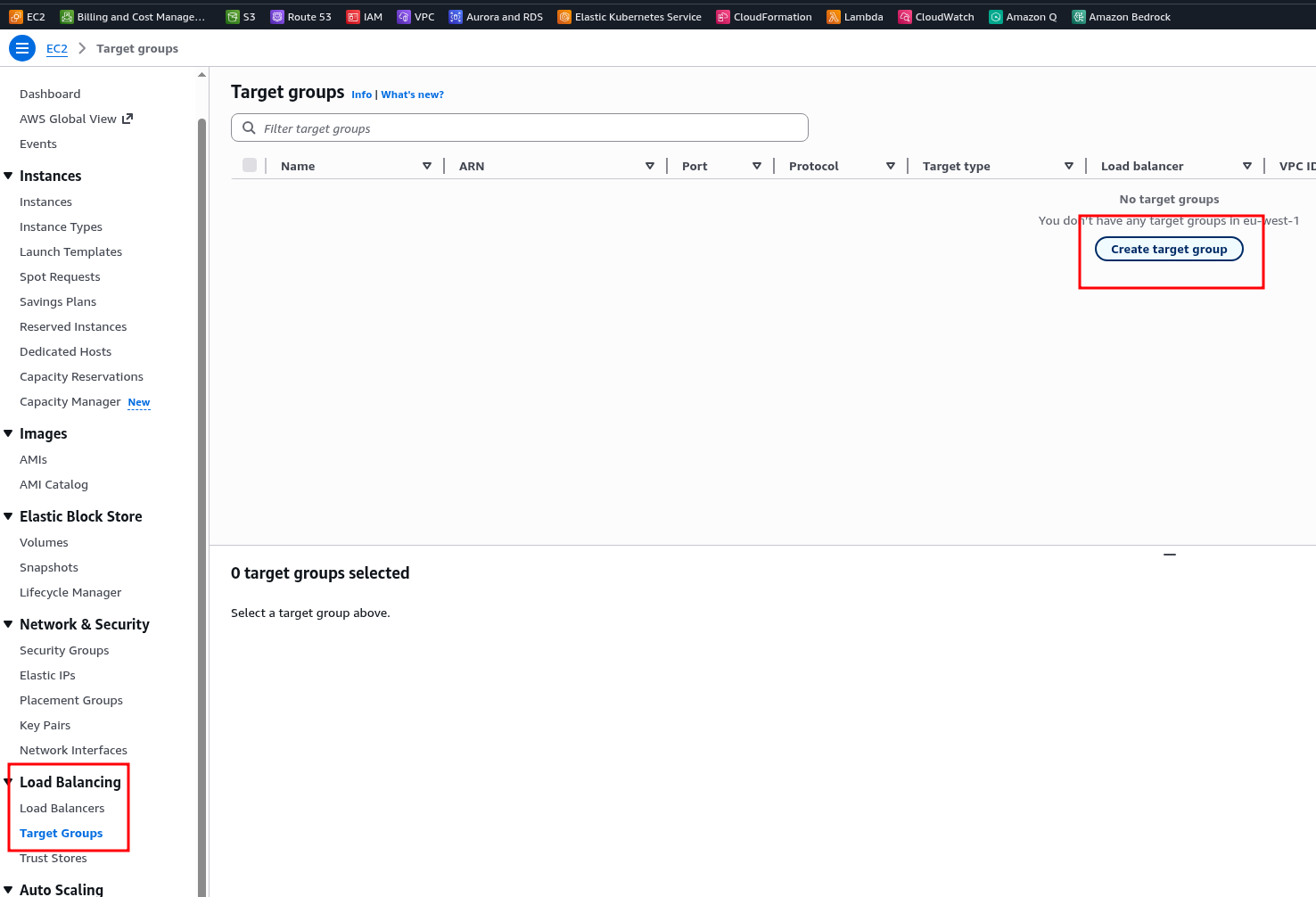
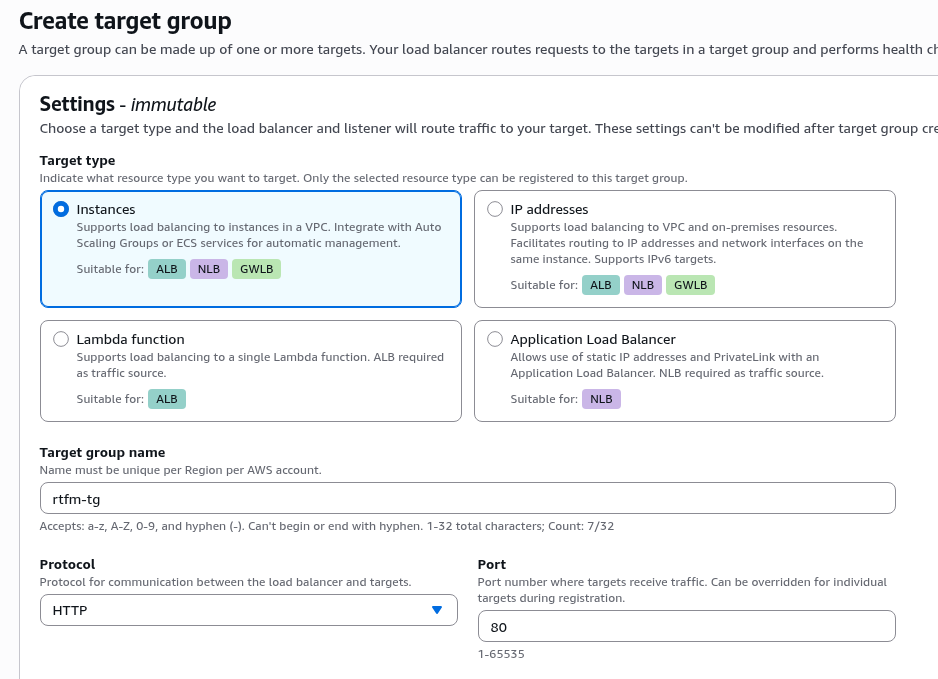
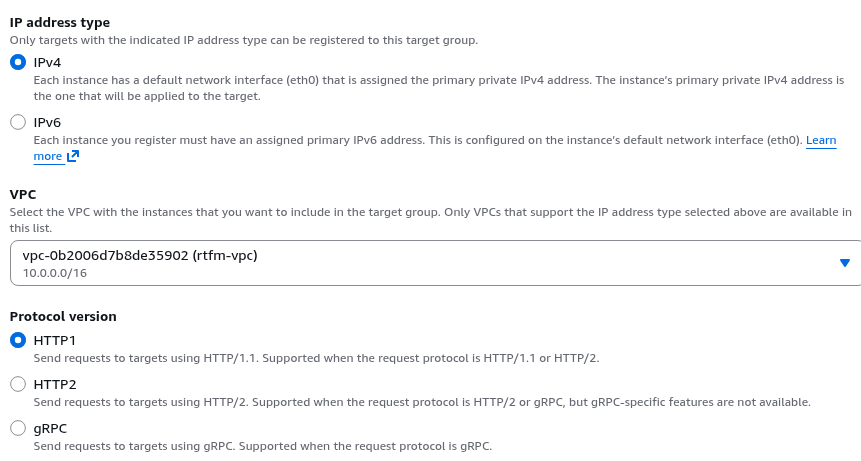
Set Type to Instance, set the group name and the protocol for communication between the ALB and services on the EC2 instances in this group.
On EC2 we have NGINX listening on port 80 – so leave the defaults for Protocol and Port:
If you plan to use both HTTP and HTTPS on the ALB – specify HTTP/1, if only HTTPS – you could use HTTP/2.
Although typically HTTP is just configured to redirect to HTTPS and you could use HTTP/2 here right away – but some clients may still use HTTP v1 – so let’s leave them the choice and keep the default HTTP1 option:
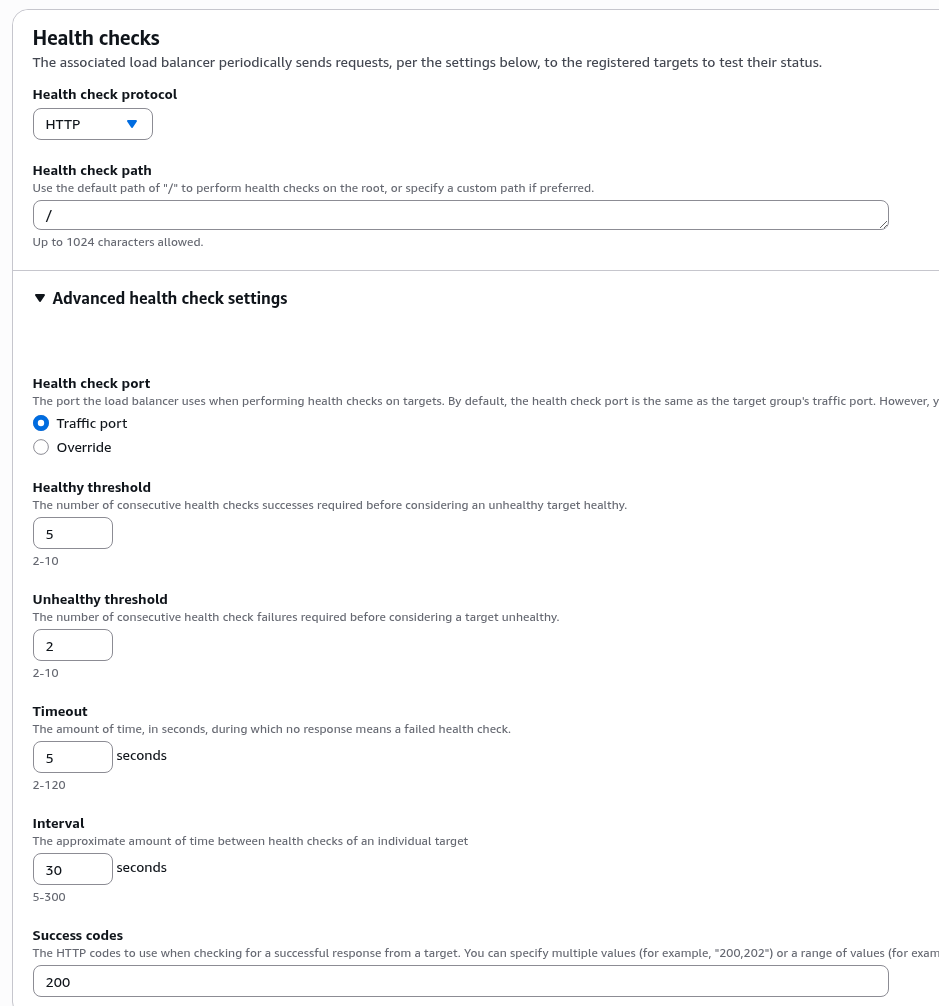
In Health checks you can leave everything as is – Health check path on NGINX will be “/”, Traffic port will be 80:
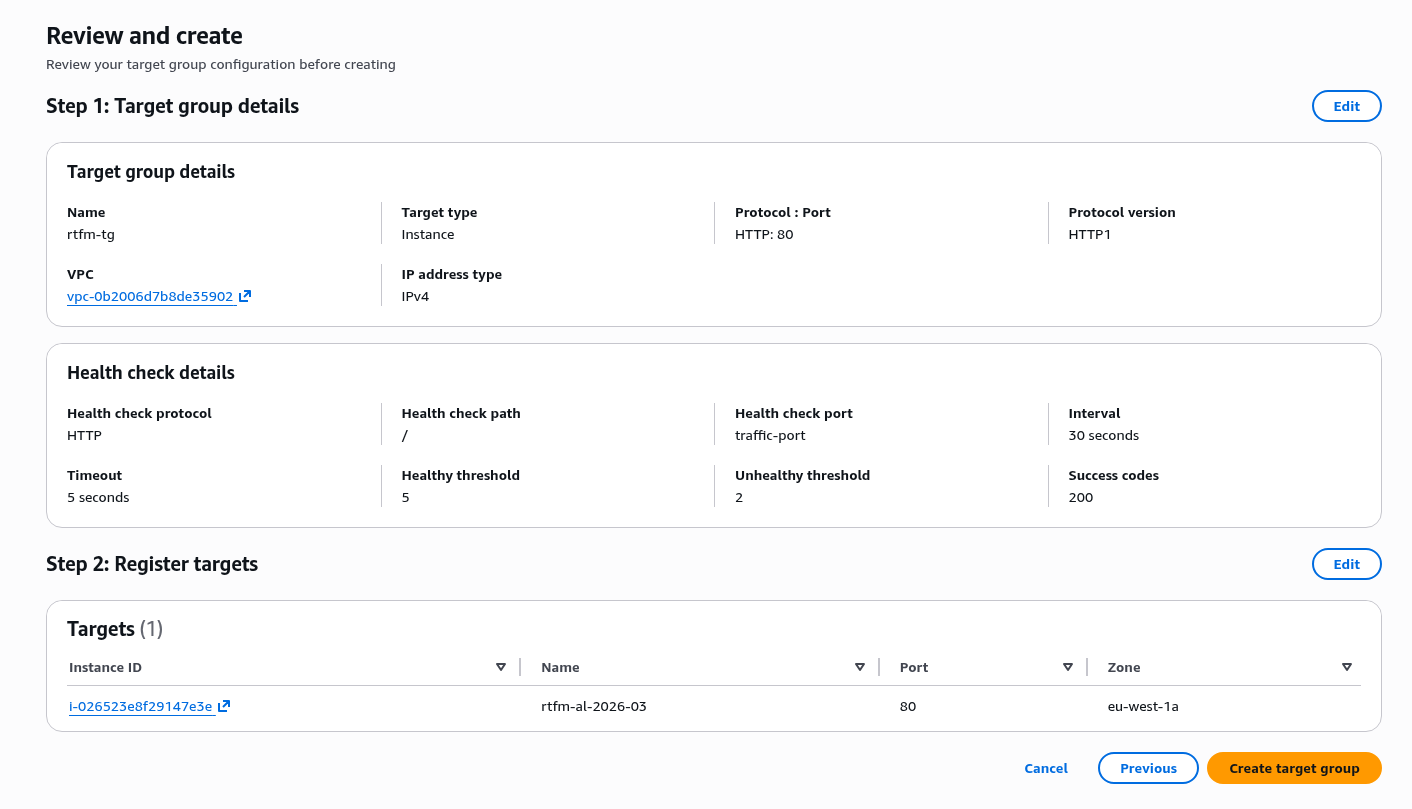
Select the instance(s) for this Target Group:

Confirm creation:
Load Balancer types: ALB vs NLB vs GLB vs CLB
Amazon lets you create several types of Load Balancers:
- Application Load Balancer:
- modern and popular
- works at L7 (HTTP/HTTPS), can read HTTP request content and have separate rules based on, for example, URI (
/api/– send to one Target Group,/users/– send to Auth0, etc.) - supports WebSocket, gRPC
- Network Load Balancer:
- works at L4 (TCP/UDP) – very fast, an excellent choice for high-load applications, supports Static IP
- Gateway Load Balancer:
- a fairly specific tool for routing traffic through third-party network appliances (firewall, IDS/IPS), I’ve never used it
Worth a special mention – the Classic Load Balancer – legacy, deprecated. Supports both L4 and L7 but worse than ALB/NLB separately.
For more details see What’s the Difference Between Application, Network, and Gateway Load Balancing?
Configuring the AWS Load Balancer
Go to creating the Load Balancer: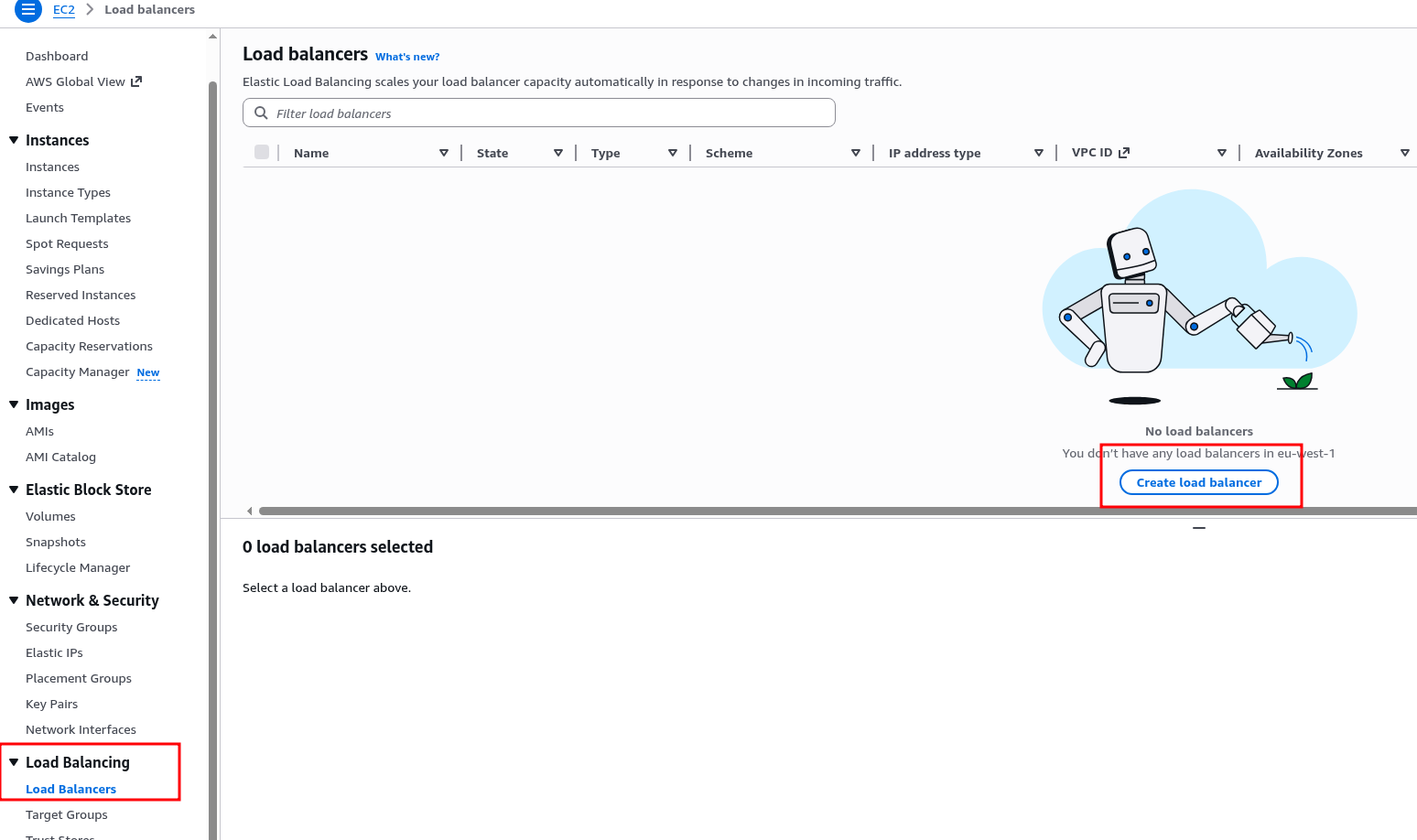
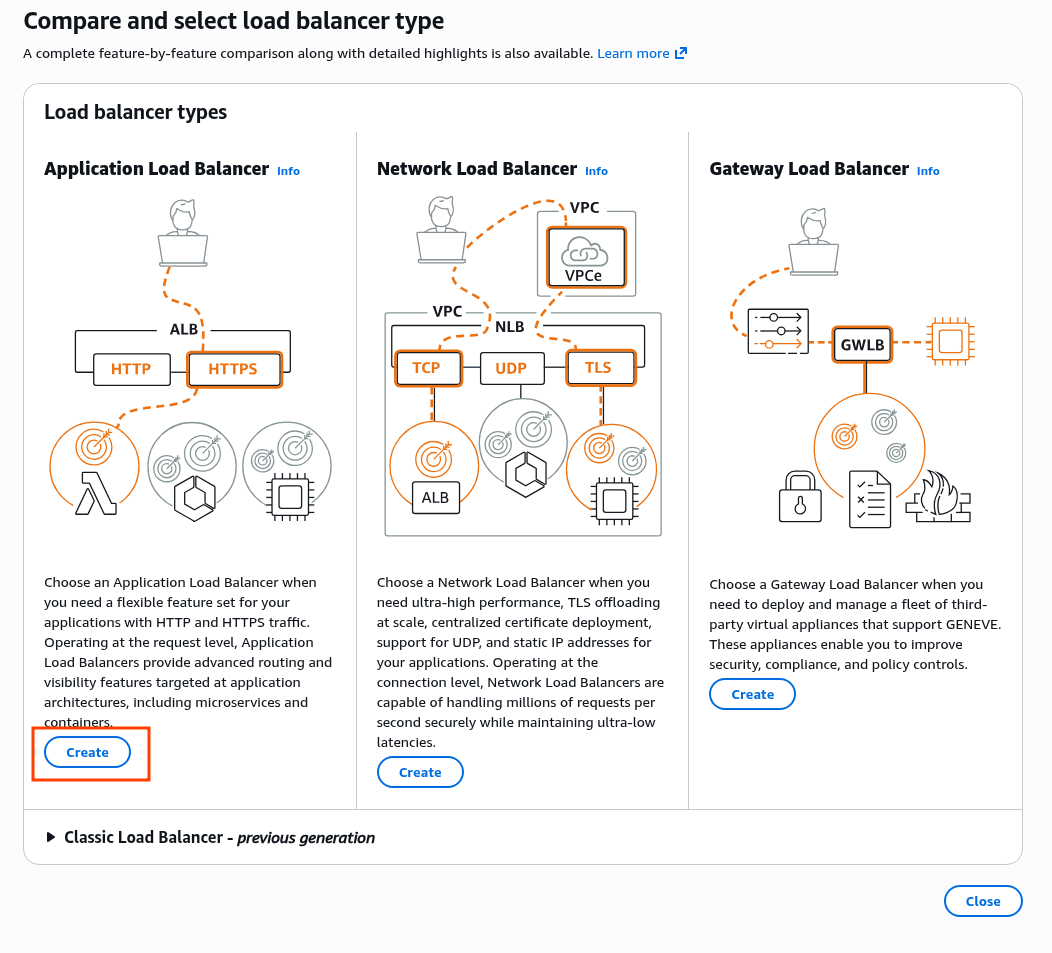
Select the Application Load Balancer type:
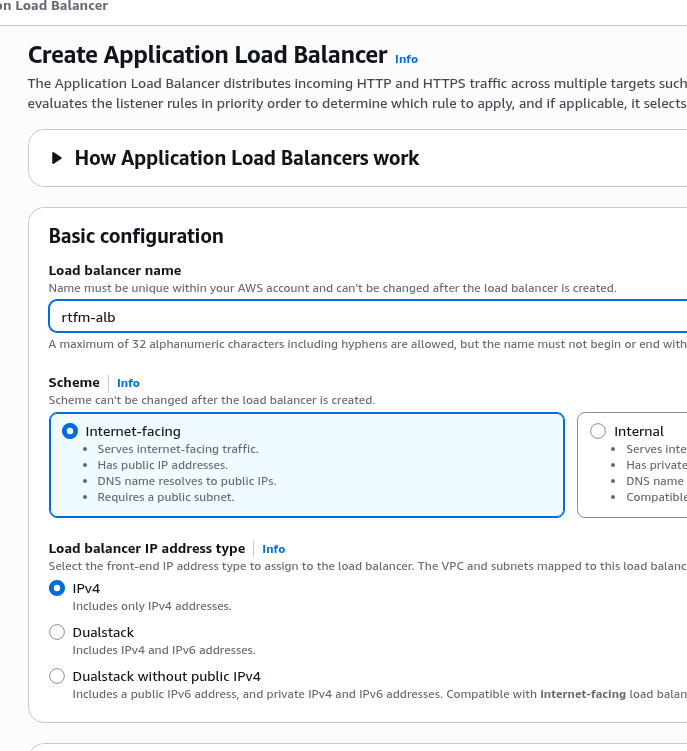
Set the name and Internet-facing type (the Internal type is a useful option when you need an ALB that’s only accessible within the VPC):
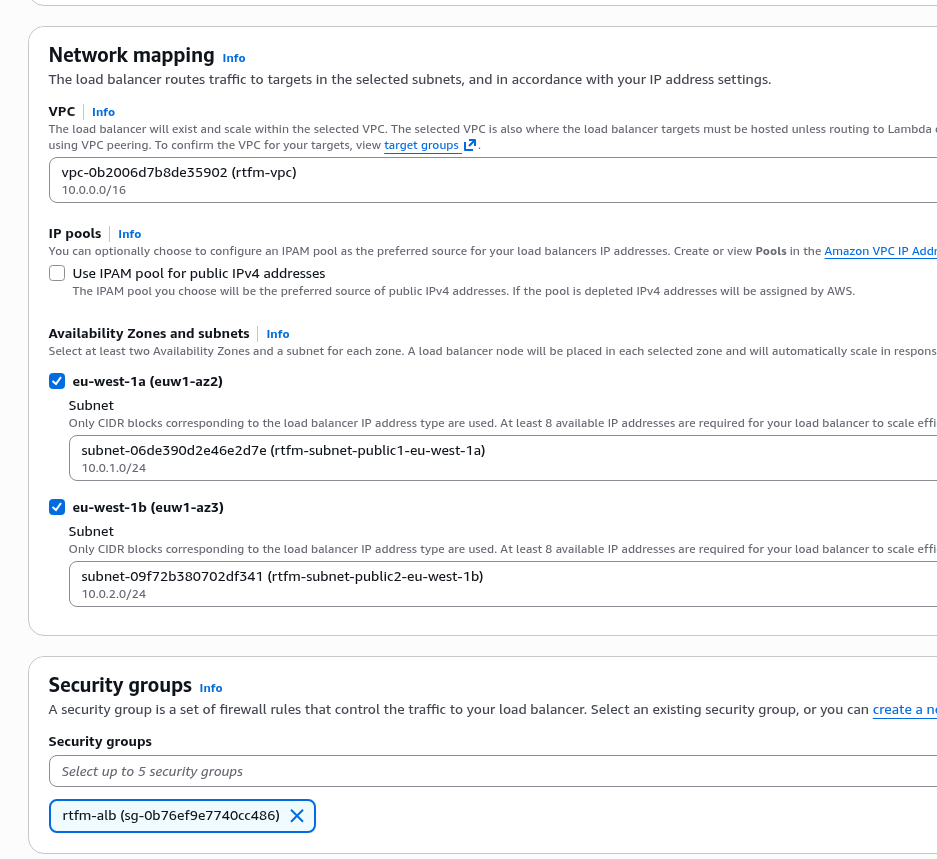
Select the VPC, Subnets, and Security Group we created at the start:
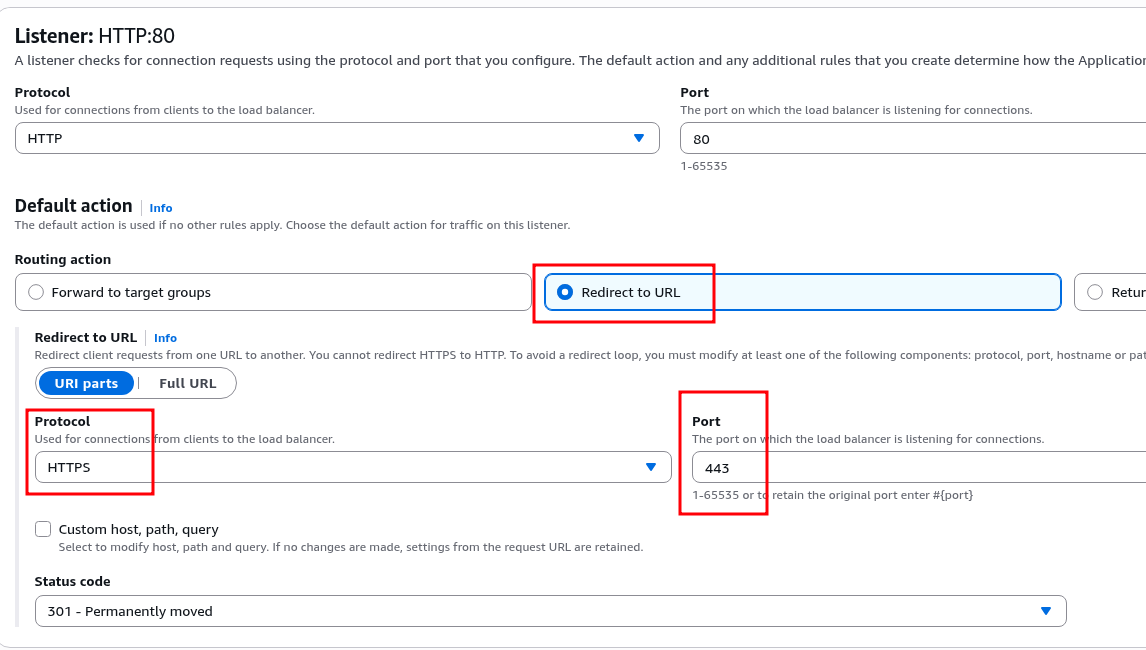
For the HTTP Listener, configure a redirect to HTTPS:
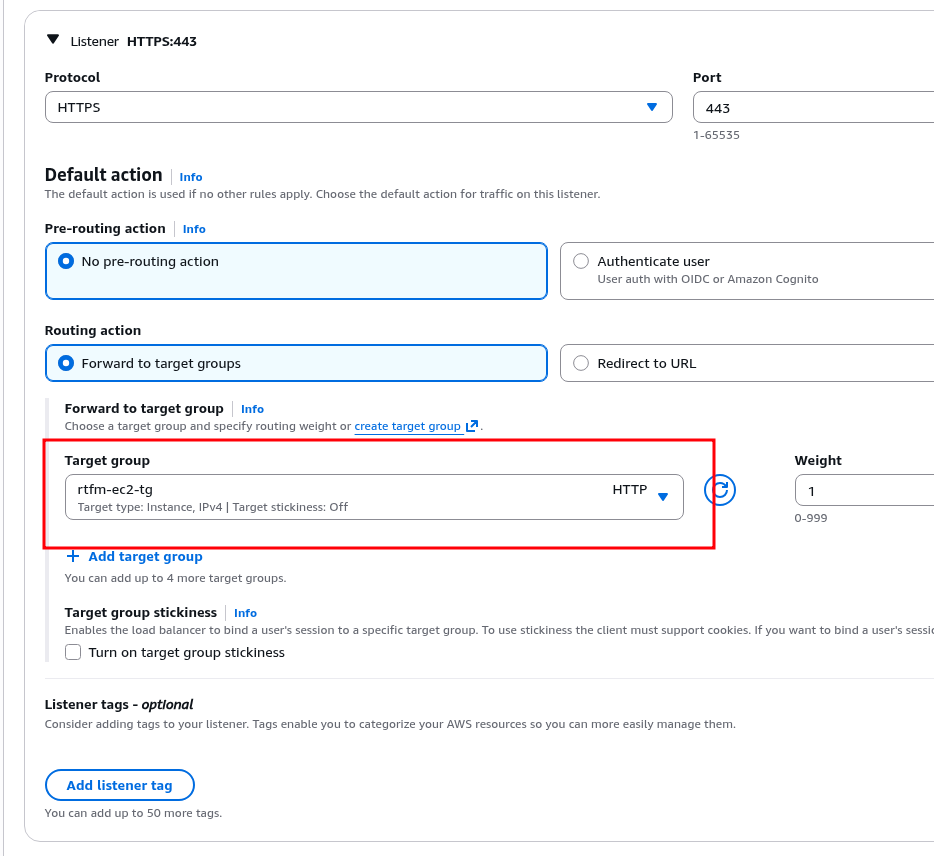
And in the HTTPS Listener, attach the Target Group we created above:
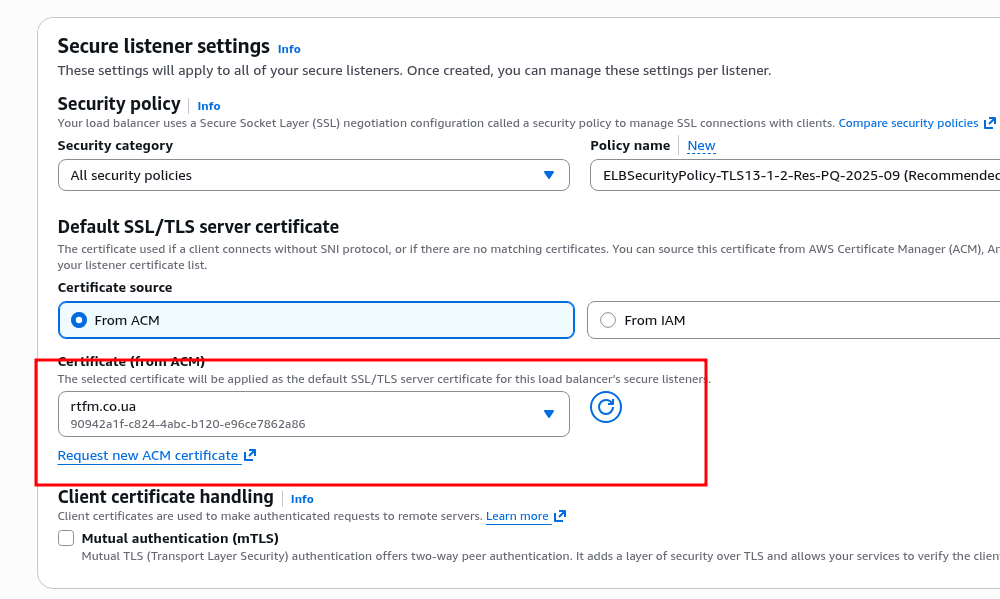
Attach the SSL certificate from ACM:
Verify everything looks good and create:
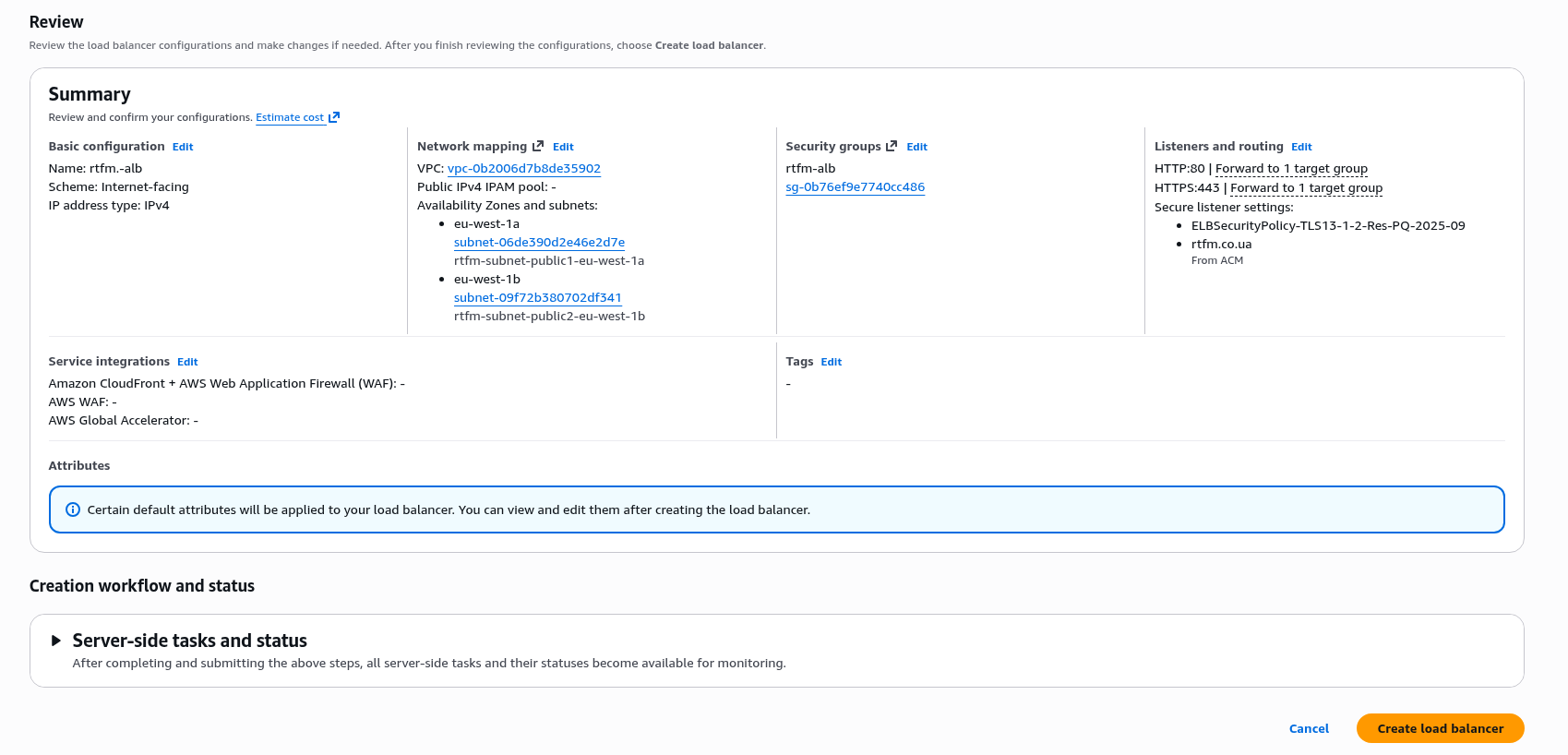
Creation takes a few minutes – another cup of tea.
Configuring DNS for the ALB
While the ALB is being created – let’s add a new record in Route 53 that will be tied to the created Load Balancer.
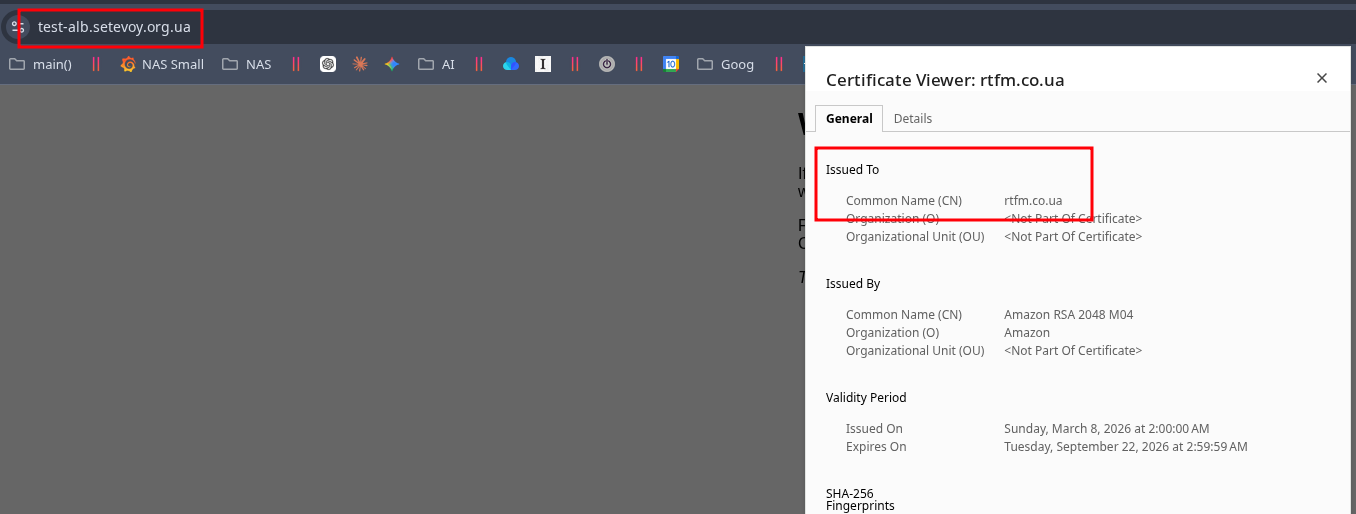
This example uses a different domain, but it was added to AWS ACM so it will work without TLS errors.
Create a new DNS Record, select type Alias, find our ALB, leave Routing policy as Simple (see Choosing a routing policy):
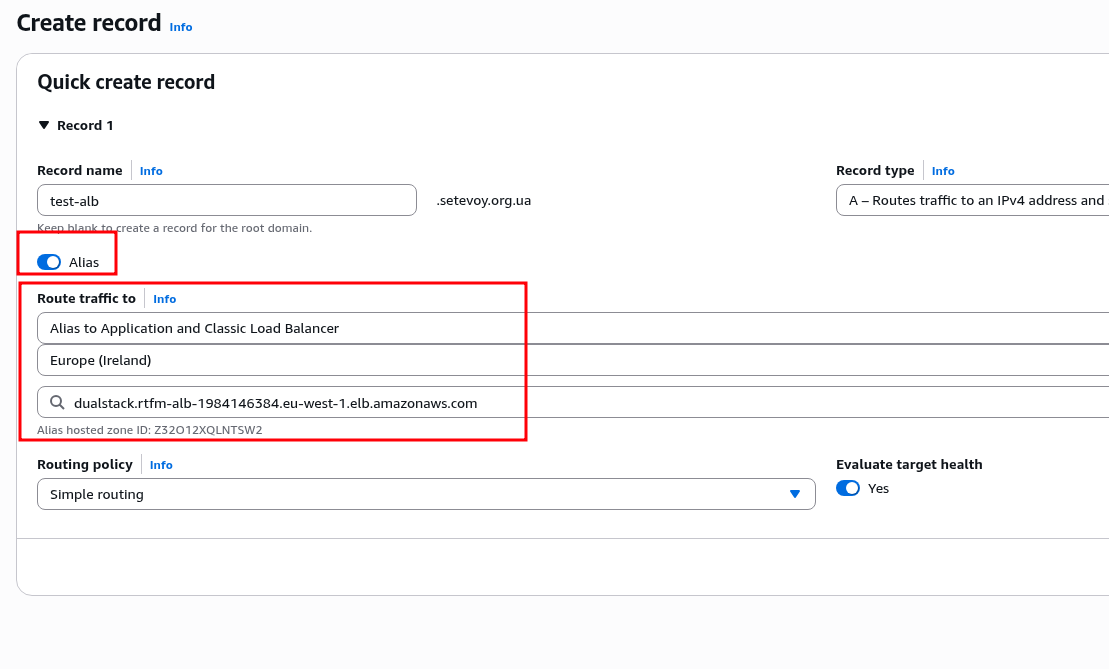
Verify that everything works (may take 5-10 minutes for DNS to update):
Creating AWS Relational Database Service
The last step before launching WordPress – create the database server.
I’ve been working with AWS RDS for a very long time, it’s a great service, though not free of course. But “delegating responsibility” for stability and backups to AWS is an excellent choice for any kind of production.
Plus IAM integration, CloudWatch Logs and Metrics, automatic backups, autoscaling – plenty of features.
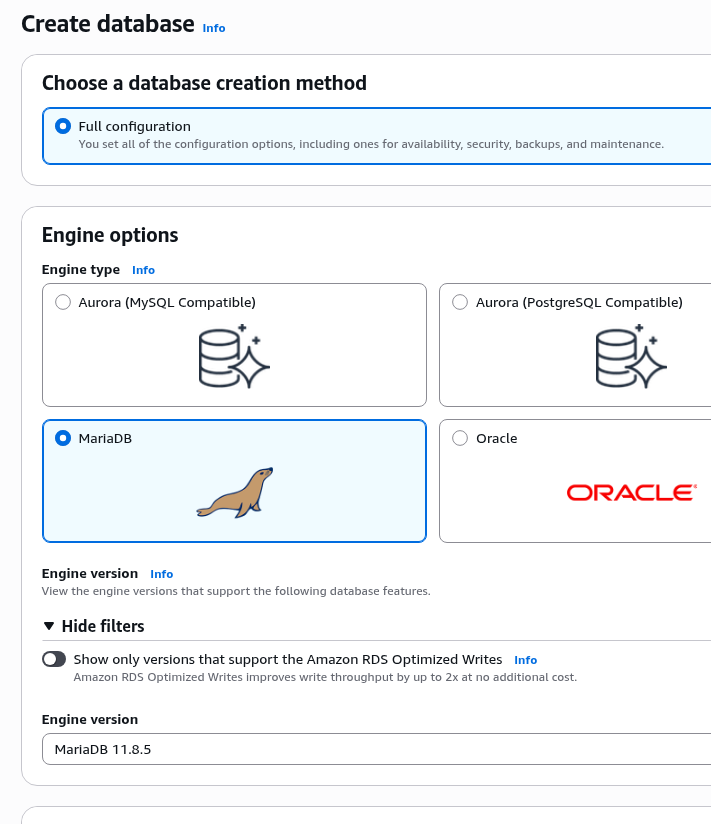
Create a new server (although the menu says “Create database” – a separate instance is what’s actually being created):
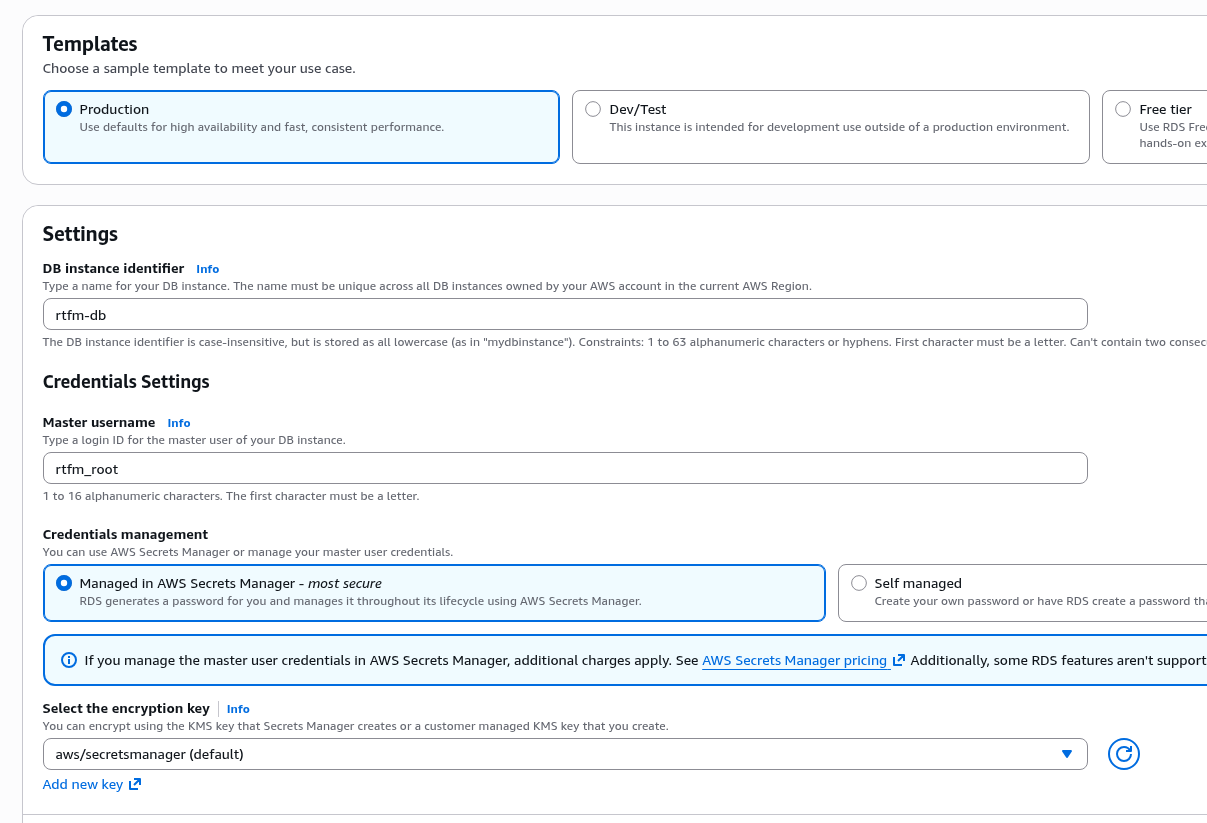
In Credentials management you can leave the default AWS Secrets Manager – it can automatically rotate the server’s root password, see Set up automatic rotation for Amazon RDS:
Leave the Password and IAM database authentication option – although IAM integration only restricts access to the server itself, not individual databases, and you’ll still need to create a user with their own access rights and password, see AWS: RDS with IAM database authentication, EKS Pod Identities and Terraform.
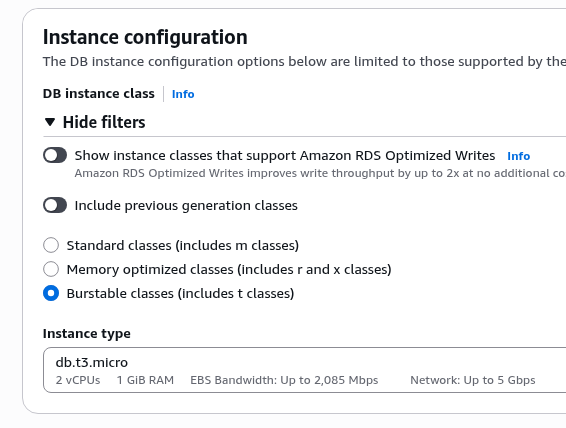
Select the minimum available instance type, db.t3.micro – though for RTFM even this will be more than enough:
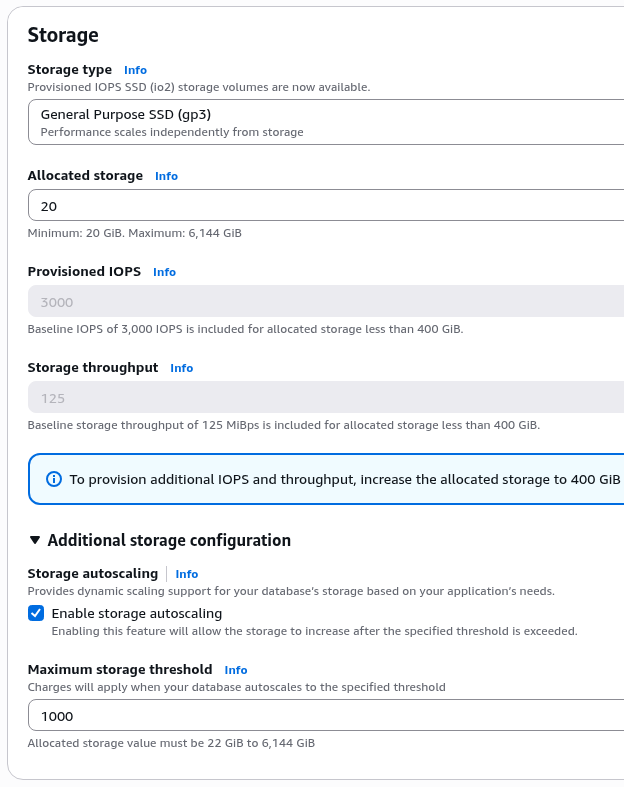
Disk size – minimum 20 GB, which with RTFM’s 1.2 GB database is more than enough.
A useful thing for production – storage autoscaling: it works completely transparently for the server and clients:
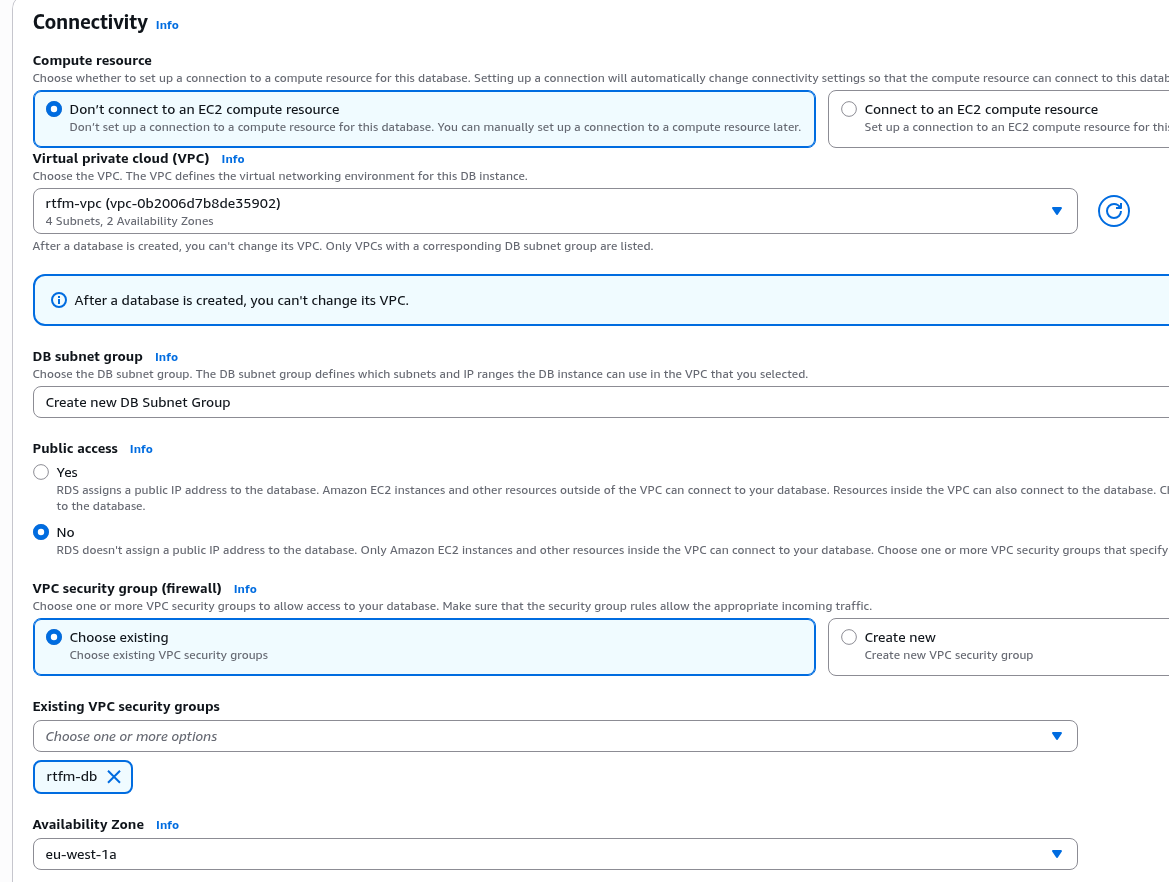
In Connectivity you can automatically configure the connection to EC2 – it will set up all the necessary VPC and Subnet parameters, but let’s at least do this part manually.
DB Subnet Group – create a new one, RDS will select the appropriate private subnets on its own, since further down in Public access we set “No” – the database server should only live in private networks, without access to the outside world.
A reminder of an interesting story – MySQL/MariaDB: Petya-like ransomware for databases and ‘root’@’%’: a client had created about 10 database servers with public access, root access from the internet, and… no password.
The result was predictable 🙂
In VPC Security Group select the group we created at the start:
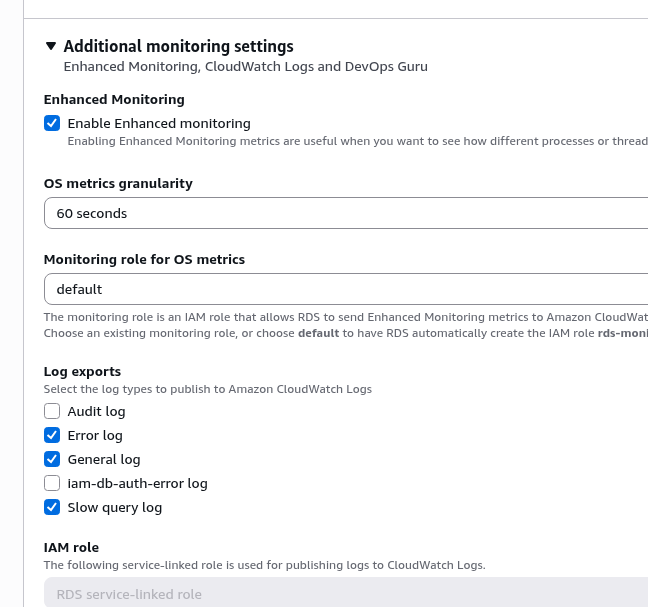
In Additional monitoring settings – for curiosity you can enable Enhanced monitoring, it costs extra money – but in production it can be very valuable, since it adds OS-level metrics (CPU per process, RAM, disk I/O, network, file system), see the long post on PostgreSQL: AWS RDS Performance and monitoring – there was an interesting case where Enhanced monitoring was exactly what was needed:
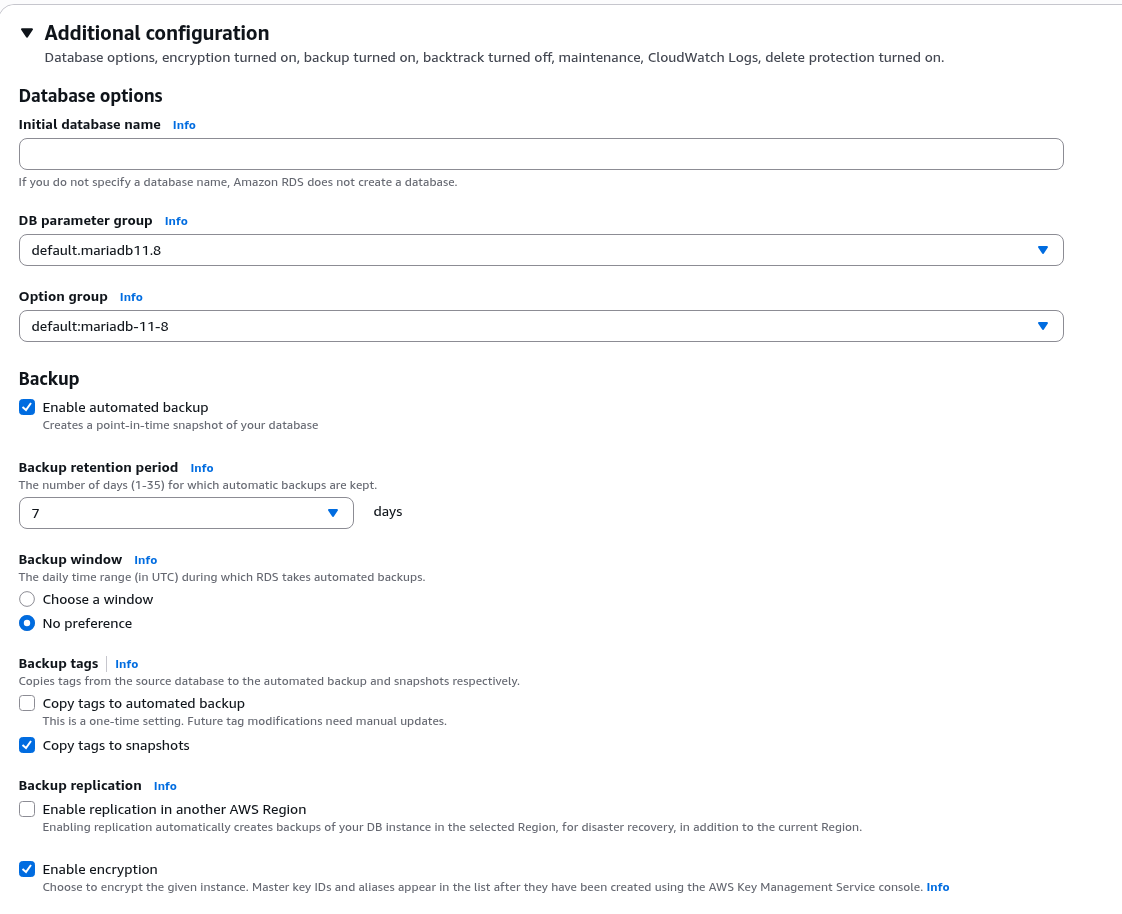
Additional configuration – here we can immediately create a database and configure automatic backups.
Automatic backups (Periodic snapshots) – highly recommended, have saved the day more than once: creates a full instance snapshot, and from that snapshot you can spin up a new instance with all the data at any point.
RDS also supports Continuous backups – for restoring a database to a specific point in time, see Amazon Relational Database Service backups.
We’ll create the database manually later, just leave the backups:
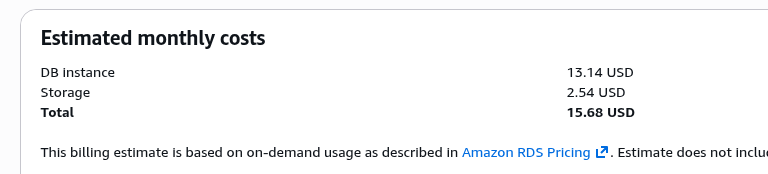
And at the end we can see the approximate cost right away – this wasn’t there before, a nice addition:
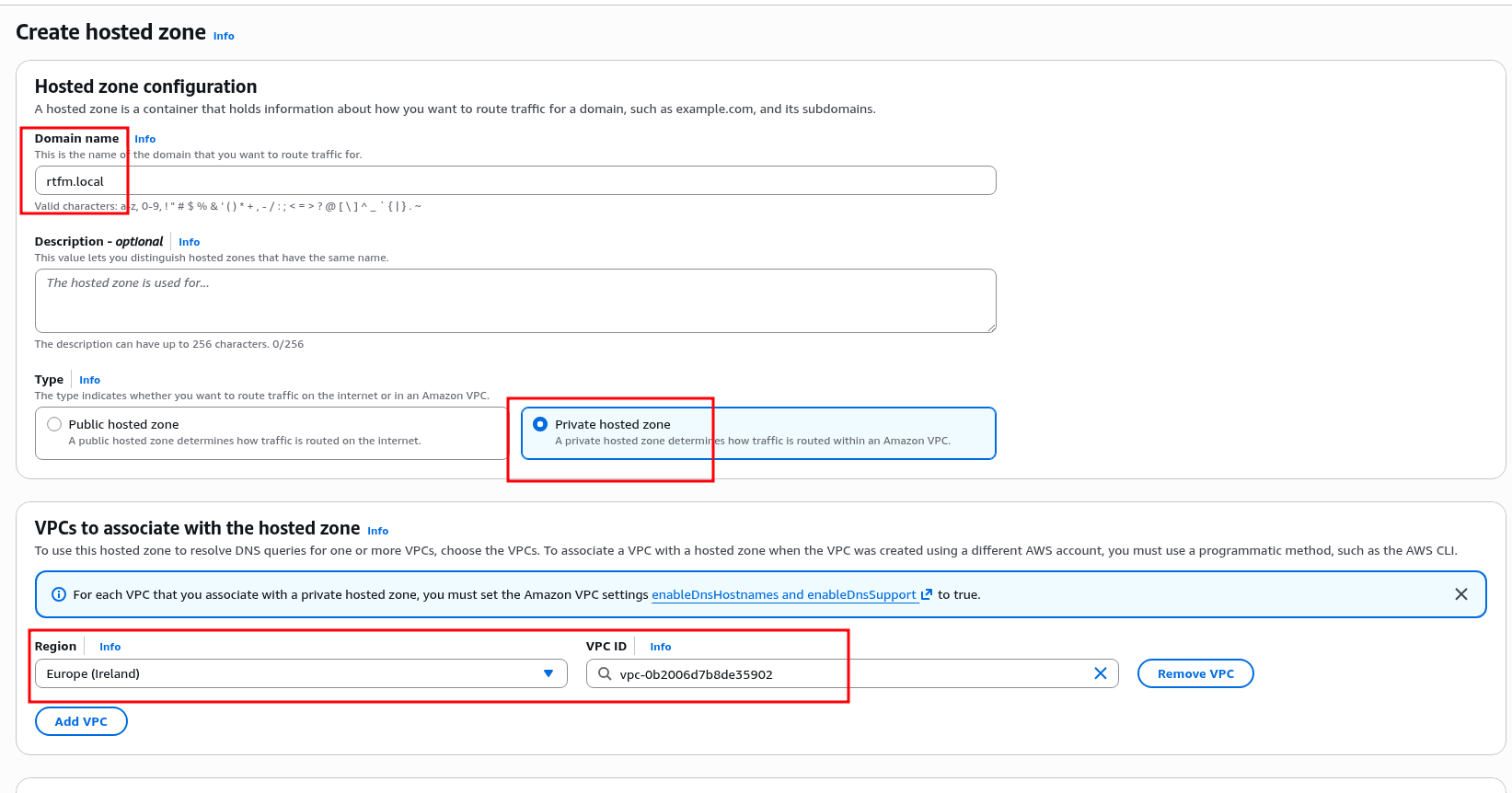
DNS and Private hosted zone
A useful security feature – private domain zones that are only accessible within the VPC, see Working with private hosted zones.
So let’s create a separate zone with DNS Records that are only needed within the VPC – in our case, the Database URL is a perfect example:
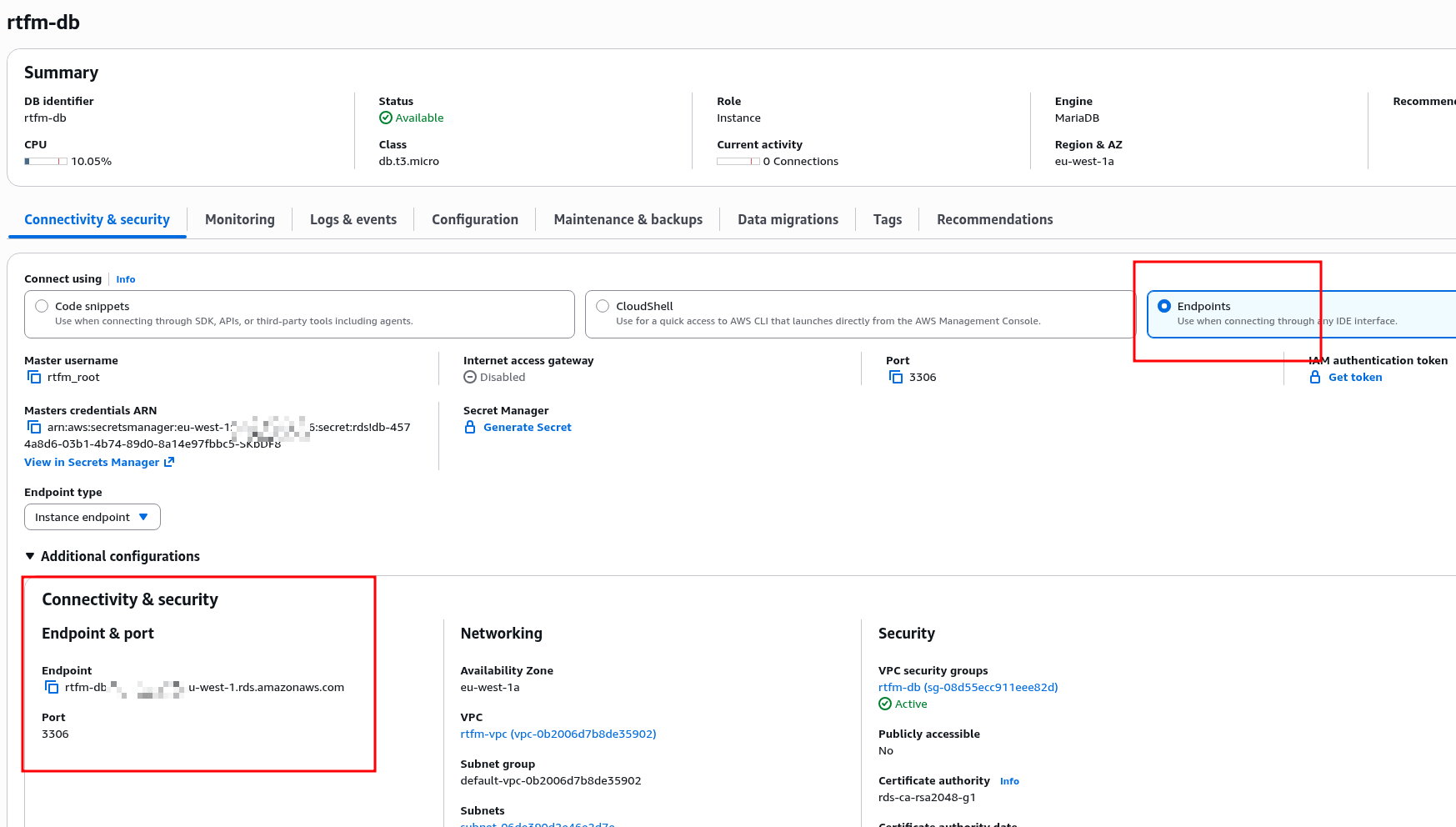
Find the URL in RDS itself:
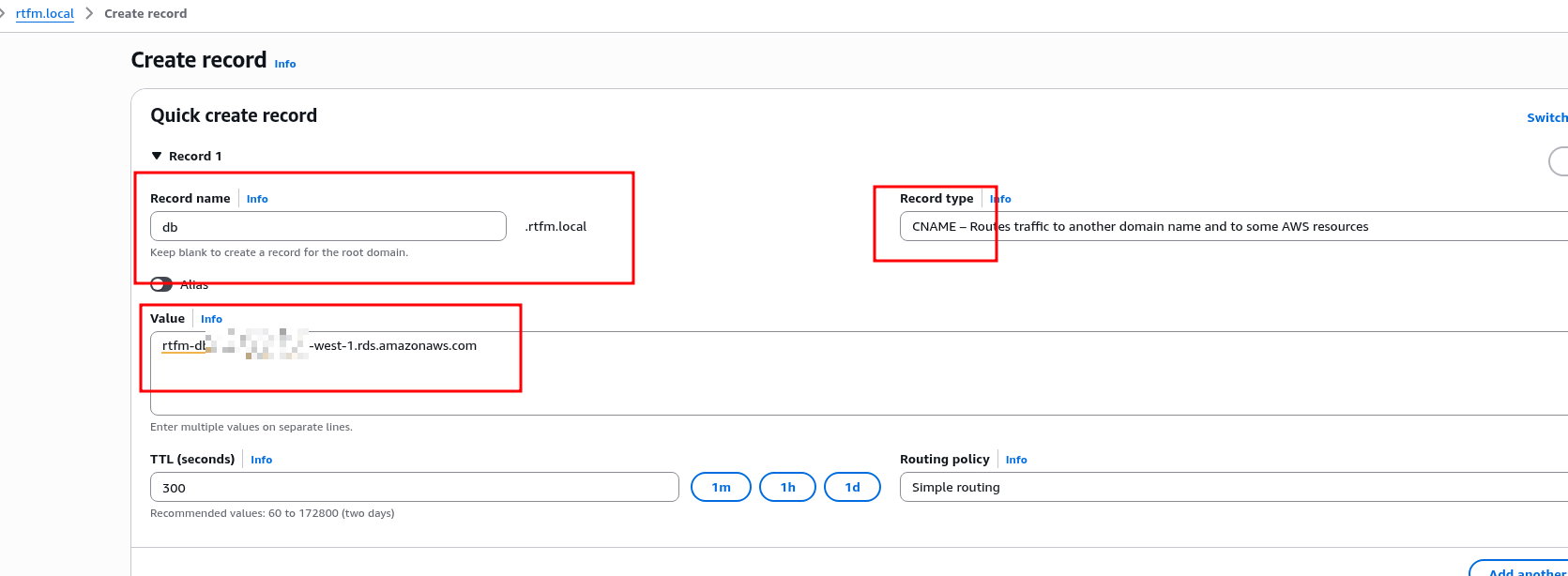
Add it as the value for a CNAME record:
Connecting to RDS
SSH into the EC2, search for the mariadb package:
[ec2-user@ip-10-0-3-146 ~]$ dnf search mariadb
...
mariadb114.x86_64 : A very fast and robust SQL database server
...
To install only the client – choose mariadb without -server:
[ec2-user@ip-10-0-3-146 ~]$ sudo dnf install -y mariadb114
Find the RDS root password in AWS Secrets Manager:
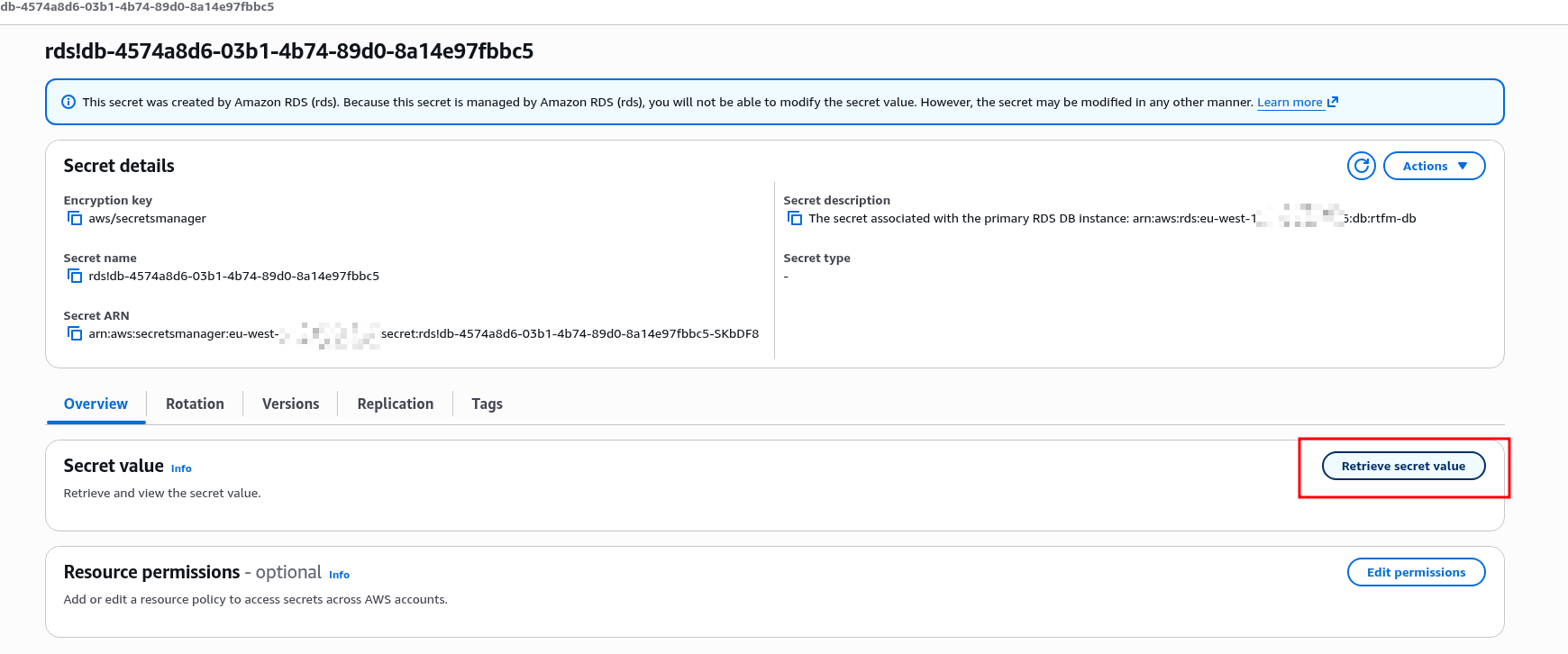
And connect using the local DNS record we created above:
[ec2-user@ip-10-0-3-146 ~]$ mysql -h db.rtfm.local -P 3306 -u rtfm_root -p
Enter password:
...
MariaDB [(none)]>
Or you can automate this a bit with the AWS CLI – RDS provides an example command:
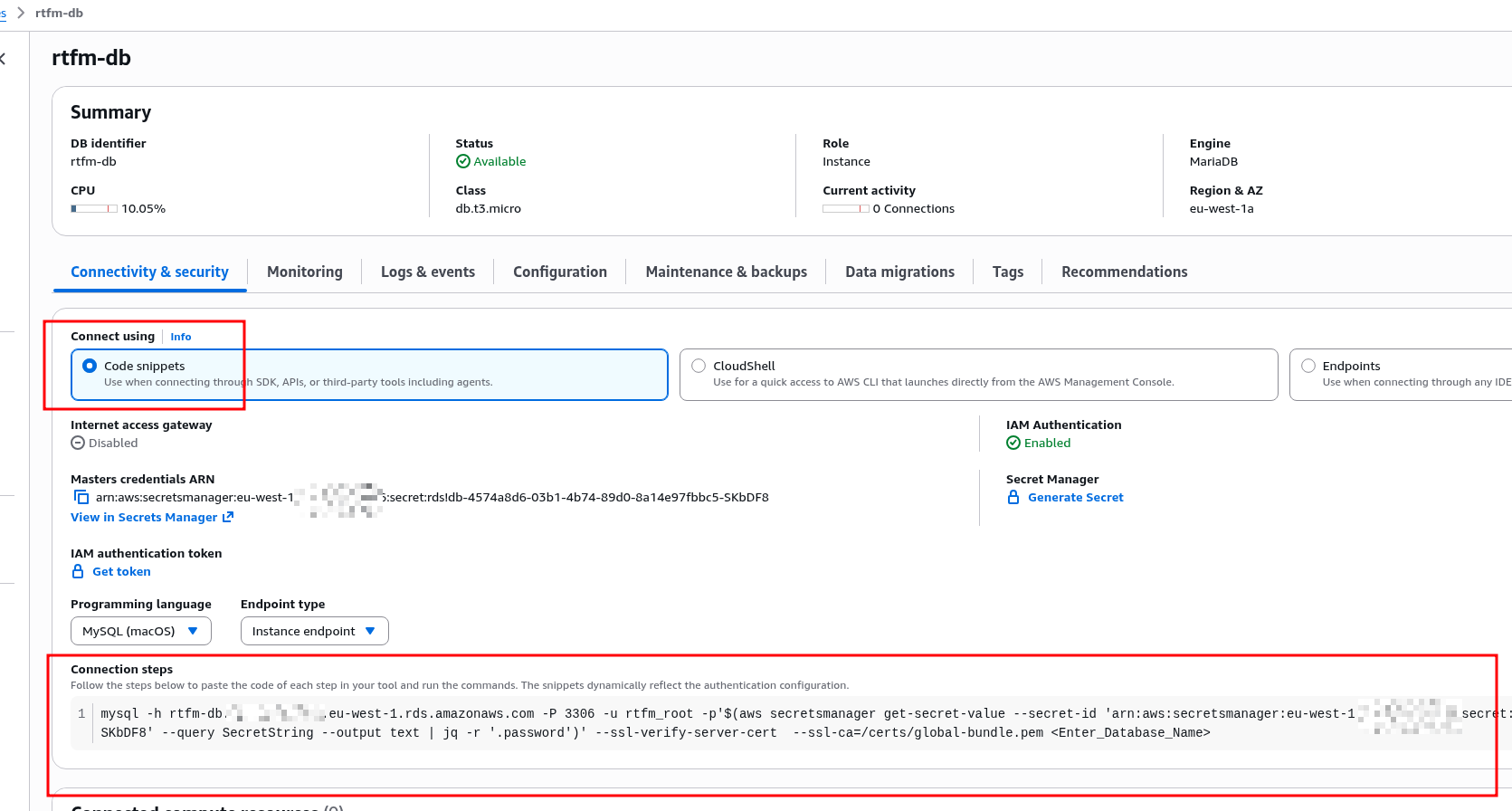
Launching WordPress
And finally – everything is ready to launch WordPress.
What’s left is to create the database, the user, and install PHP on EC2.
Creating the database in RDS
Create the database and user – WordPress recommends utf8mb4_unicode_ci (for emoji support):
MariaDB [(none)]> CREATE DATABASE test_wp_db CHARACTER SET utf8mb4 COLLATE utf8mb4_unicode_ci;
Query OK, 1 row affected (0.064 sec)

MariaDB [(none)]> CREATE USER 'test_wp_user'@'%' IDENTIFIED BY 'test_wp_pass';
Query OK, 0 rows affected (0.058 sec)

MariaDB [(none)]> GRANT ALL PRIVILEGES ON test_wp_db.* TO 'test_wp_user'@'%';
Query OK, 0 rows affected (0.034 sec)

MariaDB [(none)]> FLUSH PRIVILEGES;
Query OK, 0 rows affected (0.027 sec)
Installing PHP and modules
Install PHP and modules – though not all of them are here, I don’t remember everything RTFM needs, but this is a basic set for WordPress and pretty much any website:
[root@ip-10-0-3-146 ~]# dnf install -y php-fpm php-mysqlnd php-json php-mbstring php-xml php-gd
Enable autostart and start the PHP-FPM service:
[root@ip-10-0-3-146 ~]# systemctl enable php-fpm
Created symlink /etc/systemd/system/multi-user.target.wants/php-fpm.service → /usr/lib/systemd/system/php-fpm.service.
[root@ip-10-0-3-146 ~]# systemctl start php-fpm
Default config – /etc/php-fpm.d/www.conf, RTFM will have its own separate one, but not right now.
Check the socket file to make sure FPM is ready to accept connections:
[root@ip-10-0-3-146 ~]# ll /run/php-fpm/www.sock
srw-rw----+ 1 root root 0 Mar  8 11:34 /run/php-fpm/www.sock
Creating an NGINX virtual host
Add a config file for the test site – /etc/nginx/conf.d/test.conf.
The /etc/nginx/conf.d/ directory is included in the config via the main settings file /etc/nginx/nginx.conf:
...
 include /etc/nginx/conf.d/*.conf;
...
In the file /etc/nginx/conf.d/test.conf we describe an HTTP server on port 80 with fastcgi_pass pointing to the PHP-FPM socket:
server {
    listen 80;
    server_name test-alb.setevoy.org.ua;

    root /var/www/html;
    index index.php;

    location / {
        try_files $uri $uri/ =404;
    }

    location ~ \.php$ {
        fastcgi_pass unix:/run/php-fpm/www.sock;
        fastcgi_index index.php;
        fastcgi_param SCRIPT_FILENAME $document_root$fastcgi_script_name;
        include fastcgi_params;
    }
}
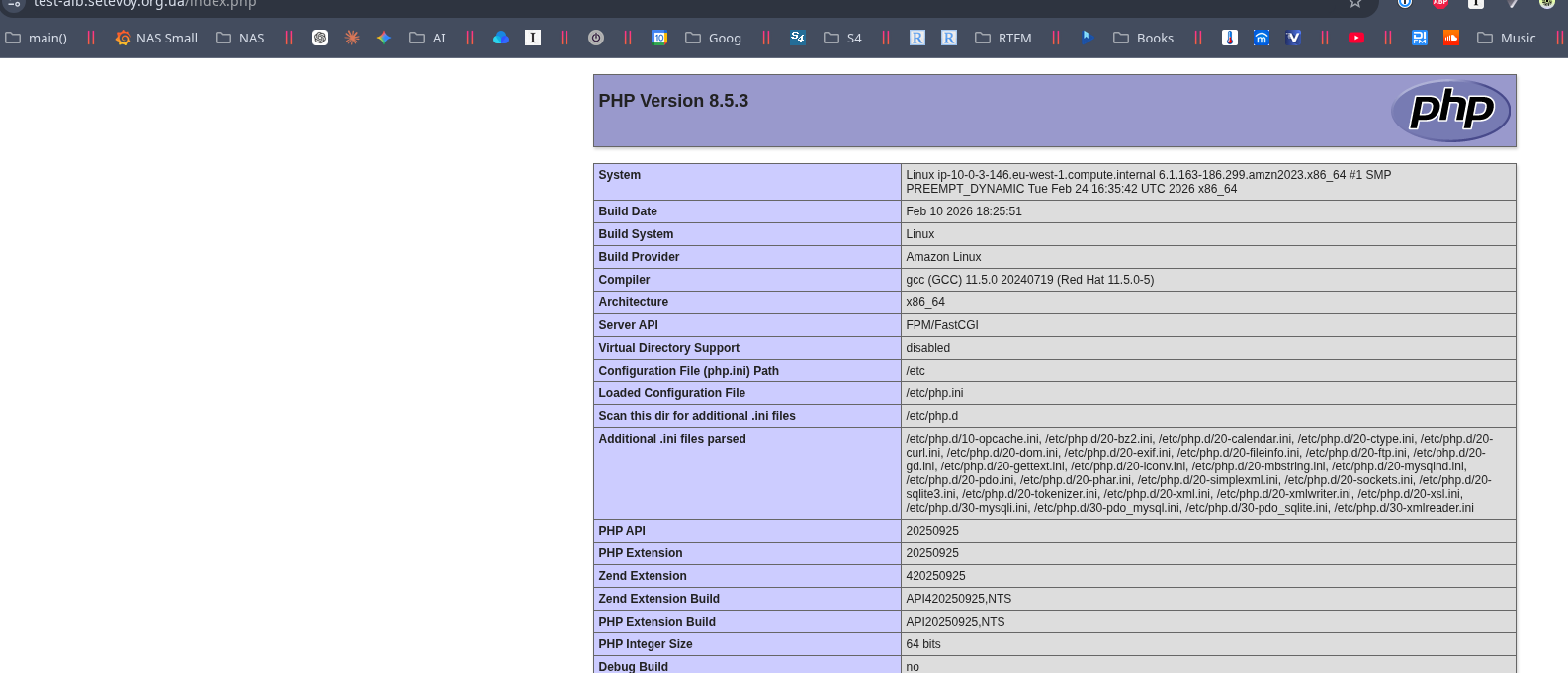
Create a test file /var/www/html/index.php to verify PHP:
<?php phpinfo(); ?>
Run nginx config check && reload:
[root@ip-10-0-3-146 ~]# nginx -t && systemctl reload nginx
nginx: [warn] conflicting server name "_" on 0.0.0.0:80, ignored
nginx: the configuration file /etc/nginx/nginx.conf syntax is ok
nginx: configuration file /etc/nginx/nginx.conf test is successful
And check the index.php file in the browser:
Installing WordPress
Download the archive, extract it, change the owner and group to nginx:nginx:
[root@ip-10-0-3-146 ~]# cd /var/www/html
[root@ip-10-0-3-146 html]# wget https://wordpress.org/latest.tar.gz
...
[root@ip-10-0-3-146 html]# tar -xzf latest.tar.gz
[root@ip-10-0-3-146 html]# mv wordpress/* .
mv: overwrite './index.php'? y
[root@ip-10-0-3-146 html]# rm -rf wordpress latest.tar.gz
[root@ip-10-0-3-146 html]# chown -R nginx:nginx /var/www/html
Open in the browser – CSS and images are not loading.
That’s fine, we’ll fix it shortly, not critical.
What will be critical next is the RDS issue – so read this part first:
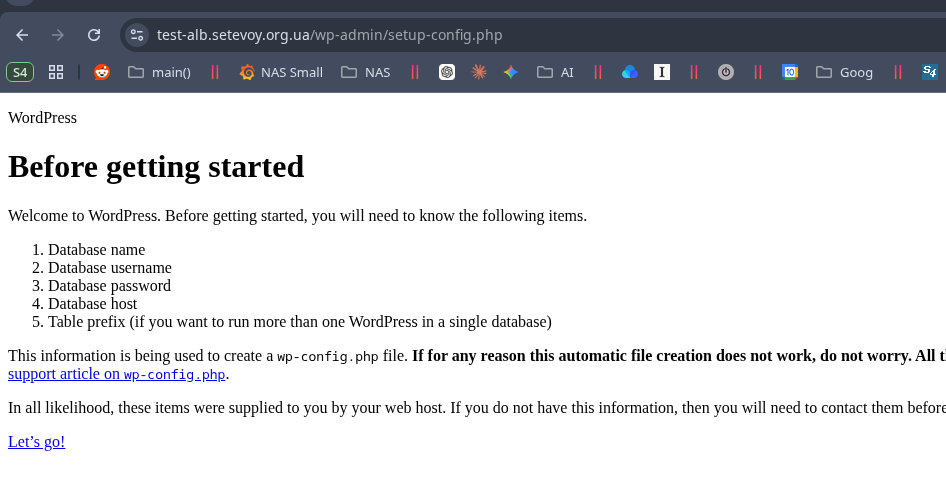
Click Let’s go, enter the RDS connection parameters:
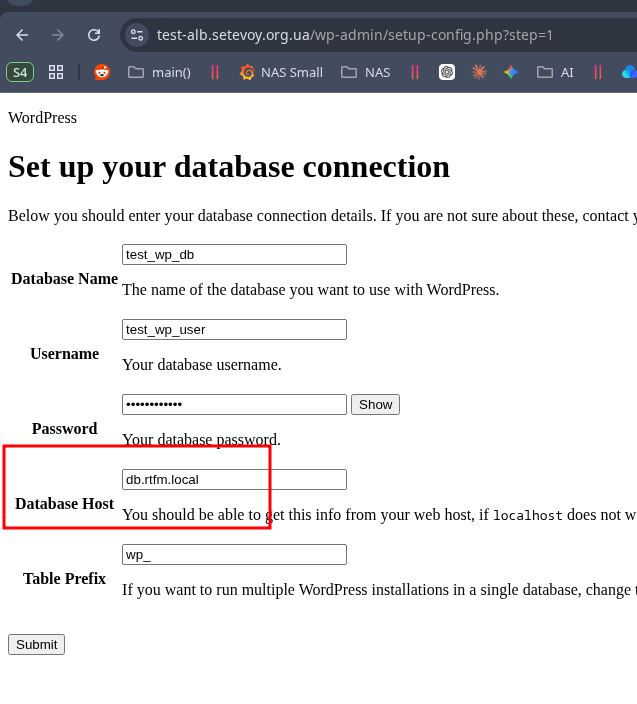 And we get the “Error establishing a database connection” error:
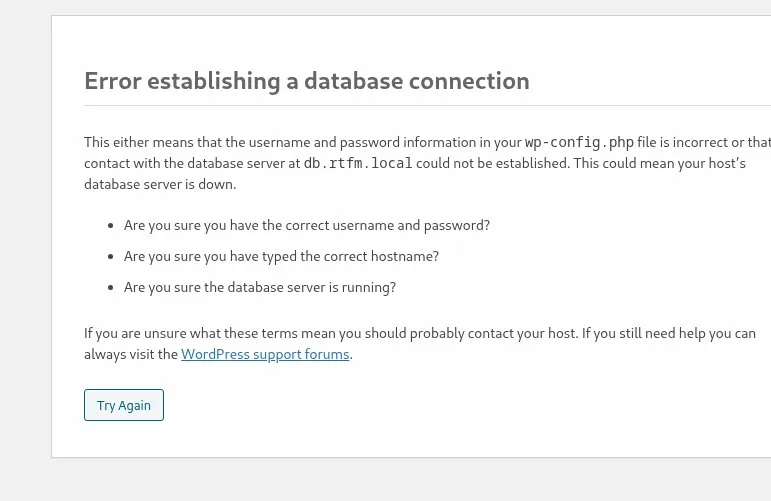
Well… 🙂
 WordPress users know that feeling 🙂
AWS RDS and the WordPress “Error establishing a database connection”
The first thing to try is creating the wp-config.php file manually and setting parameters explicitly:
...
// ** Database settings - You can get this info from your web host ** //
/** The name of the database for WordPress */
define( 'DB_NAME', 'test_wp_db' );

/** Database username */
define( 'DB_USER', 'test_wp_user' );

/** Database password */
define( 'DB_PASSWORD', 'test_wp_pass' );

/** Database hostname */
define( 'DB_HOST', 'db.rtfm.local' );

/** Database charset to use in creating database tables. */
define( 'DB_CHARSET', 'utf8mb4' );
...
But in this specific case that won’t help.
So let’s install php-cli:
[root@ip-10-0-3-146 html]# dnf install -y php-cli
First check whether DNS resolution to our private DNS zone works:
[root@ip-10-0-3-146 html]# php -r "echo gethostbyname('db.rtfm.local');"
10.0.3.53
Yes, all good.
Now try MySQL connect – and here we finally see the actual error – “Connections using insecure transport are prohibited“:
[root@ip-10-0-3-146 html]# php -r "mysqli_connect('db.rtfm.local', 'test_wp_user', 'test_wp_pass', 'test_wp_db') or die(mysqli_connect_error());"
PHP Fatal error:  Uncaught mysqli_sql_exception: Connections using insecure transport are prohibited while --require_secure_transport=ON. in Command line code:1
Stack trace:
#0 Command line code(1): mysqli_connect()
#1 {main}
  thrown in Command line code on line 1
There are two ways to resolve this – either force SSL for the connection in wp-config.php (recommended):
define('MYSQL_CLIENT_FLAGS', MYSQLI_CLIENT_SSL);
Or change the require_secure_transport parameter in RDS (not recommended):
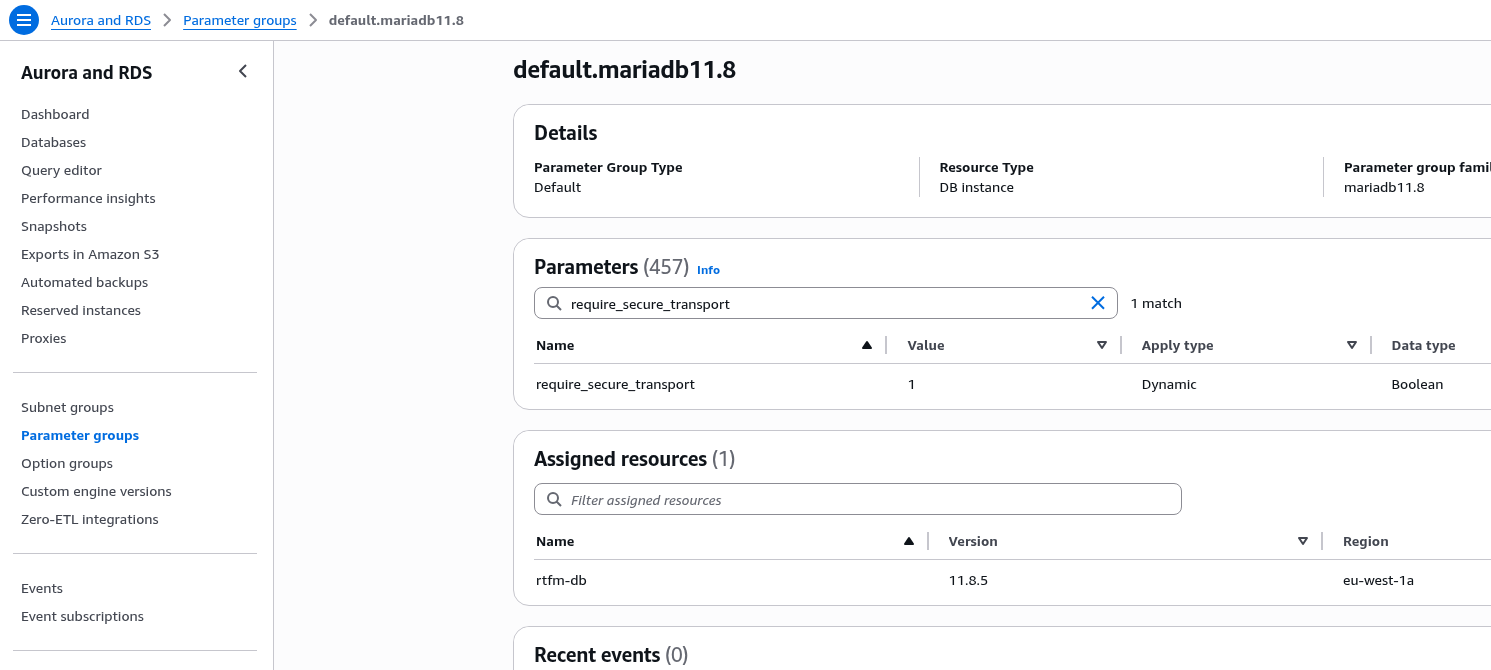
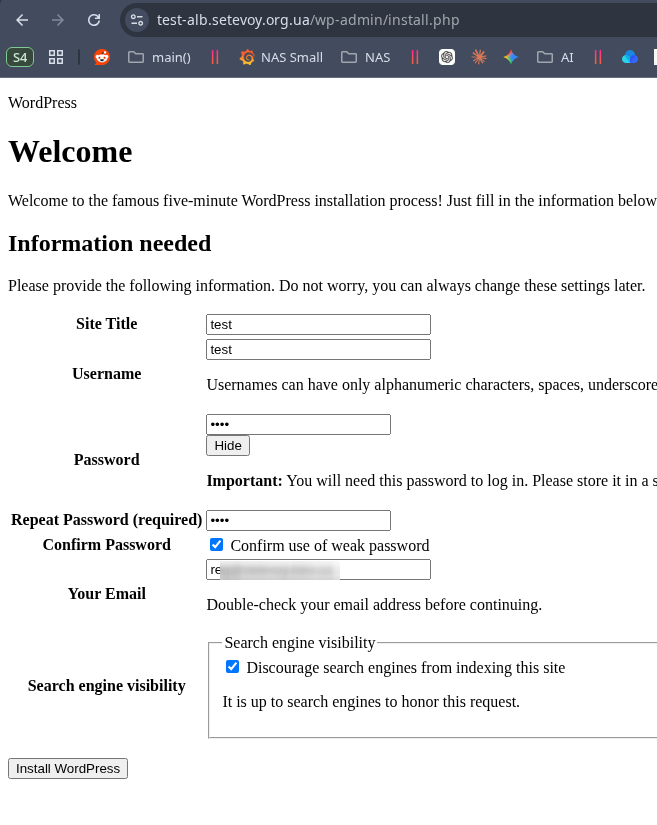
After adding MYSQLI_CLIENT_SSL the installation proceeded normally – we’ll fix the images now:
Fixing CSS and images
The issue arises from mixed traffic – we connect to the ALB over HTTPS, but between the ALB and EC2 we have plain HTTP.
To fix it, add to wp-config.php:
$_SERVER['HTTPS'] = 'on';
define('WP_HOME', 'https://test-alb.setevoy.org.ua');
define('WP_SITEURL', 'https://test-alb.setevoy.org.ua');
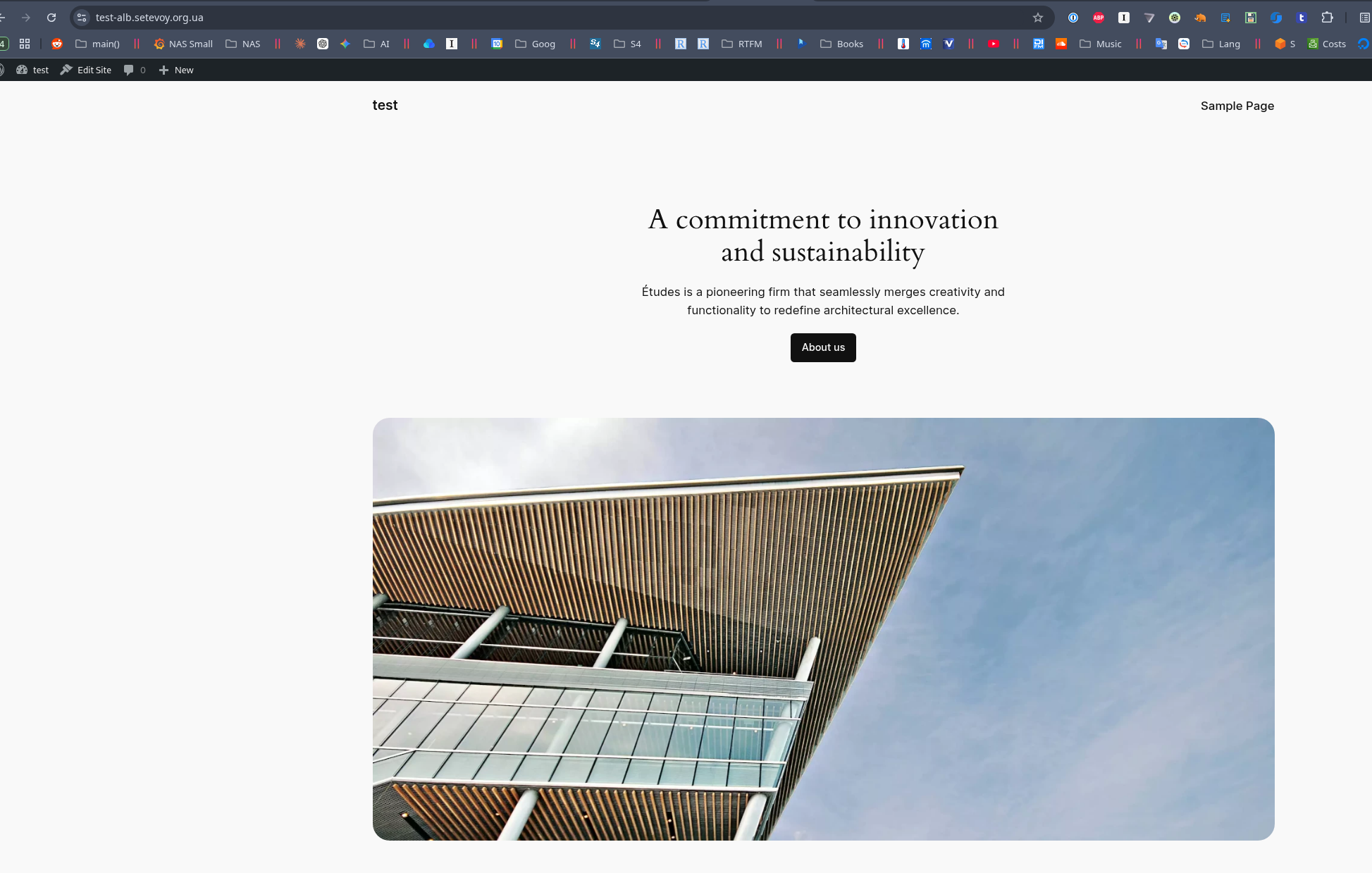
And the blog works without issues:
AWS Costs Breakdown: what about the money?
A painful topic for any IaaS/PaaS provider – whether it’s Google Cloud, Microslop Microsoft Azure, or AWS.
Let’s quickly go through the setup described above – what costs what in the end.
In Cost Explorer we see this picture:
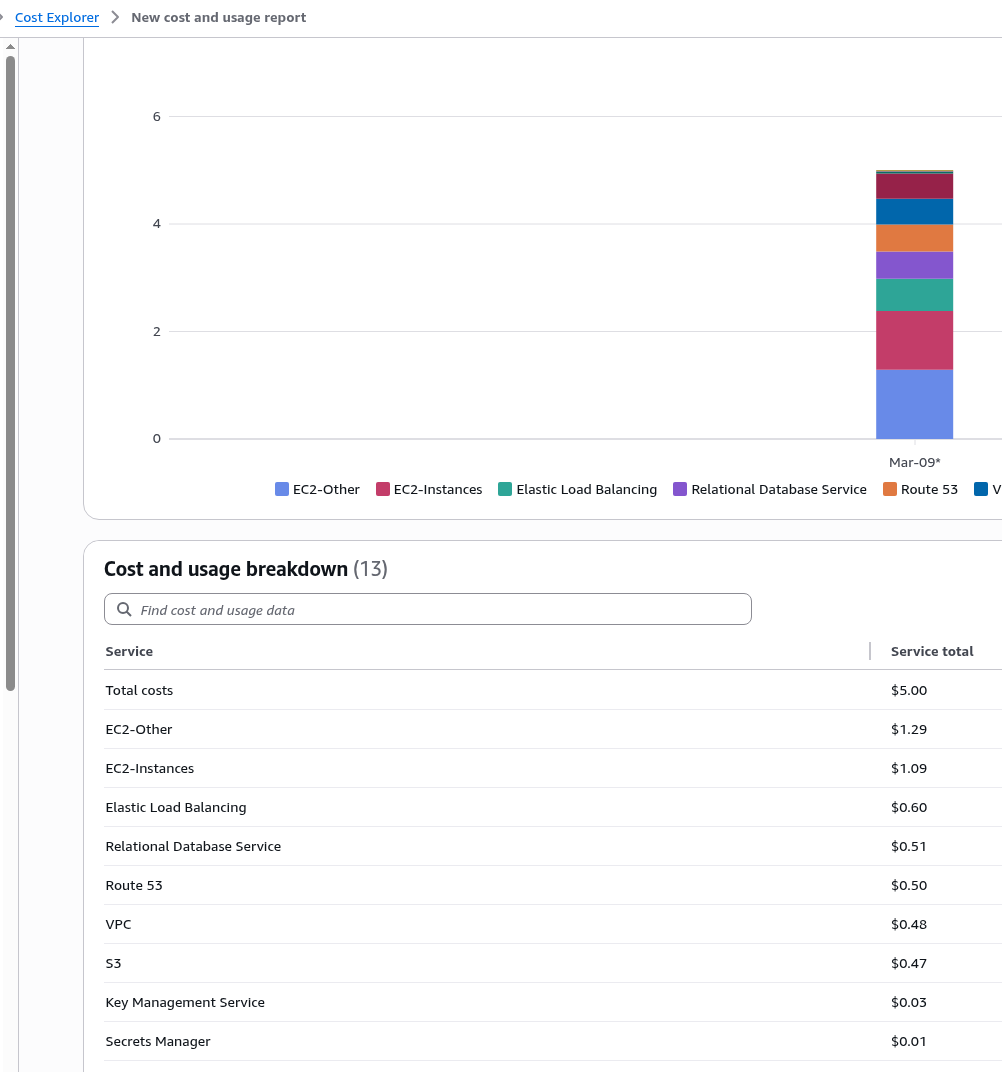
$5 a day, which over 30 days will be $150.
Well – that’s quite a lot for a personal blog. But the infrastructure described above is also a bit oversized for such a project.
Let’s look at what’s costing us so much.
EC2-Other costs
A frequent question – “what is EC2 Other in Cost Explorer“, because the name isn’t very clear.
In practice, this includes Public IP addresses, traffic, and EBS volumes.
To see what exactly is costing us $1.29, go to the same Cost Explorer – in Filters > Service select EC2 Other, and in Group by > Dimension select Usage type or API Operation:
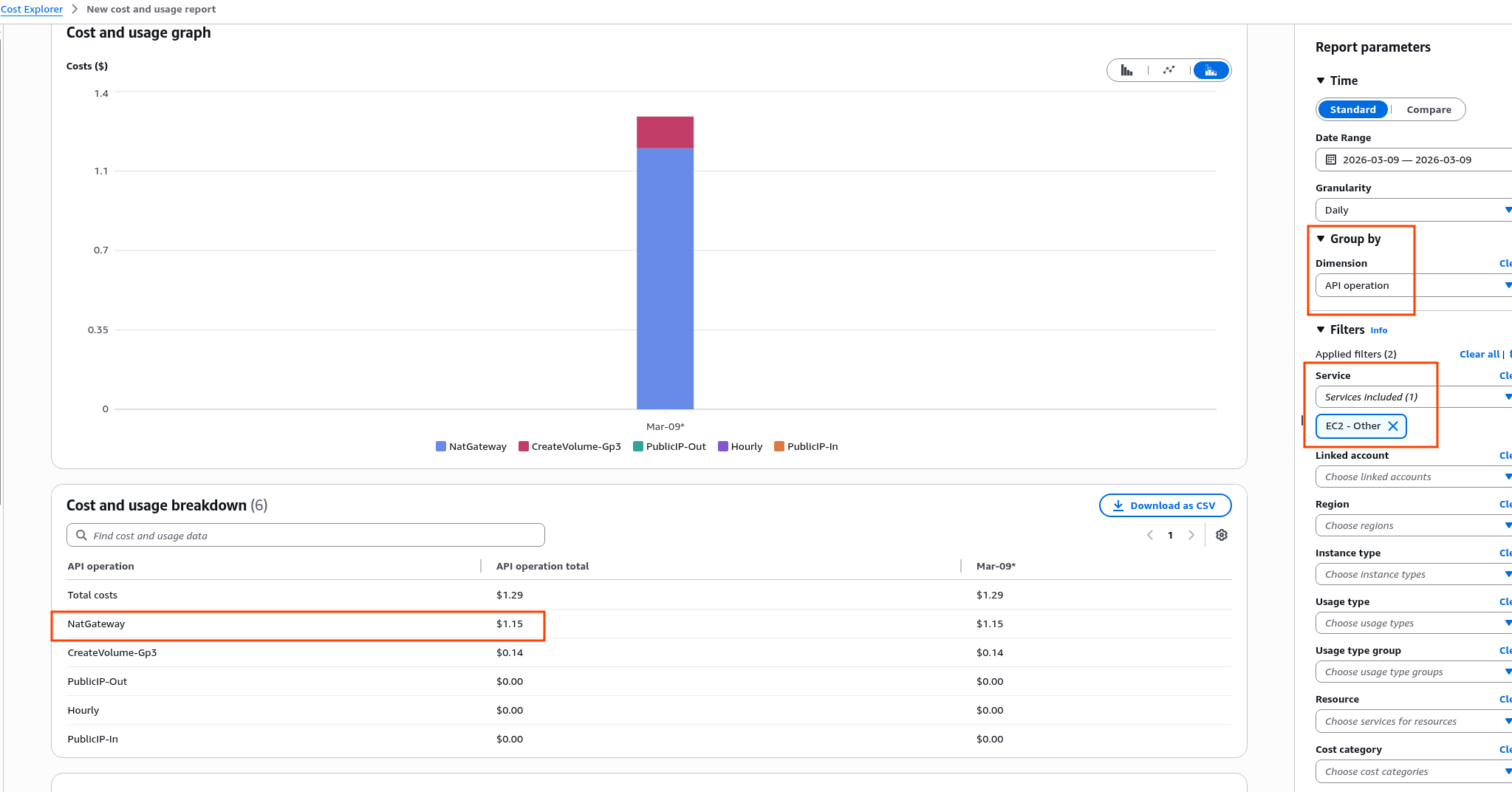 We can see the cost of the NAT Gateway.
The details are in the Amazon VPC pricing docs, and the math: $0.045 per hour, multiply by 24 gives $1.080 per day, or $30+ per month.
And that’s before the traffic through the NAT Gateway, which is billed separately – $0.048 per gigabyte for cross-region or cross-AZ traffic.
AWS traffic costs are a whole separate topic that I won’t dig into here, but I once wrote a post AWS: Cost optimization – review of service costs and traffic pricing in AWS.
This is precisely why it’s worth having a VPC Endpoint for S3: the gateway type is free, and traffic will flow within the VPC rather than through the NAT Gateway.
EBS Volumes costs
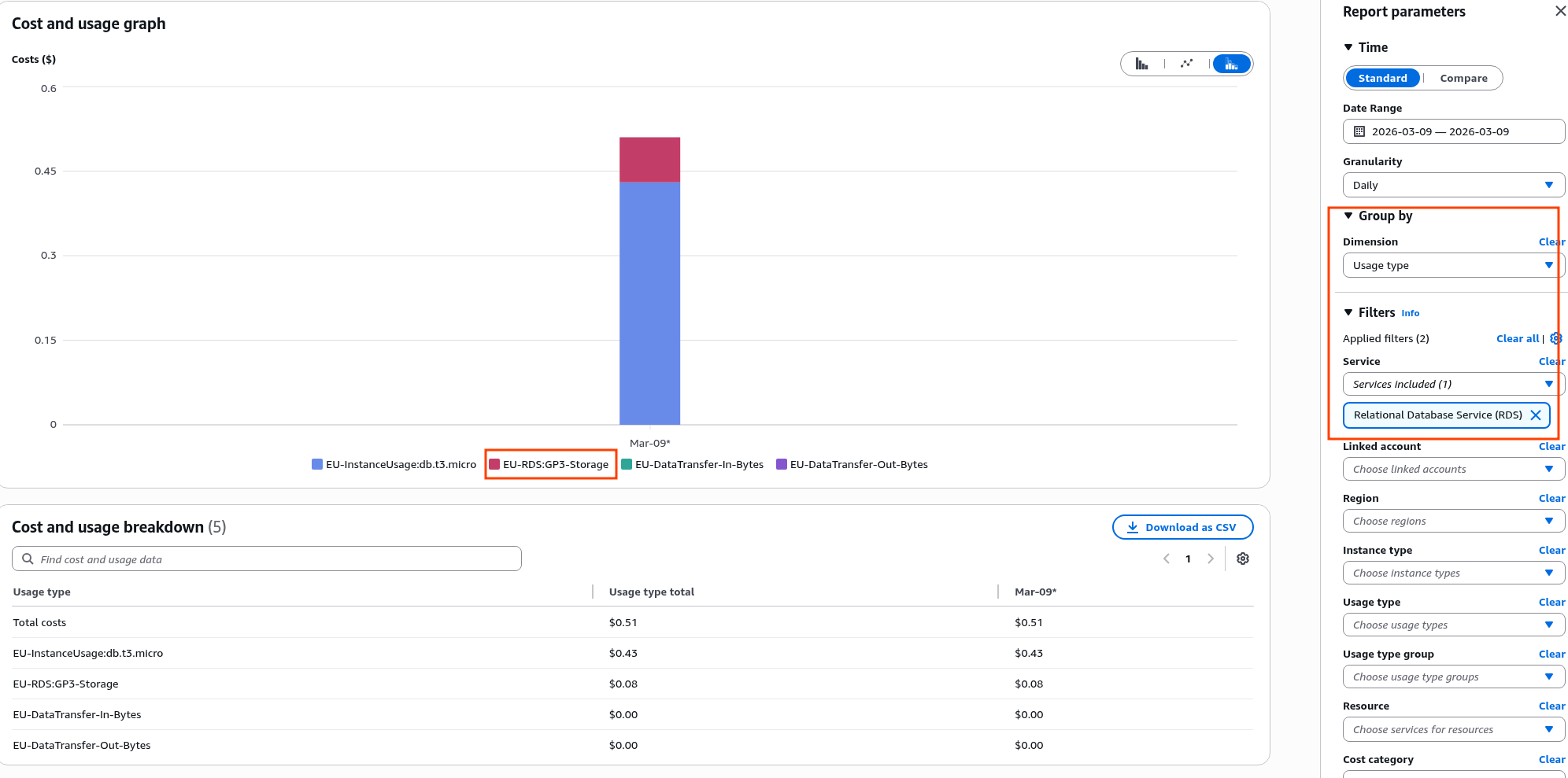
In the screenshot above we can see API Operation CreateVolume-Gp3 – that’s the cost of the EBS attached to EC2, see Amazon EBS pricing: a 50 GB disk gives us $4.4 per month, or $0.147/day.
The RDS disk is billed separately:
EC2-Instances costs
Here everything is simple – we have one t3.medium at $0.0416, which gives us $0.99 per day.
But traffic is also billed here – it’s $0.04 to $0.09 per gigabyte outgoing depending on volume.
Incoming traffic is free.
There are some nuances with traffic though:
- ALB: traffic delivered to clients through the Load Balancer is billable
- NAT Gateway: here we actually pay twice:
- NAT GW processing fee: comes from the NAT Gateway costs themselves, per gigabyte of outbound traffic routed through it
- EC2 Data Transfer Out: and additionally we pay per gigabyte “to the internet” from EC2 itself
- RDS: data within the same Availability Zone is free, but cross-AZ or cross-region setups cost $0.01/GB for both inbound and outbound traffic
Oh, and I haven’t even mentioned On-Demand, Reserved, or Spot instances. But that’s also a separate topic, see Amazon EC2 billing and purchasing options.
And CPU Credits are billed separately too, at $0.05 per vCPU-Hour 🙂 (for RDS as well)
Elastic Load Balancing costs
See Elastic Load Balancing pricing.
- we pay per hour the ALB runs
- we pay for LCU (Load Balancer Capacity Units) – ALB load, total cost will depend on how many client requests the ALB processed (or during a DDoS :trollface: )
- we pay for outgoing traffic – but only traffic from the ALB itself, since traffic between EC2 and ALB within the same Availability Zone is free
Relational Database Service costs
See Amazon RDS for MariaDB pricing.
We already saw this in the screenshot above – EU-InstanceUsage:db.t3.micro, EU-RDS:GP3-Storage, EU-DataTransfer-In-Bytes, EU-DataTransfer-Out-Bytes.
- for
db.t3.microin a single Availability Zone we pay $0.018, or $0.43 per day, or ~$13 per month - CPU Credits for t3 – $0.075 per vCPU-hour
- Storage: $0.115/GB-month
- Backup snapshots: free up to 100% of the RDS instance disk size
Route 53 costs
Here we pay for:
- $0.50 per hosted domain zone
- and separately for DNS queries, but there are a lot of free queries included, and different types are priced differently – I won’t detail each one separately
VPC costs
See Amazon VPC pricing.
There are many nuances here – VPC Peering, IPAM, Encryption.
In our specific case we only pay for Public IPs (since the Load Balancer and NAT Gateway have their own Elastic IP addresses):
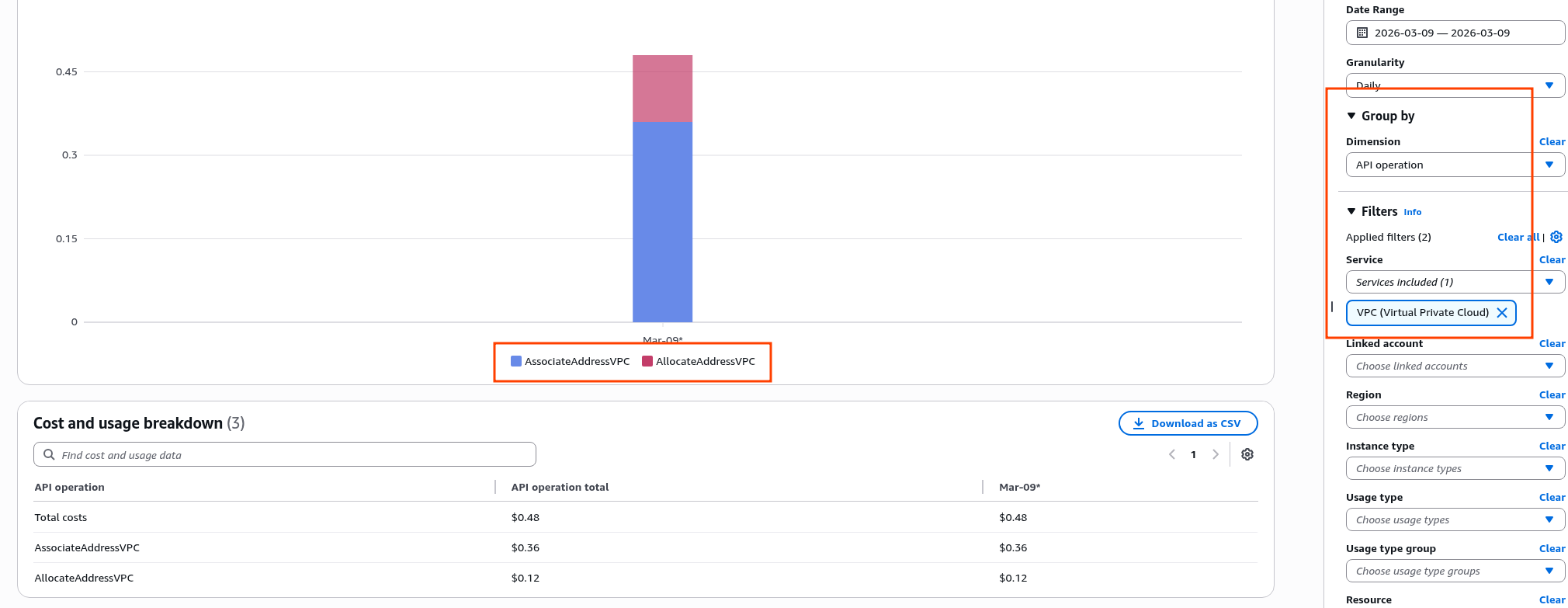 And we pay for an IP twice:
AllocateAddressVPC: simply for being allowed to use an IPv4 addressAssociateAddressVPC: for binding the address to an instance
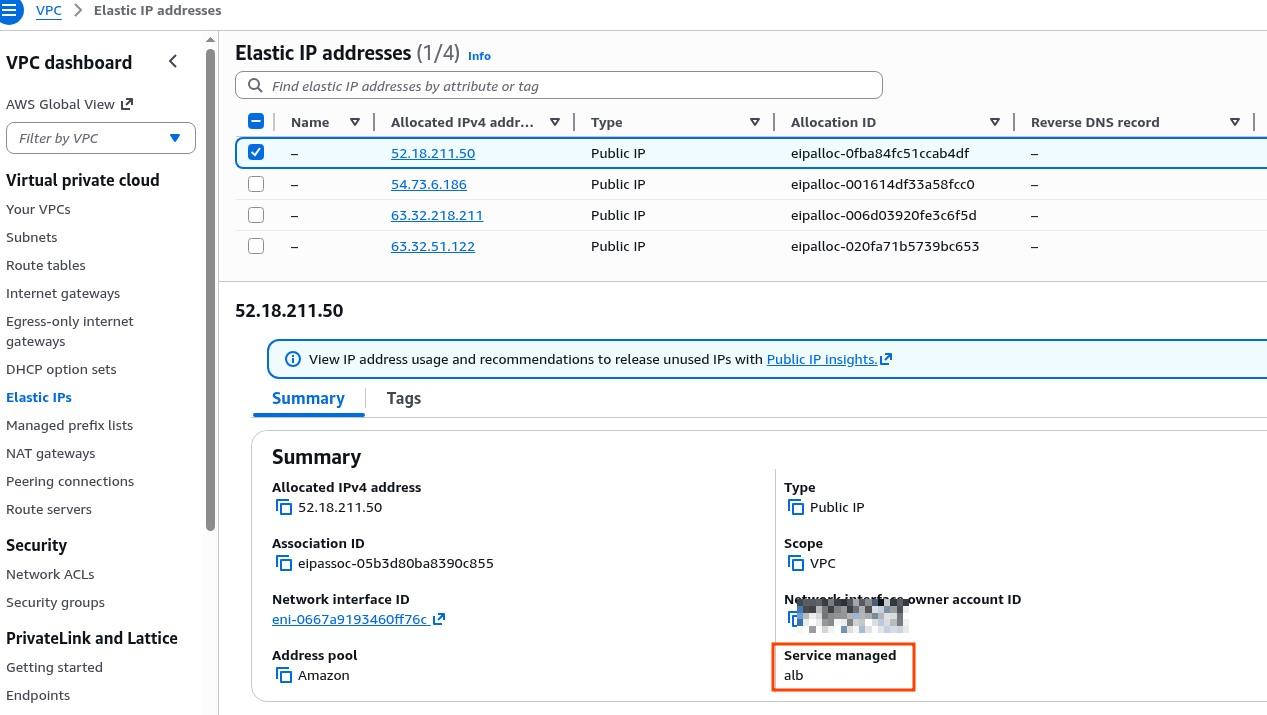
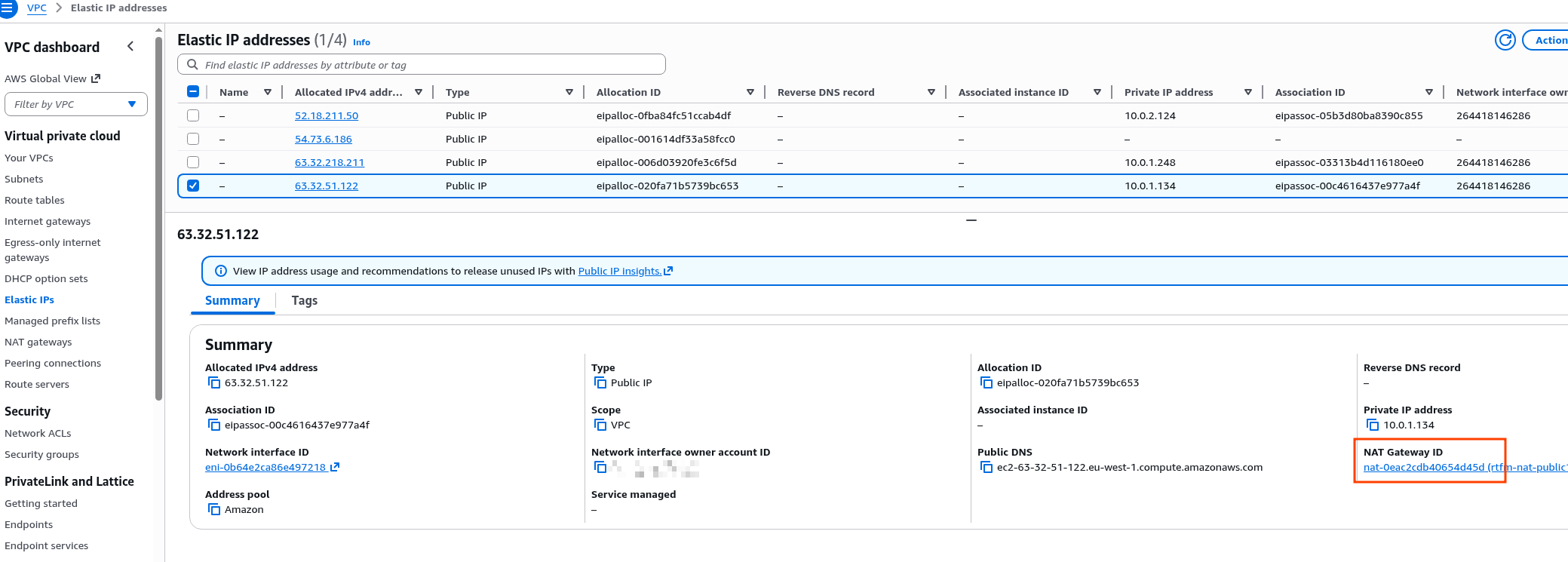
You can check which addresses are attached to what in VPC.
Here are two addresses for the ALB:
And one for the NAT Gateway:
And one unused one was found – and I’m paying for it.
Well, that’s the gist of AWS costs.
You pay for every little thing. Then again, so does every similar provider.
