 This is essentially the last major task – setting up automated backup creation.
In the post FreeBSD: Home NAS, Part 13: Planning Data Storage and Backups I described the general idea in more detail – what gets backed up, where, what gets stored and how – and today is the purely technical part about the actual implementation.
What this post covers: how I automated data collection from Linux hosts to the NAS, a few gotchas with rsync, and how all backups from the NAS itself are synced to Rclone remotes.
All scripts and config file examples described here are on GitHub at setevoy2/nas-backup.
All parts of the Home NAS on FreeBSD setup series:
- FreeBSD: Home NAS, part 1 – configuring ZFS mirror (RAID1)
- FreeBSD: Home NAS, part 2 – introduction to Packet Filter (PF) firewall
- FreeBSD: Home NAS, part 3 – WireGuard VPN, Linux peer, and routing
- FreeBSD: Home NAS, part 4 – Local DNS with Unbound
- FreeBSD: Home NAS, part 5 – ZFS pool, datasets, snapshots, and ZFS monitoring
- FreeBSD: Home NAS, part 6 – Samba server and client connections
- FreeBSD: Home NAS, part 7 – NFSv4 and use with Linux clients
- FreeBSD: Home NAS, part 8 – NFS and Samba data backup with restic
- FreeBSD: Home NAS, part 9 – data backup to AWS S3 and Google Drive with rclone
- FreeBSD: Home NAS, part 10 – monitoring with VictoriaMetrics and Grafana
- FreeBSD: Home NAS, part 11 – extended monitoring with additional exporters
- FreeBSD: Home NAS, part 12: synchronizing data with Syncthing
- FreeBSD: Home NAS, Part 13: Planning Data Storage and Backups
- FreeBSD: Home NAS, part 14 – logs with VictoriaLogs and alerts with VMAlert
- (current) FreeBSD: Home NAS, Part 15: Automating Backups – scripts, rsync, rclone
- (to be continued)
Contents
Brief overview of the idea and implementation
Originally, the idea was to do everything with restic and NFS: have a separate NFS share on the NAS that would be mounted on the hosts, then use restic to back up to that share from the hosts, and afterwards use rclone to copy data to Google Drive and/or AWS S3.
But the more I thought about it, the more I realized this wasn’t the best solution:
- first – being dependent on NFS, which needs to be constantly mounted, means checking whether it’s there, whether it’s active, and generally it’s a dependency on a permanent network connection
- second –
resticitself, as a backup system for home use, is a bit overkill:- snapshots – yes, cool, but the same snapshots are done with ZFS anyway
- another issue –
resticworks exclusively with encrypted data in its own repositories – and I wanted to be able to just browse into the backup directory and see what’s there
So in the end I decided to go with plain rsync instead of restic, and use rclone instead of restic remotes for pushing data to clouds.
But even here there were nuances and changes of plan.
The initial idea was to have shell scripts with rsync calls on the Linux hosts, run those scripts via cron, make backups and push them to the NAS – I even wrote such scripts on the work laptop.
However, when I started assembling the whole system, the question came up – at what exact point should rclone run from the NAS to push the freshly-updated rsync backups to the cloud?
That’s when I realized I needed some kind of “control loop” that would both trigger data collection from other hosts and from the NAS itself, and – after the data collection is complete – push the updates to Google Drive and Backblaze, and also perform some additional actions.
So the overall scheme is now: run rsync directly from the NAS, from this “control loop backup script”, connect to remote hosts via rsync over SSH, collect data, and at the end – knowing for certain that all data has been collected – safely run rclone.
A brief overview of my network and hosts – more details were in FreeBSD: Home NAS, part 13:
- there are several hosts – laptops/PC with Arch Linux, the NAS host with FreeBSD, a separate Raspberry Pi machine, the rtfm.co.ua server on Debian
- all hosts are connected via WireGuard into a single network (see MikroTik: configuring WireGuard and connecting Linux peers)
- backup copies of data need to be made from all systems – from home directories and/or various system configs
- all these backups need to be stored on ZFS datasets on the NAS
- ZFS snapshots need to be created
- and copies of data need to be pushed separately to Google Drive and Backblaze (see Backblaze: A First Look at B2 Cloud Storage)
Implementation architecture
There are three systems that manage data:
- Syncthing: syncs part of the data from
/home/setevoybetween laptops, NAS, and the phone (see FreeBSD: Home NAS, part 12: data sync with Syncthing) - Rsync: the main “workhorse” for copying data between hosts – collects from Linux, Raspberry Pi, DigitalOcean, and from the NAS/FreeBSD itself
- Rclone: handles syncing data to clouds
rclone runs sync to Google Drive and Backblaze with the --backup-dir option – so even if Syncthing breaks something and deletes data, and those changes then sync to the cloud – there will still be copies of the deleted data.
Plus, in Syncthing itself, “Trash Can Versioning” is enabled for all shared directories.
The overall scheme looks like this:
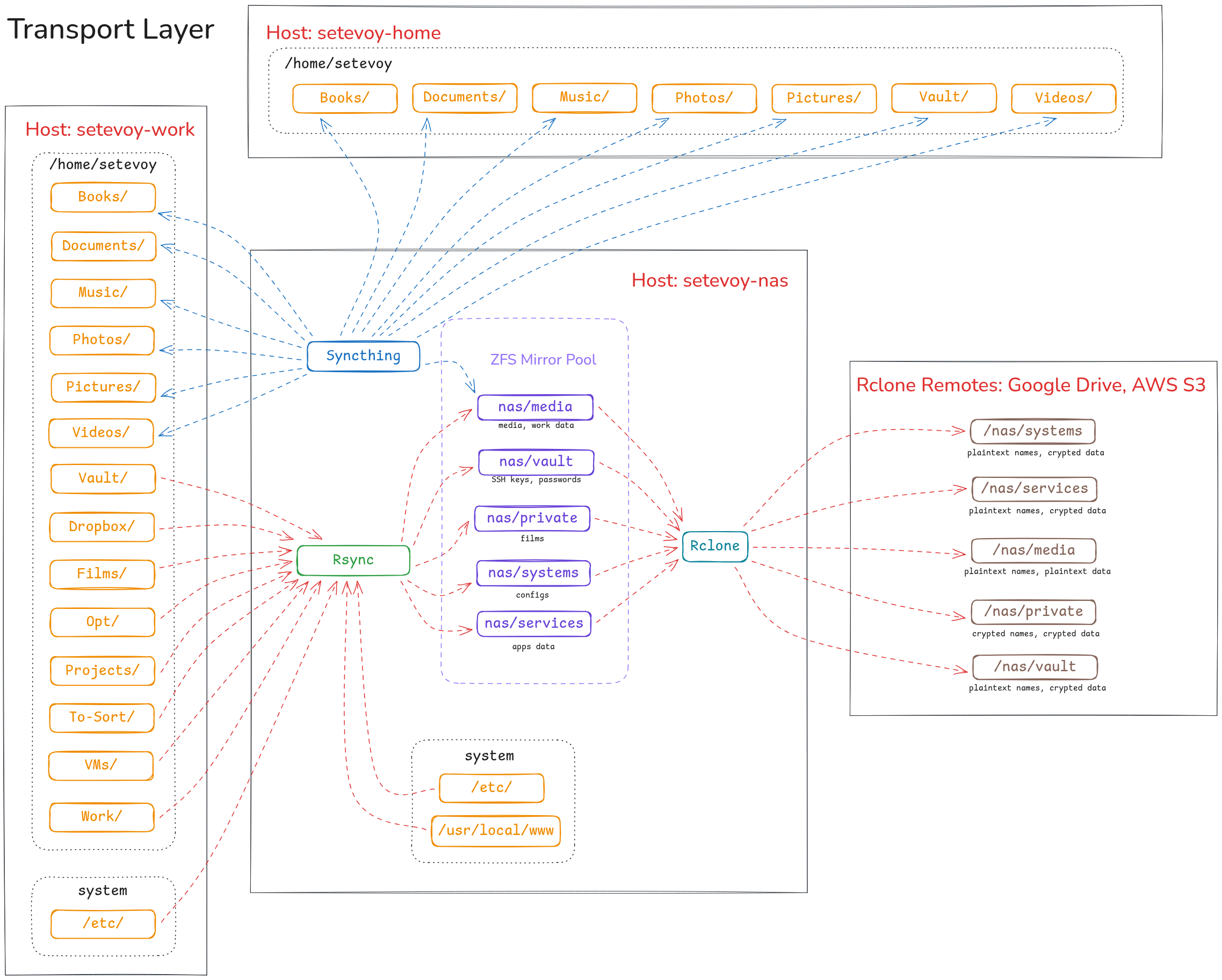
As I wrote in the previous post – there are several different “data classes” stored in separate datasets, and each dataset maps to its own rclone remote with its own encryption settings.
If we simplify the diagram and show only the data flow – it looks like this:
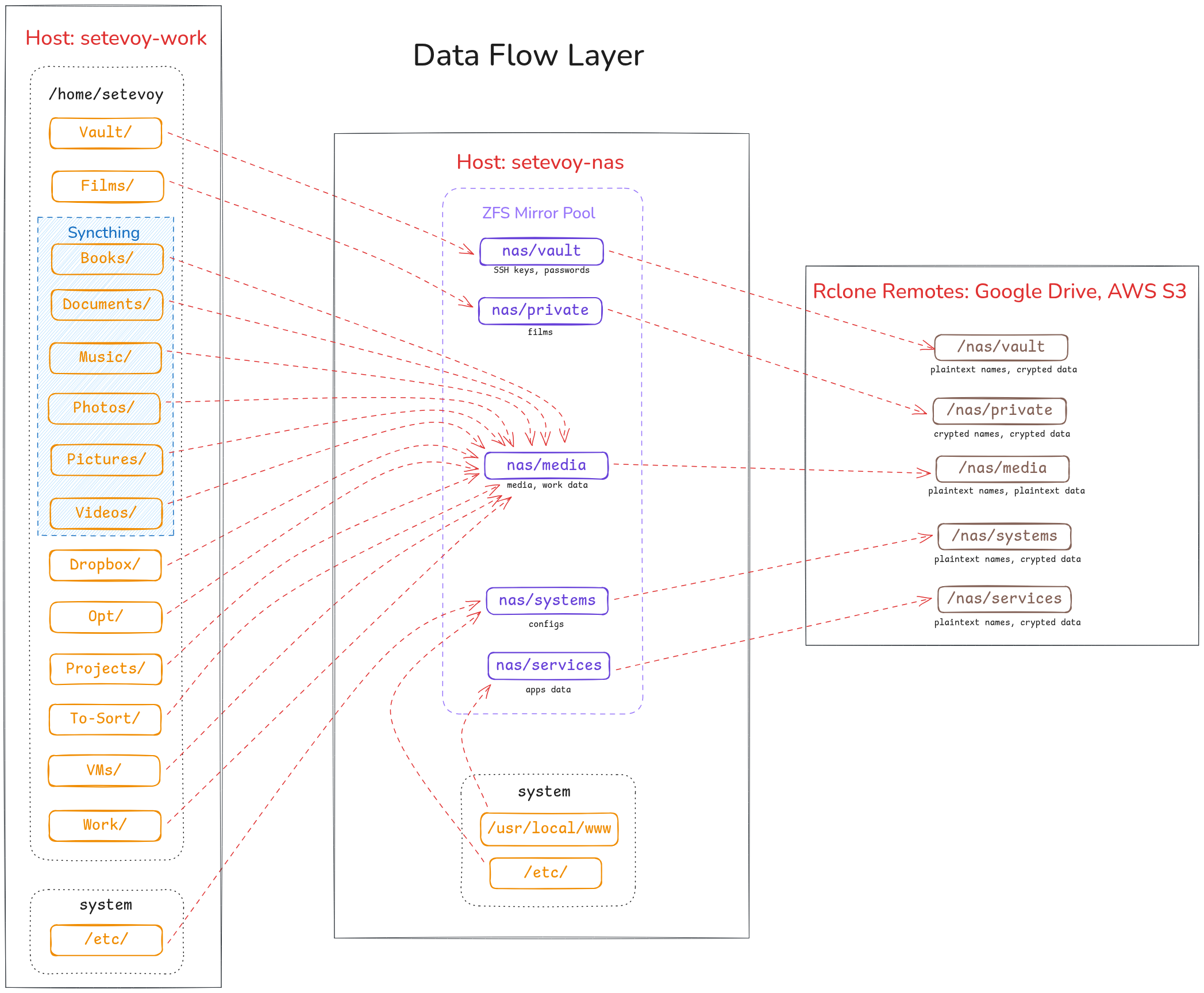 Directory and file structure
The draft originally had the entire process of building the “utility” written out, but I decided to just describe the final solution (and even that turned into quite a lot of text).
All operations are performed by several shell scripts, with all the required settings described in config files.
File and directory structure:
root@setevoy-nas:~ # tree -L 3 /opt/nas_backup/
/opt/nas_backup/
├── backup.sh
├── config
│   ├── hosts.conf
│   └── rclone-remotes.conf
├── excludes
│   └── global.exclude
├── includes
│   ├── setevoy-nas
│   │   ├── etc.include
│   │   ├── opt.include
│   │   ├── root.include
│   │   ├── user-home-Data.include
│   │   ├── usr-local-bin.include
│   │   ├── usr-local-etc.include
│   │   └── var.include
│   ├── setevoy-pi
│   │   ├── opt.include
│   │   └── system.include
│   ├── setevoy-work
│   │   ├── user-home-Films.include
│   │   ├── user-home-Media.include
│   │   └── user-home-Vault.include
│   └── template.include
├── validate-config.sh
├── vmbackup-backup.sh
└── web-backup.sh
The scripts here:
backup.sh: the main script, the primary “control loop” – runs all other scripts andrsync&&rclonevalidate-config.sh: validates the syntax of config files from theconfig/directoryvmbackup-backup.sh: runsvmbackupfor VictoriaMetricsweb-backup.sh: creates an archive of my WordPress journal files and amysqldumpof its database
The config/ directory will be covered shortly, while the excludes/ and includes/ directories contain files for rsync, with each host having its own directory with its own include/exclude settings.
Now a bit about the files and organization, and then we’ll get to the scripts.
rsync, include and exclude
For example, the file includes/setevoy-work/user-home-Media.include describes the data to be copied from the host work.setevoy (the work laptop) and the directory /home/setevoy:
root@setevoy-nas:~ # cat /opt/nas_backup/includes/setevoy-work/user-home-Media.include

# Syncthing:
# - Books/     => /nas/media
# - Documents/ => /nas/media
# - Music/     => /nas/media
# - Photos/    => /nas/media
# - Pictures   => /nas/media
# - Videos     =>/nas/media
# Rsync:
# - Vault/     => /nas/vault/ !
# - Films/     => /nas/private/ !
# - Drobox/    => /nas/media
# - Ops/       => /nas/media
# - Projects/  => /nas/media
# - To-Sort    => /nas/media
# - VMs        => /nas/media
# - Work       => /nas/media
# - Backups/   => /nas/media

############
### ROOT ###
############

/home/
/home/setevoy/

### Backups ###

/home/setevoy/Backups/
/home/setevoy/Backups/**

...

### Work ###

/home/setevoy/Work/

# <COMPANY_NAME>
/home/setevoy/Work/<COMPANY_NAME>/
/home/setevoy/Work/<COMPANY_NAME>/**

..
The exclude file – one global file with common patterns of what to exclude from the data included via the include file:
root@setevoy-nas:~ # cat /opt/nas_backup/excludes/global.exclude
######################
### Exclude Global ###
######################

# Syncthing
**/.stversions/

**/.git/
**/logs/
**/log/

# Vim temp files
**/*.swp
**/*.swo
**/*.swx
**/.*.sw?

...
rsync itself runs with exclude=all, but we’ll cover that in more detail later since there are some nuances there.
The config directory and settings files
There are two files here: one for rsync – hosts.conf, and one for rclone – rclone-remotes.conf.
Both files are checked by the validator – validate-config.sh – and then parsed by the main script backup.sh.
hosts.conf – parameters for rsync
The hosts.conf file looks like this:
root@setevoy-nas:~ # cat /opt/nas_backup/config/hosts.conf
##############
### Syntax ###
##############

# hostname|user|include_file|exclude_file|destination|delete=yes/no

# Notes:
# - include/exclude files can be in subdirectories (e.g., 'setevoy-work/user-home-Vault.include')
# - multiple lines for the same host are allowed (different sources to different destinations)
# - destination directories will be created automatically if they don't exist
# - delete field format: delete=yes or delete=no (explicit format required!)
#   - delete=yes: rsync will use --delete-delay --delete-excluded (removes files on destination that don't exist on source)
#   - delete=no: rsync will only copy/update files (no deletion)

# IMPORTANT! For system backups and multiple hosts with same username:
# - Always include hostname/machine identifier in the destination path
# - Example: /nas/systems/work.setevoy/thinkpad-t14-g5/ (not just /nas/systems/)
# - This prevents mixing configs from different machines

#############################
### work.setevoy - laptop ###
#############################

### HOME ###

# Syncthing:
# - Books/
# - Documents/
# - Music/
# - Photos/
# - Pictures
# - Videos
# Rsync:
# - Vault/    => /nas/vault/
# - Films/    => /nas/private/
# - Drobox/   => /nas/media
# - Ops/      => /nas/media
# - Projects/ => /nas/media
# - To-Sort   => /nas/media
# - VMs       => /nas/media
# - Work      => /nas/media

# '/home/setevoy/ALL' => '/nas/media/home/setevoy/ALL/'
work.setevoy|setevoy|setevoy-work/user-home-Media.include|global.exclude|/nas/media/|delete=yes
...

#################################
### pi.setevoy - Raspberry PI ###
#################################

# '/opt/' => '/nas/systems/setevoy-pi/raspberry-pi-cm4-rev11/opt/'
pi.setevoy|root|setevoy-pi/opt.include|global.exclude|/nas/systems/setevoy-pi/raspberry-pi-cm4-rev11/|delete=yes
...

#############################
### nas.setevoy - FreeBSD ###
#############################

# '/opt/' => '/nas/systems/setevoy-nas/thinkcentre-10SUSCF000/opt/'
nas.setevoy|root|setevoy-nas/opt.include|global.exclude|/nas/systems/setevoy-nas/thinkcentre-10SUSCF000/|delete=yes
...
The parameters it contains for running rsync:
- the hostname to back up from
- the username for connecting – not the same everywhere, and some even require root – when backing up system files
- third – relative path to the include file
- fourth – the exclude file, in case a separate one needs to be specified
- fifth – the local directory on the NAS where data will be copied (and which will be used for ZFS snapshot creation)
- last – whether to enable the
rsync --deleteoption, for cases where data deleted on the source should also be deleted in the NAS backups
rclone-remotes.conf – parameters for rclone
The syntax of rclone-remotes.conf is similar:
root@setevoy-nas:~ # cat /opt/nas_backup/config/rclone-remotes.conf
# used for rclone sync only

##############
### Syntax ###
##############

# set as:

# dataset|rclone_remote

# - no leading and closing slashes on the 'dataset'
# - no closing ":" on the rclone_remote

# use commands:
# - rclone listremotes
# - rclone listremotes nas-google-drive-crypted-test
# - rclone config show nas-google-drive-crypted-test:

#############
### Media ###
#############

# Google
nas/media|nas-google-drive-media

# Backblaze
nas/media|nas-backblaze-crypted-media
...
Here:
- first – the ZFS dataset from which data will be copied
- second – the
rcloneremote config name to push data into
Scripts
There are 4 scripts, split by functionality:
backup.sh: the main script, the central “control loop” – runs all other scripts andrsync&&rclonevalidate-config.sh: validates the syntax of the config files described abovevmbackup-backup.sh: runsvmbackupfor VictoriaMetricsweb-backup.sh: creates an archive of my WordPress journal files and amysqldumpof its database
We’ll look at backup.sh last, to first understand what it runs, and only then – how it runs it.
validate-config.sh: config file syntax validation
This is the first thing called by backup.sh and performs a kind of “preflight check”.
It has two config files to validate in its global variables.
The checks for hosts.conf and rclone-remotes.conf differ slightly since they obviously have different content:
- for
hosts.conf:- checks that all required fields are present
- verifies that the include/exclude files specified for hosts actually exist
- pings the host (if unreachable – just issues a WARNING, not an ERROR)
- importantly – validates the syntax of the
delete=yes/nofield, since this is the most “sensitive” option (although there’s alsozfs destroy:trollface: )
- for
rclone-remotes.conf:- checks for the existence of the ZFS dataset
- checks for the existence of the
rcloneremote in its config
This script doesn’t send any alerts – that’s handled by backup.sh itself if the validator returns an error.
Validating hosts.conf
Checking for all required parameters is fairly straightforward – we have the file, read each line, and have a list of fields.
Fields in the config file are separated by the “|” character – we use it in while IFS='|'.
IFS is a built-in shell variable, the Internal Field Separator, which can be overridden with the character used to split the content of a string or file.
If a field is empty – return an error:
...
while IFS='|' read -r hostname user include_file exclude_file destination delete_field; do
  LINE_NUM=$((LINE_NUM + 1))

  # Skip comments and empty lines
  case "$hostname" in
    \#*|'') continue ;;
  esac

  echo "Validating line $LINE_NUM: $hostname"

  # Check if all fields are present
  if [ -z "$hostname" ] || [ -z "$user" ] || [ -z "$include_file" ] || [ -z "$exclude_file" ] || [ -z "$destination" ] || [ -z "$delete_field" ]; then
    echo "  ERROR: Missing field(s) in line $LINE_NUM"
    ERRORS=$((ERRORS + 1))
    continue
  fi
...
The delete=yes/no option validation is split into two separate checks:
- first we check that the option is specified as
delete=and not just “yes” or just “delete“ - then we check the value after “
=“, which must be either “yes” or “no“
It looks like this:
...
  # Validate delete field format
  if ! echo "$delete_field" | grep -q '^delete='; then
    echo "  ERROR: Invalid delete field format. Expected 'delete=yes' or 'delete=no', got: $delete_field"
    ERRORS=$((ERRORS + 1))
  else
    delete_value=$(echo "$delete_field" | cut -d'=' -f2)
    if [ "$delete_value" != "yes" ] && [ "$delete_value" != "no" ]; then
      echo "  ERROR: Invalid delete value. Expected 'yes' or 'no', got: $delete_value"
      ERRORS=$((ERRORS + 1))
    fi
  fi
...
Validating rclone-remotes.conf
Same approach here: read the file, check that we got exactly two options separated by “|“.
Then check the ZFS dataset with zfs list "$dataset", and verify the rclone remote with rclone listremotes:
...
  while IFS='|' read -r dataset remote; do
    ...

    # Check if all fields are present
    if [ -z "$dataset" ] || [ -z "$remote" ]; then
      echo "  ERROR: Missing field(s) in rclone config line $RCLONE_LINE_NUM"
      ERRORS=$((ERRORS + 1))
      continue
    fi

    # Check if dataset exists
    if ! zfs list "$dataset" > /dev/null 2>&1; then
      echo "  ERROR: Dataset $dataset does not exist"
      ERRORS=$((ERRORS + 1))
    fi

    # Check if rclone remote exists
    if ! rclone listremotes | grep -q "^${remote}:$"; then
      echo "  ERROR: Rclone remote $remote not found"
      ERRORS=$((ERRORS + 1))
    fi
...
At the end of the script we count errors and exit with an error if $ERRORS is greater than zero:
...

if [ $ERRORS -gt 0 ]; then
  echo "=== Validation FAILED with $ERRORS error(s) ==="
  exit 1
else
  echo "=== Validation PASSED ==="
  exit 0
fi
vmbackup-backup.sh
Under the hood this uses VictoriaMetrics’ own utility vmbackup. The only downside is that it doesn’t yet support VictoriaLogs, but there’s a PR open for it, so it’ll probably be added soon.
Personally I don’t need log backups, but I do need database backups – because it contains my “Self Monitoring Project” data, where I track sleep and mood – data I’ve been recording since 2023 and really don’t want to lose.
The script performs two types of backups – incremental on weekdays, and a full backup on Sundays – plus it deletes old backups.
Unlike the validator – this one has its own alert handler that sends notifications via ntfy.sh.
ntfy.sh is a really great service for this kind of thing, very simple, and I hope to eventually run a self-hosted version and write about it separately.
For alerts the script has a dedicated function that simply sends a POST request to the service via curl:
...
# Alerts configuration (same as backup.sh)
NTFY_TOPIC="my-alerts"
NTFY_URL="https://ntfy.sh/$NTFY_TOPIC"
NTFY_TOKEN_FILE="/root/ntfy.token"
HOSTNAME=$(hostname)

...

NTFY_TOKEN=$(cat "$NTFY_TOKEN_FILE" | tr -d '\n')

send_alert() {
  TITLE="$1"
  MESSAGE="$2"
  TAGS="${3:-warning,backup}"

  curl -s \
    -H "Authorization: Bearer $NTFY_TOKEN" \
    -H "Title: $TITLE" \
    -H "Tags: $TAGS" \
    -d "$MESSAGE" \
    "$NTFY_URL" >/dev/null
}
...
The vmbackup parameters include two options:
...
# VictoriaMetrics settings
VM_DATA_PATH="/var/db/victoria-metrics"
VM_SNAPSHOT_URL="http://localhost:8428/snapshot/create"
...
VM_DATA_PATH is used to actually copy the data, and through the VM_SNAPSHOT_URL endpoint – vmbackup sends VictoriaMetrics a command to “freeze” operations in order to create a consistent snapshot.
Running the actual backups and sending alerts looks like this:
...
vmbackup \
  -storageDataPath="$VM_DATA_PATH" \
  -snapshot.createURL="$VM_SNAPSHOT_URL" \
  -dst="fs://$BACKUP_BASE/latest" >> "$LOGFILE" 2>&1
INCREMENTAL_EXIT=$?

if [ $INCREMENTAL_EXIT -ne 0 ]; then
  echo "ERROR: Daily incremental backup failed with exit code $INCREMENTAL_EXIT" | tee -a "$LOGFILE"
  send_alert "VMBackup: Incremental backup failed" "❌ VictoriaMetrics incremental backup failed on $HOSTNAME
Exit code: $INCREMENTAL_EXIT
Log: $LOGFILE"
  FAILED=$((FAILED + 1))
else
  echo "Daily incremental backup completed successfully" | tee -a "$LOGFILE"
fi
...
The result is several directories – latest for incremental backups, and <DATE> for weekly ones:
root@setevoy-nas:~ # tree -d -L 2 /nas/services/victoriametrics/
/nas/services/victoriametrics/
├── 20260222
│   ├── data
│   ├── indexdb
│   └── metadata
├── 20260301
│   ├── data
│   ├── indexdb
│   └── metadata
└── latest
    ├── data
    ├── indexdb
    └── metadata
Old backup deletion is done with find, same as in other scripts.
In this example I’m intentionally leaving the first test version – without the real rm -rf:
...

# Calculate cutoff date (RETENTION_WEEKS weeks ago, in YYYYMMDD format)
CUTOFF=$(date -v-${RETENTION_WEEKS}w +%Y%m%d 2>/dev/null || date -d "${RETENTION_WEEKS} weeks ago" +%Y%m%d)

find "$BACKUP_BASE" -maxdepth 1 -type d -name '[0-9][0-9][0-9][0-9][0-9][0-9][0-9][0-9]' | while read dir; do
  DIR_DATE=$(basename "$dir")
  if [ "$DIR_DATE" -lt "$CUTOFF" ]; then
    echo "Deleting old weekly backup: $dir" | tee -a "$LOGFILE"
    # TODO: uncomment when tested
    #rm -rf "$dir"
    echo "[DRY-RUN] would delete: $dir"
  fi
done

...
web-backup.sh
The task here is to create a file archive and dump the database.
Very simple, backs up only one site – but that’s all I need for now.
Also has its own alerting.
The file backup is created with tar:
...

SITE_DIR="/usr/local/www/blog.setevoy"
DB_NAME="nas_blog_setevoy_production_db"
DB_CREDENTIALS="/root/.my.cnf.blog-setevoy"
FILES_DEST="$BACKUP_BASE/setevoy/files/${DATE}-blog-setevoy.tar.gz"
DB_DEST="$BACKUP_BASE/setevoy/databases/${DATE}-blog-setevoy.sql"

# Backup files
echo "Archiving files: $SITE_DIR -> $FILES_DEST" | tee -a "$LOGFILE"
tar -czf "$FILES_DEST" --exclude="$SITE_DIR/wp-content/updraft" "$SITE_DIR" >> "$LOGFILE" 2>&1
TAR_EXIT=$?
if [ $TAR_EXIT -ne 0 ]; then
  echo "ERROR: Failed to archive blog.setevoy files" | tee -a "$LOGFILE"
  send_alert "Web Backup: Failed" "❌ Failed to archive blog.setevoy files on $HOSTNAME
Log: $LOGFILE"
  FAILED=$((FAILED + 1))
else
  echo "Files archived successfully" | tee -a "$LOGFILE"
fi

...
And the MariaDB database with mysqldump:
...

DB_CREDENTIALS="/root/.my.cnf.blog-setevoy"

...
# Backup database
echo "Dumping database: mysqldump --defaults-file="$DB_CREDENTIALS" "$DB_NAME" > "$DB_DEST" 2>> "$LOGFILE""
mysqldump --defaults-file="$DB_CREDENTIALS" "$DB_NAME" > "$DB_DEST" 2>> "$LOGFILE"
DB_EXIT=$?

if [ $DB_EXIT -ne 0 ]; then
  echo "ERROR: Failed to dump database $DB_NAME" | tee -a "$LOGFILE"
  send_alert "Web Backup: Failed" "❌ Failed to dump database $DB_NAME on $HOSTNAME
Log: $LOGFILE"
  FAILED=$((FAILED + 1))
else
  echo "Database dumped successfully" | tee -a "$LOGFILE"
fi

...
Here mysqldump runs without extra options, since this is purely my own journal with no other users.
But it’s worth keeping these parameters in mind:
--single-transaction: InnoDB only – run the dump as a single transaction without locking tables, since that can affect users--routinesand--triggers: back up stored procedures and triggers – not a WordPress use case, but can be useful--add-drop-table: default is true, addsDROP TABLE IF EXISTSbefore eachCREATE TABLEin the SQL dump – simplifies restoration into an existing database
The script uses the --defaults-file option to pass the path to a file containing the username and password:
root@setevoy-nas:~ # cat /root/.my.cnf.blog-setevoy
[mysqldump]
user=mysql-username
password="mysql-password"
host=localhost
Old backup deletion – same as the previous script, just using find:
...

find "$BACKUP_BASE" -type f \( -name "*.tar.gz" -o -name "*.sql" \) -mtime "+$RETENTION_DAYS" | while read f; do
  echo "Deleting old backup: $f" | tee -a "$LOGFILE"
  # TODO: uncomment when tested
  #rm -f "$f"
  ls -l "$f"
done

...
And the actual backups look like this:
root@setevoy-nas:/opt/nas_backup # tree -L 3 /nas/services/web/
/nas/services/web/
└── setevoy
    ├── databases
        ...
    │   ├── 2026-03-05-03-00-blog-setevoy.sql
    │   ├── 2026-03-06-03-00-blog-setevoy.sql
    │   └── 2026-03-07-03-00-blog-setevoy.sql
    └── files
        ...
        ├── 2026-03-05-03-00-blog-setevoy.tar.gz
        ├── 2026-03-06-03-00-blog-setevoy.tar.gz
        └── 2026-03-07-03-00-blog-setevoy.tar.gz
backup.sh
And finally, the main script backup.sh, which handles the “orchestration” of the entire process.
It runs all the necessary actions and scripts discussed above one by one.
Execution logic
- create a lock file: useful if the previous script run hung – to avoid launching two concurrent instances
- the
validate-config.shscript validateshosts.confandrclone-remotes.conf - run backup scripts one by one:
- with
web-backup.sh– back up WordPress - with
vmbackup-backup.sh– back up VictoriaMetrics
- with
- next, read the
hosts.confconfig forrsync, determine the required parameters for each host, and in a loop for each host:- run
rsync– first with--dry-run, then the real run - if
rsynccompleted without errors – create a ZFS snapshot
- run
- outside the loops – delete old ZFS snapshots
- read the
rclone-remotes.confconfig forrclone- in a loop, run
rclone syncfor each ZFS dataset and correspondingrcloneremote defined in the config
- in a loop, run
- at the end, send the execution result via ntfy.sh
Step 1: creating the lock file
...
LOCKFILE="/var/run/nas-backup.lock"
...

# Check if another instance is running
if [ -f "$LOCKFILE" ]; then
  echo "ERROR: Another backup is already running (lock file exists: $LOCKFILE)" | tee -a "$LOGFILE"
  send_alert "NAS Backup: Already running" "⚠️ Another backup instance is already running on $HOSTNAME
Lock file: $LOCKFILE"
  exit 1
fi

# Create lock file
echo $$ > "$LOCKFILE"

# Remove lock file on exit
trap 'echo ""; echo "Caught interrupt, cleaning up..."; kill $(jobs -p) 2>/dev/null; rm -f $LOCKFILE; exit 130' INT TERM
trap 'rm -f $LOCKFILE' EXIT

..
Here:
- check that the file doesn’t currently exist – meaning the previous script run has already finished
- create the file
/var/run/nas-backup.lock, writing the process PID into it with$$ - set up a
trapthat will catch Ctrl+C (Interrupt) or SIGTERM and delete the lock file
Step 2: running the validate-config.sh validator
Simple here – after creating the lock file, run validate-config.sh and check its exit code with if:
...

# Run validator first
echo "Running configuration validator..." | tee -a "$LOGFILE"
if ! /opt/nas_backup/validate-config.sh >> "$LOGFILE" 2>&1; then
  echo "ERROR: Configuration validation failed" | tee -a "$LOGFILE"
  send_alert "NAS Backup: Config validation failed" "❌ Config validation failed on $HOSTNAME
Script: backup.sh
Log: $LOGFILE"
  exit 1
fi

echo "" | tee -a "$LOGFILE"

...
Steps 3 and 4: running Web and VictoriaMetrics backups
Same approach – called with if:
...

echo "=== Starting web backups ===" | tee -a "$LOGFILE"
if ! /opt/nas_backup/web-backup.sh >> "$LOGFILE" 2>&1; then
  echo "WARNING: web_backup.sh failed, continuing..." | tee -a "$LOGFILE"
  send_alert "NAS Backup: Web backup failed" "⚠️ web_backup.sh failed on $HOSTNAME, continuing with rsync\nLog: $LOGFILE"
  exit 1
fi

echo "" | tee -a "$LOGFILE"

# Step 2: VictoriaMetrics backup
echo "=== Starting VictoriaMetrics backup ===" | tee -a "$LOGFILE"
if ! /opt/nas_backup/vmbackup-backup.sh >> "$LOGFILE" 2>&1; then
  echo "WARNING: vmbackup-backup.sh failed, continuing..." | tee -a "$LOGFILE"
  send_alert "NAS Backup: VMBackup failed" "⚠️ vmbackup-backup.sh failed on $HOSTNAME, continuing with rsync\nLog: $LOGFILE"
fi

echo "" | tee -a "$LOGFILE"

...
Step 5: running the hosts.conf loop
Perhaps the most important and interesting part – this is where data collection from all hosts defined in hosts.conf begins.
First, the config file is read in a loop and all “local” variables are populated:
...
while IFS='|' read -r hostname user include_file exclude_file destination delete_field; do
  # Skip comments and empty lines
  case "$hostname" in
    \#*|'') continue ;;
  esac

  # Parse delete option
  delete_value=$(echo "$delete_field" | cut -d'=' -f2)
...
Then the host is pinged, and if the ping fails – the while loop moves to the next line in the config file.
This is implemented using the continue operator, which also appears in “\#*|'') continue ;;“: if a line in hosts.conf is a comment, skip it and move to the next one.
Same continue logic applies to the ping:
...

  # Check if host is reachable
  if ! ping -c 3 "$hostname" > /dev/null 2>&1; then
    echo "WARNING: Host $hostname is not reachable, skipping" | tee -a "$LOGFILE"
    send_alert "NAS Backup: Host unreachable" "⚠️ Host $hostname is not reachable on $HOSTNAME
Skipping backup
Log: $LOGFILE"
    echo "" | tee -a "$LOGFILE"
    continue
  fi

...
Here – if ping didn’t return success – send an alert and use continue to move to the next host.
Same logic applies to the next action – the local directory where data will be copied is checked, if it doesn’t exist – it gets created, if creation fails – move to the next host:
...

  # Create destination directory if it doesn't exist
  if [ ! -d "$destination" ]; then
    echo "Creating destination directory: $destination" | tee -a "$LOGFILE"
    mkdir -p "$destination" >> "$LOGFILE" 2>&1
    if [ $? -ne 0 ]; then
      echo "ERROR: Failed to create destination directory" | tee -a "$LOGFILE"
      send_alert "NAS Backup: Failed to create destination" "❌ Failed to create destination directory on $HOSTNAME
Host: $hostname
Destination: $destination
Log: $LOGFILE"
      echo "" | tee -a "$LOGFILE"
      continue
    fi
  fi

...
Step 6: running rsync
After this, the actual data copying from each host begins – and there are a few gotchas here.
rsync and the –delete options
A very important – and potentially dangerous – option: whether to delete data on the NAS that has been deleted on the source.
It’s set in hosts.conf at the end of each line:
...
work.setevoy|setevoy|setevoy-work/user-home-Media.include|global.exclude|/nas/media/|delete=yes
...
In backup.sh itself, its value is checked and if delete=yes – the variable $RSYNC_DELETE_OPTS is set to --delete-delay:
...

  # Build rsync options based on delete setting
  # default is empty, i.e. no delete
  # IMPORTANT: DON NOT SET '--delete-excluded' if using multiply .includes: `rsync` is running with the `--exclude='*'` and will wipe all other data
  RSYNC_DELETE_OPTS=""
  if [ "$delete_value" = "yes" ]; then
    RSYNC_DELETE_OPTS="--delete-delay"
  fi

...
I noted this in the comment above the check, and I’ll emphasize it separately again – because I had a bit of trouble with this:
rsyncruns with the--exclude='*'option (more on this shortly)- if
--delete-excludedis specified in$RSYNC_DELETE_OPTS– thenrsyncon the NAS will start deleting all data that isn’t explicitly listed in the include file
And since include files can differ for different data on the source, but on the destination – the NAS itself – the directory can be a single shared one, rsync will delete the data from a different config line on every iteration.
Here’s an example from the Raspberry Pi:
...
# '/opt/' => '/nas/systems/setevoy-pi/raspberry-pi-cm4-rev11/opt/'
pi.setevoy|root|setevoy-pi/opt.include|global.exclude|/nas/systems/setevoy-pi/raspberry-pi-cm4-rev11/|delete=yes

# '/etc/systemd/' => '/nas/systems/setevoy-pi/raspberry-pi-cm4-rev11/etc/'
pi.setevoy|root|setevoy-pi/system.include|global.exclude|/nas/systems/setevoy-pi/raspberry-pi-cm4-rev11/|delete=yes
...
And here rsync would:
- take everything allowed in
opt.include - copy it to
/nas/systems/setevoy-pi/raspberry-pi-cm4-rev11/ - move to the next line, take everything from
system.include - start copying to
/nas/systems/setevoy-pi/raspberry-pi-cm4-rev11/– and delete what it copied in theopt.includerun from there
rsync and –exclude=’*’
Why does rsync run with --exclude='*'?
First, personally I prefer the approach of “deny everything and copy only what is explicitly allowed“.
Second – it makes the hosts.conf config and the backup.sh script itself simpler – just passing the hostname is enough, and from there rsync recursively traverses from / of the filesystem through the directories explicitly allowed in the include file, copying data only from them.
Without exclude='*' we’d need to either add exclusions to the global.exclude file, or use “-” syntax in the include file.
Running rsync and its options
The actual rsync run looks like this – first --dry-run, then “running real backup” – same thing, just without --dry-run:
...

  RSYNC_DELETE_OPTS=""
  if [ "$delete_value" = "yes" ]; then
    RSYNC_DELETE_OPTS="--delete-delay"
  fi

  echo "Rsync command: rsync -avh $RSYNC_DELETE_OPTS --prune-empty-dirs --itemize-changes --progress --exclude-from=$EXCLUDES_DIR/$exclude_file --include-from=$INCLUDES_DIR/$include_file --exclude='*' $user@$hostname:/ $destination" | tee -a "$LOGFILE"
  echo "" | tee -a "$LOGFILE"

  # Run rsync with dry-run first
  echo "Running dry-run..." | tee -a "$LOGFILE"
  rsync -avh \
    --dry-run \
    $RSYNC_DELETE_OPTS \
    --prune-empty-dirs \
    --itemize-changes \
    --progress \
    --exclude-from="$EXCLUDES_DIR/$exclude_file" \
    --include-from="$INCLUDES_DIR/$include_file" \
    --exclude='*' \
    "$user@$hostname:/" "$destination" >> "$LOGFILE" 2>&1

  EXIT_CODE=$?

  if [ $EXIT_CODE -ne 0 ]; then
    echo "=== Dry-run FAILED with exit code $EXIT_CODE, skipping real backup ===" | tee -a "$LOGFILE"
    send_alert "NAS Backup: Dry-run failed" "❌ Rsync dry-run failed on $HOSTNAME
Host: $hostname
Exit code: $EXIT_CODE
Log: $LOGFILE"
    BACKUP_FAILED=$((BACKUP_FAILED + 1))
    echo "" | tee -a "$LOGFILE"
    continue
  fi

  echo "Dry-run successful, running real backup..." | tee -a "$LOGFILE"

  # Run REAL rsync
  rsync -avh \
    $RSYNC_DELETE_OPTS \
    --prune-empty-dirs \
    --itemize-changes \
    --progress \
    --exclude-from="$EXCLUDES_DIR/$exclude_file" \
    --include-from="$INCLUDES_DIR/$include_file" \
    --exclude='*' \
    "$user@$hostname:/" "$destination" >> "$LOGFILE" 2>&1

  EXIT_CODE=$?

...
Useful options here:
-a(archive): preserves permissions, owner, symlinks, timestamps-v(verbose): writes to the log what exactly is being processed-h(human): display sizes as 1G instead of bytes--delete-delay: delete data after the transfer is complete, not during--prune-empty-dirs: if a directory on the source is empty – don’t copy it--itemize-changes: detailed log of exactly what changed in files being overwritten/deleted--progress: shows transfer progress for each file
Order of –include-from and –exclude-from options
A separate note about exclude and include.
The order in which parameters are passed to rsync matters:
- first comes
--exclude-from– sorsyncalready “knows” what to skip before starting the copy - then
--include-frompasses the list of directories and files allowed to be read and copied - and last,
--exclude='*'excludes everything from the backup that isn’t explicitly listed in--include-from
Format of –include-from and –exclude-from files
The exclude file is currently one global file:
######################
### Exclude Global ###
######################

# Syncthing
**/.stversions/

**/.git/
**/logs/
**/log/

# Vim temp files
**/*.swp
**/*.swo
**/*.swx
**/.*.sw?

**/node_modules/

# Python
**/.venv/
**/venv/
**/__pycache__/

...
Here “**” means “regardless of where this file or directory is found“, so it excludes both /root/some-dir/.git/ and /home/setevoy/some-dir/.git/.
An example of one of the include files – this one is a bit more interesting:
############
### ROOT ###
############

/home/
/home/setevoy/

### Books ###

/home/setevoy/Books/
/home/setevoy/Books/**

### Backups ###

/home/setevoy/Backups/
/home/setevoy/Backups/**

### Downloads ###

/home/setevoy/Downloads/
/home/setevoy/Downloads/Books/
/home/setevoy/Downloads/Books/**

...
Since rsync runs with --exclude='*' – the include file needs to explicitly allow “entry” into the root directory.
That is, when running rsync -avh [email protected]:/ – rsync enters the root “/“, then – having /home/ in include-from – can “look into” /home/, and from there visit /home/setevoy/.
Then we similarly allow access into /home/setevoy/Books/, where “**” means “take everything you find here” – except what was specified in the exclude file.
Meanwhile, data from, say, /home/setevoy/Bob/ will be skipped by rsync, since there’s no explicit permission to read and copy it.
Step 7: creating ZFS snapshots
After rsync for the host completes without errors – the next if/else runs:
...

  EXIT_CODE=$?

  if [ $EXIT_CODE -eq 0 ]; then
    echo ""
    echo "=== Backup from $hostname completed successfully ===" | tee -a "$LOGFILE"
    BACKUP_SUCCESS=$((BACKUP_SUCCESS + 1))

    # Create ZFS snapshot
    SNAPSHOT_NAME="nas-backup-$(date +%Y-%m-%d-%H-%M-%S)"

    # Get dataset name from destination path
    DATASET=$(zfs list -H -o name "$destination" 2>/dev/null | head -1)

    if [ -z "$DATASET" ]; then
      echo "ERROR: Could not determine ZFS dataset for $destination" | tee -a "$LOGFILE"
      send_alert "NAS Backup: Snapshot failed" "❌ Could not determine ZFS dataset on $HOSTNAME
      ...
    else
      echo ""
      echo "Creating ZFS snapshot: $DATASET@$SNAPSHOT_NAME" | tee -a "$LOGFILE"

      zfs snapshot "$DATASET@$SNAPSHOT_NAME" >> "$LOGFILE" 2>&1

      if [ $? -eq 0 ]; then
        echo "ZFS snapshot created successfully" | tee -a "$LOGFILE"
      else
        echo "ERROR: Failed to create ZFS snapshot" | tee -a "$LOGFILE"
        send_alert "NAS Backup: Snapshot failed" "❌ Failed to create ZFS snapshot on $HOSTNAME
        ...
      fi
    fi

..
BACKUP_SUCCESS=$((BACKUP_SUCCESS + 1)) simply increments a counter used exclusively for the final ntfy.sh notification.
Next we build the snapshot name, and store the dataset name in $DATASET.
To do this, we take the $destination parameter which is defined as a full path in hosts.conf – /nas/systems/setevoy-pi/raspberry-pi-cm4-rev11/ – and then get the mountpoint from zfs list:
root@setevoy-nas:/opt/nas_backup # zfs list -H -o name /nas/systems/setevoy-pi/raspberry-pi-cm4-rev11/
nas/systems
And then call zfs snapshot to actually create the snapshot.
Step 8: deleting old ZFS snapshots
This is also a potentially dangerous operation, since it calls zfs destroy – which can drop an entire ZFS dataset:
...

CUTOFF_DATE=$(date -v-${SNAPSHOT_RETENTION_DAYS}d +%Y-%m-%d 2>/dev/null || date -d "${SNAPSHOT_RETENTION_DAYS} days ago" +%Y-%m-%d)

zfs list -H -t snapshot -o name | grep '@nas-backup-' | while read snapshot; do
  SNAP_DATE=$(echo "$snapshot" | sed 's/.*@nas-backup-\([0-9-]*\)-.*/\1/')

  if [ "$SNAP_DATE" \< "$CUTOFF_DATE" ]; then
    echo "Deleting old snapshot: $snapshot" | tee -a "$LOGFILE"
    zfs destroy "$snapshot" >> "$LOGFILE" 2>&1
  fi
done

...
How it works:
- store “today minus 30 days” in
$CUTOFF_DATE– since$SNAPSHOT_RETENTION_DAYSis set to 30 - use
zfs list -H -t snapshot -o nameto list all existing snapshots and select only those created by this script –grep '@nas-backup-' - then in a loop, for each snapshot from
zfs list -t snapshot, get the date it was created and store it in$SNAP_DATE - compare
$SNAP_DATEwith$CUTOFF_DATE - and if
$SNAP_DATEis older than$CUTOFF_DATE– runzfs destroy
Step 9: running rclone
The approach is similar here – read each line from the config:
...

while IFS='|' read -r dataset remote; do

...
Store the ZFS dataset name in $dataset and the rclone remote name in $remote.
A reminder of what the config looks like:
# used for rclone sync only

##############
### Syntax ###
##############

# set as:

# dataset|rclone_remote

# - no leading and closing slashes on the 'dataset'
# - no closing ":" on the rclone_remote

# use commands:
# - rclone listremotes
# - rclone listremotes nas-google-drive-crypted-test
# - rclone config show nas-google-drive-crypted-test:

#############
### Media ###
#############

# Google
nas/media|nas-google-drive-media

# Backblaze
nas/media|nas-backblaze-crypted-media

...
So – take dataset nas/media and copy its contents to nas-google-drive-media, then the same dataset to nas-backblaze-crypted-media.
An example rclone remote for Backblaze:
root@setevoy-nas:/opt/nas_backup # rclone config show nas-backblaze-crypted-media
[nas-backblaze-crypted-media]
type = crypt
remote = nas-backblaze-root-media:setevoy-nas-media
filename_encryption = off
directory_name_encryption = false
password = *** ENCRYPTED ***
The full loop looks like this:
...

RCLONE_CONF="/opt/nas_backup/config/rclone-remotes.conf"

if [ ! -f "$RCLONE_CONF" ]; then
  echo "WARNING: rclone config not found at $RCLONE_CONF, skipping cloud sync" | tee -a "$LOGFILE"
else
  TS=$(date +%F-%H-%M)

  while IFS='|' read -r dataset remote; do
    # Skip comments and empty lines
    case "$dataset" in
      \#*|'') continue ;;
    esac

    echo "Syncing dataset $dataset to $remote" | tee -a "$LOGFILE"

    # Get mount point for dataset
    MOUNT_POINT=$(zfs get -H -o value mountpoint "$dataset" 2>/dev/null)

    if [ -z "$MOUNT_POINT" ] || [ "$MOUNT_POINT" = "-" ]; then
      echo "ERROR: Could not get mount point for dataset $dataset" | tee -a "$LOGFILE"
      RCLONE_FAILED=$((RCLONE_FAILED + 1))
      continue
    fi

    ...

    rclone sync "$MOUNT_POINT/" "${remote}:data" \
      --backup-dir "${remote}:_archive/$TS" \
      --progress \
      --stats=30s \
      --log-level INFO >> "$LOGFILE" 2>&1

    EXIT_CODE=$?

    if [ $EXIT_CODE -eq 0 ]; then
      echo "Rclone sync for $dataset completed successfully" | tee -a "$LOGFILE"
      RCLONE_SUCCESS=$((RCLONE_SUCCESS + 1))
    else
      echo "ERROR: Rclone sync for $dataset failed with exit code $EXIT_CODE" | tee -a "$LOGFILE"
      send_alert "NAS Backup: Rclone sync failed" "❌ Rclone sync failed on $HOSTNAME
      ...
      RCLONE_FAILED=$((RCLONE_FAILED + 1))
    fi

    echo "" | tee -a "$LOGFILE"

  done < "$RCLONE_CONF"

...
rclone sync performs actual synchronization: if a file or directory was deleted on the NAS – it will be deleted on the rclone remote too.
So, for peace of mind, rclone runs with --backup-dir, which copies data that gets deleted or modified during the sync run.
What this looks like on the remote:
root@setevoy-nas:/home/setevoy # rclone tree --dirs-only --level 4 nas-backblaze-crypted-media:
/
├── _archive
...
│   ├── 2026-03-05-03-07
│   │   └── home
│   │       └── setevoy
│   └── 2026-03-07-03-07
│       └── home
│           └── setevoy
└── data
    └── home
        └── setevoy
            ├── Backups
            ├── Books
            ...
            ├── Videos
            └── Work
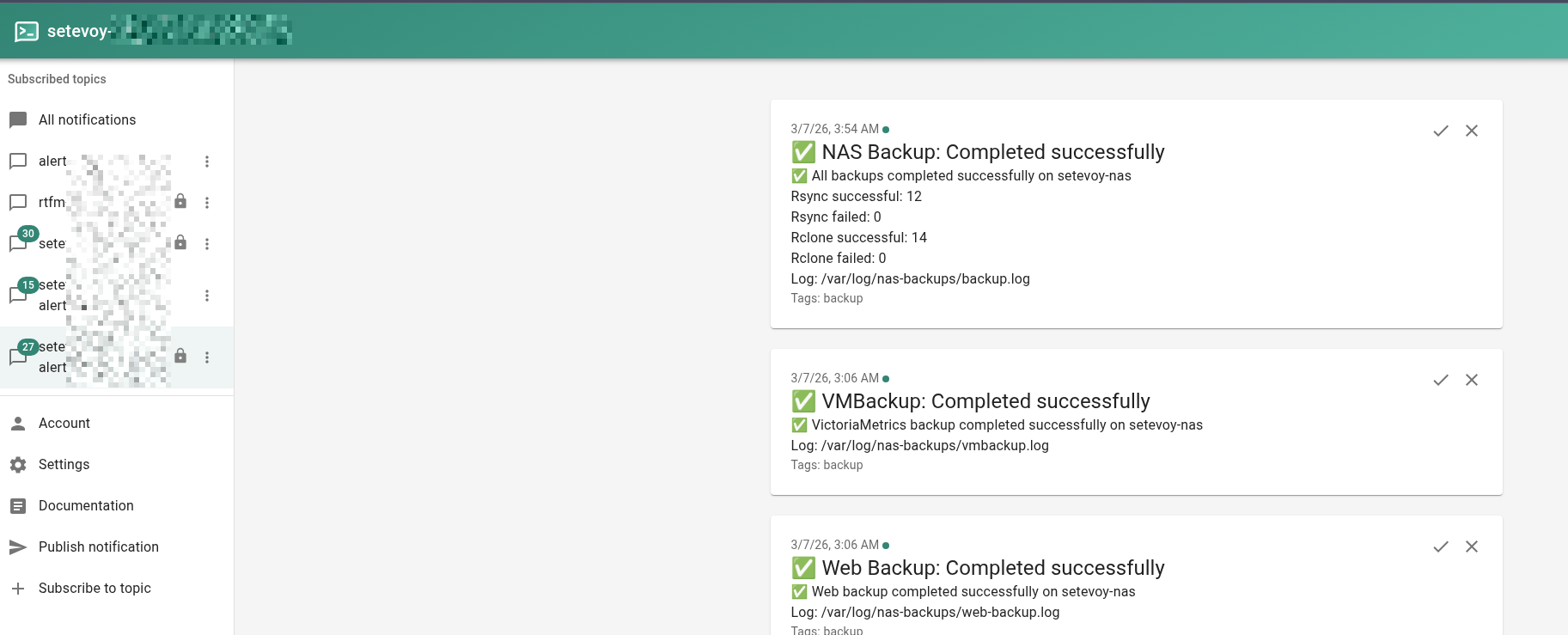
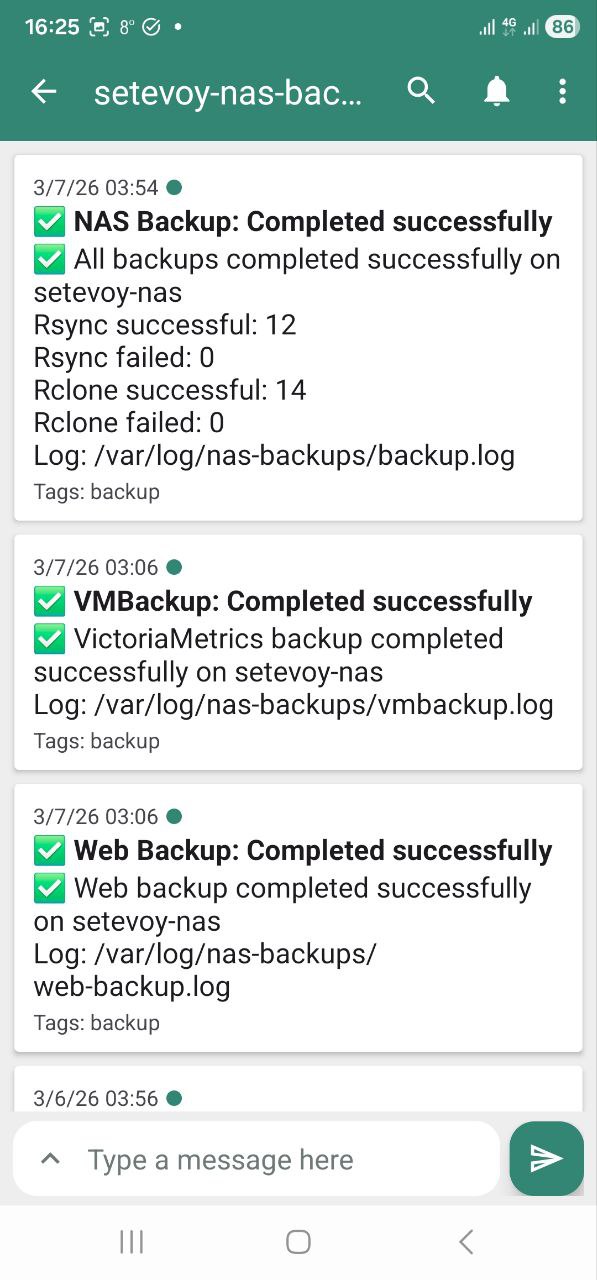
And that’s basically it. The last thing that runs is sending a notification about how the backup went:
...

# Send summary
if [ $BACKUP_FAILED -eq 0 ] && [ $RCLONE_FAILED -eq 0 ]; then
  send_alert "NAS Backup: Completed successfully" "✅ All backups completed successfully on $HOSTNAME
Rsync successful: $BACKUP_SUCCESS
Rsync failed: $BACKUP_FAILED
Rclone successful: $RCLONE_SUCCESS
Rclone failed: $RCLONE_FAILED
Log: $LOGFILE" "white_check_mark,backup"
else
  send_alert "NAS Backup: Completed with errors" "⚠️ Backups completed with errors on $HOSTNAME
Rsync successful: $BACKUP_SUCCESS
Rsync failed: $BACKUP_FAILED
Rclone successful: $RCLONE_SUCCESS
Rclone failed: $RCLONE_FAILED
Log: $LOGFILE"
fi
The script runs via crontab:
root@setevoy-nas:~ # crontab -l
...
0 3 * * * /opt/nas_backup/backup.sh
Example execution output
What all this looks like in the log file and in ntfy.sh notifications.
The start – validator output:
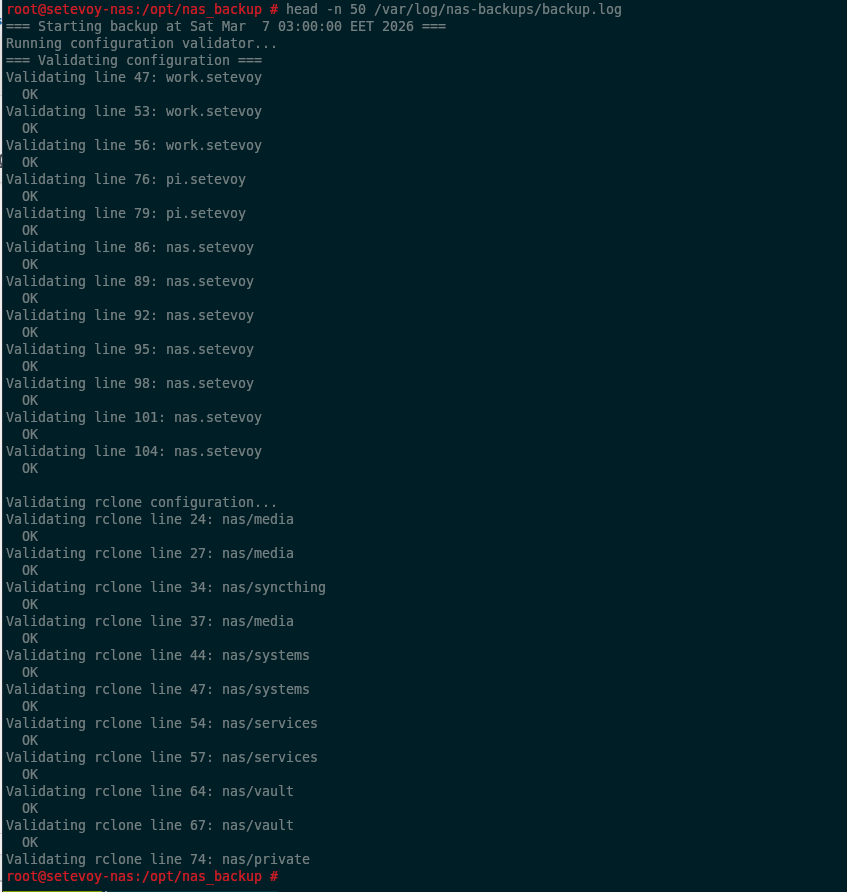
The end – rclone sync execution:
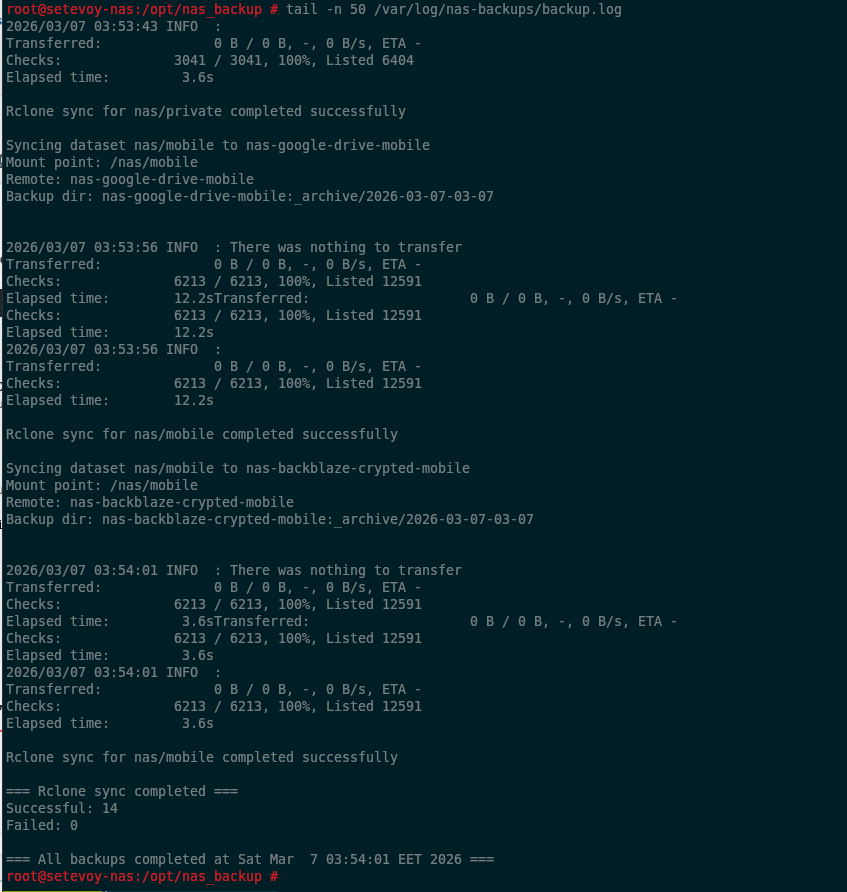
ntfy.sh notification:
And on the phone:
What could be improved
The script(s) are obviously not perfect, and there are things that could still be done:
- the
rsyncandrclonerun logic could be extracted into separate scripts, likevalidate-config.shandvmbackup-backup.shwere - right now the entire execution runs without any way to say “just run web only” or “just run rclone” – could add
getoptorgetopts, parse script arguments, and selectively choose what to run - add an argument for running
rsyncwith--dry-runonly rclonecurrently doesn’t use--ignore-from– could be added- and the “cherry on top” – write metrics to VictoriaMetrics about how many bytes were transferred, how much disk space was used or freed – something like that
That’s it.
For now it’s running as-is – already for a few weeks, no issues so far.
