 Another installment in the FreeBSD Home NAS series, though this one isn’t really about the NAS – it’s purely about running web services.
The full FreeBSD/NAS series starts here – FreeBSD: Home NAS, part 1 – ZFS mirror setup, which now has 15 parts, but FEMP gets its own post.
My FreeBSD host already runs my personal journal, which – just like the RTFM blog – runs on WordPress.
So I need to bring up the standard FEMP stack – FreeBSD + NGINX + PHP-FPM + MariaDB, and also configure virtual hosts for services like Grafana, VictoriaMetrics VM UI, Syncthing WebUI, Jellyfin, and so on.
This is a basic setup without FreeBSD Jails – since these are purely home internal services. Back in 2011-2013 the RTFM blog ran on exactly this kind of setup, except it was MySQL instead of MariaDB back then.
SSL configuration will be a separate post with a self-signed certificate – here all virtual hosts are on standard HTTP port 80.
NGINX/PHP monitoring is described in VictoriaMetrics: basic monitoring for AWS, Linux, NGINX and PHP.
Contents
Installing NGINX
It’s in the repositories, install with pkg:
root@setevoy-nas:~ # pkg install nginx
Enable on startup:
root@setevoy-nas:~ # sysrc nginx_enable="YES"
Start the service:
root@setevoy-nas:~ # service nginx start
Check the port:
root@setevoy-nas:~ # sockstat -4 -l | grep nginx
www      nginx        455 6   tcp4   *:80                  *:*
root     nginx        454 6   tcp4   *:80                  *:*
Verify it works:
root@setevoy-nas:~ # curl localhost:80
<!DOCTYPE html>
<html>
<head>
<title>Welcome to nginx!</title>
...
Configuring NGINX virtual hosts
Create a directory for custom virtual host configs:
root@setevoy-nas:~ # mkdir -p /usr/local/etc/nginx/conf.d
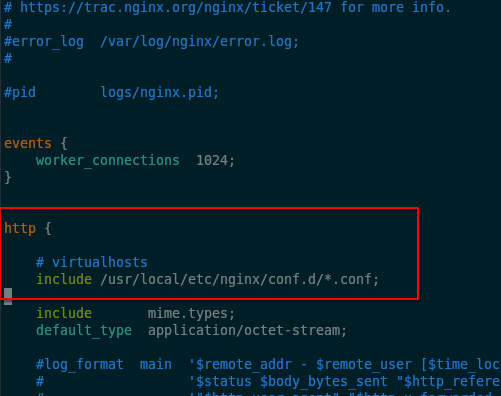
Add an include for this directory to the main config /usr/local/etc/nginx/nginx.conf:
...
http {

    # virtualhosts
    include /usr/local/etc/nginx/conf.d/*.conf;
...
Creating an NGINX virtual host for Grafana
Create a new file /usr/local/etc/nginx/conf.d/grafana.setevoy.conf.
Set the hostname to grafana.setevoy (.setevoy is my local DNS zone on MikroTik), and configure proxy_pass – the address where Grafana is running (for Grafana installation on FreeBSD see FreeBSD: Home NAS, part 10 – monitoring with VictoriaMetrics and Grafana):
server {
    listen 80;
    server_name grafana.setevoy;

    location / {
        proxy_pass         http://127.0.0.1:3000;
        proxy_http_version 1.1;

        proxy_set_header   Host              $host;
        proxy_set_header   X-Real-IP         $remote_addr;
        proxy_set_header   X-Forwarded-For   $proxy_add_x_forwarded_for;
        proxy_set_header   X-Forwarded-Proto $scheme;

        proxy_set_header   Upgrade           $http_upgrade;
        proxy_set_header   Connection        "upgrade";
    }
}
Check the config syntax and reload NGINX:
root@setevoy-nas:~ # nginx -t && service nginx reload
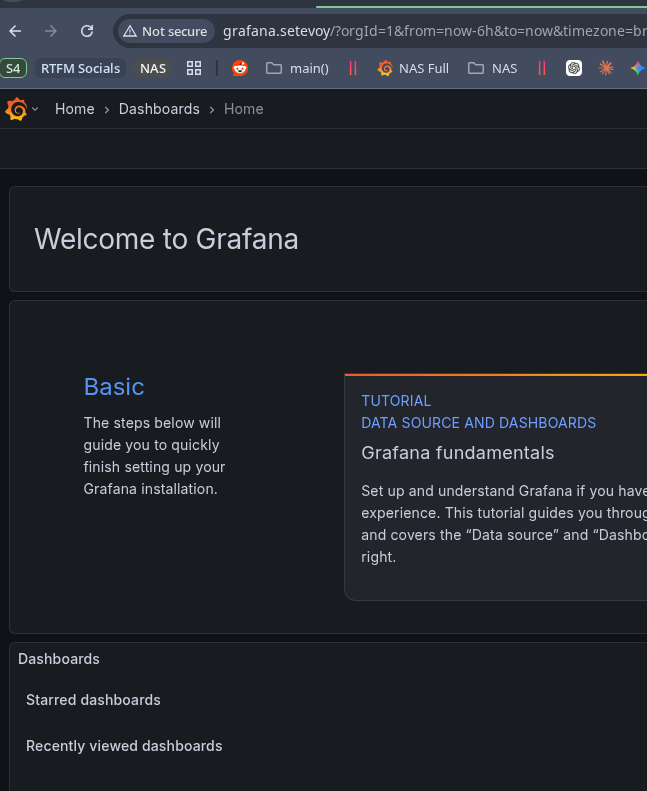
Open http://grafana.setevoy in the browser:
Creating an NGINX virtual host for VictoriaMetrics and redirects
Unlike Grafana, accessing the VM UI in VictoriaMetrics requires the /vmui/ URI – so let’s configure a redirect right away: if a request comes in for victoria.setevoy – redirect to victoria.setevoy/vmui/:
server {
    listen 80;
    server_name victoria.setevoy;

    location = / {
        return 301 /vmui/;
    }

    location / {
        proxy_pass         http://127.0.0.1:8428;
        proxy_http_version 1.1;

        proxy_set_header   Host              $host;
        proxy_set_header   X-Real-IP         $remote_addr;
        proxy_set_header   X-Forwarded-For   $proxy_add_x_forwarded_for;
        proxy_set_header   X-Forwarded-Proto $scheme;
    }
}
Installing PHP and PHP-FPM
Install from the repository with pkg:
root@setevoy-nas:~ # pkg install -y php84 php84-extensions
Create a custom php.ini:
root@setevoy-nas:~ # cp /usr/local/etc/php.ini-production /usr/local/etc/php.ini
Create a PHP-FPM config file – /usr/local/etc/php-fpm.d/blog.setevoy.conf.
Set the FPM parameters (see PHP-FPM: Process Manager – dynamic vs ondemand vs static – from 2018, but the mechanics are the same).
Key settings in the config:
user&&group: owner of the PHP processeslisten: using a Unix socket instead of TCPlisten.ownerandlisten.group: owner of the socket file –www, since NGINX needs access to itpm = dynamic: dynamic pool of FPM workerspm.max_children: maximum number of PHP processes for this poolpm.start_servers: how many processes to create on FPM start/restartpm.min_spare_serversandpm.max_spare_servers: minimum and maximum idle processes
The resulting file for WordPress looks like this:
[blog.setevoy]
user = setevoy
group = setevoy

listen = /var/run/php-fpm/blog.setevoy.sock
listen.owner = www
listen.group = www
listen.mode = 0660

pm = dynamic
pm.max_children = 5
pm.start_servers = 2
pm.min_spare_servers = 1
pm.max_spare_servers = 3

slowlog = /var/log/nginx/blog.setevoy-slow.log
php_flag[display_errors] = off
php_admin_value[display_errors] = on
php_admin_value[error_log] = /var/log/nginx/blog.setevoy-php-error.log
php_admin_flag[log_errors] = on
php_admin_value[upload_max_filesize] = 128M
php_admin_value[post_max_size] = 128M
And as a reference – the current config for rtfm.co.ua itself – except it runs in AWS on an EC2 with Amazon Linux:
[rtfm.co.ua]

; run workers as this user
user = rtfm
group = rtfm

; unix socket path for nginx upstream
listen = /var/run/rtfm.co.ua-php-fpm.sock

; socket owner - must match nginx user
listen.owner = nginx
listen.group = nginx

; process manage settings
pm = dynamic                   ; dynamic - spawn/kill workers based on load
pm.max_children = 8            ; max workers total
pm.start_servers = 2           ; workers on startup
pm.min_spare_servers = 2       ; min idle workers
pm.max_spare_servers = 4       ; max idle workers
pm.process_idle_timeout = 10s  ; kill idle workers after N seconds
pm.max_requests = 500          ; restart worker after N requests (prevents memory leaks)

; write worker stderr to main fpm log
catch_workers_output = yes
; worker startup directory
chdir = /
; endpoint for fpm status page (use in nginx location)
pm.status_path = /fpm-status

; fpm-level log for requests slower than request_slowlog_timeout
slowlog = /var/log/php/rtfm.co.ua/rtfm.co.ua-slow.log

; php ini overrides - php_admin_value cannot be overridden by app code
php_admin_value[display_errors] = off
php_admin_value[error_log] = /var/log/php/rtfm.co.ua/rtfm.co.ua-error.log
php_admin_flag[log_errors] = on

; sessions - make sure /var/lib/php/session/rtfm exists, owner rtfm:rtfm
php_admin_value[session.save_path] = /var/lib/php/session/rtfm
php_value[session.save_handler] = files

; max upload size
php_admin_value[upload_max_filesize] = 128M
php_admin_value[post_max_size] = 128M
php_admin_value[memory_limit] = 256M
Create the directory for sockets:
root@setevoy-nas:~ # mkdir -p /var/run/php-fpm
Enable PHP-FPM on startup:
root@setevoy-nas:~ # sysrc php_fpm_enable="YES"
Start it:
root@setevoy-nas:~ # service php_fpm start
Performing sanity check on php-fpm configuration:
[18-Feb-2026 18:21:59] NOTICE: configuration file /usr/local/etc/php-fpm.conf test is successful
Starting php_fpm.
Verify the socket file exists and has the correct permissions:
root@setevoy-nas:~ # ls -la /var/run/php-fpm/php-fpm.sock
srw-rw----  1 www www 0 Feb 18 18:21 /var/run/php-fpm/php-fpm.sock
Creating an NGINX virtual host to test PHP
Add a new virtual host for NGINX – file /usr/local/etc/nginx/conf.d/blog.setevoy.conf:
server {
    listen 80;
    server_name blog.setevoy;

    root /usr/local/www/blog.setevoy;
    index index.php index.html;

    access_log /var/log/nginx/blog.setevoy.access.log;
    error_log  /var/log/nginx/blog.setevoy.error.log;

    location / {
        try_files $uri $uri/ /index.php?$args;
    }

    location ~ \.php$ {
        fastcgi_pass  unix:/var/run/php-fpm/blog.setevoy.sock;
        fastcgi_index index.php;
        fastcgi_param SCRIPT_FILENAME $document_root$fastcgi_script_name;
        include       fastcgi_params;
    }

    location ~ /\.ht {
        deny all;
    }
}
Create the directory for the future blog files:
root@setevoy-nas:~ # mkdir -p /usr/local/www/blog.setevoy
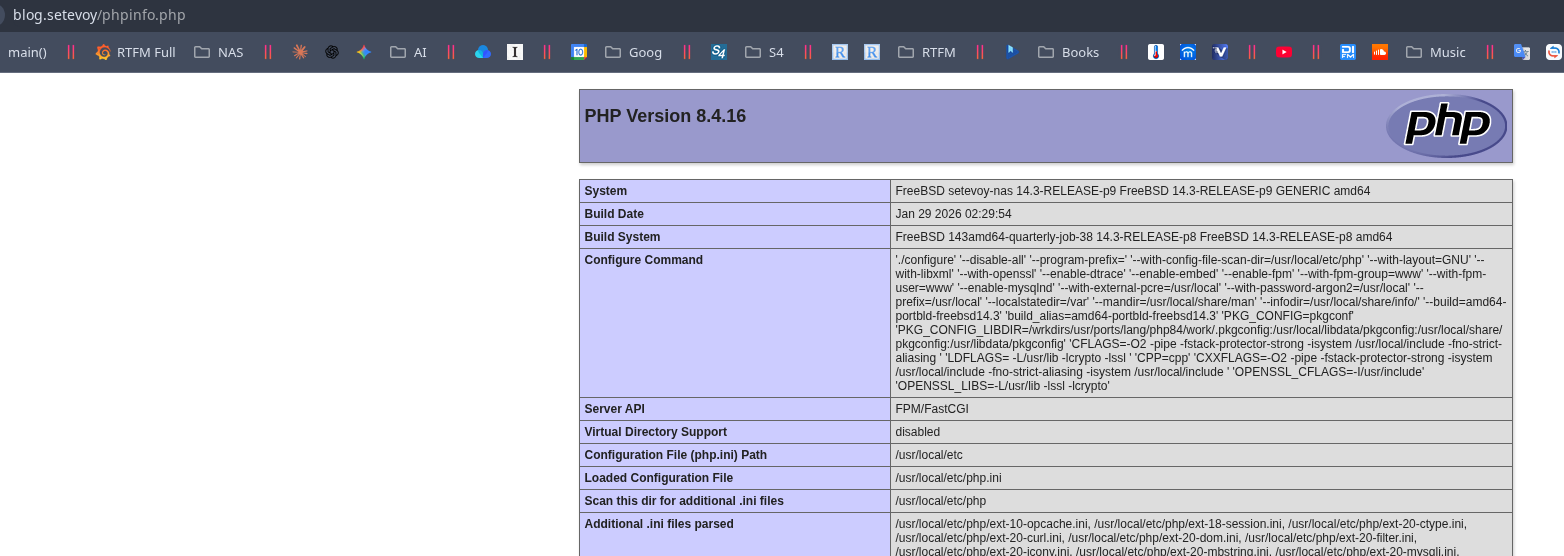
Add a single file with a phpinfo() call for testing:
root@setevoy-nas:~ # echo "<?php phpinfo();" > /usr/local/www/blog.setevoy/phpinfo.php
Set the owner:
root@setevoy-nas:~ # chown -R setevoy:setevoy /usr/local/www/blog.setevoy
Check in the browser at http://blog.setevoy/phpinfo.php:
Installing MariaDB
Find the latest available version:
root@setevoy-nas:~ # pkg search mariadb | grep server
mariadb1011-server-10.11.15    Multithreaded SQL database (server)
mariadb106-server-10.6.24      Multithreaded SQL database (server)
mariadb114-server-11.4.9       Multithreaded SQL database (server)
Install MariaDB 11.4:
root@setevoy-nas:~ # pkg install mariadb114-server
Enable on startup and start:
root@setevoy-nas:~ # sysrc mysql_enable="YES"
root@setevoy-nas:~ # service mysql-server start
Run mariadb-secure-installation for default hardening:
root@setevoy-nas:~ # mariadb-secure-installation
Go through the main prompts – you can just answer “yes” to everything, just make sure to set a root password:
root@setevoy-nas:~ # mariadb-secure-installation
/usr/local/bin/mysql_secure_installation: Deprecated program name. It will be removed in a future release, use 'mariadb-secure-installation' instead
...
Switch to unix_socket authentication [Y/n]
Enabled successfully!
Reloading privilege tables..
 ... Success!

...
Change the root password? [Y/n]
New password:
Re-enter new password:
Password updated successfully!
Reloading privilege tables..
 ... Success!

...
Remove anonymous users? [Y/n]
 ... Success!

...
Disallow root login remotely? [Y/n]
 ... Success!

...
Remove test database and access to it? [Y/n]
 - Dropping test database...
 ... Success!
 - Removing privileges on test database...
 ... Success!

...
Reload privilege tables now? [Y/n]
 ... Success!

Cleaning up...

All done!  If you've completed all of the above steps, your MariaDB
installation should now be secure.

Thanks for using MariaDB!
Creating a MariaDB database and user
Connect to the server:
root@setevoy-nas:~ # mysql -u root -p
Enter password:
Welcome to the MariaDB monitor.  Commands end with ; or \g.
Your MariaDB connection id is 13
Server version: 11.4.9-MariaDB FreeBSD Ports

Copyright (c) 2000, 2018, Oracle, MariaDB Corporation Ab and others.

Type 'help;' or '\h' for help. Type '\c' to clear the current input statement.

root@localhost [(none)]>
Create the database, user with password, and grant access:
root@localhost [(none)]> CREATE DATABASE blog_test CHARACTER SET utf8mb4 COLLATE utf8mb4_unicode_ci;
Query OK, 1 row affected (0.003 sec)

root@localhost [(none)]> CREATE USER 'blog-test'@'localhost' IDENTIFIED BY 'localpass';
Query OK, 0 rows affected (0.001 sec)

root@localhost [(none)]> GRANT ALL PRIVILEGES ON blog_test.* TO 'blog-test'@'localhost';
Query OK, 0 rows affected (0.001 sec)

root@localhost [(none)]> FLUSH PRIVILEGES;
Query OK, 0 rows affected (0.001 sec)
Exit and try connecting with this user:
root@setevoy-nas:~ # mysql -u blog-test -p blog_test
Enter password:
Welcome to the MariaDB monitor.  Commands end with ; or \g.
Your MariaDB connection id is 14
Server version: 11.4.9-MariaDB FreeBSD Ports

Copyright (c) 2000, 2018, Oracle, MariaDB Corporation Ab and others.

Type 'help;' or '\h' for help. Type '\c' to clear the current input statement.

blog-test@localhost [blog_test]>
Installing WordPress
Download the archive with the latest release, extract it, copy the files to /usr/local/www/blog.setevoy/:
root@setevoy-nas:~ # fetch https://wordpress.org/latest.tar.gz -o /tmp/latest.tar.gz
root@setevoy-nas:~ # tar -xzf /tmp/latest.tar.gz -C /tmp/

root@setevoy-nas:~ # cp -r /tmp/wordpress/* /usr/local/www/blog.setevoy/

root@setevoy-nas:~ # chown -R setevoy:setevoy /usr/local/www/blog.setevoy/
Open in the browser – WordPress complains about missing PHP extensions:
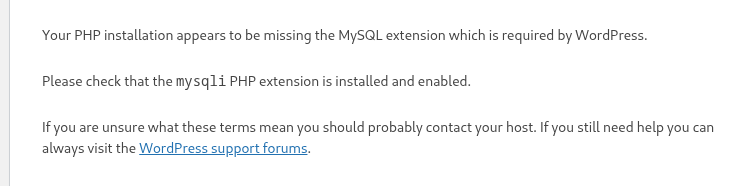
Install them:
root@setevoy-nas:~ # pkg install php84-mysqli php84-pdo_mysql
root@setevoy-nas:~ # service php-fpm restart
Start the installation:
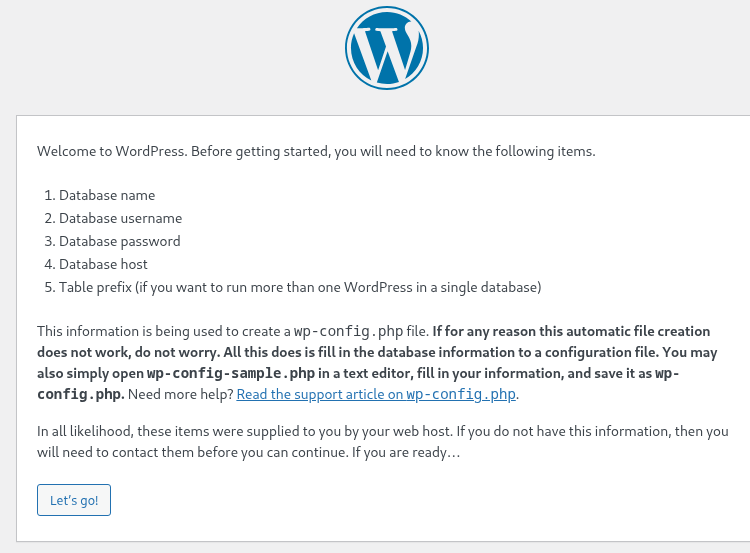
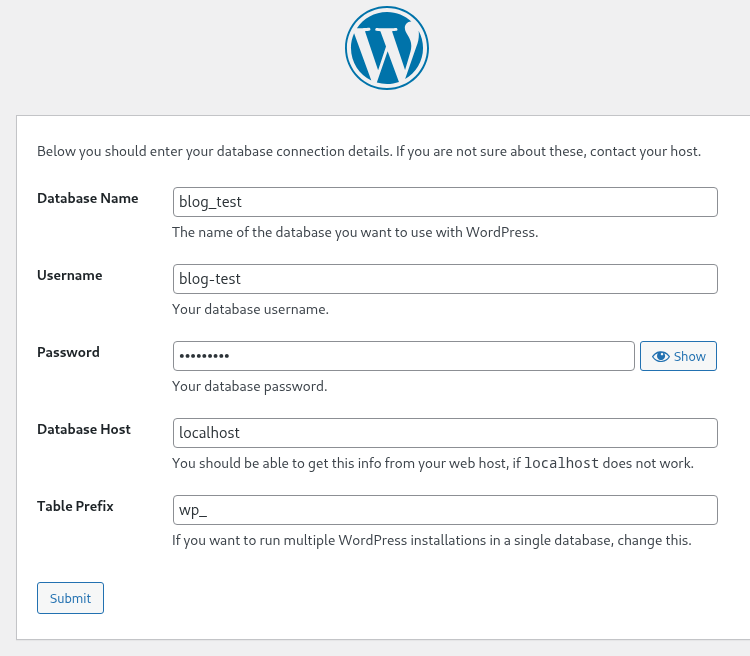
Enter the database name, user, password, and MariaDB host:
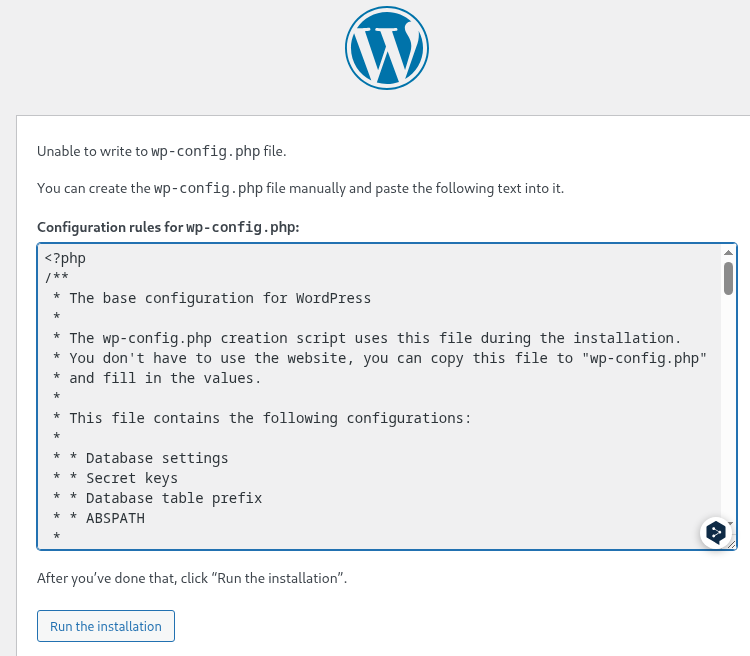
WordPress should create the wp-config.php file itself, but OK – copy the contents and create it manually:
But another error – “Call to undefined function WpOrg\Requests\gzinflate()“:
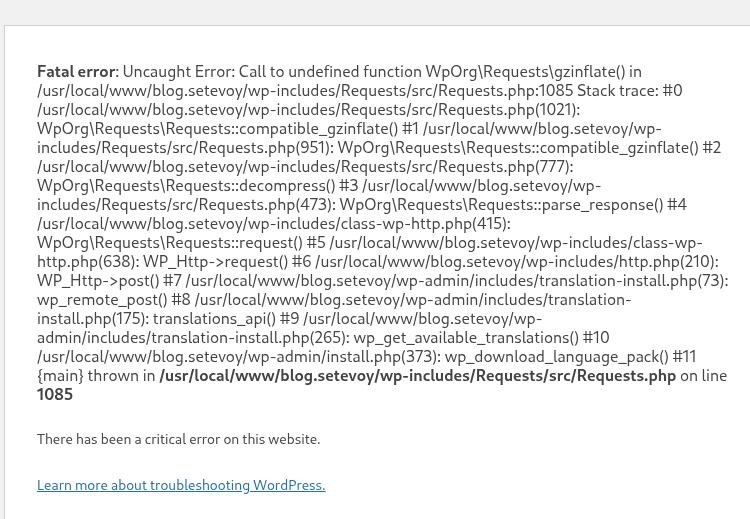
Install one more PHP package:
root@setevoy-nas:~ # pkg install php84-zlib

root@setevoy-nas:~ # service php_fpm restart
And now everything works – complete the setup:
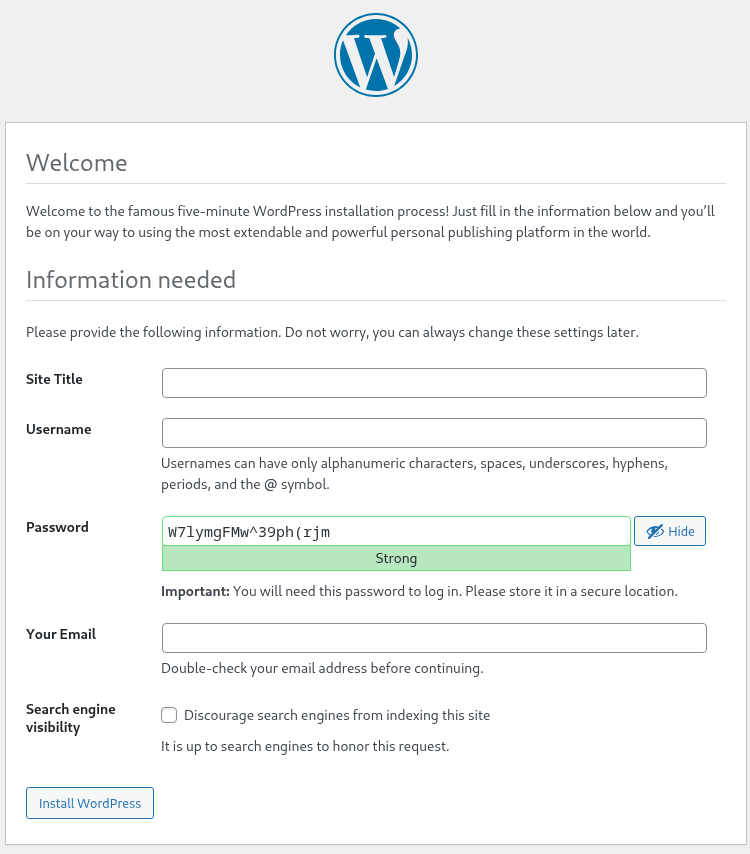
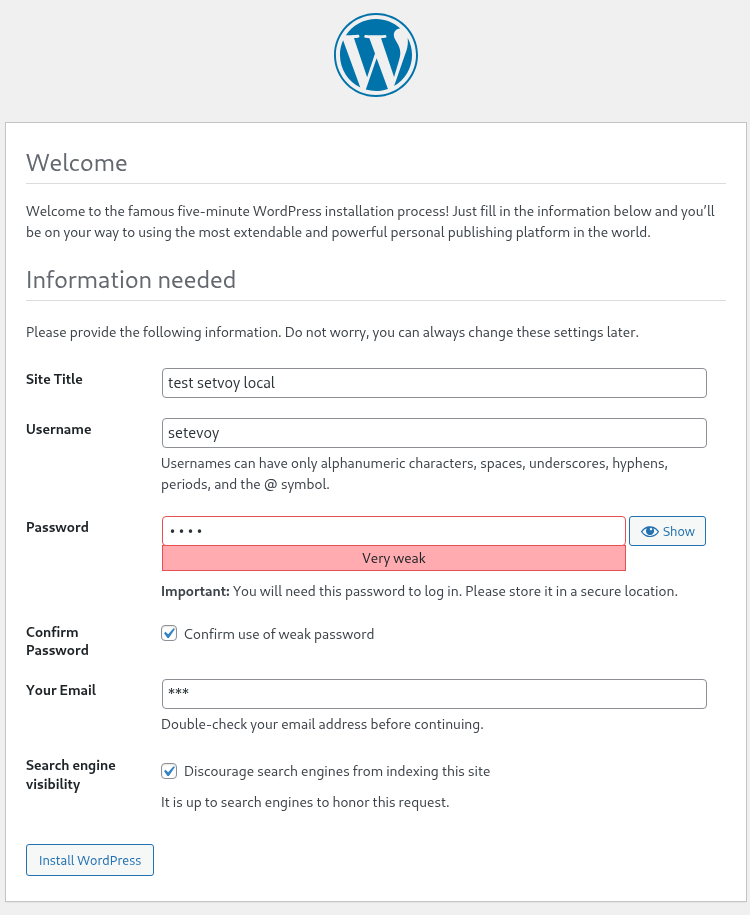
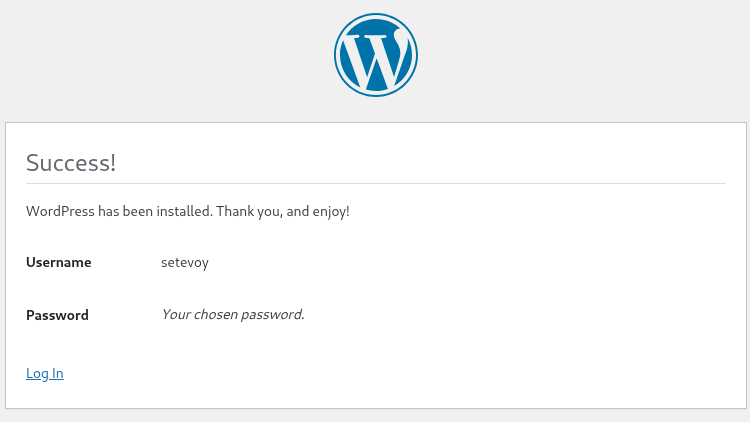
Done:
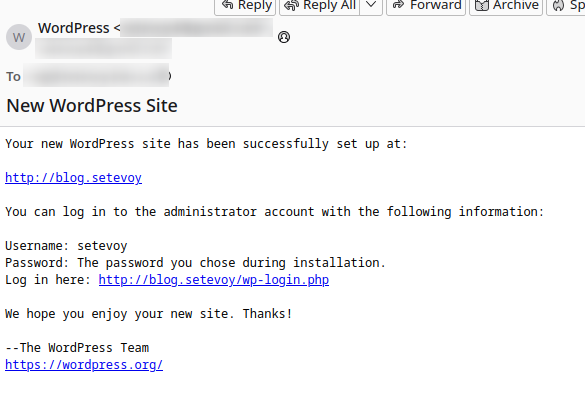
And an email even arrived, because FreeBSD has DragonFly Mail Agent configured – see FreeBSD: configuring DragonFly Mail Agent for root mail:
Log in to the blog admin panel:
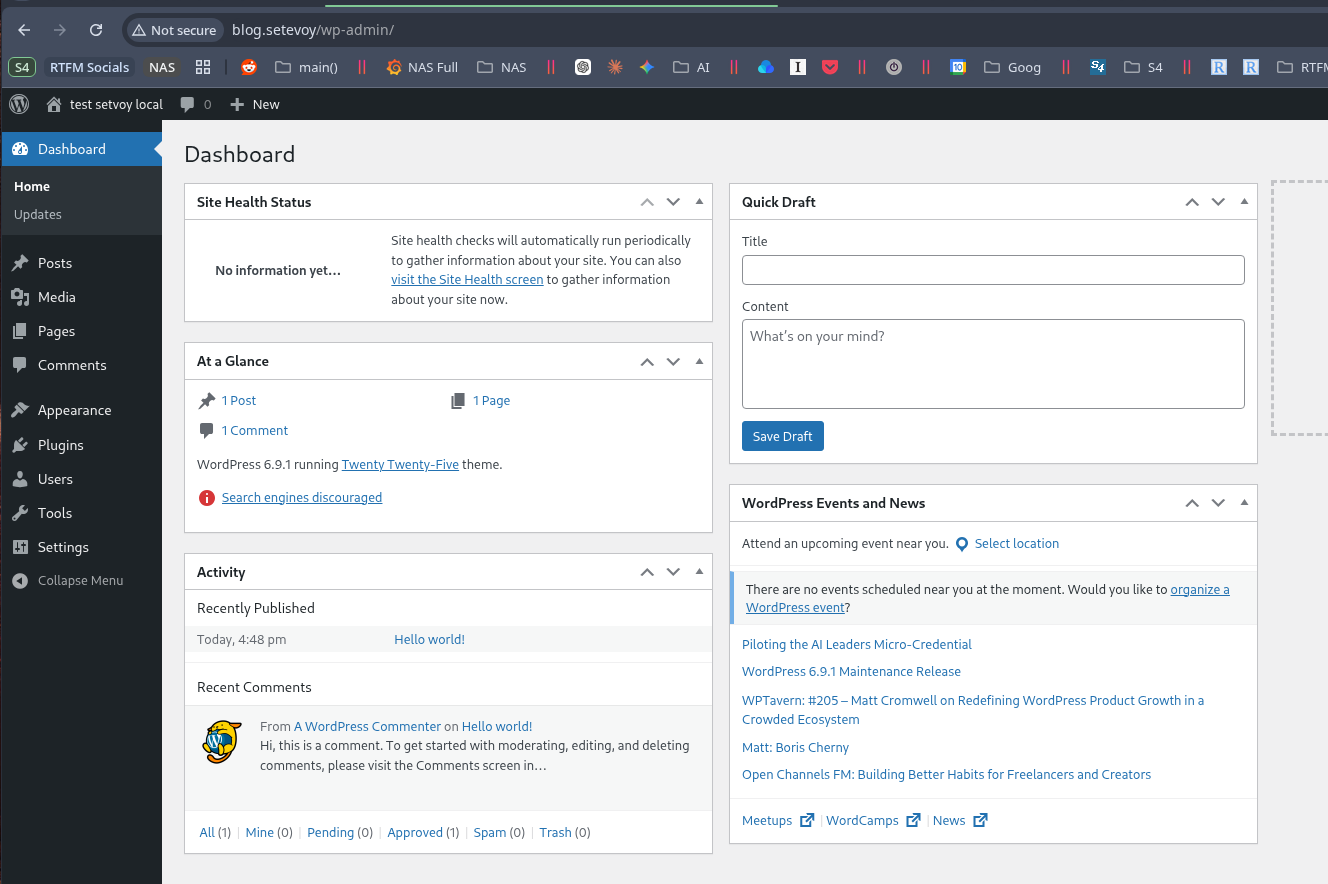
Everything works.
Done.
