 In the post Preparing for Winter 2026-2027: “And So It Begins” – Getting Ready for Winter and Blackouts (in Ukrainian only, as it’s too specific), I wrote that I’d ordered myself a Starlink – it finally arrived, and I finally got it connected.
I thought there wouldn’t be much to write about – but there are a few details worth sharing.
Contents
Ordering Starlink – Adaptis
I decided not to order directly from Starlink – it takes a long time to arrive, and if something goes wrong, getting technical support could be a real pain.
A colleague said he’d bought his from Adaptis (again, Ukraine) and everything was fine, so I decided to order from them too.
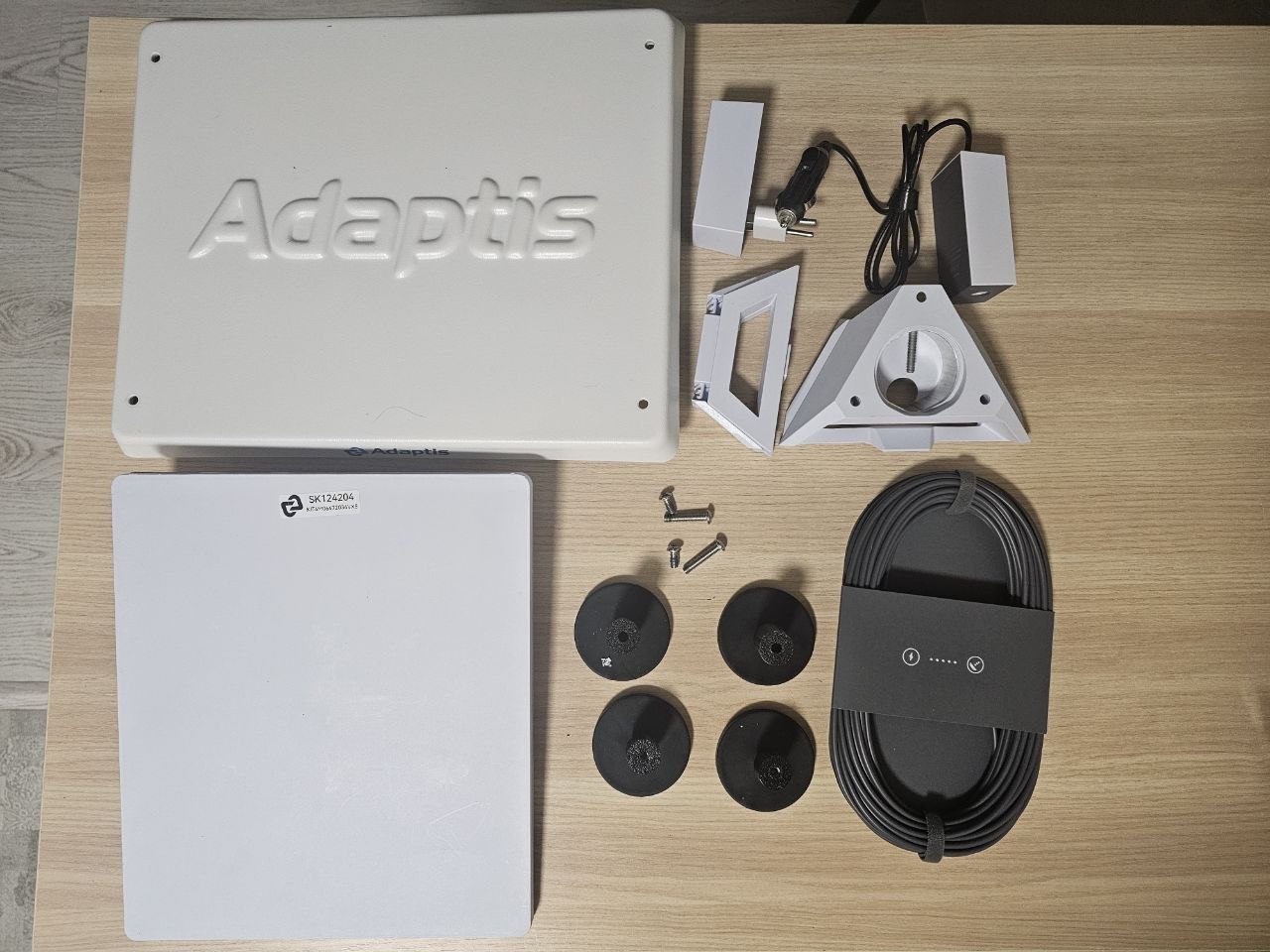
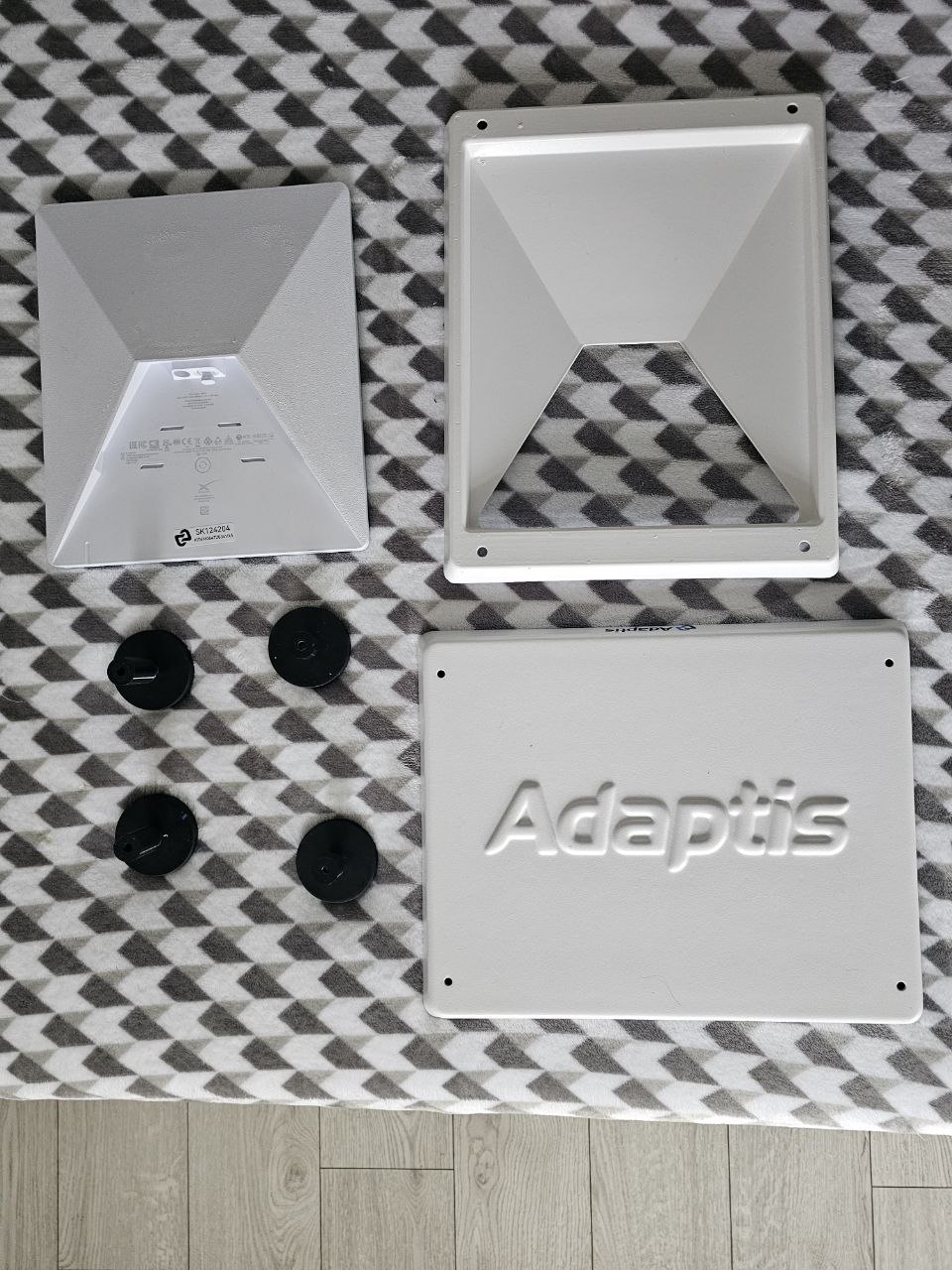
Besides, these guys make magnetic mounting kits for car roofs – and I’m going to put mine on an air conditioner.
Note: I got curious, but seriously, don’t stick the feet with neodymium magnets together – separating them afterwards is a real pain in the ass, and the magnets can tear through the rubber.
The kit is available here – Adaptis MiniKit for mounting Starlink Mini and Mini X on a car, and along with it I ordered Adaptis Amulet – they somehow “upgrade” the terminal so it can work properly when electronic warfare (EW, well – Ukraine again 🙂 ) systems are active.
I didn’t dig into the technical details of this Amulet – just took their word for it:

I specifically went with Starlink Mini – I already have gigabit GPON, and Starlink is purely a backup that I’ll turn on only when needed (or maybe never at all, or someday in the village).
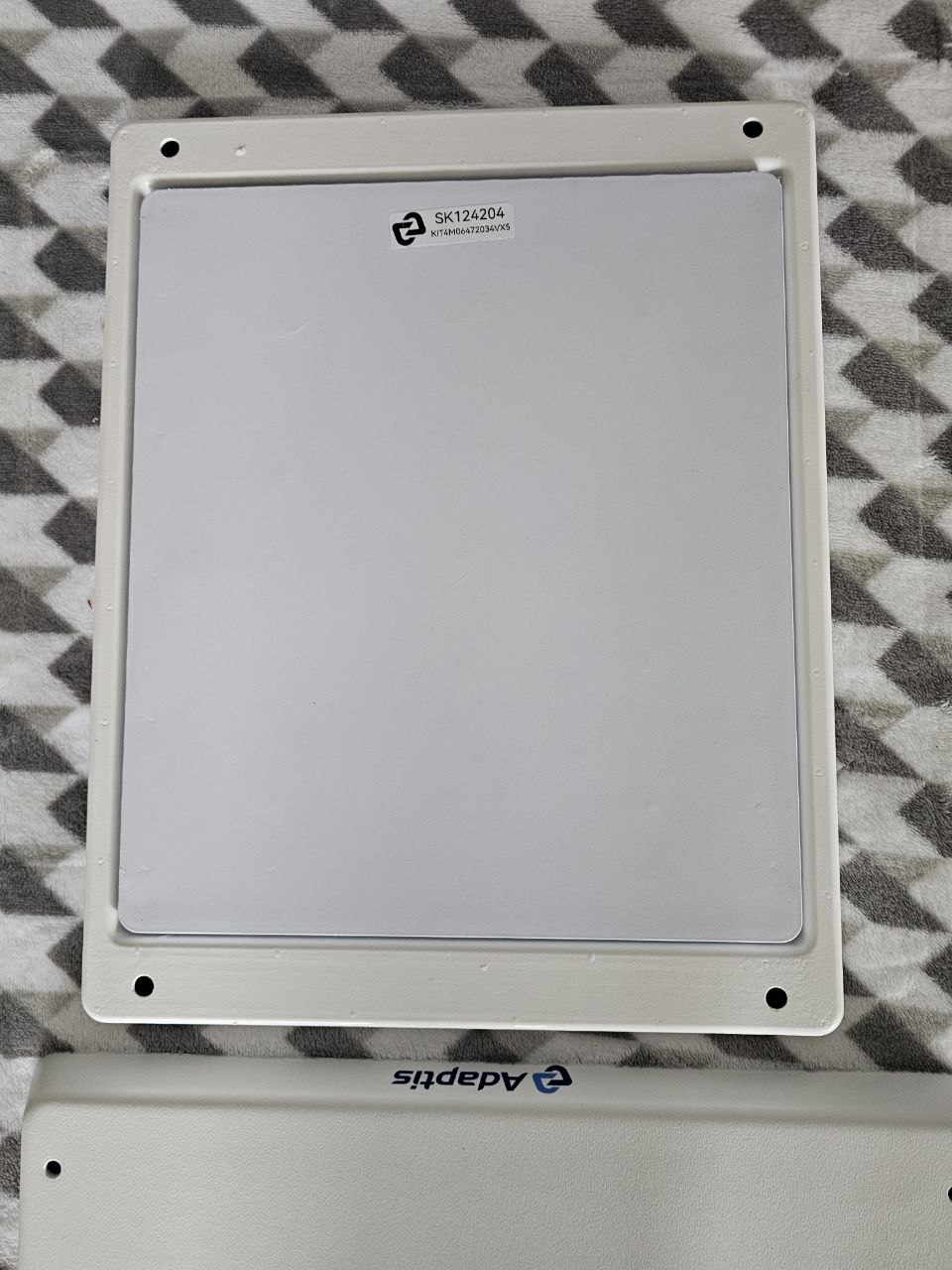
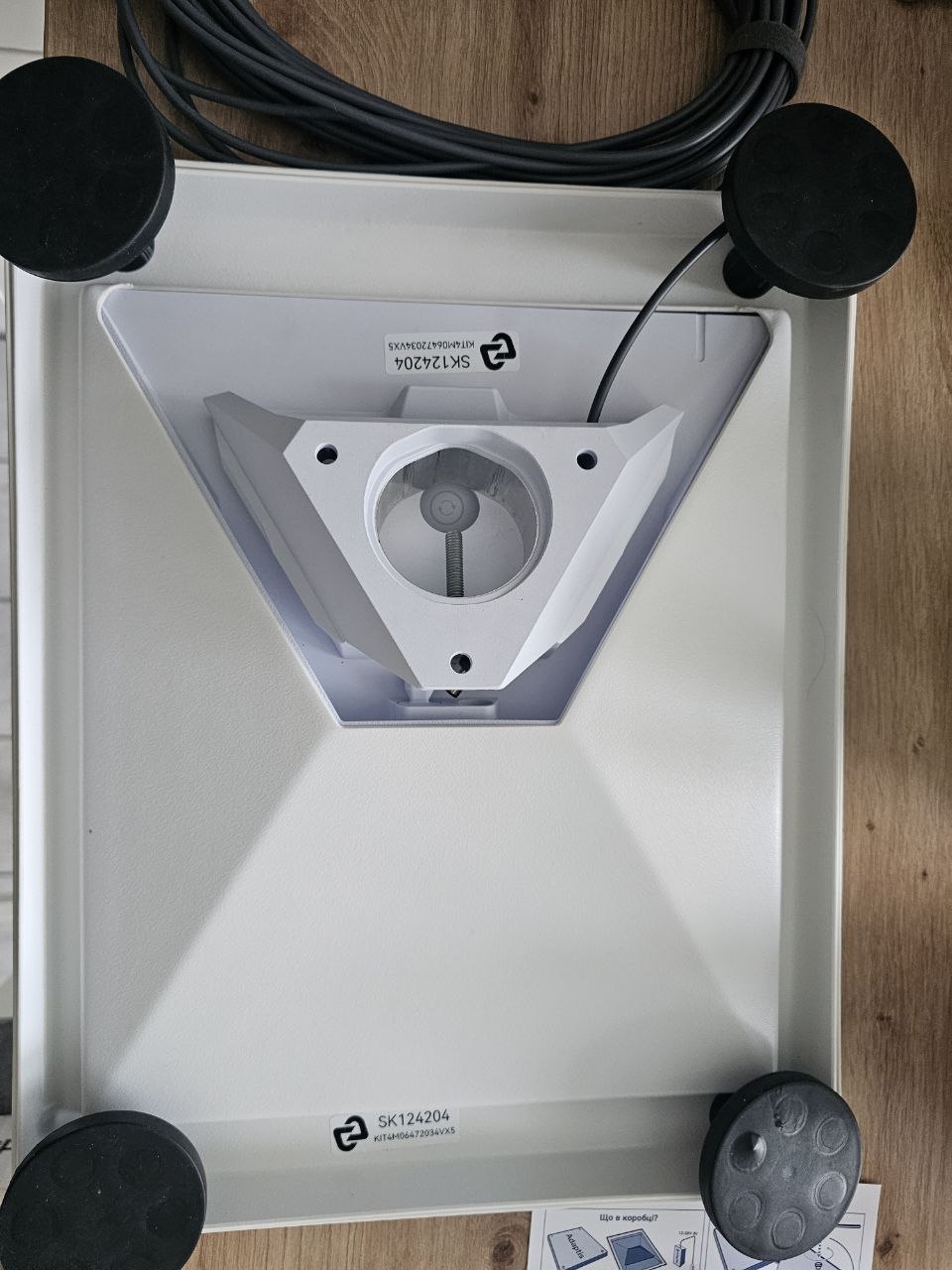
The kit itself looks like this:
Installation – Window and Air Conditioner
My main concern was how to install it and how to mount it.
Then I read that people simply put it outside a window – the important thing is to have at least part of the sky unobstructed.
Luckily, my window and air conditioner face the open side of the residential complex – basically, half the sky and the horizon are completely unobstructed, so it worked out pretty well (more on the speed at the end):
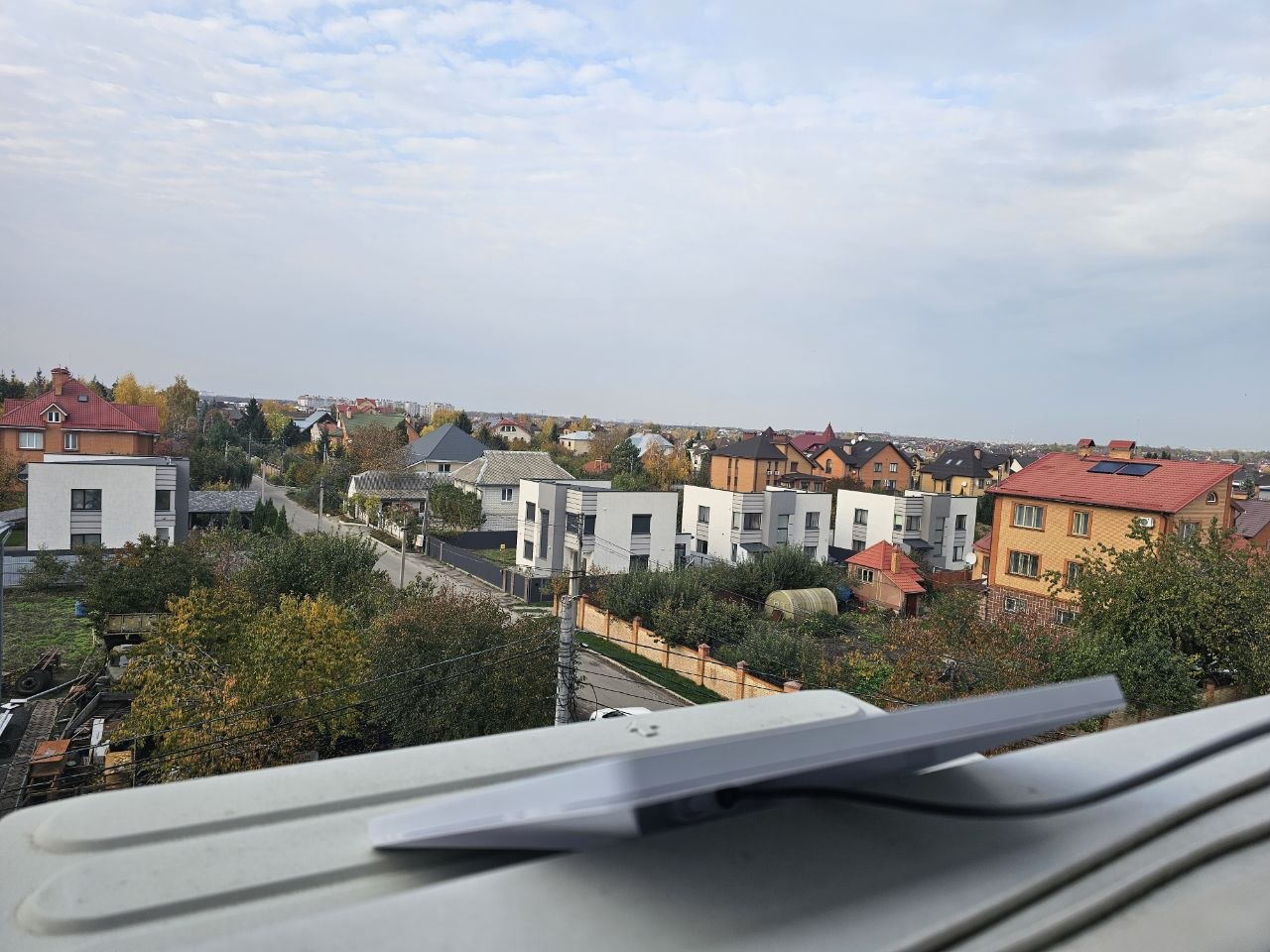
On the left you can see my old antenna, from the days of the “square sect” – for boosting mobile internet. I installed it in late 2022 after the first blackouts (see Networking: When the Power Is Out – ZTE 4G Modem + External Antenna):
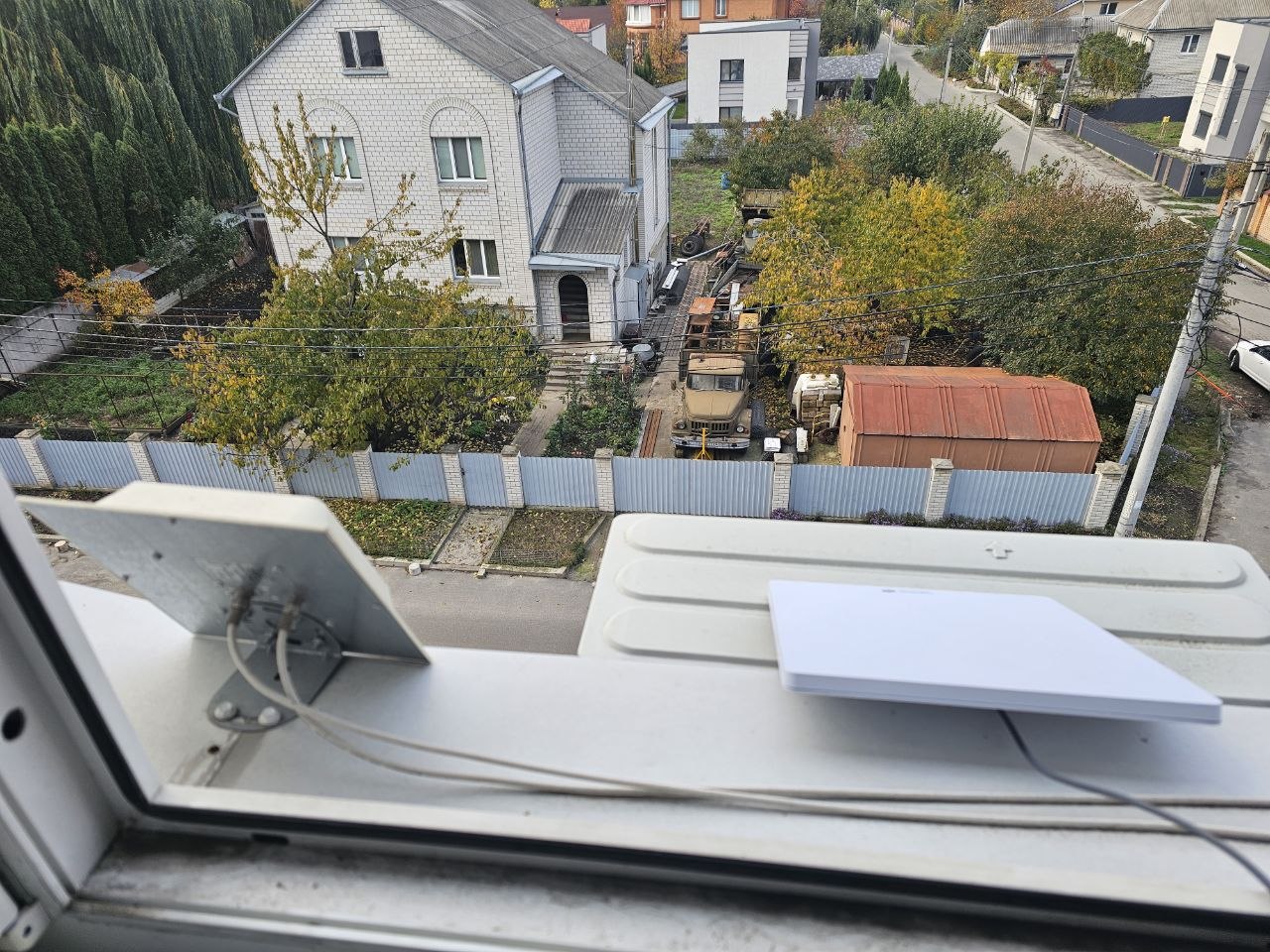
I haven’t mounted the Adaptis housing yet – I don’t plan to use Starlink all the time, and I don’t want to have to rip it off the air conditioner later, since I’ve already “played around” with those magnets 🙂
If I do need to turn the terminal on, I’ll either run a cable to my MikroTik, which sits in the box with the NAS and has a cable running to my laptop – or just connect the laptop to the WiFi on Starlink’s built-in router:
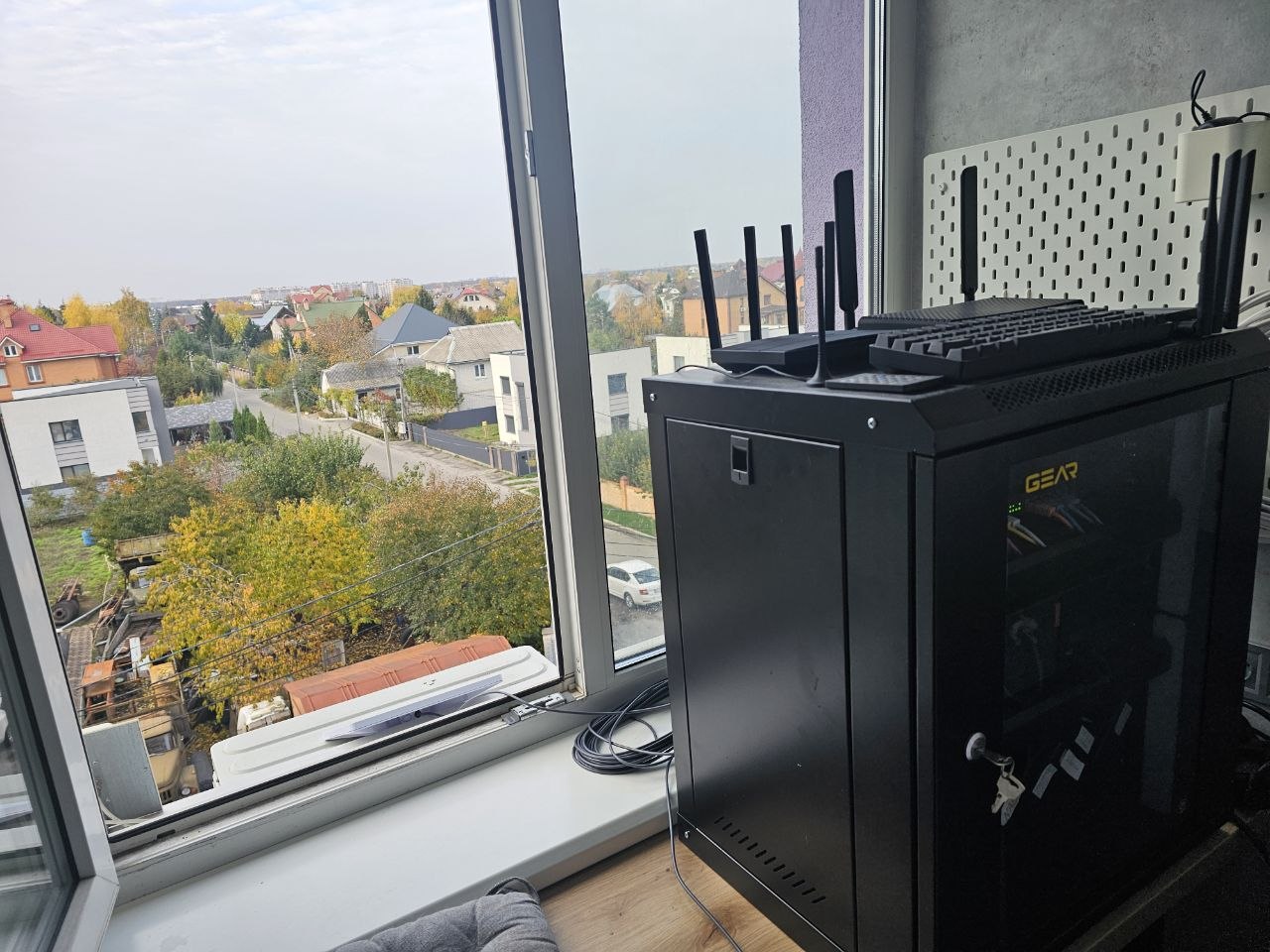
Registering Starlink at a Administrative Service Center (Ukraine)
Another little thing I was worried about – how registering the terminal in Ukraine would go.
Note: this registration procedure is specific to Ukraine.
But it went completely smoothly. The main thing is to bring all the numbers with you – and the dish itself, too. Luckily, the Starlink Mini is small and fits easily into a regular backpack.
You need five identifiers:
- SK: on the device
- KIT: on the device and in the Starlink account
- Account ID: in the account
- Starlink ID (UTID): in the account
- Serial Number (Dish ID): in the account
The SK000000 and KI00000000 numbers will also be needed when setting things up in the Starlink app.
Write down the SK and KIT numbers – then find the rest on the website or in the mobile app.
By the way, I created my account from the mobile app, not the website (or maybe I just couldn’t find that option on the website).
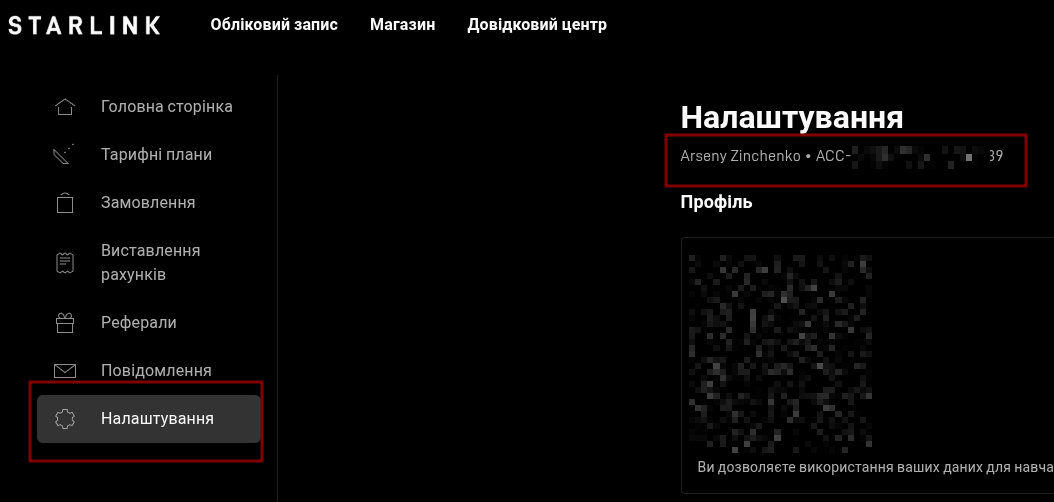
The Account ID is available on the website (yes, the website this time, though it’s in the mobile app too), on the account settings page:
It looks like ACC-DF-********-*****-39 (no idea if I really need to hide these, but old habits die hard):
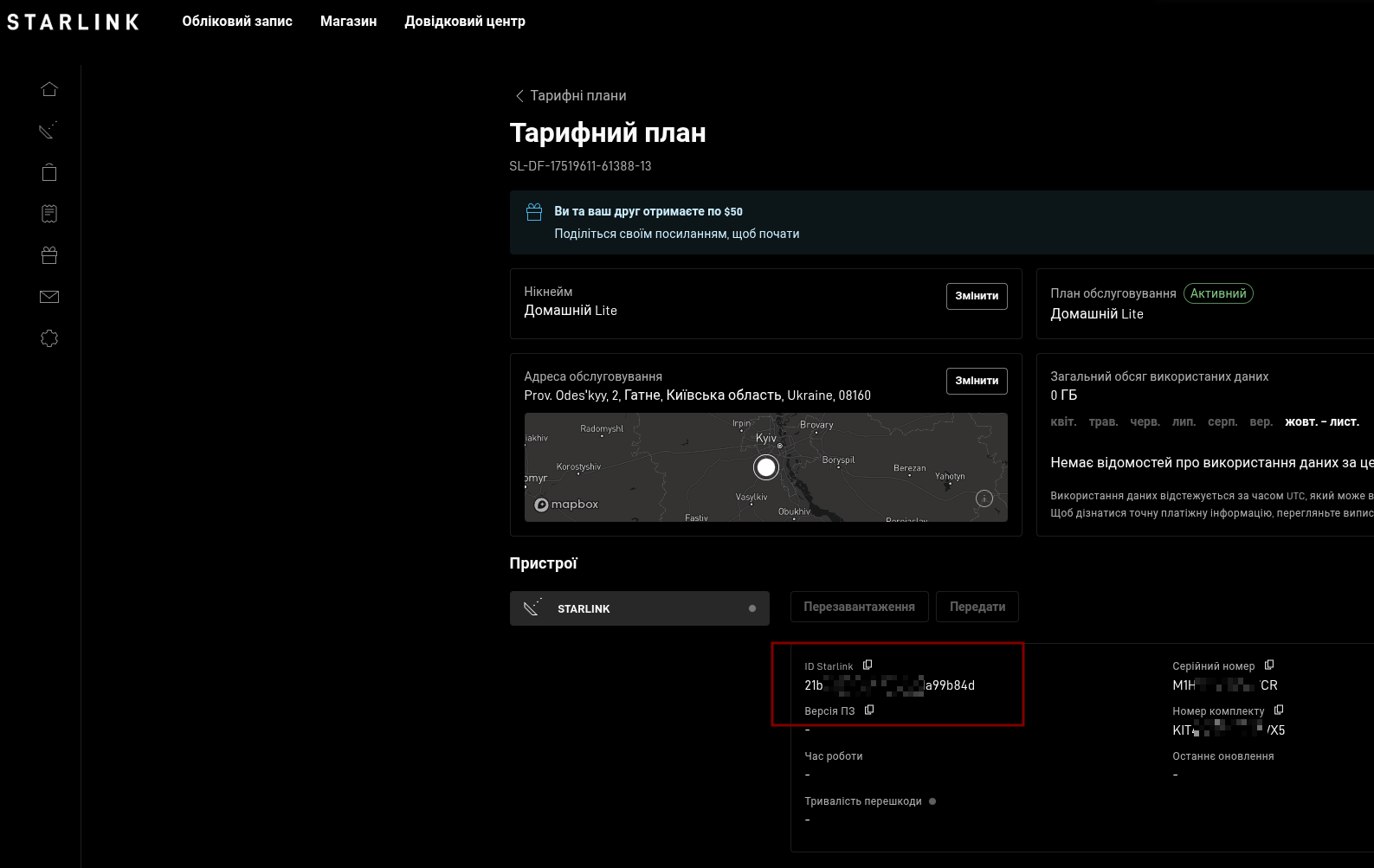
The second identifier is the Starlink ID (UTID), which you can find on the Service Plan page:
It looks like 21****02-08****0c-1a****4d:
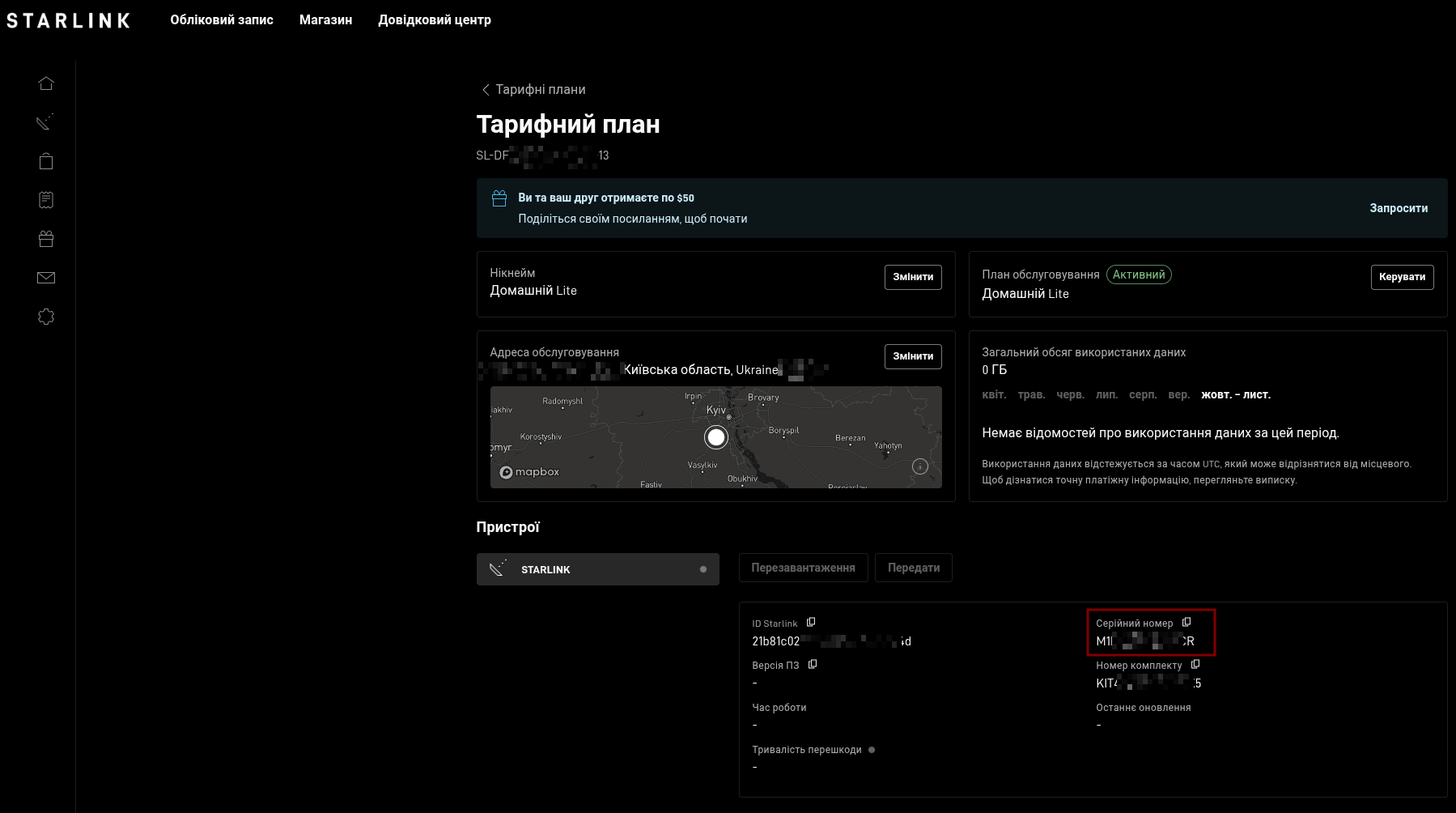
The Serial Number (Dish ID) is on that same page:
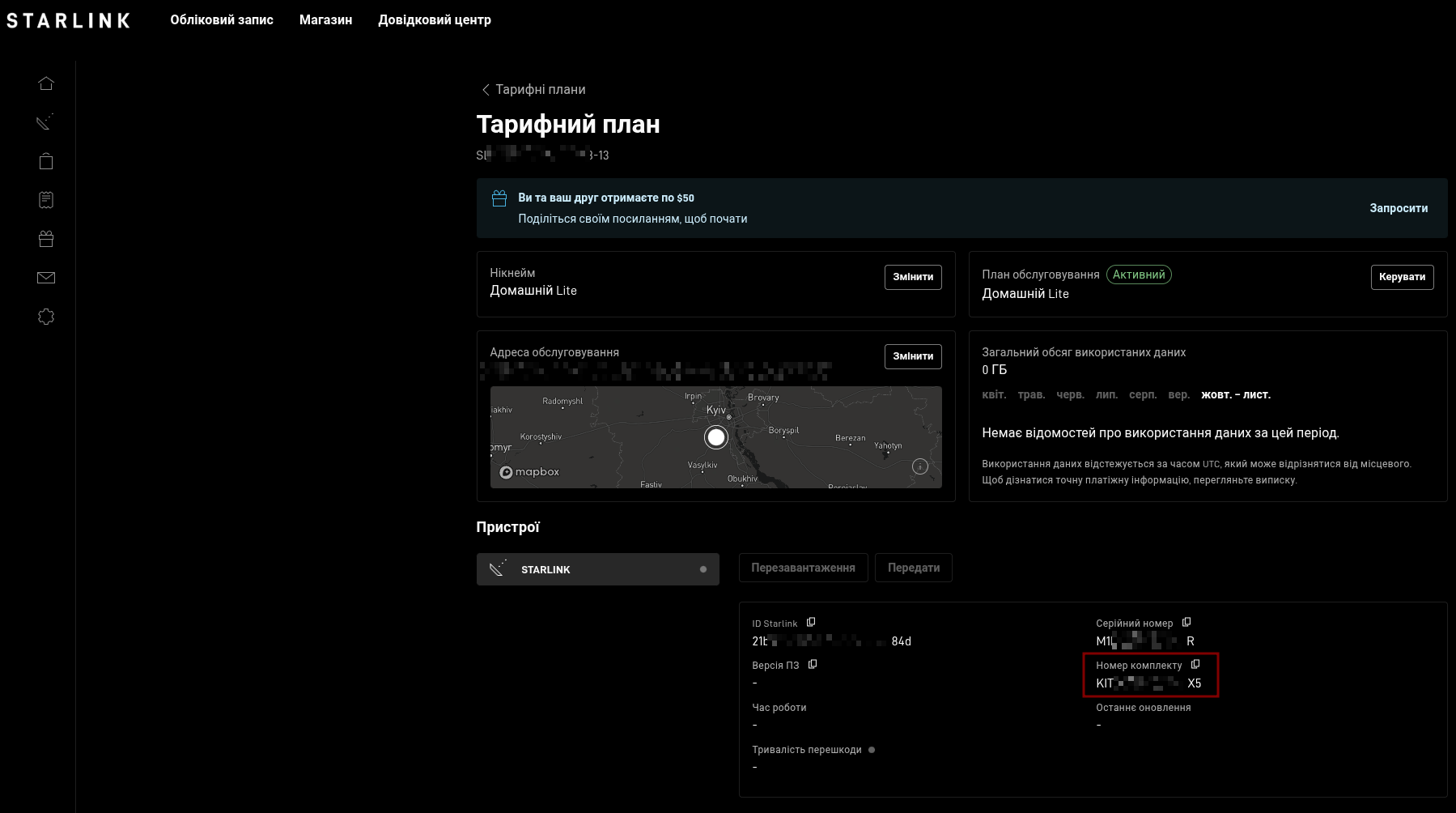
And if you don’t have the dish handy, the Kit ID is also available in the account:
Save all these numbers, then head to either Nova Poshta or a CNAP.
I went to a CNAP, and the whole thing took about five minutes (though maybe I just got lucky with an experienced employee).
By the time I got home and powered everything on, the dish had already been registered. Activating the Starlink service itself is a separate step.
Mobile app and Starlink Setup
Install the app on your phone. I already had an account, so I won’t cover registration – it’s pretty straightforward, you just need to enter the numbers from the dish – SK and, I think, KIT.
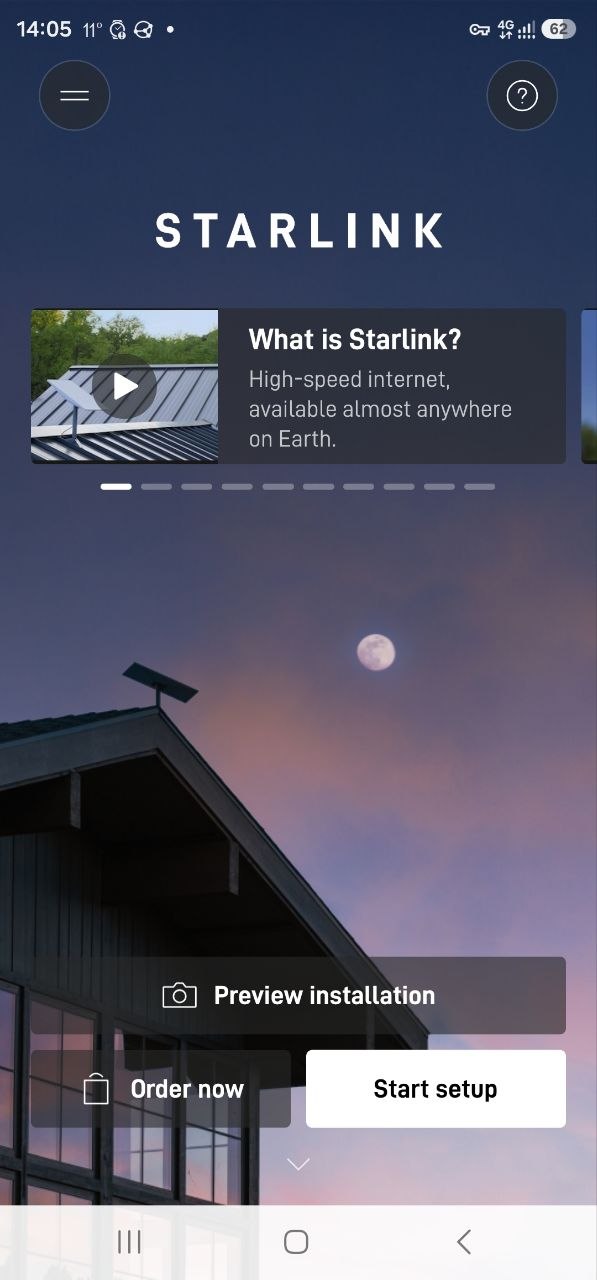
Tap Start setup:
Select your terminal type – mine is Mini:
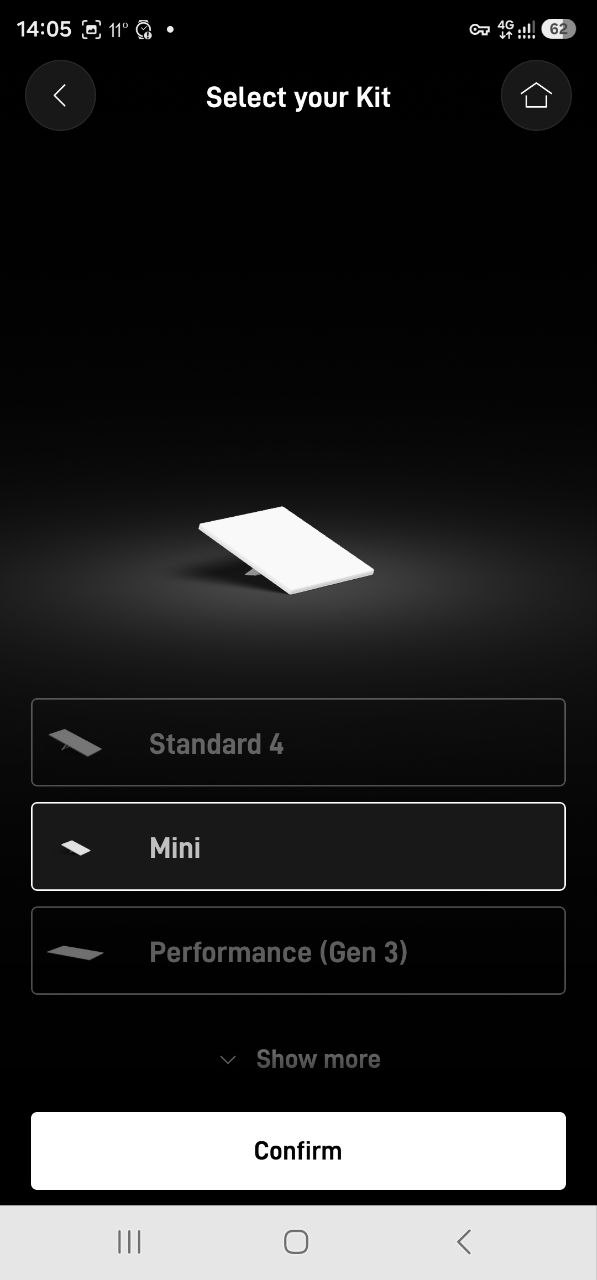
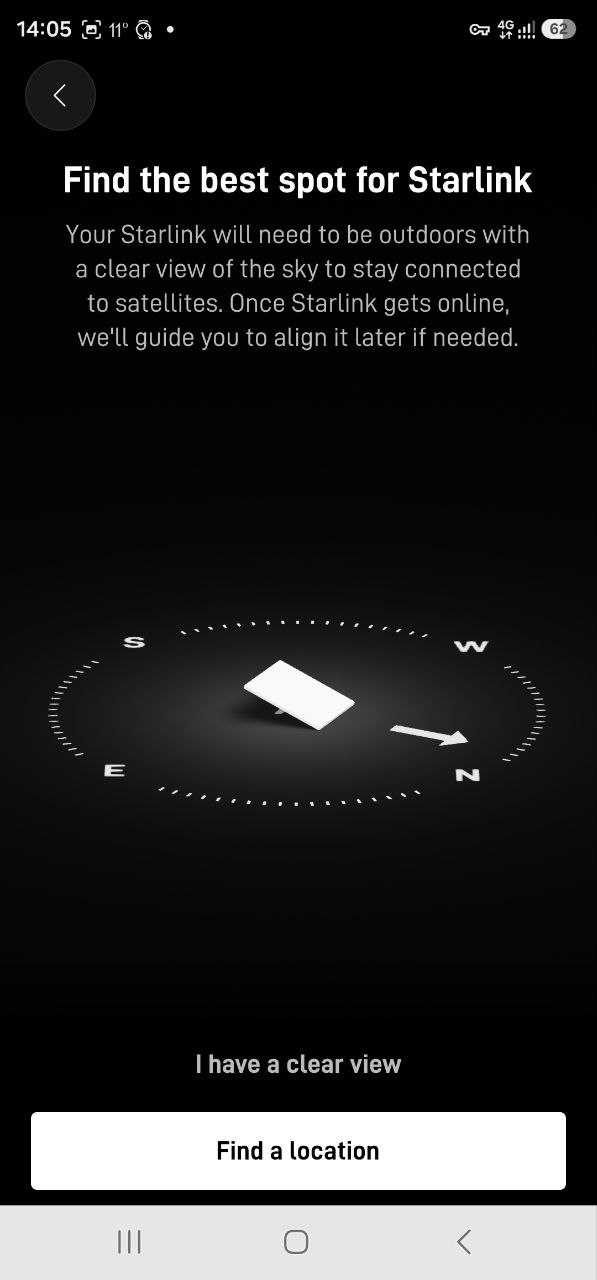
It asks you to choose a location. Since mine won’t be out in the open, I selected “Find a location”.
This is apparently supposed to help with positioning – which direction to point it – though in my case there weren’t many options anyway 🙂
Still, I played around with it – a pretty cool idea, actually. But as far as I understood, it isn’t mandatory. The main thing is that the terminal can connect to the satellites at all:
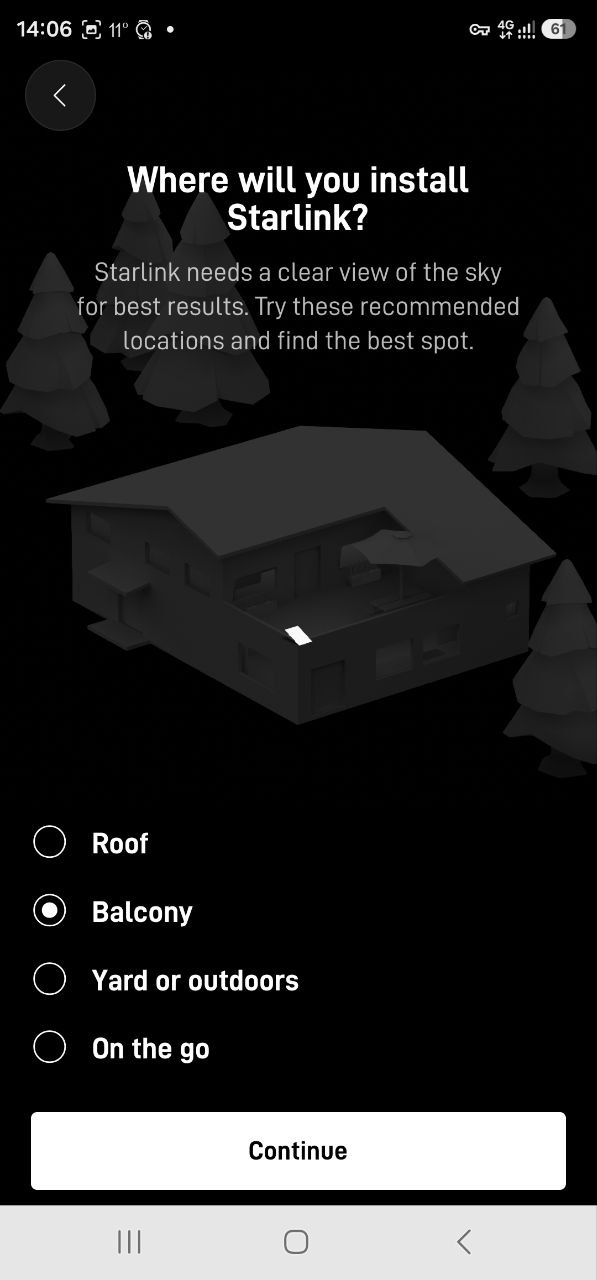
It asks where exactly the dish will be installed:
And says, “Get ready, we’re about to catch some dots”:
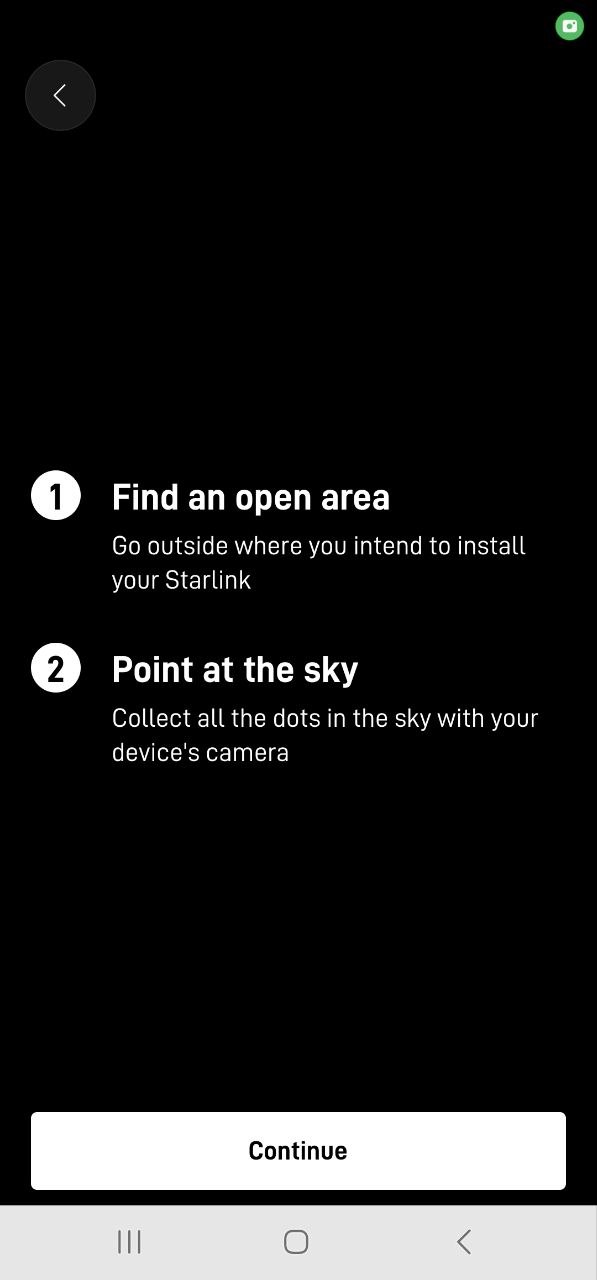
Then the camera turns on – the phone’s main camera, while you watch the screen.
There’s an arrow on the screen showing which way to move the camera, and you use it to “collect little dots from the sky”:
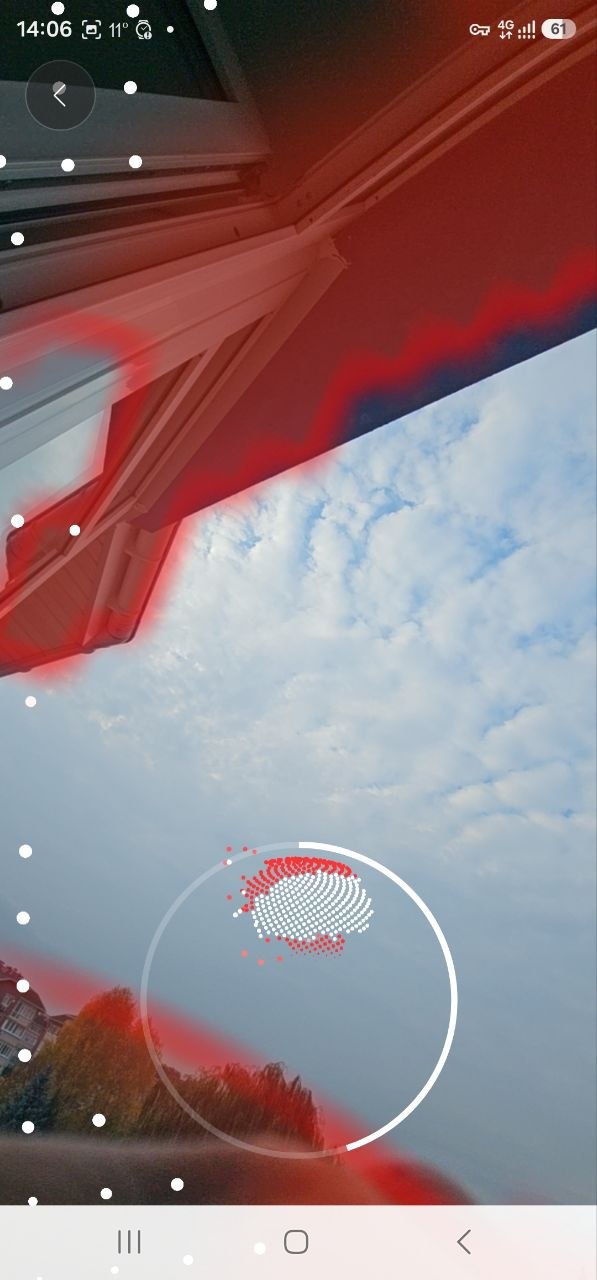
Quite a quest, actually)))
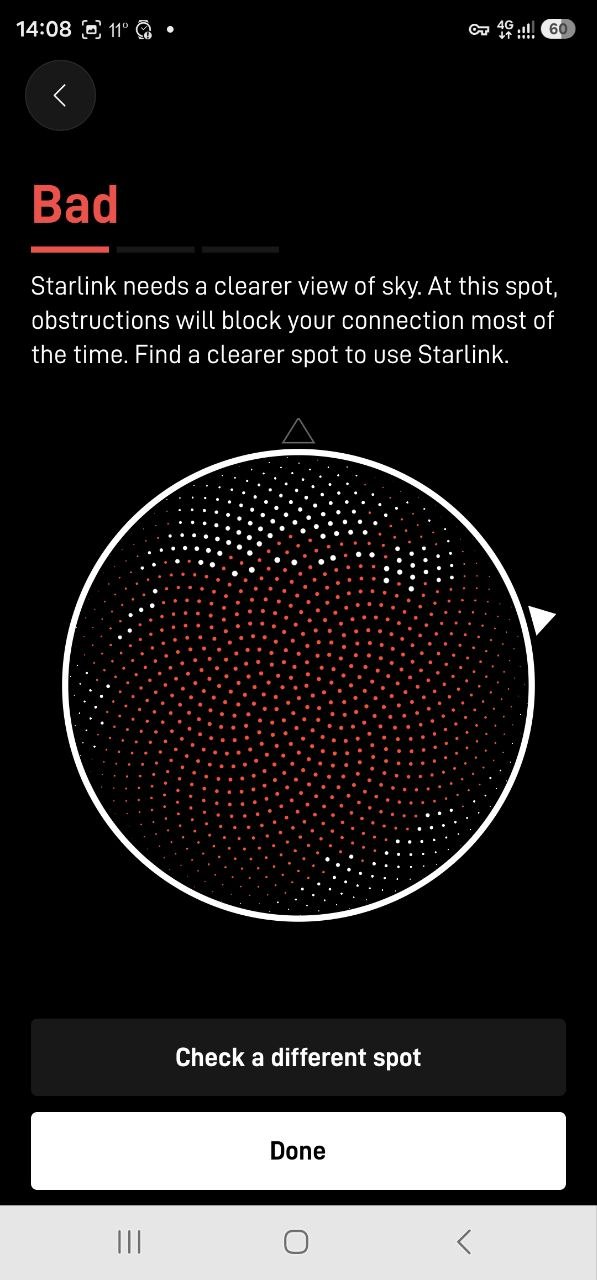
After a couple of minutes of turning around, Starlink told me the result was “Poor” – I agreed, but managed to convince it to move on by pressing Done:
Powering On the Terminal and Connecting to WiFi
Now the app gets to the interesting part – time to power on the terminal.
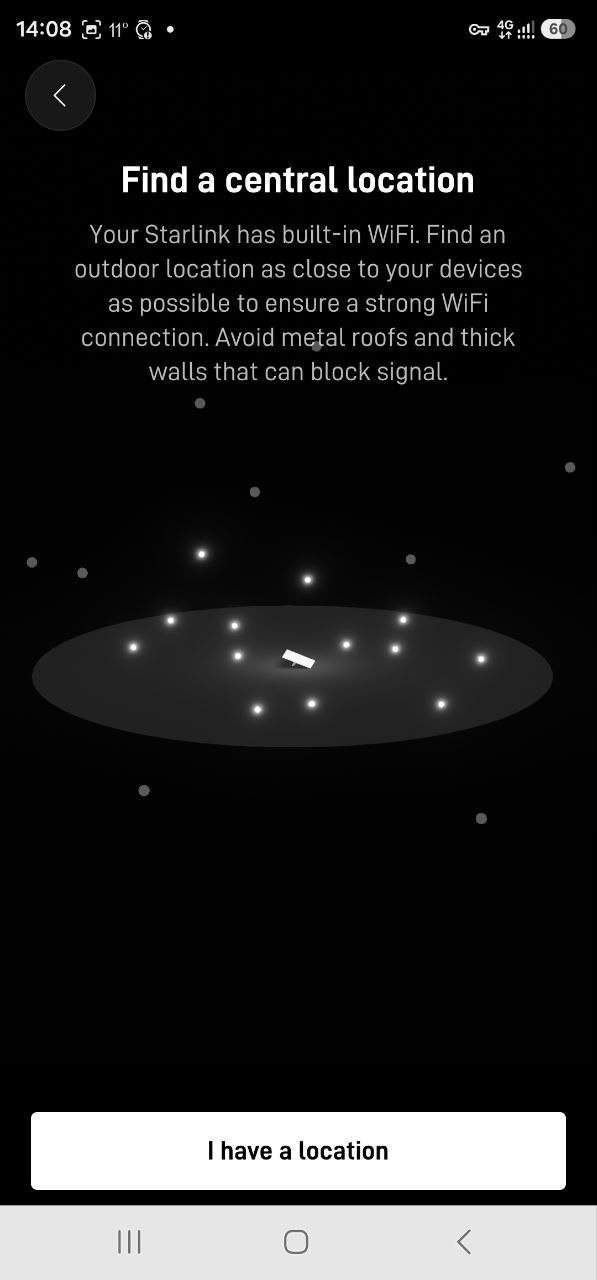
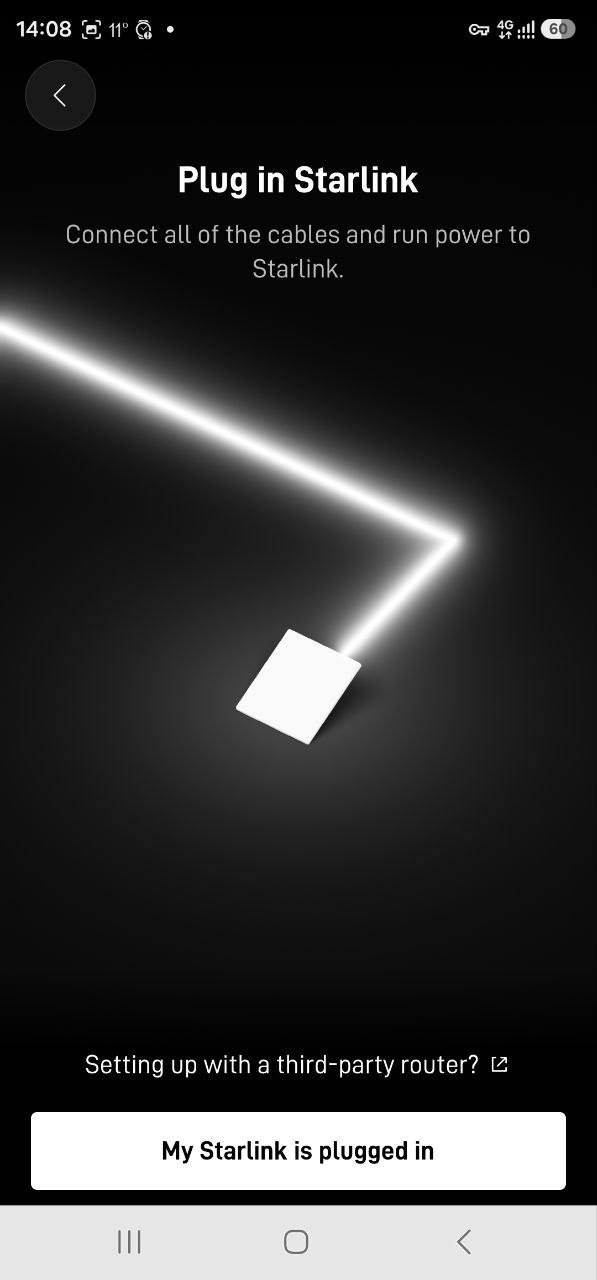
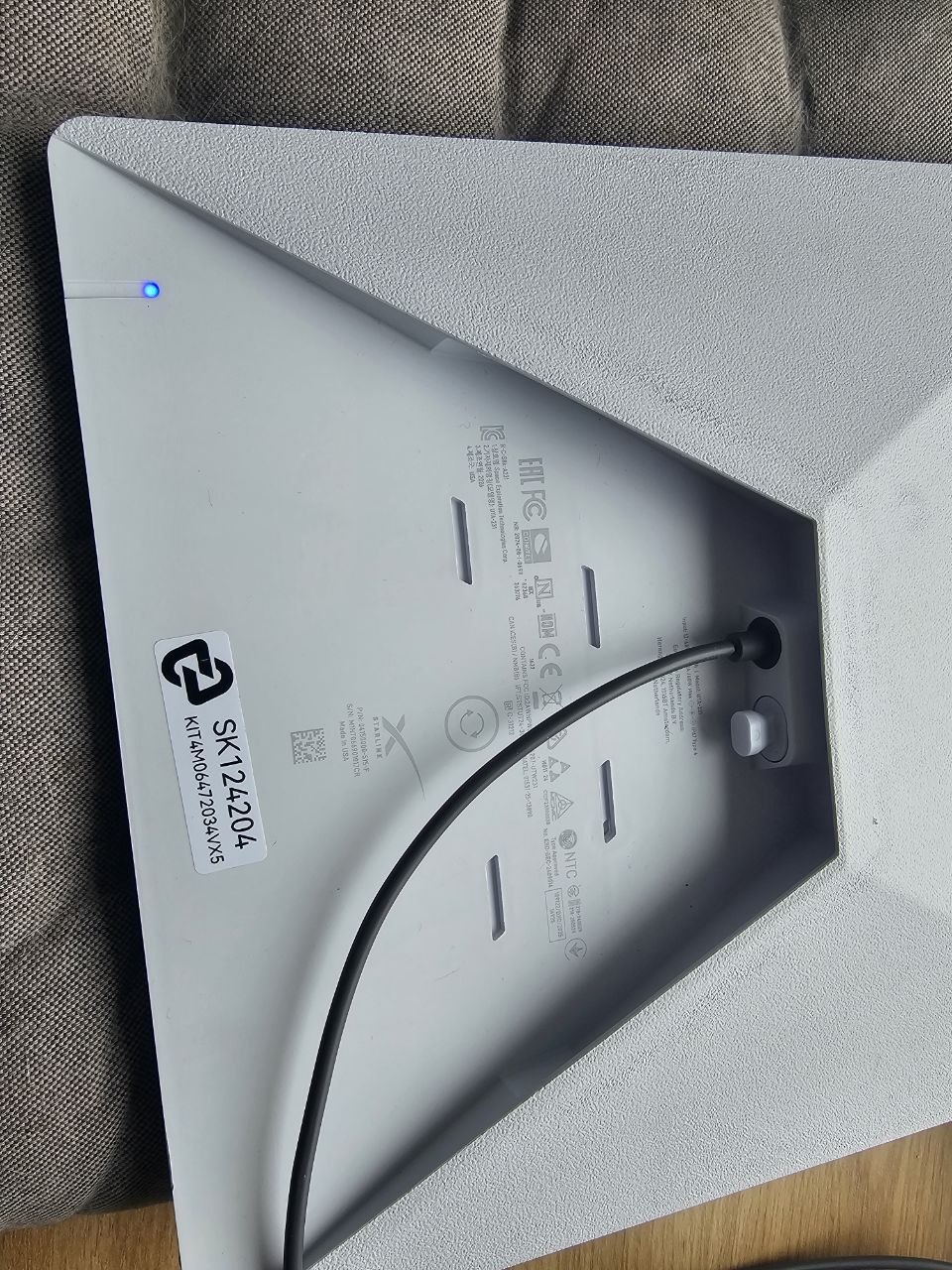
Connect the power, then put it back outside the window (or wherever yours will be installed):
Here’s the second port, covered by a plug – an RJ45 port for a regular Ethernet cable:
Select the WiFi network on your phone.
By default, it should simply be called “Starlink”, but since I bought mine through Adaptis, the network was called “AdaptisSK00000”:
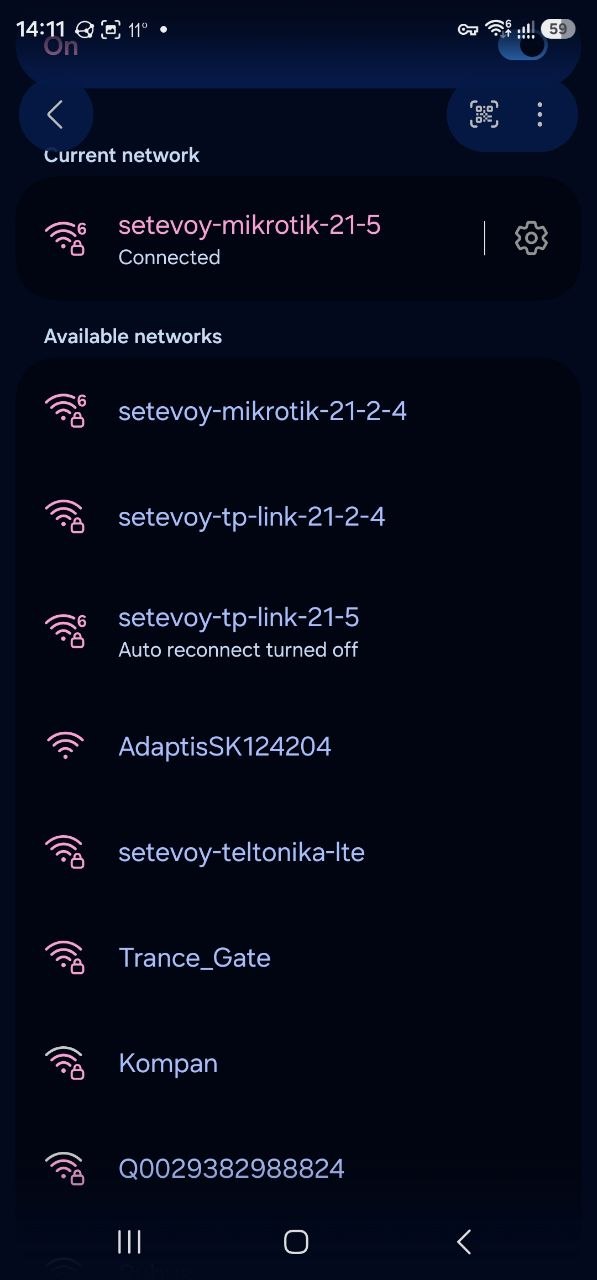
There’s no password, so we connect – and voilà:
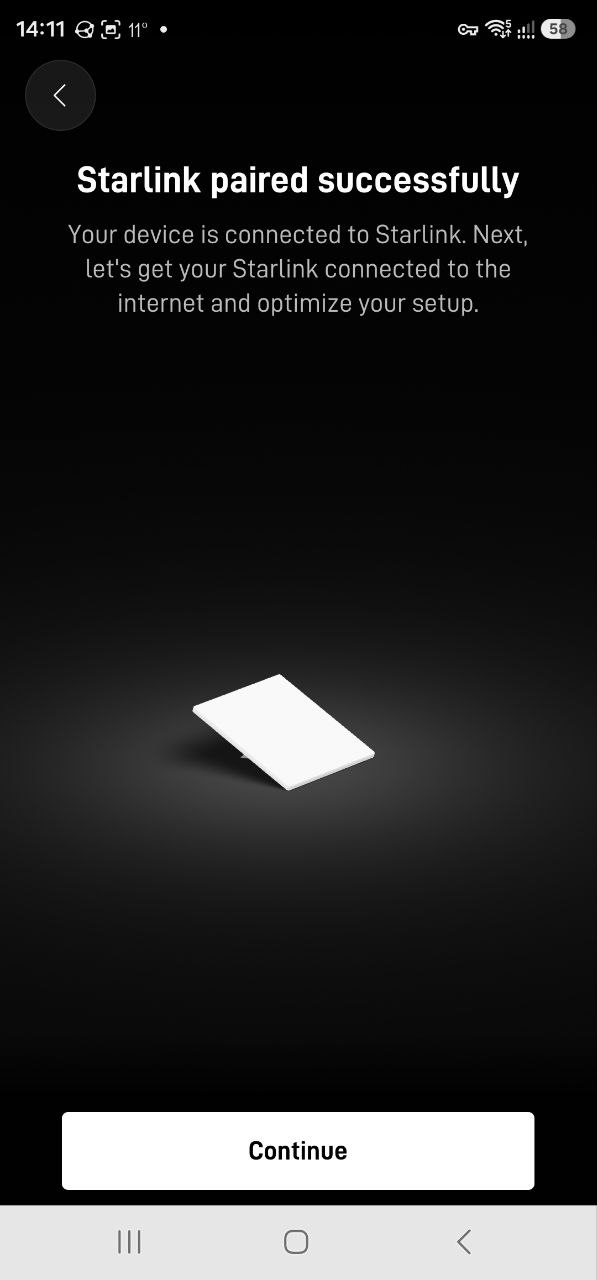
Connecting Starlink to the Internet
It asked me to disable my VPN 🙁
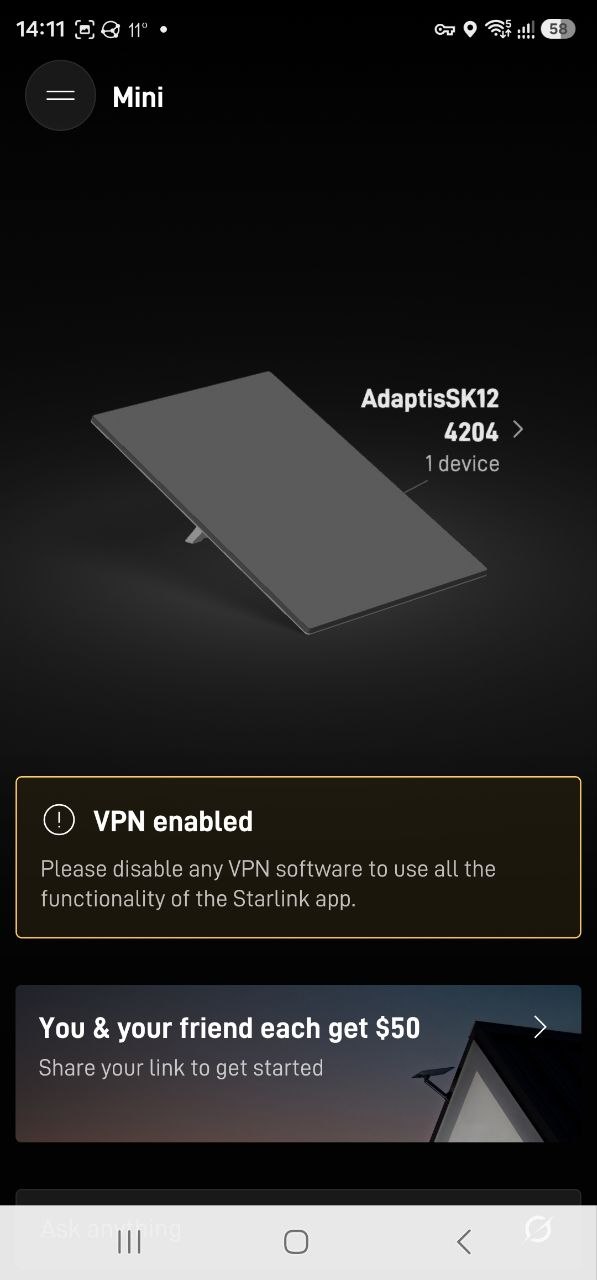
After that, it spent a few minutes thinking:
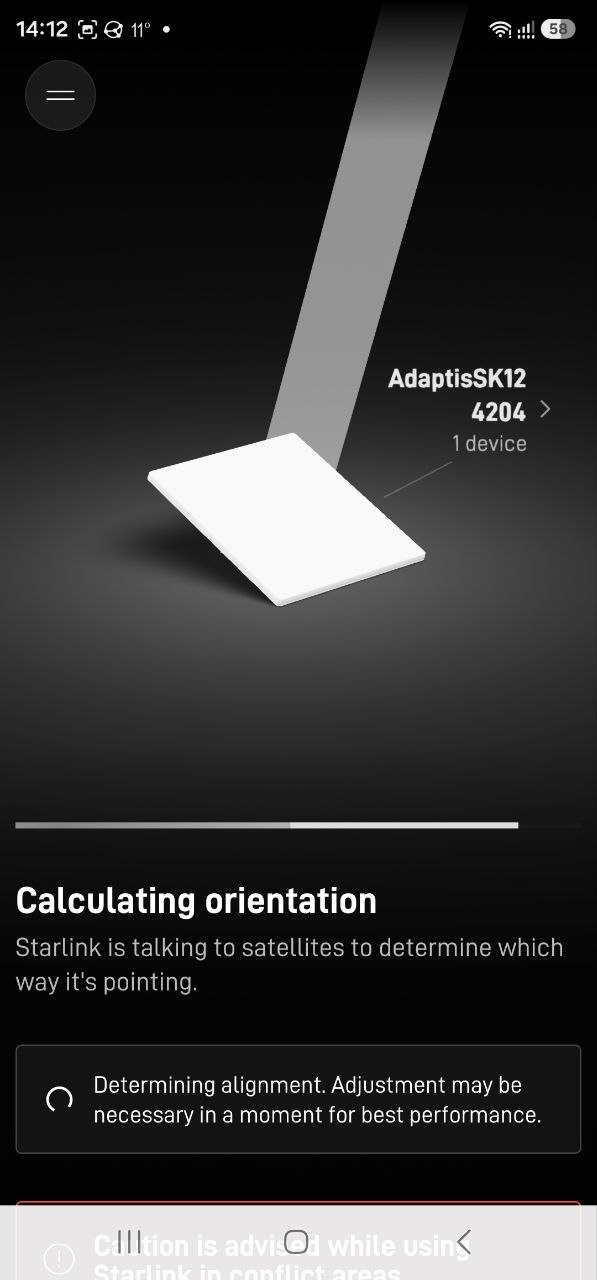
And finally showed “Connected”:
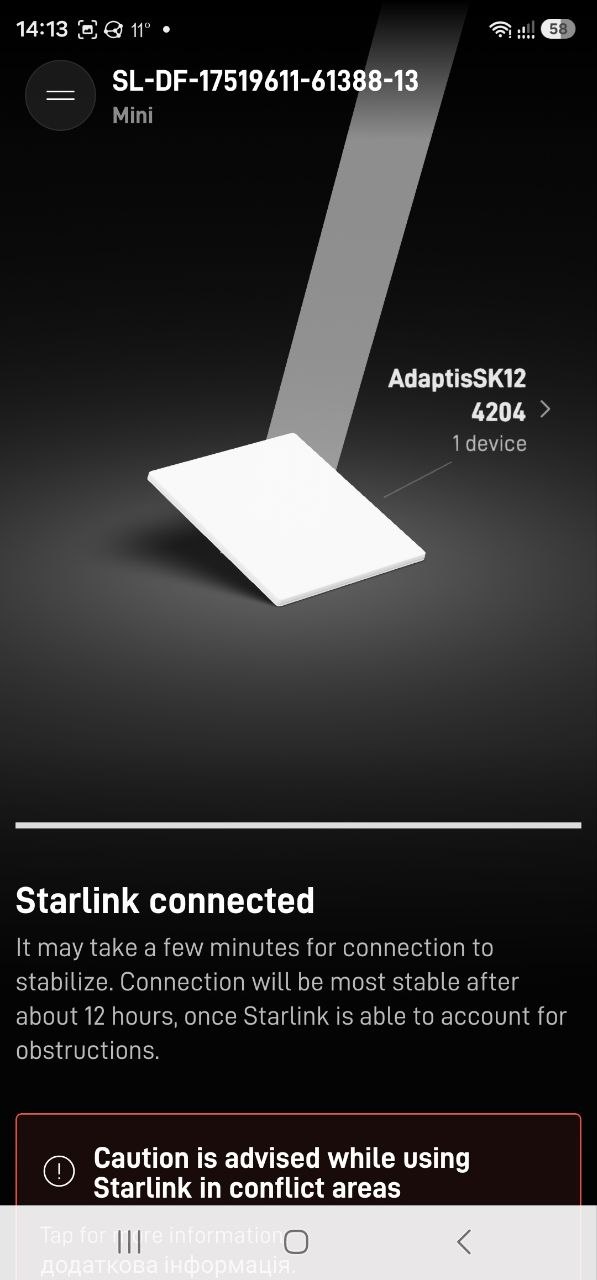
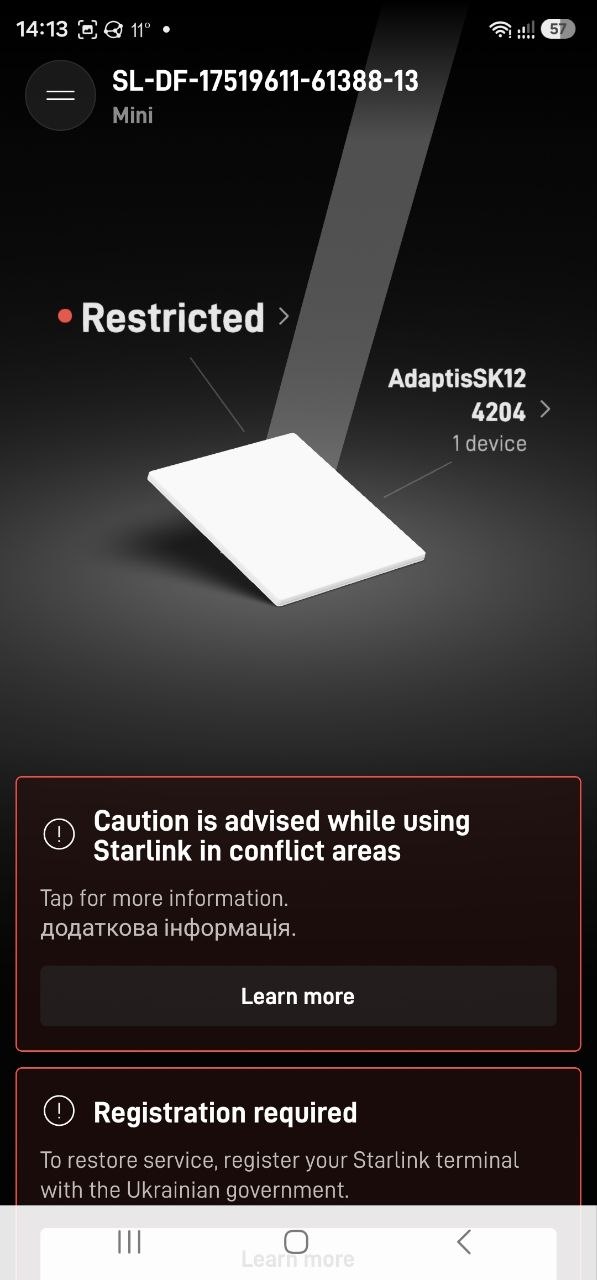
At first it showed “Restricted” – I thought maybe the terminal hadn’t been registered at the CNAP yet. There was also a warning about use in conflict zones – probably referring to active combat areas:
It started updating itself:
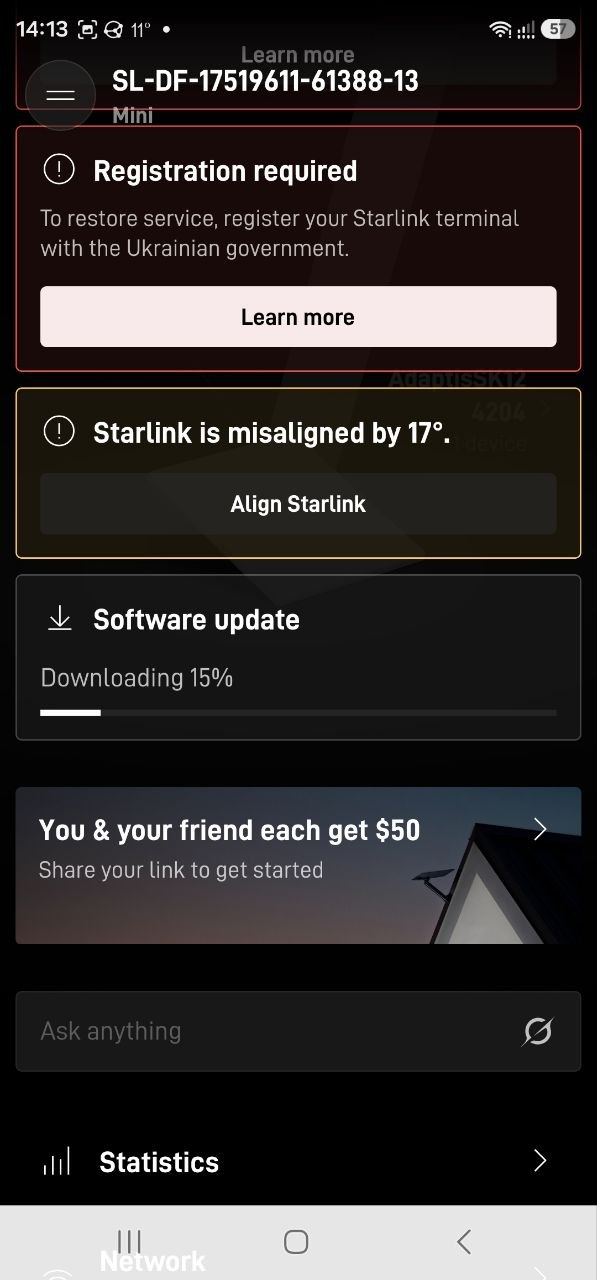
After the update it rebooted – the “Restricted” status disappeared, and the internet started working.
The whole process took 15 minutes at most.
Speed Test – Checking Internet Speed
The mobile app has a built-in speed test:
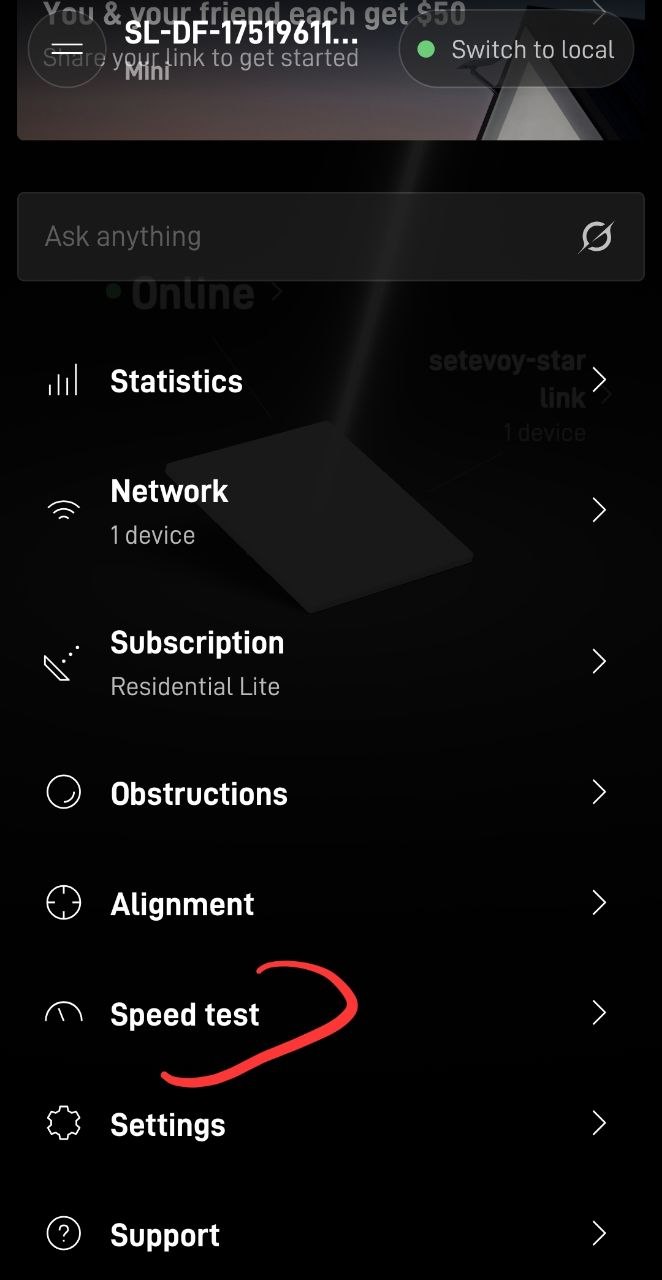
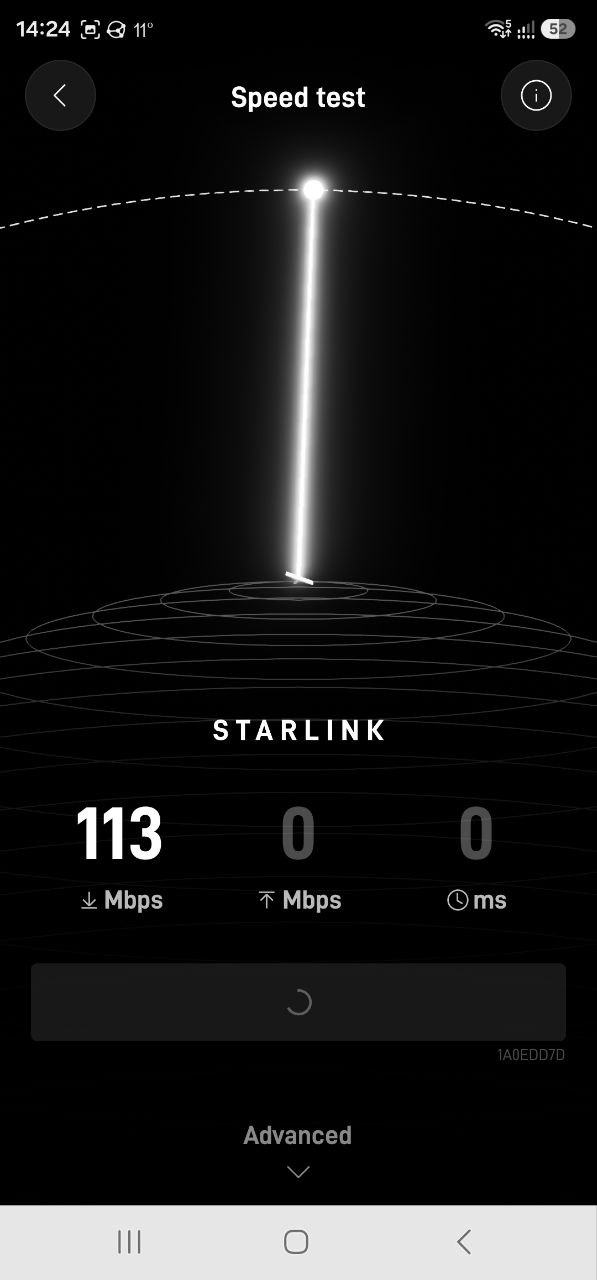
It showed 113 Mbps download, but I was too quick to take the screenshot – it actually went higher, and the upload speed isn’t visible in the screenshot:
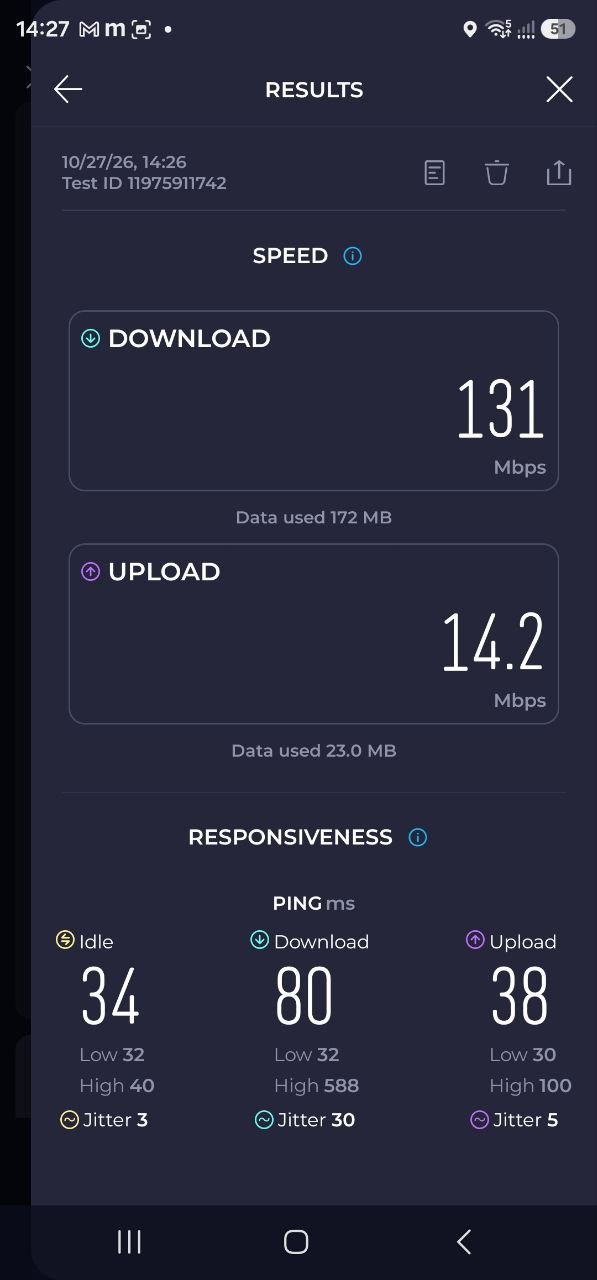
Then I also ran a regular Speedtest by Ookla. It showed 131 Mbps download (“to us”) and 14 Mbps upload (“from us”) – a perfectly decent result for a backup connection, especially considering how I’ve installed the dish:
Configuring the WiFi Network
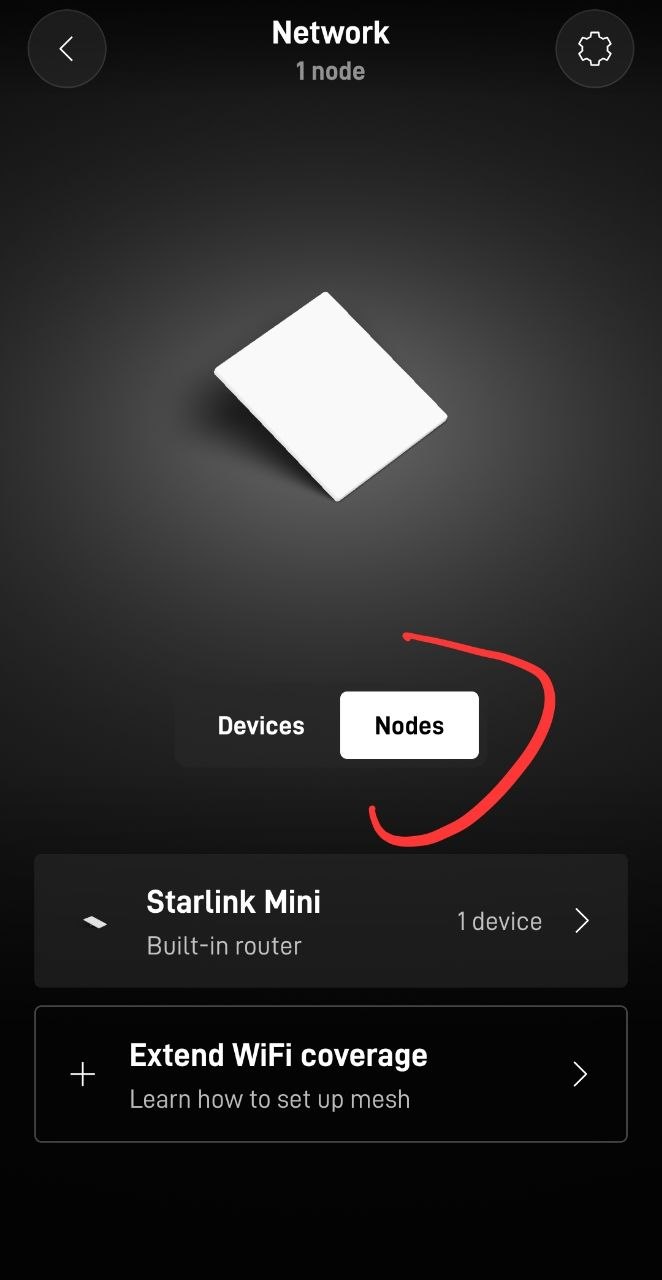
Go to Network:
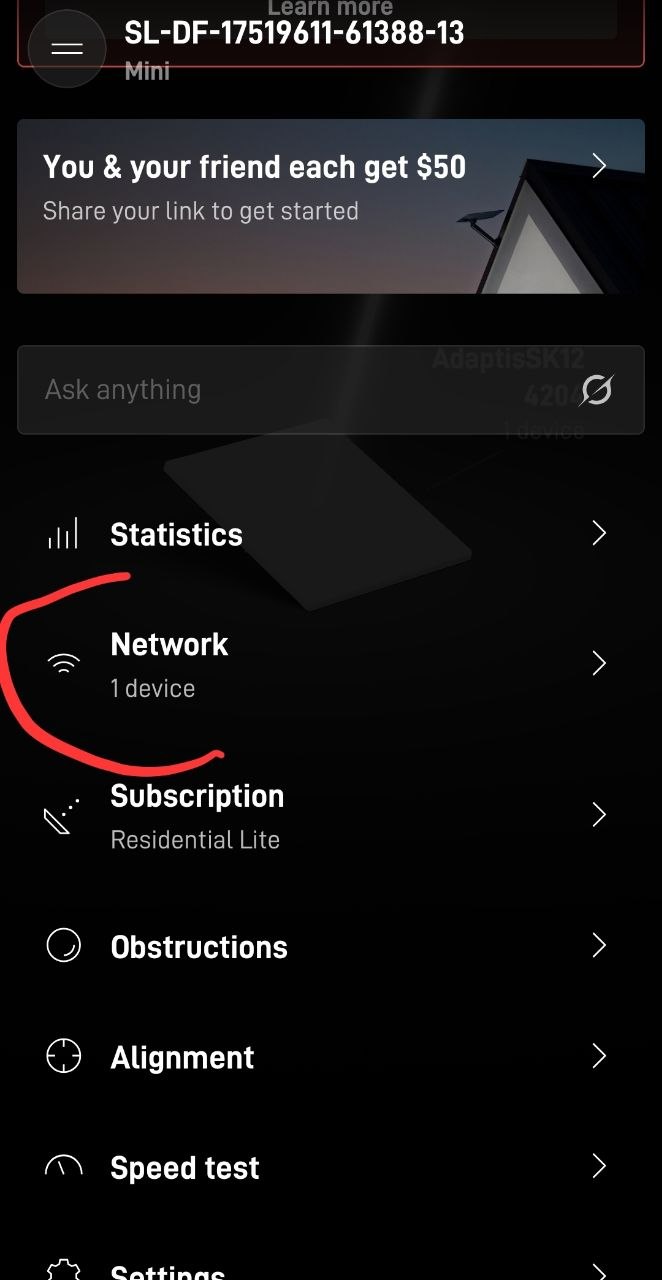
Select Nodes:
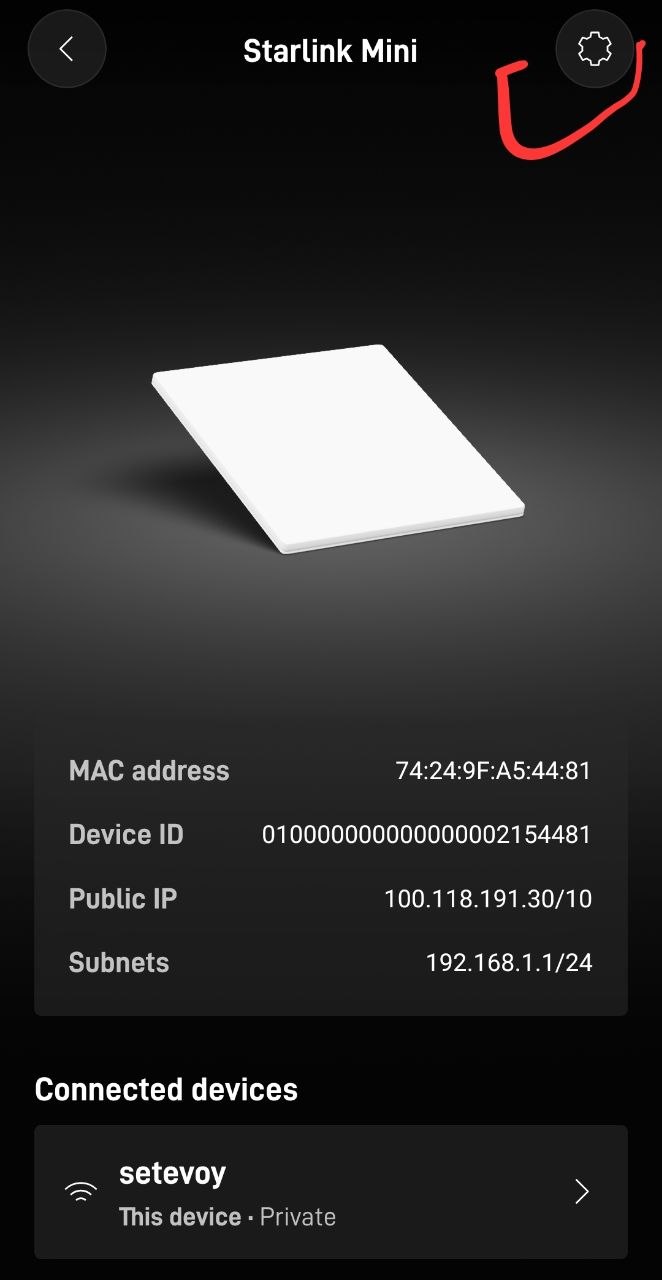
Click “Settings” at the top:
Set the network name and password:
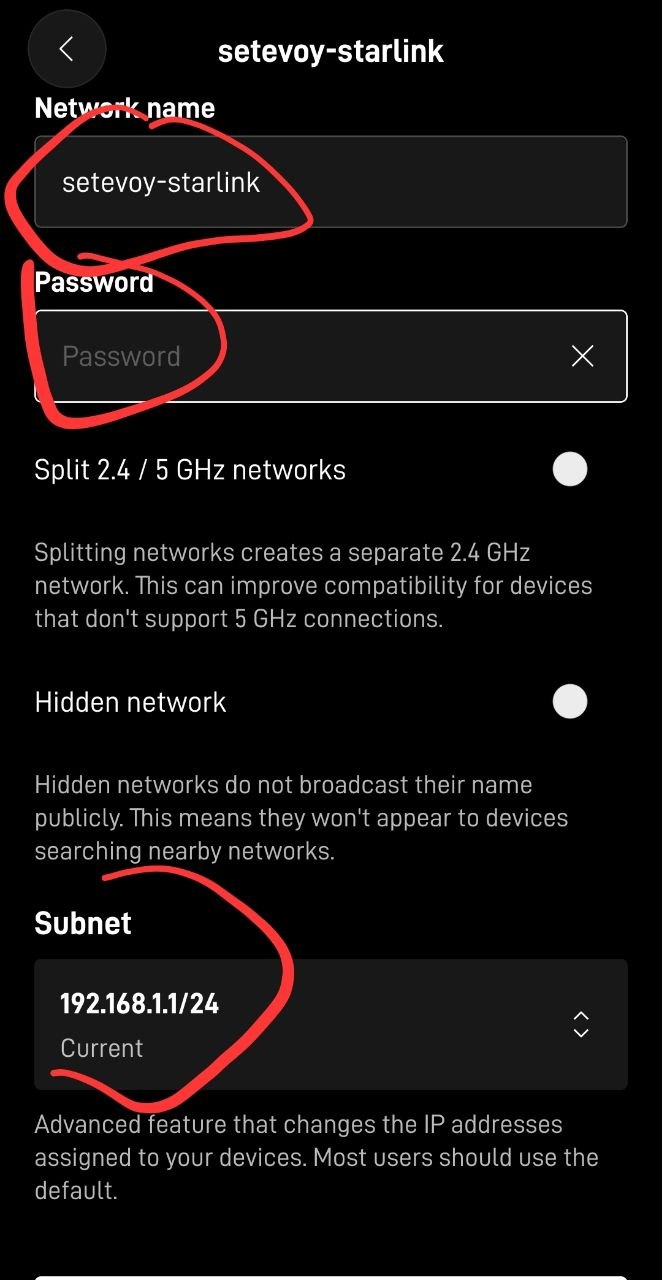
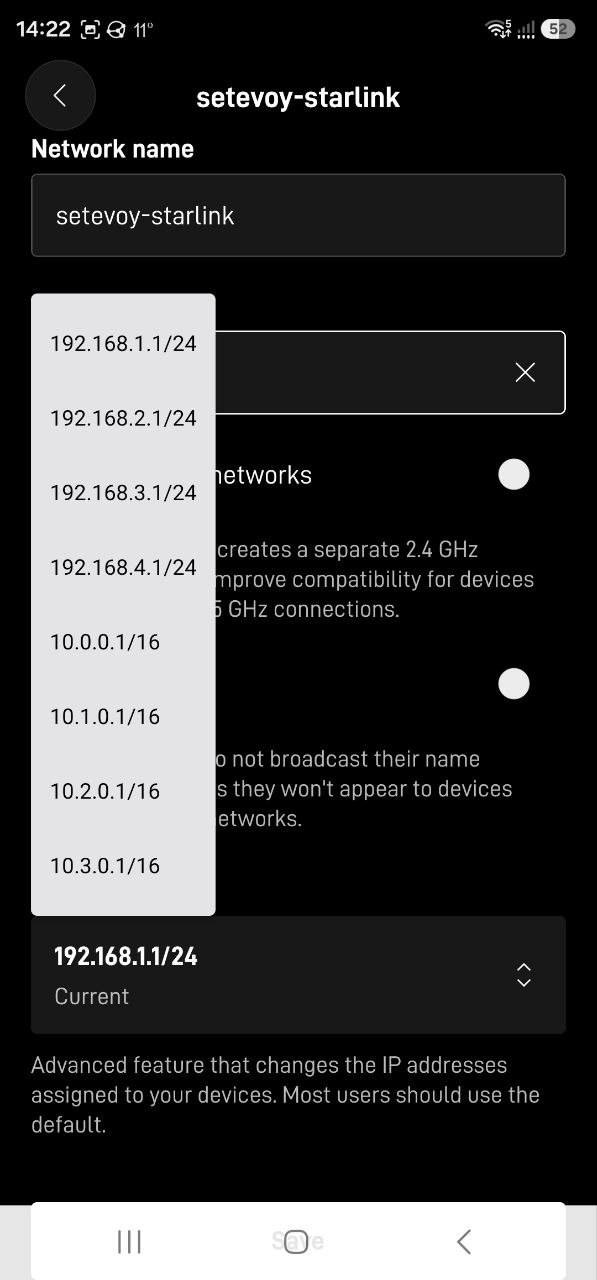
At the bottom, you can select a subnet:
Starlink Power Consumption
Someone in the RTFM Telegram chat asked how much power Starlink uses.
The mobile app has all sorts of statistics about the terminal:
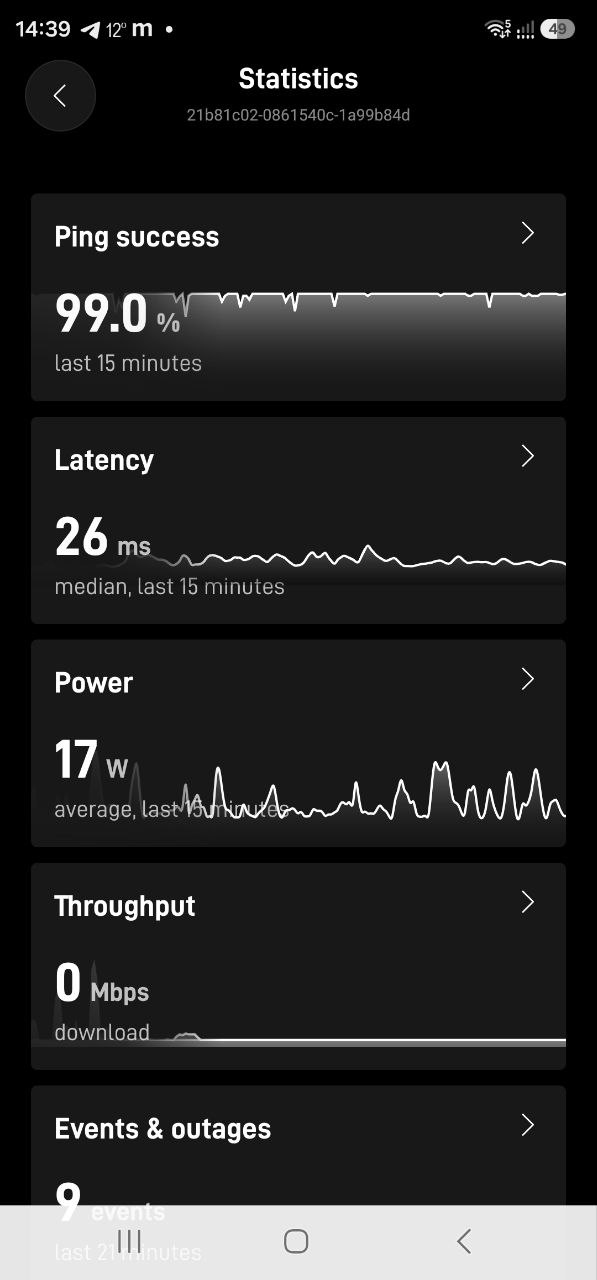
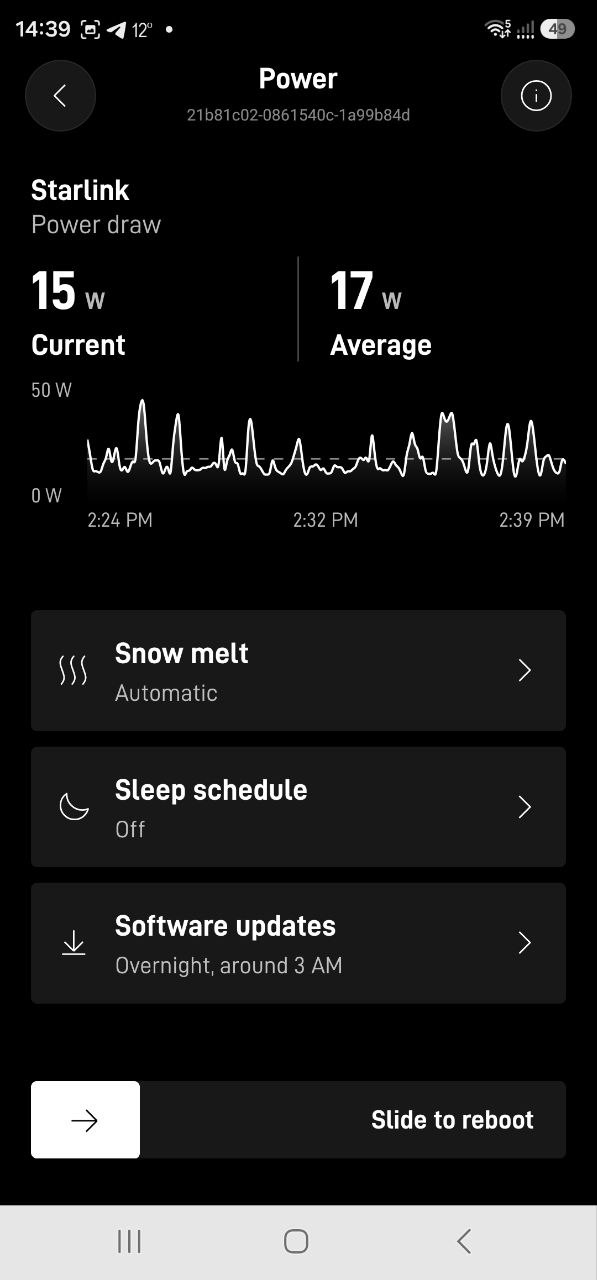
Among other things, it has quite detailed power consumption data – I took the screenshot with no load, but from what I’ve read online, it uses 30-50 watts when actively working:
And that’s pretty much it – the system works.
Ready for winter.
