 Another one of the many nice features of MikroTik – built-in WireGuard support (although even cheap TP-Link Archers have it).
In my setup, the MikroTik RB4011 acts as a “VPN Hub” – all clients connect to it and are united into a single network, and the role of VPN is slightly exaggerated is genuinely important here – because it’s a gateway through which all hosts communicate with each other, and it’s through these VPN tunnels that my backup script (there will be a separate big post on backup automation, it’s already in drafts) connects to all hosts from the NAS to run rsync and pull data.
In addition, Syncthing also works exclusively within internal networks and syncs data between FreeBSD/NAS, Arch Linux laptops, and the mobile phone – see FreeBSD: Home NAS, part 12: data sync with Syncthing.
Today – configuring WireGuard on MikroTik itself and on Debian (the rtfm.co.ua server).
The setup on Arch Linux is identical to Debian, just install the wireguard-tools package – pacman -S wireguard-tools.
See also the first MikroTik post – MikroTik: First Look and Getting Started, and there will probably be a whole series more – I already have a bunch of drafts.
What we’ll do:
- create a WireGuard interface on MikroTik and assign it an IP
- configure MikroTik Firewall for traffic between all hosts
- configure routes – add the home network
- create WireGuard keys, add a WireGuard Peer on MikroTik
Although the post turned out long – everything is actually pretty straightforward.
The main thing is not to mix up private and public keys in the configs – I had a bit of trouble with that at the beginning.
Contents
Network and host architecture
Schematically the whole network looks like this:
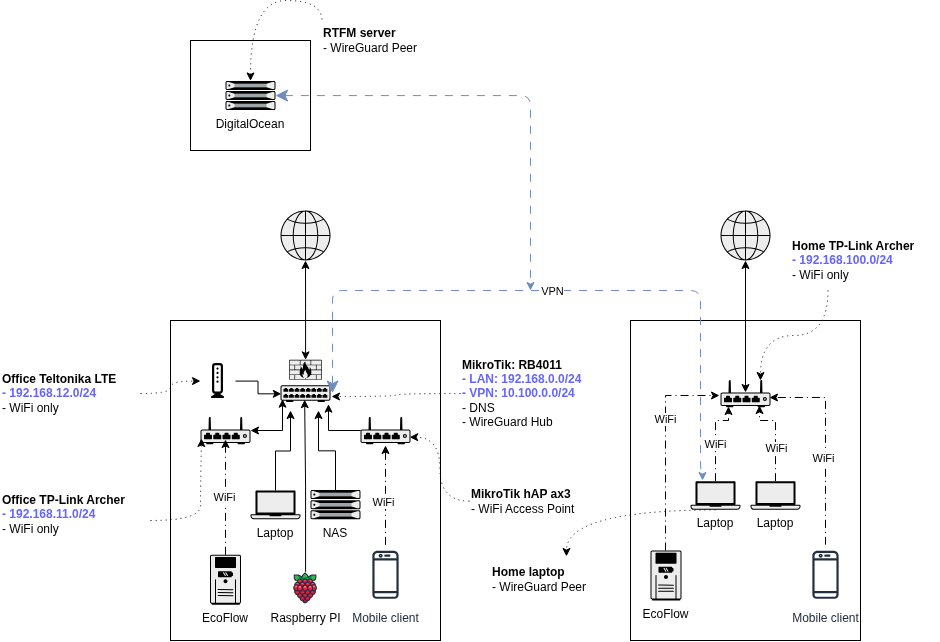 Here:
Here:
- 192.168.0.0/24: office network, main hosts here:
- 192.168.0.1: MikroTik RB4011 – main router
- 192.168.0.2: FreeBSD with NAS
- 192.168.0.3: work laptop with Arch Linux
- 192.168.100.0/24: home network
- 192.168.100.100: home laptop
- 10.100.0.0/24: WireGuard VPN
- 10.100.0.1: MikroTik RB4011
- 10.100.0.3: home laptop with Arch Linux
- 10.100.0.10: rtfm.co.ua server in DigitalOcean running Debian Linux
I’ll be reworking the addressing, but this is how it is for now.
MikroTik WireGuard configuration
Official documentation – WireGuard.
So, the VPN network is 10.100.0.0/24, and MikroTik’s address within it is 10.100.0.1.
Add the interface on which WireGuard will run – set the name, port, and MTU:
/interface wireguard add name=wg0 listen-port=51820 mtu=1420
(some sections without screenshots, since I did this a while ago)
We set MTU to 1420 – because the default Ethernet MTU is 1500 bytes, and WireGuard adds its own headers:
- IP header: 20 bytes (IPv4) – set by the router’s OS
- UDP header: 8 bytes – same, the router
- WireGuard header: 32 bytes – set by WireGuard, specifying message type, peer index, authentication
Total headers: 60 bytes: 20 (IP) + 8 (UDP) + 32 (WireGuard), which leaves 1440 bytes for payload, and another -20 as a safety margin.
See Header / MTU sizes for Wireguard and my post TCP/IP: OSI and TCP/IP models, TCP packets, Linux sockets and ports.
Verify:
/interface wireguard print detail where name=wg0

Set the interface address:
/ip address add address=10.100.0.1/24 interface=wg0 comment=wg-hub
Verify:
/ip address print where interface=wg0

MikroTik Firewall configuration
We need to add rules allowing internet access to WireGuard on MikroTik itself, and then configure access between networks.
I’ll write more about the MikroTik firewall separately, that’s also in drafts.
Internet access to WireGuard
Allow access from any host, rule in chain=input:
/ip firewall filter add chain=input protocol=udp dst-port=51820 action=accept comment="allow wireguard"
Or, better yet, create an allowed address list:
/ip firewall address-list add list=wg-allowed address=46.101.201.123 comment=setevoy-rtfm
/ip firewall address-list add list=wg-allowed address=178.***.236 comment=setevoy-home
/ip firewall address-list add list=wg-allowed address=64.***.***.83 comment=kyiv-work-office
A note about DigitalOcean droplet addresses: I have a Reserved IP 67.207.75.157 connected, which is used for DNS – but for WireGuard we use the “default” Public IP from DigitalOcean – 46.101.201.123: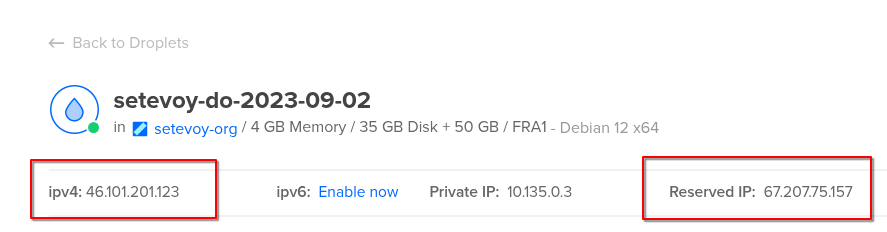
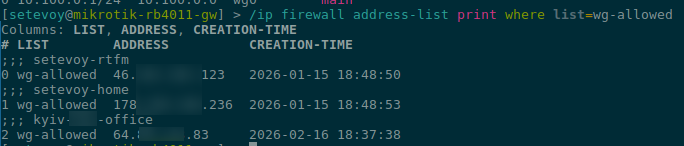
Verify our new address-list:
/ip firewall address-list print where list=wg-allowed
Now create a rule using this list in chain=input:
/ip firewall filter add chain=input protocol=udp dst-port=51820 src-address-list=wg-allowed action=accept comment="allow wireguard from whitelist" place-before=0
Verify:
/ip firewall filter print where src-address-list~"wg-allowed"

Access between internal networks
Configure access between networks – add rules in chain=forward.
Allow access from VPN network 10.100.0.0/24 to the office LAN 192.168.0.0/24:
/ip firewall filter add chain=forward src-address=10.100.0.0/24 dst-address=192.168.0.0/24 action=accept comment="wg to lan"
And back – from the office network to the VPN network:
/ip firewall filter add chain=forward src-address=192.168.0.0/24 dst-address=10.100.0.0/24 action=accept comment="lan to wg"
Next – access from VPN to the home network 192.168.100.0/24:
/ip firewall filter add chain=forward src-address=10.100.0.0/24 dst-address=192.168.100.0/24 action=accept comment="wg to home"
And back, from home to the VPN network:
/ip firewall filter add chain=forward src-address=192.168.100.0/24 dst-address=10.100.0.0/24 action=accept comment="home to wg"
Same for office 192.168.0.0/24 to home 192.168.100.0/24 and back.
From office to home:
/ip firewall filter add chain=forward src-address=192.168.0.0/24 dst-address=192.168.100.0/24 action=accept comment="office to home"
And back:
/ip firewall filter add chain=forward src-address=192.168.100.0/24 dst-address=192.168.0.0/24 action=accept comment="home to office"
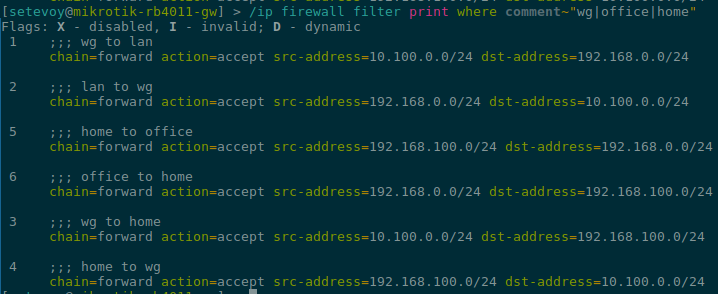
Verify:
/ip firewall filter print where comment~"wg|office|home"
MikroTik Routes
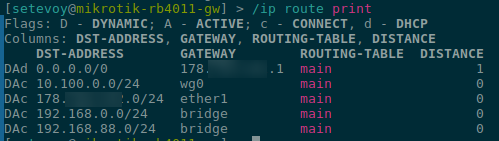
MikroTik automatically creates a dynamic connected route for the WireGuard network (10.100.0.0/24) after creating the wg0 interface, and already has routes for its own local networks that are directly connected to its interfaces (bridge, ether):
/ip route print
Or filter to just the ones we care about now:
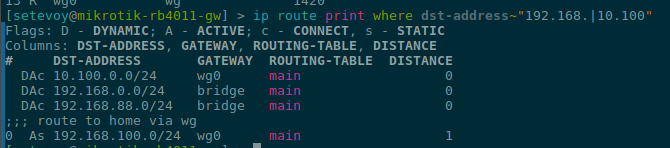
/ip route print where dst-address~"192.168.|10.100"

Here 10.100.0.0/24 is the WireGuard network, 192.168.0.0/24 is the active DHCP server network on MikroTik, 192.168.88.0/24 is the default DHCP server network, currently not in use.
But the home network is 192.168.100.0/24, and to be able to reach home from the office and vice versa – we need to add one more route:
/ip route add dst-address=192.168.100.0/24 gateway=wg0 comment="route to home via wg"
And the routes now look like this:
We can now move on to connecting clients.
WireGuard Peer on Linux
The rtfm.co.ua server is hosted on DigitalOcean, running Debian 12.
The setup on Arch Linux is identical, just install the wireguard-tools package – pacman -S wireguard-tools.
On Debian, install the wireguard package with apt:
root@setevoy-do-2023-09-02:~# apt update && apt install -y wireguard
Go to /etc/wireguard/ and generate keys:
root@setevoy-do-2023-09-02:/etc/wireguard# cd /etc/wireguard/

root@setevoy-do-2023-09-02:/etc/wireguard# wg genkey | tee /etc/wireguard/privatekey | wg pubkey > /etc/wireguard/publickey
Here privatekey will be used for the local interface, and publickey will be added to MikroTik WireGuard later.
Get the private key value on Debian:
root@setevoy-do-2023-09-02:/etc/wireguard# cat privatekey
ML+***dmk=
Get the public-key on MikroTik:
/interface wireguard print

Create the config /etc/wireguard/wg0.conf on Debian:
[Interface]
PrivateKey = ML+0***mk=
Address = 10.100.0.10/32

[Peer]
PublicKey = hxz***0o=
Endpoint = 178.***.***.184:51820

AllowedIPs = 10.100.0.0/24,192.168.0.0/24,192.168.100.0/24
PersistentKeepalive = 25
Here:
[Interface]PrivateKey: private key on Debian itselfAddress: IP address of this Peer, will be used for the local wg0 interface
[Peer]PublicKey: public key from MikroTikEndpoint: external address where MikroTik is reachable, and the port on which WireGuard accepts connectionsAllowedIPs: which networks this peer can reach and for which local routes will be created
Get the public key on Debian:
root@setevoy-do-2023-09-02:/etc/wireguard# cat publickey
x+Pr***0TE=
Add a new peer on MikroTik:
/interface wireguard peers add interface=wg0 public-key="x+Pr***0TE=" allowed-address=10.100.0.10/32,192.168.0.0/24,192.168.100.0/24 comment=setevoy-rtfm
In allowed-address on MikroTik we set the permitted networks – checked for both src-addr and dst-addr.
That’s basically it.
Start the connection on Linux:
root@setevoy-do-2023-09-02:/etc/wireguard# wg-quick up wg0
[#] ip link add wg0 type wireguard
[#] wg setconf wg0 /dev/fd/63
[#] ip -4 address add 10.100.0.10/32 dev wg0
[#] ip link set mtu 1420 up dev wg0
[#] ip -4 route add 192.168.100.0/24 dev wg0
[#] ip -4 route add 192.168.0.0/24 dev wg0
[#] ip -4 route add 10.100.0.0/24 dev wg0
Check the status:
root@setevoy-do-2023-09-02:/etc/wireguard#wg show
interface: wg0
  public key: x+Pr/***TE=
  private key: (hidden)
  listening port: 59014

peer: hxz***50o=
  endpoint: 178.***.184:51820
  allowed ips: 10.100.0.0/24, 192.168.0.0/24, 192.168.100.0/24
  latest handshake: 1 minute, 51 seconds ago
  transfer: 16.21 KiB received, 21.75 KiB sent
  persistent keepalive: every 25 seconds
What to pay attention to is latest handshake, which shows that the connection is active and the peers were able to reach each other.
Check peers on MikroTik:
/interface wireguard peers print where comment="setevoy-rtfm"

Test the connection from Linux to the office laptop:
root@setevoy-do-2023-09-02:~# ssh [email protected] -i .ssh/setevoy-work
[setevoy@setevoy-work ~]$
And to the home laptop – which is also a VPN peer and has two addresses – 10.100.0.3 on the VPN network, and 192.168.100.100 on the home router network.
Try its VPN address:
root@setevoy-do-2023-09-02:~# ping -c 1 10.100.0.3
PING 10.100.0.3 (10.100.0.3) 56(84) bytes of data.
64 bytes from 10.100.0.3: icmp_seq=1 ttl=63 time=116 ms

--- 10.100.0.3 ping statistics ---
1 packets transmitted, 1 received, 0% packet loss, time 0ms
rtt min/avg/max/mdev = 115.925/115.925/115.925/0.000 ms
And its home address:
root@setevoy-do-2023-09-02:~# ping -c 1 192.168.100.100
PING 192.168.100.100 (192.168.100.100) 56(84) bytes of data.
64 bytes from 192.168.100.100: icmp_seq=1 ttl=63 time=36.2 ms

--- 192.168.100.100 ping statistics ---
1 packets transmitted, 1 received, 0% packet loss, time 0ms
rtt min/avg/max/mdev = 36.181/36.181/36.181/0.000 ms
And the current status of all clients on MikroTik:

WireGuard Connection Troubleshooting
For debugging it can be useful to add firewall packet logging on MikroTik:
/ip firewall filter add chain=forward src-address=192.168.0.0/24 dst-address=192.168.100.0/24 action=log log-prefix="office->home" place-before=0

/ip firewall filter add chain=forward src-address=192.168.100.0/24 dst-address=192.168.0.0/24 action=log log-prefix="home->office" place-before=0
Then ping from office to home – there was still a problem at this point:
$ ping 192.168.100.100
PING 192.168.100.100 (192.168.100.100) 56(84) bytes of data.
^C
--- 192.168.100.100 ping statistics ---
4 packets transmitted, 0 received, 100% packet loss, time 3090ms
And check the logs on MikroTik – here the home Arch Linux client is already connected, fixed it:
/log print where message~"office->home|home->office"
 ...
 2026-02-17 14:53:32 firewall,info home->office forward: in:wg0 out:bridge, connection-state:established proto ICMP (type 0, code 0), 192.168.100.100->192.168.0.3, len 84
 2026-02-17 14:53:33 firewall,info office->home forward: in:bridge out:wg0, connection-state:established src-mac c8:a3:62:2e:fd:cb, proto ICMP (type 8, code 0), 192.168.0.3->192.168.100.100, len 84
 2026-02-17 14:53:33 firewall,info home->office forward: in:wg0 out:bridge, connection-state:established proto ICMP (type 0, code 0), 192.168.100.100->192.168.0.3, len 84
 2026-02-17 14:53:34 firewall,info office->home forward: in:bridge out:wg0, connection-state:established src-mac c8:a3:62:2e:fd:cb, proto ICMP (type 8, code 0), 192.168.0.3->192.168.100.100, len 84
 2026-02-17 14:53:34 firewall,info home->office forward: in:wg0 out:bridge, connection-state:established proto ICMP (type 0, code 0), 192.168.100.100->192.168.0.3, len 84
Then remove the rules, since they’ll generate a lot of log output:
/ip firewall filter remove [find log-prefix="office->home"]

/ip firewall filter remove [find log-prefix="home->office"]
Or use tcpdump on the hosts.
For example, ping the home laptop from the office laptop:
[setevoy@setevoy-work ~]  $ ping -c 1 192.168.100.100
PING 192.168.100.100 (192.168.100.100) 56(84) bytes of data.
64 bytes from 192.168.100.100: icmp_seq=1 ttl=63 time=107 ms

--- 192.168.100.100 ping statistics ---
1 packets transmitted, 1 received, 0% packet loss, time 0ms
rtt min/avg/max/mdev = 106.714/106.714/106.714/0.000 ms
And on the home laptop listen for all ICMP:
root@setevoy-home:~ # tcpdump -i any icmp and host 192.168.100.100
tcpdump: WARNING: any: That device doesn't support promiscuous mode
(Promiscuous mode not supported on the "any" device)
tcpdump: verbose output suppressed, use -v[v]... for full protocol decode
listening on any, link-type LINUX_SLL2 (Linux cooked v2), snapshot length 262144 bytes
14:59:17.433334 wg0   In  IP work.setevoy > setevoy-home: ICMP echo request, id 25635, seq 1, length 64
14:59:17.433381 wg0   Out IP setevoy-home > work.setevoy: ICMP echo reply, id 25635, seq 1, length 64
If you need to update a peer’s parameters – use interface wireguard peers set.
For the home laptop, when creating it I didn’t include 192.168.100.0/24 in allowed-address, so I needed to update the parameter:
/interface wireguard peers set [find comment="setevoy-home"] allowed-address=10.100.0.3/32,192.168.100.0/24,192.168.0.0/24
And because 192.168.100.0/24 was missing from allowed-address – there was no direct connection from 192.168.0.0/24 – because the packet went through the WireGuard tunnel, arrived at the home laptop on the wg0 interface, then was forwarded to the WiFi interface with address 192.168.100.100, but since that wasn’t in allowed-address – the packet got dropped.
Done.
