 This post is technically part of the home NAS setup series on FreeBSD (see the beginning here – FreeBSD: Home NAS, part 1 – ZFS mirror setup), but I’ll publish it separately.
I already have backup automation configured (there will be posts about that too), and right now data from the NAS is pushed to Google Drive once a day.
But first – I’m gradually moving away from Google services, and second – I want a second place for cloud backups rather than keeping all my eggs in one basket.
I was originally planning to use AWS S3 as the second storage, but then I looked at alternatives and discovered Backblaze, which I liked so much that I signed up and configured Rclone to copy to Backblaze that same day.
I wrote about Rclone in more detail in FreeBSD: Home NAS, part 9 – data backup with rclone to AWS S3 and Google Drive, today we’ll mention it here too, and take a general look at Backblaze – explore its features, pricing, configure Rclone remotes, and check the speed.
Contents
Backblaze overview
General documentation – Backblaze Documentation, and for Cloud Storage – Get Started with the Web Console.
Backblaze has two main products – Computer Backup and B2 Cloud Storage.
And while Computer Backup raises questions for many people (see for example Reddit) – Cloud Storage is genuinely excellent.
The main advantages of Backblaze are the storage price and the simplicity of the UI (while still having all the necessary features), and the only real downside is a fairly limited selection of regions – but USA and Europe are available.
Another minor downside is the lack of file preview – but this isn’t Google Drive, it’s just storage, so that’s fine.
We’ll talk about pricing in more detail below, but the key point is the storage cost: with Backblaze it’s $6 per terabyte, while AWS S3 Standard Storage would be $23.55, plus additional charges for downloading data from buckets.
A quick summary of Backblaze features and perks:
- very easy to use – just the basic set of tools you need from Cloud Storage, with no unnecessary complexity
- ability to configure bucket replication between regions
- Application keys for authentication, with configurable scopes per key
- alerts – basic ones, for costs and resource usage
- dashboard with API request statistics and storage usage
- server-side encryption can be enabled
- ability to create data snapshots (but only if SSE is not enabled)
- upload traffic to a bucket is free, download has a very generous free limit
- support for basic lifecycle policies
- there’s an official mobile client – very simple
Creating a test bucket
Registration is simple, via email, and after logging in we see a great minimalist dashboard:
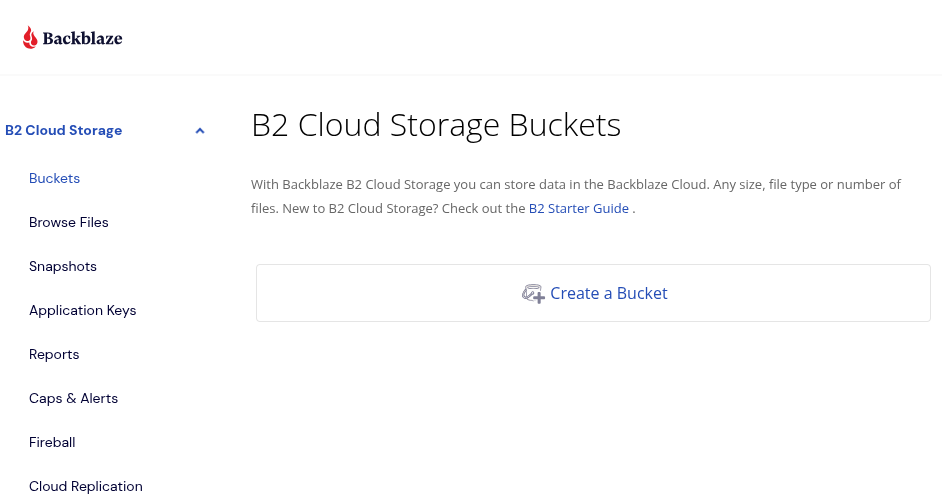 Let’s create a test bucket – note the encryption warning:
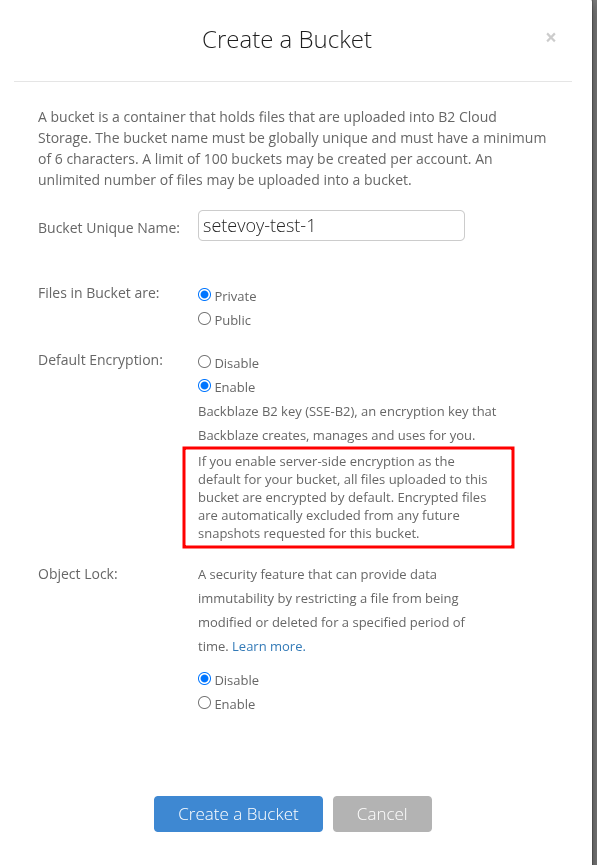 Meaning, as mentioned above – there won’t be the ability to create snapshots.
Although it’s a bit unclear why, since the same warning says “Backblaze creates, manages key“.
But for me this isn’t particularly relevant anyway, since Rclone will be handling the encryption.
Encryption documentation – Enable Encryption on a Bucket.
Finish creating the bucket – literally a couple of clicks:
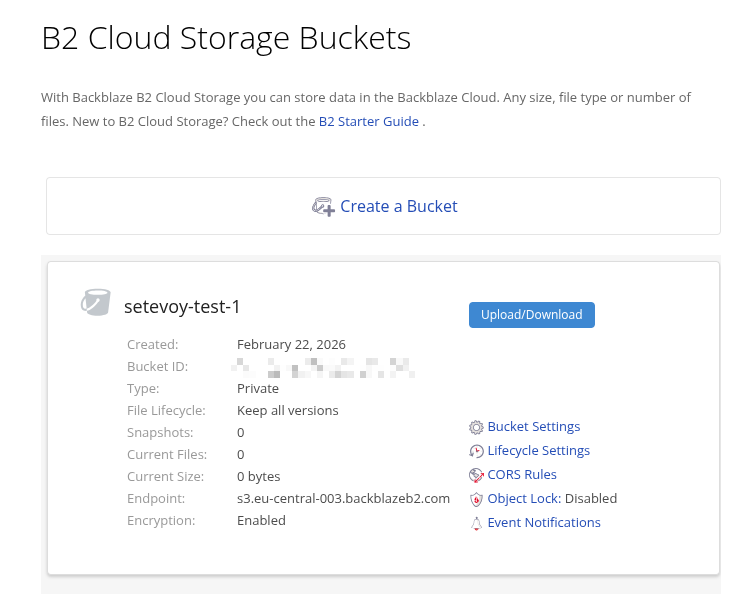
Creating an Application key
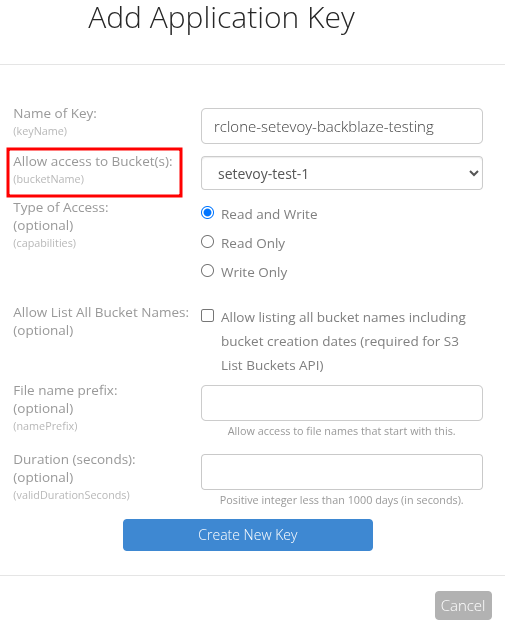
In my case Rclone will be working with Backblaze, so let’s create a separate key for it, see Create and Manage App Keys:
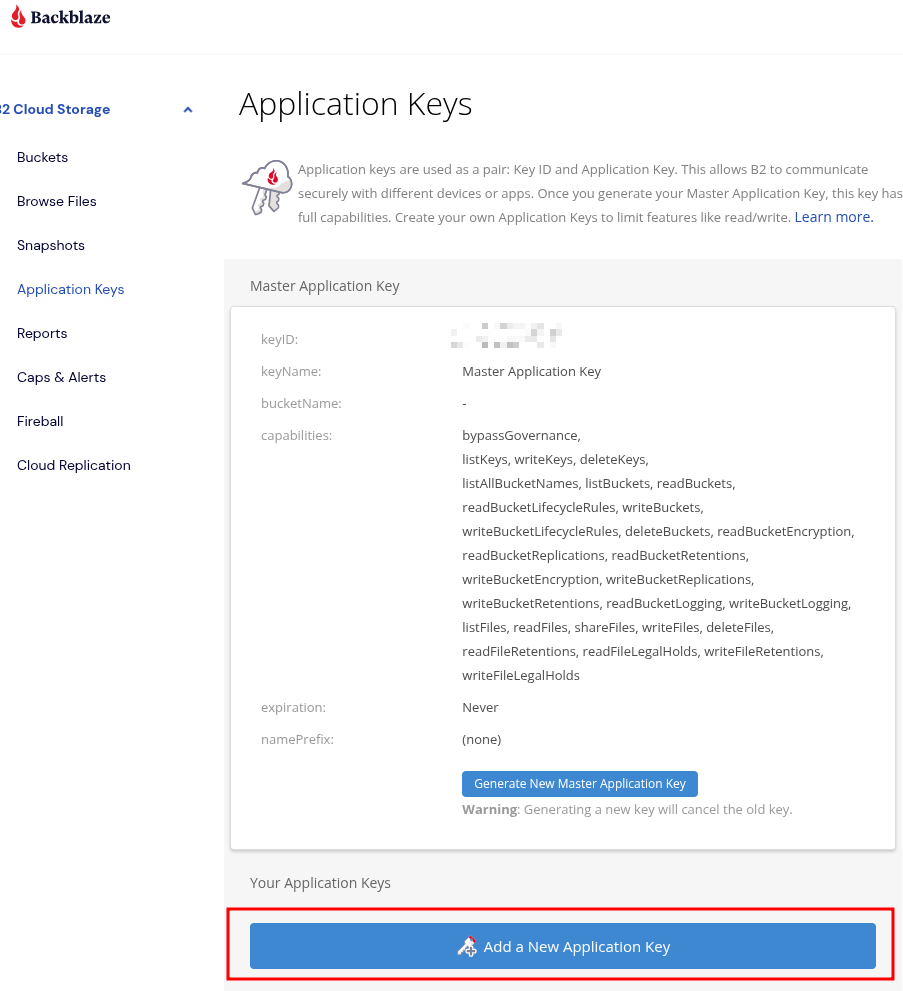
Set a limit to a specific bucket:
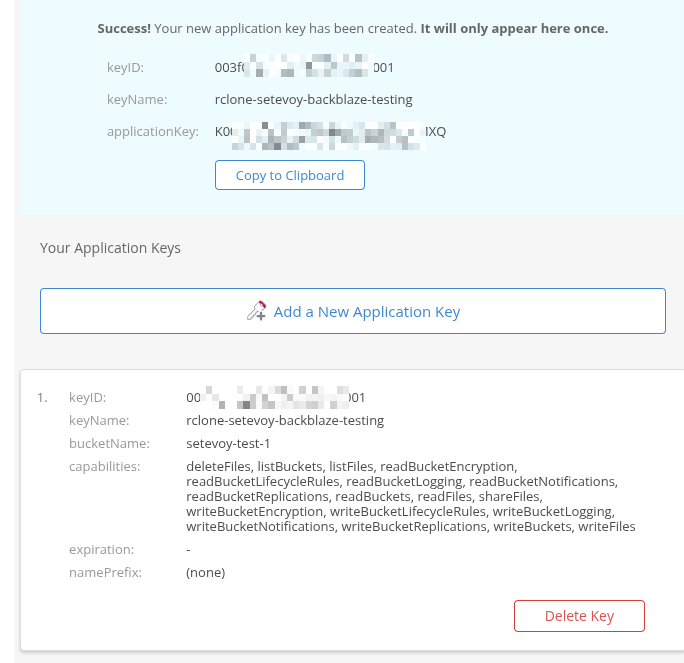
Save it immediately, because we won’t see it again:
Configuring an rclone B2 remote
Rclone documentation – Backblaze B2.
Run rclone config and create a new remote:
$ rclone config
...
e) Edit existing remote
n) New remote
d) Delete remote
...
Enter name for new remote.
name> setevoy-backblaze-testing
...
Option Storage.
Type of storage to configure.
Choose a number from below, or type in your own value.
...
 5 / Backblaze B2
   \ (b2)
...
Account ID or Application Key ID.
Enter a value.
account> 003***001
...
Application Key.
Enter a value.
key> K00***MXQ
...
Option hard_delete.
Permanently delete files on remote removal, otherwise hide files.
Enter a boolean value (true or false). Press Enter for the default (false).
hard_delete>

Edit advanced config?
y) Yes
n) No (default)
y/n>

Configuration complete.
Options:
- type: b2
- account: 003f07593a16f1d0000000001
- key: K003+sr5NBQhJvsTdlCnfdt9UYHqMXQ
Keep this "setevoy-backblaze-testing" remote?
y) Yes this is OK (default)
...
Here I left hard_delete at its default value (disabled), but in production I enabled it – otherwise files won’t be deleted but instead moved to a sort of trash, hidden away.
I don’t need that behavior, since rclone handles all of that through --backup-dir.
Let’s verify the new remote works – create a file and copy it to the bucket:
[setevoy@setevoy-work ~]  $ echo "test" > /tmp/test-b2.txt
[setevoy@setevoy-work ~]  $ rclone copy  /tmp/test-b2.txt setevoy-backblaze-testing:setevoy-test-1

[setevoy@setevoy-work ~]  $ rclone ls setevoy-backblaze-testing:setevoy-test-1
        5 test-b2.txt
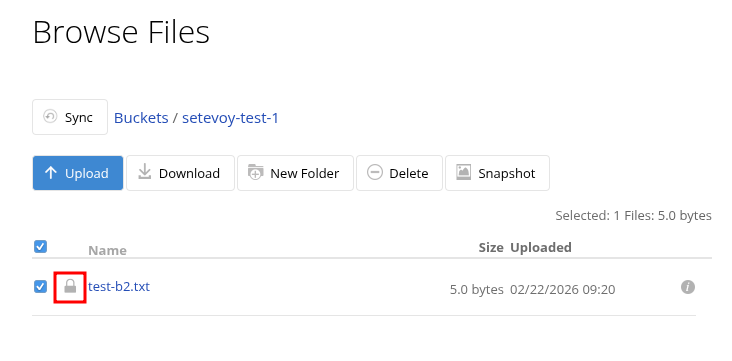
And in the UI – for this bucket I had SSE enabled, so it immediately shows the file is encrypted:
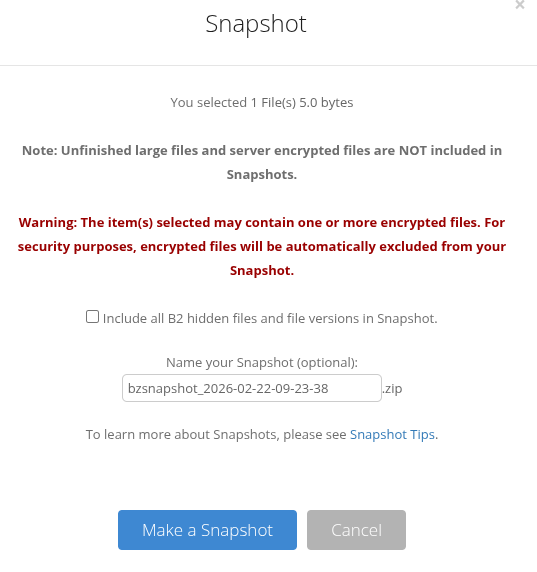
And creating a snapshot for this file is unavailable:
Configuring an rclone crypt remote
Same as with AWS S3 or Google Drive – create a new remote with type crypt and connect it to the base remote.
Run rclone config again, here’s an example with data-only encryption – file and directory names will be plaintext:
$ rclone config
...

name> setevoy-backblaze-testing-crypted
...

Option Storage.
Type of storage to configure.
...
Storage> crypt

Option remote.
Remote to encrypt/decrypt.
...
Enter a value.
remote> setevoy-backblaze-testing:setevoy-test-1

Option filename_encryption.
How to encrypt the filenames.
...
Press Enter for the default (standard).
   / Encrypt the filenames.
 1 | See the docs for the details.
   \ (standard)
 2 / Very simple filename obfuscation.
   \ (obfuscate)
   / Don't encrypt the file names.
 3 | Adds a ".bin", or "suffix" extension only.
   \ (off)
filename_encryption> 3

Option directory_name_encryption.
...
Press Enter for the default (true).
 1 / Encrypt directory names.
   \ (true)
 2 / Don't encrypt directory names, leave them intact.
   \ (false)
directory_name_encryption> 2

Option password.
...
y) Yes, type in my own password
g) Generate random password
y/g> y
Enter the password:
password:
Confirm the password:
password:

Option password2.
Password or pass phrase for salt.
...
n) No, leave this optional password blank (default)
y/g/n>

...
Configuration complete.
Options:
- type: crypt
- remote: setevoy-backblaze-testing:setevoy-test-1
- filename_encryption: off
- directory_name_encryption: false
- password: *** ENCRYPTED ***

...
Copy the test file to this remote:
$ rclone copy /tmp/test-b2.txt setevoy-backblaze-testing-crypted
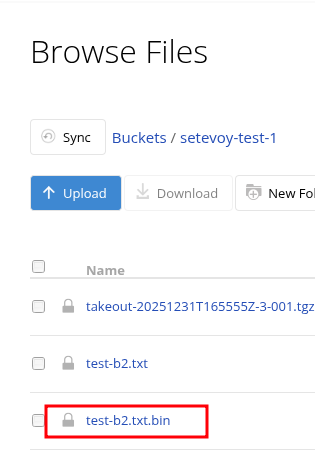
And we have the same file, but now as a .bin:
 Real data and the “Cannot upload files, storage cap exceeded” error
I was actually planning to wrap things up there, but couldn’t help myself – I went ahead and configured the whole system fully, and there’s a bit more to show.
First – when I started uploading large amounts of data, I hit the “storage cap exceeded” error:
2026/02/22 12:39:37 NOTICE: Failed to sync with 4 errors: last error was: Cannot upload files, storage cap exceeded. See the Caps & Alerts page to increase your cap. (403 storage_cap_exceeded)
ERROR: Rclone sync for nas/vault failed with exit code 7
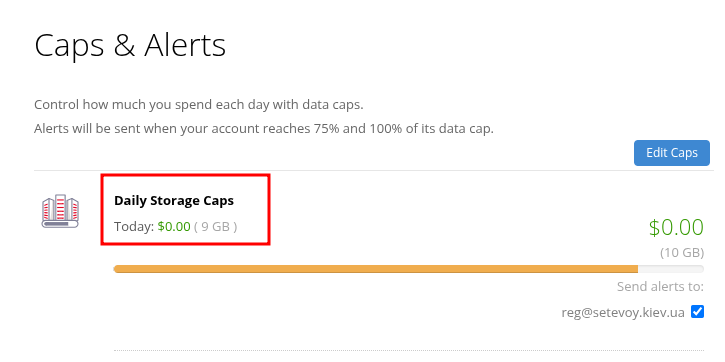
Because on the free account there’s a 10 GB upload limit:
Add a card – get full access.
Backblaze pricing
And since we got to the point of payments – let’s talk a bit about Backblaze costs.
You only pay for storage itself – $6 per terabyte – and for downloading data from buckets, but only for the amount that exceeds 3x the size of data stored in your buckets.
Meaning, if you store 1 terabyte – you can download 3 terabytes per month for free. Anything above that is charged at $0.01/GB.
For more details see Backblaze Product and Pricing Updates.
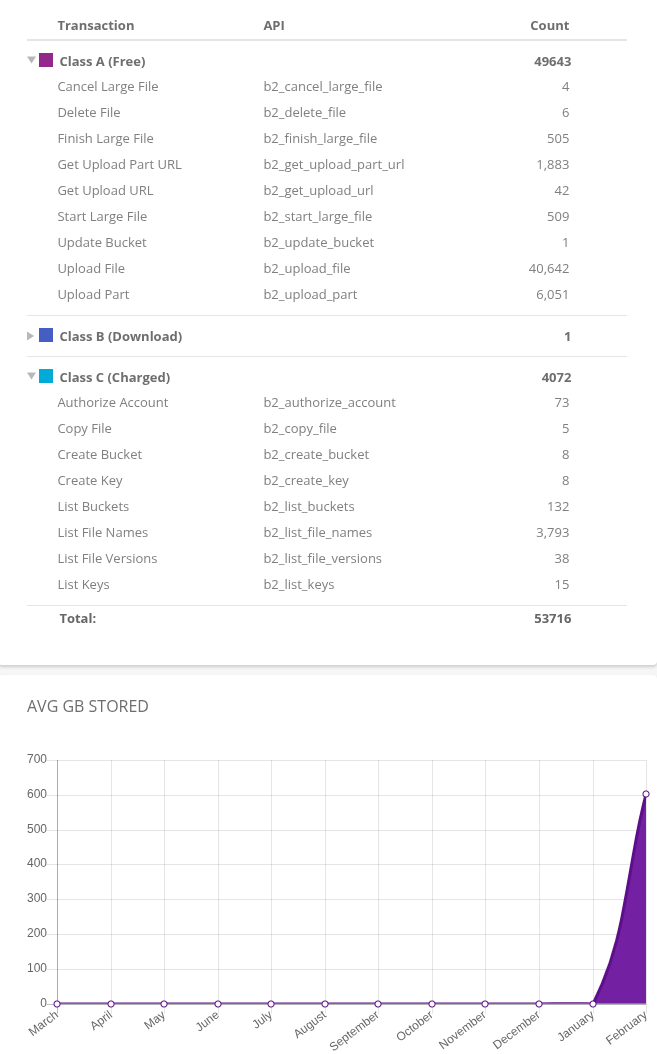
Additionally, some API operations are charged, and they’re divided into three separate classes:
- Class A: free – creating buckets, uploading files, deletion
- Class B: downloading files, includes
b2_download_file_*,b2_get_file_info, for example –rclone syncfrom a bucket to your machine- $0.004 per 10,000 operations
- Class C: listing files, checking metadata – includes
b2_list_file_names,b2_list_file_versions, for example – when we dorclone syncfrom our machine to a bucket- $0.004 per 1,000 operations
But we also get 2,500 free API calls per day.
See Backblaze B2 Cloud Storage Frequent Questions.
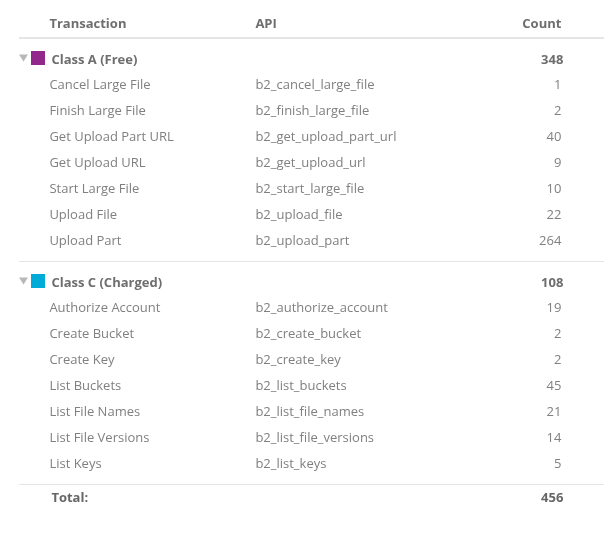
For my setup there will be the most Class C transactions, since rclone checks all files and their modification time on every sync, meaning it reads metadata (though this can apparently be tuned).
You can also use the rclone --fast-list option – fewer operations but more RAM usage.
We’ll see what the first bill looks like 🙂
In Reports there’s full information on the number of calls per type:
So, we add the card, wait a couple of minutes, run the data copy – and everything goes through:
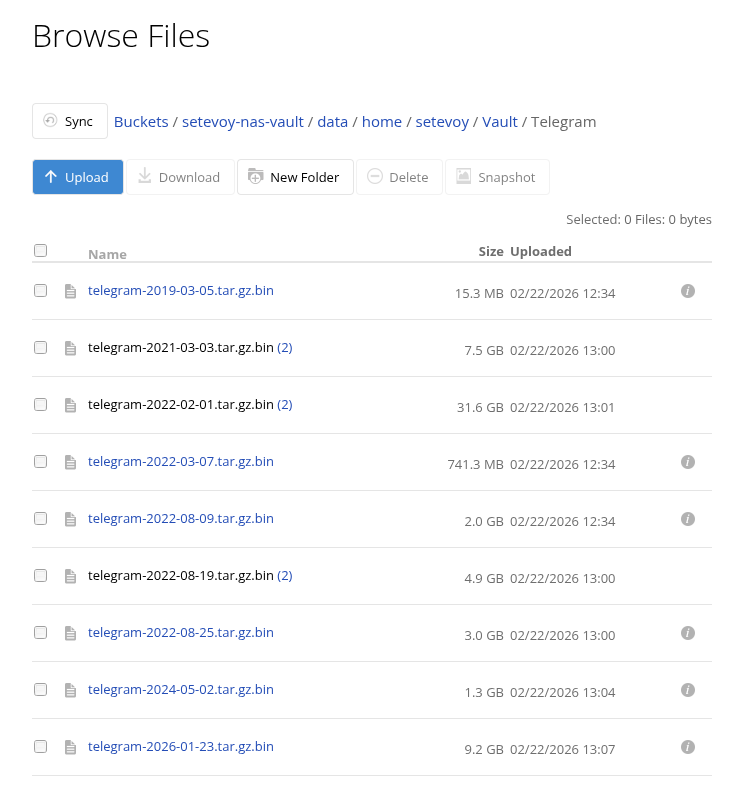
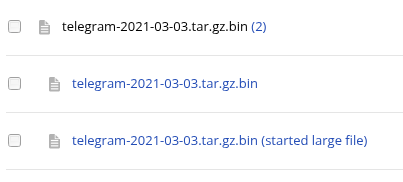
But due to the error there are a few incomplete uploads left (“started large file” in the screenshot) – you can clean them up with rclone cleanup or just delete them manually:
Upload speed and comparison with Google Drive and AWS S3
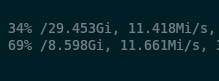
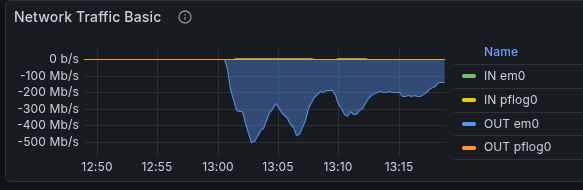
When I started uploading my backups the speed looked like this – though part of this involved small files:
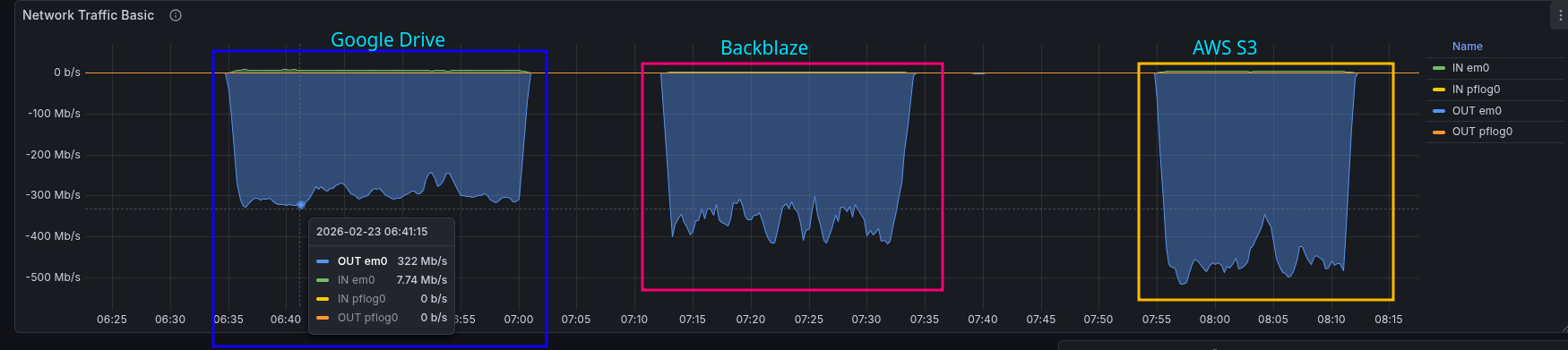
Later I did a separate benchmark – uploading a 50 GB file with rclone copy.
Results: Google Drive peaked at 322 Mb/s, Backblaze ramped up to 417 Mb/s, and AWS hit a full 516 Mb/s:
And the result of uploading my entire backup looks like this:
Overall impressions – at least so far – are excellent.
We’ll see how it holds up in practice.
