 We finally “grew up” to using Okta on the current project, so there’s a short series of posts coming up on it.
I wrote about Okta before, but that was 5-6 years ago, and there have been some interesting changes since then (see the #okta tag).
Today we’ll be configuring SSO login via Okta for Grafana.
I did something similar before for ArgoCD and GitHub, but with SAML (see What is: SAML – overview, structure and request tracing using Jenkins and Okta SAML SSO – 2019, OMG..) – now we’ll do it for Grafana, but with OIDC.
When logging into Grafana via Okta, we need to automatically determine which Grafana Role to assign – a regular Viewer or Admin – depending on the user’s group in Okta. There are two ways to do this – we’ll look at both.
Okta has a ready-made Grafana Labs app – but it only supports SAML, and we want the modern approach with OIDC – so we’ll create a separate integration.
Grafana documentation – Configure Okta OIDC authentication, and it’s actually quite usable.
The only problem I ran into was mapping existing Grafana users from Google SSO to Okta users – took a bit of digging.
Contents
Configuring Okta
What we’ll do in Okta: create a new App with OIDC, grab its keys for configuring Grafana itself, and then configure the mapping of Okta Groups to Grafana Roles.
Creating an Okta OIDC App for Grafana
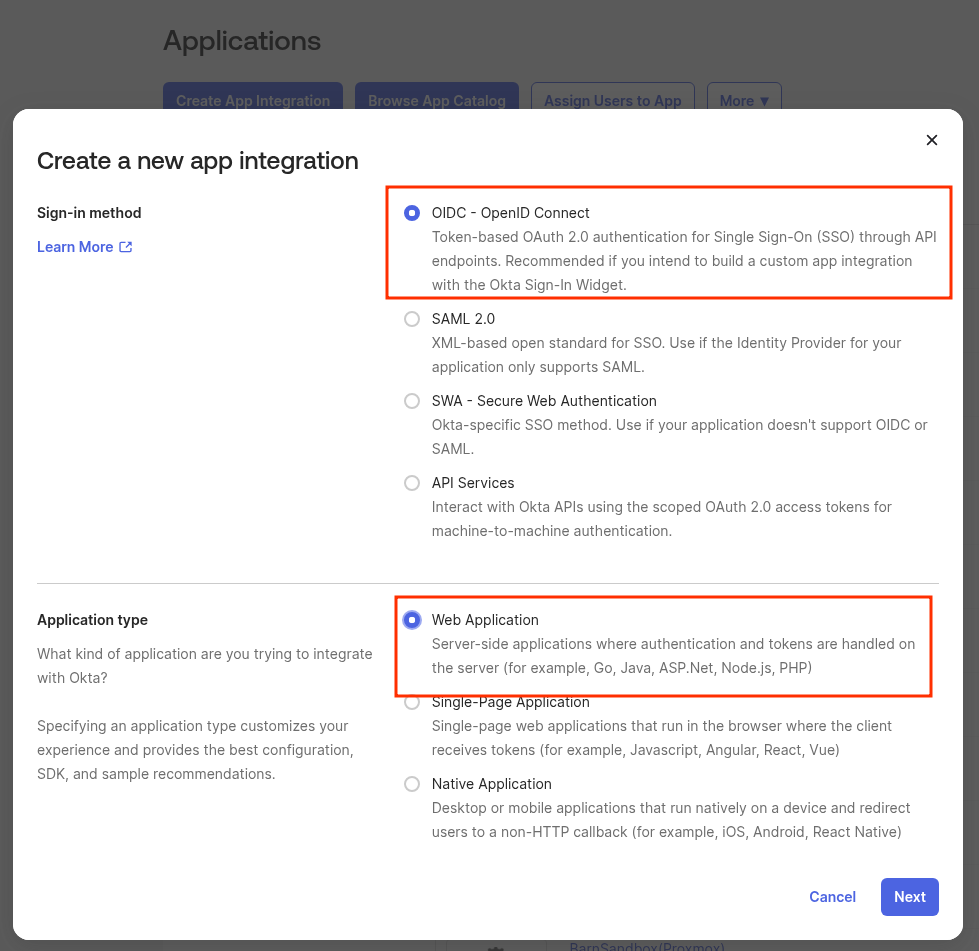
Go to Applications, create a new app, select OIDC as the sign-in method, and set Application type to Web Application:
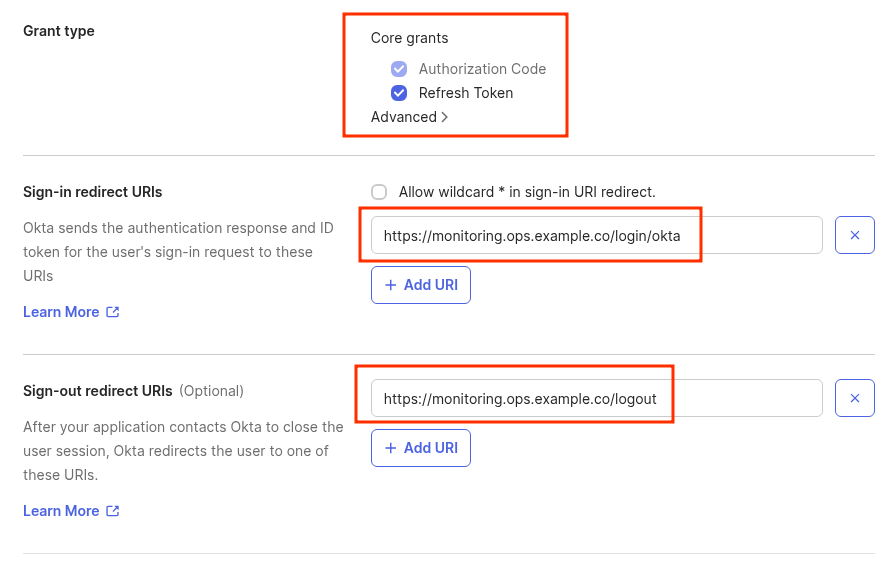
Next set the grant types:
- Authorization Code: Grafana will be able to perform user login
- Refresh Token: Grafana will be able to refresh the user’s token without requiring a re-login
See Application Grant Types and OAuth 2.0 and OpenID Connect overview.
In URLs set the endpoints specified in the documentation – https://<grafana_url>/login/okta and https://<grafana_url>/logout:
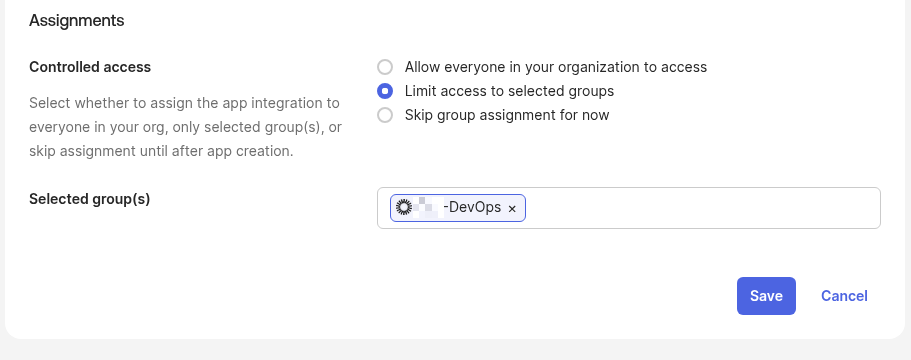
Controlled access can be configured later via Assign – or you can specify the groups this App will be attached to right away:
Save, and get the keys for Grafana:
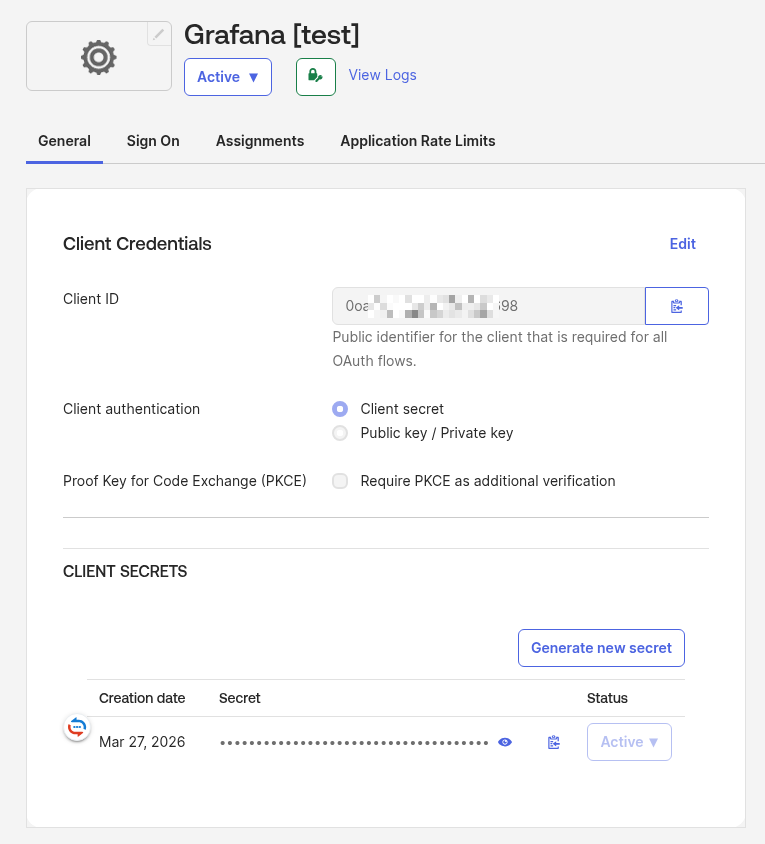
The Grafana documentation says there should also be URLs here – but there aren’t. That’s fine, they’re the defaults.
One thing to note is if you’re using an Okta Custom Domain – but we’ll cover that later, in the Grafana configuration section.
Done here, now for the interesting part – mapping Okta groups to Grafana Roles.
Configure Okta to Grafana role mapping
There are two options: either create custom Attributes for the new App and then set them per Okta Group – or parse the values in Grafana’s role_attribute_path.
The first approach involves a bit more clickops but offers more flexibility – the second is simpler but can be a headache when writing complex conditions.
I tested both – both work. Let’s start with the one in the Grafana documentation – via custom attributes.
Grafana Role based on Okta App Profile and Custom Attributes
The idea is: we add a new Attribute to the Profile of the created App, tell Grafana which field contains the Grafana Role information, then set that attribute’s value for an Okta User or Okta Group – and it gets passed to Grafana.
Then when we Assign this App to a user – the App takes their default attributes from the Okta User Profile (firstName, lastName, email, login), adds the new Grafana Role attribute, and passes all of this to Grafana. Grafana then parses the fields and determines the user’s Grafana Role.
See The Okta User Profile and Application User Profile and Add custom attributes to apps, directories, and identity providers.
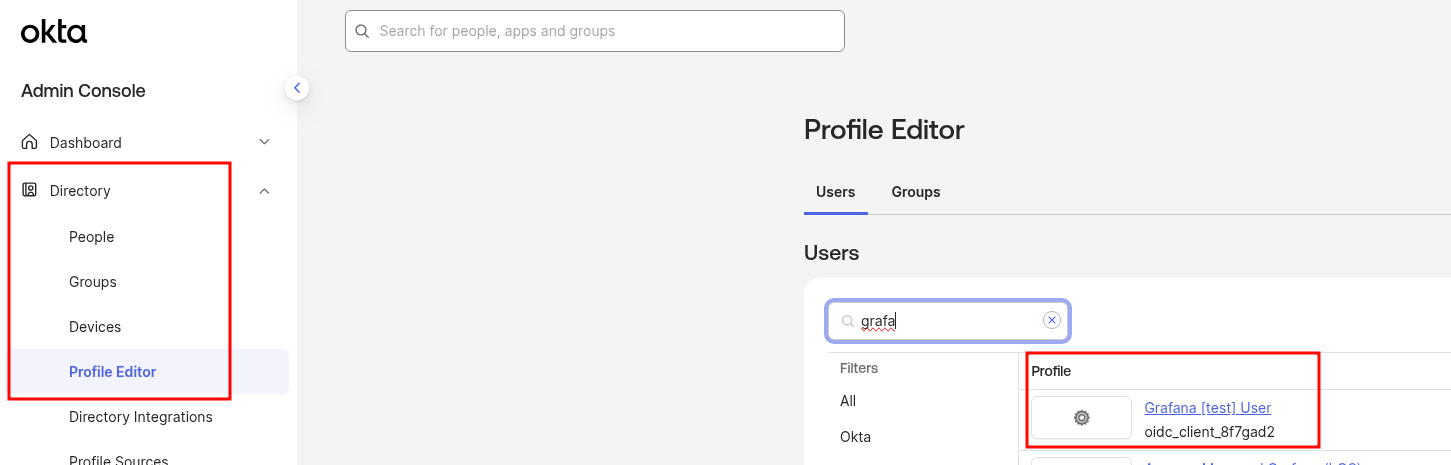
Go to Directory > Profile Editor, find the profile for the new App:
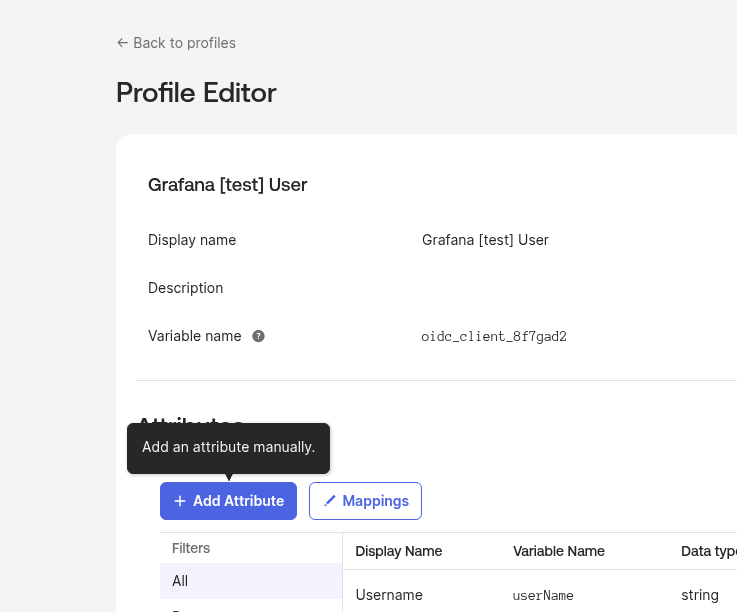
Click Add Attribute:
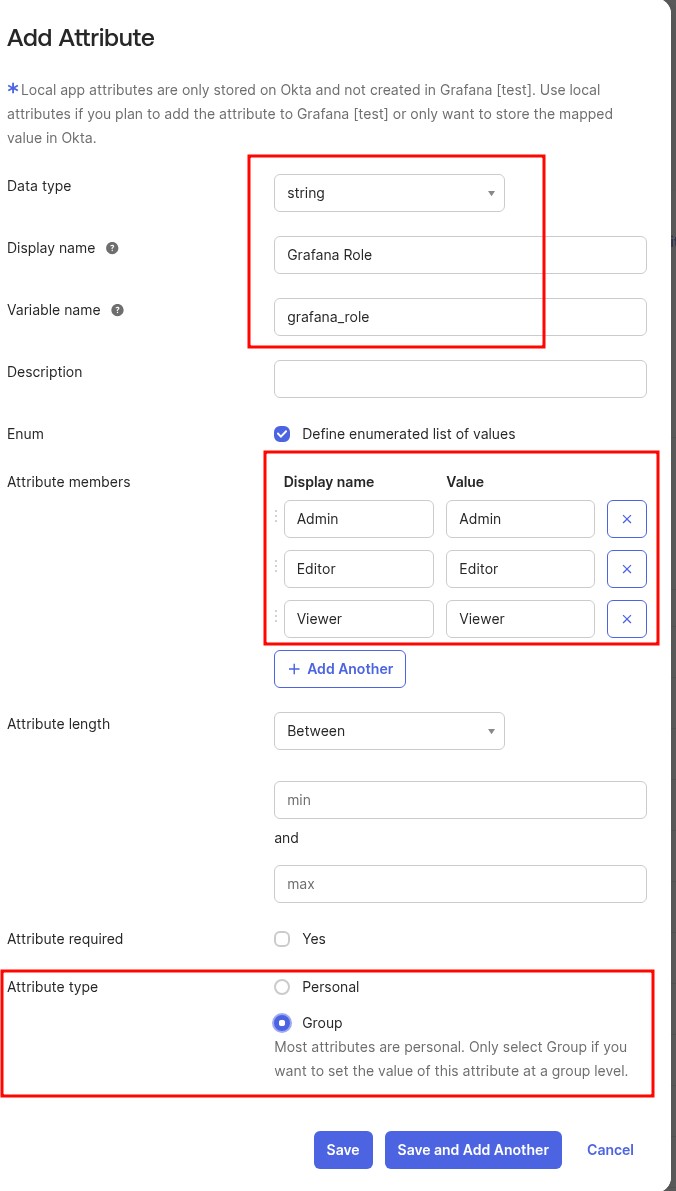
Set the type to string, in Enum define the list of Grafana roles, and in Attribute type you can specify Group to manage roles at the user group level:
The Grafana documentation in the Configure Groups claim section says you need to configure passing user groups – but if we’re passing the role via a custom attribute, Grafana Role will work without that.
However, if you go the second route – parsing the group and assigning a Grafana role based on it – you’ll need to do this, since user groups aren’t passed by default.
So, the new Attribute has been added – go back to the Applications list:
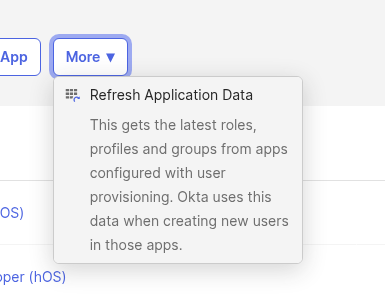
Click Refresh:
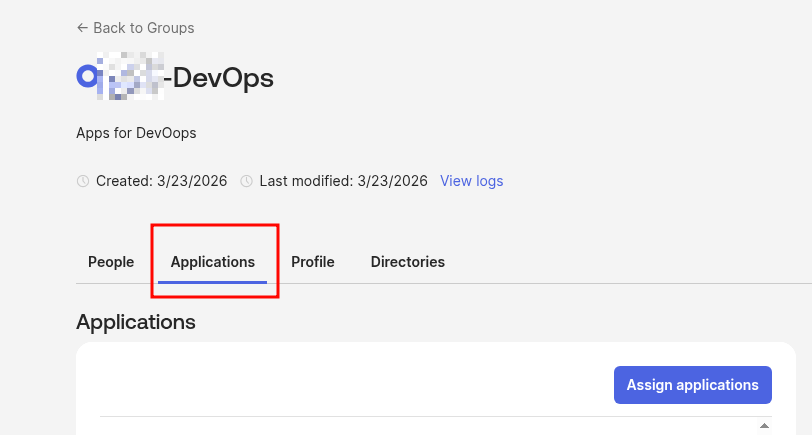
Go to the Okta Group, find the attached Grafana App:
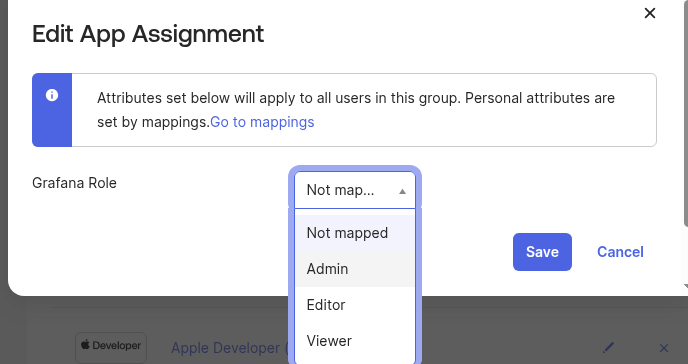
Click Edit:

Set the value of the Grafana Role attribute:
Getting a bit ahead – here’s what we’ll see in the Grafana logs on login – no groups, but the attribute grafana_role="Admin" is passed:
...
logger=oauth.okta t=2026-03-27T13:58:14.843471331Z level=debug msg="Received user info response" raw_json="{\"sub\":\"***\",\"name\":\"Arseny Zinchenko\",\"locale\":\"en_US\",\"email\":\"[email protected]\",\"preferred_username\":\"[email protected]\",\"given_name\":\"Arseny\",\"family_name\":\"Zinchenko\",\"zoneinfo\":\"America/Los_Angeles\",\"updated_at\":1774610676,\"email_verified\":true,\"grafana_role\":\"Admin\"}" data="unsupported value type"
Grafana Role based on Okta Group Name
The alternative approach – skip the custom attributes and instead pass the user’s groups from Okta to Grafana during login, then determine the role in Grafana based on the group name.
To do this, you need to add group claim passing to the Token claims. This can apparently be done via Add Expression and Okta Expression Language using, for example, Groups.startsWith():
Groups.startsWith("OKTA", "org-DevOps", 100)
Where “OKTA” is the group source, and “org-DevOps” is a filter to only pass the group when its name starts with “org-DevOps“:
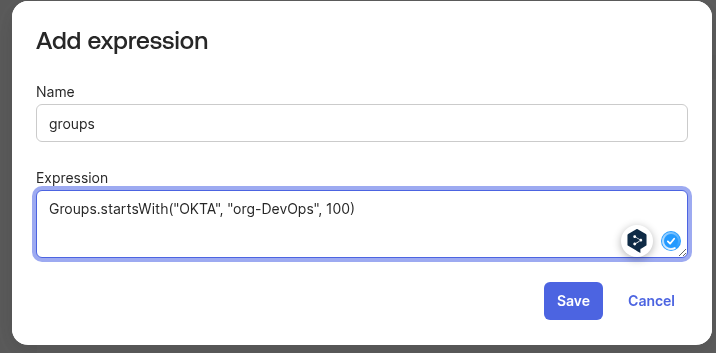
But then Okta complains that “‘groups’ is reserved and cannot be used“:
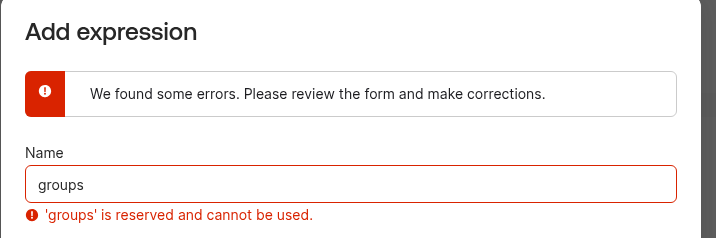
I didn’t bother with that and just used “Show legacy configuration”:
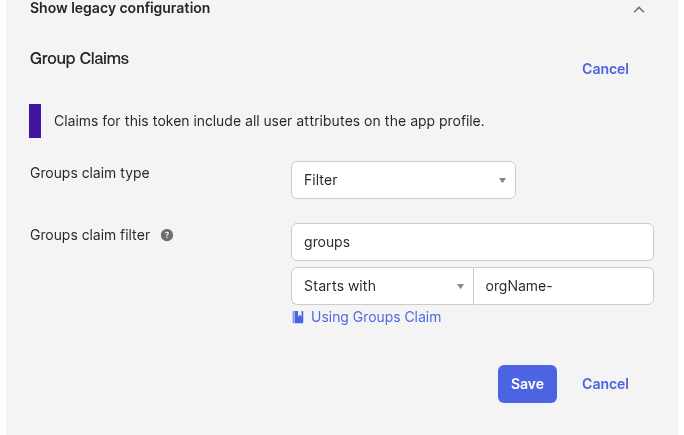
Now when logging into Grafana we’ll get a groups field with all the groups the user belongs to – here’s an example from Grafana logs where this is already configured:
...
"groups\":[\""orgName-All-Users\",\""orgName-DevOps\",\""orgName-All-RnD\",\""orgName-Okta-Admins\"]}
...
That’s it – now we can configure Grafana itself.
Configuring Okta Authentication in Grafana
Go to Authentication, select Okta:

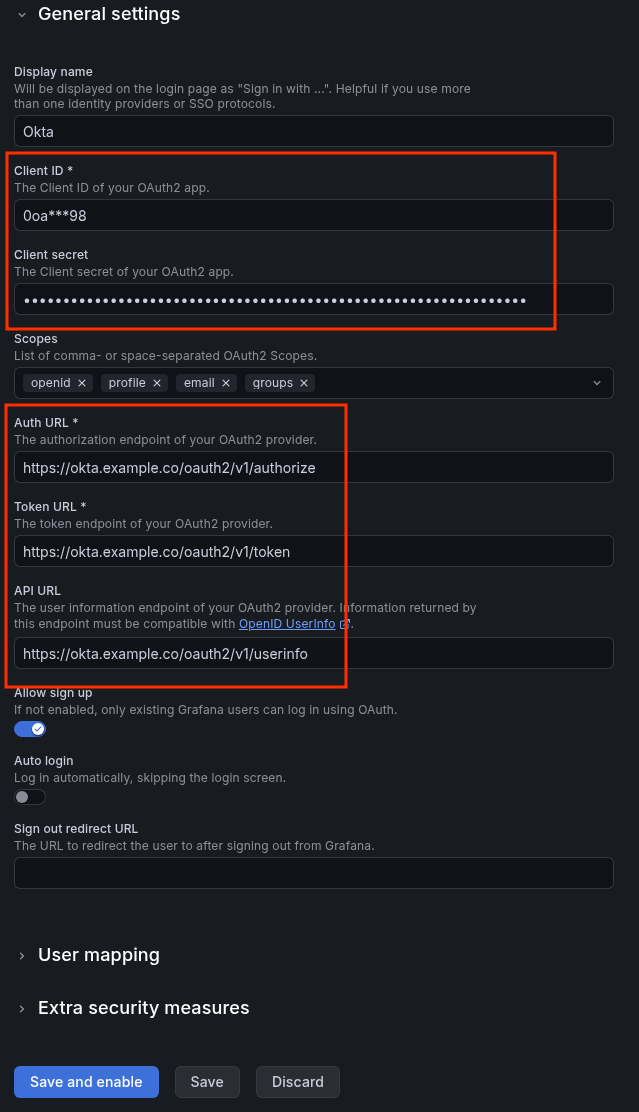
Set the keys and URLs we discussed above.
In my case an Okta Custom Domain is in use, so the addresses will be:
- Auth URL: https://okta.example.com/oauth2/v1/authorize
- Token URL: https://okta.example.com/oauth2/v1/token
- API URL: https://okta.example.com/oauth2/v1/userinfo
Or use the defaults from https://<TENANT_ID>.okta.com:
Now for the roles: if we’re passing the role via App Profile and Custom Attribute – set the “Role attribute path” field in User mapping simply to grafana_role:
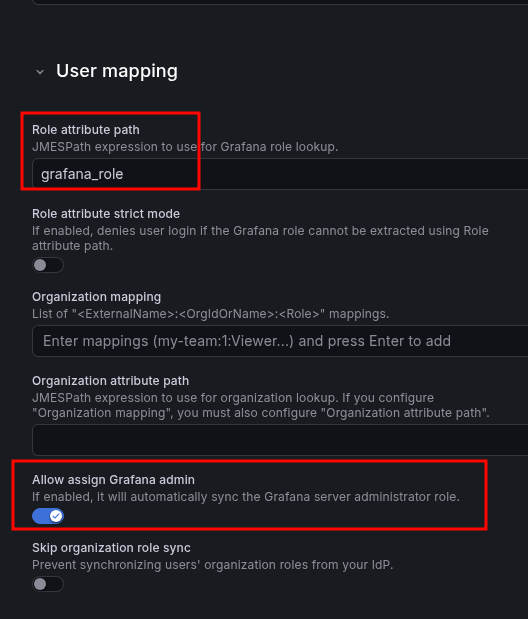
Grafana will then read the field value and map “Admin” from Okta to its local “Admin” role.
If instead we’re using Okta Group Name – passing the group without App Profile or custom attributes – write a JMESPath expression in Role attribute path:
contains(groups[*], 'orgName-DevOps') && 'Admin' || 'Viewer'
Then if the user’s groups field contains ‘orgName-DevOps‘ – they’ll be assigned Grafana Role “Admin”, otherwise the default role “Viewer”.
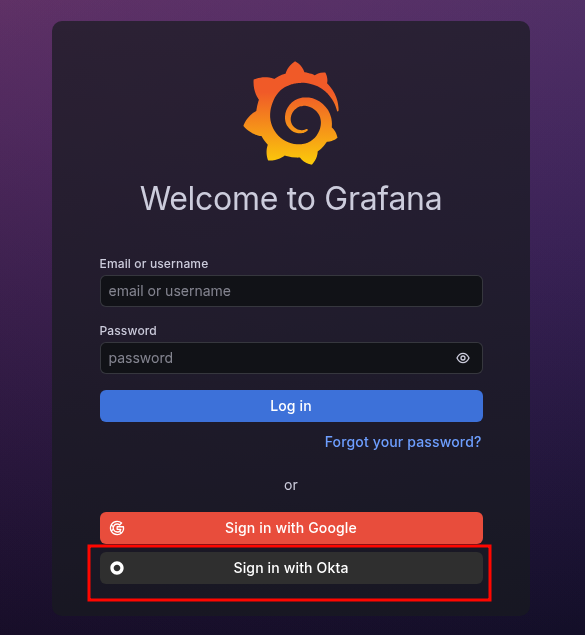
Save, open Grafana’s login page in another browser or incognito mode – and at the bottom we have the Okta login option:
Click it, we get redirected to Okta:
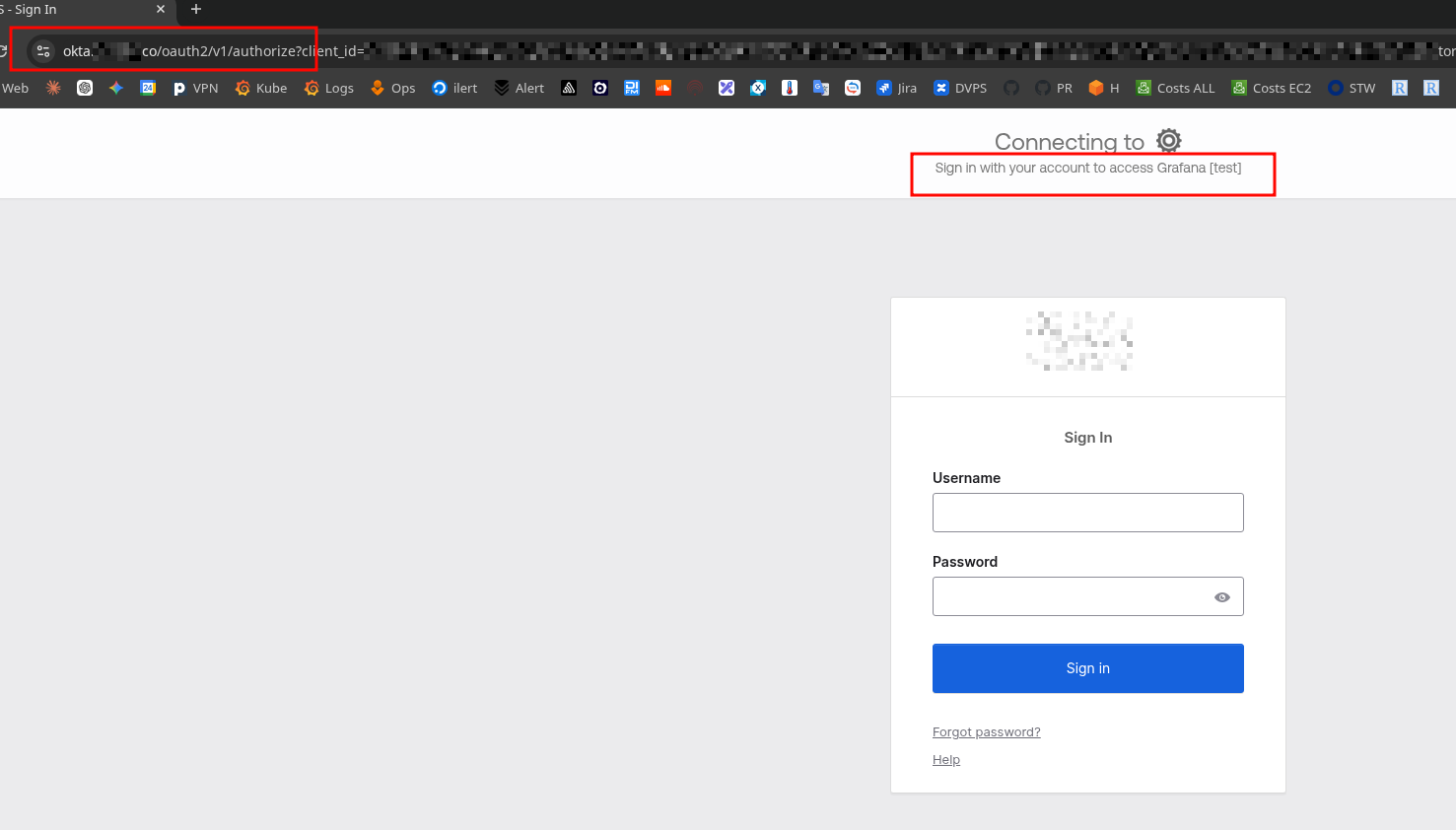
But the first attempt failed 🙂
That said, if the user doesn’t exist in Grafana yet – everything should work without issues:
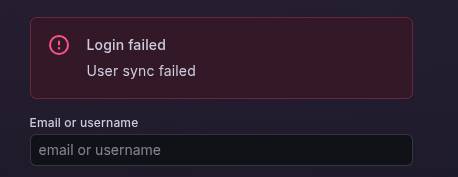
Grafana OIDC and the “unable to create user: user not found” error
This required a bit of debugging.
Enable debug logs – it didn’t actually help debug the error itself, but it was interesting to see what Grafana receives from Okta:
...
    grafana.ini:
      log:
        level: debug
        filters: "oauth.okta:debug authn:debug"
...
Now we can see all the fields from Okta:
...
logger=oauth.okta t=2026-03-27T11:36:21.745687386Z level=debug msg="Received user info response" raw_json="{\"sub\":\"***\",\"name\":\"Arseny Zinchenko\",\"locale\":\"en_US\",\"email\":\"[email protected]\",\"preferred_username\":\"[email protected]\",\"given_name\":\"Arseny\",\"family_name\":\"Zinchenko\",\"zoneinfo\":\"America/Los_Angeles\",\"updated_at\":1774610676,\"email_verified\":true,\"groups\":[\"orgName Users [old]\",\"Everyone\",\"orgName-All-Users\",\"orgName-DevOps\",\"orgName-All-RnD\",\"orgName-Okta-Admins\"],\"grafana_role\":\"Admin\"}" data="unsupported value type"
logger=user.sync t=2026-03-27T11:36:21.751172007Z level=error msg="Failed to create user" error="user not found" auth_module=oauth_okta auth_id=***
logger=authn.service t=2026-03-27T11:36:21.751234085Z level=error msg="Failed to run post auth hook" client=auth.client.okta id= error="[user.sync.internal] unable to create user: user not found"
...
What caught my attention was that Grafana was trying to “create user” and saying “user not found“.
The issue is that our Grafana already has Google SSO configured, and I had logged in with it at some point – so there’s already a user with "email":"[email protected]" in Grafana.
To allow Grafana to use the same email for different identity providers – add the oauth_allow_insecure_email_lookup option to grafana.ini, see Extended authentication settings and Using the same email address to login with different identity providers:
...
    grafana.ini:
      log:
        level: debug
        filters: "oauth.okta:debug authn:debug"
      auth:
        oauth_allow_insecure_email_lookup: true
...
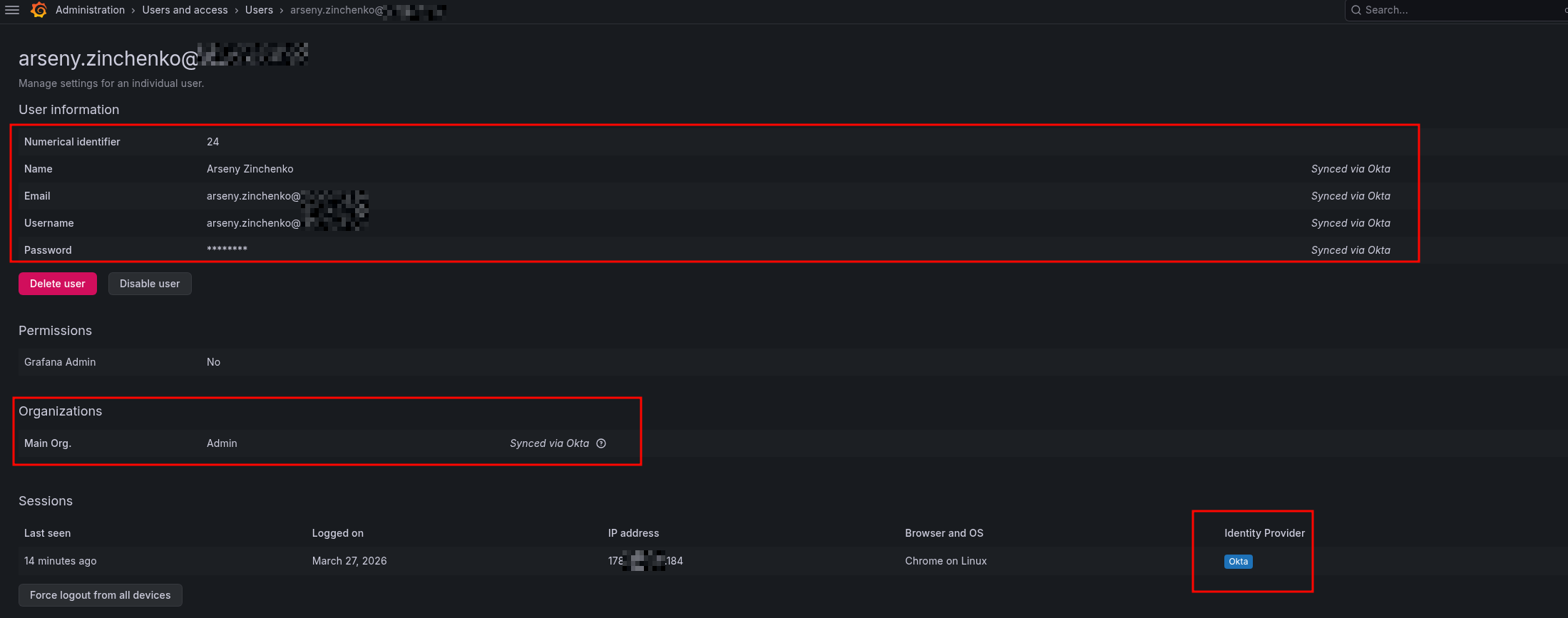
And now everything works:
Done.
