 Continuing the setup of my home NAS on FreeBSD.
Actually, a NAS is a Network System, and it’s desirable to have access to it from other devices – Linux and Windows hosts, phones, and TVs.
Here we have two main options – Samba and NFS. One could also mention sshfs – but this solution is definitely not for a home network (although it is simpler).
I decided for myself to set up access via a Samba share for Windows (on a gaming PC), Android phones, and Android TV – while NFS will be used purely for Linux systems for backups.
In this post, we will configure Samba on FreeBSD, and in the next one – we will add NFS.
Previous posts in this series:
All posts in this blog series:
- FreeBSD: Home NAS, part 1 – configuring ZFS mirror (RAID1)
- FreeBSD: Home NAS, part 2 – introduction to Packet Filter (PF) firewall
- FreeBSD: Home NAS, part 3 – WireGuard VPN, Linux peer, and routing
- FreeBSD: Home NAS, part 4 – Local DNS with Unbound
- FreeBSD: Home NAS, part 5 – ZFS pool, datasets, snapshots, and ZFS monitoring
- (current) FreeBSD: Home NAS, part 6 – Samba server and client connections
- FreeBSD: Home NAS, part 7 – NFSv4 and use with Linux clients
- FreeBSD: Home NAS, part 8 – NFS and Samba data backup with restic
- FreeBSD: Home NAS, part 9 – data backup to AWS S3 and Google Drive with rclone
- FreeBSD: Home NAS, part 10 – monitoring with VictoriaMetrics and Grafana
- FreeBSD: Home NAS, part 11 – extended monitoring with additional exporters
- FreeBSD: Home NAS, part 12: synchronizing data with Syncthing
- FreeBSD: Home NAS, Part 13: Planning Data Storage and Backups
- FreeBSD: Home NAS, part 14 – logs with VictoriaLogs and alerts with VMAlert
- FreeBSD: Home NAS, Part 15: Automating Backups – scripts, rsync, rclone
- … to be continued
UPD: I accidentally googled my own post from 2012 – FreeBSD: installation and quick setup of a SAMBA server… I completely forgot that I had already done this once.
Contents
Samba Installation
For the Samba share, let’s create a separate ZFS dataset:
root@setevoy-nas:/home/setevoy # zfs create nas/share
Check it:
root@setevoy-nas:/home/setevoy # zfs list nas/share
NAME        USED  AVAIL  REFER  MOUNTPOINT
nas/share    96K  3.51T    96K  /nas/share
Current permissions are root:wheel:
root@setevoy-nas:/home/setevoy # ls -ld /nas/share
drwxr-xr-x  2 root wheel 2 Dec 26 15:46 /nas/share
Add a new group to the system:
root@setevoy-nas:/home/setevoy # pw groupadd smbshare
Add a new user:
root@setevoy-nas:/home/setevoy # pw useradd smbshare -s /usr/sbin/nologin -g smbshare
Here:
- without a home directory
- without system login capability –
/usr/sbin/nologin- but if you plan to perform local operations as this user – create it with
-s /bin/sh, although SSH will still be blocked in thesshdconfig (SSH will be covered in a separate post)
- but if you plan to perform local operations as this user – create it with
- and with
-g smbshare, we specify the primary group
Check the user:
root@setevoy-nas:/home/setevoy # id smbshare
uid=1004(smbshare) gid=1004(smbshare) groups=1004(smbshare)
Change the directory permissions for Samba:
root@setevoy-nas:/home/setevoy # chown smbshare:smbshare /nas/share
And the directory permissions now – we can look at extended information with getfacl to see POSIX/NFSv4 ACLs, which ZFS uses instead of classic Unix bits:
root@setevoy-nas:/home/setevoy # getfacl /nas/share
# file: /nas/share
# owner: smbshare
# group: smbshare
            owner@:rwxp--aARWcCos:-------:allow
            group@:rwxp--a-R-c--s:-------:allow
         everyone@:------a-R-c--s:-------:allow
Full access is specified for the owner:
r: read data / list dirw: write data / create filex: execute / traversep: appenda: write ACLA: read ACLR: read attributesW: write attributesc: read named attributesC: write named attributeso: read ownerships: write ownership
ZFS ACL Configuration
Samba will set its own permissions, so we need to switch modes in the ZFS ACL parameters.
Samba manages permissions independently, so for ZFS ACL, we need to enable passthrough mode so that ZFS does not change the ACL.
Check current dataset parameters:
root@setevoy-nas:/home/setevoy # zfs get acltype,aclmode,aclinherit nas/share
NAME       PROPERTY    VALUE          SOURCE
nas/share  acltype     nfsv4          default
nas/share  aclmode     discard        default
nas/share  aclinherit  restricted     default
Set aclmode and aclinherit to passthrough – ZFS will then use the permissions defined by Samba:
root@setevoy-nas:/home/setevoy # zfs set aclmode=passthrough nas/share
root@setevoy-nas:/home/setevoy # zfs set aclinherit=passthrough nas/share
Check now:
root@setevoy-nas:/home/setevoy # zfs get acltype,aclmode,aclinherit nas/share
NAME       PROPERTY    VALUE          SOURCE
nas/share  acltype     nfsv4          default
nas/share  aclmode     passthrough    local
nas/share  aclinherit  passthrough    local
Unlike acltype=off, which completely disables ACLs and leaves only POSIX permissions, passthrough mode allows Samba to manage ACLs without ZFS interference.
Going forward, changes in the /nas/share directory are best performed as the smbshare user or root, rather than a regular user, to avoid breaking the Samba permission model.
Samba – Share Configuration
Install the stable version 4.16 for FreeBSD:
root@setevoy-nas:~ # pkg install samba416
Add to /etc/rc.conf:
root@setevoy-nas:~ # sysrc samba_server_enable=YES
samba_server_enable: -> YES
Create the /usr/local/etc/smb4.conf file with a minimal config:
[global]
   workgroup = WORKGROUP
   security = user

[shared]
   path = /nas/share
   read only = no
Here:
workgroup: set the defaultWORKGROUP, so there’s no need to specify it on clientssecurity = user: authentication and permission checks are performed by Samba itself[shared]: the share name, which we will use later for connectionspath = /nas/share: the actual path on the server
See smb4.conf.
Or in more detail, explicitly specifying some default options:
[global]
   workgroup = WORKGROUP
   security = user

[shared]
   path = /nas/share
   read only = no
   browseable = yes
   valid users = @smbshare
   create mask = 0660
   directory mask = 2770
Check the syntax:
root@setevoy-nas:/home/setevoy # testparm
Load smb config files from /usr/local/etc/smb4.conf
Loaded services file OK.
Weak crypto is allowed

Server role: ROLE_STANDALONE

Press enter to see a dump of your service definitions

# Global parameters
[global]
        security = USER
        idmap config * : backend = tdb


[shared]
        create mask = 0660
        directory mask = 02770
        path = /nas/share
        read only = No
        valid users = @smbshare
Add a Samba user:
root@setevoy-nas:/home/setevoy # smbpasswd -a smbshare
New SMB password:
Retype new SMB password:
Added user smbshare.
smbpasswd will save the password in /var/db/samba4/private/passdb.tdb.
Start the service:
root@setevoy-nas:~ # service samba_server start
Performing sanity check on Samba configuration: OK
Starting nmbd.
Starting smbd.
Check the port:
root@setevoy-nas:/home/setevoy # sockstat -4 | grep smb
root     smbd       17621 31  tcp4   *:445                 *:*
root     smbd       17621 32  tcp4   *:139                 *:*
Try to connect locally:
root@setevoy-nas:/home/setevoy # smbclient //localhost/shared -U smbshare
Password for [WORKGROUP\smbshare]:
Try "help" to get a list of possible commands.
smb: \>
List files – it’s currently empty:
smb: \> ls
  .                                   D        0  Fri Dec 26 15:46:55 2025
  ..                                  D        0  Fri Dec 26 15:46:55 2025

                3771191492 blocks of size 1024. 3771191396 blocks available
Copy something from the system:
smb: \> put /etc/hosts hosts.test
putting file /etc/hosts as \hosts.test (252.7 kb/s) (average 252.7 kb/s)
smb: \> ls hosts.test
  hosts.test                          A     1035  Fri Dec 26 16:14:29 2025

                3771191480 blocks of size 1024. 3771191380 blocks available
And now we have the file in /nas/share:
root@setevoy-nas:/home/setevoy # ls -l /nas/share
total 5
-rw-rw----  1 smbshare smbshare 1035 Dec 26 16:14 hosts.test
Open access to Samba on the pf firewall (see FreeBSD: Home NAS, part 2 – introduction to Packet Filter (PF) firewall):
...
### SMB
pass in on em0 proto tcp from { 192.168.0.0/24, 192.168.100.0/24, 10.8.0.0/24 } to any port 445 keep state
...
Check the pf config and do a config reload:
root@setevoy-nas:/home/setevoy # pfctl -vnf /etc/pf.conf && service pf reload
Arch Linux and Samba share
Install packages:
[setevoy@setevoy-work ~] $ sudo pacman -S smbclient cifs-utils
smbclient: Samba CLIcifs-utils: utilities to work with Samba shares via CIFS:mount -t cifs- entries in
/etc/fstab systemd automount
Check the connection from Linux to Samba on FreeBSD:
[setevoy@setevoy-work ~]  $ smbclient //192.168.0.2/shared -U smbshare
Can't load /etc/samba/smb.conf - run testparm to debug it
Password for [WORKGROUP\smbshare]:
Try "help" to get a list of possible commands.
smb: \>
List again – everything is there:
smb: \> ls hosts.test
  hosts.test                          A     1035  Fri Dec 26 16:14:29 2025

                3771191480 blocks of size 1024. 3771191380 blocks available
Setting up /etc/fstab and systemd-automount
If we want the share to connect automatically – we’ll configure /etc/fstab and systemd-automount.
On the client, create the directory where the /nas/share from the server will be connected:
[setevoy@setevoy-work ~] $ sudo mkdir -p /mnt/nas-shared
Create the /root/.smbcredentials file with the login and password:
username=smbshare
password=<PASSWORD>
Set access only for root:
[setevoy@setevoy-work ~] $ sudo chmod 600 /root/.smbcredentials
Retrieve the user ID:
[setevoy@setevoy-work ~]  $ id setevoy
uid=1000(setevoy) gid=1000(setevoy) groups=1000(setevoy),998(wheel),964(ollama),962(docker)
Edit /etc/fstab:
...
# NAS Samba share
//192.168.0.2/shared  /mnt/nas-shared  cifs  credentials=/root/.smbcredentials,iocharset=utf8,uid=1000,gid=1000,nofail,_netdev,noauto,x-systemd.automount,serverino,noperm  0  0
Here:
192.168.0.2/shared: host address and share name from/usr/local/etc/smb4.conf/mnt/nas-shared: where to mount locallycifs: file system typecredentials=/root/.smbcredentials: where to get the login and passwordiocharset=utf8: use UTF-8 for filenames (correct Cyrillic and special characters).uid=1000: files on the client appear as owned by the user with UID 1000 (we didid setevoyabove)gid=1000: files appear with GID 1000nofail: the system will boot even if the resource is unavailable (must have for network systems)_netdev: network resource, mounted after the network is upnoauto: do not mount automatically during bootx-systemd.automount: mount automatically upon first access via systemd-unit (see below)serverino: use server inode numbersnoperm: ignore local permission checks, relying on the server (Samba)
Save the changes, run sudo systemctl daemon-reload, and now we have two new files in /run/systemd/generator/:
[setevoy@setevoy-work ~]  $ ll /run/systemd/generator/ | grep share
-rw-r--r-- 1 root root 176 Dec 27 07:41 mnt-nas\x2dshared.automount
-rw-r--r-- 1 root root 342 Dec 27 07:41 mnt-nas\x2dshared.mount
Through the mnt-nas\x2dshared.automount file, systemd monitors access to /mnt/nas-shared, and as soon as we perform any action (e.g., cd /mnt/nas-shared), systemd will execute mnt-nas\x2dshared.mount, which actually connects the partition.
See systemd.automount and Understanding systemd Automounts: Why /dev/sda1 Becomes systemd-1 and How to Tame It.
Activate them:
[setevoy@setevoy-work ~] $ sudo systemctl restart remote-fs.target
Check status – must be active (waiting):
[setevoy@setevoy-work ~] $ sudo systemctl status mnt-nas\x2dshared.automoun
● nas-smb-media.automount
     Loaded: loaded (/etc/fstab; generated)
     Active: active (waiting) since Mon 2025-12-29 19:32:28 EET; 2s ago
 Invocation: b50ba77b54b941409314fc33068de0d1
   Triggers: ● nas-smb-media.mount
      Where: /nas/smb/media
       Docs: man:fstab(5)
             man:systemd-fstab-generator(8)
Let’s check it out – perform some operation on the /mnt/nas-shared, and systemd will attach the Samba share with a one-second delay:
[setevoy@setevoy-work ~]  $ ls -l /mnt/nas-shared/
total 10626126
-rwxr-xr-x 1 setevoy setevoy 1359900672 Dec 26 17:03  FreeBSD-15.0-RELEASE-amd64-disc1.iso
-rwxr-xr-x 1 setevoy setevoy 9817684824 Dec 26 14:35 'Odin.doma.(1990).BDRip.1080p.[envy].[60fps].mkv'
-rwxr-xr-x 1 setevoy setevoy       1035 Dec 26 16:14  hosts.test
And now the directory is shown as mounted:
[setevoy@setevoy-work ~]  $ findmnt /mnt/nas-shared
TARGET          SOURCE FSTYPE OPTIONS
/mnt/nas-shared systemd-1
                       autofs rw,relatime,fd=94,pgrp=1,timeout=0,minproto=5,maxproto=5,direct,pipe_ino=17332707
/mnt/nas-shared //192.168.0.2/shared
                       cifs   rw,relatime,vers=3.1.1,cache=strict,upcall_target=app,username=smbshare,uid=1000,forceuid,gid=1000,forcegid,addr=192.168.0.2,file_mode=0755,dir_mode=0755,iocharset=utf
Write Speed Test
I did this to compare with NFS – didn’t see a difference, but let’s keep the example here.
The most reliable way is to copy with dd, add oflag=direct and status=progress:
$ dd if=Downloads/FreeBSD-15.0-RELEASE-amd64-disc1.iso of=/mnt/nas-shared/FreeBSD-15.0-RELEASE-amd64-disc1.iso bs=16M oflag=direct status=progress
1325400064 bytes (1.3 GB, 1.2 GiB) copied, 23 s, 57.5 MB/s1359900672 bytes (1.4 GB, 1.3 GiB) copied, 23.5906 s, 57.6 MB/s

81+1 records in
81+1 records out
1359900672 bytes (1.4 GB, 1.3 GiB) copied, 23.7558 s, 57.2 MB/s
57.2 MB/s, which is 457.6 Mbit/s. Considering the laptop is currently on WiFi – this is a perfectly normal speed.
Connecting Samba clients
And examples of how to connect to Samba from different devices.
Samba and KDE Dolphin
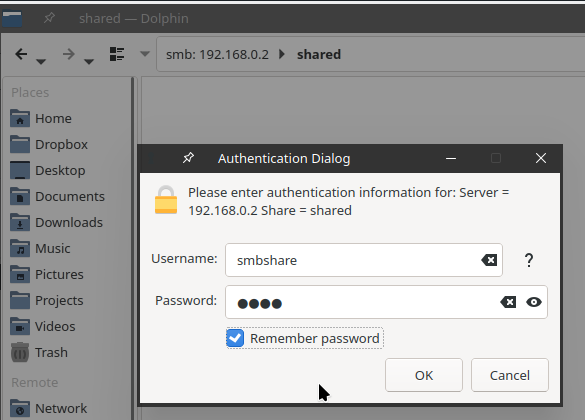
Actually, we’ve already set up automount via systemd, but you can open it directly from the KDE Dolphin file manager – enter the address smb://192.168.0.2, enter the login/password:
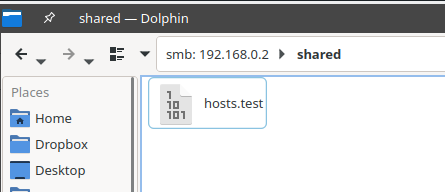
And you have access to the files on the server:
Samba and Android phone
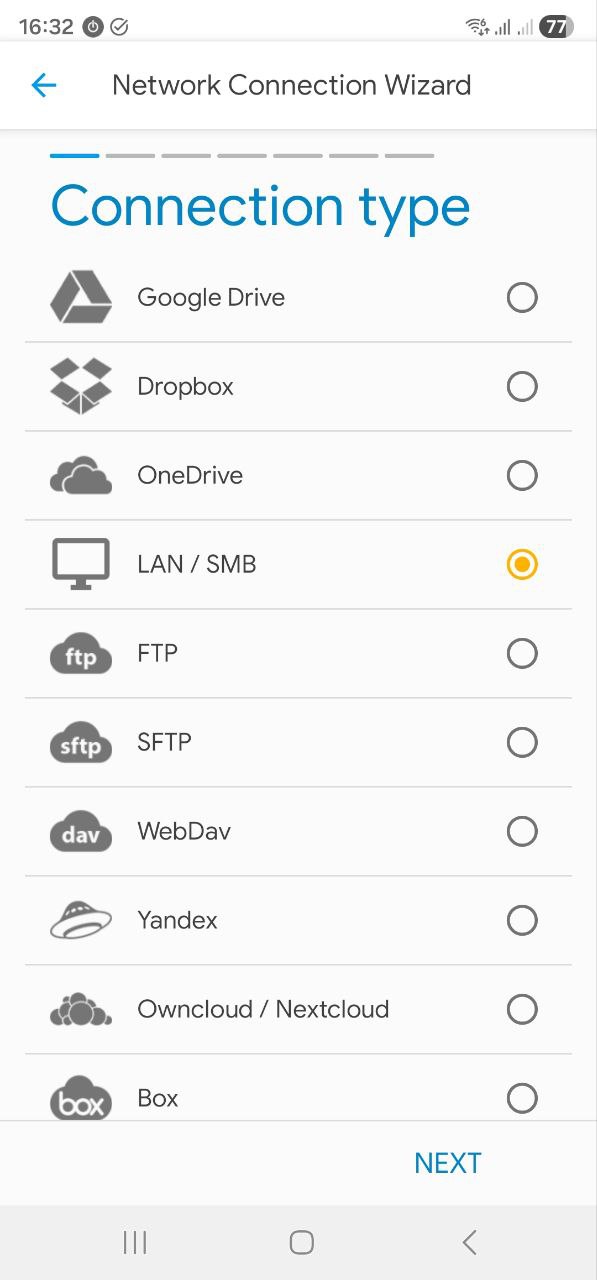
I tried Solid Explorer File Manager – simple, everything works.
Add a new LAN/SMB connection:
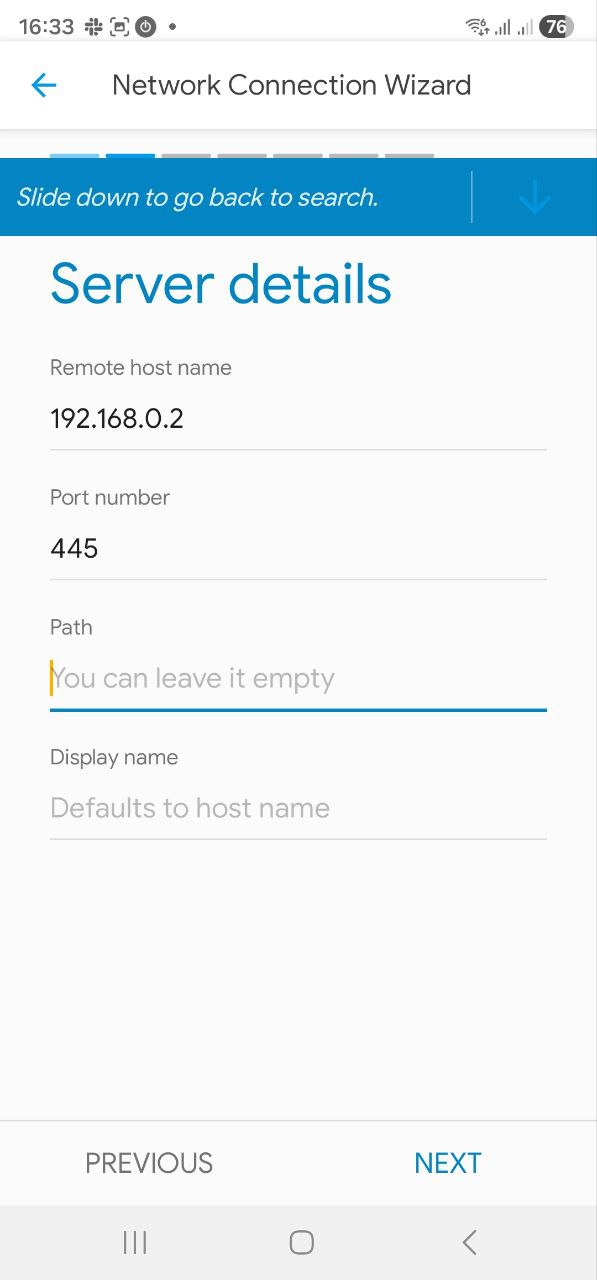
Specify the server address and port:
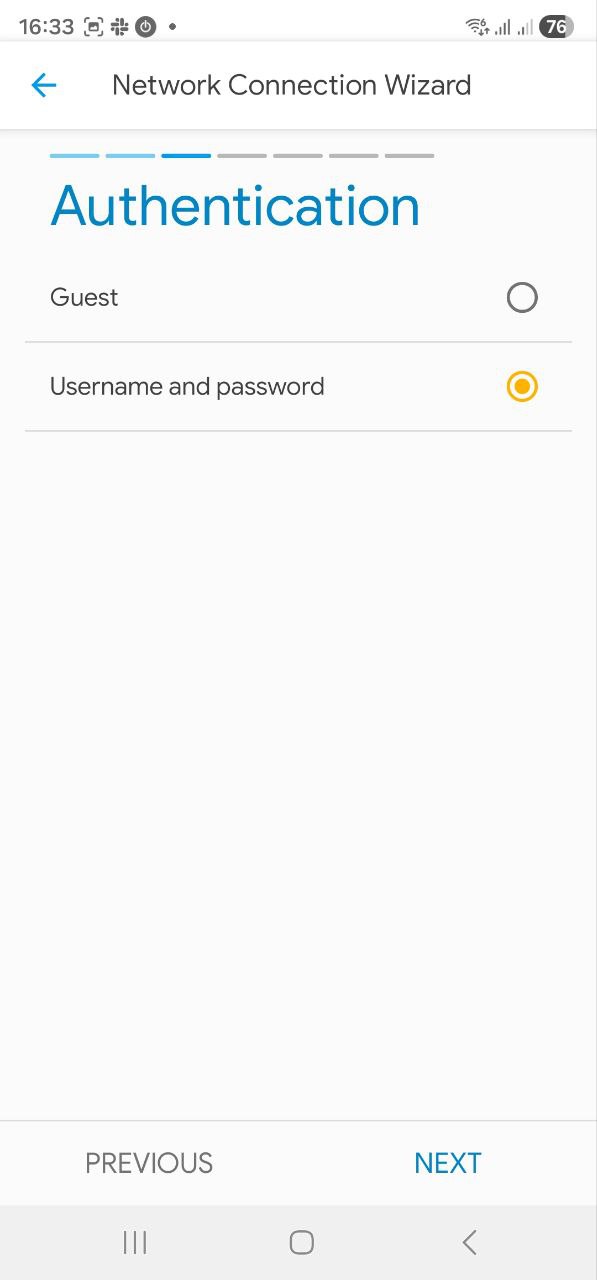
Select login/password authentication:
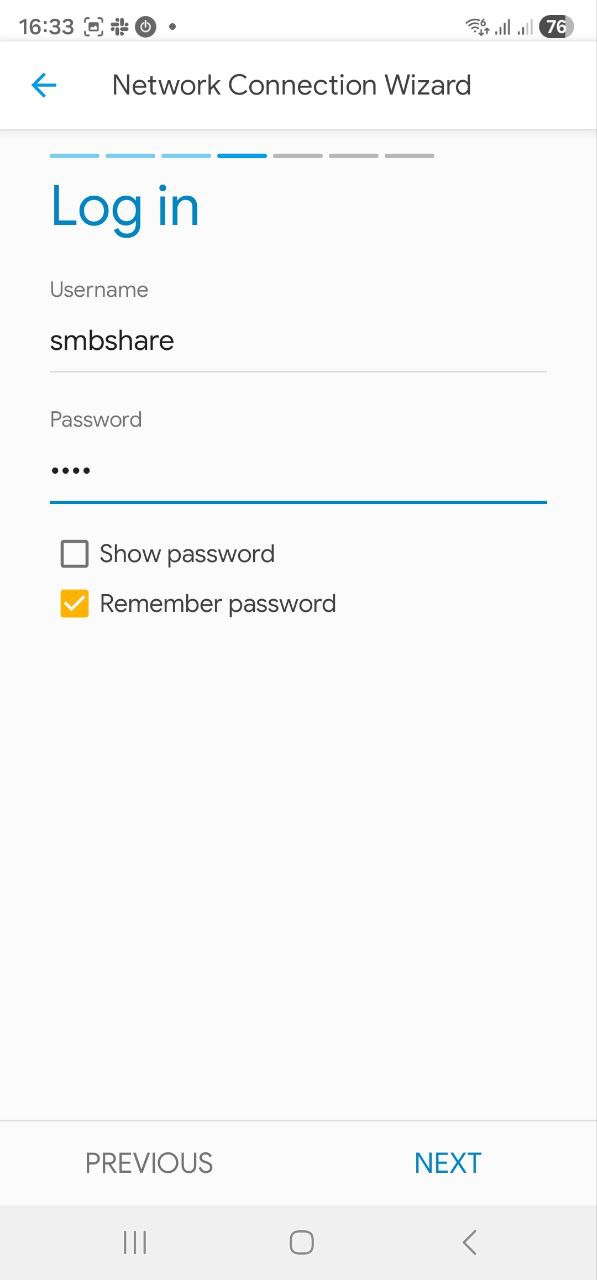
Enter them:
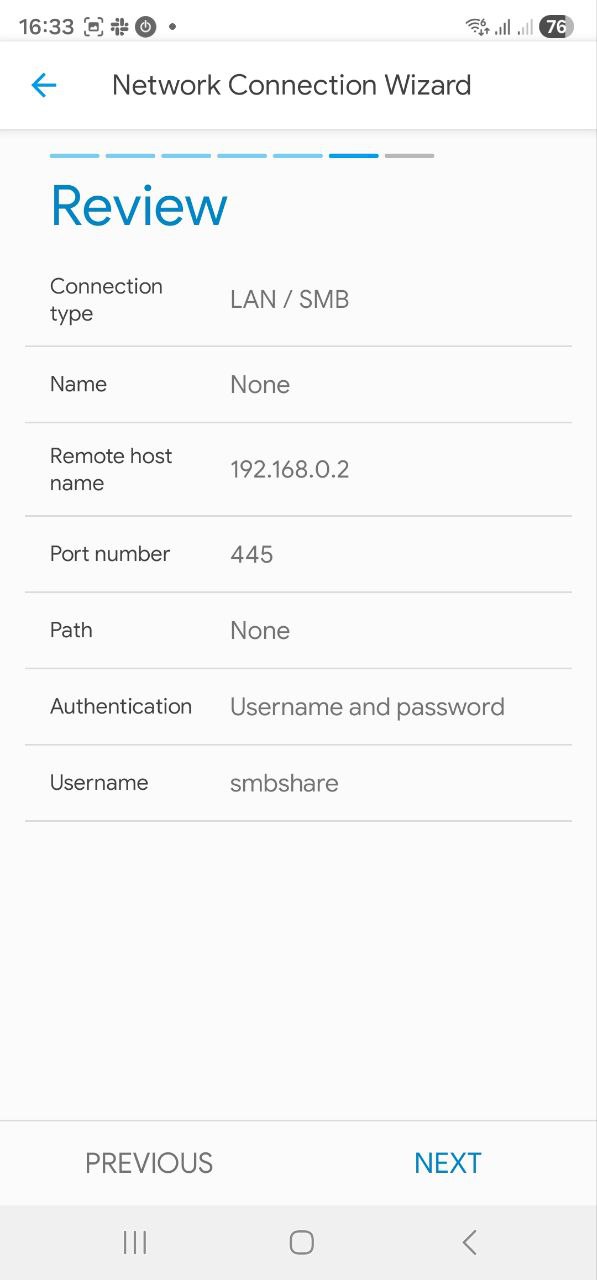
Confirm:
And connect:
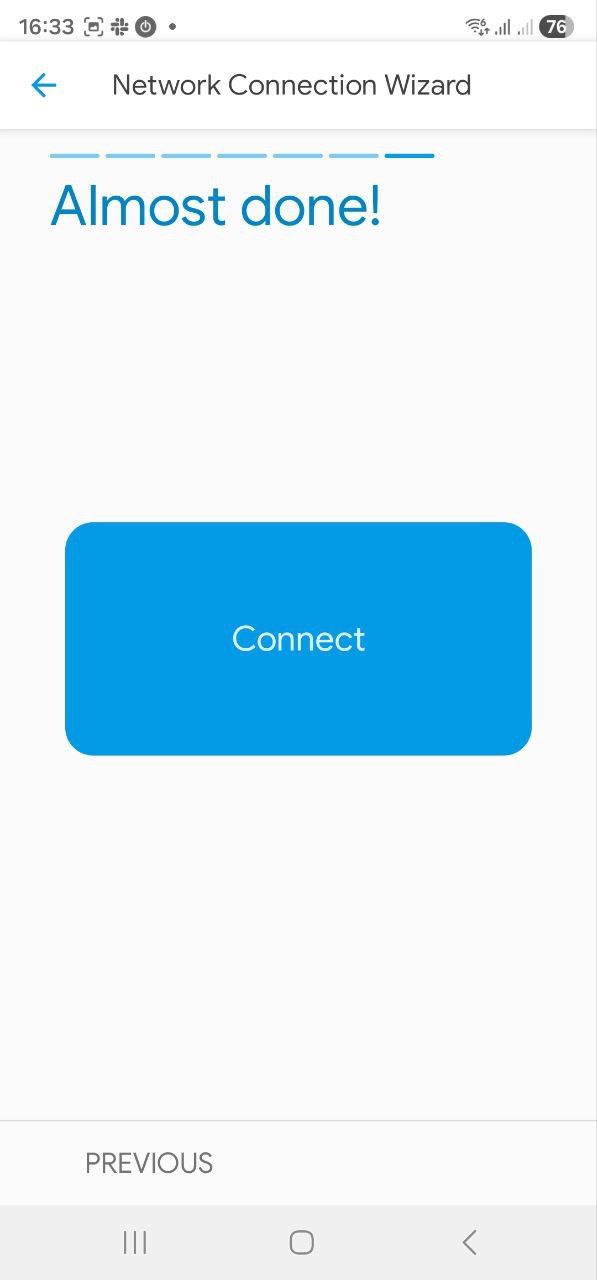
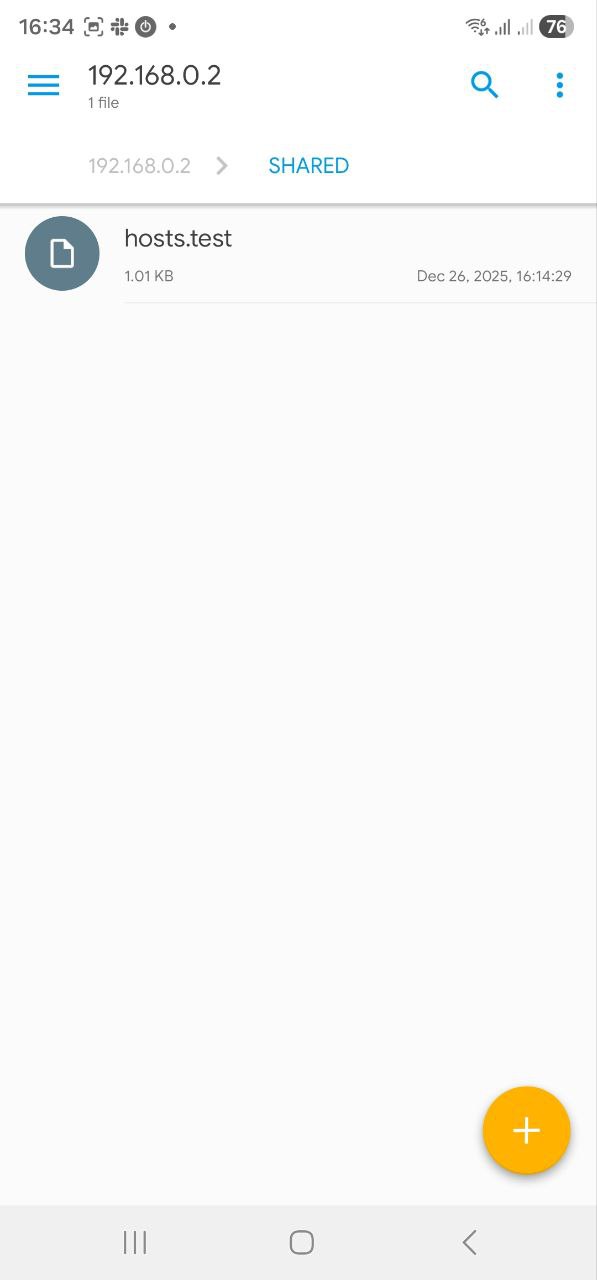
Files on the server are now available from the phone:
Samba and Android TV
Access from File Manager
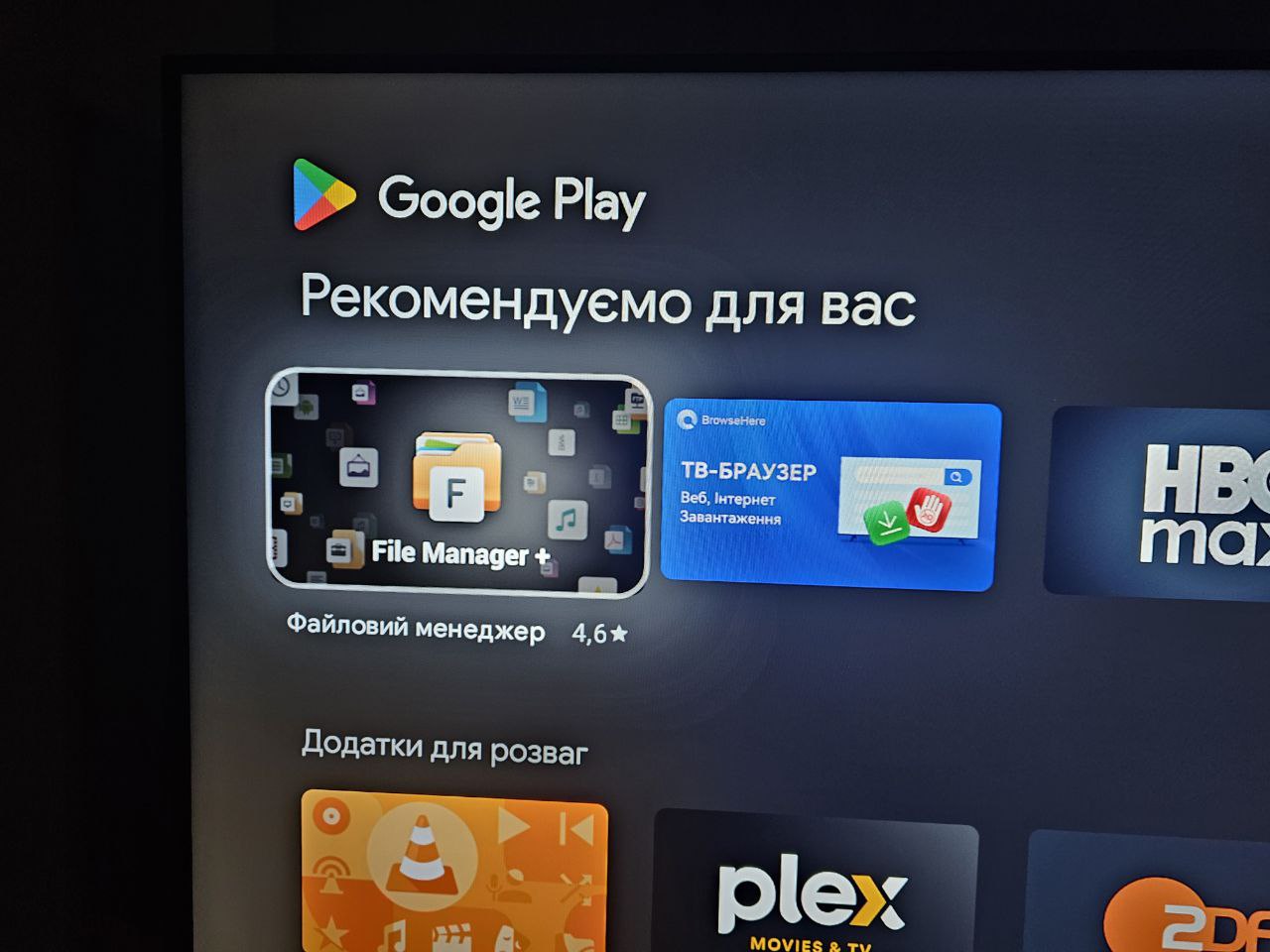
For Android TV, there is a File Manager app, install it:
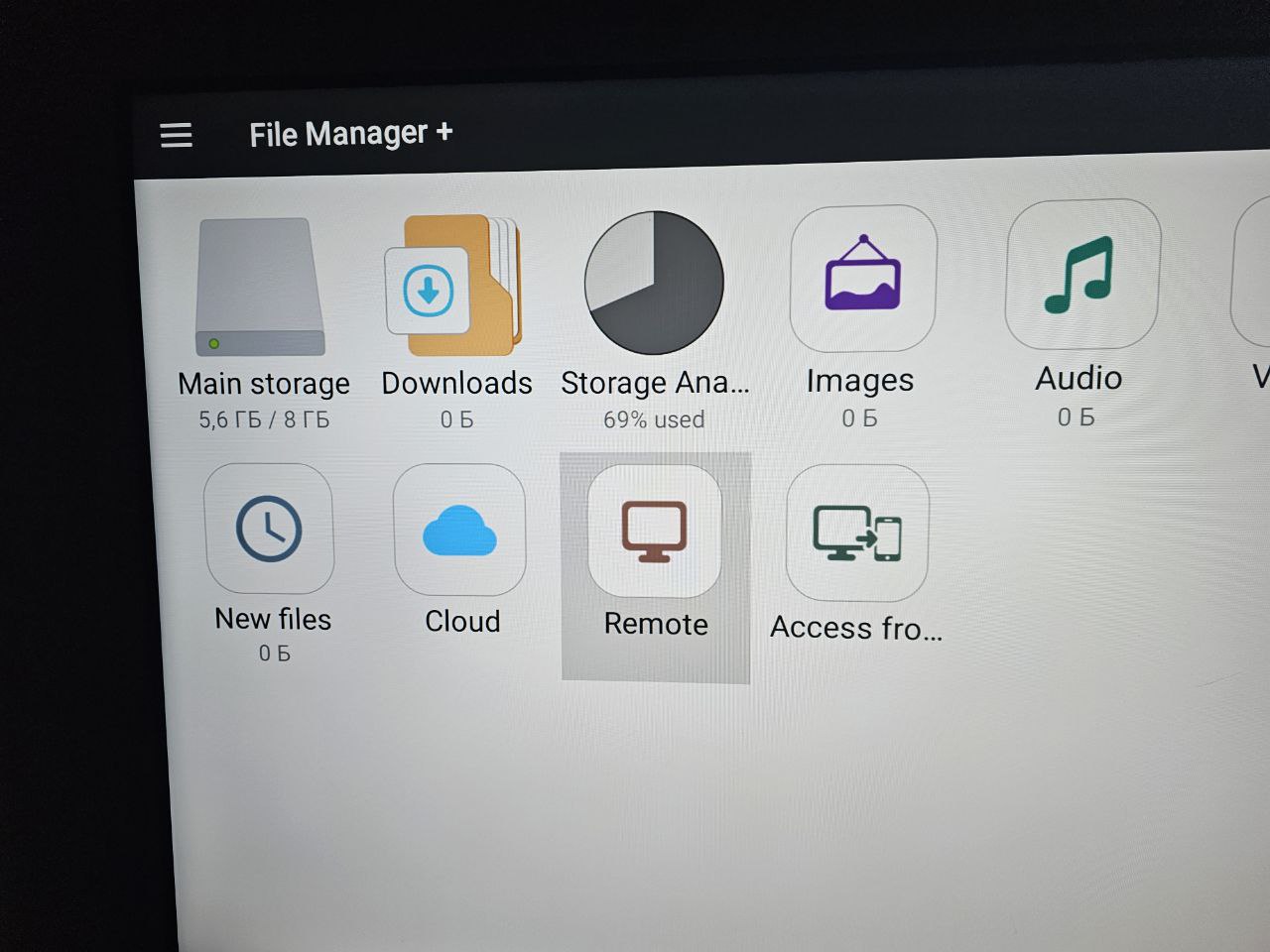
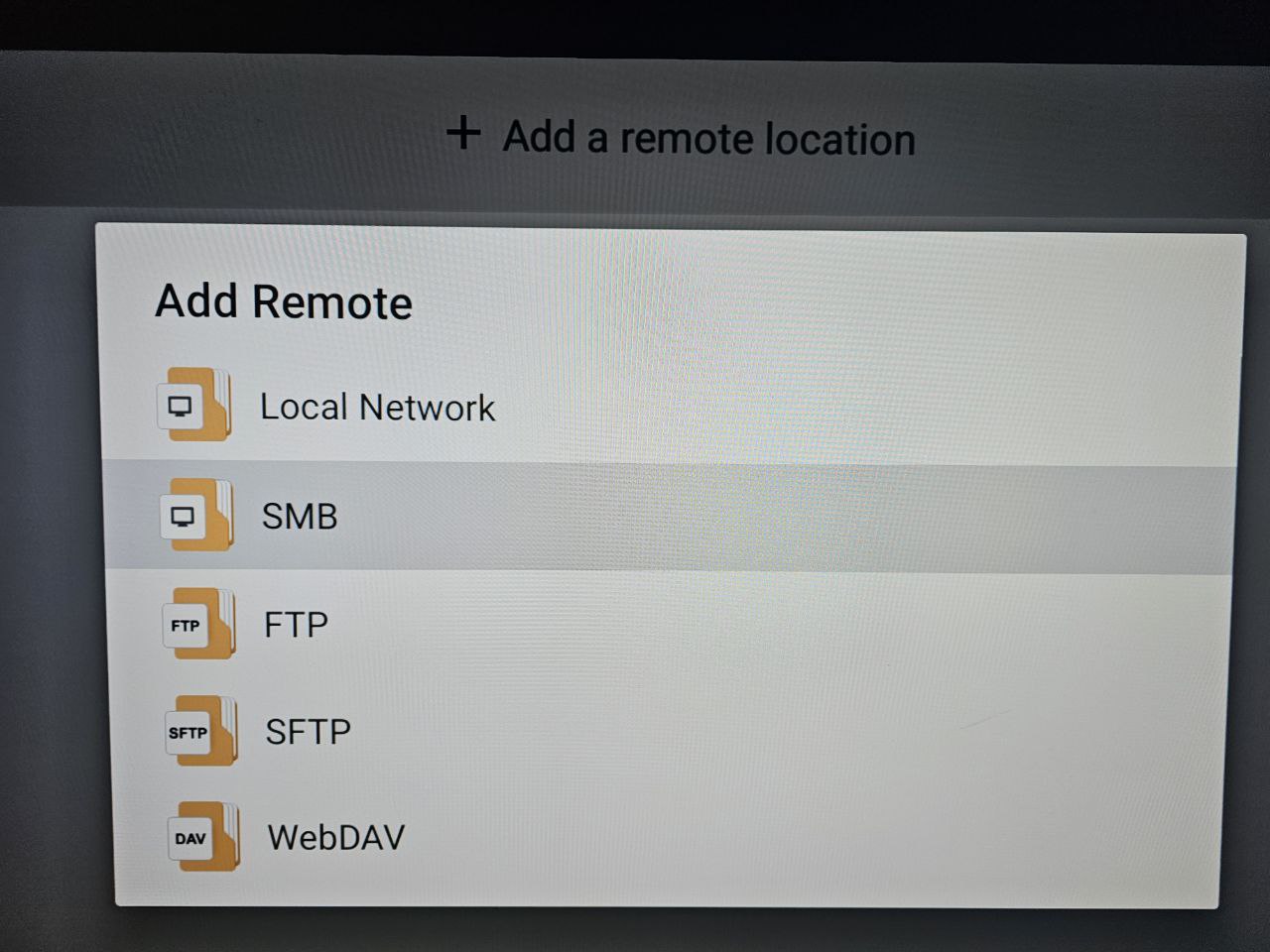
 Select a new location, Remote type:
Select SMB type:
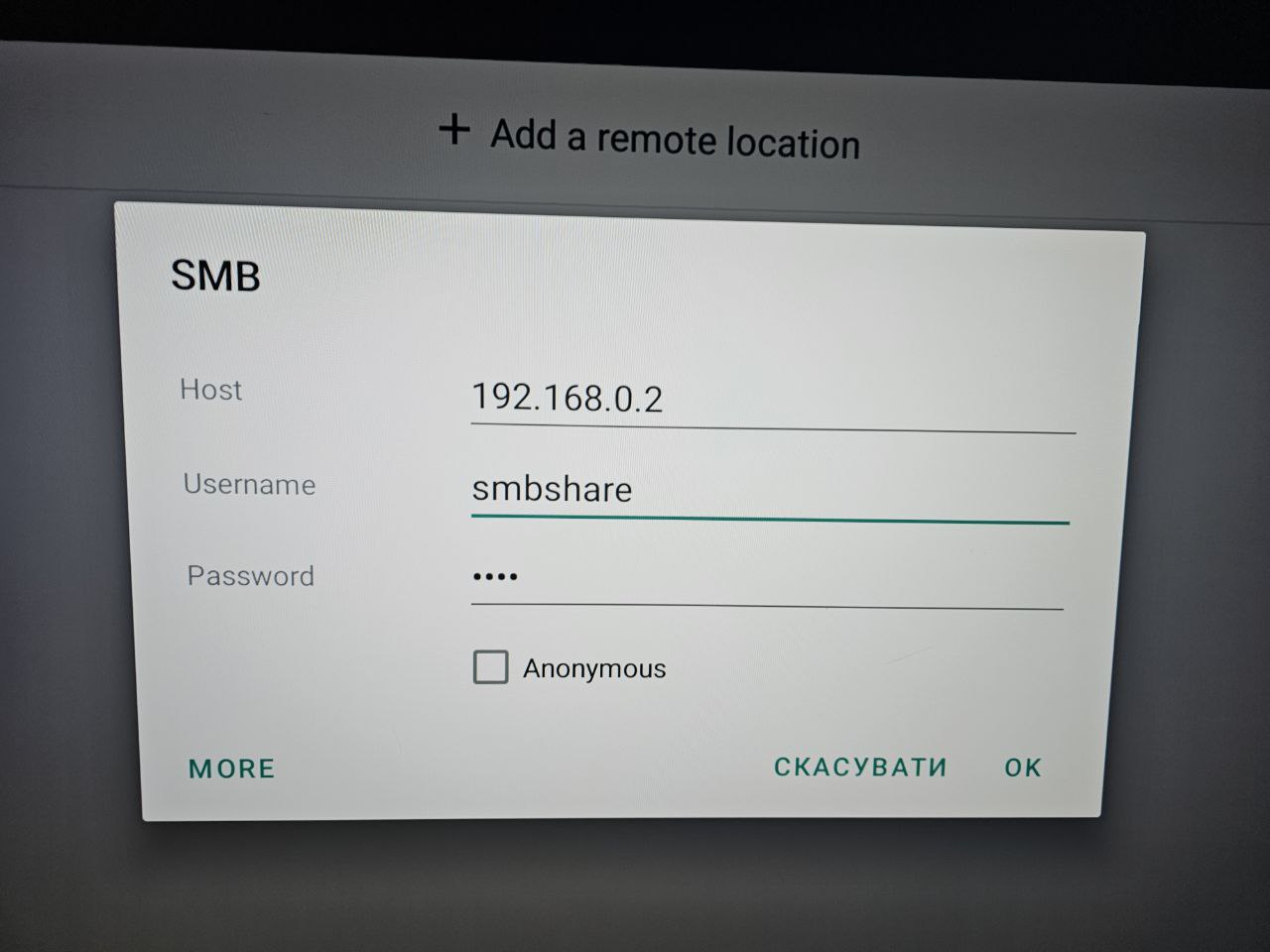
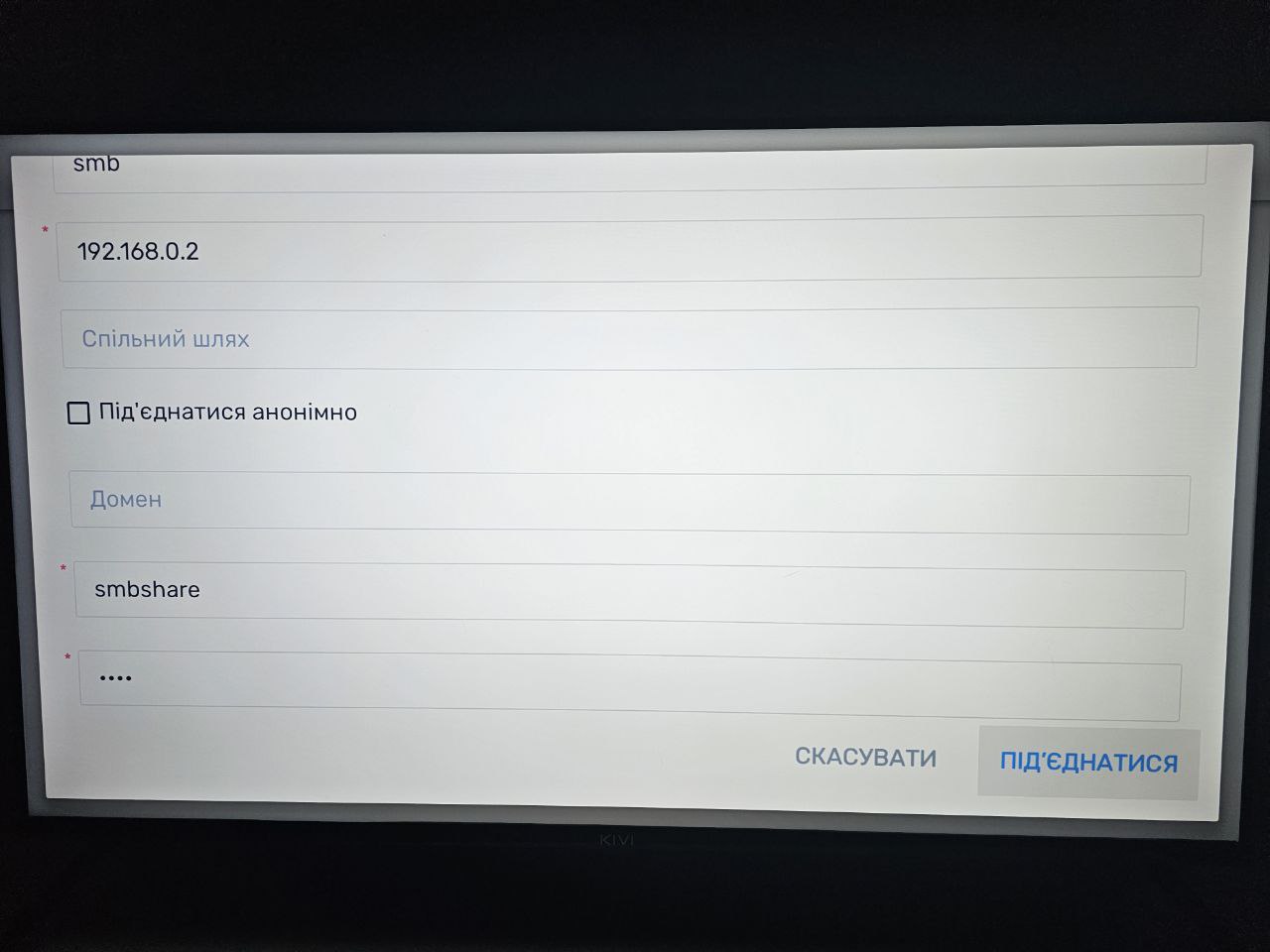
Specify only the address, without the port, login, and password:
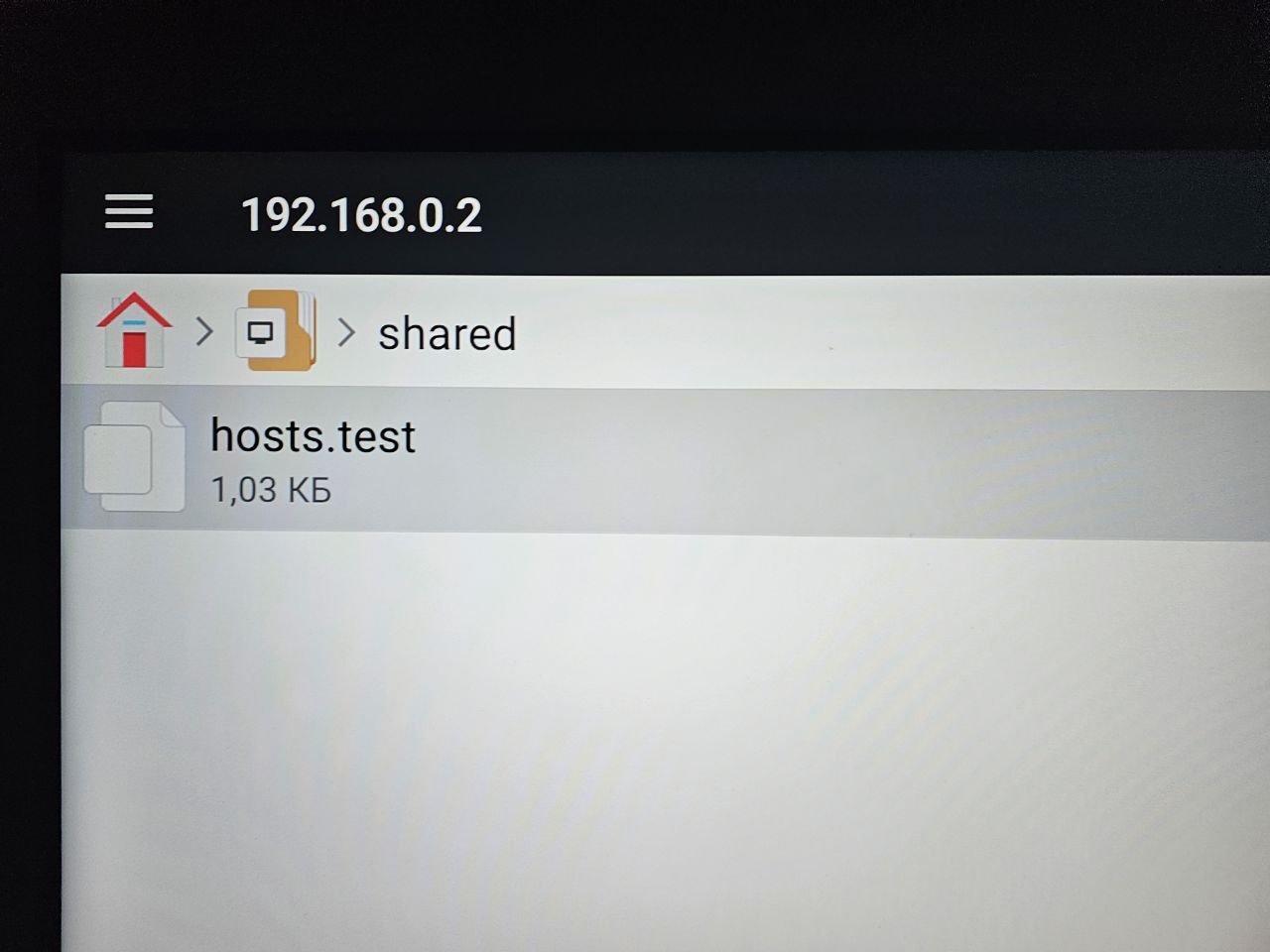
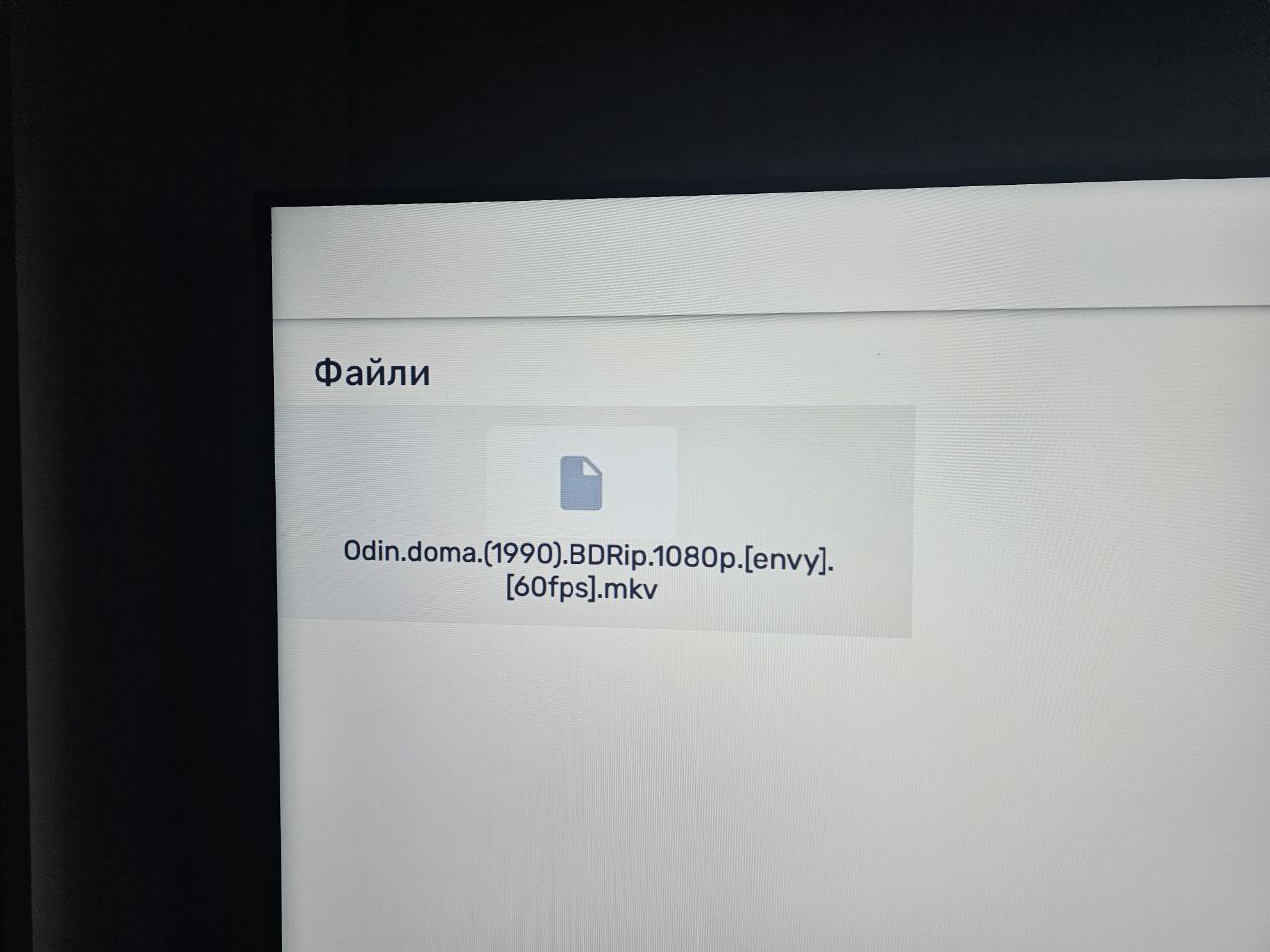
And now the files are accessible from the TV:
Video files can be launched directly from here – or you can configure MX Player.
Access from MX Player
Similarly – install the app, open settings, select Local network:
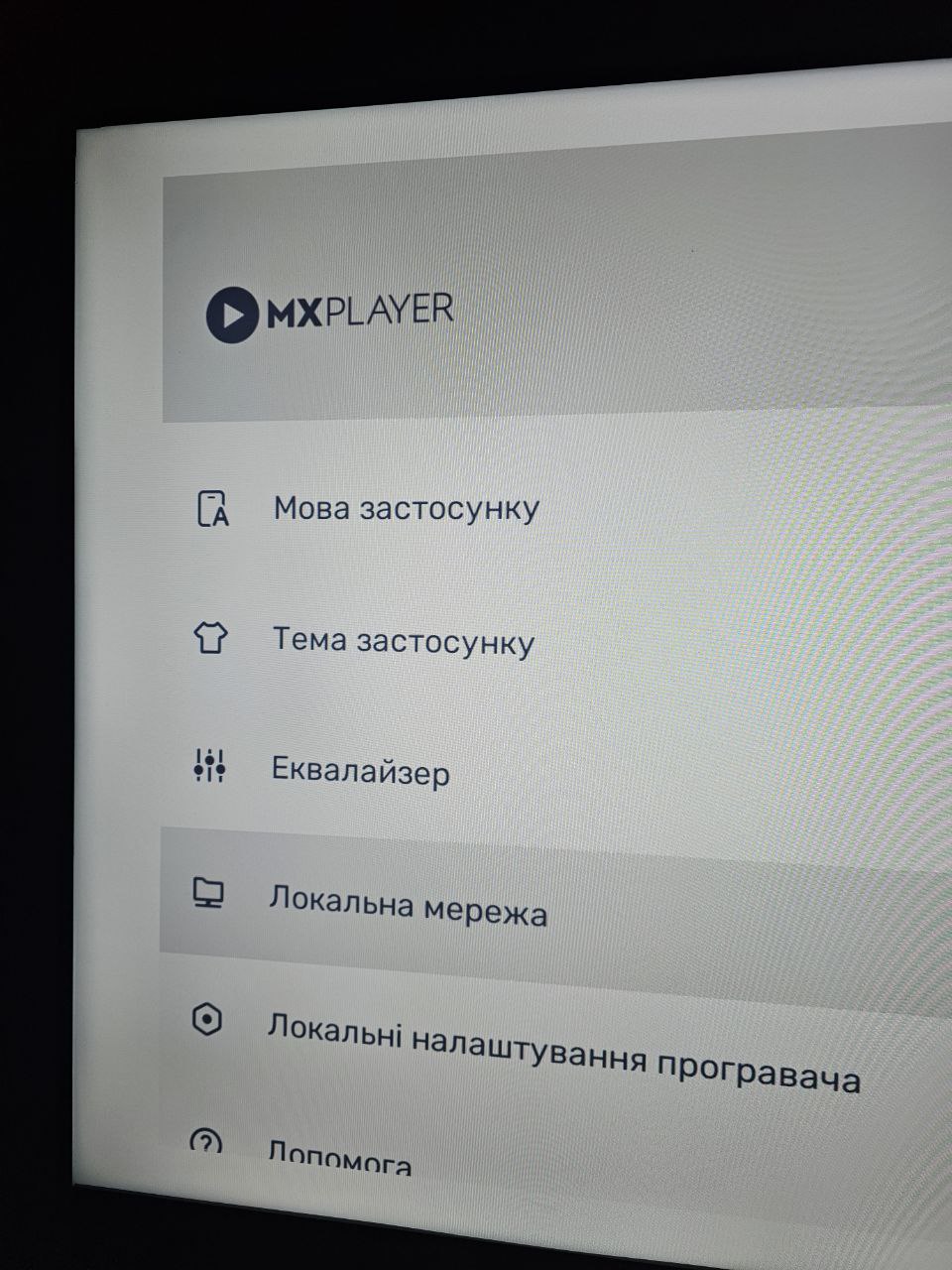
Specify the IP, login, password:
And you have access to the video files:

Done.
