 Every time I need to do this, I have to look it up, even though I’ve written about it somewhere before – but it was a long time ago: manually increasing the disk size on an AWS EC2.
You get used to Kubernetes, where it’s enough to just change a value in a PersistentVolumeClaim, and when you need to do it by hand – you start hunting for documentation. So here’s a quick note.
Out of curiosity I dug up an old post to see how it was done 10 years ago – AWS: increasing EBS disk size from 30/04/2015: you had to stop the EC2, create a disk snapshot, then create a new EBS from that snapshot with the new size, then attach that EBS to the EC2, then start the EC2… Brutal.
Now it’s much simpler and – most importantly – without needing to stop the instance:
- increase the disk size with the AWS CLI and
modify-volumeor via clickops directly in the AWS Console - in the OS, update the partition table – set the new partition size
- expand the filesystem
- …
- profit!
Contents
AWS: Modify EBS volume
We have an EC2 with a single root EBS that needs to be expanded:

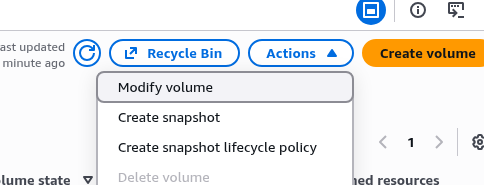
Select Modify volume:
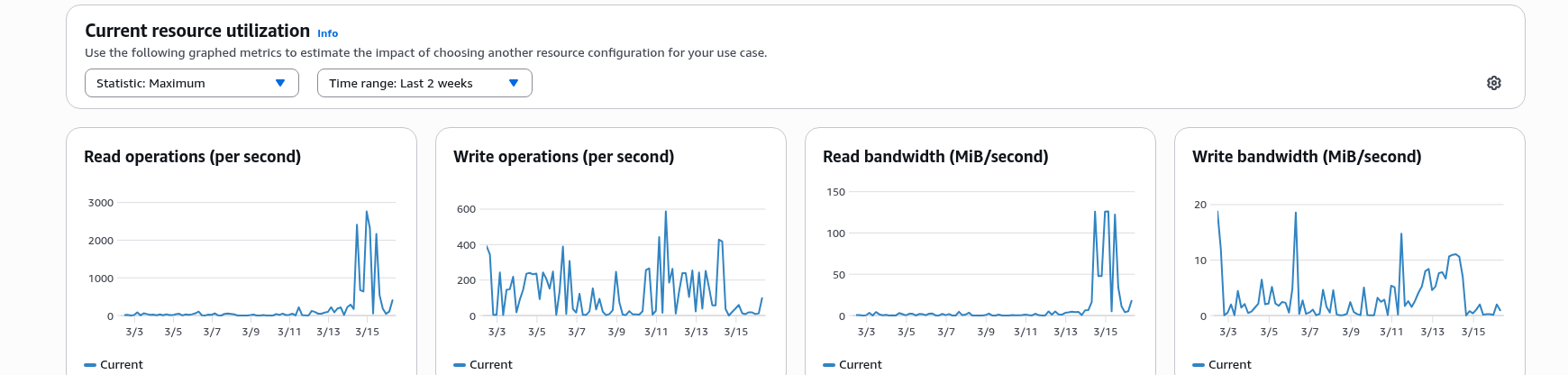
While we’re here, we can also add IOPS since the disk is heavily used:
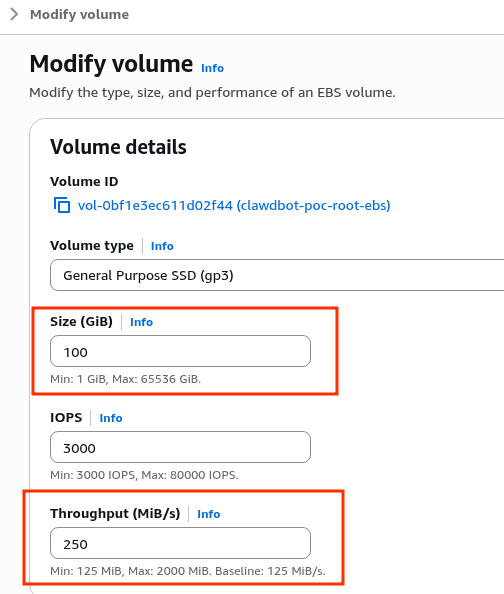
Set the new size and Throughput:
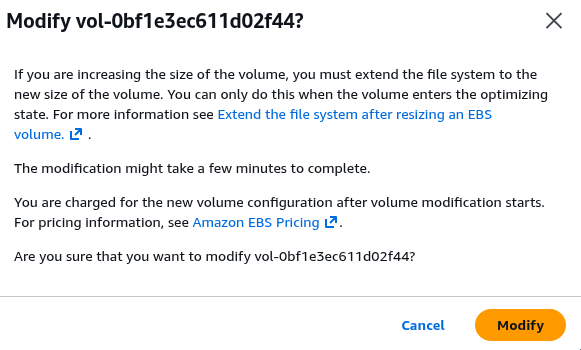
AWS reminds us that we’ll need to make changes to the filesystem afterward:
Wait for the changes to complete:
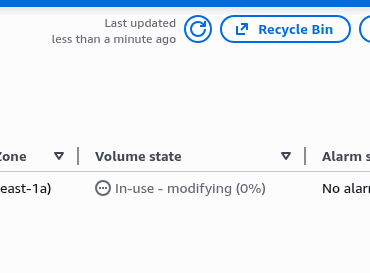
When the status becomes optimizing or completed – move on to the filesystem.
Linux: expanding the partition and filesystem
Check what we currently have:
root@ip-10-0-6-162:~# lsblk /dev/nvme0n1
NAME         MAJ:MIN RM  SIZE RO TYPE MOUNTPOINTS
nvme0n1      259:0    0  100G  0 disk
├─nvme0n1p1  259:1    0   49G  0 part /
├─nvme0n1p14 259:2    0    4M  0 part
├─nvme0n1p15 259:3    0  106M  0 part /boot/efi
└─nvme0n1p16 259:4    0  913M  0 part /boot
The disk /dev/nvme0n1 has 100 gigabytes available, but the partition nvme0n1p1 is only ~50 gigabytes.
We can get more detail using the --output option, passing a list of columns to display:
root@ip-10-0-6-162:~# lsblk -o NAME,SIZE,FSSIZE,FSUSED,FSAVAIL,FSUSE%,MOUNTPOINT /dev/nvme0n1
NAME          SIZE FSSIZE FSUSED FSAVAIL FSUSE% MOUNTPOIN
nvme0n1       100G
├─nvme0n1p1    49G  47.4G  13.7G   33.7G    29% /
├─nvme0n1p14    4M
├─nvme0n1p15  106M 104.3M   6.1M   98.2M     6% /boot/efi
└─nvme0n1p16  913M 880.4M   159M  659.8M    18% /boot
Here we have:
SIZE: the size of the disk itself, the block device – nvme0n1, 100GFSSIZE: on it we have partition number 1 – nvme0n1p1, which has a filesystem size of 50G (we see 47.4G because ext4 reserves some blocks for metadata and system reserve ~5%)
Next we need to:
growpart: expand thenvme0n1p1partition entry in the partition table to the end of the diskresize2fs: expand the filesystem itself to the size ofnvme0n1p1
Run it:
root@ip-10-0-6-162:~# growpart /dev/nvme0n1 1
CHANGED: partition=1 start=2099200 old: size=102758367 end=104857566 new: size=207615967 end=209715166
Now the partition is 100G, but the filesystem is still 50G:
root@ip-10-0-6-162:~# lsblk -o NAME,SIZE,FSSIZE,FSUSED,FSAVAIL,FSUSE%,MOUNTPOINT /dev/nvme0n1p1
NAME      SIZE FSSIZE FSUSED FSAVAIL FSUSE% M
nvme0n1p1  99G  47.4G  13.7G   33.7G    29% /
Expand the filesystem:
root@ip-10-0-6-162:~# resize2fs /dev/nvme0n1p1
resize2fs 1.47.0 (5-Feb-2023)
Filesystem at /dev/nvme0n1p1 is mounted on /; on-line resizing required
old_desc_blocks = 7, new_desc_blocks = 13
The filesystem on /dev/nvme0n1p1 is now 25951995 (4k) blocks long.
Verify again:
root@ip-10-0-6-162:~# lsblk -o NAME,SIZE,FSSIZE,FSUSED,FSAVAIL,FSUSE%,MOUNTPOINT /dev/nvme0n1p1
NAME      SIZE FSSIZE FSUSED FSAVAIL FSUSE% M
nvme0n1p1  99G  95.8G  13.7G   82.1G    14% /
Now SIZE is 99G and FSSIZE is 95.8G.
Done.
