 In the previous post of the Home NAS on FreeBSD setup series, we got acquainted with
 restic – a utility for working with backups that supports encryption, snapshots, and change history; see FreeBSD: Home NAS, part 8 – backup of NFS and Samba data with restic.
However, in addition to archival data in S3, I want to have an “offsite hot copy” in Google Drive and AWS S3 to have constant access to data that doesn’t need to be restored from a backup, but can simply be copied via CLI or even from a browser.
At the same time, I don’t want to breed a zoo of different systems, but rather work with one that can connect to both AWS and Google Drive.
While searching for how to copy data to Google Drive with restic, I found a kind of “Swiss army knife” – Rclone.
All posts in this series:
- FreeBSD: Home NAS, part 1 – configuring ZFS mirror (RAID1)
- FreeBSD: Home NAS, part 2 – introduction to Packet Filter (PF) firewall
- FreeBSD: Home NAS, part 3 – WireGuard VPN, Linux peer, and routing
- FreeBSD: Home NAS, part 4 – Local DNS with Unbound
- FreeBSD: Home NAS, part 5 – ZFS pool, datasets, snapshots, and ZFS monitoring
- FreeBSD: Home NAS, part 6 – Samba server and client connections
- FreeBSD: Home NAS, part 7 – NFSv4 and use with Linux clients
- FreeBSD: Home NAS, part 8 – NFS and Samba data backup with restic
- (current) FreeBSD: Home NAS, part 9 – data backup to AWS S3 and Google Drive with rclone
- FreeBSD: Home NAS, part 10 – monitoring with VictoriaMetrics and Grafana
- FreeBSD: Home NAS, part 11 – extended monitoring with additional exporters
- FreeBSD: Home NAS, part 12: synchronizing data with Syncthing
- FreeBSD: Home NAS, Part 13: Planning Data Storage and Backups
- FreeBSD: Home NAS, part 14 – logs with VictoriaLogs and alerts with VMAlert
- FreeBSD: Home NAS, Part 15: Automating Backups – scripts, rsync, rclone
- (to be continued)
Contents
rclone overview
Rclone (“rsync for cloud storage“) is a CLI utility capable of working with a vast number of different backends – including local data, NFS, Samba, FTP, WebDAV, and, of course, AWS S3 and Google Drive; see them all in the Overview of cloud storage systems.
Key features of the system:
- Written in Go
- Ability to access data in Google Drive and S3 via a single CLI
- Client-side encryption of data and filenames
copyandsyncmodes, similar torsync- Ability to mount a remote to a local directory and work with it like a regular folder (see rclone mount)
- Can act as a “proxy” between two remotes (e.g., copying data between Google Drive and S3)
- Has a Web GUI
However, rclone is not a dedicated backup system per se – it does not use snapshots, does not maintain data change history, and does not restore state “as of a date.”
rclone and Google Drive backend
Let’s start with Google Drive, as it’s the primary reason I plan to use rclone, but later we will also configure AWS S3.
Documentation – Google Drive.
Creating Google API keys for rclone
To work with Google Drive, we will create API keys. I will describe this process separately because creating keys in Google is somewhat convoluted, and I find myself looking for a guide every single time.
Go to the Google API Console, select an existing project or create a new one:
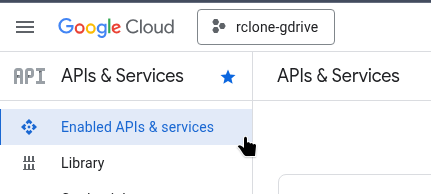
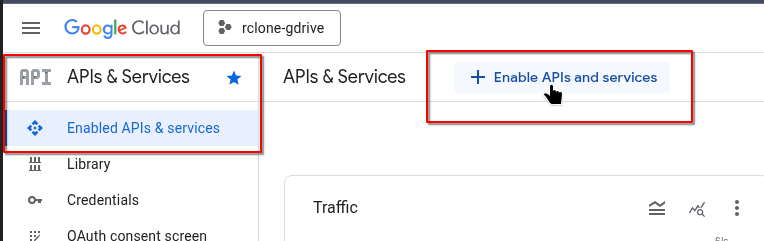
On the left, select “Enabled APIs & services”, and click “Enable APIs”:
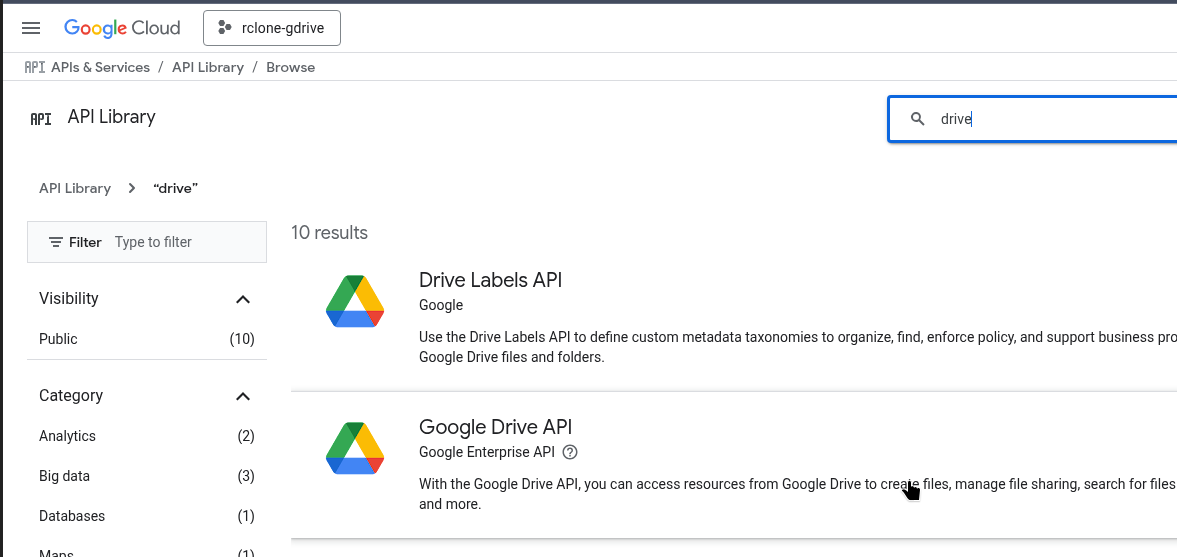
Find “Google Drive API” in the search:
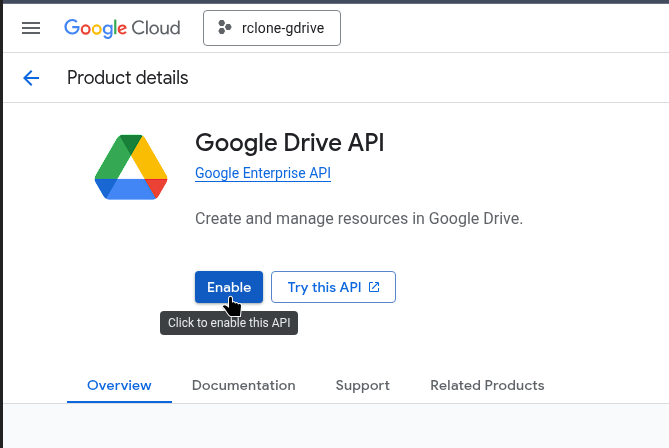
Enable it:
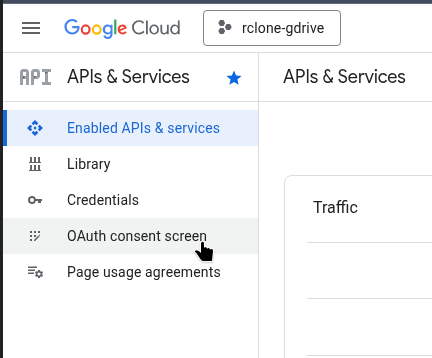
Go to the “OAuth consent screen”:
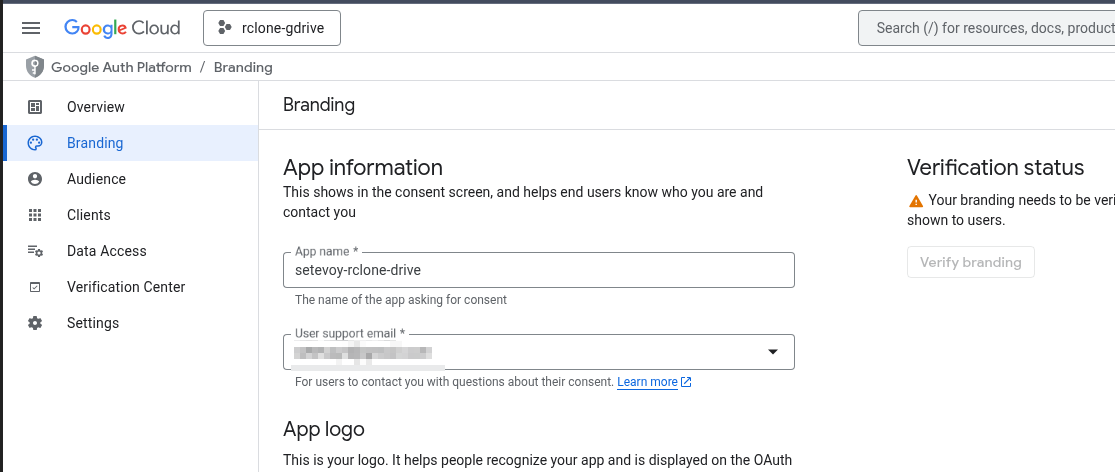
Go to “Branding”, fill in the “App information” – set a name (this is purely for our reference), and provide an email:
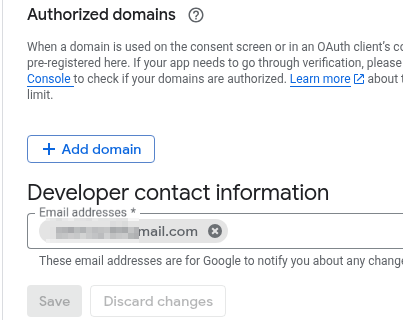
And at the bottom in “Developer contact information”, enter the email again:
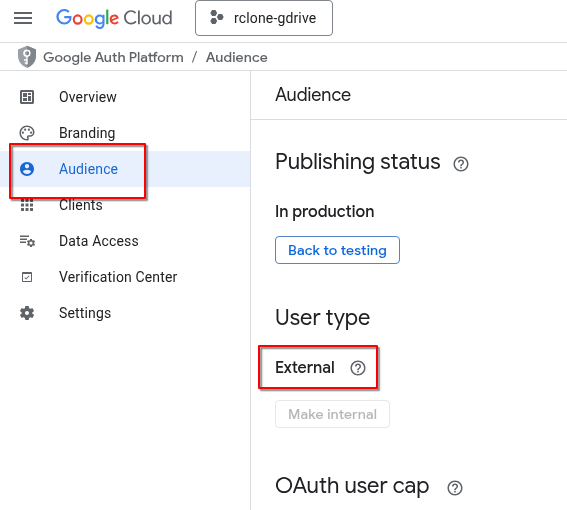
Save it, go to “Audience”, and ensure “User type” is set to External:
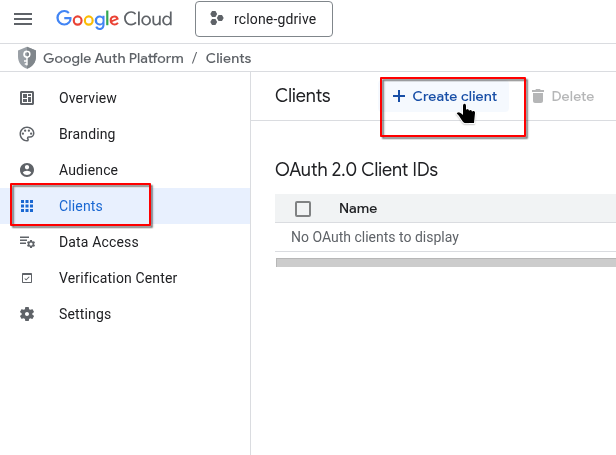
Go to “Credentials”, then “Create Credentials” -> “OAuth client ID”:
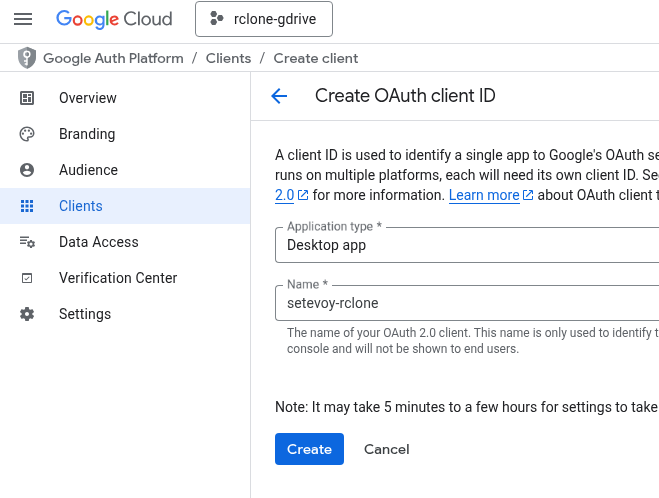
Select “Application type” as Desktop app:
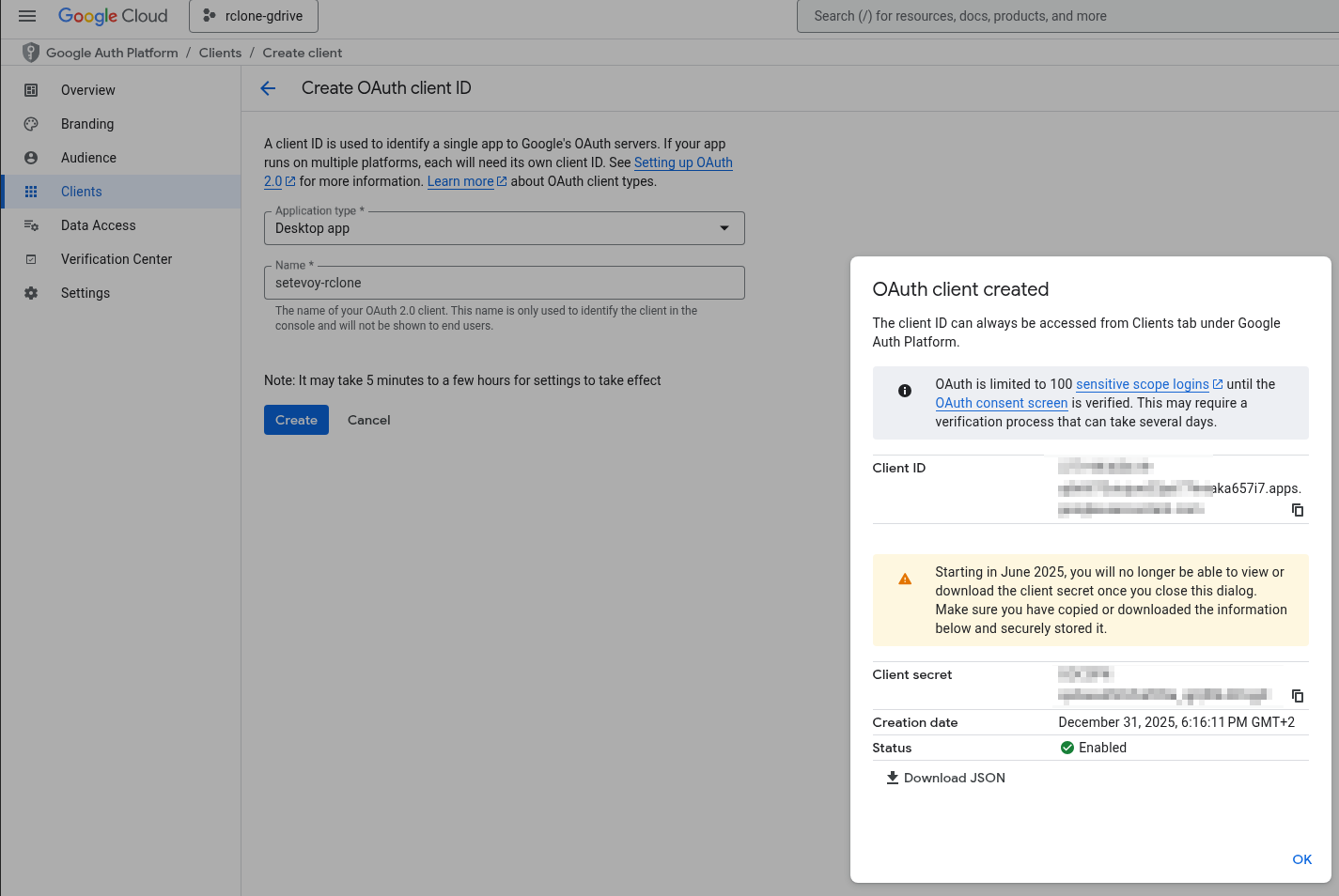
Obtain the Client ID and Client Secret, and save them for yourself:
Proceed to the connection settings within rclone itself.
Configuring Google Drive remote
Execute rclone config, select “n) New remote“, and provide a name:
...
e/n/d/r/c/s/q> n

Enter name for new remote.
name> nas-google-drive
...
Next, choose the backend rclone will work with.
For Google Drive, it’s 22 (you can enter the number or the name “drive“):
...
22 / Google Drive
   \ (drive)
...
The next step is authentication – provide the keys:
...
Option client_id.
Google Application Client Id
...
Enter a value. Press Enter to leave empty.
client_id> 377***7i7.apps.googleusercontent.com

Option client_secret.
OAuth Client Secret.
Leave blank normally.
Enter a value. Press Enter to leave empty.
client_secret> GOC***gjX
...
Set the access level – here you can grant full access to the entire drive, or, if rclone is only for backups, choose “Access to files created by rclone only”.
On laptops, full access can be set, but on FreeBSD, we will choose “only for its own files”:
In Advanced, you can edit parameters like “use_trash” and “Upload chunk size”, but this can be done later – for now, just press Enter.
The next step is authentication to obtain a token from Google:
...
Use web browser to automatically authenticate rclone with remote?
 * Say Y if the machine running rclone has a web browser you can use
 * Say N if running rclone on a (remote) machine without web browser access
If not sure try Y. If Y failed, try N.

y) Yes (default)
n) No
Since this is being done on FreeBSD without a browser, select No – rclone will generate a token that you must provide on a machine with a browser where another instance of rclone is available:
...
y/n> n

Option config_token.
For this to work, you will need rclone available on a machine that has
a web browser available.
For more help and alternate methods see: https://rclone.org/remote_setup/
Execute the following on the machine with the web browser (same rclone
version recommended):
        rclone authorize "drive" "eyJ***ifQ"
Then paste the result.
Enter a value.
Execute on the laptop:
$ rclone authorize "drive" "eyJ***ifQ"
2026/01/07 16:35:38 NOTICE: Make sure your Redirect URL is set to "http://127.0.0.1:53682/" in your custom config.
2026/01/07 16:35:38 NOTICE: If your browser doesn't open automatically go to the following link: http://127.0.0.1:53682/auth?state=Lf9q_HUVFlBUc2UqlSUqpw
2026/01/07 16:35:38 NOTICE: Log in and authorize rclone for access
2026/01/07 16:35:38 NOTICE: Waiting for code...
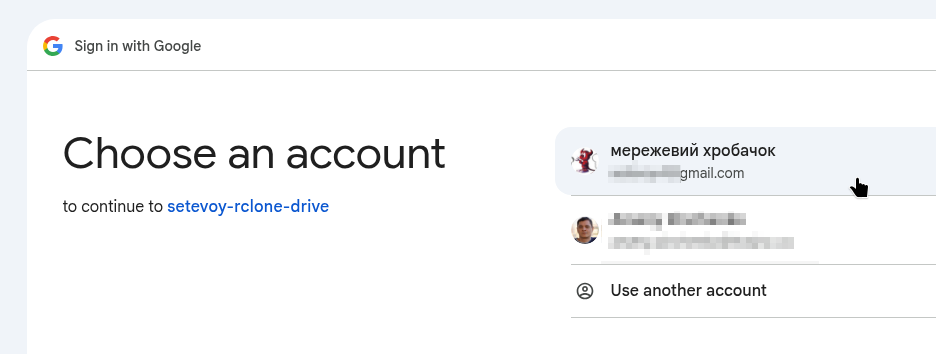
A browser opens; select the account:
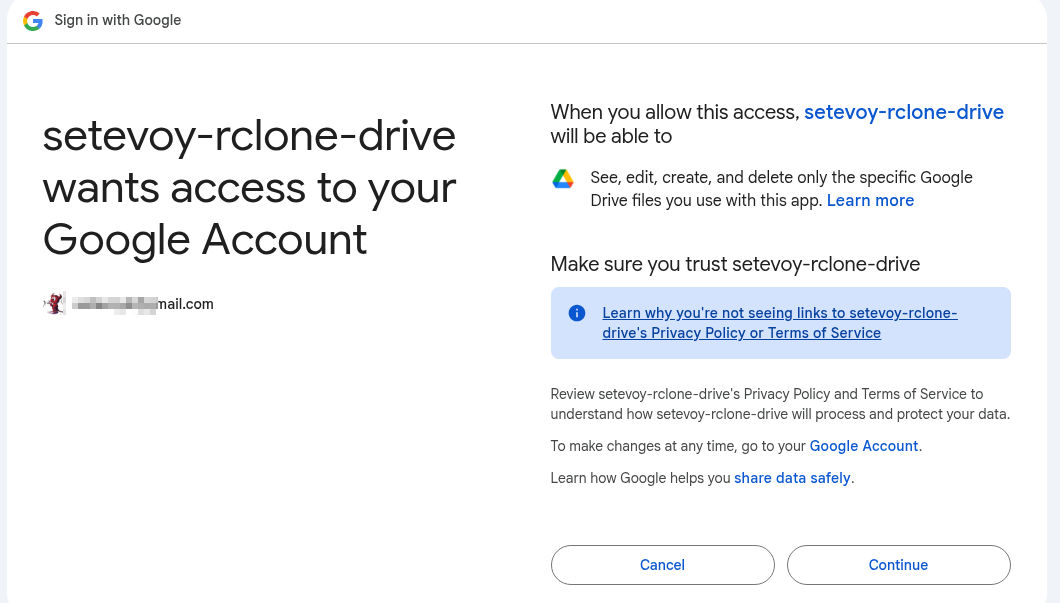
Authorize access:
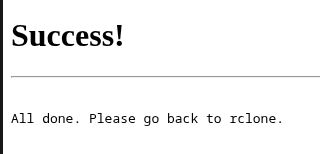
Obtain Success:
And on the laptop in the console from which rclone authorize was called, a token will arrive:
...
2026/01/07 16:35:38 NOTICE: Waiting for code...
2026/01/07 16:37:33 NOTICE: Got code
Paste the following into your remote machine --->
eyJ...ifQ
<---End paste
Copy it to rclone config on the FreeBSD host:
...
Enter a value.
config_token> eyJ***ifQ
...
The new connection is ready:
...
Configuration complete.
Options:
- type: drive
- client_id: 377***7i7.apps.googleusercontent.com
- client_secret: GOC***gjX
- scope: drive.file
- token: {"access_token":"ya2***","expires_in":3599}
- team_drive:
Keep this "nas-google-drive" remote?
y) Yes this is OK (default)
e) Edit this remote
d) Delete this remote
You can view all configured backends with rclone listremotes:
root@setevoy-nas:/home/setevoy # rclone listremotes
nas-google-drive:
Or full information with rclone config show:
root@setevoy-nas:/home/setevoy # rclone config show
[nas-google-drive]
type = drive
client_id = ***7i7.apps.googleusercontent.com
client_secret = GOCSPX-***gjX
scope = drive.file
token = {"access_token":"???"expires_in":3599}
team_drive =
scope = drive.file here precisely indicates access only to data from rclone itself.
Test drive access – create a directory:
root@setevoy-nas:~ # rclone mkdir nas-google-drive:Backups/Rclone
Check contents with rclone lsd and -R (recursive):
root@setevoy-nas:~ # rclone lsd -R nas-google-drive:Backups
           0 2026-01-20 16:04:10        -1 Rclone
Now let’s configure AWS S3, and then look at the main commands for working with rclone.
rclone and AWS S3 backend
Documentation – Amazon S3 Storage Providers.
If rclone were on AWS EC2 or EKS, an IAM Role could be used. For now, we’ll proceed with keys.
Creating AWS IAM Policy and IAM User
It’s better, of course, to create a separate user with their own policy that has access to a specific bucket rather than the entire account.
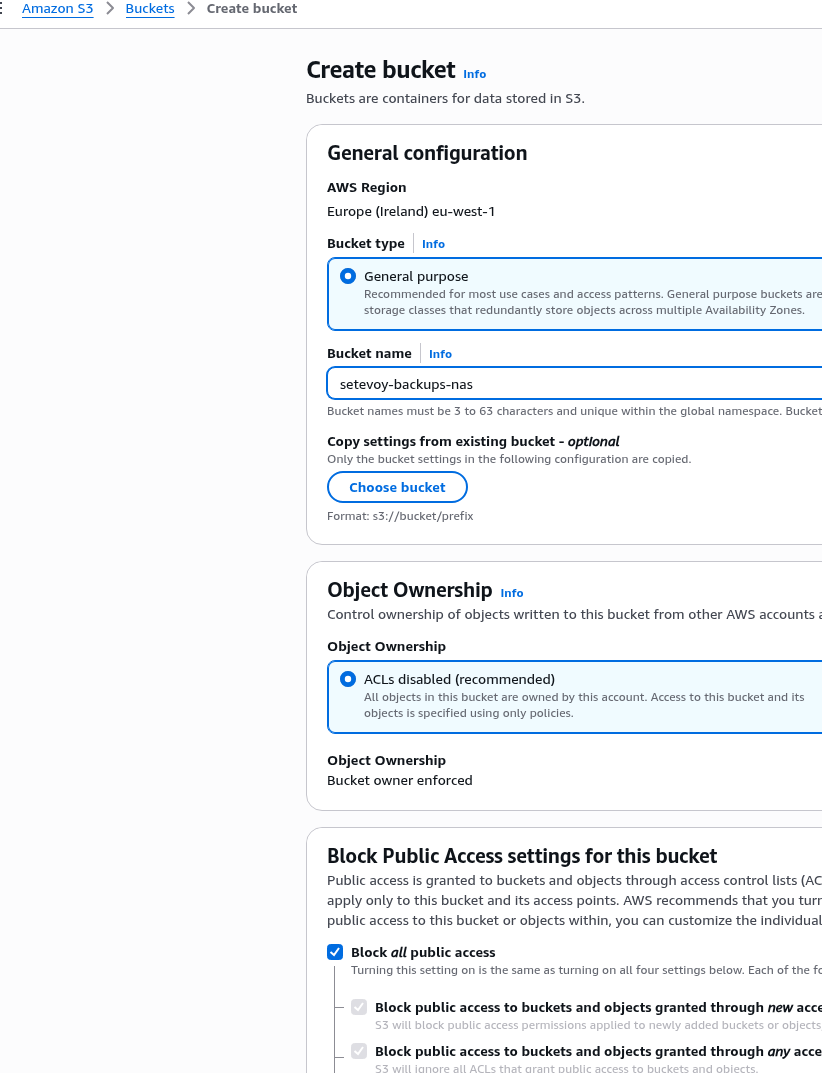
Create a bucket:
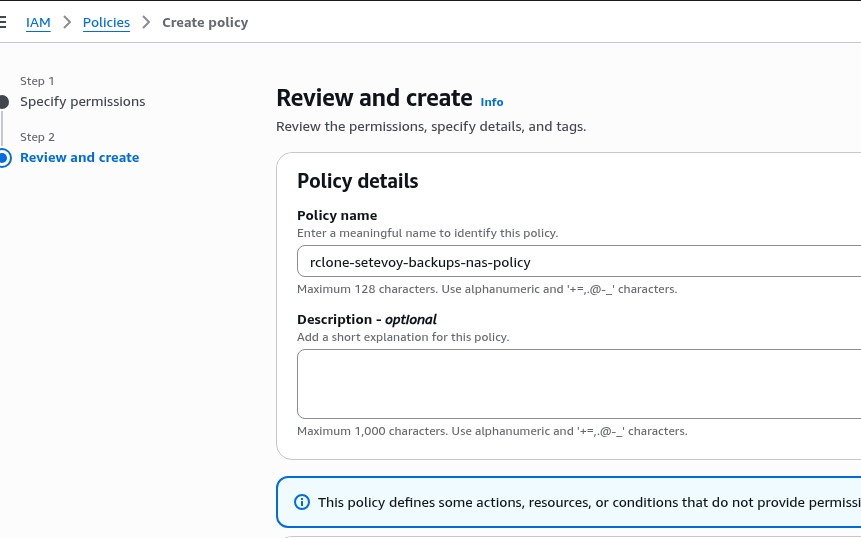
Create an IAM Policy with full access only to this bucket:
{
  "Version": "2012-10-17",
  "Statement": [
    {
      "Sid": "RcloneNasBackupsFullAccess",
      "Effect": "Allow",
      "Action": "s3:*",
      "Resource": [
        "arn:aws:s3:::setevoy-backups-nas",
        "arn:aws:s3:::setevoy-backups-nas/*"
      ]
    }
  ]
}
Save it:
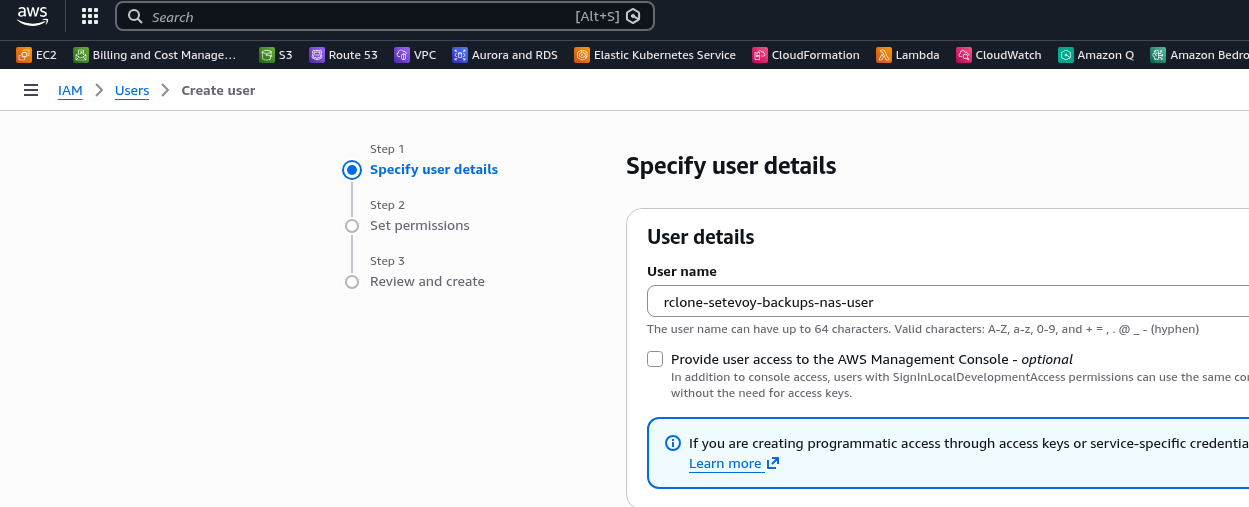
Create a user – without AWS Management Console access:
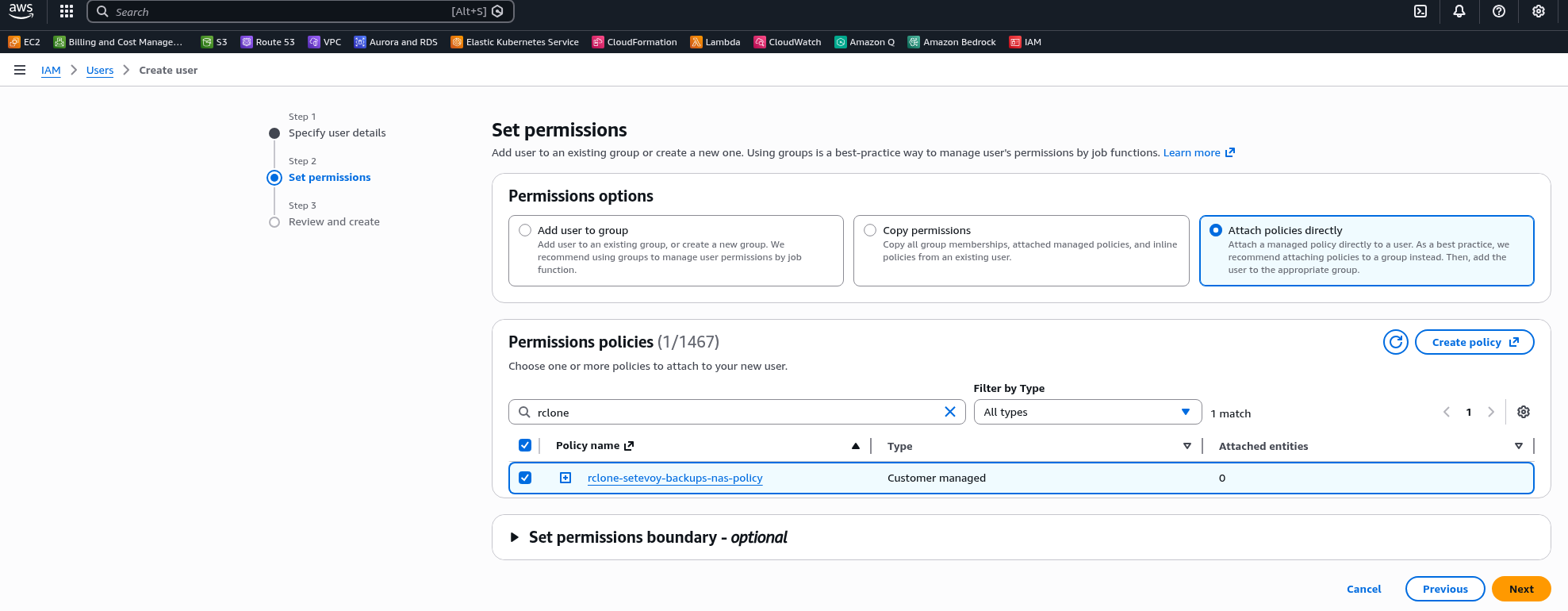
Attach the policy created above:
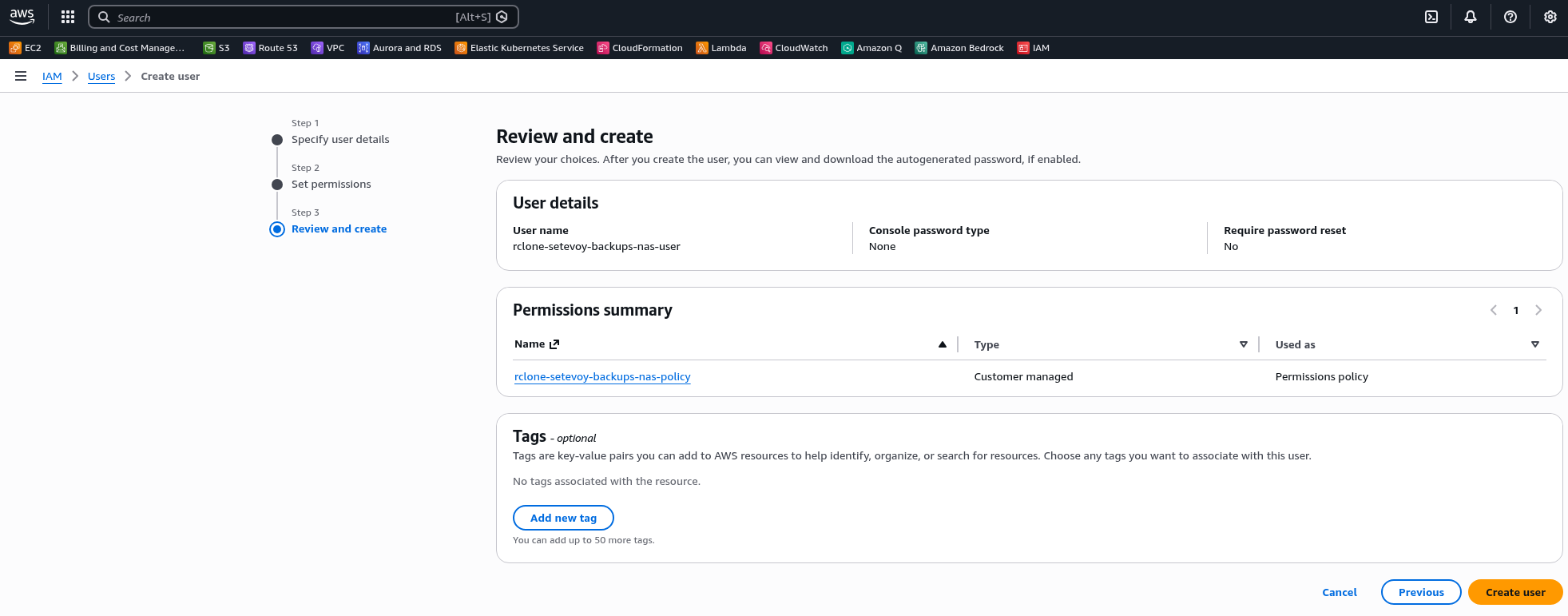
Save the user:
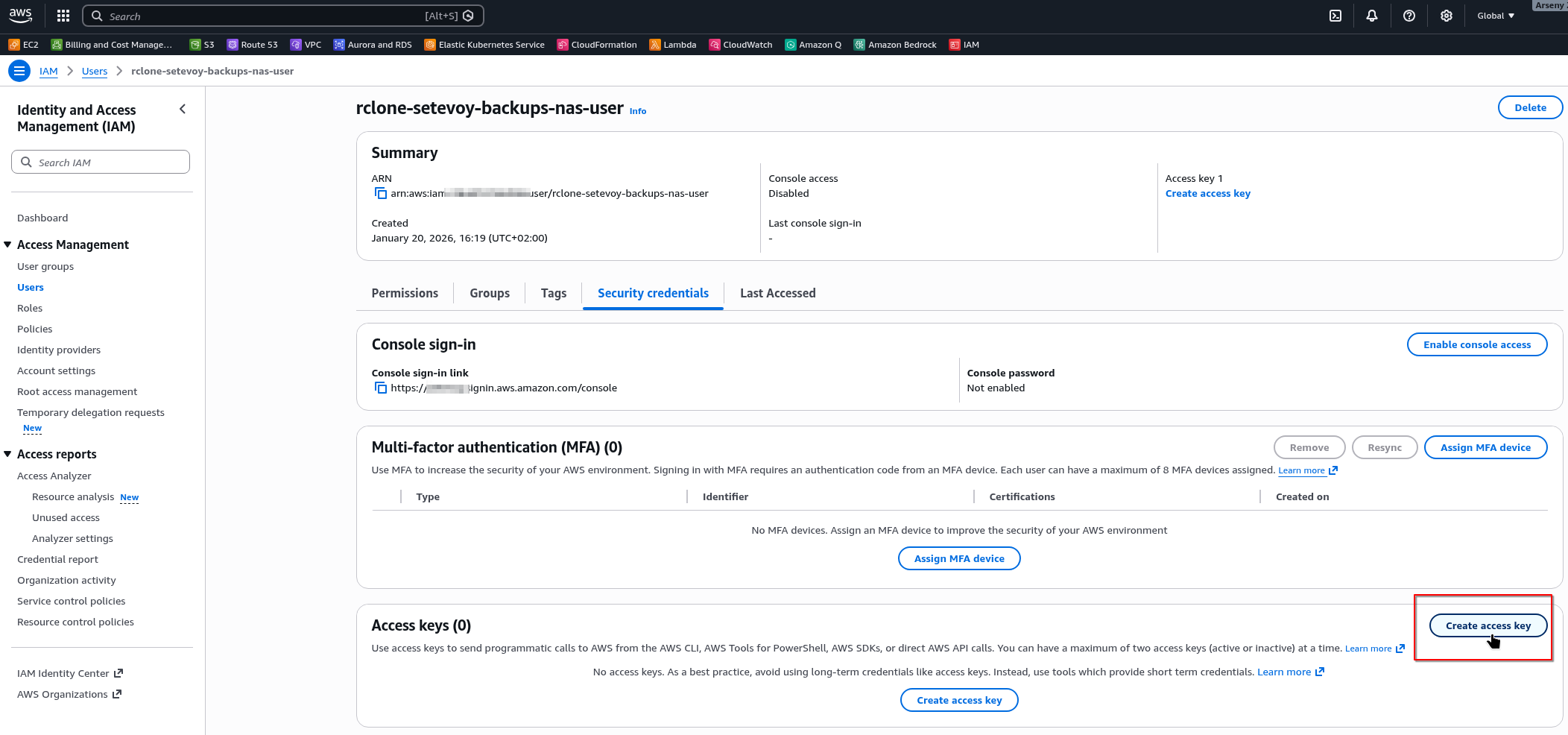
Create access keys for them:
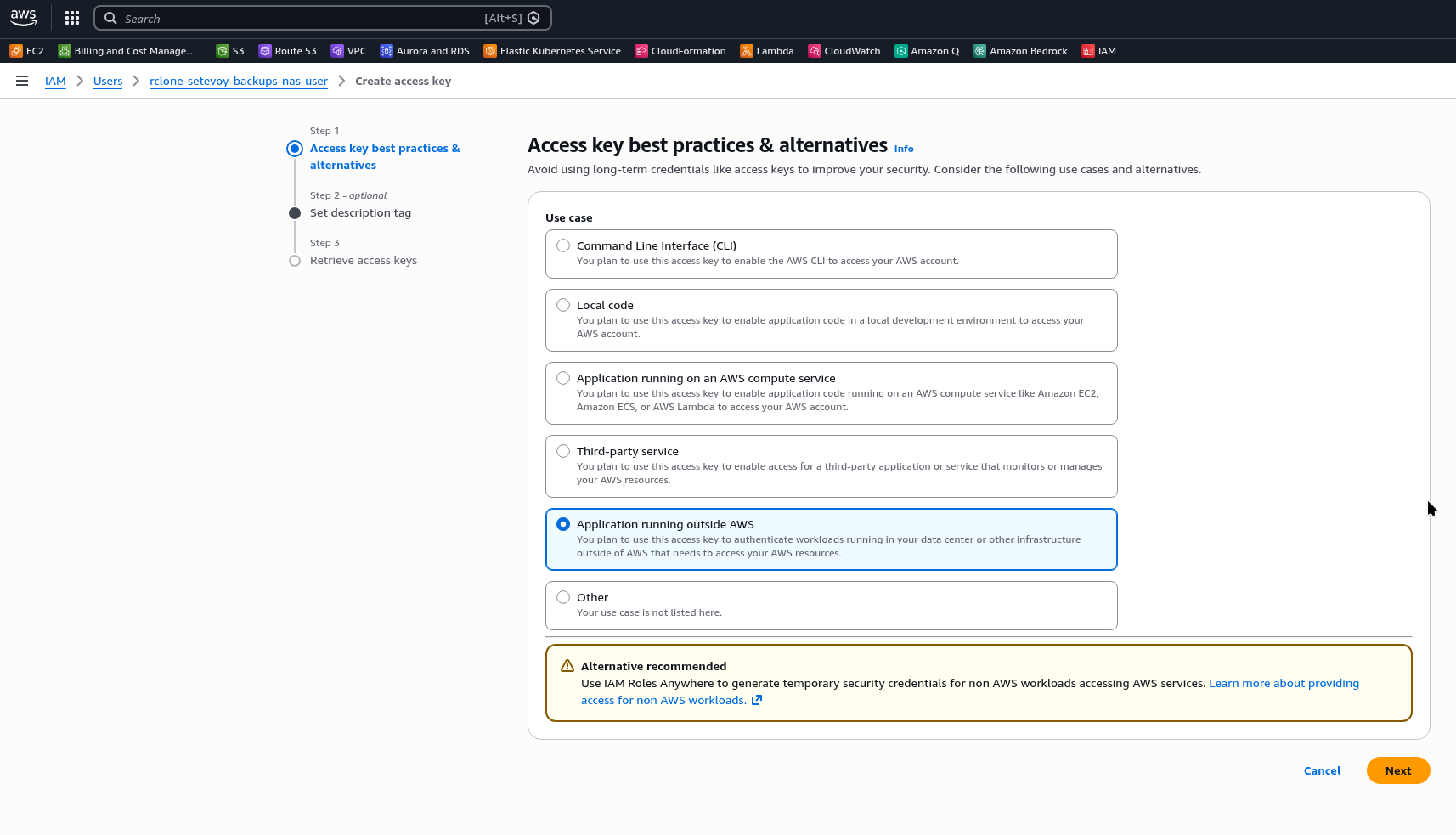
Select “Application running outside AWS”:
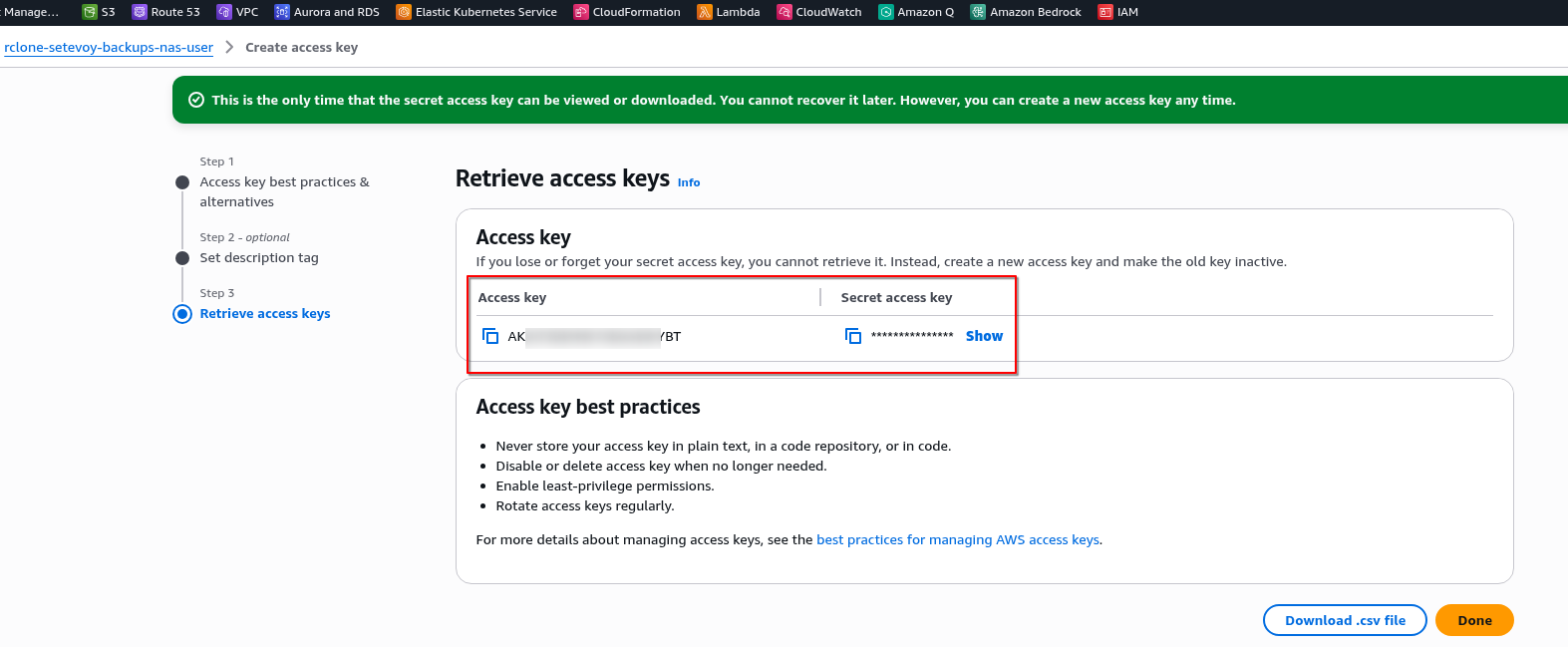
Save the keys:
Configuring AWS S3 remote
Launch rclone config, select “New remote”, and provide a name:
root@setevoy-nas:~ # rclone config
Current remotes:

Name                 Type
====                 ====
nas-google-drive     drive

e) Edit existing remote
n) New remote
d) Delete remote
r) Rename remote
c) Copy remote
s) Set configuration password
q) Quit config
e/n/d/r/c/s/q> n

Enter name for new remote.
name> nas-s3-setevoy-backups
...
Next, choose the type – select 4 (s3), then 1 – AWS:
...
Option Storage.
Type of storage to configure.
Choose a number from below, or type in your own value.
 1 / 1Fichier
   \ (fichier)
 2 / Akamai NetStorage
   \ (netstorage)
 3 / Alias for an existing remote
   \ (alias)
 4 / Amazon S3 Compliant Storage Providers including AWS, Alibaba, ArvanCloud, Ceph, ChinaMobile, Cloudflare, DigitalOcean, Dreamhost, Exaba, FlashBlade, GCS, HuaweiOBS, IBMCOS, IDrive, IONOS, LyveCloud, Leviia, Liara, Linode, Magalu, Mega, Minio, Netease, Outscale, OVHcloud, Petabox, RackCorp, Rclone, Scaleway, SeaweedFS, Selectel, StackPath, Storj, Synology, TencentCOS, Wasabi, Qiniu, Zata and others
   \ (s3)
...
Storage> s3

Option provider.
Choose your S3 provider.
Choose a number from below, or type in your own value.
Press Enter to leave empty.
 1 / Amazon Web Services (AWS) S3
   \ (AWS)
...
Next, select “Enter AWS credentials in the next step” and provide the keys:
...
Option env_auth.
Get AWS credentials from runtime (environment variables or EC2/ECS meta data if no env vars).
Only applies if access_key_id and secret_access_key is blank.
Choose a number from below, or type in your own boolean value (true or false).
Press Enter for the default (false).
 1 / Enter AWS credentials in the next step.
   \ (false)
 2 / Get AWS credentials from the environment (env vars or IAM).
   \ (true)
env_auth> 1

Option access_key_id.
AWS Access Key ID.
Leave blank for anonymous access or runtime credentials.
Enter a value. Press Enter to leave empty.
access_key_id> AKI***VXZ

Option secret_access_key.
AWS Secret Access Key (password).
Leave blank for anonymous access or runtime credentials.
Enter a value. Press Enter to leave empty.
secret_access_key> MkP***xJ/
...
Next, the bucket region – it’s available in Properties:
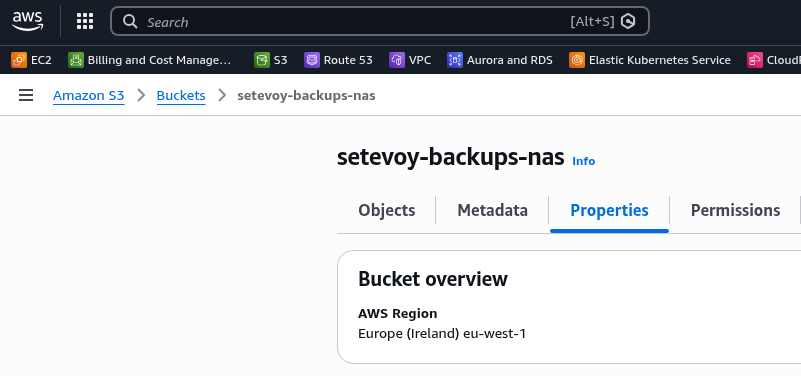
Set it:
...
Option region.
Region to connect to.
Choose a number from below, or type in your own value.
Press Enter to leave empty.
   / The default endpoint - a good choice if you are unsure.
 1 | US Region, Northern Virginia, or Pacific Northwest.
   | Leave location constraint empty.
   \ (us-east-1)
...
region> eu-west-1
...
Leave Option endpoint as is, and in Option location_constraint, enter “eu-west-1” again:
Option location_constraint.
Location constraint - must be set to match the Region.
Used when creating buckets only.
Choose a number from below, or type in your own value.
Press Enter to leave empty.
 1 / Empty for US Region, Northern Virginia, or Pacific Northwest
   \ ()
...
 6 / EU (Ireland) Region
   \ (eu-west-1)
...
location_constraint> eu-west-1
Option acl can be skipped – we have a separate bucket with its own ACL settings.
In server_side_encryption, select “AES256“, then “None“:
...
Option server_side_encryption.
The server-side encryption algorithm used when storing this object in S3.
Choose a number from below, or type in your own value.
Press Enter to leave empty.
 1 / None
   \ ()
 2 / AES256
   \ (AES256)
 3 / aws:kms
   \ (aws:kms)
server_side_encryption> 2

Option sse_kms_key_id.
If using KMS ID you must provide the ARN of Key.
Choose a number from below, or type in your own value.
Press Enter to leave empty.
 1 / None
   \ ()
 2 / arn:aws:kms:*
   \ (arn:aws:kms:us-east-1:*)
sse_kms_key_id> 1
Next, the Storage Class type; see The Ultimate Guide to AWS S3 Pricing in 2026.
You can choose INTELLIGENT_TIERING:
...
Option storage_class.
The storage class to use when storing new objects in S3.
Choose a number from below, or type in your own value.
Press Enter to leave empty.
 1 / Default
   \ ()
...
 8 / Intelligent-Tiering storage class
   \ (INTELLIGENT_TIERING)
...
storage_class> 8
Save it – we have a new backend:
...

Edit advanced config?
y) Yes
n) No (default)
y/n>

Configuration complete.
Options:
- type: s3
- provider: AWS
- access_key_id: AKI***VXZ
- secret_access_key: MkP***zxJ/
- region: eu-west-1
- location_constraint: eu-west-1
- server_side_encryption: AES256
- storage_class: INTELLIGENT_TIERING
Keep this "nas-s3-setevoy-backups" remote?
y) Yes this is OK (default)
e) Edit this remote
d) Delete this remote
y/e/d>

Current remotes:

Name                 Type
====                 ====
nas-google-drive     drive
nas-s3-setevoy-backups s3
...
To work with the S3 bucket, use the format remote_name:bucket_name.
Create a file healthcheck.txt and a directory test in the bucket – use rclone rcat:
root@setevoy-nas:~ # echo test | rclone rcat nas-s3-setevoy-backups:setevoy-backups-nas/test/healthcheck.txt
Check bucket contents with rclone ls:
root@setevoy-nas:~ # rclone ls nas-s3-setevoy-backups:setevoy-backups-nas/test
        5 healthcheck.txt
Rclone and Encryption
For increased security, rclone can encrypt its local configuration file, and for secure data storage in remote backends – it can encrypt the data there.
Rclone remote Crypt backend
Documentation – Crypt.
crypt is created as a separate backend but uses an already existing one.
For example, given nas-google-drive, you can create a new storage backend nas-google-drive-crypted and use it: it will act as a “proxy” – we write data “to it”, it performs encryption, and then “under the hood”, to write files to Google Drive, it uses the “original” backend nas-google-drive.
Create a new remote:
root@setevoy-nas:~ # rclone config
Current remotes:

Name                 Type
====                 ====
nas-google-drive     drive
nas-s3-setevoy-backups s3

e) Edit existing remote
n) New remote
d) Delete remote
r) Rename remote
c) Copy remote
s) Set configuration password
q) Quit config
e/n/d/r/c/s/q> n

Enter name for new remote.
name> nas-google-drive-crypted
Select “15 – Encrypt/Decrypt a remote” as the type:
...
Option Storage.
Type of storage to configure.
Choose a number from below, or type in your own value.
...
15 / Encrypt/Decrypt a remote
   \ (crypt)
...
Storage> crypt
Next, specify the “source backend” where the encrypted data will reside.
Important note: you can specify the entire storage as nas-google-drive:Backups/Rclone (the rclone root in my case) – or create a separate directory within it where encrypted data will be stored:
...
Option remote.
Remote to encrypt/decrypt.
Normally should contain a ':' and a path, e.g. "myremote:path/to/dir",
"myremote:bucket" or maybe "myremote:" (not recommended).
Enter a value.
remote> nas-google-drive:Backups/Rclone/Vault
Next, there are options to encrypt file and directory names or not; the default is to encrypt:
...
Option filename_encryption.
How to encrypt the filenames.
Choose a number from below, or type in your own value of type string.
Press Enter for the default (standard).
   / Encrypt the filenames.
 1 | See the docs for the details.
   \ (standard)
 2 / Very simple filename obfuscation.
   \ (obfuscate)
   / Don't encrypt the file names.
 3 | Adds a ".bin", or "suffix" extension only.
   \ (off)
filename_encryption>

Option directory_name_encryption.
Option to either encrypt directory names or leave them intact.
NB If filename_encryption is "off" then this option will do nothing.
Choose a number from below, or type in your own boolean value (true or false).
Press Enter for the default (true).
 1 / Encrypt directory names.
   \ (true)
 2 / Don't encrypt directory names, leave them intact.
   \ (false)
directory_name_encryption>
And finally – specify a password and optionally a salt:
...
Option password.
Password or pass phrase for encryption.
Choose an alternative below.
y) Yes, type in my own password
g) Generate random password
y/g> y
Enter the password:
password:
Confirm the password:
password:

Option password2.
Password or pass phrase for salt.
Optional but recommended.
Should be different to the previous password.
Choose an alternative below. Press Enter for the default (n).
y) Yes, type in my own password
g) Generate random password
n) No, leave this optional password blank (default)
y/g/n>
Done:
...
Configuration complete.
Options:
- type: crypt
- remote: nas-google-drive:Backups/Rclone/Vault
- password: *** ENCRYPTED ***
Keep this "nas-google-drive-crypted" remote?
y) Yes this is OK (default)
e) Edit this remote
d) Delete this remote
y/e/d>

Current remotes:

Name                 Type
====                 ====
nas-google-drive     drive
nas-google-drive-crypted crypt
nas-s3-setevoy-backups s3
Now, if we copy a text file there, we can only read it via rclone:
root@setevoy-nas:~ # rclone copy /root/rclone-copy.txt nas-google-drive-crypted:
If you look at it in Google Drive, you’ll see something like this:
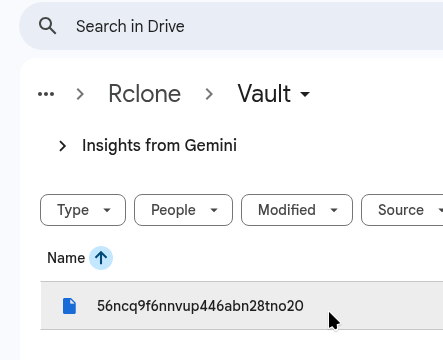
If you just download it directly to your laptop from the Google Drive Web UI, the data is also inaccessible:
[setevoy@setevoy-work ~]  $ file Temp/56ncq9f6nnvup446abn28tno20
Temp/56ncq9f6nnvup446abn28tno20: data

[setevoy@setevoy-work ~]  $ cat Temp/56ncq9f6nnvup446abn28tno20
~ܻv ڰ~qz
zG4nNEQ
But everything is readable via rclone:
root@setevoy-nas:~ # rclone cat nas-google-drive-crypted:rclone-copy.txt
test
And you can restore it locally with rclone copy or rclone copyto:
root@setevoy-nas:~ # rclone copyto nas-google-drive-crypted:rclone-copy.txt /home/setevoy/decrypted-rclone-copy.txt

root@setevoy-nas:~ # cat /home/setevoy/decrypted-rclone-copy.txt
test
rclone and config file encryption
rclone stores all its settings in the file ~/.config/rclone/rclone.conf, and by default, the file is not encrypted:
root@setevoy-nas:~ # cat ~/.config/rclone/rclone.conf
[nas-google-drive]
type = drive
client_id = ***.apps.googleusercontent.com
client_secret = GOCSPX-***
scope = drive.file
token = {"access_token":***","expiry":"2026-01-17T18:09:01.116266823+02:00","expires_in":3599}
team_drive =
However, you can set a password:
root@setevoy-nas:~ # rclone config encryption set
Enter NEW configuration password:
password:
Confirm NEW configuration password:
password:
Now the file is encrypted:
root@setevoy-nas:~ # cat ~/.config/rclone/rclone.conf
# Encrypted rclone configuration File

RCLONE_ENCRYPT_V0:
g3M***LSA=
When working with rclone, it will ask you to enter the password to read the config:
root@setevoy-nas:~ # rclone config show
Enter configuration password:
For automation in scripts or cron, the password can be passed via the RCLONE_CONFIG_PASS variable.
See rclone config encryption and rclone config show.
Core features and commands
The primary commands, at least when using rclone for backups, are rclone copy and rclone sync.
Also check these:
- rclone bisync: completely bidirectional synchronization of src and dst (copies and deletes)
- rclone cat and rclone rcat: read from remote to stdout or write to remote from stdout
- rclone delete and rclone deletefile: delete data with the ability to use filters (
--include/--exclude) - rclone ls and rclone lsd:
ls– list files with sizes,lsd– list directories - rclone mkdir: create a directory on the remote
- rclone mount: mounts a remote as a file system (FUSE)
- rclone move: moves files (copy + delete from src)
- rclone ncdu: interactive viewing of space usage on the remote
- rclone rmdir: delete an empty directory
- rclone rmdirs: recursive deletion of empty directories
- rclone purge: complete deletion of a directory with all its contents
- rclone size: shows file count and total size
- rclone test speed: test upload/download speed to the remote
- rclone tree: shows the directory tree
Useful Flags
See them all in Global Flags.
Most interesting ones:
--check-first: perform data validation between src and dst before starting copying--checksum: compare files between src and dst by MD5SUM checksum instead of size+mtime – slower but more accurate, useful for critical data--immutable: do not change a file on dst if it differs from src; instead, fail with an error--interactive: manual confirmation of changes--dry-run: test execution without copying--progress: display progress--transfers N: number of files copied simultaneously (default 4)--create-empty-src-dirs: if the src directory is empty – create an empty directory on dst (doesn’t work with S3)--excludeand--exclude-from,--includeand--include-from: list or file with a list of data to include or exclude from copying, see Filter--log-file: where to write the log (useful for automation)--fast-list: creates one large list of directories and files held in memory, rather than for each directory separately (uses more memory – but is faster and uses fewer API calls to dst)--update: skip files whose modification time on dst is newer than on src--human-readable: use Ki/Mi/Gi format
Using rclone copy and rclone copyto
rclone copy simply copies a file or directory to the specified remote.
If src is a directory with subdirectories, all data will be copied and the directory structure preserved.
For example, we have local directories with files:
root@setevoy-nas:~ # tree /tmp/new/
/tmp/new/
└── another
    └── dir
        ├── a.txt
        └── sub
            └── b.txt
Run rclone copy:
root@setevoy-nas:~ # rclone copy /tmp/new/ nas-google-drive:Backups/Rclone
Check on the remote:
root@setevoy-nas:~ # rclone tree nas-google-drive:Backups/Rclone/
/
└── another
    └── dir
        ├── a.txt
        └── sub
            └── b.txt
Similarly, we can just copy a single file into a new directory:
root@setevoy-nas:~ # rclone copy /root/rclone-copy.txt nas-google-drive:Backups/Rclone/rclone-dir
And now:
root@setevoy-nas:~ # rclone ls nas-google-drive:Backups/Rclone
        5 rclone-dir/rclone-copy.txt
        2 another/dir/a.txt
        2 another/dir/sub/b.txt
However, with rclone copy, you cannot specify a new filename, meaning:
root@setevoy-nas:~ # rclone copy /root/rclone-copy.txt nas-google-drive:Backups/Rclone/rclone-dir/new-rclone-copy.txt
Will create a new directory, not a file named new-rclone-copy.txt:
root@setevoy-nas:~ # rclone ls nas-google-drive:Backups/Rclone
        5 rclone-dir/rclone-copy.txt
        5 rclone-dir/new-rclone-copy.txt/rclone-copy.txt
To copy with a new name, use rclone copyto:
root@setevoy-nas:~ # rclone copyto /root/rclone-copy.txt nas-google-drive:Backups/Rclone/rclone-dir-copyto/new-rclone-copyto.txt
As a result:
root@setevoy-nas:~ # rclone ls nas-google-drive:Backups/Rclone
        5 rclone-dir-copyto/new-rclone-copyto.txt
...
Using rclone sync
rclone sync performs full synchronization between src and dst: if a file was deleted in src – it will be deleted on dst as well. See also rclone bisync.
Useful flags here:
--backup-dir: on dst, do not delete a file that changed in src, but save it into a separate directory--delete-afterand--delete-before: delete data before or after successful copying--suffix: add a suffix to the data that has changed
With rclone purge, delete the data created during tests above (this will also delete the directory itself):
root@setevoy-nas:~ # rclone purge nas-google-drive:Backups/Rclone/
root@setevoy-nas:~ # rclone mkdir nas-google-drive:Backups/Rclone/
Execute rclone sync:
root@setevoy-nas:~ # rclone sync /tmp/new/ nas-google-drive:Backups/Rclone/
Obtain an identical structure on the remote:
root@setevoy-nas:~ # rclone tree nas-google-drive:Backups/Rclone/
/
└── another
    └── dir
        ├── a.txt
        └── sub
            └── b.txt
And an example of how --backup-dir works.
Change the file contents in src:
root@setevoy-nas:~ # echo updated > /tmp/new/another/dir/a.txt
Execute rclone sync and specify --backup-dir:
root@setevoy-nas:~ # rclone sync /tmp/new/ nas-google-drive:Backups/Rclone --backup-dir nas-google-drive:Backups/Rclone-changed/$(date +%Y-%m-%d-%H-%M-%S)
Note that --backup-dir must be outside dst – meaning you cannot do rclone sync /path/src/ nas-google-drive:path/dst/ --backup-dir path/dst/backupDir.
Now we have a new directory Rclone-changed/ in the Backups/ root:
root@setevoy-nas:~ # rclone tree nas-google-drive:Backups/
/
├── Rclone
│   └── another
│       └── dir
│           ├── a.txt
│           └── sub
│               └── b.txt
└── Rclone-changed
    └── 2026-01-21-12-08-33
        └── another
            └── dir
                └── a.txt
In which the original copy of the a.txt file is preserved:
root@setevoy-nas:~ # rclone cat nas-google-drive:Backups/Rclone-changed/2026-01-21-12-08-33/another/dir/a.txt
a
And in Backups/Rclone/another/dir/a.txt we have the updated file:
root@setevoy-nas:~ # rclone cat nas-google-drive:Backups/Rclone/another/dir/a.txt
updated
And that is probably all.
Now we create a few cron jobs and set up a backup of backups.
