 For a couple of months now, my work laptop, a Lenovo ThinkPad T14 Gen 5 running Arch Linux, has been having trouble opening new websites – for the first 10-15 seconds, the site loads in “pieces”, for example:

But then it “wakes up”, and everything starts working perfectly:
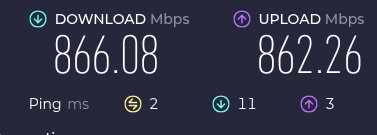
Finally, when I started setting up a proper home network with a VPN (see FreeBSD: Home NAS, part 3 – WireGuard VPN, Linux peer, and routing), and then DNS for it (see FreeBSD: Home NAS, part 4 – local DNS with Unbound), I got around to dealing with this problem.
And the problem turned out to be very interesting. I spent a long time searching for the cause and checked a bunch of different settings – from IPv6 and DNS to the network card driver.
The main thing was that the problem wasn’t exactly critical – overall the internet worked, so I would occasionally start looking for the cause, then give up, then return to it again.
Contents
The issue: “communications error to 192.168.0.1#53: timed out”
Interestingly, the problem was only observed on an Ethernet connection – on WiFi everything worked perfectly.
And on Ethernet, it was reproducible with different cables and through different routers.
So – what does that mean? It means either I tinkered with something in my Linux manually, or a “buggy” update arrived for the kernel, the driver, or some library.
I don’t remember why, but at first I blamed DNS, because we all know that:

And indeed – I managed to reproduce it precisely with DNS during tests with dig – so I spent a long time digging in that direction.
The problem looked like this: we run dig, 10-15 requests pass normally, and then “communications error to 192.168.0.1#53: timed out” arrives:
$ time dig google.com +short @192.168.0.1
;; communications error to 192.168.0.1#53: timed out
...

real    0m5.018s
user    0m0.004s
sys     0m0.008s
And this seemed like the actual reason why websites were sluggish with content loading: if DNS periodically drops out, and websites have a bunch of additional scripts and images loading from other resources – by the time all hosts are resolved and all addresses obtained, we get exactly this delay of several dozen seconds.
Logical? Yes.
Therefore, all subsequent tests were done in a loop with dig:
$ for i in {1..50}; do { time dig +nocookie +noedns +tries=1 +time=2 google.com >/dev/null; } 2>&1; done
...
real    0m0.016s
...
real    0m2.015s
...
real    0m0.013s
...
real    0m1.392s
And the result was consistent – a batch of requests passes normally – “real 0m0.016s“, and then on one of them – a timeout and “real 0m2.015s” (because +time=2 – wait for 2 seconds, instead of the default 5).
The same problem was visible with tcpdump: at 09:57:47 the request is sent, but no response is received; after 2 seconds, at 09:57:49 – a new request, and a response arrives for that one:
...
09:57:47.717951 IP setevoy-work.40923 > _gateway.domain: 13058+ [1au] A? google.com. (51)
09:57:49.729589 IP setevoy-work.45441 > _gateway.domain: 63641+ [1au] A? google.com. (51)
09:57:49.730249 IP _gateway.domain > setevoy-work.45441: 63641 6/4/4 A 142.250.109.101, A 142.250.109.100, A 142.250.109.139, A 142.250.109.138, A 142.250.109.102, A 142.250.109.113 (260)
...
The problem was similarly visible with strace:
$ strace -r -e trace=network dig google.com
...
     0.002788 socket(AF_INET, SOCK_DGRAM, IPPROTO_IP) = 15
...
     ;; communications error to 192.168.0.1#53: timed out
     5.005754 socket(AF_INET, SOCK_DGRAM, IPPROTO_IP) = 16
...
Here at 0.002788 a socket is opened to send the request, and after 5 seconds (5.005754) – since dig was now running without +time=2 – a new socket opens for a new request because there was no response to the previous one.
Searching for the cause
Here I will describe what I checked – it turned out to be quite a quest.
I didn’t record everything I did, but I saved the main parts – I’ve had a habit for a long time of throwing notes into a draft post on RTFM while debugging problems.
Checking DNS in Linux
First – what’s up with DNS in the system?
The router is specified in /etc/resolv.conf:
# Generated by NetworkManager
nameserver 192.168.0.1
Changed to 1.1.1.1 or 8.8.8.8 – the problem remains.
Okay… Maybe there’s another active resolver in the system, and a “DNS race in the kernel” begins – the request “wanders” between them?
Checked systemd-resolved – no, not running:
$ systemctl status systemd-resolved
○ systemd-resolved.service - Network Name Resolution
     Loaded: loaded (/usr/lib/systemd/system/systemd-resolved.service; disabled; preset: enabled)
     Active: inactive (dead)
...
Maybe dnsmasq?
Also disabled:
$ systemctl status dnsmasq
○ dnsmasq.service - dnsmasq - A lightweight DHCP and caching DNS server
     Loaded: loaded (/usr/lib/systemd/system/dnsmasq.service; disabled; preset: disabled)
     Active: inactive (dead)
...
So, DNS requests are going directly to the router, and… What? Is the router lagging with responses? Do the requests not reach it – are they lost occasionally?
What could it be?
- local firewall on Linux or the router?
- no – disabled them, problem remained
- race between several local DNS services?
- ruled out above
- network card power management – is it going to sleep?
- unlikely, but I checked this later as well
- network card driver bug?
- possible, because the problem appeared not long ago; before this, everything worked without issues on this laptop and this system
- some problems specifically with UDP?
- also no – ran
dig +tcp google.com, problem remained
- also no – ran
- response to DNS request returning from a different IP?
- an exotic idea, but as an option – the router has several network interfaces combined in a bridge, and – theoretically – the router could send the response from a different one
- but this is something very extraordinary, and the problem occurred identically on different routers, and it didn’t exist before
IPv6 and DNS
I don’t remember why, but at the beginning I suspected IPv6 during DNS execution.
/etc/gai.conf manages the address selection algorithm in glibc (GAI = getaddrinfo()), and determines which address (IPv4 or IPv6) an application making a DNS request will choose first if DNS returned both A and AAAA records.
You can enable IPv4 first by uncommenting the line:
...
precedence ::ffff:0:0/96 100
...
Check which returns first – the IPv4 address or IPv6:
$ getent ahosts google.com
142.250.130.100 STREAM google.com
...
2a00:1450:4025:800::64 STREAM
...
IPv4 first, but that didn’t help either.
I tried disabling IPv6 in the kernel entirely:
$ sudo sysctl -w net.ipv6.conf.all.disable_ipv6=1
$ sudo sysctl -w net.ipv6.conf.default.disable_ipv6=1
At this point, it seemed like the problem was found – because the first time everything went through without issues, but no – then timeouts appeared again.
NIC Offloading
NIC Offloading is when part of the operations are performed on the network interface itself, i.e., offloading some tasks from the laptop CPU to the card controller.
Check active ones with ethtool -k:
$ sudo ethtool -k enp0s31f6 | grep on
rx-checksumming: on
tx-checksumming: on
        tx-checksum-ip-generic: on
scatter-gather: on
        tx-scatter-gather: on
tcp-segmentation-offload: on
...
generic-segmentation-offload: on
generic-receive-offload: on
rx-vlan-offload: on
tx-vlan-offload: on
receive-hashing: on
...
The most interesting ones here are:
- TSO (TCP Segmentation Offloading): the processor hands the card one large chunk of data (e.g., 64 KB), and the card itself “slices” it into small 1500-byte TCP packets
- GSO (Generic Segmentation Offloading): same as TSO, but more universal (works not only for TCP)
- GRO (Generic Receive Offloading): the reverse process – the card receives many small packets, “glues” them into one large one, and only then hands it to the processor, which saves CPU resources
- RX and TX Checksum Offloading: the card itself checks checksums (CRC) of incoming packets – if a packet is “corrupt”, the card simply discards it without even notifying the operating system
Disable them one by one and make dig tests:
sudo ethtool -K enp0s31f6 gro off: didn’t helpsudo ethtool -K enp0s31f6 gso off: didn’t helpsudo ethtool -K enp0s31f6 tso off: didn’t helpsudo ethtool -K enp0s31f6 rx off: didn’t help, and it actually made it worse
In fact, the fact that it got worse after disabling RX Checksum Offloading was already a hint: if the network card had been filtering errors itself until then, now they all flooded the kernel, creating additional load and chaos in the packet queue, so useful DNS responses started getting lost even more often.
NIC Power Management
EEE (Energy Efficient Ethernet) is supposed to reduce the energy consumption of the card.
Checking:
$ sudo ethtool --show-eee enp0s31f6
EEE settings for enp0s31f6:
enabled - active
17 (us)
        Supported EEE link modes:  100baseT/Full
                                   1000baseT/Full
        Advertised EEE link modes:  100baseT/Full
                                    1000baseT/Full
        Link partner advertised EEE link modes:  100baseT/Full
                                                 1000baseT/Full
Currently “enabled – active” – disabling:
$ sudo ethtool --set-eee enp0s31f6 eee off
Didn’t help.
I also tried this: ran ping with short intervals so the card doesn’t fall asleep:
$ ping -i 0.2 192.168.0.1
And simultaneously launching the loop with dig – but the problem remains.
I separately checked the Runtime Power Management settings:
Find the PCI address for the device enp0s31f6:
$ ls -l /sys/class/net/enp0s31f6/device
lrwxrwxrwx 1 root root 0 Jan 19 09:38 /sys/class/net/enp0s31f6/device -> ../../../0000:00:1f.6
Or:
[setevoy@setevoy-work ~]  $ lspci -D | grep Ethernet
0000:00:1f.6 Ethernet controller: Intel Corporation Ethernet Connection (18) I219-LM (rev 20)
And check power parameters:
$ cat /sys/bus/pci/devices/0000:00:1f.6/power/control
on
“on” – enabled constantly, so it shouldn’t be turning off.
The Driver and Message Signaled Interrupts
Check the driver:
$ lspci -k -s 00:1f.6
00:1f.6 Ethernet controller: Intel Corporation Ethernet Connection (18) I219-LM (rev 20)
        Subsystem: Lenovo Device 2327
        Kernel driver in use: e1000e
        Kernel modules: e1000e
Network controller – Intel I219-LM, and the e1000e driver, which is said to be “capricious”.
Interrupt parameters:
$ cat /proc/interrupts | grep -i enp0s31f6 ... IR-PCI-MSI-0000:00:1f.6 0-edge enp0s31f6
IR-PCI-MSI-0000:00:1f.6 – the driver uses MSI (Message Signaled Interrupts), which reportedly can cause drops for UDP on some Intel cards in Linux.
I created the file /etc/modprobe.d/e1000e.conf and set the interrupt mode to legacy (see Linux* Driver for Intel(R) Ethernet Network Connection):
options e1000e IntMode=0
Rebooted and checked:
$ cat /proc/interrupts | grep -i enp0s31f6
  19:     240716         ...  IR-IO-APIC   19-fasteoi   enp0s31f6
Didn’t help – the problem was still there.
And besides, dig +tcp google.com was still having problems.
Final: rx_crc_errors and reducing speed
And what I missed initially – checked errors on the interface.
I missed it because the number of errors was not growing during tests:
$ ip -s link show enp0s31f6
3: enp0s31f6: <BROADCAST,MULTICAST,UP,LOWER_UP> mtu 1500 qdisc fq_codel state UP mode DEFAULT group default qlen 1000
    link/ether c4:c6:e6:e7:e4:26 brd ff:ff:ff:ff:ff:ff
    RX:  bytes packets errors dropped  missed   mcast
     750558152  589207    104       0       0       0
    TX:  bytes packets errors dropped carrier collsns
      40067575  157761      0       2       0       0
    altname enxc4c6e6e7e426
Or with ethtool:
$ sudo ethtool -S enp0s31f6 | grep -E "errors|missed|dropped|timeout|tx_aborted" | grep -v ": 0"
     rx_errors: 114
     tx_dropped: 26
     rx_crc_errors: 57
rx_crc_errors indicates a problem with packet integrity, and – if the router and cable are fine (and the problem was observed on different routers and with different cables) – it is most likely a problem with the RJ-45 port on the laptop itself, although the contacts look fine.
I tried forcibly reducing the speed on the interface from gigabit to 100 Mbps:
$ sudo ethtool -s enp0s31f6 speed 100 duplex full autoneg on
And a miracle! Everything works!
Returned to 1000 again:
$ sudo ethtool -s enp0s31f6 speed 1000 duplex full autoneg on
And the problem reappears.
I could have just left it at 100 Mbps – but I’m not connected via cable and paying for gigabit GPON for nothing, right?
Fortunately, I have a few USB Ethernet adapters at home; I switched the cable to one:
$ ip a s enp0s13f0u2u3
2: enp0s13f0u2u3: <BROADCAST,MULTICAST,UP,LOWER_UP> mtu 1500 qdisc fq_codel state UP group default qlen 1000
    link/ether c8:4d:44:29:27:6b brd ff:ff:ff:ff:ff:ff
    altname enxc84d4429276b
    inet 192.168.0.198/24 brd 192.168.0.255 scope global dynamic noprefixroute enp0s13f0u2u3
...
Gigabit and Full Duplex are available:
$ sudo ethtool enp0s13f0u2u3
Settings for enp0s13f0u2u3:
        Supported ports: [ TP    MII ]
        Supported link modes:   10baseT/Half 10baseT/Full
                                100baseT/Half 100baseT/Full
                                1000baseT/Half 1000baseT/Full
        ...
        Speed: 1000Mb/s
        Duplex: Full
        ...
                               drv probe link timer ifdown ifup rx_err tx_err tx_queued intr tx_done rx_status pktdata hw wol
        Link detected: yes
And now everything works without issues.
