 I think all Opsgenie users are aware that Atlassian
 is killing is shutting down the project.
I’ve been using Opsgenie since 2018, got used to it, and overall it had everything I needed from an alerting system – a bit rough around the edges in places, but the necessary integrations worked and were easy enough to configure.
When I started looking for alternatives, I came across a post on Reddit – Anyone using Opsgenie? What’s your replacement plan, where a lot of people were talking about incident.io – but this is exactly the case where millions of flies can still be wrong, because I haven’t seen a more broken system.
By the way, I realized one thing: if getting acquainted with a system makes you want to go to YouTube to watch how people configure it – that system clearly has problems with either UI/UX or documentation – and this is 100% the case with incident.io, on both counts.
After wasting… spending a few days trying to get it to send messages to Slack the way I wanted – I started looking for alternatives again, and in the same Reddit thread I came across ilert, and… God – it’s love at first sight.
Everything just worked in 15 minutes with zero extra headache configuring how messages look in Slack.
There will definitely be some issues/inconveniences, but so far the system looks exactly the way it should – no unnecessary bells and whistles, with a simple, clean, and intuitive (intuitive, dammit – you hearing this, incident.io?!) interface.
So today we’ll take a look at the main features and set up ilert for sending alerts.
What do I personally need from an alerting system? Well… alerts. Sending alerts. A convenient UI for viewing alerts, and the ability to configure message templates for Slack, since that’s our primary delivery channel.
In terms of integrations, I need to be able to receive alerts from the standard Alertmanager and from AWS SNS.
And decent (decent, incident.io!) documentation.
That’s it!
Let’s go.
There will be plenty of links to ilert documentation – you can start with the Opsgenie to ilert Migration Guide or VictoriaMetrics Integration.
Contents
ilert overview and main features
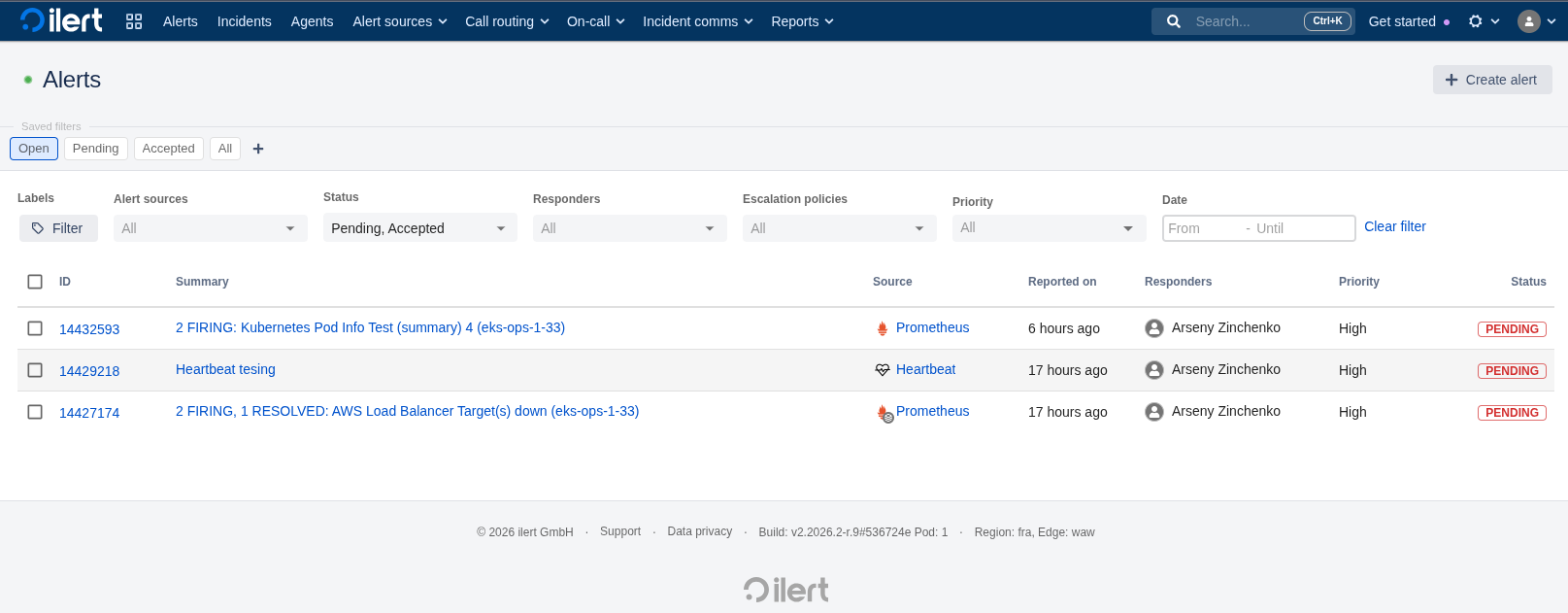
After registering, we land on the dashboard – and just take a look at how clean everything looks here – simple, functional, clear:
Main features:
- Terraform provider
- direct export of configuration to Terraform
- alerting – SMS, Voice calls, Slack, Telegram, web-hooks, and God help us, MS Teams
- standard On-call management – rotations, schedules, escalations
- ChatOps – managing alerts from Slack
- AI SRE – haven’t touched it yet, but will try, although it seems to still be in Beta
- postmortems, incidents
- REST API
- somewhere I saw the ability to collect metrics from Prometheus/VictoriaMetrics, but haven’t tested it yet
- MCP for LLM
- mobile app (also haven’t looked at it yet)
- Status Pages
And over 100 integrations – All Integrations.
Pricing
See Pricing.
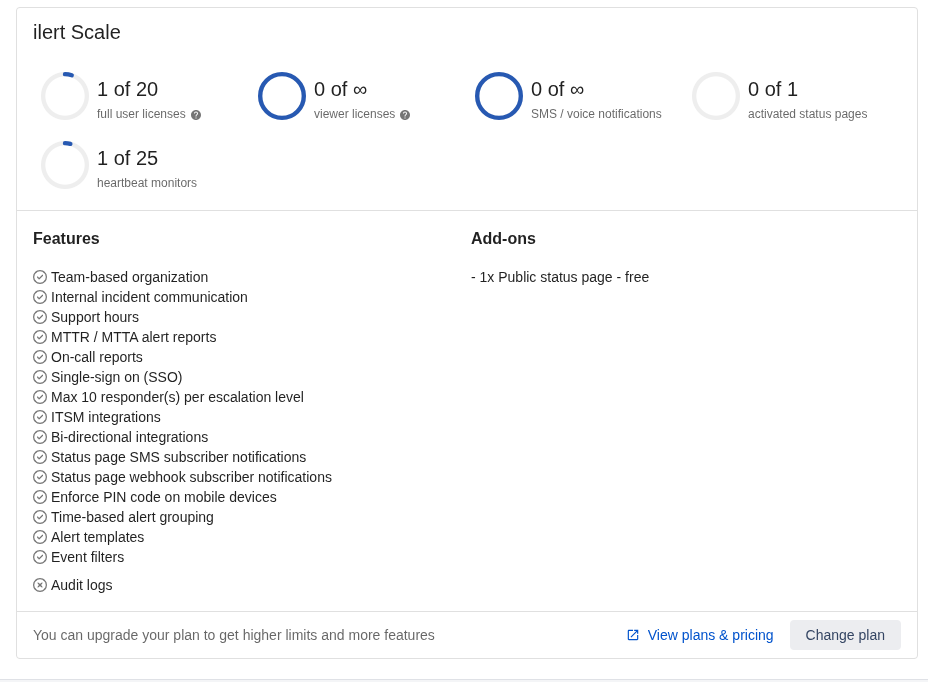
There’s a Free Plan, which also includes Heartbeat, Status Page, On-call/voice/SMS – with limitations, but included.
Available in the dashboard:
Getting started
The main thing is, of course, alerts – so let’s see what’s available here.
The core ilert concepts for alerting are Alert sources and Alert actions:
- Alert sources: the actual sources of alerts – Alertmanager, AWS SNS, etc.
- Alert actions: rules for what to do with alerts – send a notification, update Status Pages status, push a webhook
What we’ll start with, and what I need most:
- start receiving alerts from Alertmanager
- configure sending to Slack
- look at alert routing – to send to different Slack channels
- look at message templates
Connecting Alertmanager
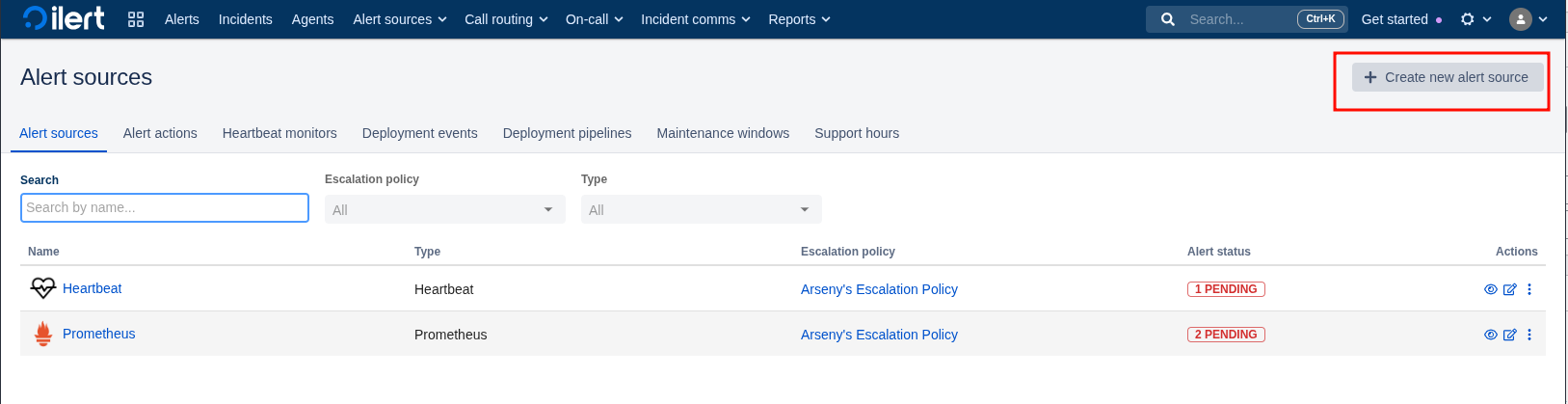
Go to Alert sources, add a new one:
Select Prometheus – this will essentially be Alertmanager:
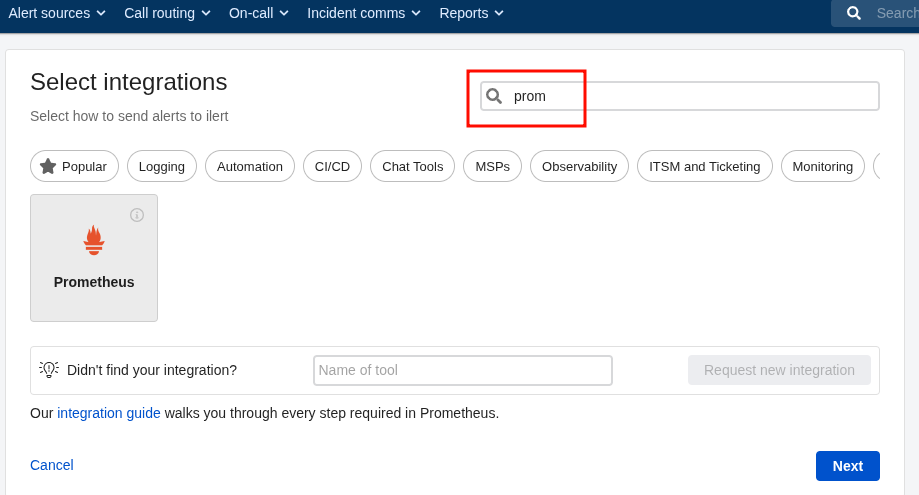
Documentation – Prometheus Integration, and links to documentation are available almost everywhere, and the documentation itself is excellent.
Set the name:
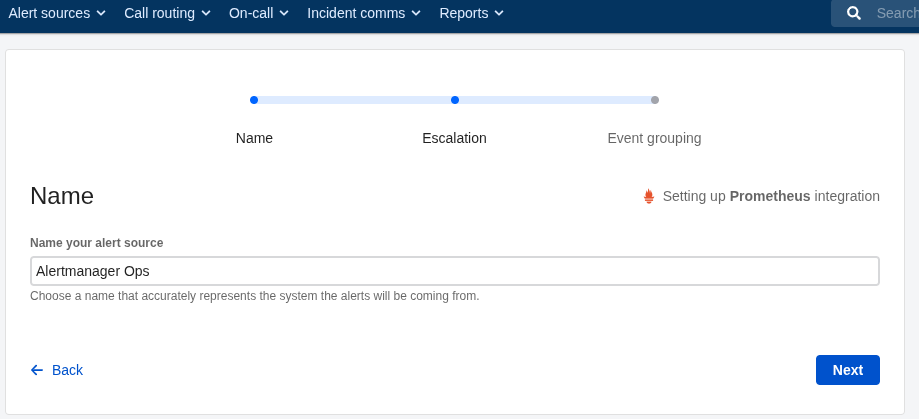
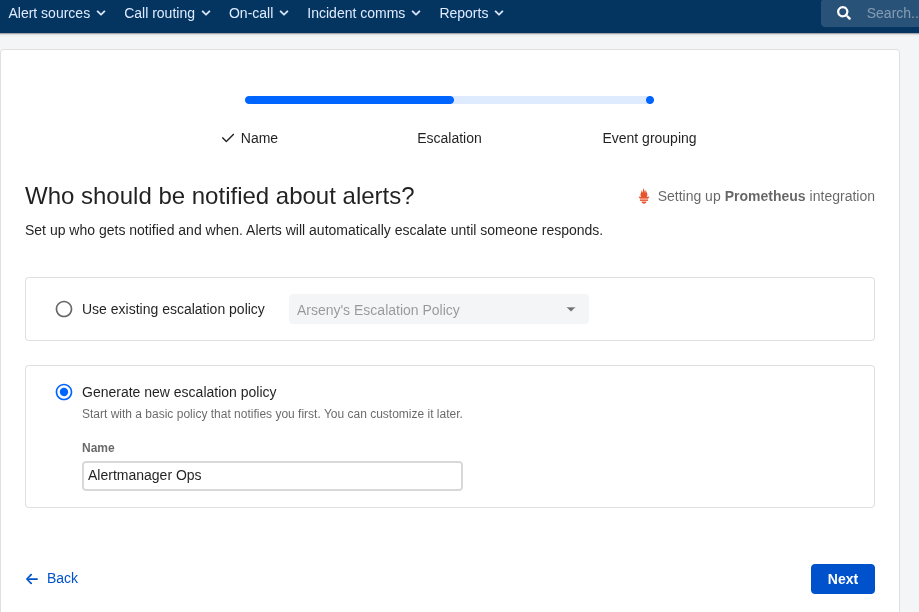
Set the Escalation Policy – we’ll talk about those a bit more later:
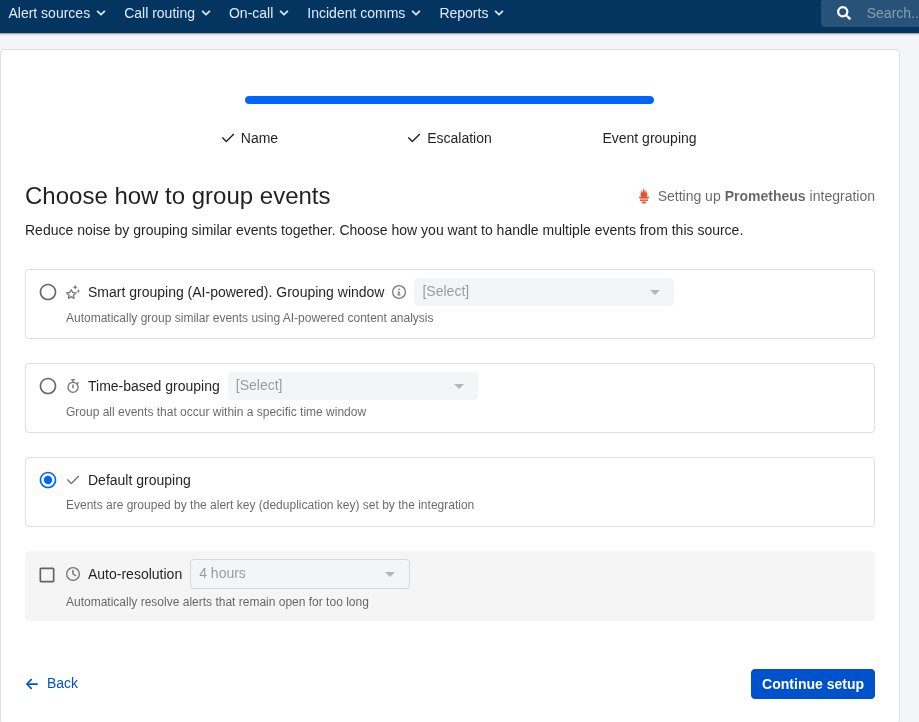
Grouping – none, Alertmanager handles that for me:
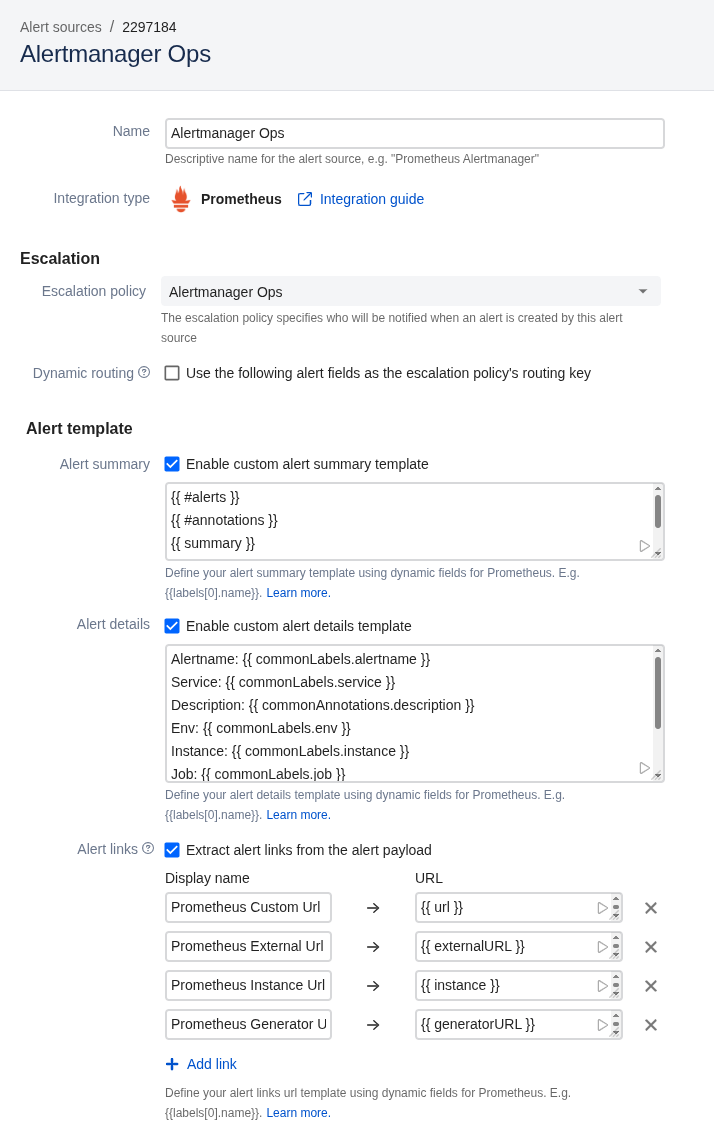
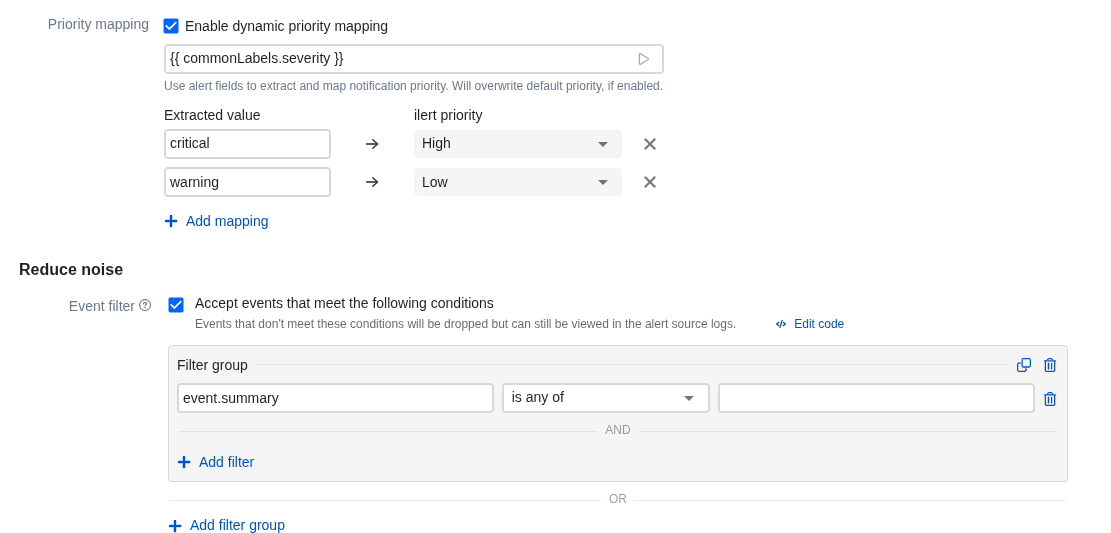
Here you can also configure Templating, but we’ll skip that for now – more details coming up:
Here you can also set filters – under what conditions an alert will be sent here, but we’ll skip that for now too – more on that later:
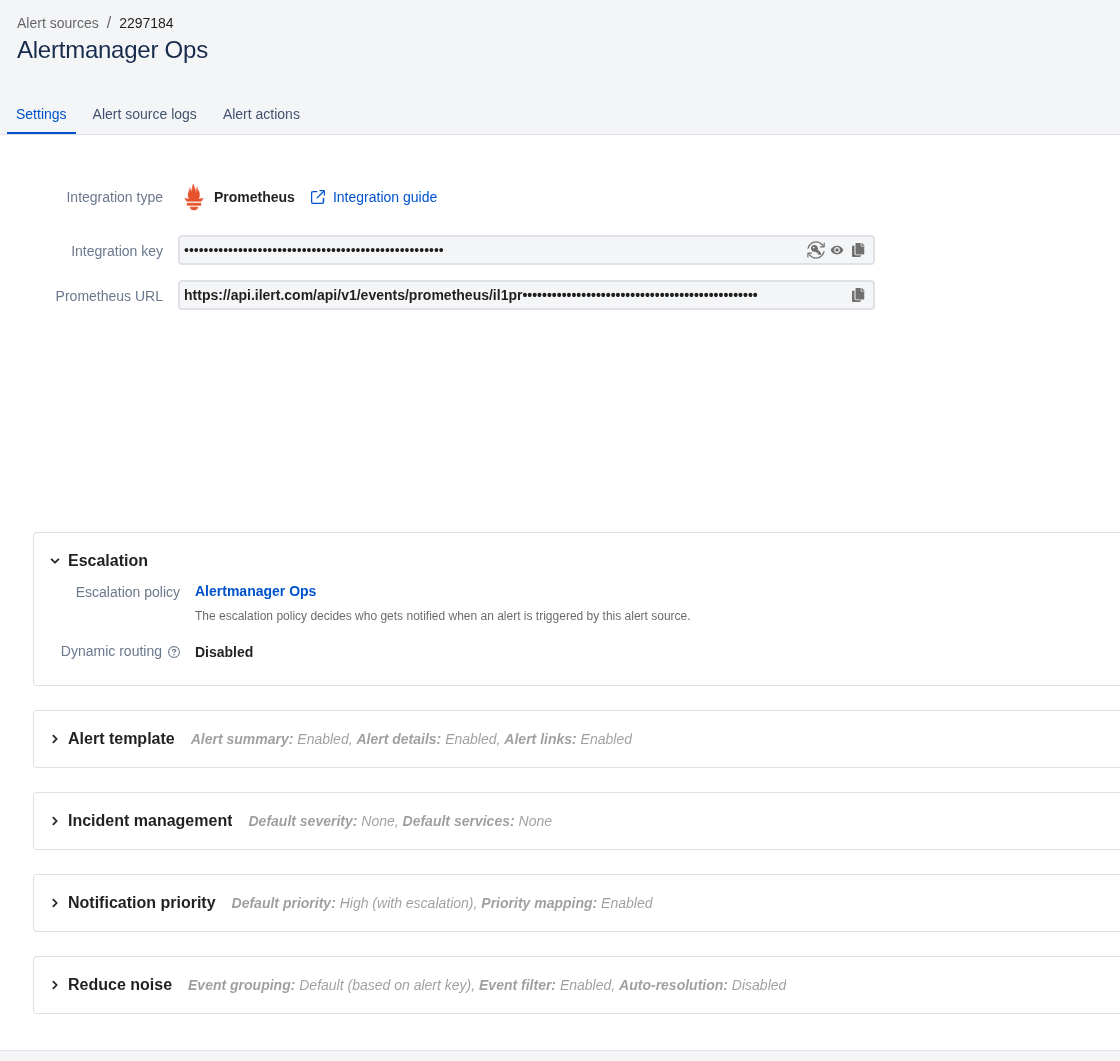
Click Finish setup at the bottom, get the key and full URL:
Configuring Alertmanager
Go to the Alertmanager config, add a new route:
...
      routes:

        - matchers:
            - component="devops"
          receiver: ilert-notifications
          continue: true
...
And the receiver:
...
    receivers:

      - name: 'ilert-notifications'
        webhook_configs:
        - url: 'https://api.ilert.com/api/v1/events/prometheus/il1prom***c94'
...
You can send a test alert with curl:
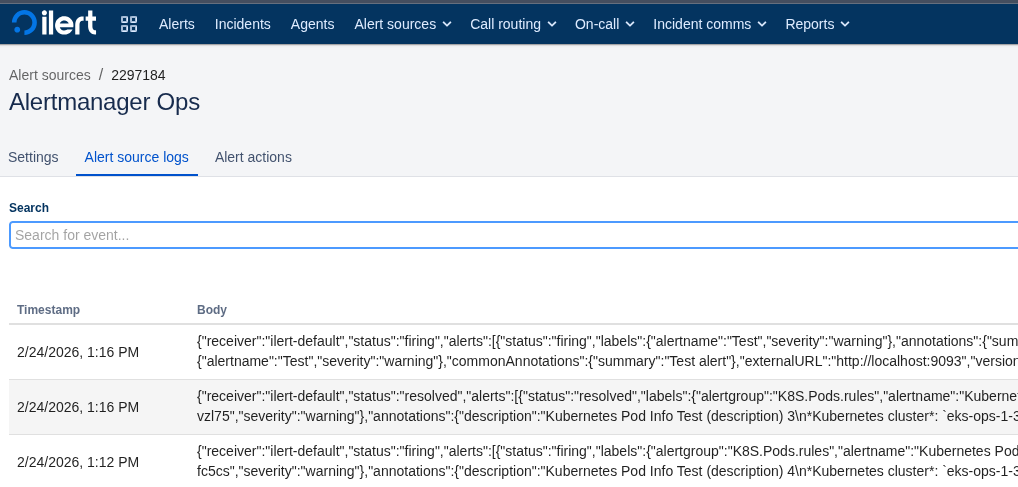
$ curl -X POST https://api.ilert.com/api/v1/events/prometheus/*** -H "Content-Type: application/json" -d '{"receiver":"ilert-default","status":"firing","alerts":[{"status":"firing","labels":{"alertname":"Test","severity":"warning"},"annotations":{"summary":"Test alert"},"startsAt":"2026-02-24T00:00:00Z","endsAt":"0001-01-01T00:00:00Z","fingerprint":"test123"}],"groupLabels":{"alertname":"Test"},"commonLabels":{"alertname":"Test","severity":"warning"},"commonAnnotations":{"summary":"Test alert"},"externalURL":"http://localhost:9093","version":"4","groupKey":"test"}'
And very useful logs:
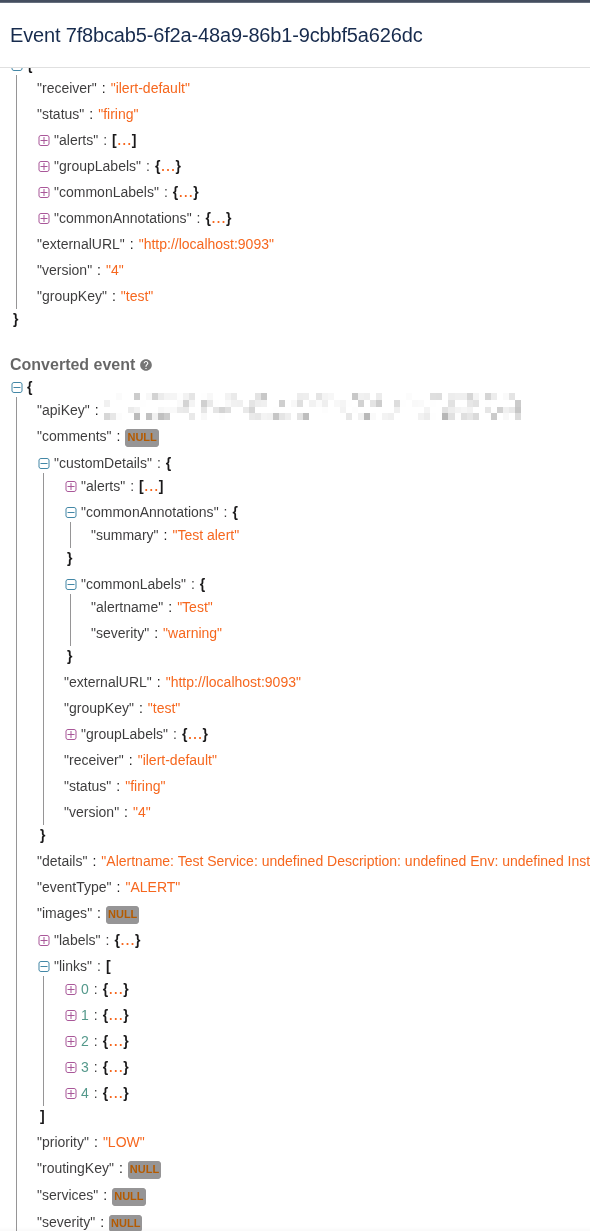
Where you can see the full payload and how ilert parsed it:
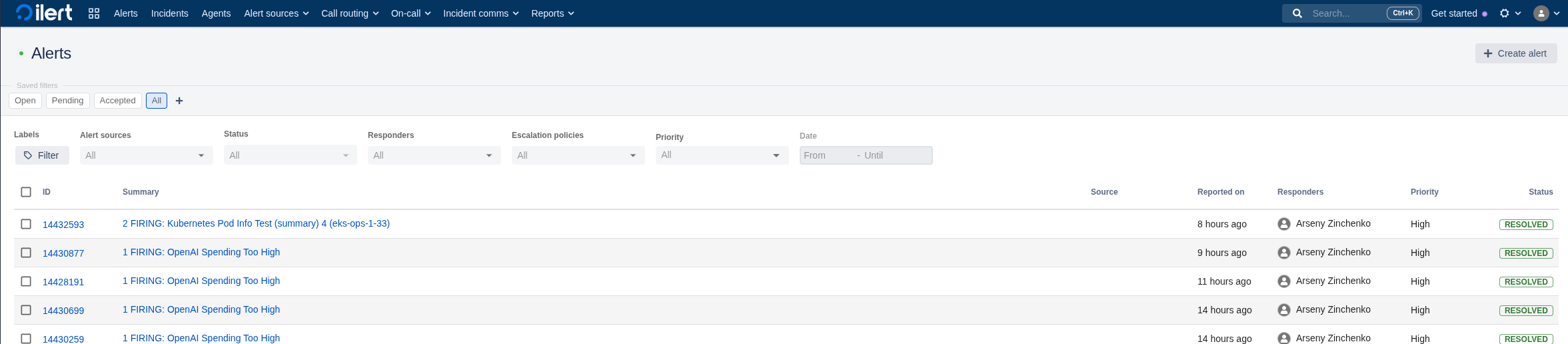
And a simple, very convenient alerts UI:
Configuring Slack alerts
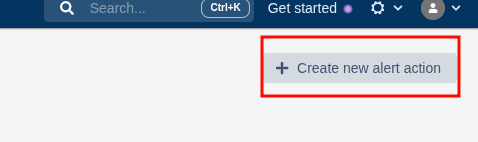
Go to Alert Actions, add a new one:
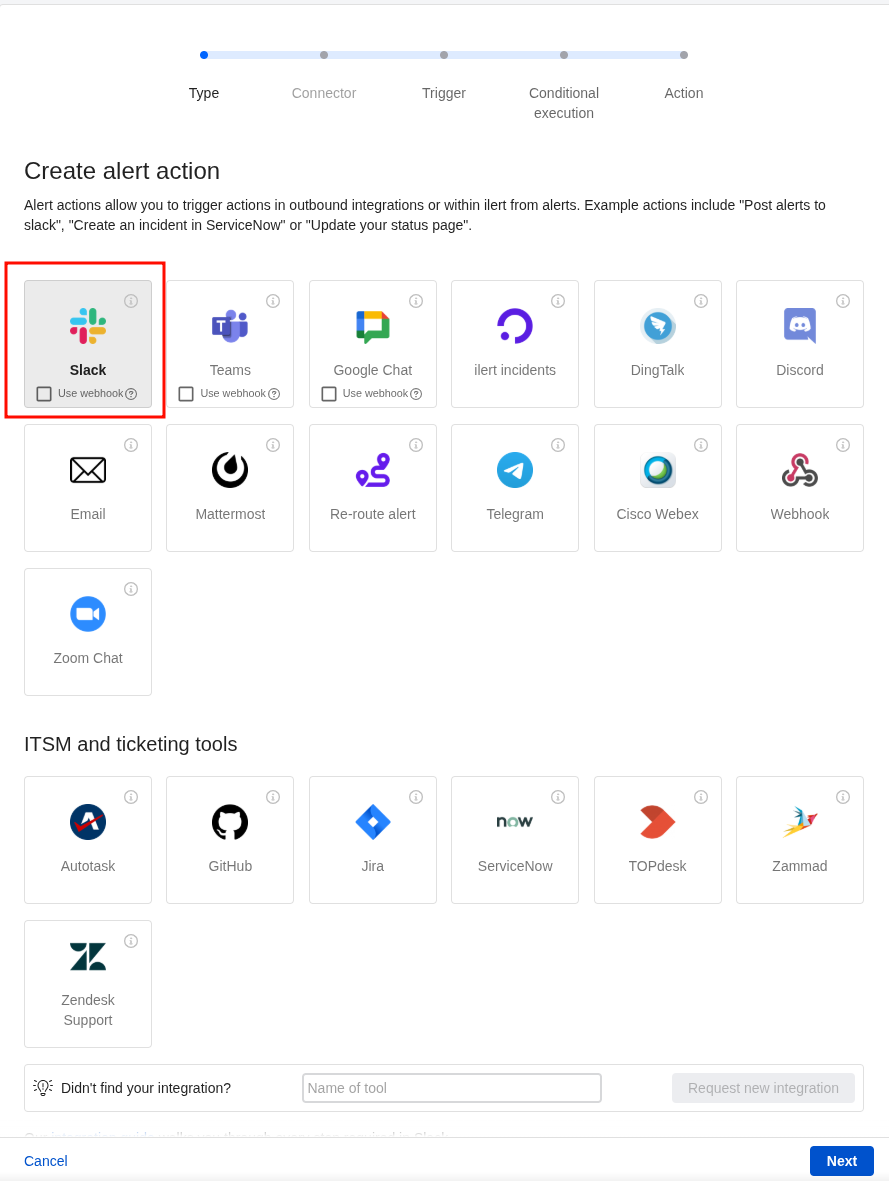
Select Slack, do not check “Use webhook“:
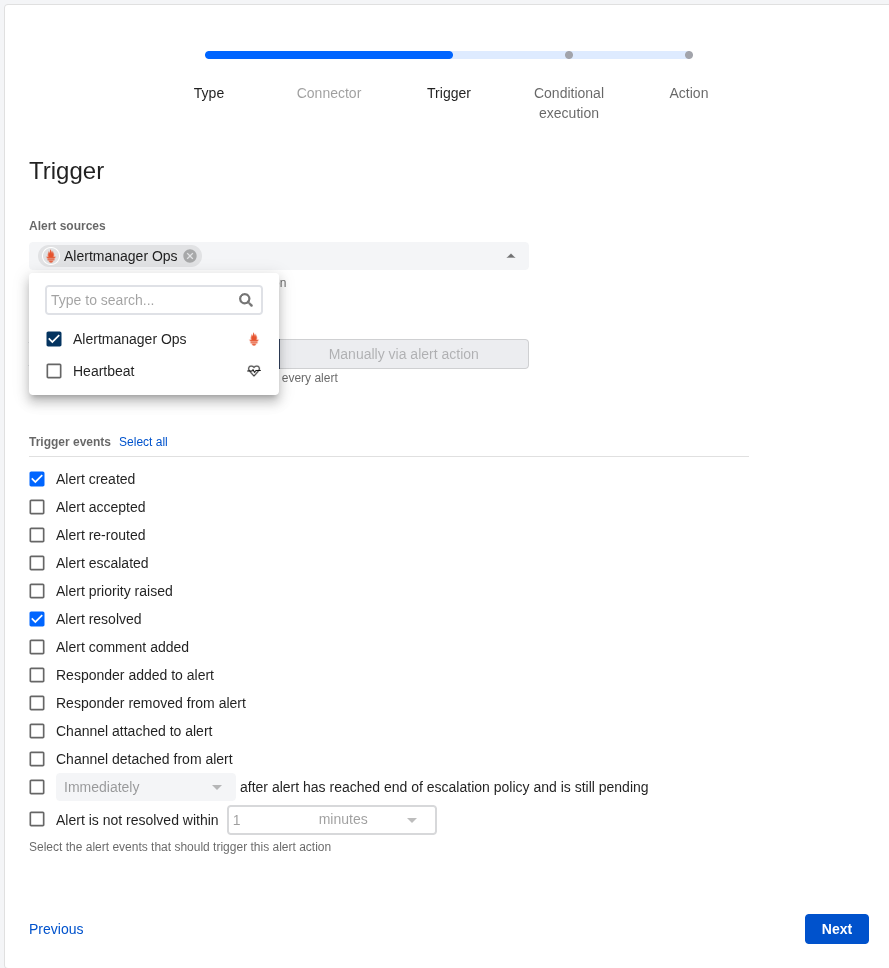
Connect the Alert source that will send alerts here, select which events to send notifications for:
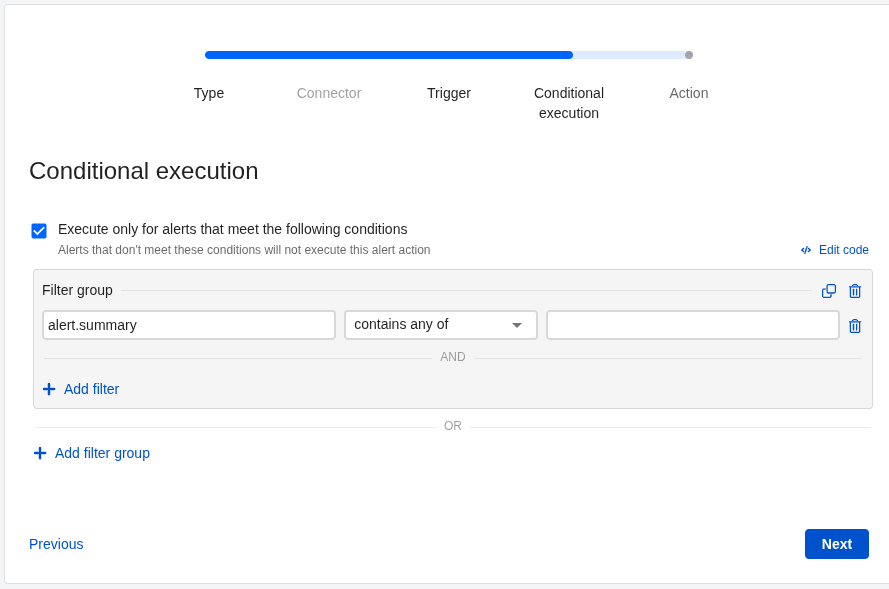
And filters – but we’ll skip for now:
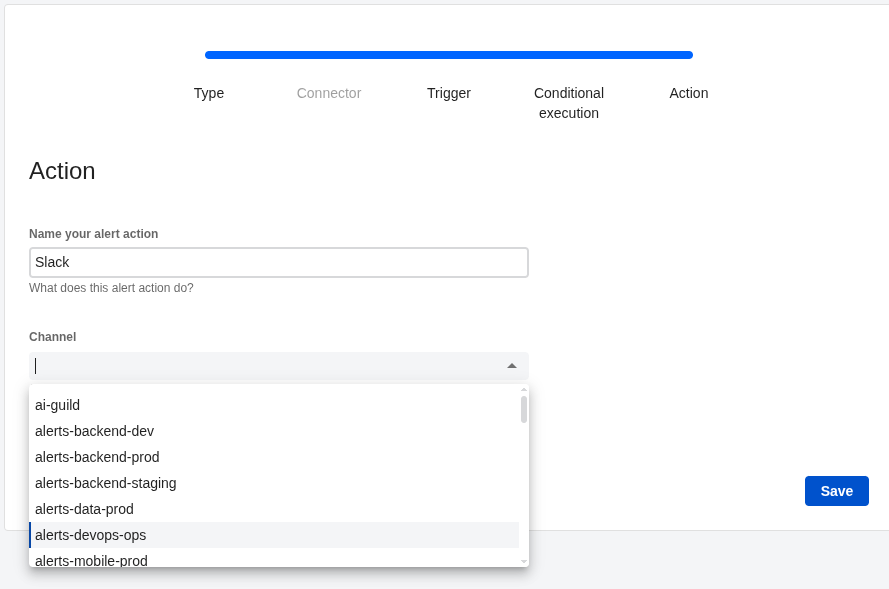
Set the Action name, select the channel where notifications will go:
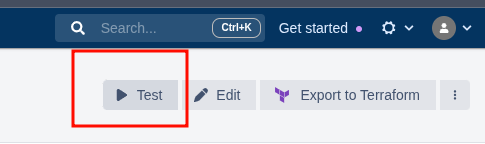
You can click Test:
And have a good laugh 🙂
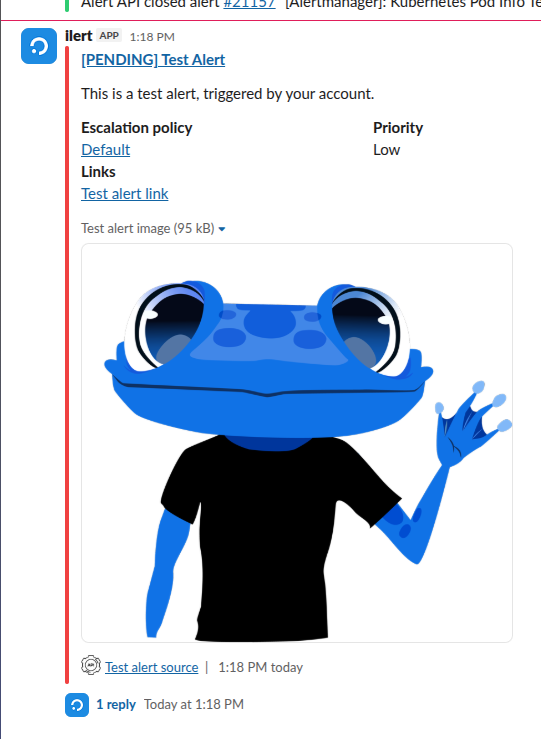
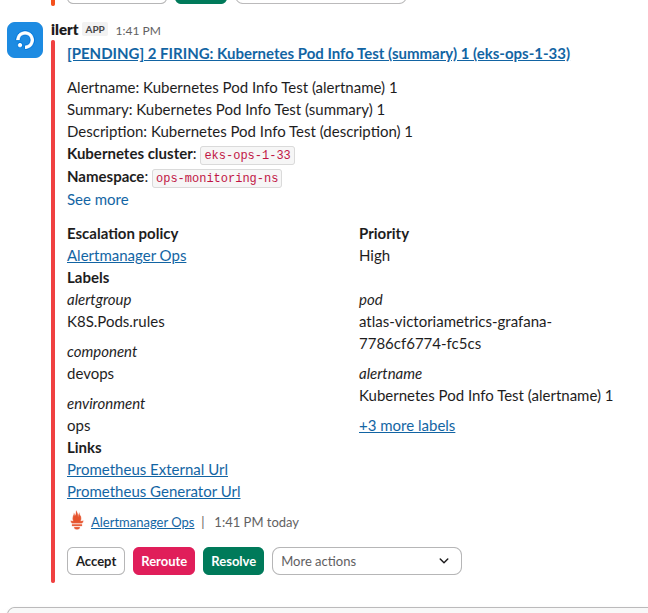
Now we wait for an alert from Alertmanager – and just look at this beauty out of the box!
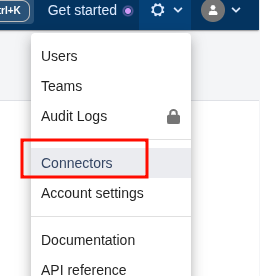
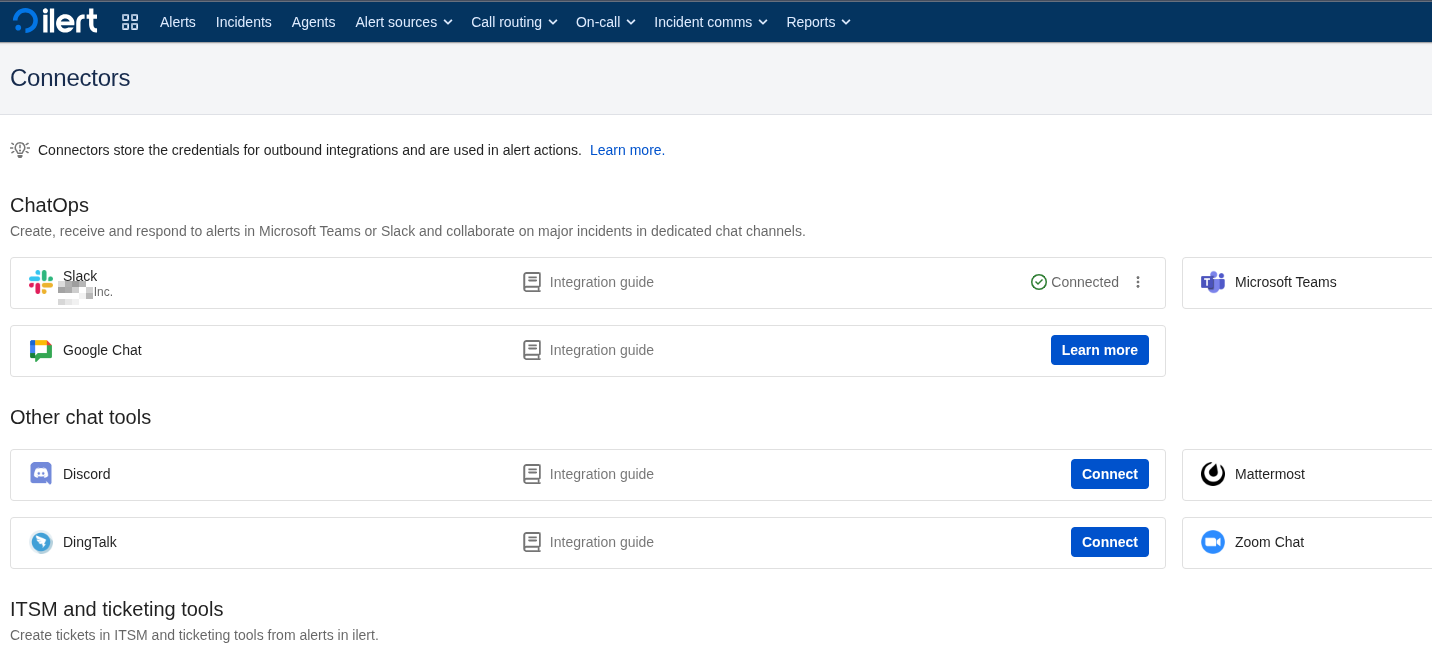
All Connectors are somewhat hidden – find them in Settings:
Routing messages to Slack channels
Now that the general alerting is working – let’s start tuning it.
The first thing needed is alert routing:
- there are several environments – dev, staging, prod, ops
- there are different teams – devops, backend, web, data
Each team has its own Slack channels – #alerts-backend-prod, #alerts-devops-ops, and so on.
What needs to be done – make Backend Prod alerts go to #alerts-backend-prod, and DevOps alerts go to #alerts-devops-ops, respectively.
For Opsgenie this was implemented via routing inside Opsgenie itself:
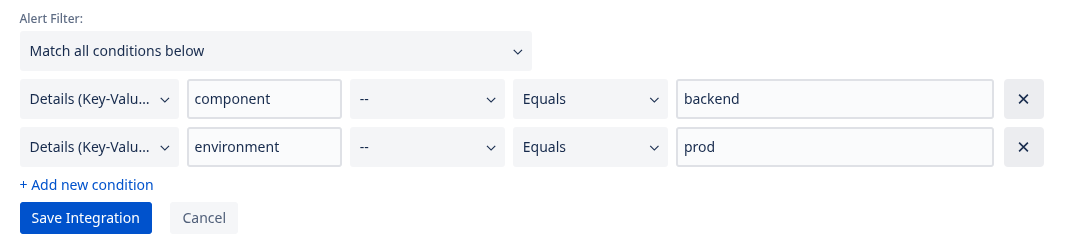
Labels are set in alerts:
...
      - alert: Kubernetes Pod UnHealthy
        expr: k8s:pod:unhealthy{namespace="prod-backend-api-ns"} > 0
        for: 15m
        labels:
          severity: warning
          component: backend
          environment: prod
...
And Opsgenie uses them to determine which Slack integration to route the alert through.
In ilert, you can do the same thing, because similarly to Opsgenie – each Slack Connector is tied to a specific channel.
So:
- we have an Alert Source: Alertmanager
- for it we create several Alert actions:
There’s also a very cool thing with dynamic routes via Escalation Policy – we’ll look at that later.
Static alert routing
First let’s look at what format ilert receives the alert in – go to Alert source > Alert logs, open some alert:
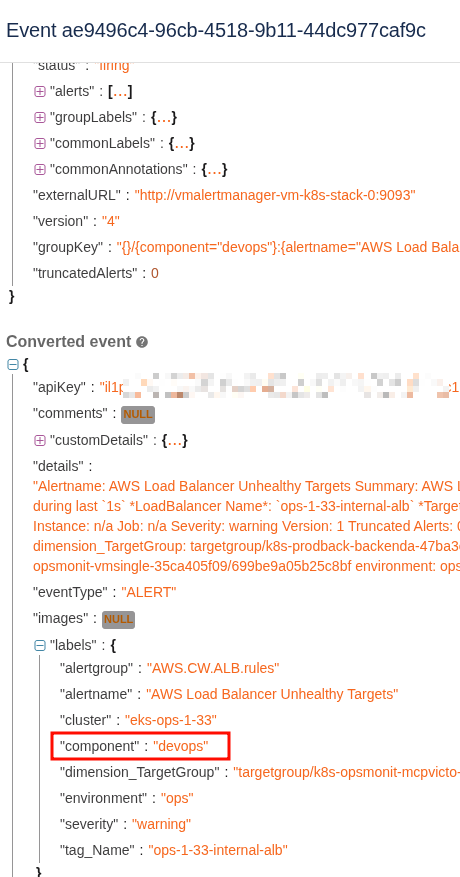
Next go to Alert actions and add a new (or edit an existing) Action.
Everything here is similar to connecting Slack above – but now we enable Conditional execution and set a condition:
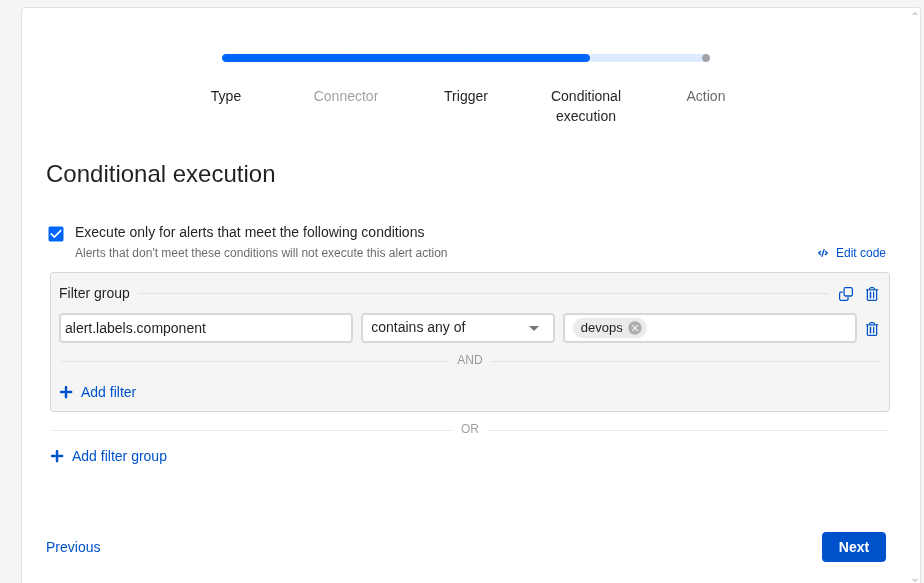
Or write it as code – see ICL – ilert condition language:
(alert.labels.component in ["devops"])
Set the channel:
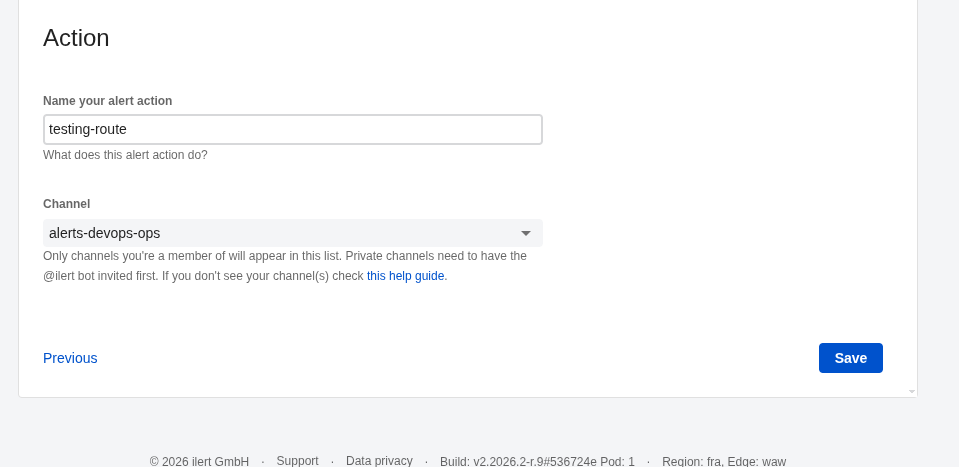
Filter is ready:
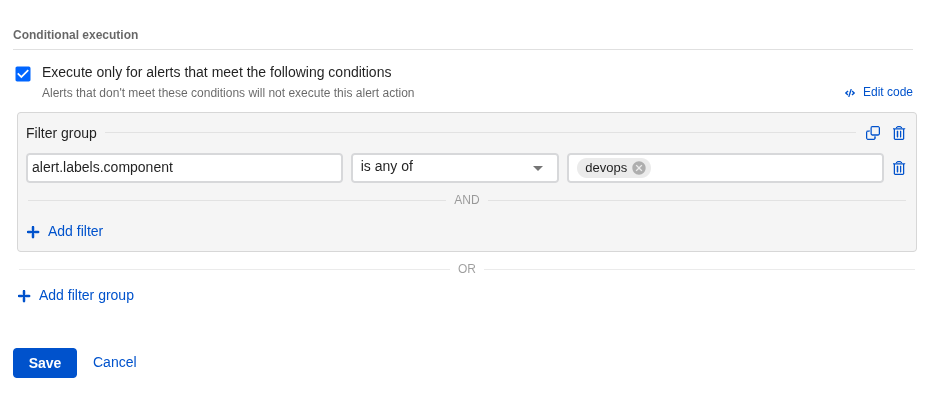
Now alerts with label component="devops" will go to the #alerts-devops-ops channel.
Dynamic alert routing
Another cool option – via Dynamic escalation policy routing.
The idea is that you create several Escalation policies and assign each a Routing key – just some string value.
But keep in mind that on the Free plan you’re limited to only one Escalation policy.
Then in the Alert source you enable Dynamic routing and specify the alert field from which the value is read – and using that value, an Escalation policy is automatically attached to the new alert.
And in Alert Action, instead of (alert.labels.component in ["devops"]) as above – you filter by routing_id, through which the corresponding policy is connected.
This approach is better in that it immediately configures not just where to send the alert – but also how to escalate it.
Let’s try it.
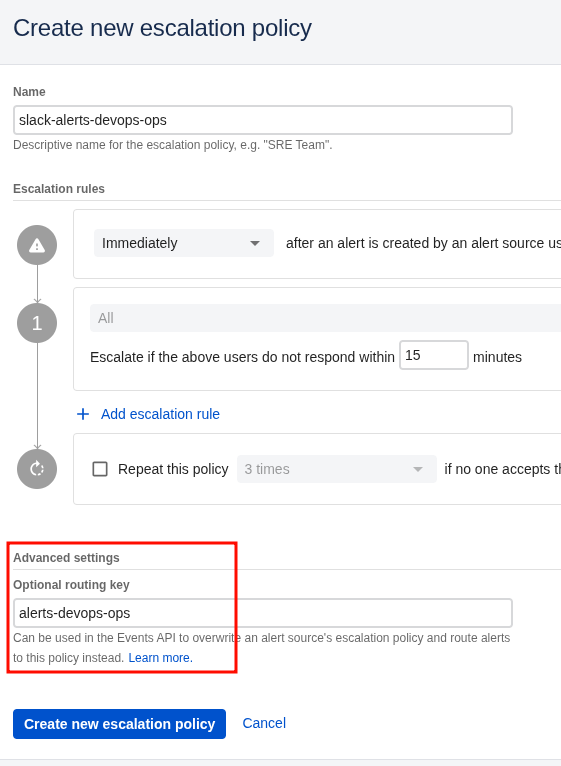
Go to On-Call > Escalation policies, create a new policy:

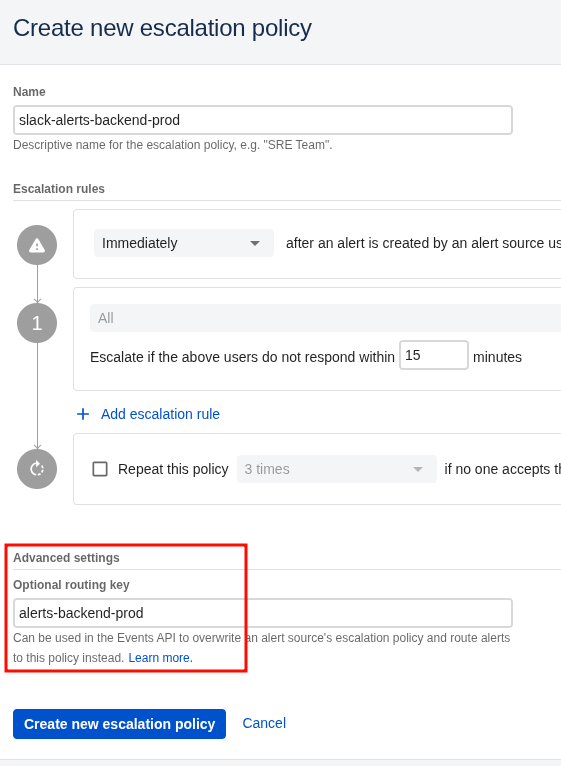
Set the Routing key:
Same for Backend:
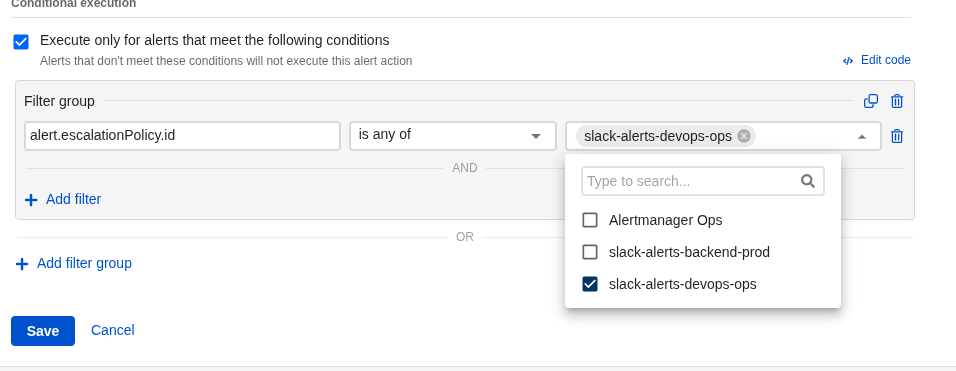
Now go to Alert sources > Alert actions and set a filter by alert.escalationPolicy.id:
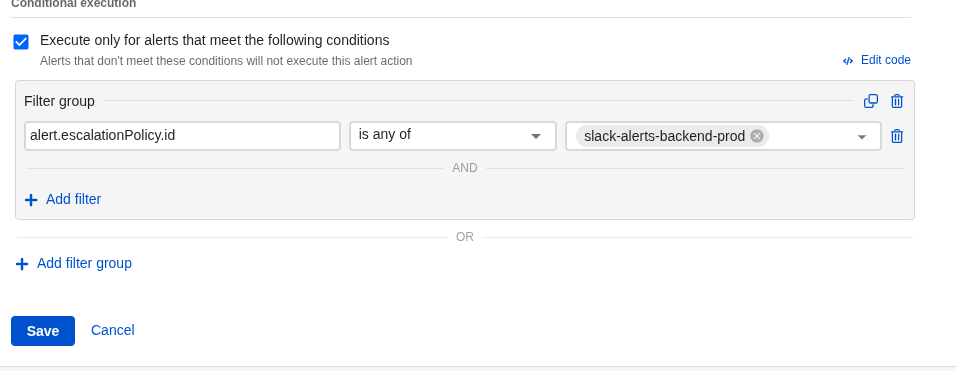
And for backend:
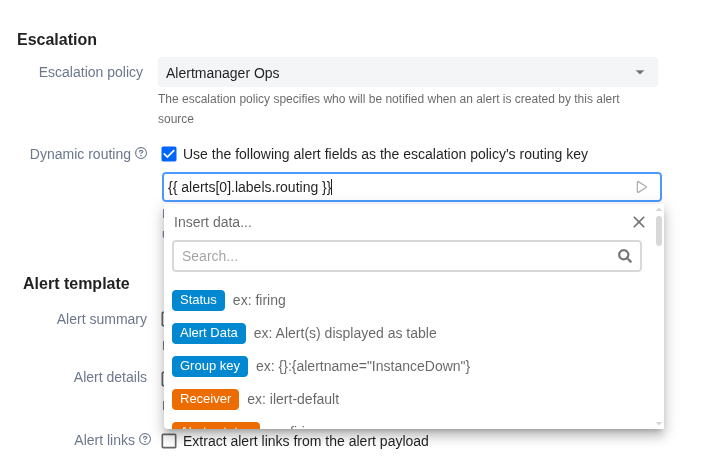
Then edit the Alert source itself, enable Dynamic routing and specify the label from the alert to read – in my example it’s {{ alerts[0].labels.routing }}:
Now:
- Alert source will parse
{{ alerts[0].labels.routing }} - get the value “devops“
- using that value, dynamically attach an Escalation policy
- pass the alert to Alert Actions
- each action in Alert Actions will check its
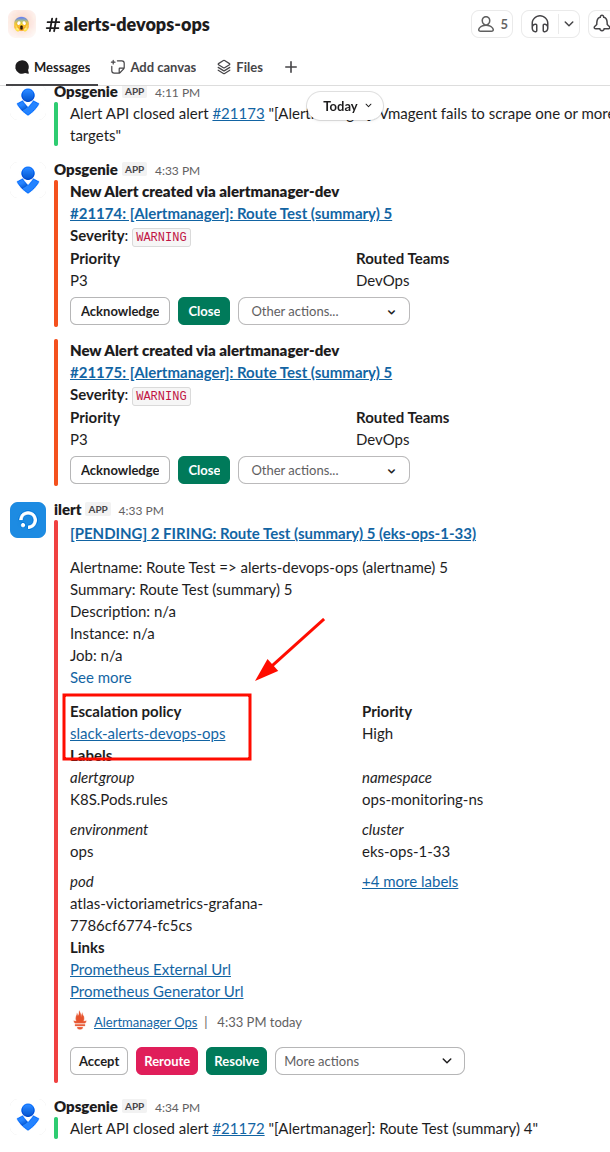
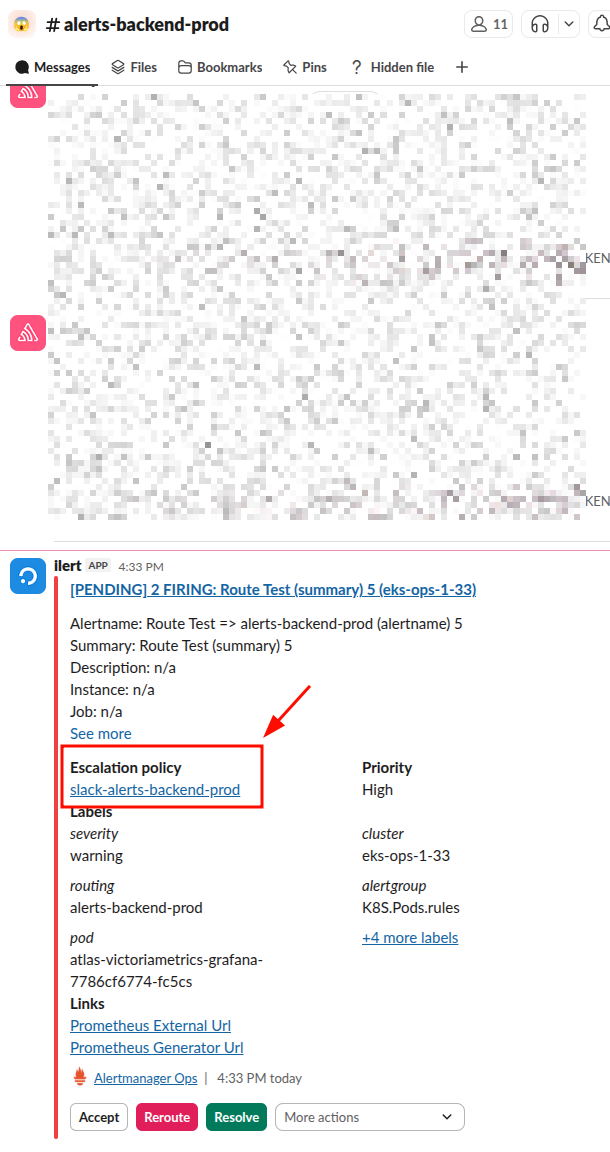
alert.escalationPolicy.idfilter – and the Action and its Connector that is “connected” (or “mapped”) to eitherslack-alerts-backend-prodorslack-alerts-devops-opswill fire
In alerts we add a new label – routing: alerts-devops-ops and routing: alerts-backend-prod:
...

      - alert: Route Test => alerts-devops-ops (alertname) 5
        expr: sum(kube_pod_info{namespace="ops-monitoring-ns", pod=~".*grafana.*"}) by (cluster, namespace, pod) >= 0
        for: 1s
        labels:
          severity: warning
          component: devops
          environment: ops
          routing: alerts-devops-ops
        annotations:
          summary: "Route Test (summary) 5"
          description:

      - alert: Route Test => alerts-backend-prod (alertname) 5
        expr: sum(kube_pod_info{namespace="ops-monitoring-ns", pod=~".*grafana.*"}) by (cluster, namespace, pod) >= 0
        for: 1s
        labels:
          severity: warning
          component: devops
          environment: ops
          routing: alerts-backend-prod
        annotations:
          summary: "Route Test (summary) 5"
          description:

...
And we get alerts in different channels.
DevOps:
Backend:
Damn – I’m absolutely loving this system 🙂
Slack messages templating
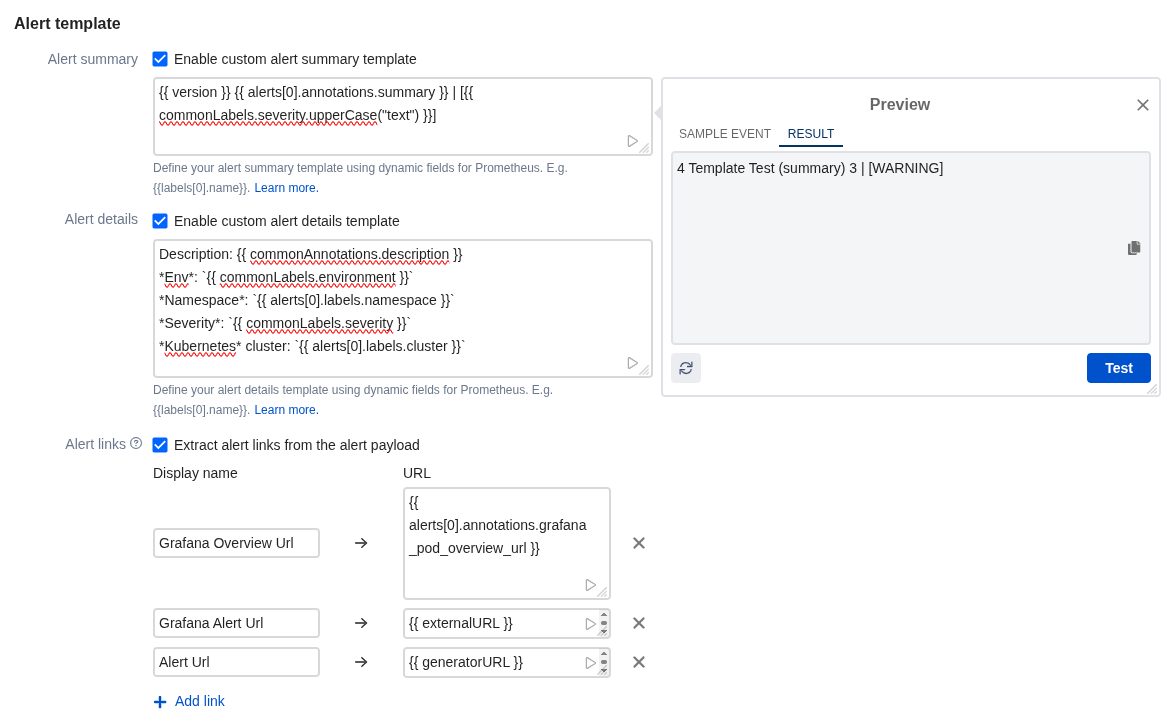
Documentation – Alert template.
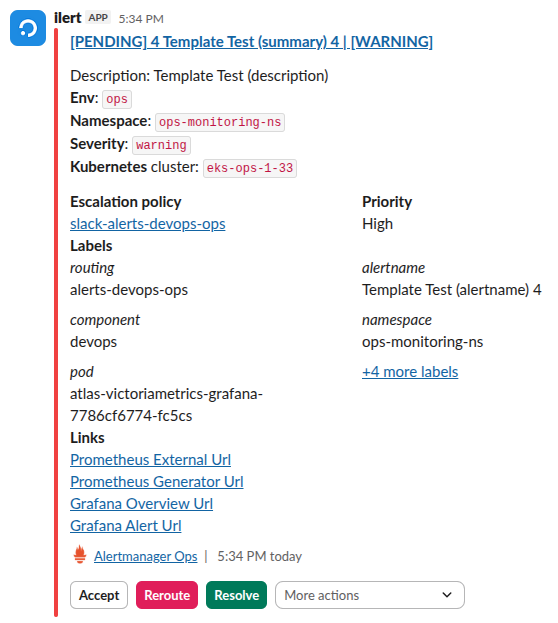
In principle, everything is pretty straightforward here – you specify fields from the alert payload, you can use various Functions – for example, [{{ commonLabels.severity.upperCase() }}].
A small “play” button in the bottom right of each field lets you immediately test how the template will work:
Let’s add a new alert:
...
      - alert: Template Test (alertname) 1
        expr: sum(kube_pod_info{namespace="ops-monitoring-ns", pod=~".*grafana.*"}) by (cluster, namespace, pod) >= 0
        for: 1s
        labels:
          severity: warning
          component: devops
          environment: ops
          routing: alerts-devops-ops
        annotations:
          summary: "Template Test (summary) 1"
          description: "Template Test (description)"
          grafana_pod_overview_url: 'https://{{ .Values.monitoring.root_url }}/d/kubernetes-pod-overview/kubernetes-pod-overview?orgId=1&var-namespace={{ "{{" }} $labels.involvedObject_namespace }}&var-pod={{ "{{" }} $labels.pod }}'
...
Result:
Heartbeat monitors
Heartbeat monitors – also a cool thing, but it’s pretty straightforward here – create an Alert source, get a URL, and periodically send a request to it.
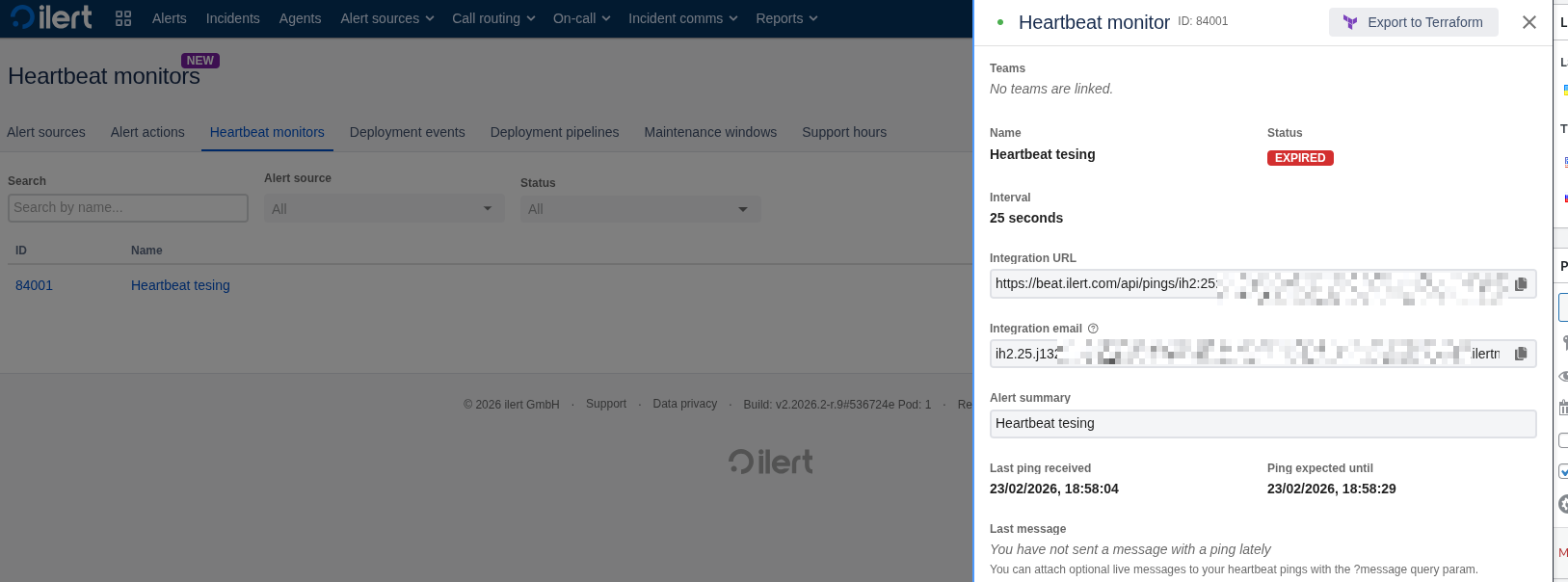
As soon as you miss a signal – an alert fires.
Let’s try with curl:
$ curl -v https://beat.ilert.com/api/pings/ih2***
* Host beat.ilert.com:443 was resolved.
...
> GET /api/pings/ih2:25*** HTTP/1.1
...
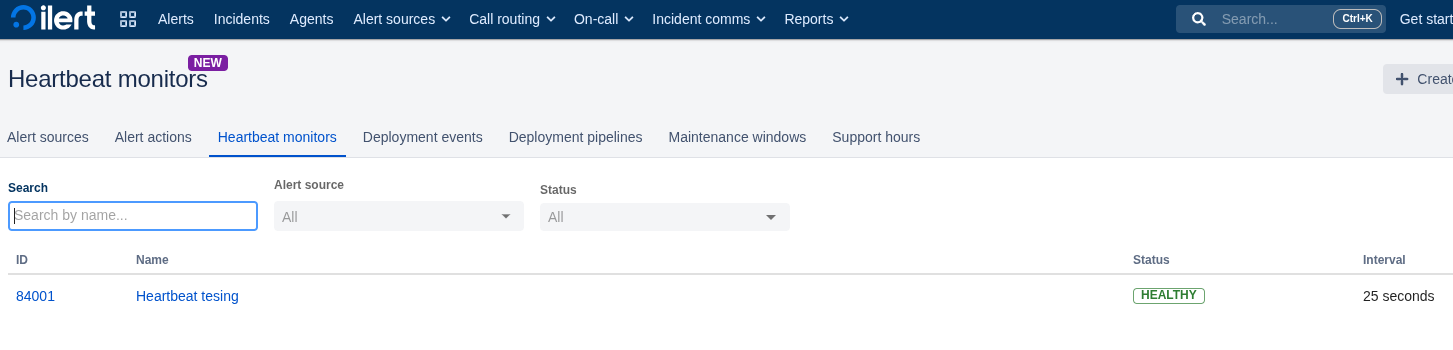
And after the configured timeout it will become Expired, and the Alert action will fire.
Deployment events – haven’t tested yet, but looks interesting.
Summary and overall impressions
Just an alerting system the way it should be.
What I loved about Backblaze was its simple and intuitive interface (see Backblaze: B2 Cloud Storage – first impressions).
Why I simply fell in love with ilert – a simple interface, an intuitive interface, and excellent documentation.
There might still be some issues that surface during real-world use, but after the first day of configuration – the impressions are exclusively positive.
