 It is time to tidy up SSH on FreeBSD itself and on the clients – laptops running Arch Linux, as I am still using password authentication on my home machines.
Actually, the settings described below are specific neither to FreeBSD nor to Linux, as the SSH server is the same on all systems (OpenSSH_9.9p2 on FreeBSD 14.3 and OpenSSH_10.2p1 on Arch Linux).
I have been using 1Password for a long time; it has great integration and a GUI, although I also maintain a local KeePassXC in parallel, where I periodically back up data from 1Password into a separate database – see How to export your data from the 1Password desktop app and Migrating from 1Password to KeePass, KeePassXC and KeePassium.
This post is part of a series on setting up a home NAS on FreeBSD (see the beginning at FreeBSD: Home NAS, part 1 – setting up ZFS mirror), but I decided to make it a separate topic since it is exclusively about SSH.
What I have in the current setup:
- FreeBSD/NAS host: accessible only within the local network and VPN, so SSH brute force is not expected (but for the paranoid or on publicly accessible servers, you can add Fail2Ban or SSHGuard)
pffirewall: as the first line of defense with limits on where SSH is accessible from (see FreeBSD: Home NAS, part 2 – introduction to Packet Filter (PF) firewall)sshd: the second line of defense, basic access settings
Contents
SSH and Key-Based Authentication
The first and most important step is to set up key-based access instead of password authentication.
We will do this first, then disable password access entirely.
On the client, a Linux laptop, generate the keys:
[setevoy@setevoy-work ~] $ ssh-keygen -t ed25519 -C "setevoy@setevoy"
Generating public/private ed25519 key pair.
Enter file in which to save the key (/home/setevoy/.ssh/id_ed25519): /home/setevoy/.ssh/freebsd-nas
Enter passphrase for "/home/setevoy/.ssh/freebsd-nas" (empty for no passphrase):
Enter same passphrase again:
Your identification has been saved in /home/setevoy/.ssh/freebsd-nas
Your public key has been saved in /home/setevoy/.ssh/freebsd-nas.pub
Copy the key to the FreeBSD host:
[setevoy@setevoy-work ~] $ ssh-copy-id -i /home/setevoy/.ssh/freebsd-nas [email protected]
/usr/bin/ssh-copy-id: INFO: Source of key(s) to be installed: "/home/setevoy/.ssh/freebsd-nas.pub"
/usr/bin/ssh-copy-id: INFO: attempting to log in with the new key(s), to filter out any that are already installed
/usr/bin/ssh-copy-id: INFO: 1 key(s) remain to be installed -- if you are prompted now it is to install the new keys
([email protected]) Password for setevoy@setevoy-nas:

Number of key(s) added: 1

Now try logging into the machine, with: "ssh -i /home/setevoy/.ssh/freebsd-nas '[email protected]'"
and check to make sure that only the key(s) you wanted were added.
Check the ~/.ssh/authorized_keys file on FreeBSD for the user setevoy:
root@setevoy-nas:/home/setevoy # cat .ssh/authorized_keys
ssh-ed25519 AAAAC3NzaC1lZDI1NTE5AAAAILb2zkJzflngGx0qY71xYyHVvKI8A2GTAGTqppS0yVz2 setevoy@setevoy
Try connecting from Linux:
[setevoy@setevoy-work ~]  $ ssh -i /home/setevoy/.ssh/freebsd-nas '[email protected]'
Last login: Sat Dec 27 09:01:47 2025 from 192.168.0.4
FreeBSD 14.3-RELEASE (GENERIC) releng/14.3-n271432-8c9ce319fef7

Welcome to FreeBSD!

...
[setevoy@setevoy-nas ~]$
Everything works – now we can configure the SSH Agent.
FreeBSD and 1Password Client
Just as an example – installing and connecting the 1Password client on FreeBSD.
Install it:
root@setevoy-nas:/home/setevoy # pkg install -y 1password-client2
Add an account:
root@setevoy-nas:/home/setevoy # op account add
Enter your sign-in address (example.1password.com): my.1password.com
Enter the email address for your account on my.1password.com: <ACCOUNT_EMAIL>
Enter the Secret Key for [email protected] on my.1password.com: <SECRET_KEY>
Enter the password for [email protected] at my.1password.com:
Enter your six-digit authentication code: <OTP_CODE>
Now run 'eval $(op signin)' to sign in.
Check accounts:
root@setevoy-nas:/home/setevoy # op account list
SHORTHAND    URL                         EMAIL            USER ID
my           https://my.1password.com    [email protected]     7BS***KMM
Sign in:
root@setevoy-nas:/home/setevoy # eval $(op signin)
Enter the password for [email protected] at my.1password.com:
And now we have access to secrets.
For example, to retrieve the key that we will add later:
root@setevoy-nas:/home/setevoy # op item get "FreeBSD NAS SSH"
ID:          ulz***4ce
Title:       FreeBSD NAS SSH
Vault:       Personal (wb7***guq)
Created:     1 week ago
Updated:     1 week ago by Arseny
Favorite:    false
Tags:        FreeBSD,SSH
Version:     1
Category:    LOGIN
Fields:
  password:    [use 'op item get ulz***4ce --reveal' to reveal]
  username:    setevoy
Linux, 1Password, and SSH Agent
I wrote in more detail about this in a 2019 post, SSH: RSA keys and ssh-agent – managing SSH keys and their passwords, but since I now actively use 1Password, which can both store the keys themselves and act as an SSH Agent.
Documentation – 1Password SSH agent and Get started with 1Password for SSH.
Retrieve the private key:
[setevoy@setevoy-work ~] $ cat .ssh/freebsd-nas
-----BEGIN OPENSSH PRIVATE KEY-----
b3BlbnNzaC1rZXktdjEAAAAABG5vbmUAAAAEbm9uZQAAAAAAAAABAAAAMwAAAAtzc2gtZW
...
vKI8A2GTAGTqppS0yVz2AAAAD3NldGV2b3lAc2V0ZXZveQECAwQFBg==
-----END OPENSSH PRIVATE KEY-----
Copy and add a new key to 1Password (although it can generate keys itself):
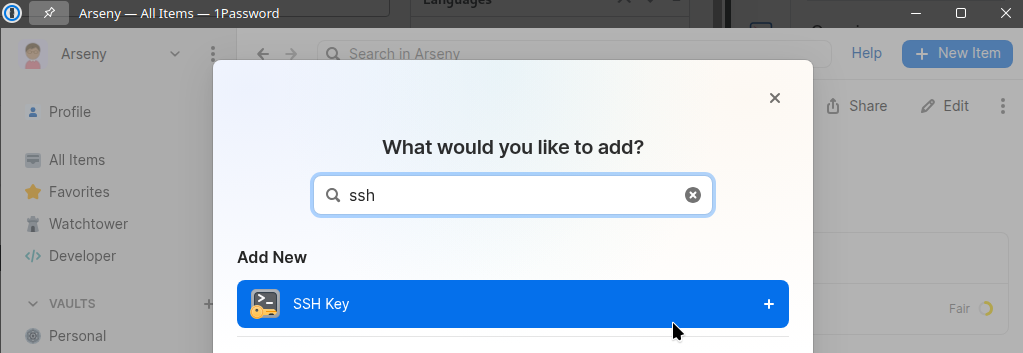
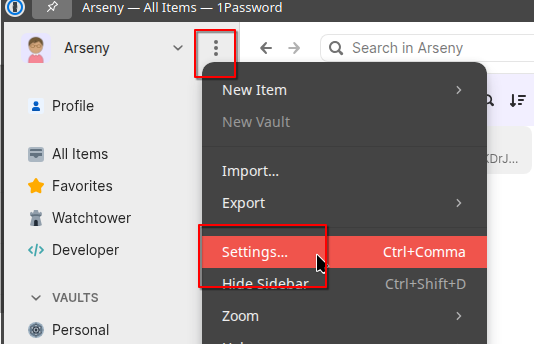
Go to Settings:
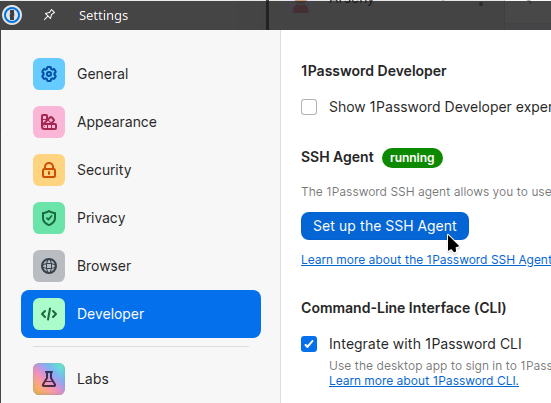
Go to Developer – Set up the SSH Agent:
1Password will show the contents of the ~/.ssh/config file and even offer to update it:
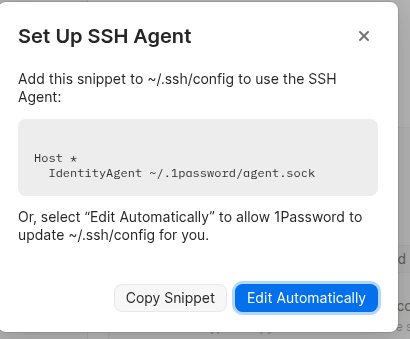
However, my current config already has some settings:
# GitHub.com
Host github.com
  PreferredAuthentications publickey
  IdentityFile /home/setevoy/.ssh/setevoy_main_priv_openssh

ExitOnForwardFailure yes
So, add it to the end of the file manually.
Specify two hosts – nas.setevoy and, in case Unbound is unavailable, the IP address of the FreeBSD host:
...

Host nas.setevoy 192.168.0.2
  IdentityAgent ~/.1password/agent.sock
Run ssh nas.setevoy; 1Password will request confirmation – your 1Password master password:
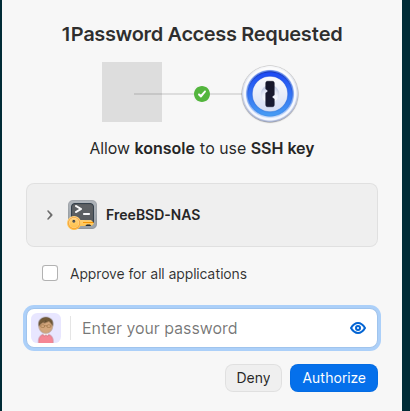
And now everything works through its SSH Agent:
[setevoy@setevoy-work ~] $ ssh nas.setevoy
...
Last login: Sat Dec 27 09:03:15 2025 from 192.168.0.4
FreeBSD 14.3-RELEASE (GENERIC) releng/14.3-n271432-8c9ce319fef7

Welcome to FreeBSD!

...
[setevoy@setevoy-nas ~]$
How the SSH Agent Works
When connecting, the SSH client:
- reads the configuration (
~/.ssh/config, CLI options) - connects to the SSH agent (in our case, 1Password) and receives a list of available public keys
- sequentially offers the server the public keys it has (from the agent and, unless restricted, from
~/.ssh/) sshdon the server looks into~/.ssh/authorized_keysof the specific user and checks if the offered public key is there- when the server finds a match, it accepts the public key and sends the client data to sign (a random set of numbers)
- the client passes this data to the SSH agent, which possesses the corresponding private key
- the agent creates a cryptographic signature with the private key and returns it to the client
- the server verifies the signature with the public key and completes the authentication
We can observe this with ssh -v user@host:
[setevoy@setevoy-work ~] $ ssh -v [email protected]
debug1: OpenSSH_10.2p1, OpenSSL 3.6.0 1 Oct 2025
debug1: Reading configuration data /home/setevoy/.ssh/config
...
debug1: Connecting to nas.setevoy [192.168.0.2] port 22.
debug1: Connection established.
...
debug1: Authenticating to nas.setevoy:22 as 'setevoy'
...
debug1: Will attempt key: RTFM RSA SHA256:nedb3Qgpkxgu57MRP7/eXShHgw6N6b7SjZ3S1rNyFb4 agent
debug1: Will attempt key: FreeBSD-NAS ED25519 SHA256:ZuJ77z6BNMwra41BiTKDrJSSQrDJ0/u+4wZRCvGJMpA agent
debug1: Will attempt key: /home/setevoy/.ssh/id_rsa
debug1: Will attempt key: /home/setevoy/.ssh/id_ecdsa
debug1: Will attempt key: /home/setevoy/.ssh/id_ecdsa_sk
debug1: Will attempt key: /home/setevoy/.ssh/id_ed25519 ED25519 SHA256:X8L1lCBQz8Bk7K5rMGqiE+tlSthCbgaqK7ryLZ6gVWU
debug1: Will attempt key: /home/setevoy/.ssh/id_ed25519_sk
debug1: Offering public key: RTFM RSA SHA256:nedb3Qgpkxgu57MRP7/eXShHgw6N6b7SjZ3S1rNyFb4 agent
debug1: Authentications that can continue: publickey
debug1: Offering public key: FreeBSD-NAS ED25519 SHA256:ZuJ77z6BNMwra41BiTKDrJSSQrDJ0/u+4wZRCvGJMpA agent
debug1: Server accepts key: FreeBSD-NAS ED25519 SHA256:ZuJ77z6BNMwra41BiTKDrJSSQrDJ0/u+4wZRCvGJMpA agent
Authenticated to nas.setevoy ([192.168.0.2]:22) using "publickey".
...
Last login: Sun Dec 28 13:44:51 2025 from 192.168.0.4
FreeBSD 14.3-RELEASE (GENERIC) releng/14.3-n271432-8c9ce319fef7

Welcome to FreeBSD!
...

[setevoy@setevoy-nas ~]$
And for the keys “Will attempt key: RTFM RSA [...] and FreeBSD-NAS [...], we can clearly see they were obtained from the agent.
SSH Agent and the “Too many authentication failures” Error
As seen above, a whole batch of keys is transmitted, and if there are many, the server might reject further authentication.
The number of attempts is set on the server by the MaxAuthTries parameter (default “6”) in /etc/ssh/sshd_config. Thus, if we have 7 keys and the first 6 don’t match – we won’t be able to connect.
To tell the SSH client exactly which private key from the agent to use – specify the public key and set IdentitiesOnly:
...

Host nas.setevoy 192.168.0.2
  IdentityAgent ~/.1password/agent.sock
  IdentityFile ~/.ssh/freebsd-nas.pub
  IdentitiesOnly yes
And now during connection, the client will only transmit this key:
[setevoy@setevoy-work ~] $ ssh -v [email protected]
...
debug1: get_agent_identities: agent returned 2 keys
debug1: Will attempt key: /home/setevoy/.ssh/freebsd-nas.pub ED25519 SHA256:ZuJ77z6BNMwra41BiTKDrJSSQrDJ0/u+4wZRCvGJMpA explicit agent
debug1: Offering public key: /home/setevoy/.ssh/freebsd-nas.pub ED25519 SHA256:ZuJ77z6BNMwra41BiTKDrJSSQrDJ0/u+4wZRCvGJMpA explicit agent
debug1: Server accepts key: /home/setevoy/.ssh/freebsd-nas.pub ED25519 SHA256:ZuJ77z6BNMwra41BiTKDrJSSQrDJ0/u+4wZRCvGJMpA explicit agent
Authenticated to nas.setevoy ([192.168.0.2]:22) using "publickey".
...

Last login: Sun Dec 28 13:44:57 2025 from 192.168.0.4
FreeBSD 14.3-RELEASE (GENERIC) releng/14.3-n271432-8c9ce319fef7

Welcome to FreeBSD!
...

[setevoy@setevoy-nas ~]$
Basic SSH Server Hardening
See sshd_config.
You can verify the current configuration with sshd -T:
root@setevoy-nas:/home/setevoy # sshd -T
port 22
addressfamily any
listenaddress 0.0.0.0:22
...
For example, whether root login is allowed:
root@setevoy-nas:/home/setevoy # sshd -T | grep root
permitrootlogin no
Edit the /etc/ssh/sshd_config config, set the minimal parameters, and let PermitRootLogin no be explicitly stated here.
Plus, explicitly grant permission for PubkeyAuthentication and PasswordAuthentication – we will disable password authentication later once we are certain everything works:
PermitRootLogin no
PubkeyAuthentication yes
PasswordAuthentication yes
Verify syntax with sshd -t; if all is well, the command will output nothing:
root@setevoy-nas:/home/setevoy # sshd -t; echo $?
0
Perform a config reload:
root@setevoy-nas:/home/setevoy # service sshd reload
Performing sanity check on sshd configuration.
Check if access from Linux works:
[setevoy@setevoy-work ~]  $ ssh nas.setevoy
...
[setevoy@setevoy-nas ~]$
pf is already configured, see FreeBSD: Home NAS, part 2 – introduction to Packet Filter (PF) firewall:
...

# allow SSH from Office LAN (192.168.0.0/24) to FreeBSD host
pass in log on em0 proto tcp from 192.168.0.0/24 to (em0) port 22 keep state

# allow SSH from Home network (192.168.100.0/24) to FreeBSD host
pass in log on em0 proto tcp from 192.168.100.0/24 to (em0) port 22 keep state

# allow SSH from VPN clients to FreeBSD host
pass in on wg0 proto tcp from 10.8.0.0/24 to (wg0) port 22 keep state
...
Networks can be specified as { 192.168.0.0/24, 192.168.100.0/24, 10.8.0.0/24 }, but for SSH I decided to leave it in this form to be explicitly clear.
Furthermore, a few more parameters can be added:
PermitRootLogin no: prohibitrootconnection, already donePubkeyAuthentication yes: key-based authentication, also already donePasswordAuthentication yes: password authentication, leave enabled for nowChallengeResponseAuthentication no: disable keyboard-interactive authentication via PAM, which is not needed without 2FA- an additional nuance here is that even if
PasswordAuthenticationis disabled, ifChallengeResponseAuthenticationis “yes” andUsePAMis “yes” – the system might still request password authentication
- an additional nuance here is that even if
UsePAM yes: leave enabled for logging, session accounting, and access policies (see Practical Effects of Setting “UsePAM yes” on SSH in Linux)AllowUsers setevoyorAllowGroups wheel: which users or groups can connect via SSHX11Forwarding no: block X11 forwarding – there is no graphical server here anywayAllowAgentForwarding no: prohibit the use of client’s local SSH keys on the server through the client’s SSH agentAllowTcpForwarding no: prohibit SSH tunnels – definitely not needed on a home NAS (see SSH Tunnels: Secure Remote Access and Port Forwarding)AuthorizedKeysFile .ssh/authorized_keys: this is the default value, but set it explicitly
Check once more with sshd -t, perform a reload, and verify the connection with the key from the client.
If all is OK – add a bit more tuning:
PasswordAuthentication no: now disable password authenticationAuthenticationMethods publickey: explicitly prohibit all mechanisms except keysMaxSessions 2: maximum number of active sessions per TCP connectionLoginGraceTime 30: number of seconds for a client to complete authentication
For even greater security – you can set up a different port instead of 22 (e.g., set Port 2222), limit the IPs sshd listens on (parameter ListenAddress 192.168.0.2), and even configure Two-factor Authentication For SSH – but for a home server accessible only from local networks, this is already overkill.
