 I had been thinking about trying MikroTik for a long time, but I was always a bit too lazy to delve into RouterOS.
Finally, riding the wave of the Home NAS project setup (see the beginning in FreeBSD: Home NAS, part 1 – setting up ZFS mirror), I decided it was time to upgrade my network stack and replace a simple TP-Link Archer router with something more interesting.
That is how I ended up with two MikroTik routers: RB4011iGS+RM as the main router and MikroTik hAP ax3 for WiFi.
Before this, I had a Linksys E4200 (2012-2020), then a Linksys EA6350 (2020-2024), and the last one was a TP-Link Archer AX12 (2024-2025).
And when I first opened the MikroTik Web UI and looked at the possibilities… it was like switching from an old economy car to a Mercedes.
And finally – a full-fledged console and SSH out of the box, without needing custom firmware.
RouterOS offers so many features that one post won’t cover it all. I already have several posts about MikroTik in my drafts, but we’ll start with the first introduction and some getting started.
Contents
My Network Architecture
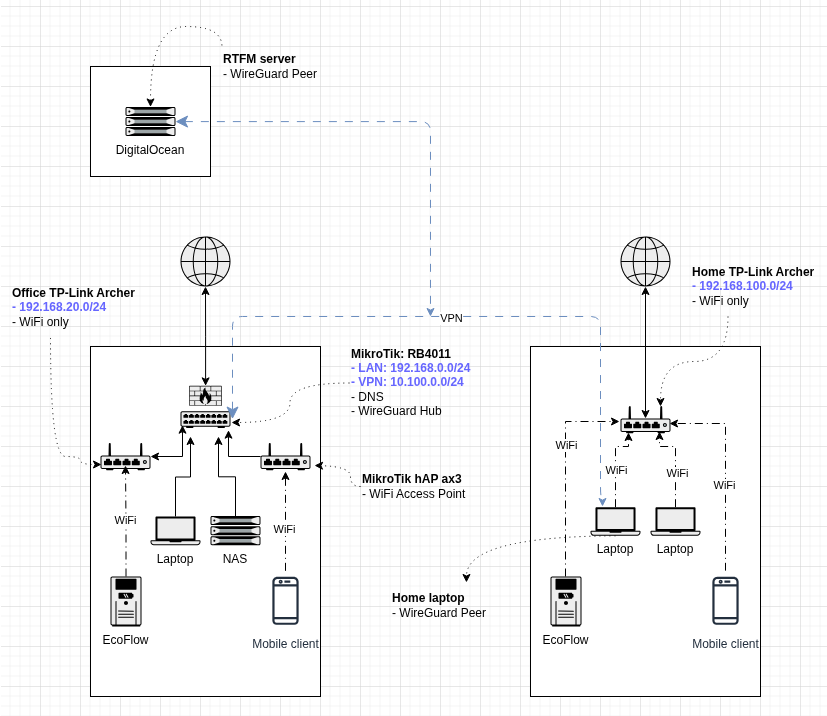
Before talking about the router itself, a bit about my networking and the roles of the MikroTik routers.
I have two networks – “office” and home. Both had TP-Link Archer AX12s at the entry point.
In the “office” (in quotes because it’s just a neighboring apartment), there is a ThinkCentre with FreeBSD/NAS, plus a work laptop and a gaming PC. Most devices are connected to the router via cables; WiFi is only for the phone and various things like EcoFlow, a robot vacuum, etc.
At home – a couple of laptops, where the entire network is exclusively WiFi.
Both networks are connected via VPN. In the old scheme, the TP-Link Archer in the office had port forwarding to WireGuard on FreeBSD, and the FreeBSD host served as the WireGuard hub and ran Unbound for local DNS, along with Samba/NFS/etc.
Now, the office setup will be different:
- MikroTik RB4011iGS:
- The ISP cable comes here (fiber to an ONU – optical network unit – and then via Ethernet to the RB4011).
- Later, it will have a second connection from another LTE router with a SIM card and mobile internet for automatic failover (see the old post Networking: when there is no power – 4G ZTE modem + external antenna: the antenna is the same, but the router will be a Teltonika RUT241).
- WireGuard will now reside here.
- Local DNS will also now reside here.
- ThinkCentre/NAS, work laptop, and gaming PC are connected to the RB4011iGS via cables.
- MikroTik hAP ax3: connected by cable to the RB4011; later I will switch it to Access Point mode, for now it’s a standard WiFi router with its own NAT.
- TP-Link Archer AX12: connected by cable to the RB4011. I’m not changing anything on it because I’m too lazy to reconnect various home devices like the doorbell, fire alarm, EcoFlow, etc.
Nothing changes in the home network except for the WireGuard settings on the home laptop: previously it connected to the FreeBSD via port forwarding on the office router; now it will go to the RB4011.
And separately, a server for the rtfm.co.ua blog itself in DigitalOcean, which (will be soon) also connected via WireGuard to this network.
The general scheme looks roughly like this:
First Connection to MikroTik
My God, what a joy it is to have a proper SSH! But more on SSH a bit later here and then in a separate post.
Generally, MikroTik provides several connection options:
- Standard Web UI
- The WinBox utility (a very cool thing)
- SSH
- Official mobile app
- Serial port
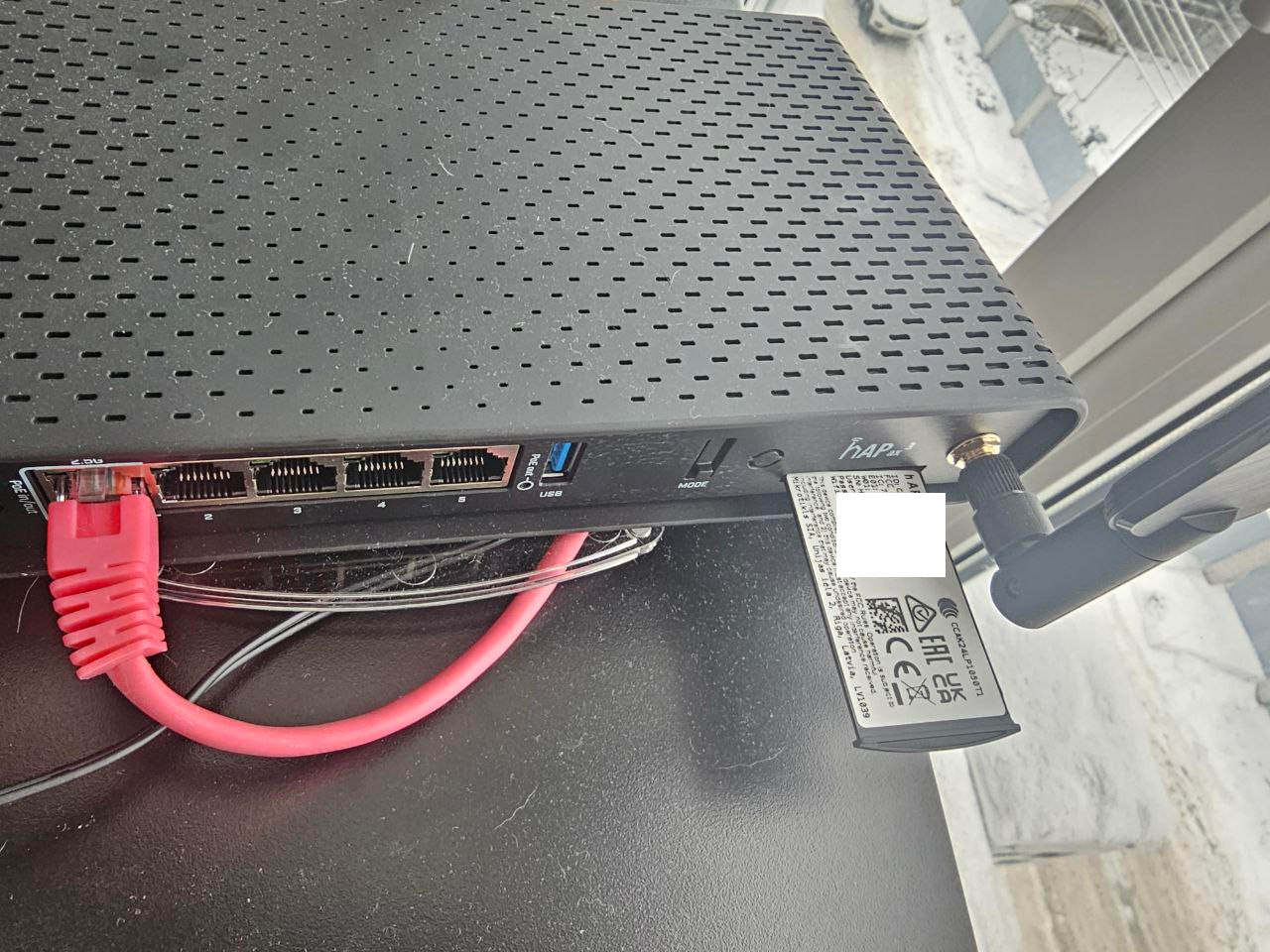
The default user is admin on both devices. Passwords for the MikroTik hAP ax3 were placed on a pull-out tab (very cool):
And for the RB4011 on the paper Quick Guide.
The default network is 192.168.88.0/24, and the router address, accordingly, is 192.168.88.1.
The WAN port on both routers is the first one; plug the ISP cable into it, and the laptop/PC into any other.
To connect to the MikroTik hAP ax3, you can use its default WiFi network instead of a cable – it also provides management access.
Web UI Overview
The interface is standard on both routers – on the RB4011, there is even a “WiFi” section, although it has only Ethernet ports.
Here and further, I will mostly write about the RB4011, so the screenshots will be from it.
The Web UI has three “modes” – a simple one for Quick Setup:
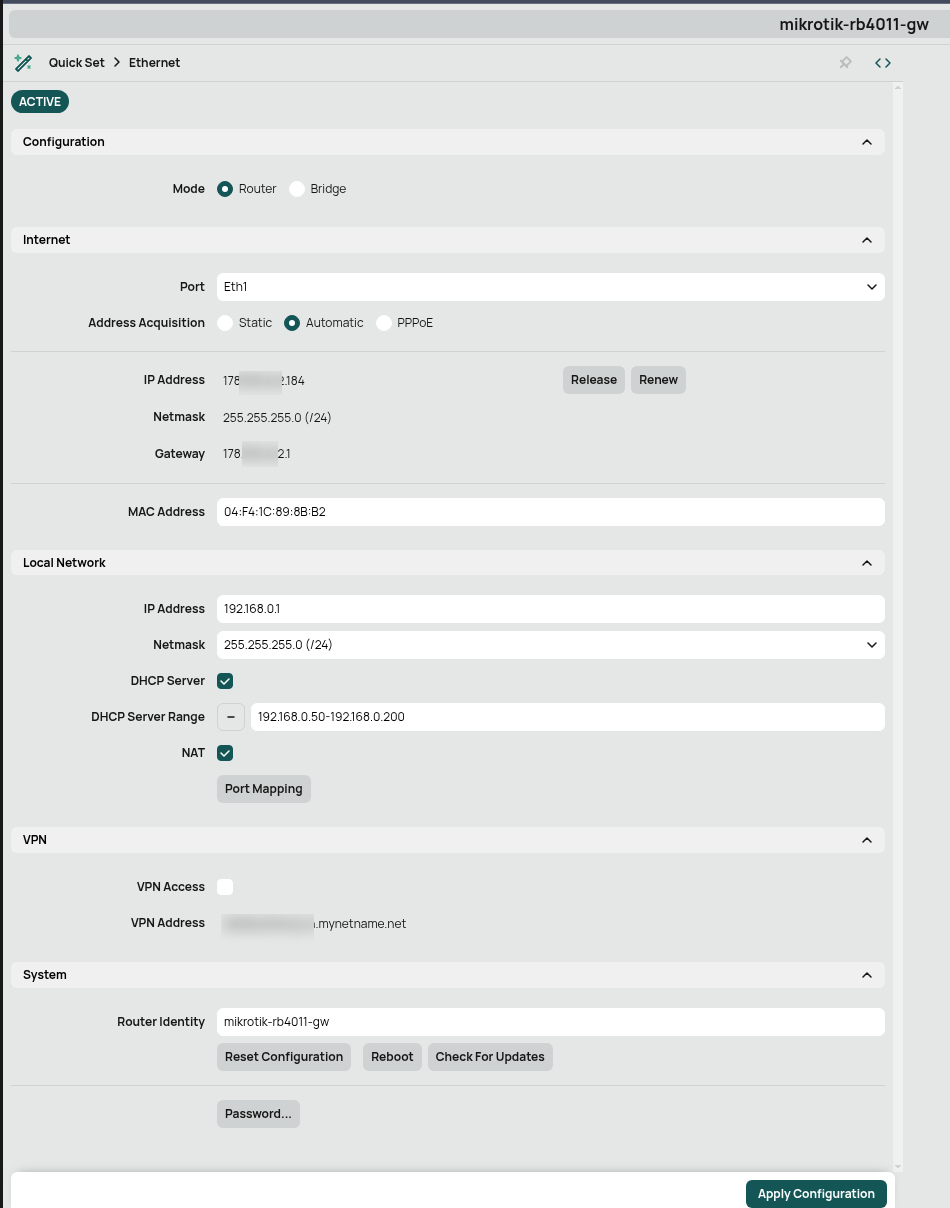
Advanced – providing access to all features:
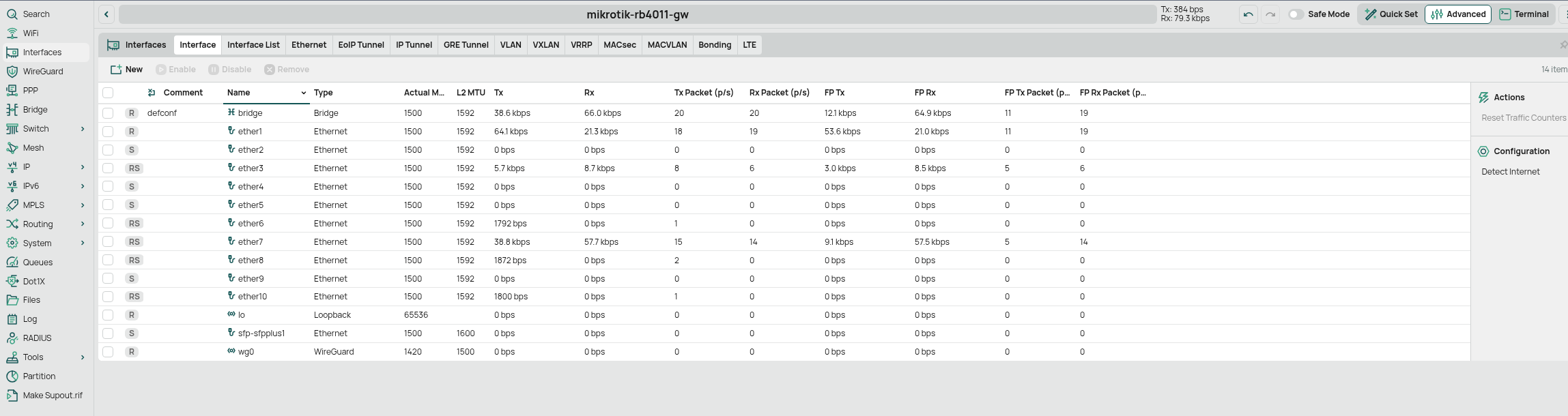
And you can launch a Terminal directly from the Web UI:
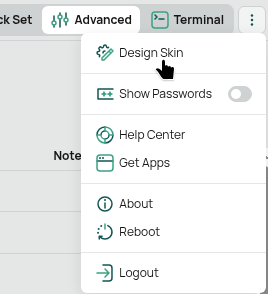
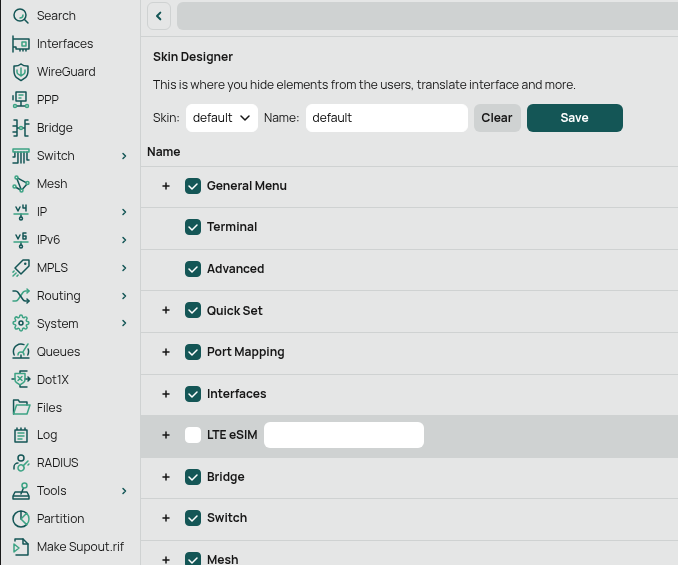
In the Design Skin, you can choose which menu items will be displayed:
WinBox
Upon startup, the utility automatically scans the network and finds available MikroTik devices for connection:
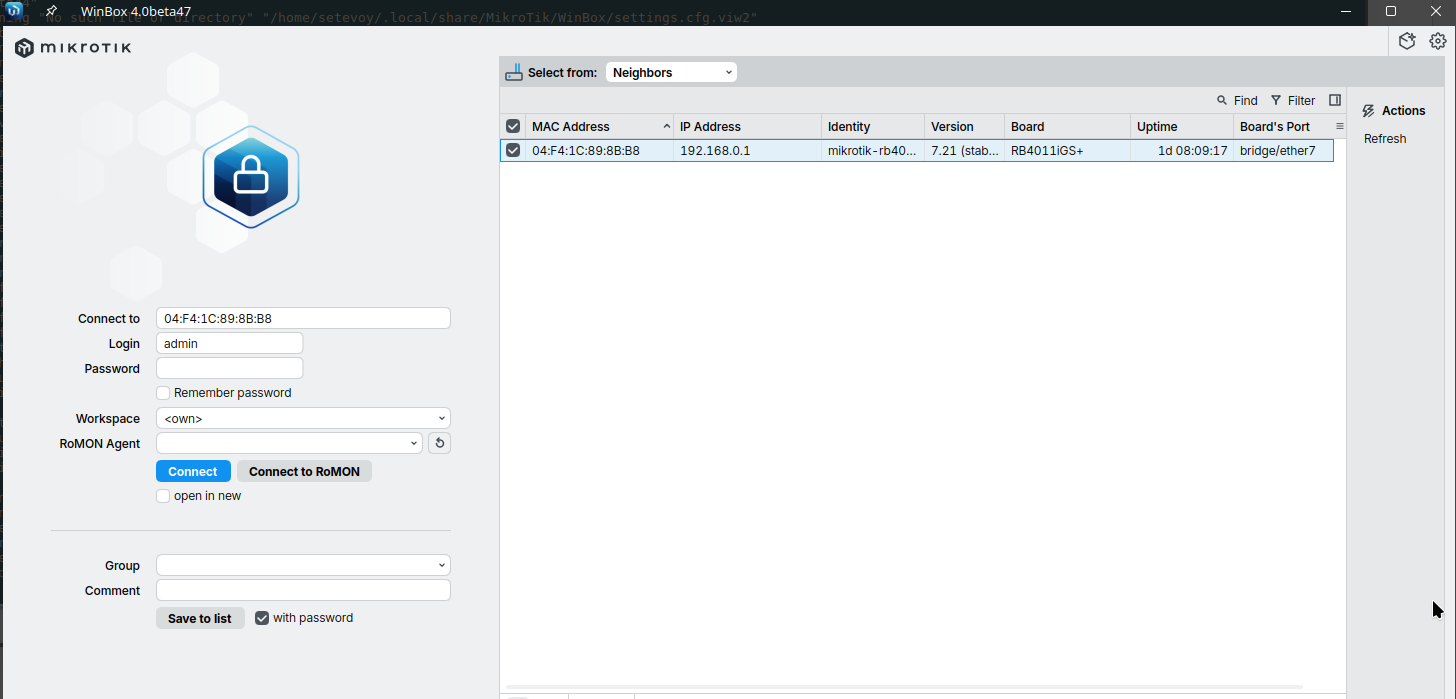
You can connect via IP, or use MAC address – just in case the network is broken.
The interface is essentially the same as the Web UI – standard for RouterOS:
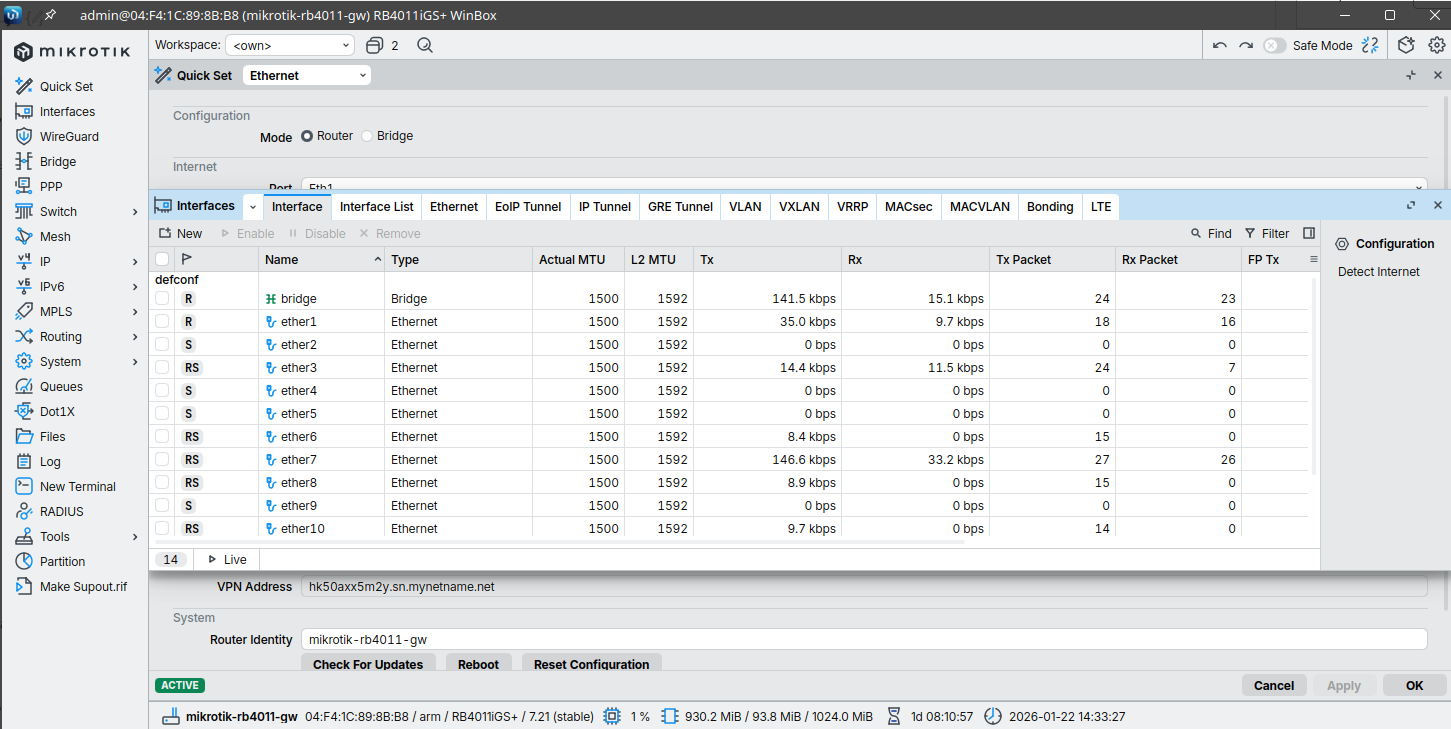
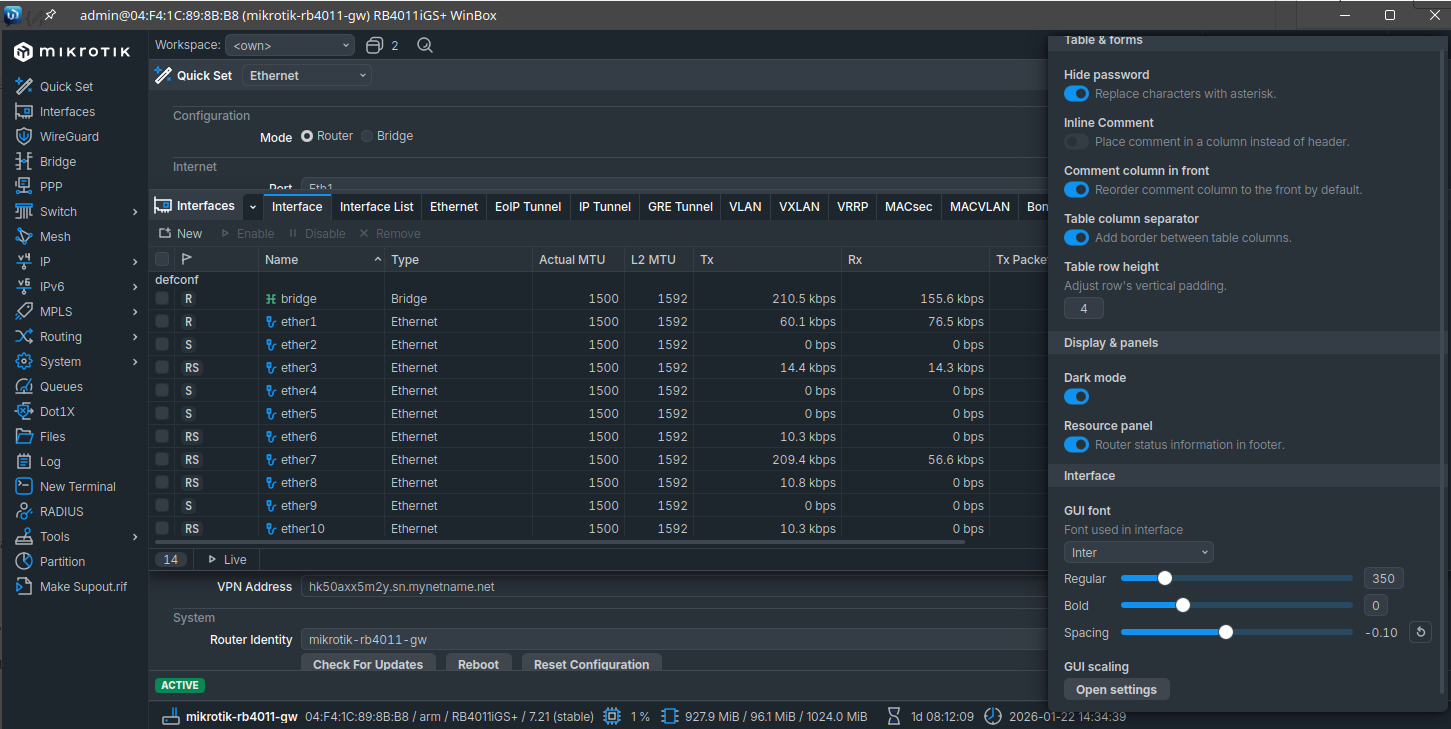
And there is even a dark theme:
SSH
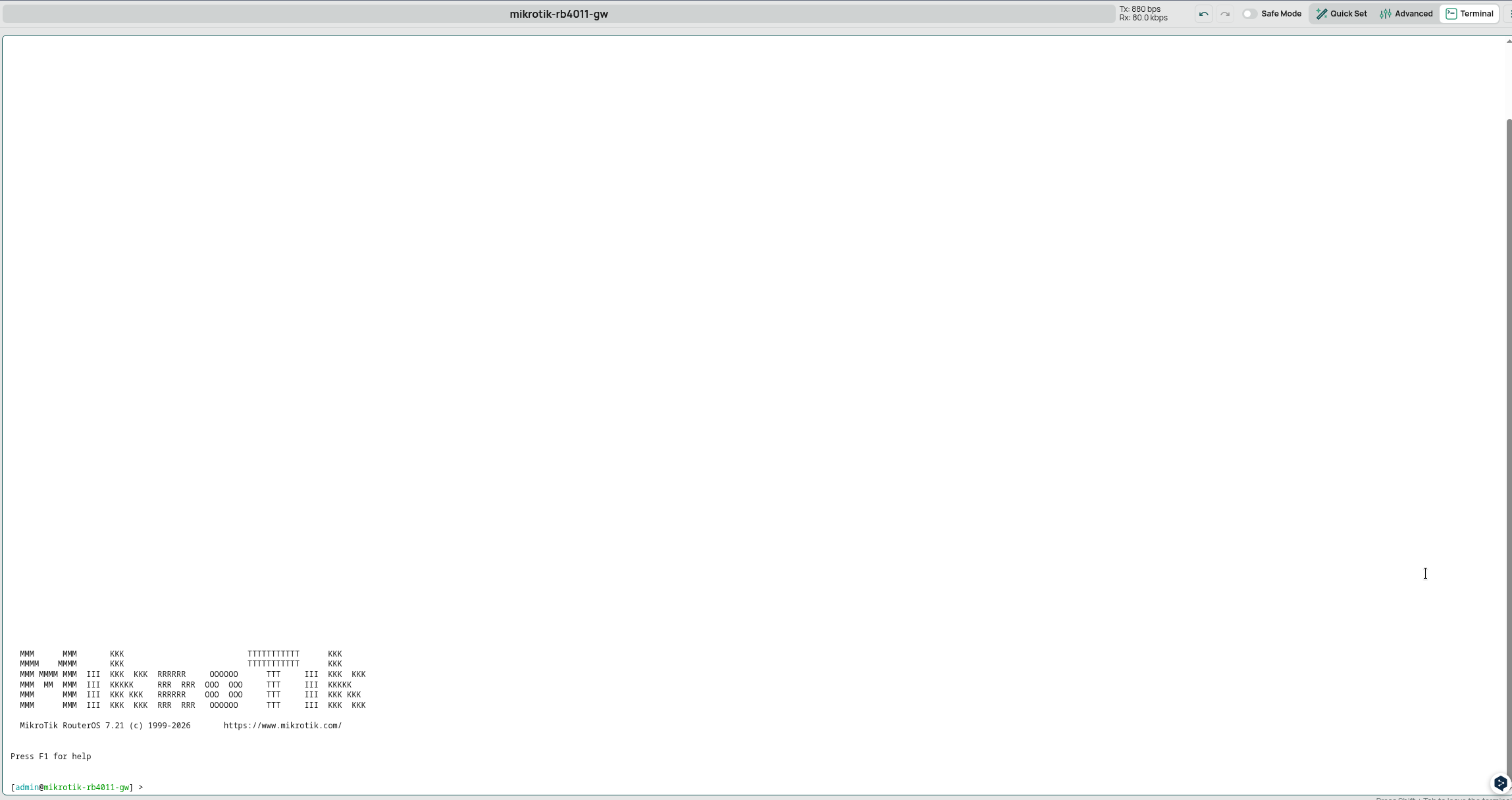
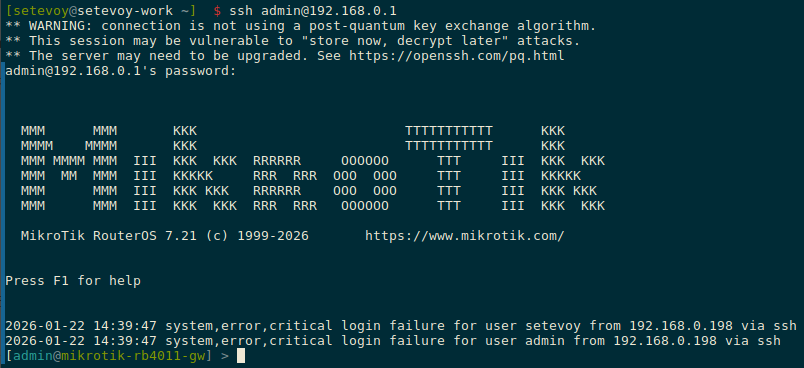
Everything is standard here – just run “ssh 192.168.88.1” from your laptop/PC (I already have DHCP reconfigured, so on the screenshot the address is 192.168.0.1):
You can use keys for SSH instead of passwords; we’ll speak about that in following posts.
Mobile Client
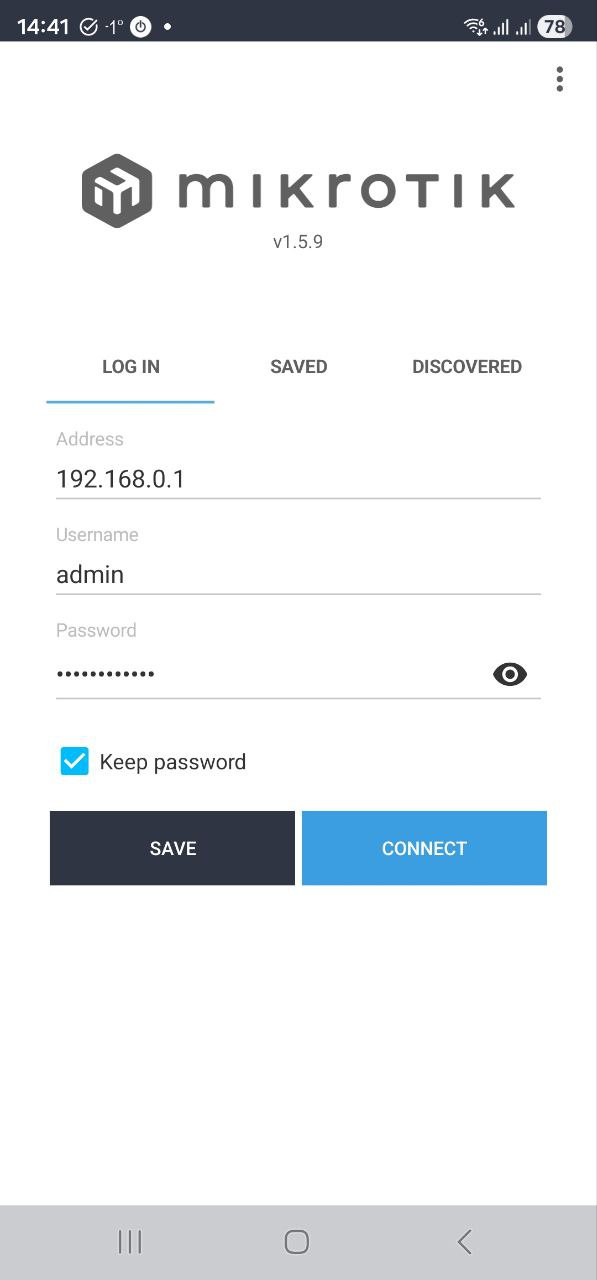
And the mobile app – connect via IP:
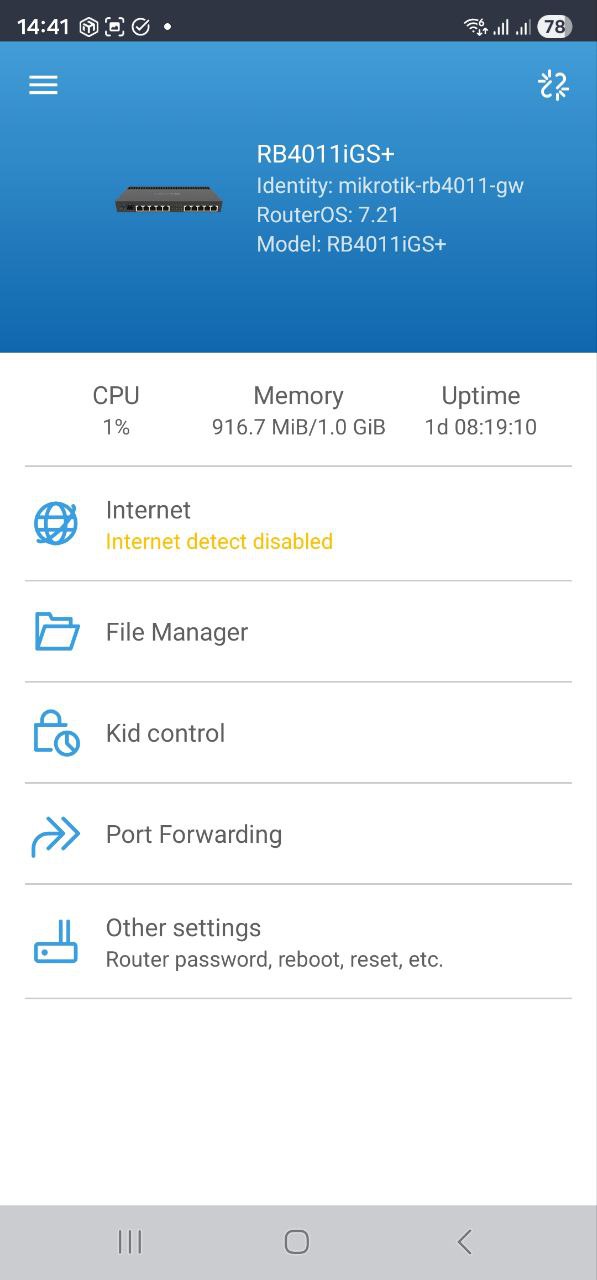
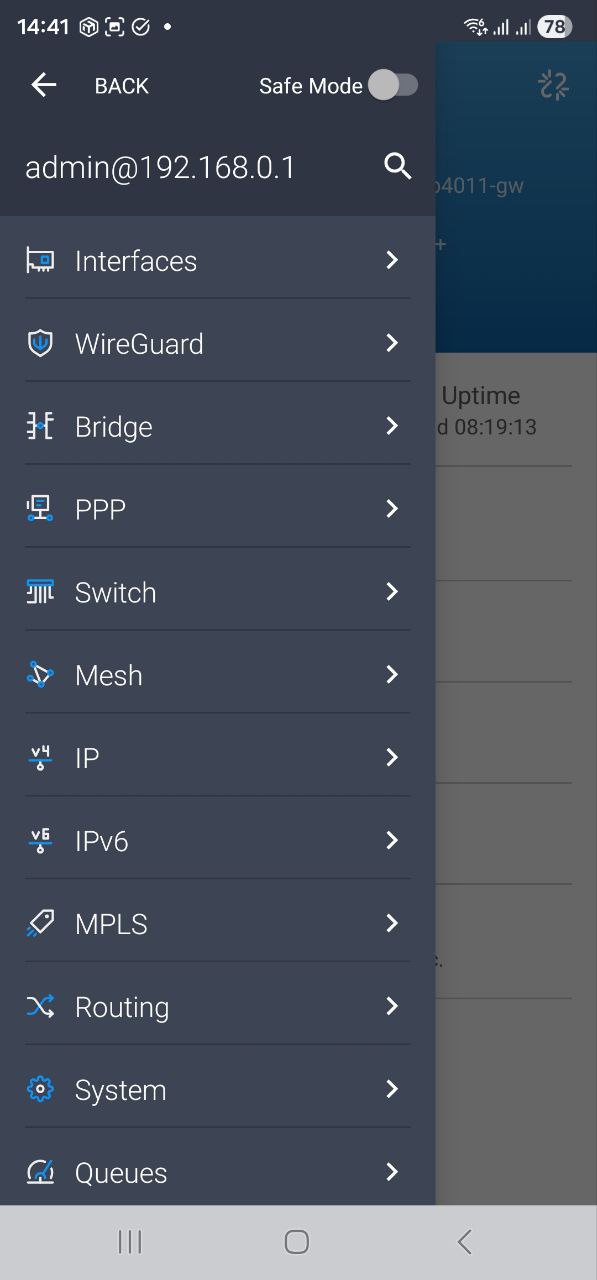
Working in the RouterOS Console
I use the Web UI rarely; from here on, all settings will be via SSH.
Documentation – Command Line Interface and Console.
A very interesting feature is the Safe Mode: it will roll back changes if you break access and the connection drops without correctly saving the settings.
RouterOS has a full-fledged console consisting of a hierarchical command tree.
For example, if the Web UI menu is IP => Firewall:
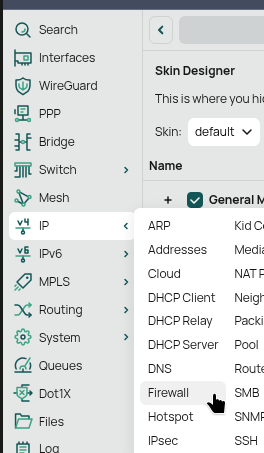
Then in the console it will be /ip firewall.
There is full Tab auto-completion:

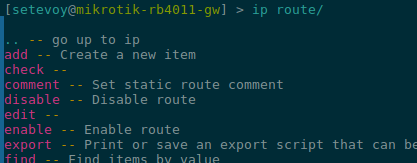
After navigating to a menu, you can press F1 to see available commands:
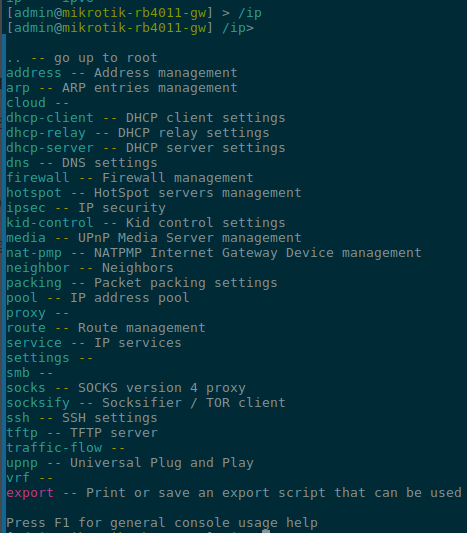
The documentation states that “?” should also display a hint – but on version 7+ this no longer works (Reddit).
Instead of “?”, just select the command and then press F1 or Tab:
Getting Started: Initial Configuration
MikroTik has excellent documentation, and there is a dedicated Getting started section.
I’ll walk through the main things I did when starting out.
Some screenshots are old, so the hostname there might be “MikroTik” – the default; we’ll see how to change it later.
The IP might also be old, the default 192.168.88.1. It is now 192.168.0.1. DHCP configuration will be in the next posts.
Backup and Restore
MikroTik has two options for creating a backup – /export and /system backup.
/export creates a readable text file with the command history, while /system backup creates a binary file that includes everything, including keys and certificates.
However, if a config is transferred to another router, system backup might fail because it contains bindings to a specific device, whereas the result from export simply executes commands.
/export and /import
Run /export to a file:
[setevoy@mikrotik-rb4011-gw] > /export file=init-backup
Now it appears in Files:
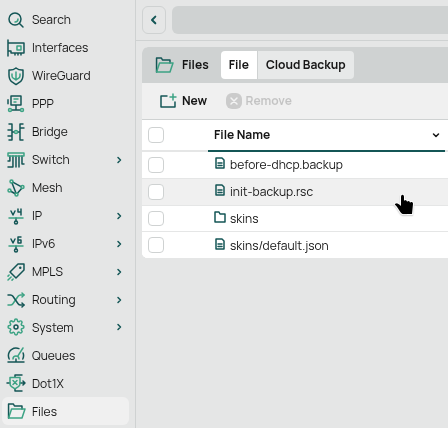
Copy it to your laptop using scp:
[setevoy@setevoy-work ~] $ scp [email protected]:/init-backup.rsc .
[email protected]'s password:
init-backup.rsc
And read it:
[setevoy@setevoy-work ~]  $ cat init-backup.rsc
# 2026-01-22 15:21:51 by RouterOS 7.21
# software id = BUXG-TCU3
#
# model = RB4011iGS+
# serial number = HK50AXX5M2Y
/interface bridge
add admin-mac=04:F4:1C:89:8B:B3 auto-mac=no comment=defconf name=bridge
/interface wireguard
add listen-port=51820 mtu=1420 name=wg0
/interface list
add comment=defconf name=WAN
add comment=defconf name=LAN
/ip pool
add name=default-dhcp ranges=192.168.88.10-192.168.88.254
add name=vpn ranges=192.168.89.2-192.168.89.255
add name=dhcp_pool_lan ranges=192.168.0.50-192.168.0.200
...
To restore parameters, use /import:
/import file-name=init-backup.rsc
The system will simply read all commands from the file in sequence and execute them.
Note that current settings won’t change if they don’t differ from the export file, but duplicates might occur.
Export/import will not restore:
- Passwords
- Certificates and private keys
- License
- Secrets (IPsec, WireGuard private keys)
- Some
/systemparameters
/system backup save and load
To create a full backup:
/system backup save name=before-change
To restore:
/system backup load name=before-change
This will delete all current settings and restore them from the backup.
User Management
It is recommended to create your own user with root privileges and disable (but not delete) the default admin user.
Documentation – User.
First, change the admin password:
/user set admin password=PASSWORD
It’s cool that the password line disappears from the console immediately after execution.
List all users:
/user print

Active sessions:
/user active print
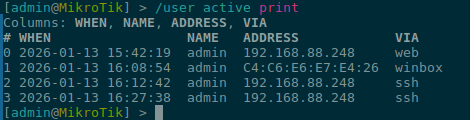
Create a user and set an address limit for access (though remote SSH is disabled by default in the firewall anyway):
/user add name=setevoy group=full password=PASSWORD address=192.168.0.0/24,192.168.88.0/24
Check information about users, either for everyone with /user print detail, or for a specific one with where:
/user print detail where name="setevoy"

Change password or other attributes:
/user set [find name="setevoy"] password=NEW_PASSWORD
Or by ID – find the ID with /user print:

And use it for /user set:
/user set 1 password=NEW_PASSWORD
Connect as the new user:
[setevoy@setevoy-work ~]  $ ssh 192.168.0.1
...
[email protected]'s password:
...
[setevoy@mikrotik-rb4011-gw] >
Router Upgrade
Back it up! 🙂
Although you can always reset to factory settings, it’s better to make it a habit to create a backup.
The upgrade includes two separate processes – updating RouterOS and updating the firmware.
RouterOS Upgrade
Documentation – Upgrading and installation.
Check the current system version:
/system package print
Result:
Columns: NAME, VERSION, BUILD-TIME, SIZE
# NAME      VERSION  BUILD-TIME           SIZE
0 routeros  7.18.2   2025-03-11 11:59:04  11.5MiB
Check for updates:
/system package update check-for-updates
Result:
[setevoy@MikroTik] > /system package update check-for-updates
            channel: stable
  installed-version: 7.18.2
     latest-version: 7.21
             status: New version is available
Download the update – this only downloads it:
/system package update download
Result:
[setevoy@MikroTik] > /system package update download
            channel: stable
  installed-version: 7.18.2
     latest-version: 7.21
             status: Downloaded, please reboot router to upgrade it
And start the upgrade process itself:
/system package update install
The system will reboot:
[setevoy@MikroTik] > /system package update install
            channel: stable
  installed-version: 7.18.2
     latest-version: 7.21
             status: calculating download size...
Received disconnect from 192.168.88.1 port 22:11: shutdown/reboot
Disconnected from 192.168.88.1 port 22
RouterBOARD (Firmware) Upgrade
Documentation – RouterBOARD.
Check the current version:
/system routerboard print
In my case, it looked like this:
[setevoy@MikroTik] > /system routerboard print
       routerboard: yes
             model: RB4011iGS+
          revision: r2
     serial-number: HK50AXX5M2Y
     firmware-type: al2
  factory-firmware: 7.18.2
  current-firmware: 7.18.2
  upgrade-firmware: 7.21
7.18.2 is installed, and an upgrade to 7.21 is available.
Run the upgrade:
/system routerboard upgrade
Result:
[setevoy@MikroTik] > /system routerboard upgrade
Do you really want to upgrade firmware? [y/n]
y
[setevoy@MikroTik] >
14:13:58 echo: system,info,critical Firmware upgraded successfully, please reboot for changes to take effect!
Reboot the router:
[setevoy@MikroTik] > /system reboot
Reboot, yes? [y/N]:
y
system will reboot shortly
Connection to 192.168.88.1 closed.
Verify again:
[setevoy@MikroTik] > /system routerboard print
       routerboard: yes
             model: RB4011iGS+
          revision: r2
     serial-number: HK50AXX5M2Y
     firmware-type: al2
  factory-firmware: 7.18.2
  current-firmware: 7.21
  upgrade-firmware: 7.21
System Management: Core Commands
Useful commands for working with the system.
Show log events:
/log print
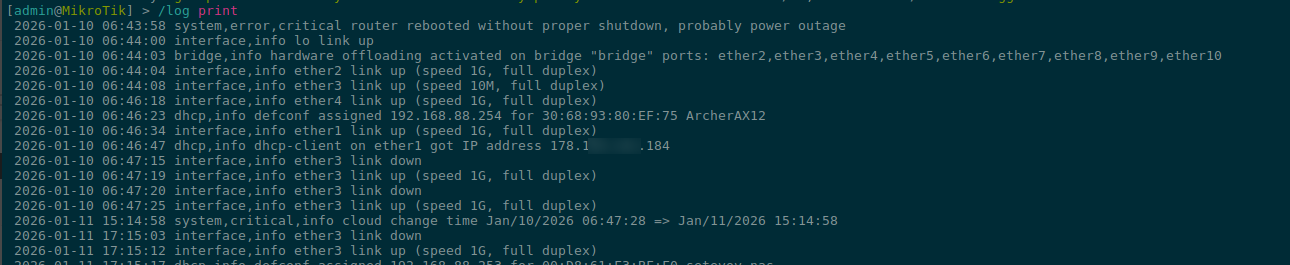
Or with a filter:
/log print where topics~"error|warning"
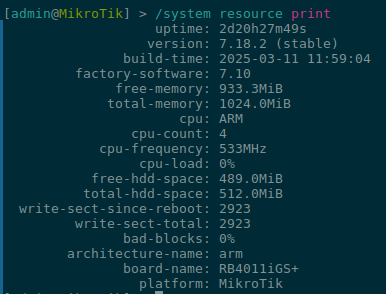
Show system status, version, uptime:
/system resource print
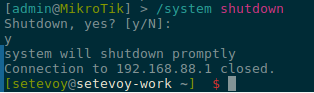
Shut down the system correctly:
/system shutdown
Check power, temperature:
/system health print

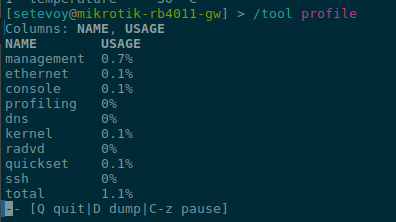
CPU load:
/tool profile
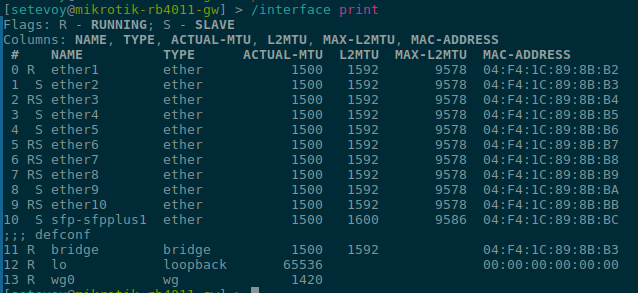
Brief interface status:
/interface print
Or detailed:
/interface print detail
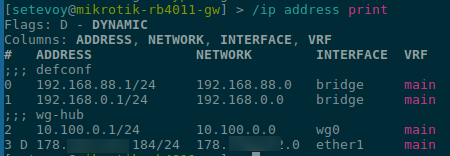
Addresses:
/ip address print
Routes:
/ip route print
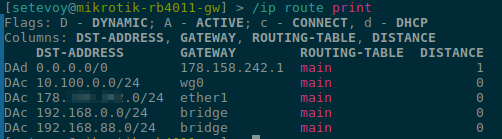
Distance here is the priority: you can have a second internet connection (as I plan – to connect an LTE router with a SIM card to Ethernet port 2), set its Distance == 2, and then traffic will go through the first port if available, and if not, then through the second.
DNS information:
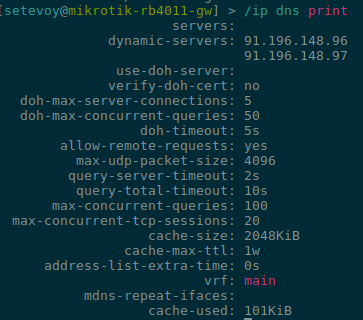
/ip dns print
Execute ping to a host:
/ping 8.8.8.8 src-address=192.168.0.1

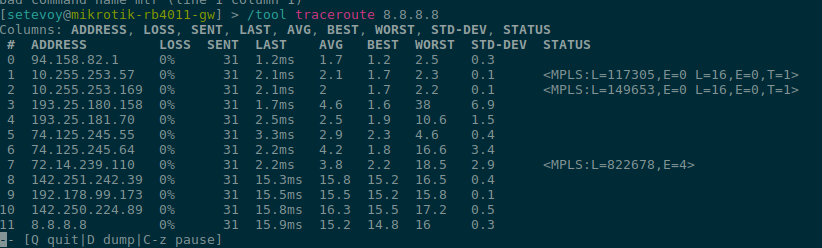
Or traceroute (dynamic, like mtr on Linux/FreeBSD):
/tool traceroute 8.8.8.8
Correctly reboot or shut down:
/system reboot
/system shutdown
Set hostname:
/system identity set name=mikrotik-rb4011-gw
That’s all for the start.
What’s next? Next steps
What else I’m thinking about writing – part of it is already in drafts, part I will (time permitting) write from scratch:
- DHCP configuration
- DNS configuration
- SSH and firewall – users, key-based authentication, firewall rules
- WireGuard configuration for connecting Peers
- Scripts, alerting, monitoring – a very cool feature to write scripts that can send alerts, see Scripting
- Redundant internet channel via LTE router
- WiFi tuning
