 I’ve been a ThinkPad fan for a long time; I really love their entire lineup.
Recently, I came across the X200 model, which was manufactured starting in 2008 – I just saw a picture somewhere and really wanted it for my “collection.” Unexpectedly, it was even available for sale in Ukraine, so I bought this wonder-device.
Contents
ThinkPad X200 overview
It is… Well, it’s great 🙂
The first thing that sets this laptop apart from other models is the 360-degree swivel screen, which is a feature specific to the X200 Tablet model, as there are X200 versions without it.
The second thing is the touchscreen.
Appearance
The ThinkPad X200 Tablet looks like this:


It even has a dial-up modem on board!

And, of course, no HDMI – only VGA for an external monitor.
Although HDMI 1.0 appeared back in 2003, it was used for DVD players and TVs at the time, while laptops in those years mostly still came with VGA.
I ordered a VGA to HDMI adapter because my DELL U3421WE monitor obviously doesn’t have any VGA ports anymore – we’ll see if it works.
On the right, there is a physical switch to disable WiFi/Bluetooth, although my model doesn’t have Bluetooth:

It comes with a stylus:

ThinkPad X200 Hardware
Of course, the hardware is quite old:
- display: 12.1 inches, 1440×900 resolution
- processor: Intel Core 2 Duo SU9400, 1.4 GHz
- video: Integrated Intel 4500MHD card
- RAM: DDR3-1066 MHz
- Lenovo’s official documentation always stated a maximum of 4GB of memory, but Google says 8GB works without issues
- I currently have 4GB, but I’ve ordered two new 4GB sticks; let’s see if it works
- now (in 2025), a 4GB DDR3-1066 MHz stick costs 440 hryvnias 🙂
- disk: SATA, but the drive itself is an HDD, 250 GB, 5400 RPM
- it seems there’s an option to replace the drive with an SSD, but I haven’t disassembled the case yet; I’ll check later, and if possible, I’ll install an SSD
- network:
- Ethernet 1000 Mbps
- WiFi: 802.11a, 802.11g, 802.11n
Installing FreeBSD
Why FreeBSD? Because it was my first UNIX system, where I first compiled a kernel back in 2006 or 2007, and it remained my primary system for my first servers until 2012 or 2013.
My first version of FreeBSD was… I don’t remember exactly, either 5 or 6. But later, after the release of FreeBSD 9, I switched to Linux (CentOS). Honestly, I don’t remember exactly why either. It was something related to changes in package management and FreeBSD ports.
In fact, some of the earliest materials in this blog were posts specifically about FreeBSD – FreeBSD: installation of the Ports Collection, August 14, 2011.
And since we are setting up a “vintage” laptop, why not try a “vintage” system? 🙂
A bit of nostalgia for the times when I was learning to work with FreeBSD ports, when I first figured out runlevels in the SysV init era of Linux and their equivalents in FreeBSD – the system boot modes.
Though, of course, we will be installing the current version of FreeBSD, which is 14.3 as of today.
The only thing is that I couldn’t get the touchscreen to work, and judging by Google results, it won’t work – simply because FreeBSD doesn’t have the driver.
So I will still install FreeBSD, play around, and describe some details, but eventually, this laptop will run Arch Linux – although I had to use a bit of “elbow grease” there, the touchscreen works perfectly.
Choosing a FreeBSD Image
There are three branches of the FreeBSD system:
- RELEASE: the main stable version, updates only for security + critical fixes – maximum stability, minimum surprises
- STABLE: the development branch from which the future RELEASE is formed – stable enough, but bugs may still occur
- CURRENT: the active development branch with all the new features – minimum stability, maximum new experimental stuff
FreeBSD has separate versions for almost all platforms:
 For our ThinkPad X200, we choose amd64, download the image from the Get FreeBSD page, and begin the installation.
Installing FreeBSD on a Virtual Machine
To avoid taking 100,500 photos of the screen, I’ll demonstrate the FreeBSD installation process on a VM using QEMU/KVM, as there is no fundamental difference.
I have a draft about QEMU/KVM virtualization in Linux; I’ll finish it someday, it’s been sitting there for a while.
Official documentation – Chapter 2. Installing FreeBSD.
FreeBSD has a very nice installer, bsdinstall, which lets you do everything at once. In my opinion, it’s more convenient than archinstall, which I didn’t get along with at all (I always install Arch Linux manually):

Select 1, then you have a choice – either start the installation or use the ISO as a live-cd:

Set the hostname:

Next, component selection.
We only need the ports here, “ports – Ports tree“, and you can add “src – System source tree” – this is the entire FreeBSD source code, which is useful if you want to compile your own kernel or for installing updates with the freebsd-update utility, which I’ll mention a bit later:

The next step is disk partitioning:

- ZFS: a file system with support for snapshots, RAID, and the ability to resize partitions
- it appeared in 2005 for the Solaris operating system from Sun Microsystems and was a revolutionary system at the time
- UFS: the classic FreeBSD file system – very stable, minimal RAM usage, but lacks all the features of ZFS
Leave the default option “Auto (ZFS)”:

Looking ahead – here is how the partitions eventually look on the laptop itself:
# gpart show
=>       40  312581728  ada0  GPT  (149G)
         40       1024     1  freebsd-boot  (512K)
       1064        984        - free -  (492K)
       2048    4194304     2  freebsd-swap  (2.0G)
    4196352  308383744     3  freebsd-zfs  (147G)
  312580096       1672        - free -  (836K)
It even offers to set up RAID immediately – but that’s clearly not our case:

Select the disk for installation:

Wait for the installation to finish:


Set the root password:

Choose the network interface:

This is a VM installation, so there is no WiFi here.
However, on the actual laptop, you can configure it right away, though in my case with the ThinkPad X200, I later had to do some manual work, which I’ll show later.
Leave DHCP enabled:


Select the timezone:

After that, configure basic system parameters:
local_unbound: local DNS cache + DNSSEC validation; for a home laptop, you can skip thissshd: enablemoused: mouse support in the console – not very useful, but looks cool 🙂ntpd: time synchronizationpowerd: dynamic CPU frequency management, very useful, especially for a laptop to save battery lifedumpdev: helps debug kernel panics

Next are security hardening settings – interesting, but for a home laptop, you can skip them; they make more sense for servers:

You can read more in the documentation Section 2.8.4, “Enabling Hardening Security Options”, but let’s briefly go over the options, as this is where the first (non-filesystem) differences from Linux appear:
hide_uidsandhide_gids: hide processes from other users (root, of course, sees everything)hide_jail: hide processes running in a jail- FreeBSD Jails – an analogue of “classic” containers in Linux, but with stricter isolation
- and they appeared long before Linux kernel support for anything similar:
- jails were added to FreeBSD back in 2000, with FreeBSD 4.0
- in Linux at the time, there was only
chroot, where isolation was very weak and one could easily escape the “container” to access the whole system - it wasn’t until 2006-2008 that Linux got
cgroups, andnamespacesweren’t added until 2008-2013; only after this, in 2013, did Docker and Linux containers as we know them today appear
read_msgbuf: prevent regular users from readingdmesgproc_debug: disables debugging of other people’s processes for regular users and limits some information from/procrandom_pid: if enabled, PIDs are assigned with a random offset rather than sequentiallyclear_tmp: in FreeBSD, the/tmpdirectory is not cleared by default on reboot; you can enable this withclear_tmp- in Linux, it depends on the distribution and how
/tmpis mounted, as it’s oftentmpfsin RAM, which obviously clears itself - FreeBSD intentionally doesn’t clear it because their policy is: “the administrator decides what the system should do“
- in Linux, it depends on the distribution and how
disable_syslogd: preventsyslogdfrom opening a network socket – you can enable this on a laptop- but
syslogdcontinues to use the local Unix socket/var/run/logfor operation
- but
secure_console: blocks root login from the console without a password when booting in single-user mode (see Chapter 15. The FreeBSD Booting Process – FreeBSD has excellent documentation)disable_dtrace: DTrace in FreeBSD – an analogue of strace/eBPF in Linux for tracing processes, system calls, and kernel activity, with the ability to make “on-the-fly” changes to memory and the kernel;disable_dtraceblocks this ability even for root
Okay – let’s leave everything at default and move to user management:

Add a user:

In FreeBSD, you have the option to specify a Login class, which is a feature unique to FreeBSD, see Configuring Login Classes.
And with that, the installation is complete.
The final window gives you a chance to tune a few things:

Reboot, and you have a new system:

 And the boot screen on the laptop itself:
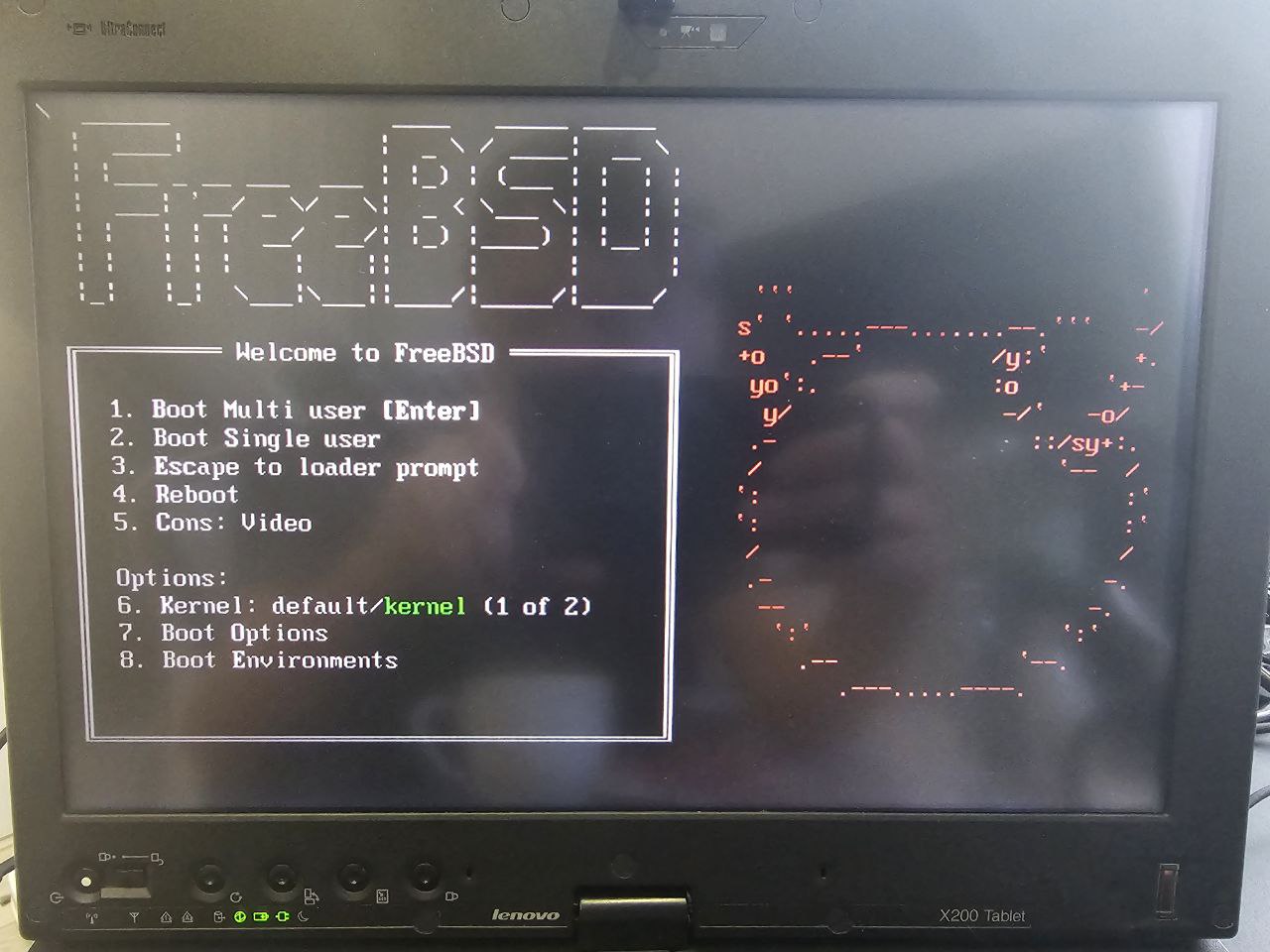
FreeBSD load options
Briefly on the available options:
- Boot Multi user (Enter): standard startup, mounts file systems, and starts services from
/etc/rc.conf- Linux equivalent – regular boot into runlevel/systemd multi-user.target
- Boot Single user: for when the system is broken and needs fixing
- starts only the kernel and a minimal shell
- “
/” is mounted as read-only (can be remounted as r/w) - Linux equivalent –
init=/bin/bashorsystemd.unit=rescue.target
- Escape to loader prompt: console in the FreeBSD loader, where you can change kernel parameters, select a different kernel, or change ZFS Boot Environments
- Linux equivalent – GRUB console, but the FreeBSD loader is more deeply integrated with the system
- Reboot: reboot 🙂
- Cons: Video: a FreeBSD feature that sets the system console type – video console (regular screen) or serial console
- Kernel: default/kernel: selection of the kernel to boot
- during upgrades, the previous kernel version is saved in
/boot/kernel.old/, so you can boot other kernels if problems arise
- during upgrades, the previous kernel version is saved in
- Boot Options: additional boot parameters – disable ACPI, DMA, ZFS cache, etc
Back to the laptop.
WiFi Configuration
During installation on the laptop, the card was detected:

And networks:

But after configuration and completion of the installation, the interface is missing:
 Let’s do it manually.
Use pciconf -lv to check devices on the PCI/PCI-Express bus:

We are looking for device iwn – “Intel WiFi Link 5300“:
The Intel® WiFi Link 5300 Series is a family of IEEE 802.11a/b/g/Draft-N1 wireless network adapters that operate in both the 2.4 GHz and 5.0 GHz spectra
This means we need the iwn driver and the iwn5000fw module.
Add their loading to the /boot/loader.conf file:
if_iwn_load="YES"
iwn5000fw_load="YES"

You can add them without a reboot using kldload:
# kldload if_iwn
# kldload iwn5000fw
Create a new virtual Wi-Fi interface named wlan0 based on the hardware device iwn0, which we saw in pciconf:
# ifconfig wlan0 create wlandev iwn0
Check:

Naturally, there’s no network yet – let’s add the config for it.
For working with WiFi in FreeBSD, there is the wpa_supplicant utility, which is responsible for authorization, connection maintenance, and reconnection upon signal loss.
Edit the /etc/wpa_supplicant.conf file and add parameters at the end:
network={
    ssid="MyWiFi"
    psk="qwerty12345"
}
Add the WiFi configuration loading to /etc/rc.conf, which handles autostart:
wlans_iwn0="wlan0"
ifconfig_wlan0="WPA DHCP"
Restart the network:
# service netif restart
And wlan0 should connect and obtain an IP:
root@setevoy-x200:/home/setevoy # ifconfig wlan0
wlan0: flags=8843<UP,BROADCAST,RUNNING,SIMPLEX,MULTICAST> metric 0 mtu 1500
        options=0
        ether 00:21:6a:b5:32:4c
        inet 192.168.0.172 netmask 0xffffff00 broadcast 192.168.0.255
        groups: wlan
        ssid setevoy-tp-link-21-5 channel 36 (5180 MHz 11a ht/40+) bssid 30:68:93:80:ef:73
        regdomain FCC country US authmode WPA2/802.11i privacy ON
        deftxkey UNDEF AES-CCM 2:128-bit txpower 17 bmiss 10 mcastrate 6
        mgmtrate 6 scanvalid 60 ampdulimit 64k -amsdutx amsdurx shortgi -stbc
        -ldpc -uapsd wme roaming MANUAL
        parent interface: iwn0
        media: IEEE 802.11 Wireless Ethernet MCS mode 11na
        status: associated
        nd6 options=29<PERFORMNUD,IFDISABLED,AUTO_LINKLOCAL>
There might be a 10-30 second delay, but it eventually worked.
If necessary, you can run wpa_supplicant in debug mode:
# wpa_supplicant -i wlan0 -c /etc/wpa_supplicant.conf -dd
FreeBSD Ports Collection and pkg
In FreeBSD, there are two independent mechanisms for installing programs – using the pkg utility or building them yourself.
pkg is an analogue of apt or pacman in Linux: it fetches and installs pre-compiled packages from the official repository:
# cat /etc/pkg/FreeBSD.conf
FreeBSD: {
  url: "pkg+https://pkg.FreeBSD.org/${ABI}/quarterly",
  mirror_type: "srv",
  signature_type: "fingerprints",
  fingerprints: "/usr/share/keys/pkg",
  enabled: yes
}
FreeBSD-kmods: {
  url: "pkg+https://pkg.FreeBSD.org/${ABI}/kmods_quarterly_${VERSION_MINOR}",
  mirror_type: "srv",
  signature_type: "fingerprints",
  fingerprints: "/usr/share/keys/pkg",
  enabled: yes
}
Here, FreeBSD refers to user-facing packages, while FreeBSD-kmods is the repository for additional kernel modules (nvidia-driver, virtualbox-kmod, etc.).
The FreeBSD Ports Collection is a directory of package source code and Makefiles, organized by category; for example, the port for xfce4-conf would be in the /usr/ports/x11/ directory:
root@setevoy-x200:/home/setevoy # ls -1 /usr/ports/x11/xfce4-conf/
Makefile
distinfo
files
pkg-descr
pkg-plist
You should use ports if you need specific parameters for compilation and installation, but for the most part, everything can be installed via pkg.
System and Package Upgrades
Here we have two separate parts – the system itself and the packages installed via pkg.
Documentation – Chapter 26. Updating and Upgrading FreeBSD and freebsd-update man.
For system upgrades, FreeBSD has a great utility called freebsd-update – it allows you to both fetch the latest updates and perform major system upgrades.
To fetch and install manually, run:
# freebsd-update fetch
# freebsd-update install
fetch downloads the latest updates, while install applies them.
Alternatively, you can add it to cron immediately:
@daily root freebsd-update cron
freebsd-update fetch and freebsd-update install will upgrade the kernel, system utilities in /bin, /sbin, /usr/bin, libraries in /lib, /usr/lib, and drivers.
To upgrade packages installed with pkg, use similar commands:
# pkg update
# pkg upgrade
Just like with freebsd-update, use update to fetch and upgrade to install.
Installing X.Org and Desktop Environment
I wrote about X.Org and choosing a Desktop Environment in the post Arch Linux: installation and configuration of KDE Plasma in 2025; now we just need to choose which environment to use.
Given the limited resources – an old CPU and only 4GB of RAM – we need something lightweight.
XFCE is an option – it’s light, stable, and comes with all the necessary tools out of the box.
LXQT is a bit heavier than XFCE but more modern.
Or you could just go with a pure Window Manager like Fluxbox or Openbox.
Let’s go with XFCE.
Install X.Org and the video drivers – Direct Rendering Manager GPU drivers.
X.Org will pull a large set of dependencies:
# pkg install xorg drm-kmod
...
Number of packages to be installed: 318

The process will require 3 GiB more space.
431 MiB to be downloaded.
...
Install XFCE itself – it’s also quite large:
# pkg install xfce xfce4-goodies
...
Number of packages to be installed: 317

The process will require 1 GiB more space.
248 MiB to be downloaded.
...
I remember installing KDE from ports back in 2010 – the build process took many hours because pkg didn’t exist then, and almost everything was installed via the ports collection in those days.
There was a system called pkg_tools then, but it didn’t have a dependency system; packages were downloaded via FTP, and upgrading packages essentially meant uninstalling and reinstalling them.
Back to our system.
Now that XFCE is installed, let’s add a login manager, slim (Simple Log In Manager):
# pkg install slim slim-themes
Add DBus startup (required for XFCE) and Slim to /etc/rc.conf:
sysrc dbus_enable="YES"
sysrc slim_enable="YES"
Create the ~/.xinitrc file in the user’s home directory so Slim knows what to launch:
# echo "exec startxfce4" > /home/setevoy/.xinitrc
Reboot the machine:
# reboot
And voila – everything is ready:


You can check which video driver is in use:
# cat /var/log/Xorg.0.log | grep -E "Driver|scfb|vesa"
[   145.813]    X.Org Video Driver: 25.2
[   145.862] (==) Matched scfb as autoconfigured driver 2
[   145.862] (==) Matched vesa as autoconfigured driver 3
[   145.864]    Module class: X.Org Video Driver
[   145.864]    ABI class: X.Org Video Driver, version 25.2
[   145.864] (II) LoadModule: "scfb"
[   145.864] (II) Loading /usr/local/lib/xorg/modules/drivers/scfb_drv.so
[   145.864] (II) Module scfb: vendor="X.Org Foundation"
[   145.864]    ABI class: X.Org Video Driver, version 25.2
[   145.864] (II) LoadModule: "vesa"
[   145.864] (II) Loading /usr/local/lib/xorg/modules/drivers/vesa_drv.so
[   145.864] (II) Module vesa: vendor="X.Org Foundation"
[   145.864]    Module class: X.Org Video Driver
[   145.865]    ABI class: X.Org Video Driver, version 25.2
[   145.865] (II) modesetting: Driver for Modesetting Kernel Drivers: kms
[   145.865] (II) scfb: driver for wsdisplay framebuffer: scfb
[   145.865] (II) VESA: driver for VESA chipsets: vesa
[   145.873] (WW) Falling back to old probe method for scfb
[   145.873] scfb trace: probe start
[   145.873] scfb trace: probe done
[   145.874]    ABI class: X.Org Video Driver, version 25.2
[   145.875]    ABI class: X.Org Video Driver, version 25.2
[   146.006] (II) UnloadModule: "scfb"
[   146.006] (II) Unloading scfb
It didn’t like scfb for some reason, so it will use vesa, but on this hardware, it’s not a big deal at all.
Add other useful packages:
# pkg install vim sudo bash
I’m already used to bash, so I’ll install that too.
To change a user’s shell, use chsh:
# chsh -s /usr/local/bin/bash setevoy
chsh: user information updated
Check:
# grep setevoy /etc/passwd
setevoy:*:1001:1001:setevoy:/home/setevoy:/usr/local/bin/bash
And that’s basically it.
The system is up and running.
However, as I mentioned at the beginning – on such old hardware, the touchscreen doesn’t work under FreeBSD, so I’ll eventually install Arch Linux – I’ve already tested it, and the touchscreen works perfectly with both fingers and the stylus.
